How to Manually Create a Salto Access Code and Group
Manually creating a Salto code lets you assign unique access rights to users, perfect for situations where automated integrations aren’t available or a reservation requires special handling. Follow these steps to create a user, generate a PIN code, and link access groups in the Salto admin portal.
Step-by-step Guide
Step 1: Go to Manage Passwords in the Salto admin dashboard. Use the provided link to log in with your administrator credentials.
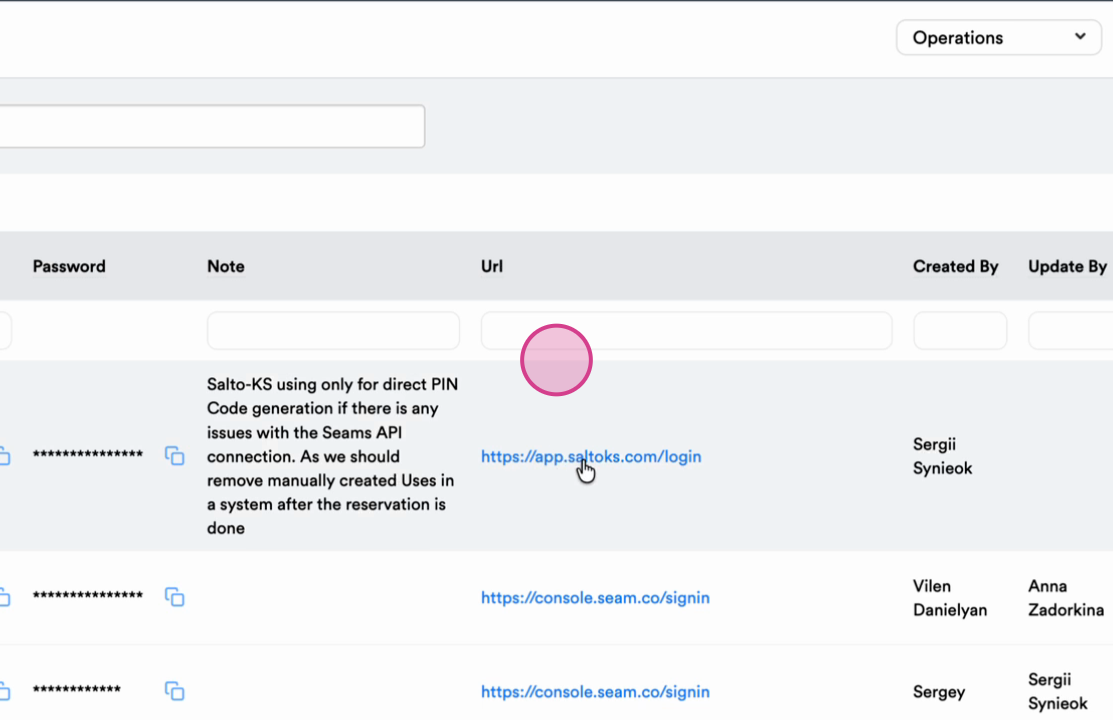
Step 2: Switch to the correct hotel account using the selector at the top—choose the relevant property for your reservation (e.g., Circ Hotel).
Step 3: Create a new user by navigating to the Users section and clicking Add User.
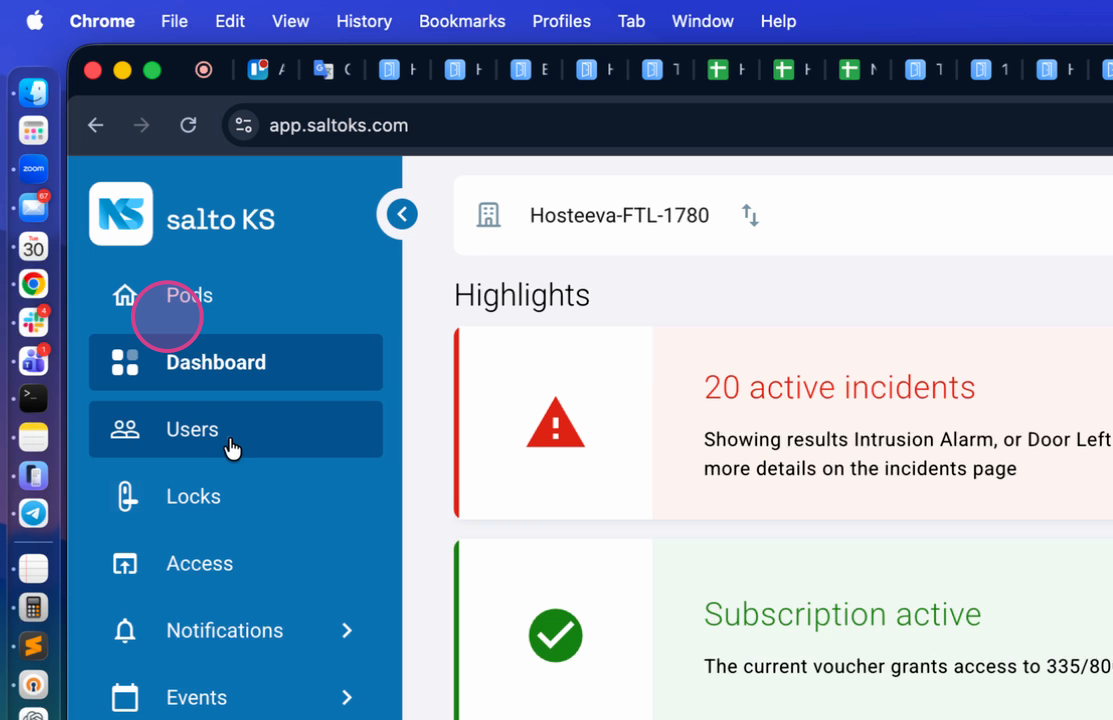
Step 4: Select Manual user creation. Enter the user’s email (if required), booking number as the first name, and “manual” as the last name.
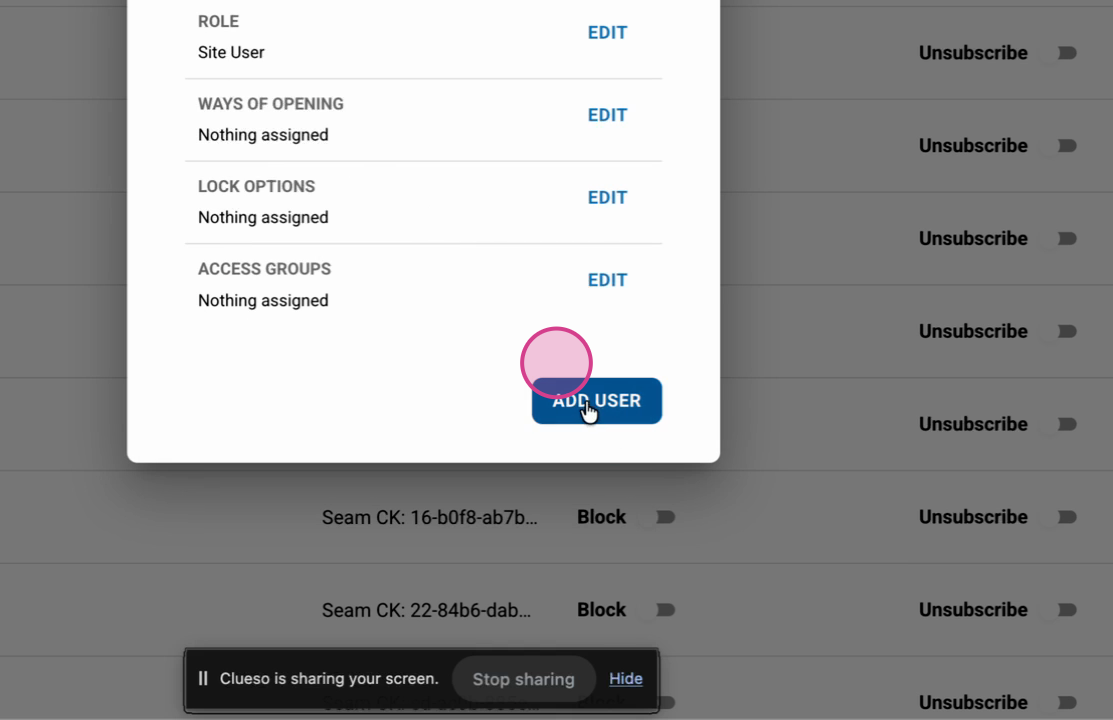
Step 5: Skip access group assignment for now when prompted. Complete the rest of the form and click Add User.
Step 6: Find your new user in the list. Assign a PIN code by generating a code and pasting it into the reservation record under the manual section.
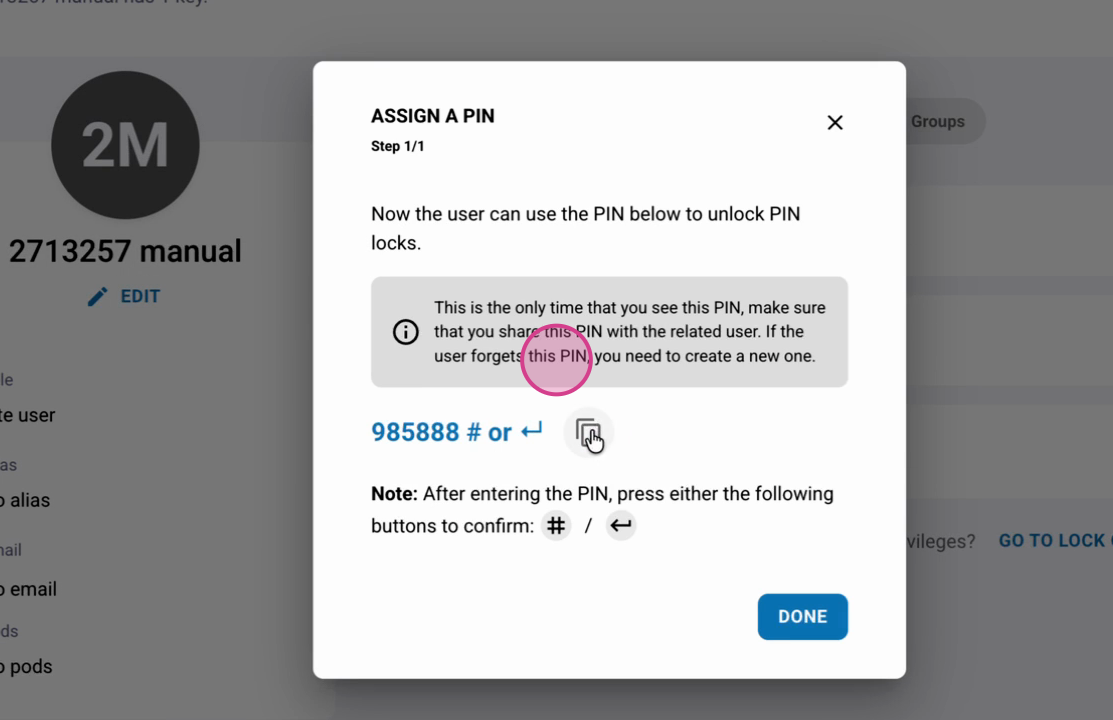
Step 7: Save the reservation with the new PIN code included.
Create and Assign an Access Group
Step 1: Go to Access Groups and select Create Access Group.

Step 2: Name the group (e.g., “101 manual”) to match the room or booking number for clarity.
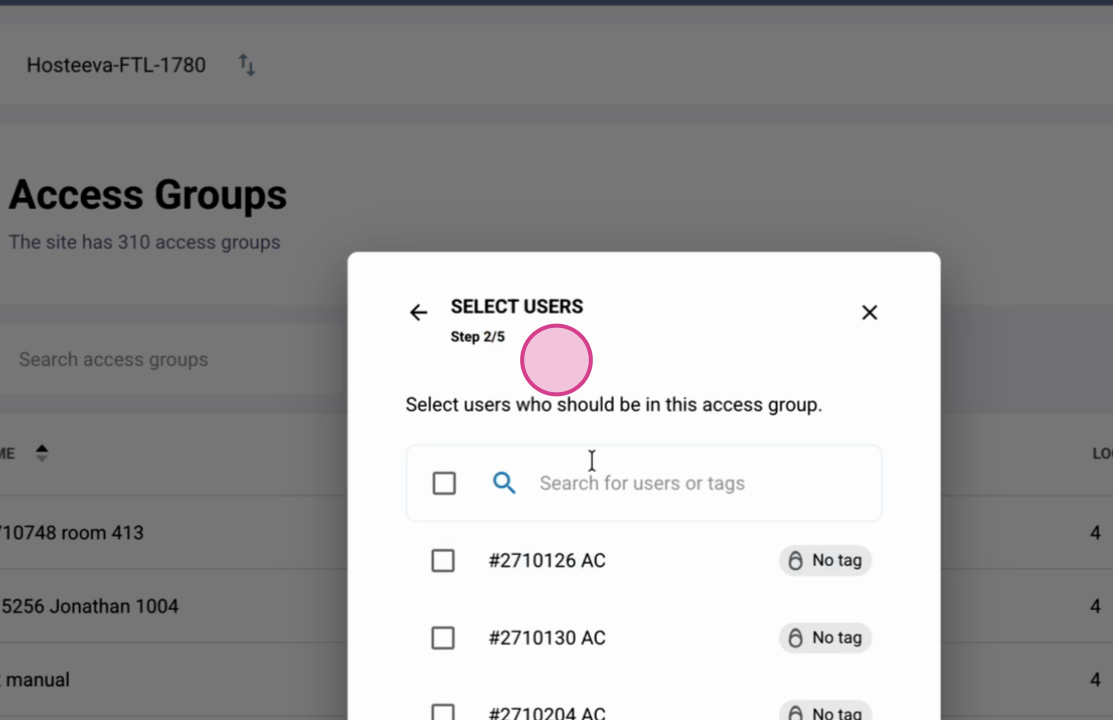
Step 3: Add the user to this access group by copying their booking ID and searching for them in the member selection.
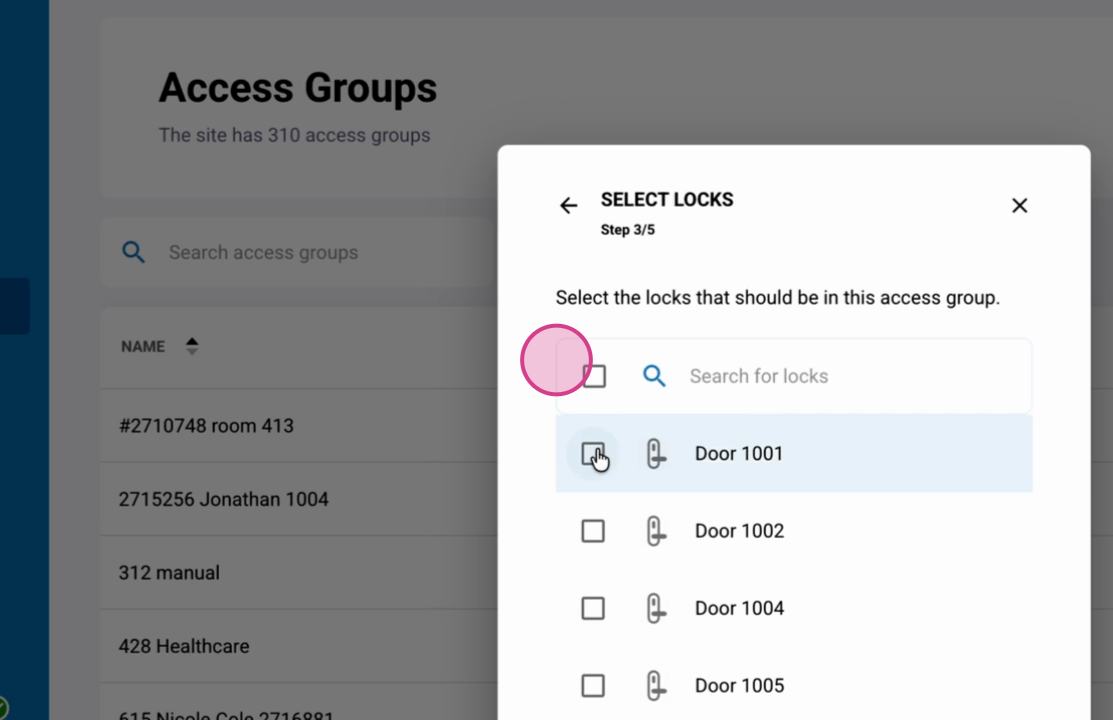
Step 4: Assign locks to the group. Select the correct unit door, elevator, and lobby locks as needed for the booking.
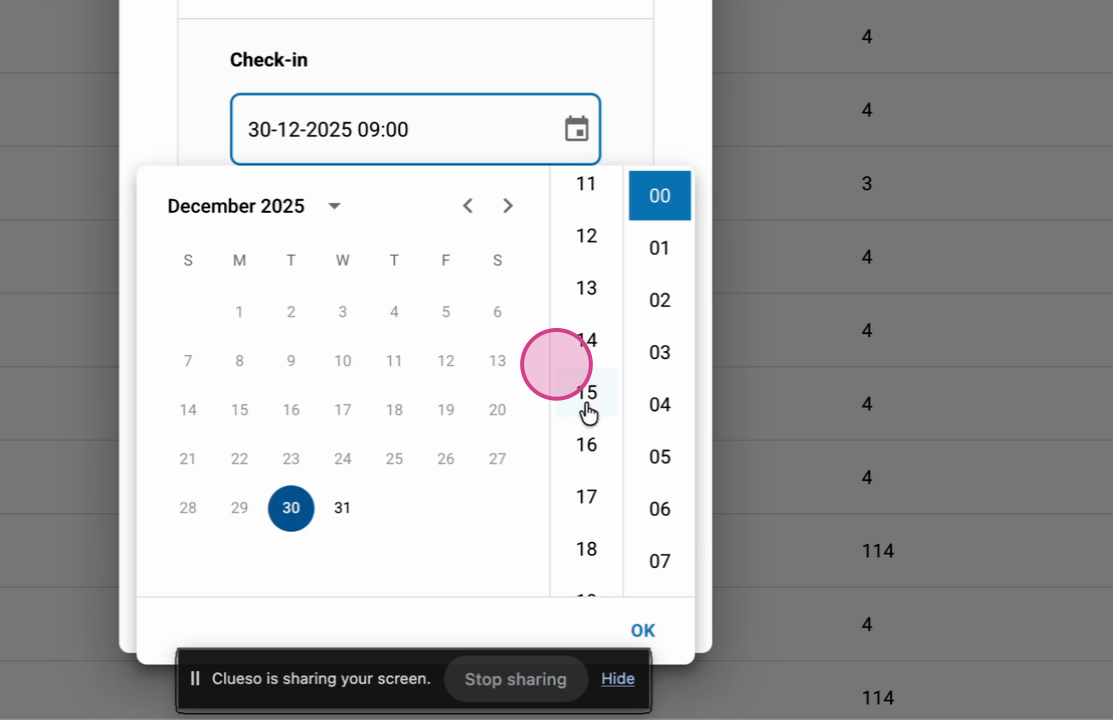
Step 5: Set the access time frame—choose the correct check-in and check-out times from the reservation (e.g., 3pm to 11am).
Step 6: Review all selections, confirm, and click Create to finalize the access group.
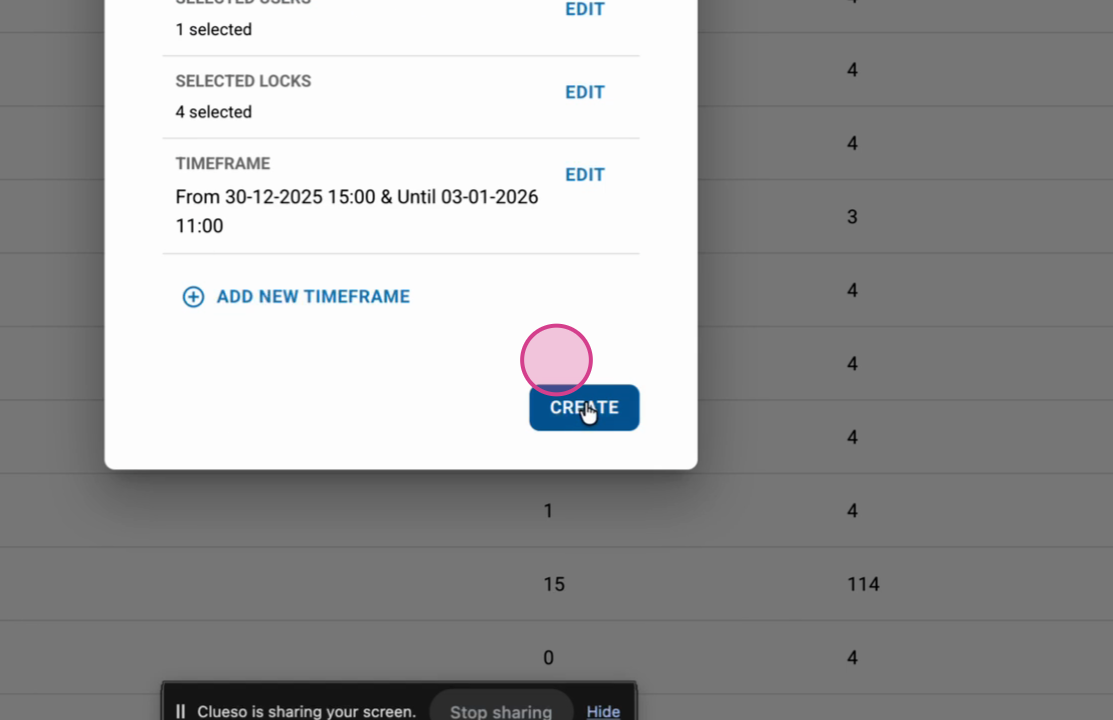
Step 7: Double-check that the user and group are correctly listed. Confirm that logs and time frames match your reservation.
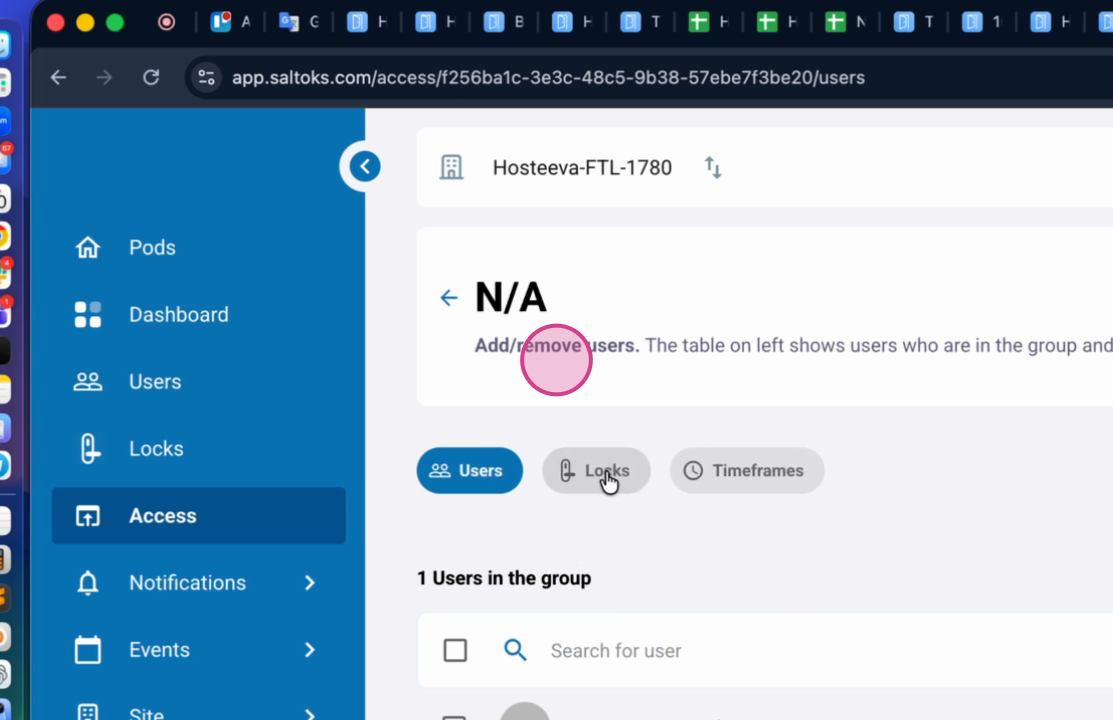
Manual user and access group creation in Salto gives you precision control—great for unique reservation scenarios or troubleshooting. Once access is set, you’ll ensure guests or staff have exactly the right permissions, right when they’re needed.