Managing Pricing Actions and Timeline Features
In this article, you'll learn how to manage pricing actions and use various features on our timeline.
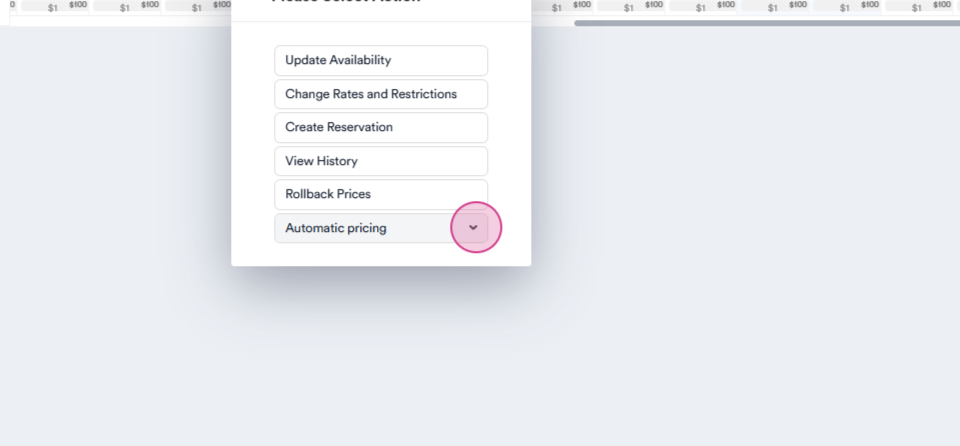
Overview of Timeline Actions
Begin by looking at the actions available on the timeline.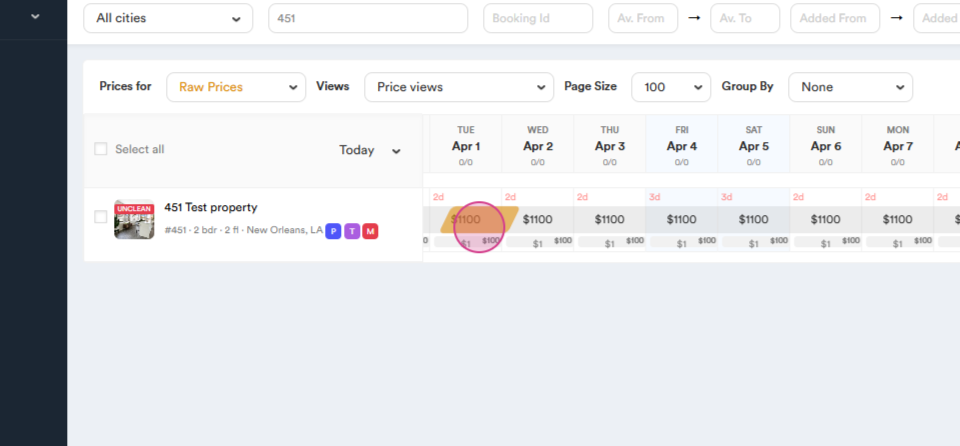
Updating Availability
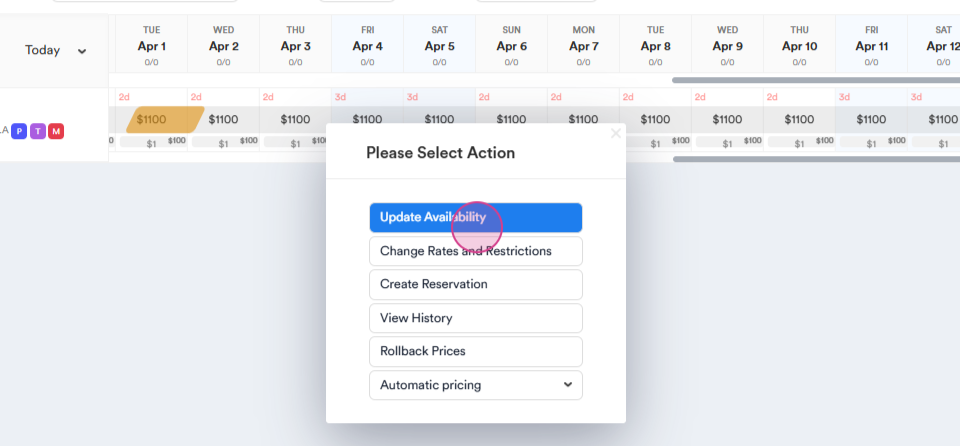
- Locate the Update Availability option on the timeline.
Select Dates to Change
- Choose the dates you want to modify.
Specify Days
- Select specific days or choose all days.
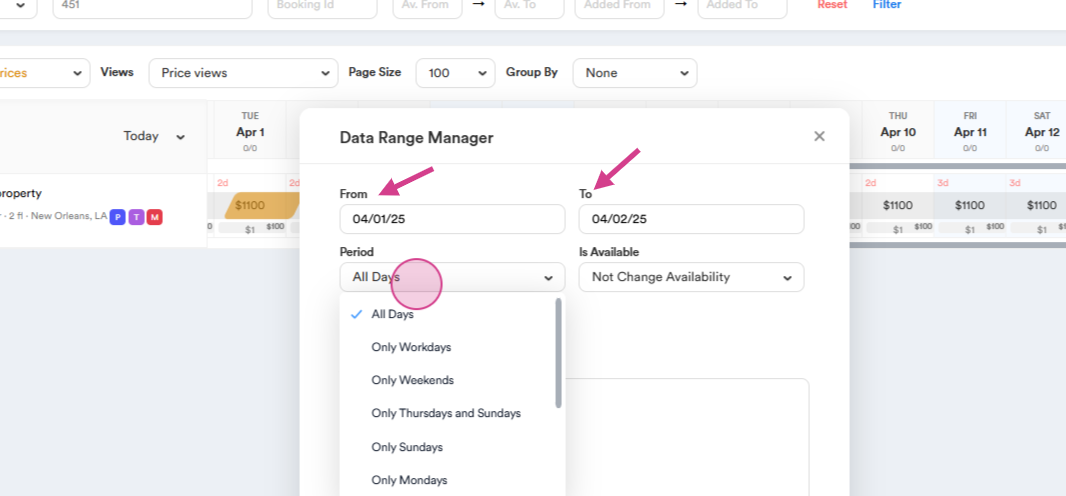
Open the Calendar
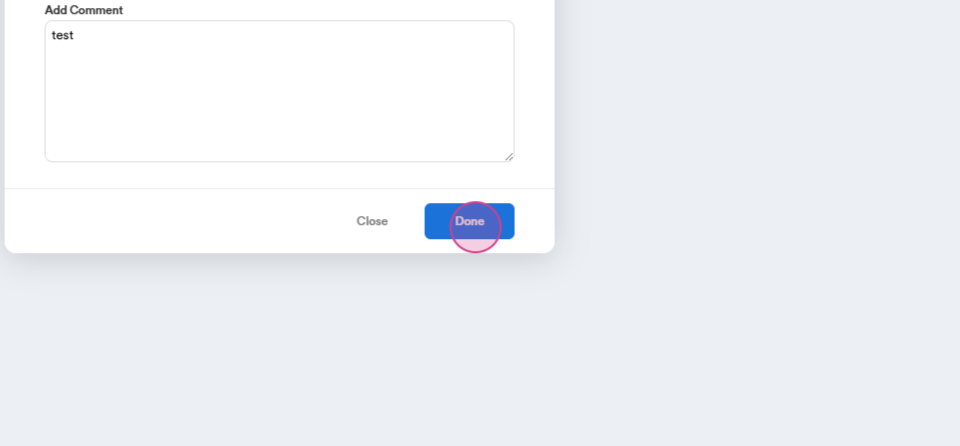
- Select Available, write a comment, and press Done.
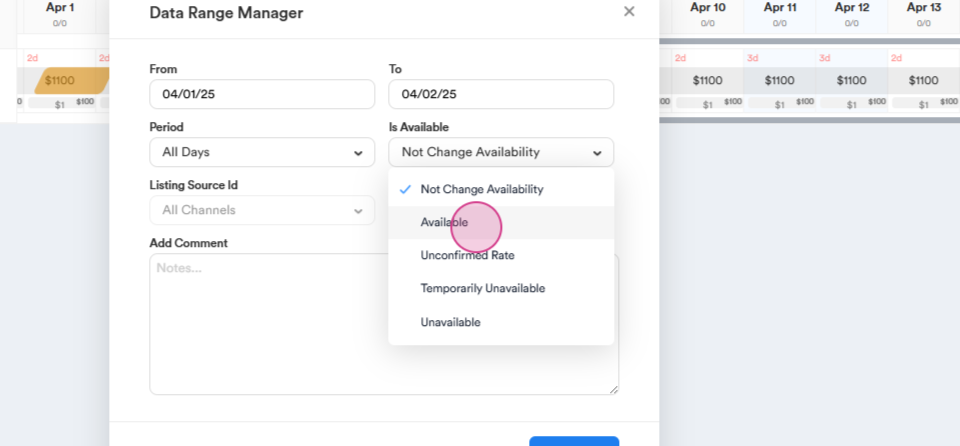
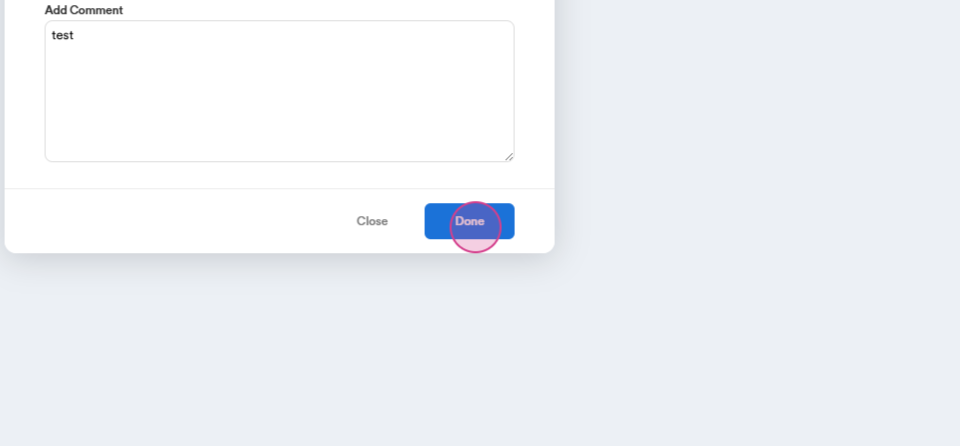
Blocking the Calendar
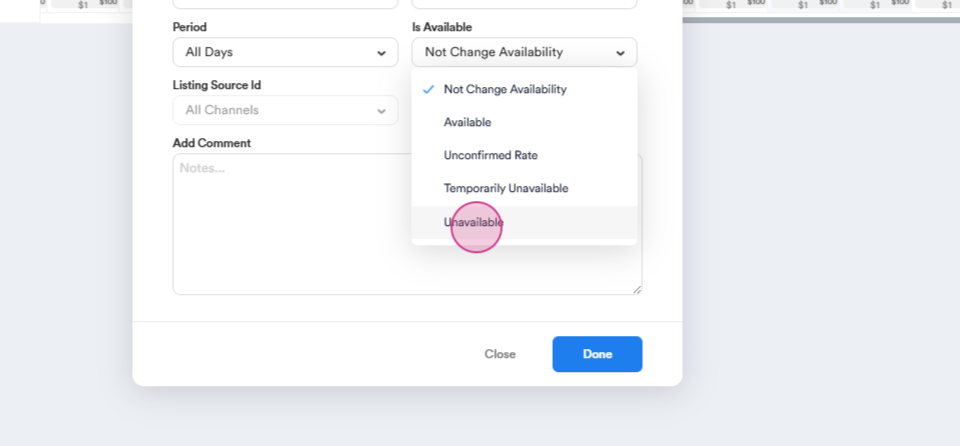
There are three options for blocking the calendar:
-
Unavailable
- Mark the calendar as unavailable.
- Remember to write a comment.
-
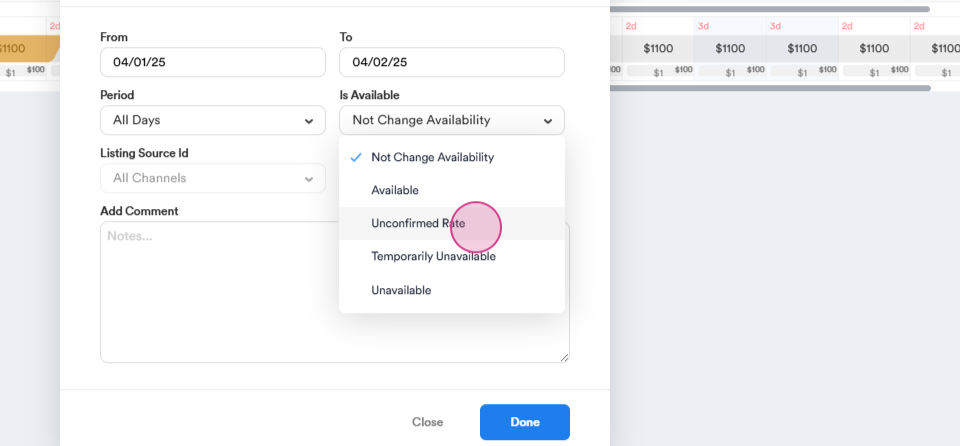
Unconfirmed Rate
- Use this option to block with an unconfirmed rate.
- The block will appear as shown below.
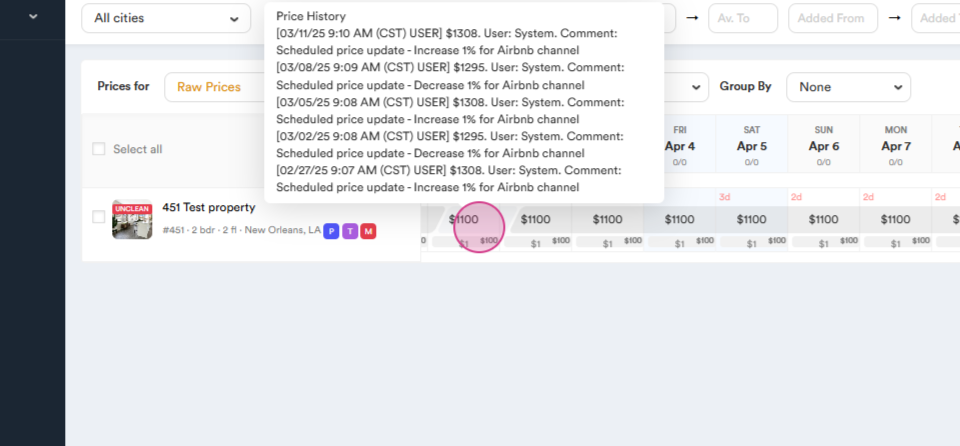
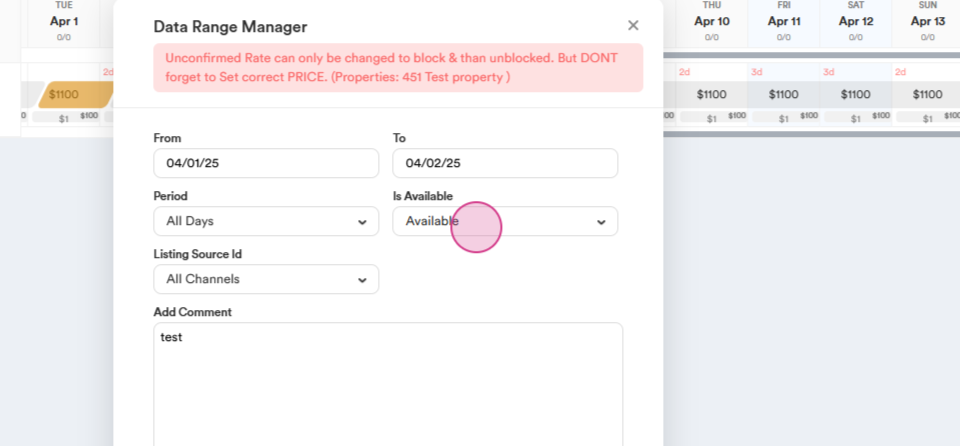
- To unblock, first make it Unavailable, then proceed to unblock.
-
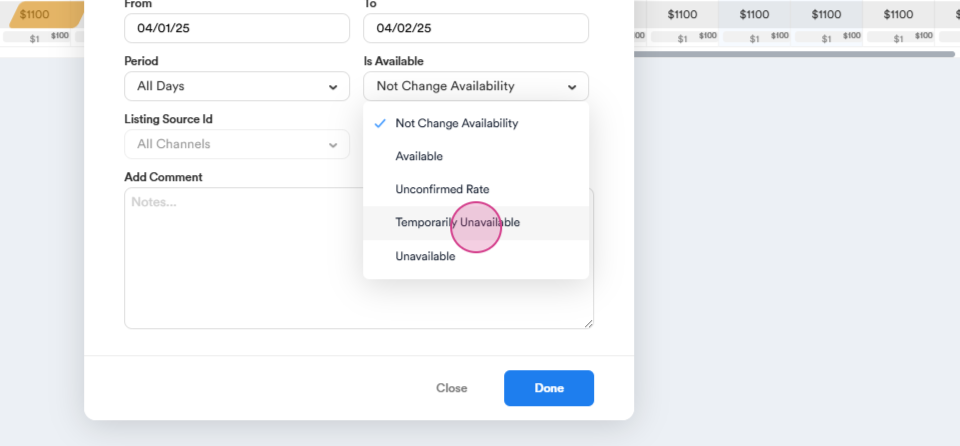
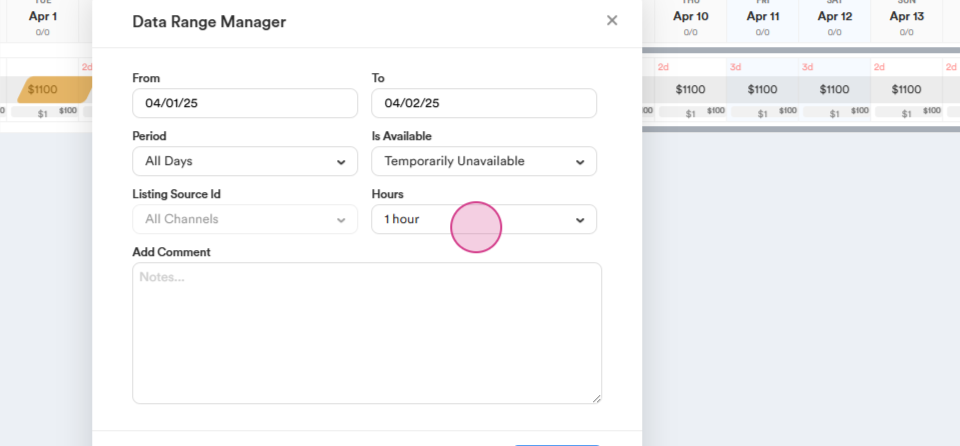
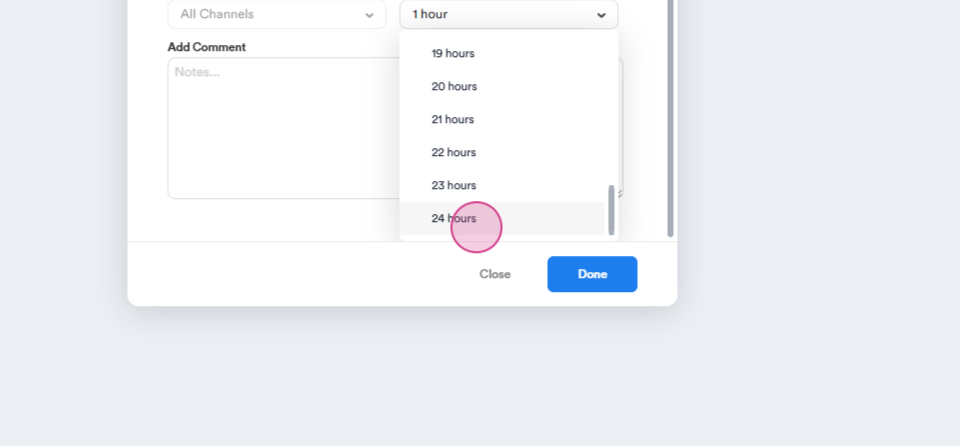
Temporarily Unavailable
- Use this option to close the calendar for 1–24 hours. It will reopen automatically.
Change Rates and Restrictions
- Since Change Rates and Restrictions and Create Reservation have a large volume, they're presented separately.
View History
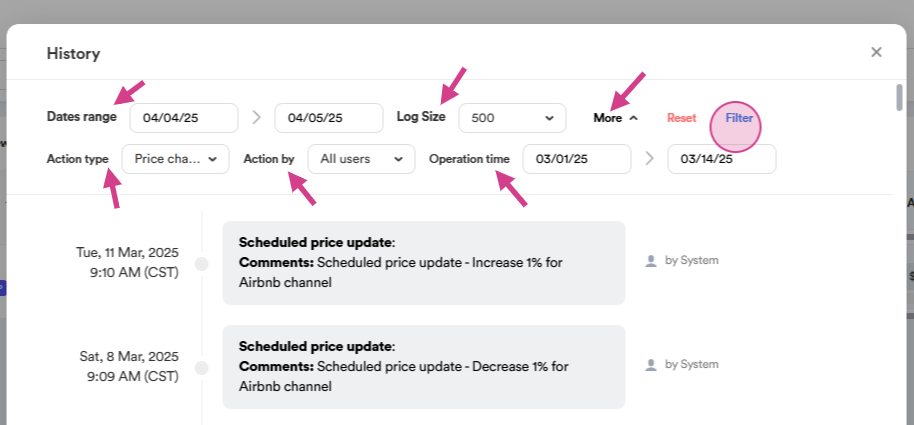
- Review the history of actions taken.
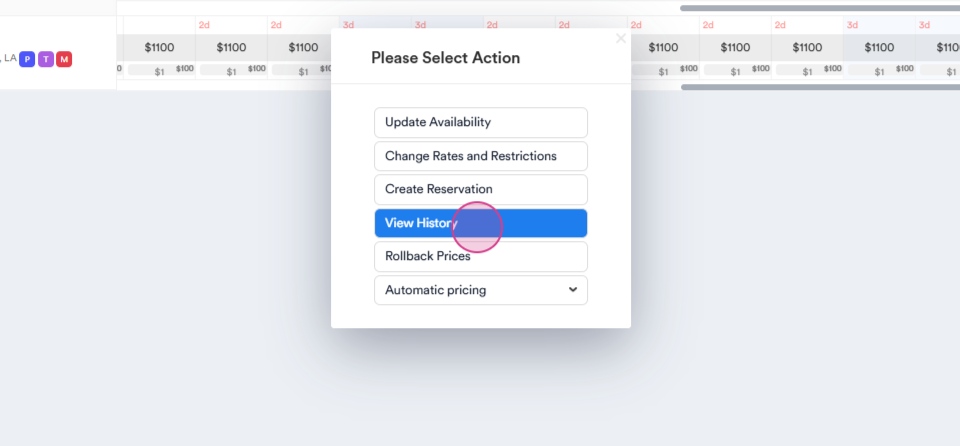
- Use the filters to see your necessary history
Managing Prices
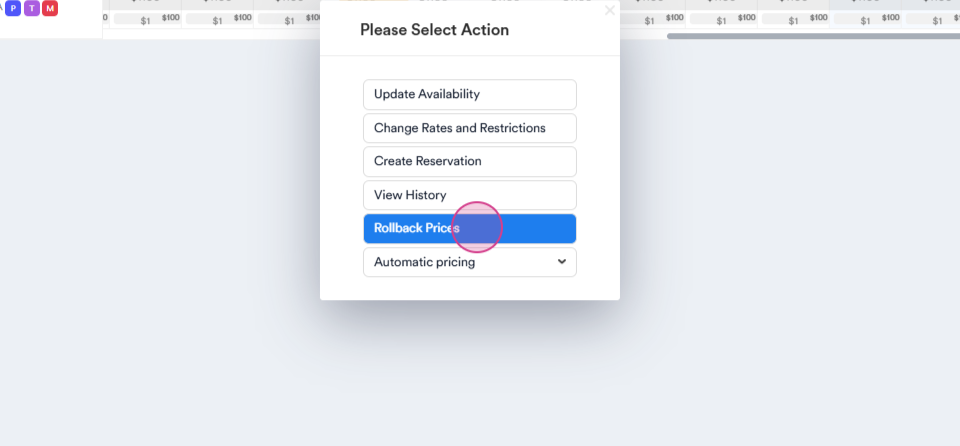
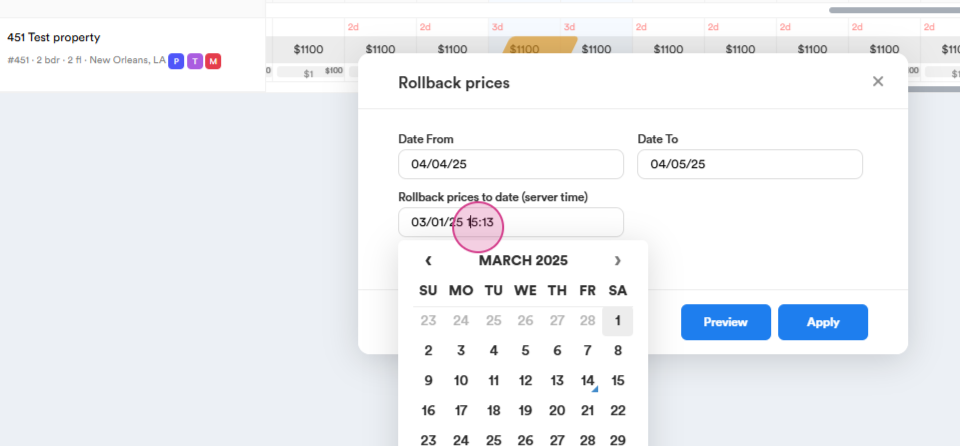
- Go back to old prices when needed.
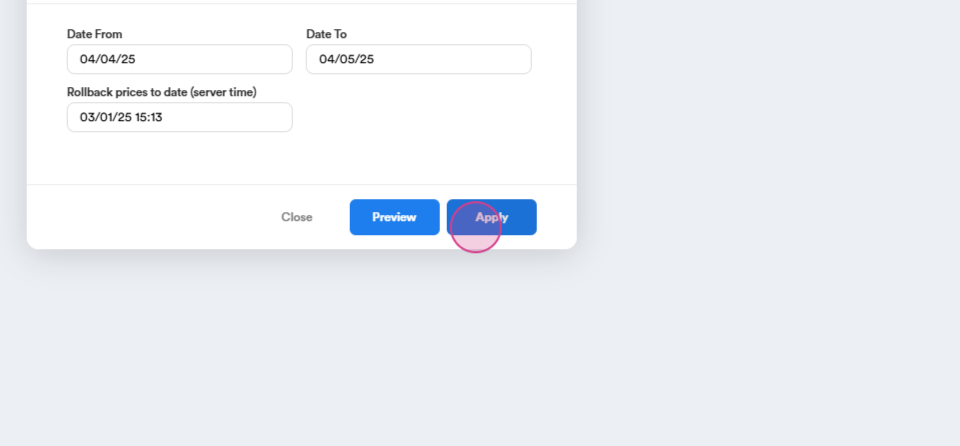
- Select the date and time of the price shown on timeline, then apply it.
Automatic Pricing
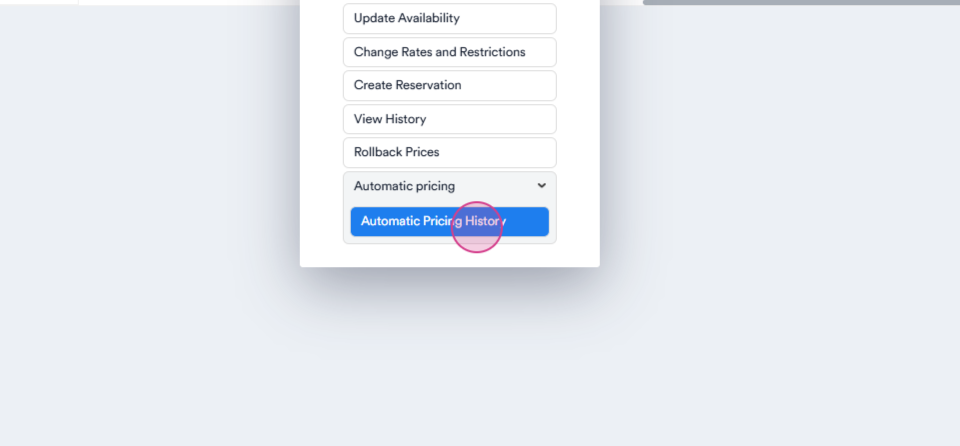
- Use the Automatic Pricing button to switch from the timeline to automatic pricing.