This article will guide you through the process of activating different types of discounts for Booking.com.
Step 1: Navigate to the Timeline
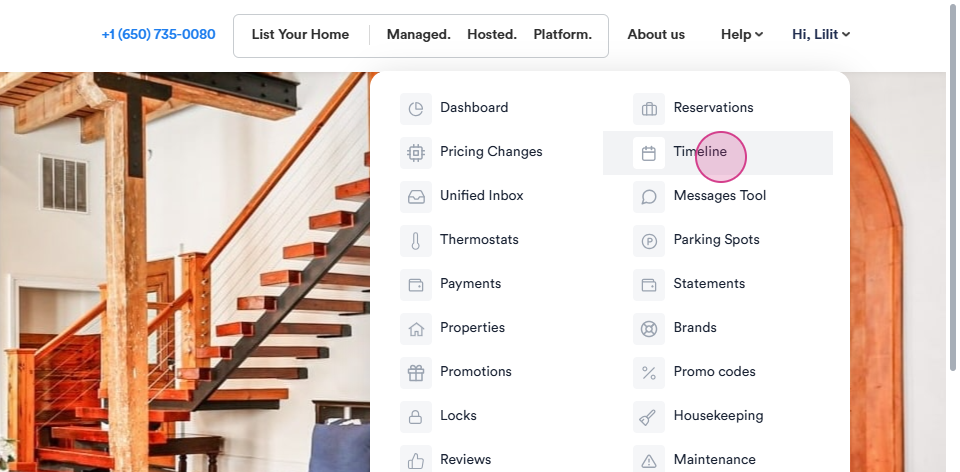
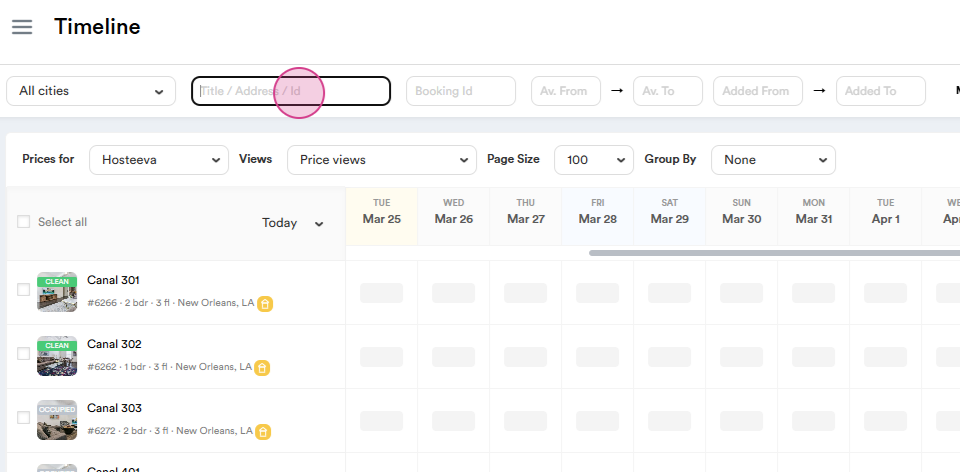
Step 2: Click on the title and search for the required Unit Name or search by ID.
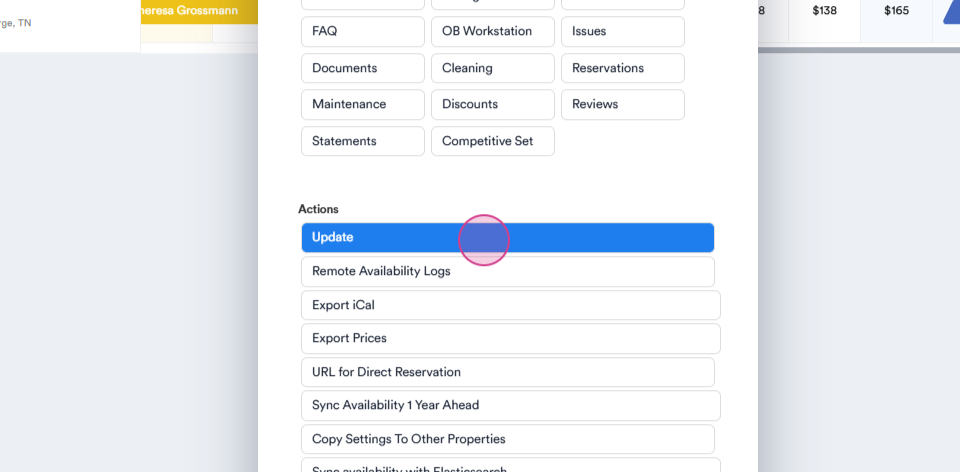
Step 3: Left-click on the unit and then click on the Update.
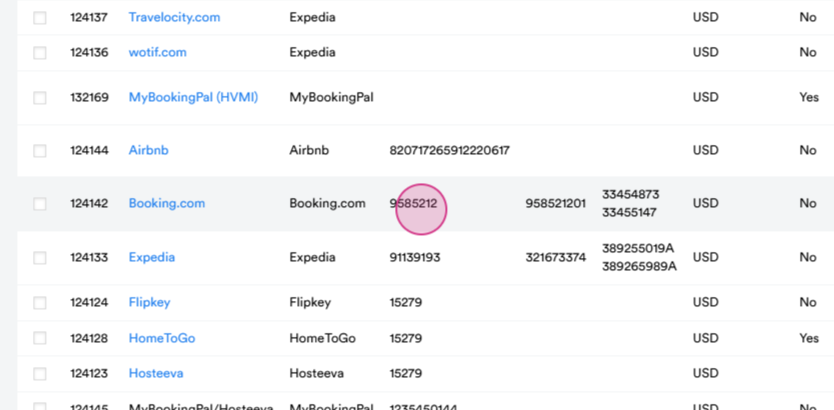
Step 4: Scroll down to the channel mappings section and copy the Booking hotel ID.
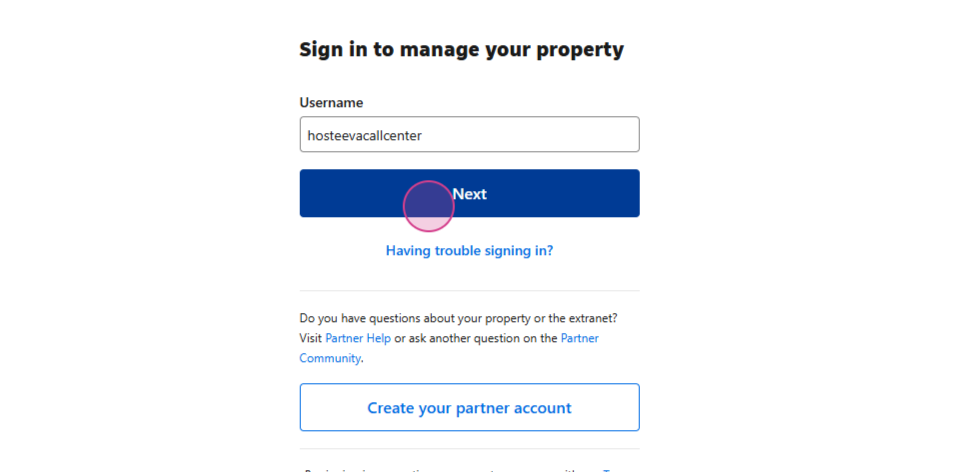
Step 5: Navigate to the Booking channel and log in to the channel.
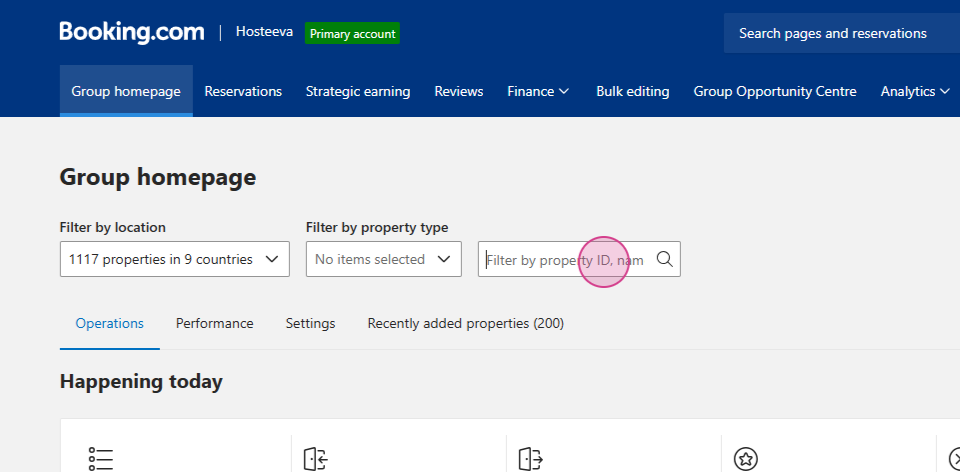
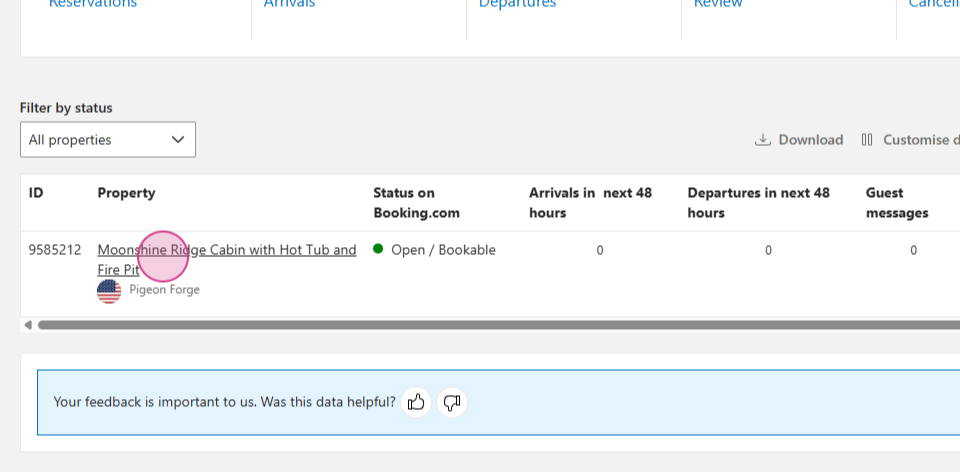
Step 6: Paste the hotel ID and click on the hotel.
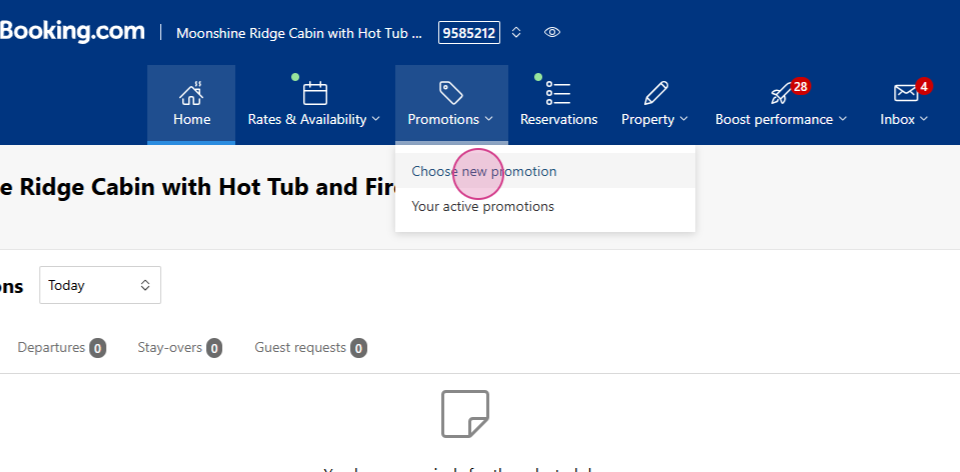
Step 7: Navigate to the "Promotions" tab and choose "New Promotion".
Step 8: Select the type of discount you want to activate.
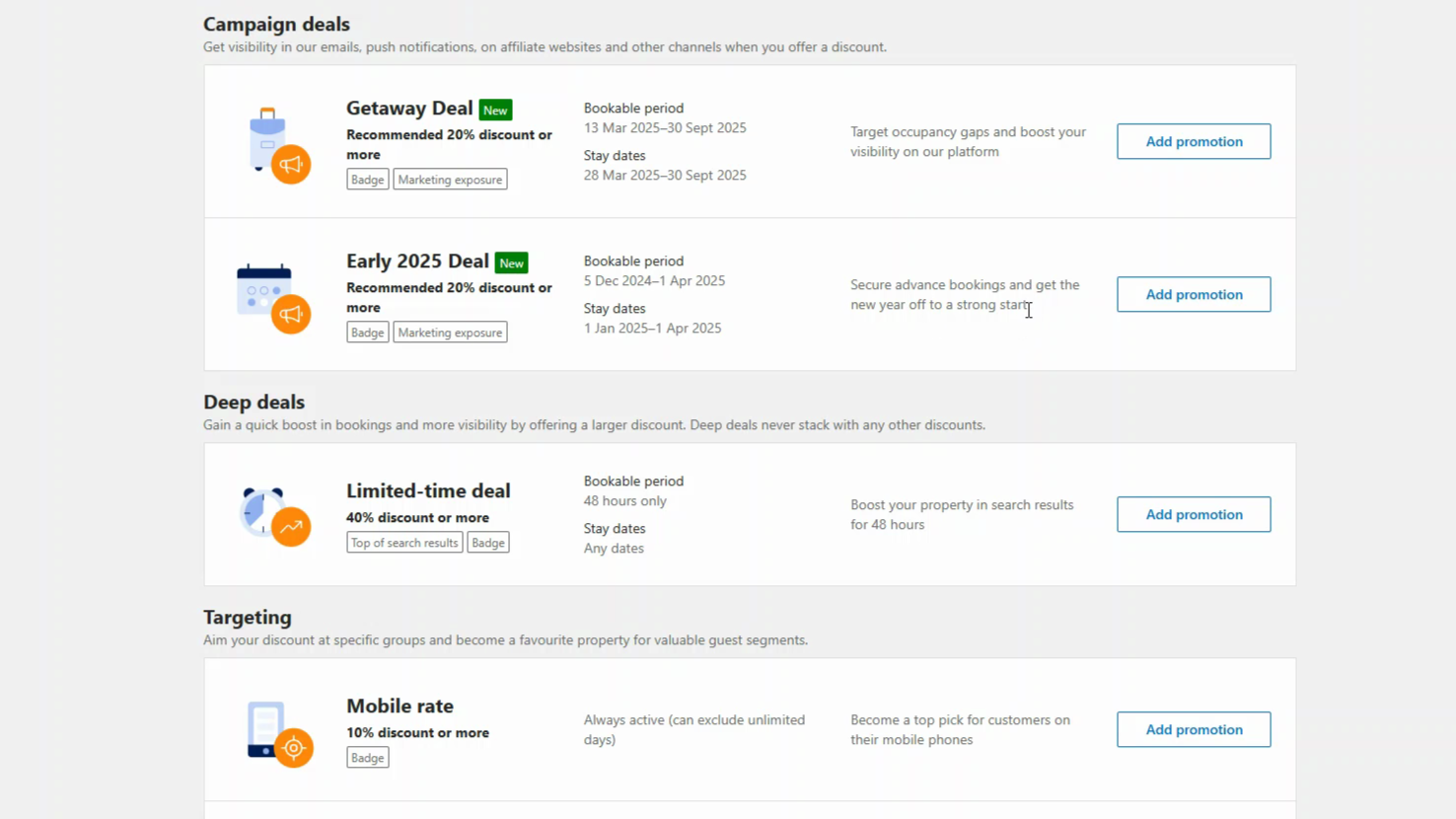
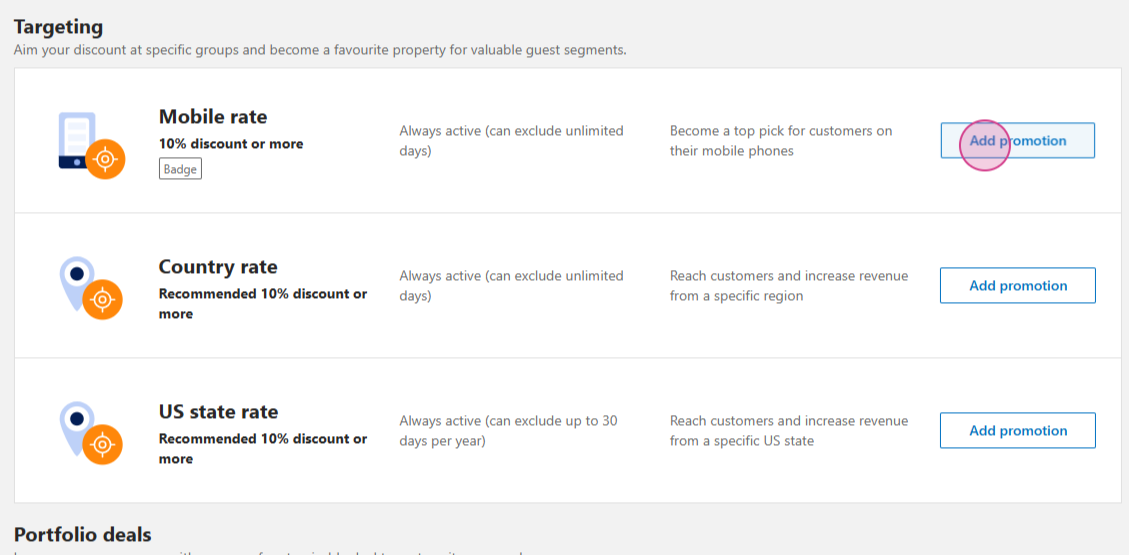
Step 9: To activate a Mobile rate, go to "Add Promotion".
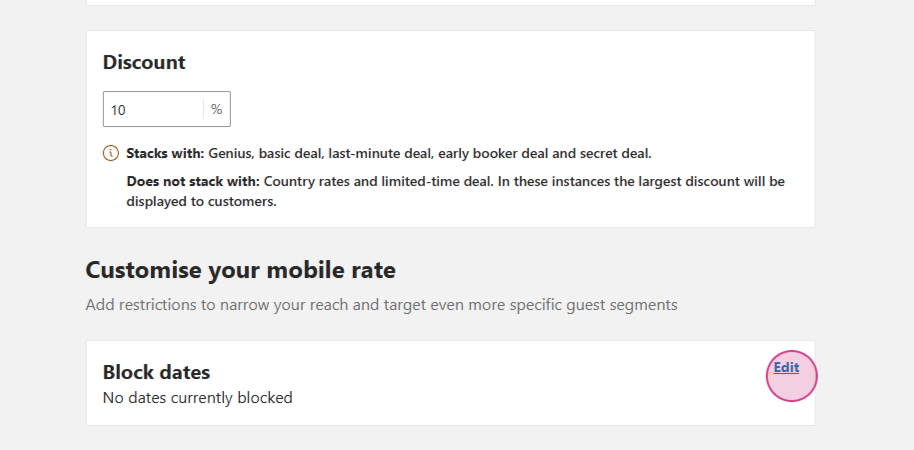
Set your Discount percent and Block dates, if needed.
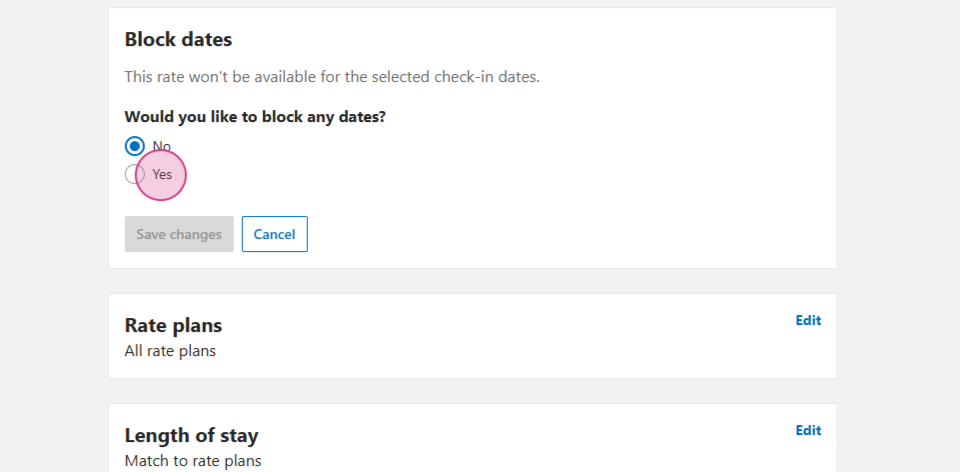
Choose All rate plans or select the Specific rate plans you need.
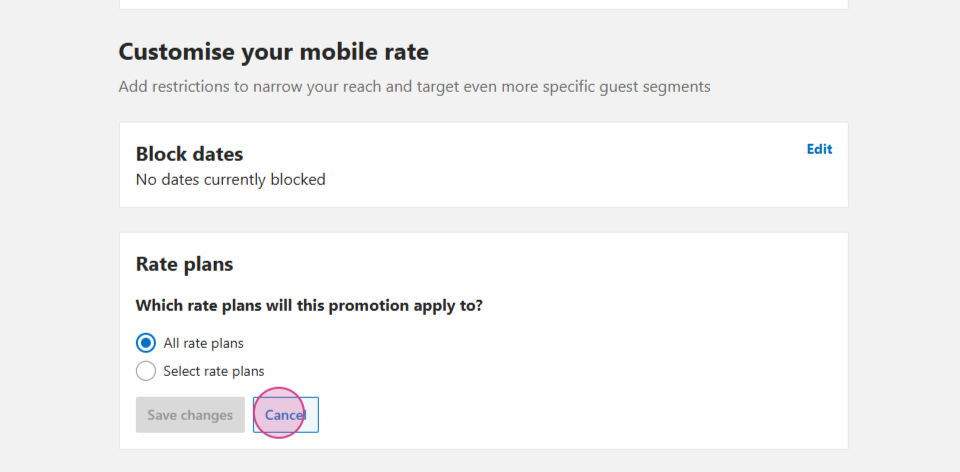
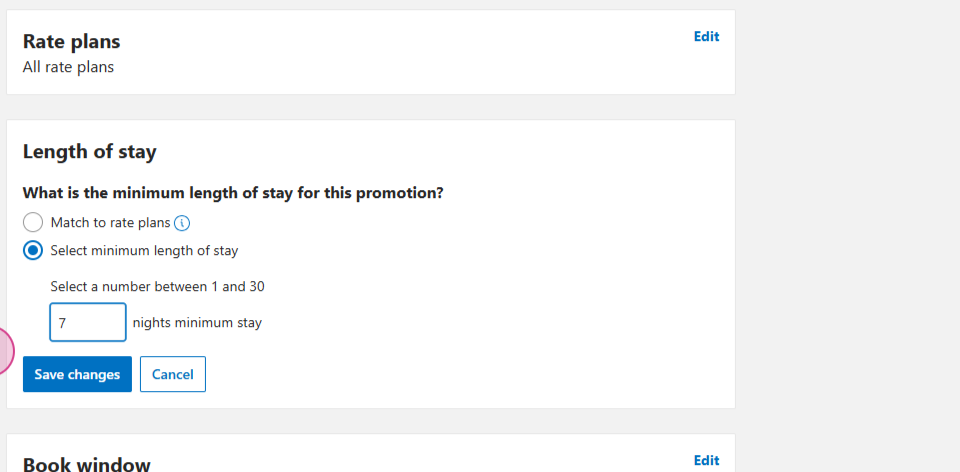
Set the Minimum lenght of stay.
Set the Booking conditions.
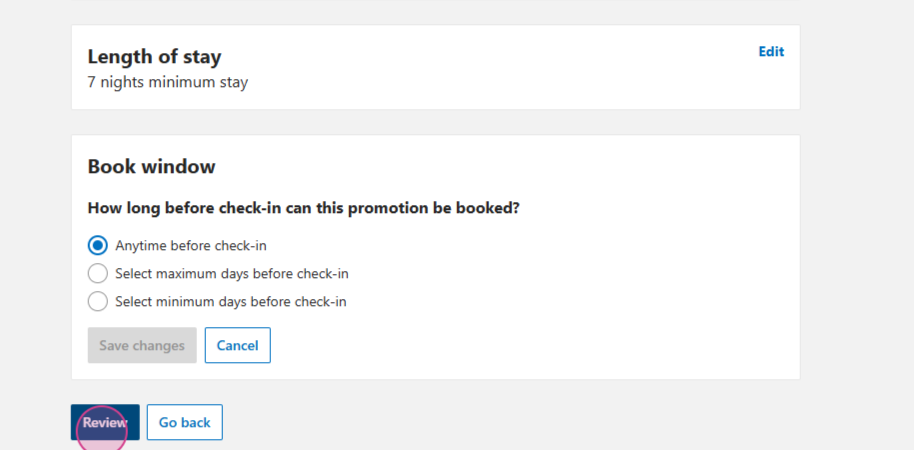
Click on "Review" and Activate your promotion.
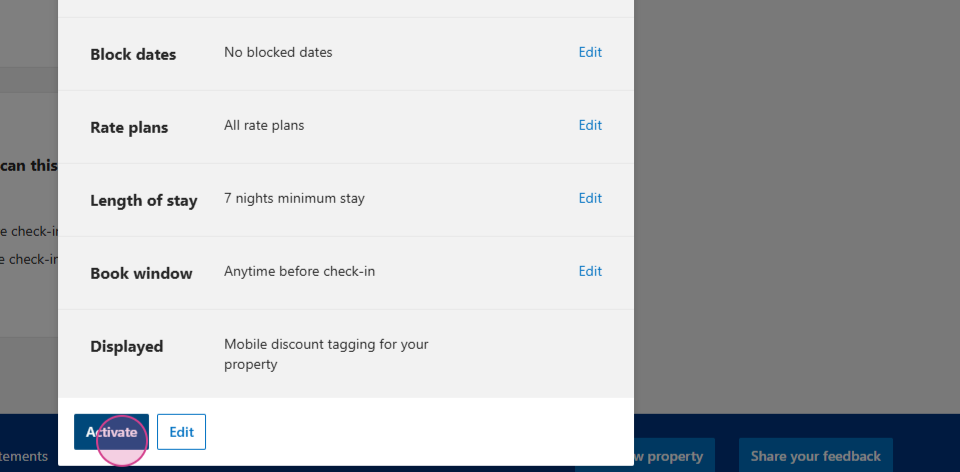
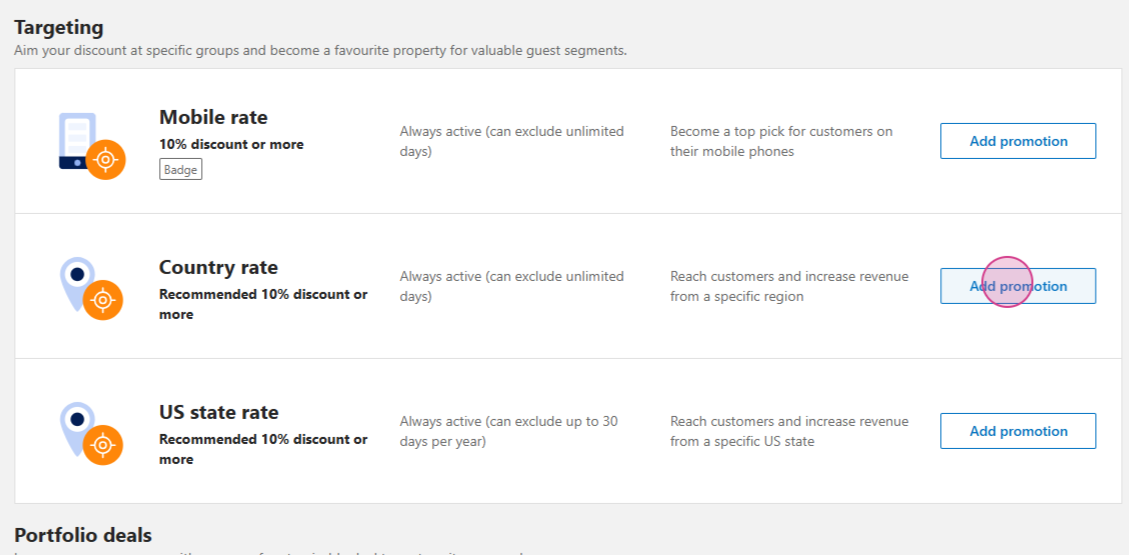
Step 10: To set a Country rate, choose Add Promotion.
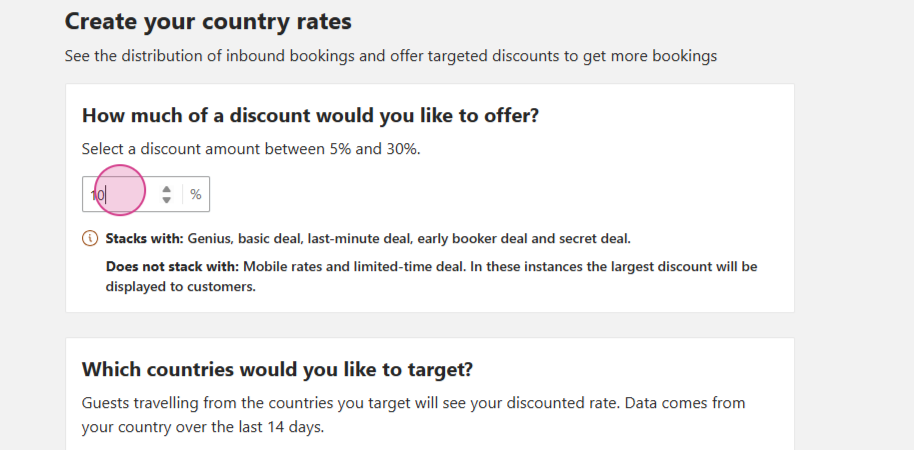
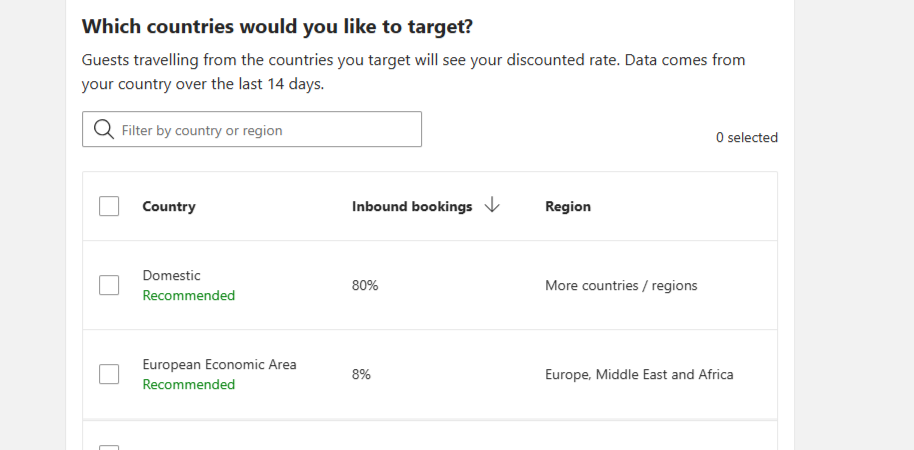
Set the Discount percent and choose the Country for the promotion.
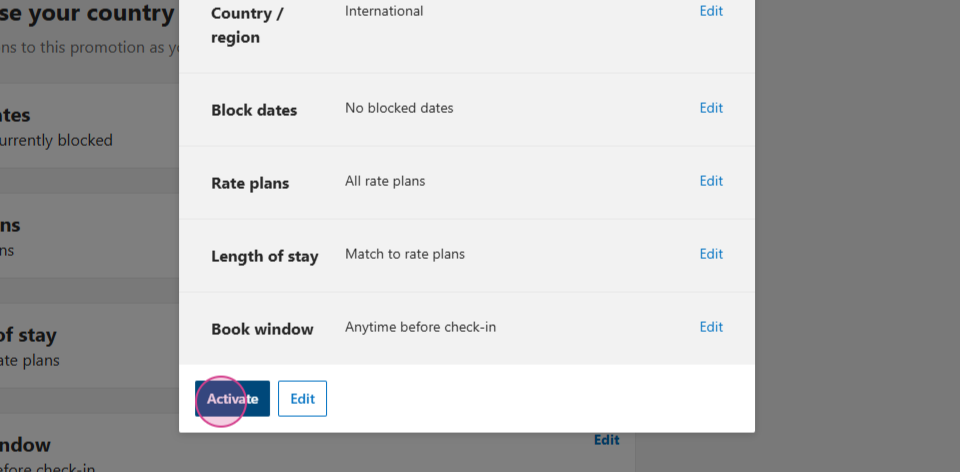
Review and Activate your promotion.
Step 12: To set a US state rate, choose Add promotion.
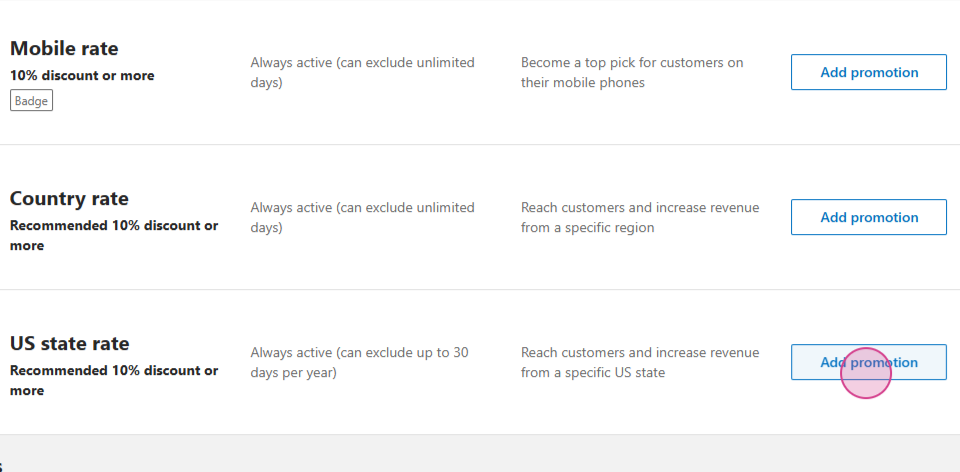
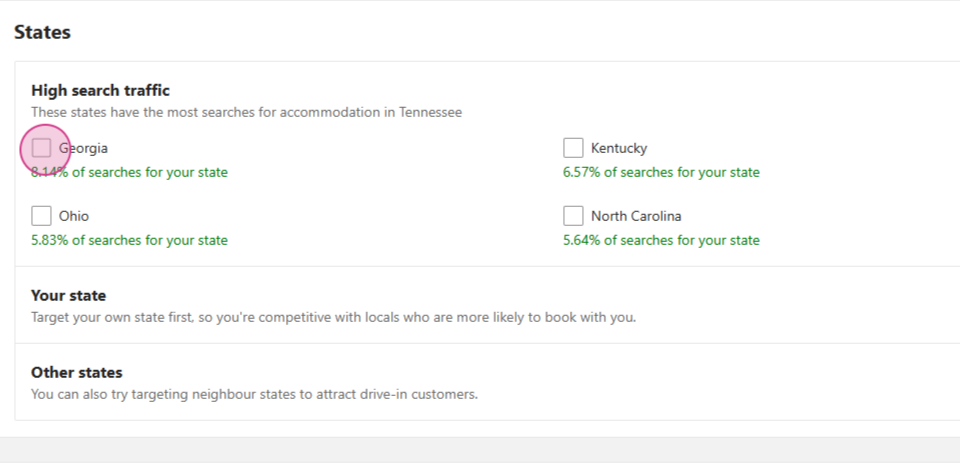
Add the promotion and choose the State for the promotion.
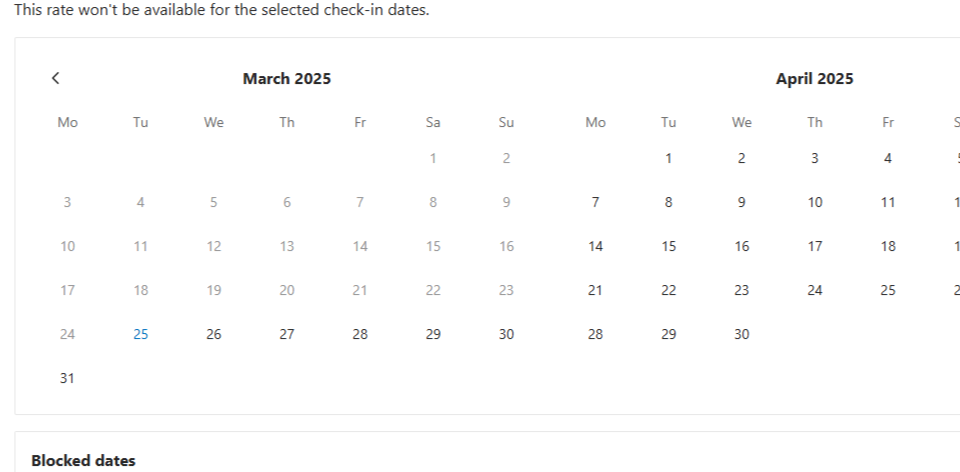
Set the Discount percent and Block dates, if needed.
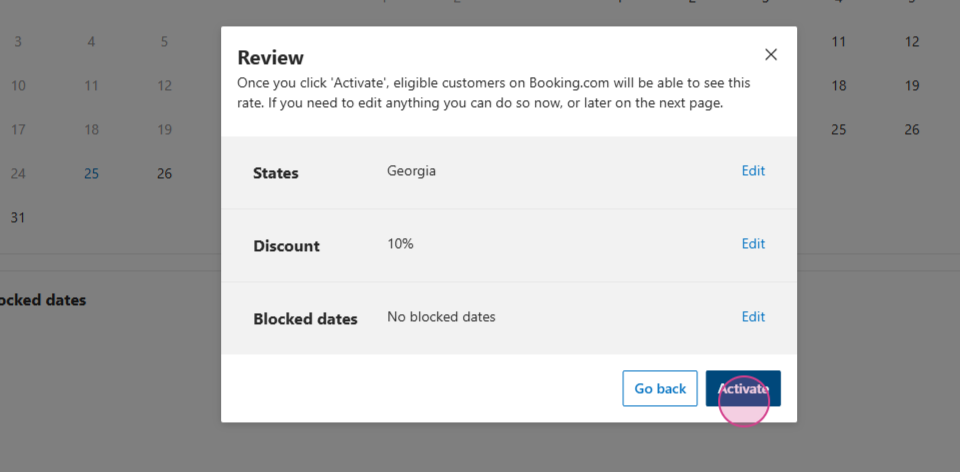
Review and Activate your promotion.
To set a Basic deal, choose Add promotion.
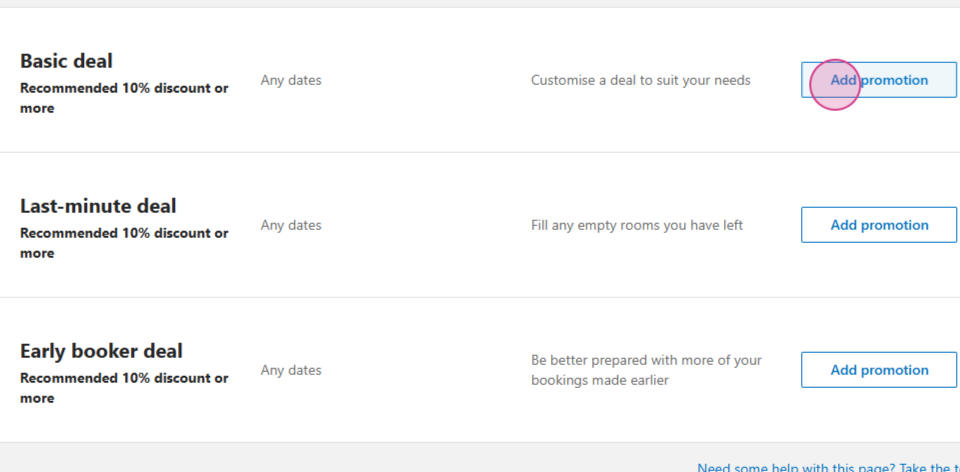
Set the Discount percentage, Stay dates, and other same steps as above.
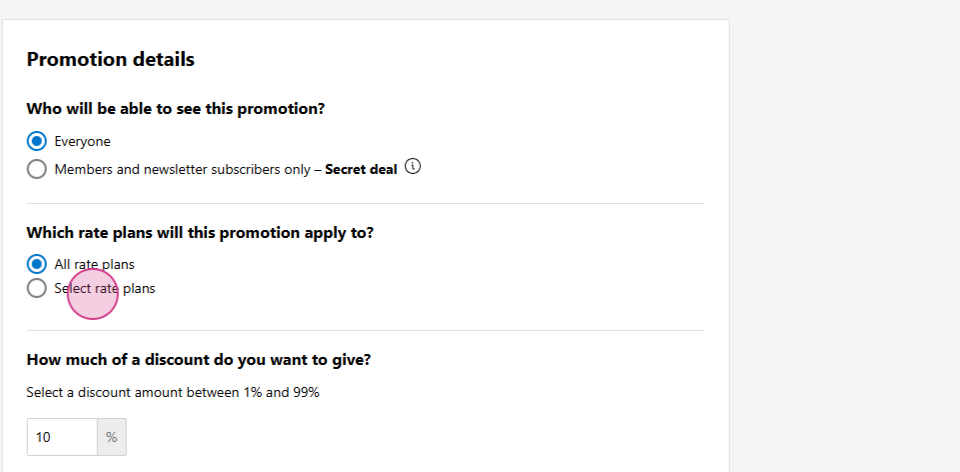
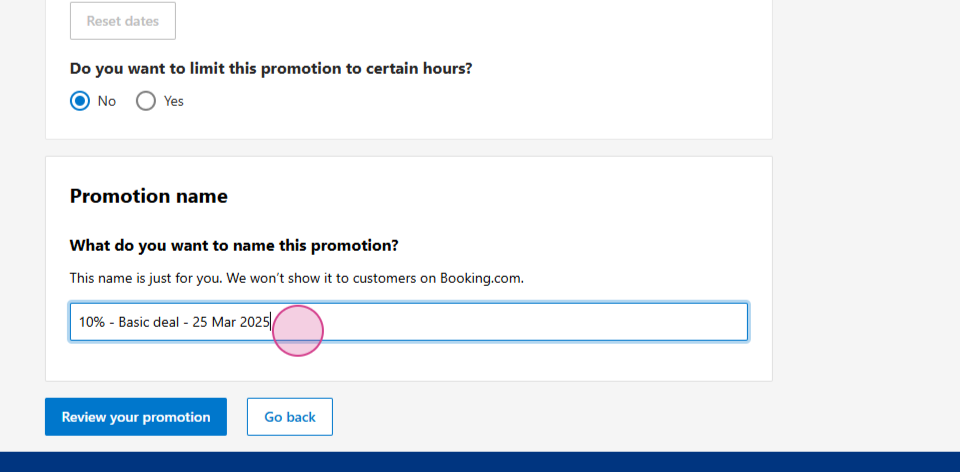
Set the Bookable period and Name of your discount.
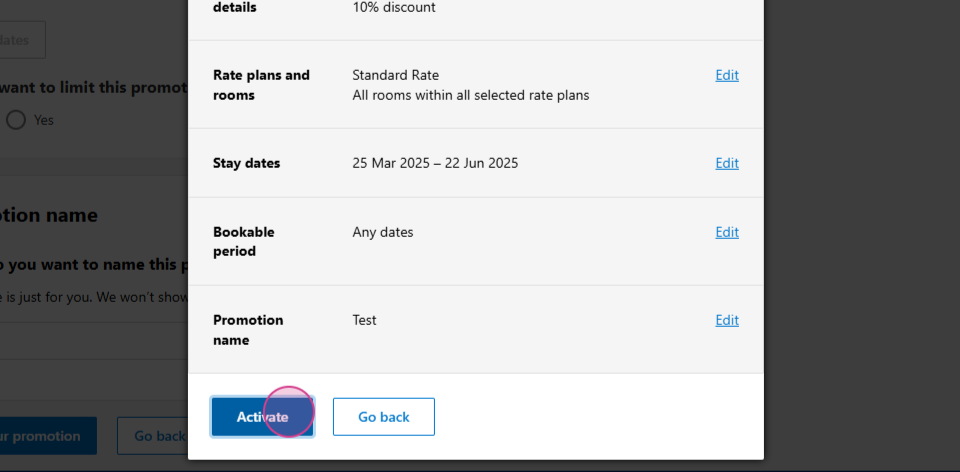
Review and Activate your promotion.
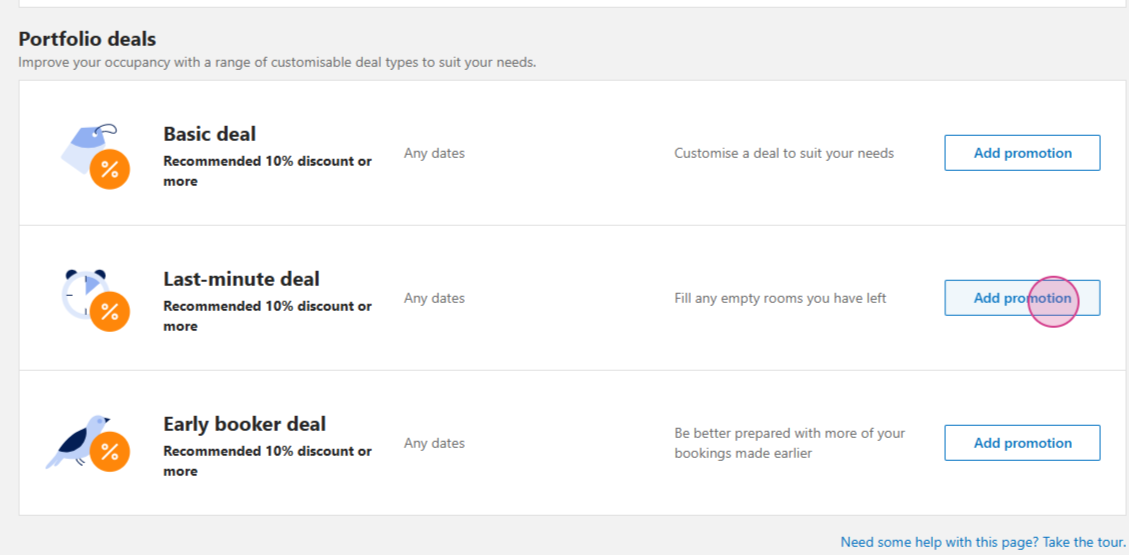
Step 13: To set a Last minute deal, choose Add promotion.
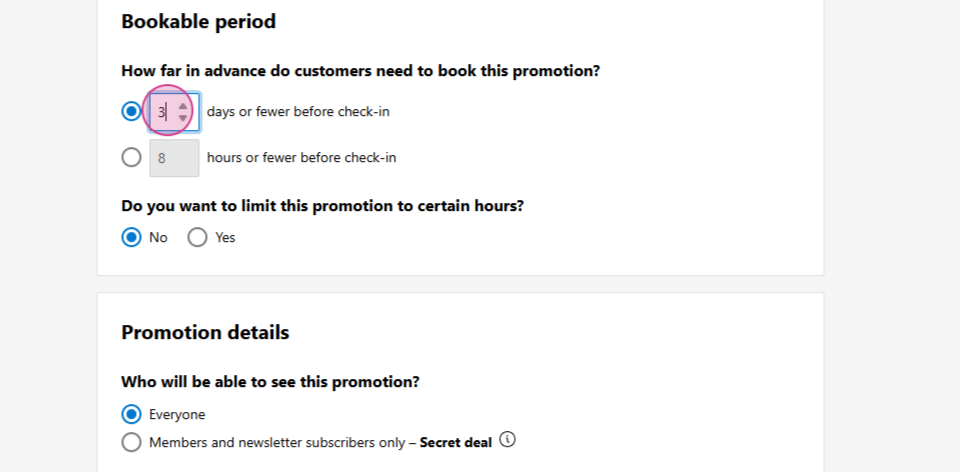
Set the Booking conditions.
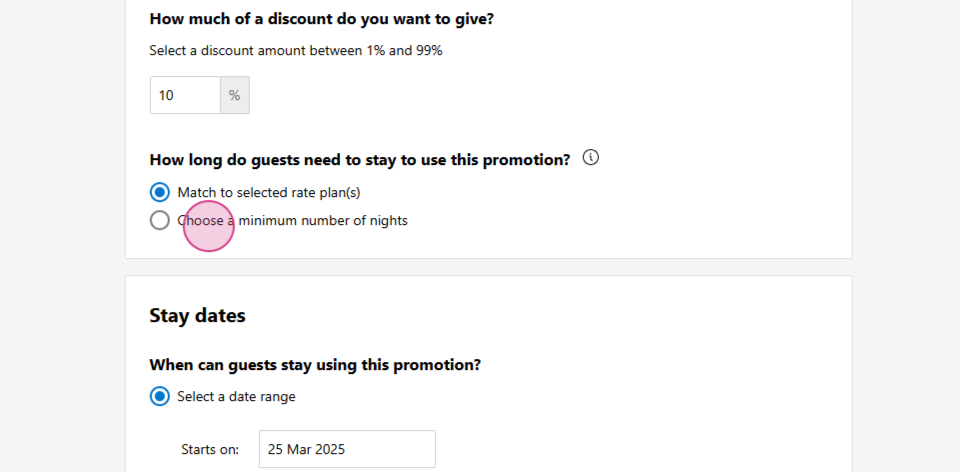
Set the Discount percent, Stay dates and other same stapes as above.
Set Name of your discount.
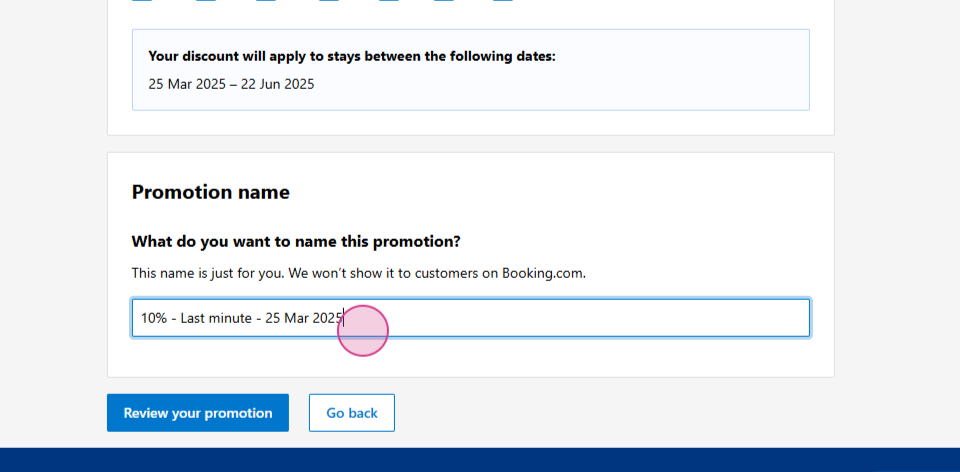
Review and Activate your promotion.
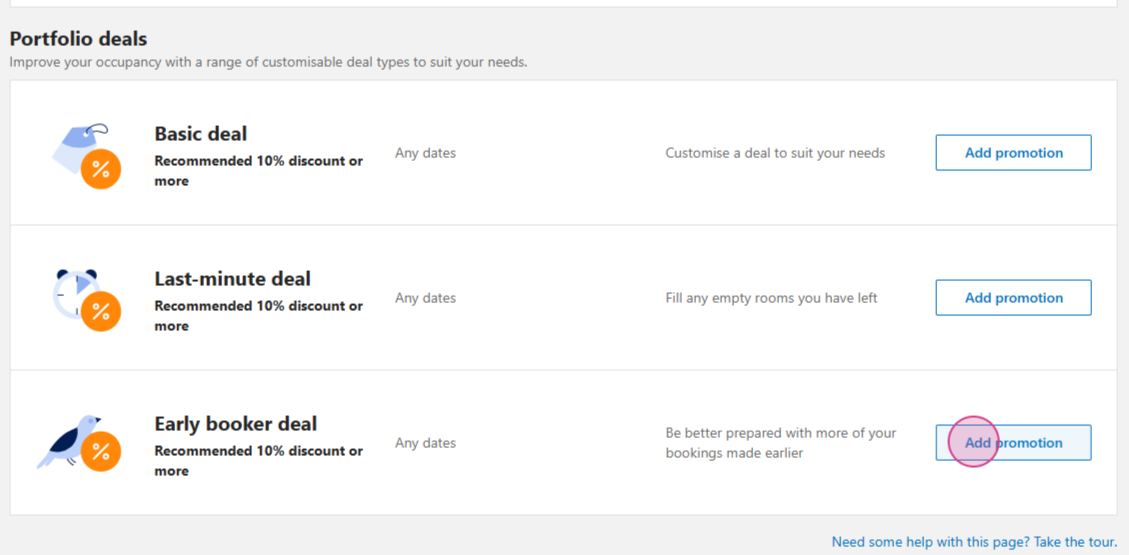
Step 14: To set an Early booker deal, choose Add promotion.
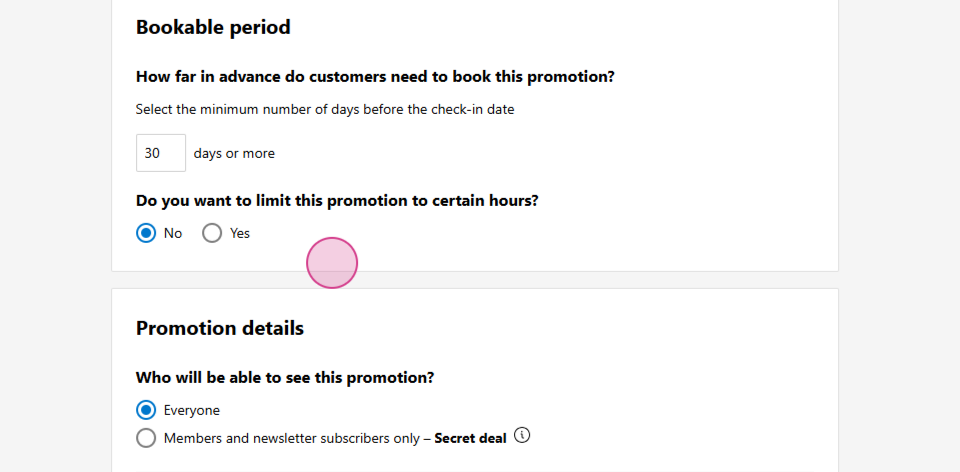
Set the Booking conditions.
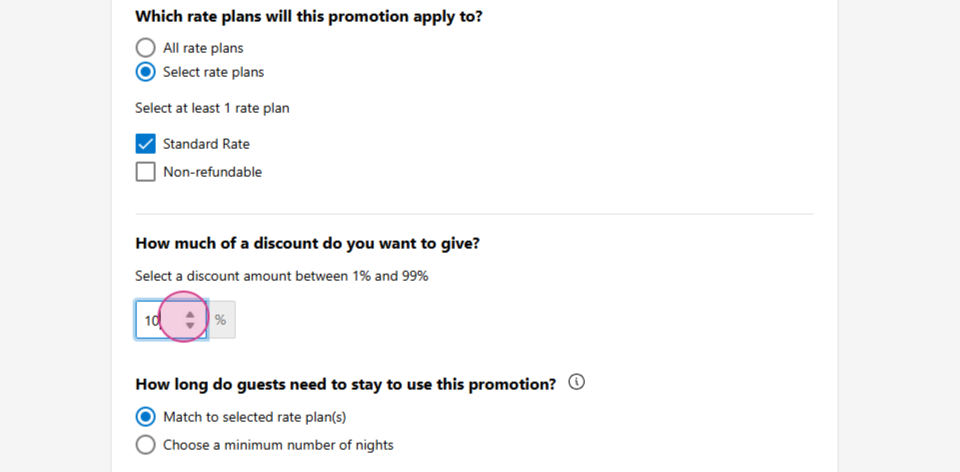
Set the Discount percent, Stay dates and other same stapes as above.
Set the Name of your promotion.
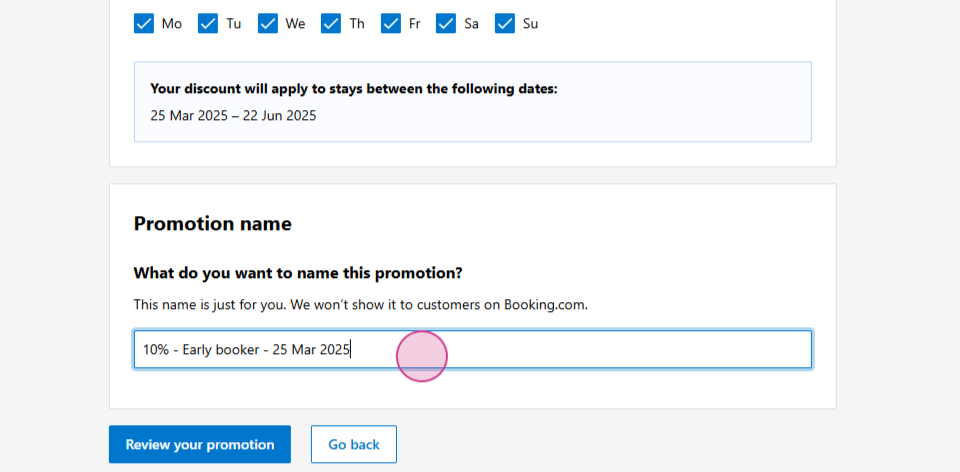
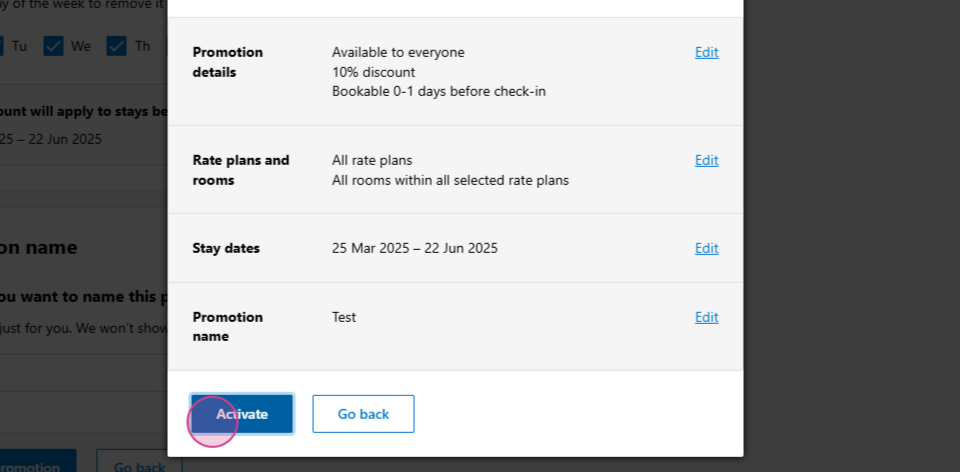
Review and Activate your promotion.
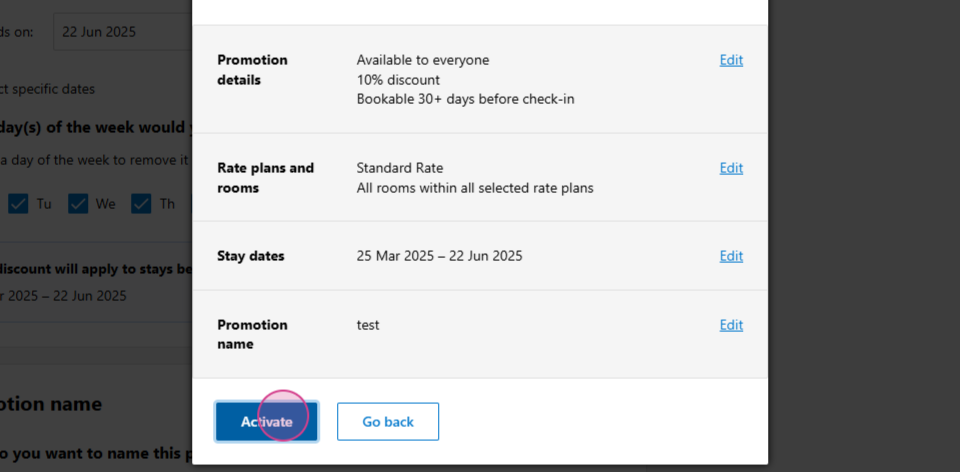
After following these steps, your promotions will be ready.