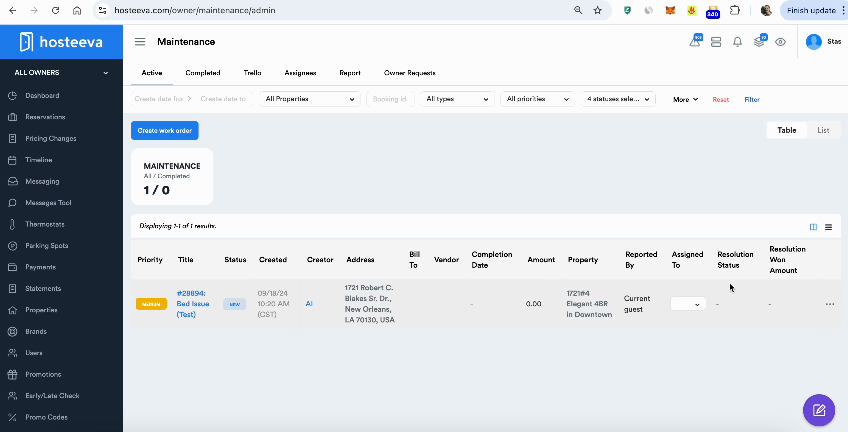
Explore the automatic creation of work orders in Messenger using the AI feature. This feature allows the system to generate work orders directly from guest messages. However, to use this feature, it's necessary to enable it first.
Enabling the AI Feature
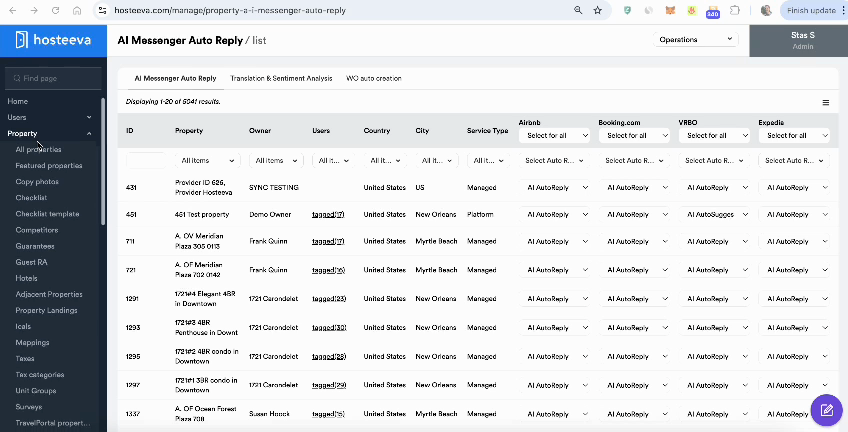
Step 1: Navigate to the admin panel and select the property. Then, proceed to the AI messenger from the left menu.
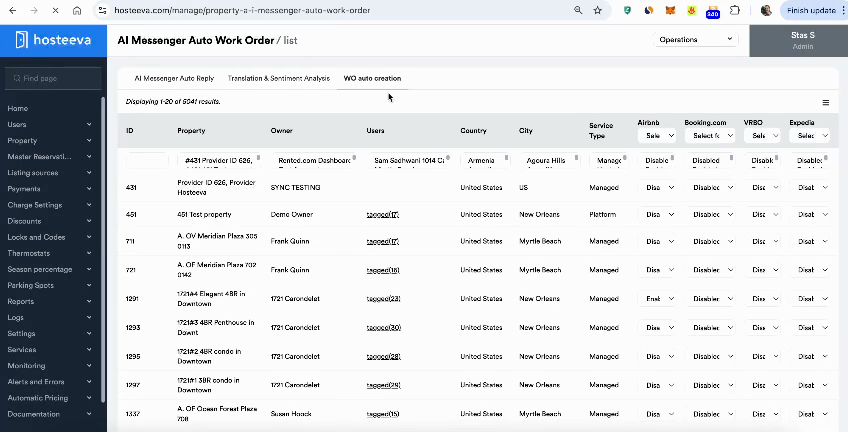
Step 2: Navigate to the third tab labeled 'work order auto creation'.
Step 3: To enable a specific property, click on the corresponding option.
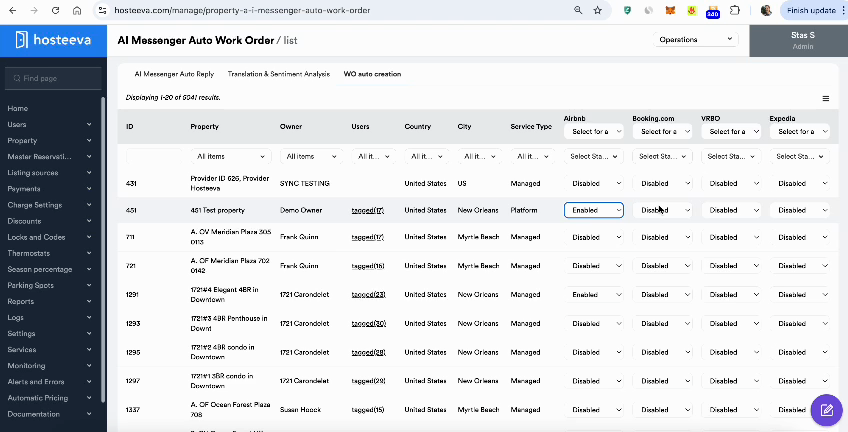
This feature can be enabled for the entire channel or for specific properties.
Using the AI Feature
Once the feature is enabled, it's ready for use.
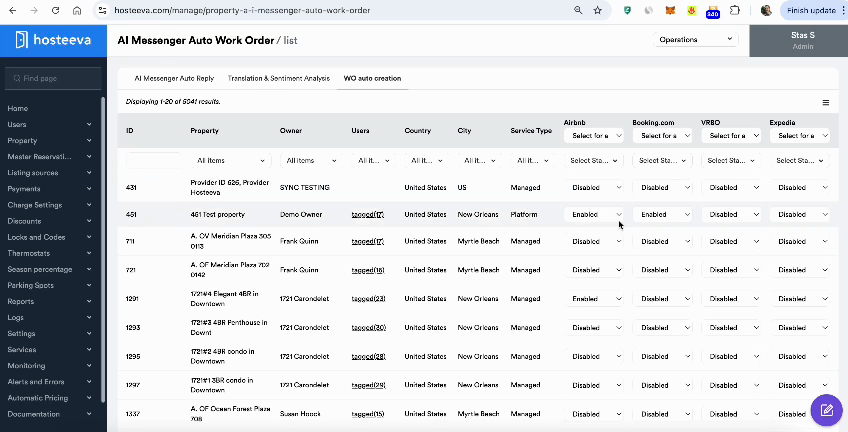
For instance, consider a test property.
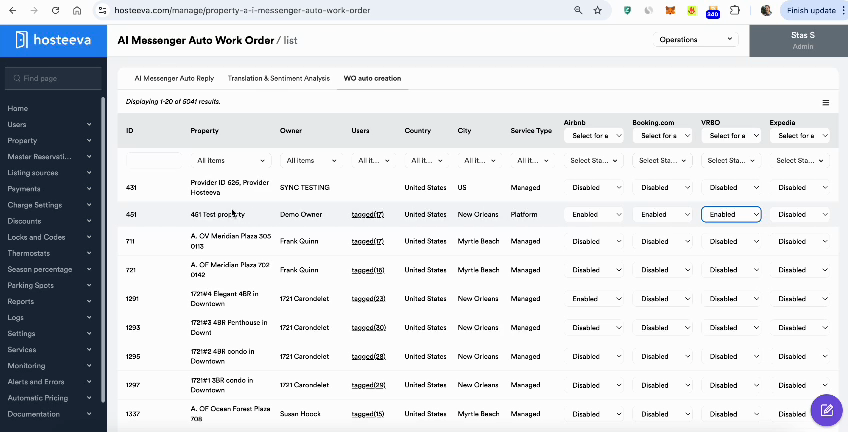
When a guest with a reservation at this property sends a message in Messenger about an issue, the system automatically creates a work order based on that message.
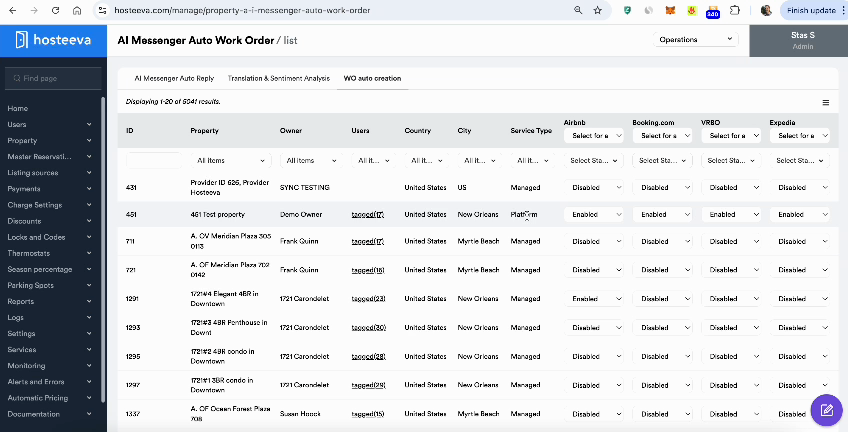
Managing AI-Created Work Orders
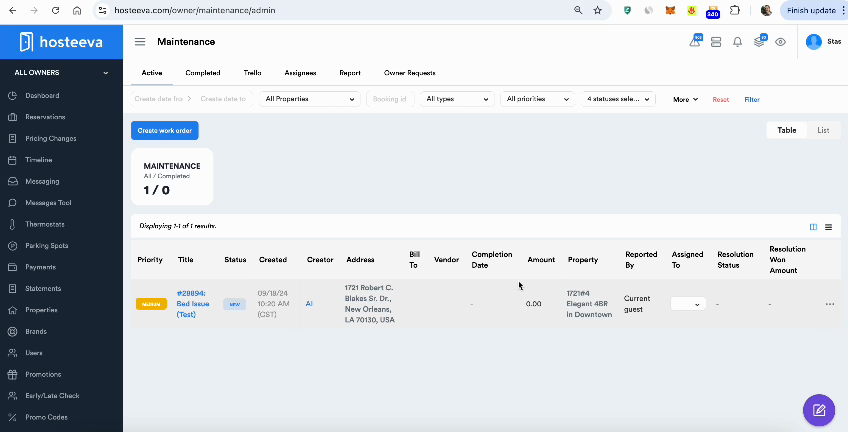
In the work order screen, there's a filter labeled 'AI created'. If set to 'yes', it filters out work orders created by the AI.
Step 1: To view all work orders, turn off the 'AI created' filter. All work orders have a 'reported by' field. If a work order is created by the AI, the creator field will display 'AI'.
Step 2: To filter out work orders created by the AI, click on 'yes'.
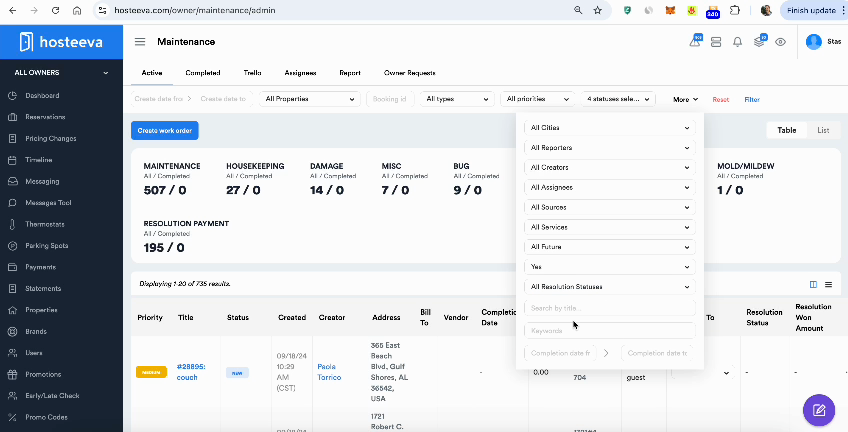
This will display only the work orders created by the AI. For instance, consider a test work order.
Once a work order is created, it can be managed, assigned, removed, or edited as preferred.