This guide details the process of adding an extra charge to a reservation in Hosteeva and requesting payment from the guest.
Selecting the Reservation
Step 1: Choose the reservation that requires an additional charge.
Step 2: Navigate to the timeline and select the appropriate reservation.

Adding a New Charge
Step 1: Open the reservation dialogue and scroll to the guest charges section.
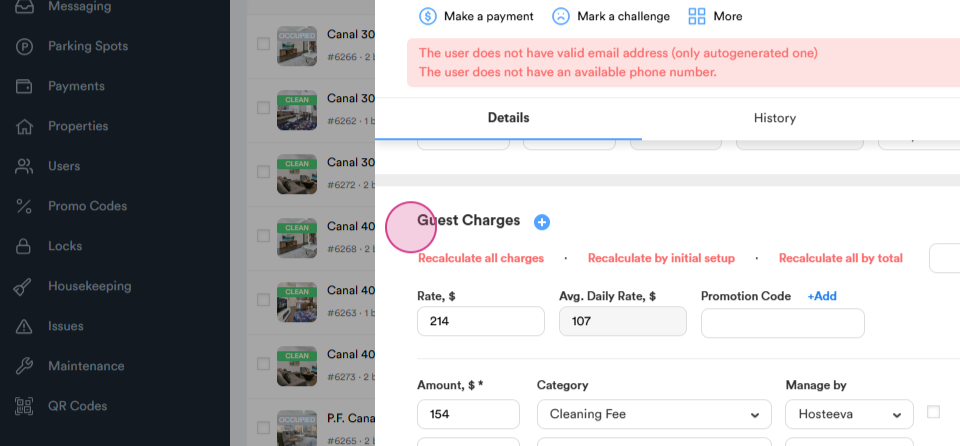
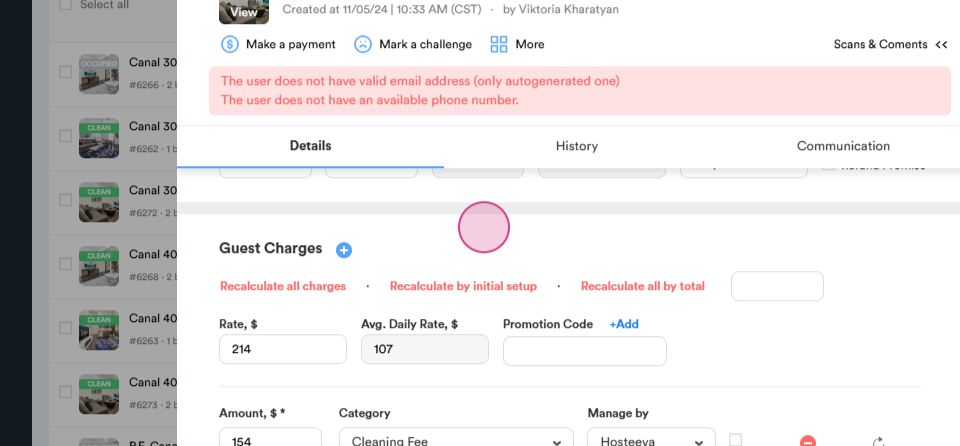
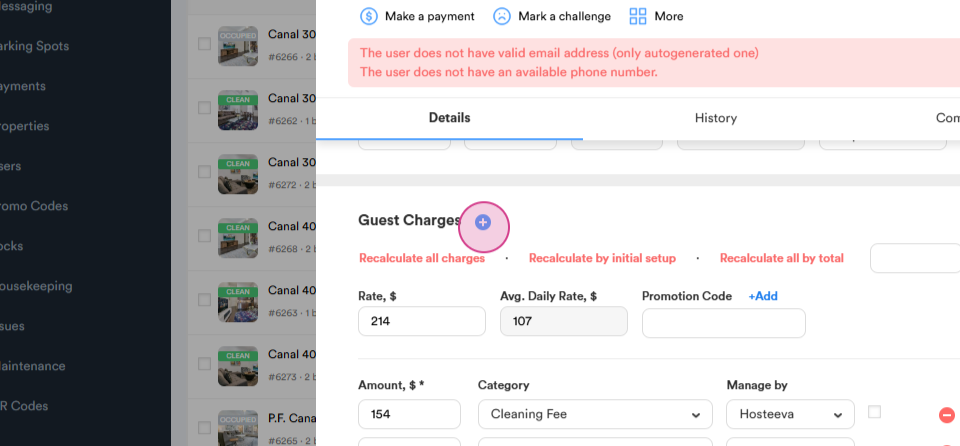
Step 2: Click on the plus symbol to open a new section for adding charges.
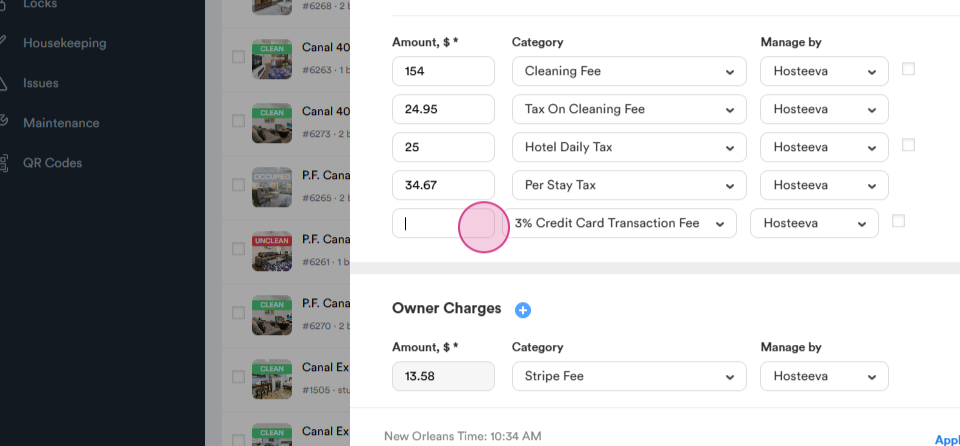
Step 3: Input the amount for the additional charge.
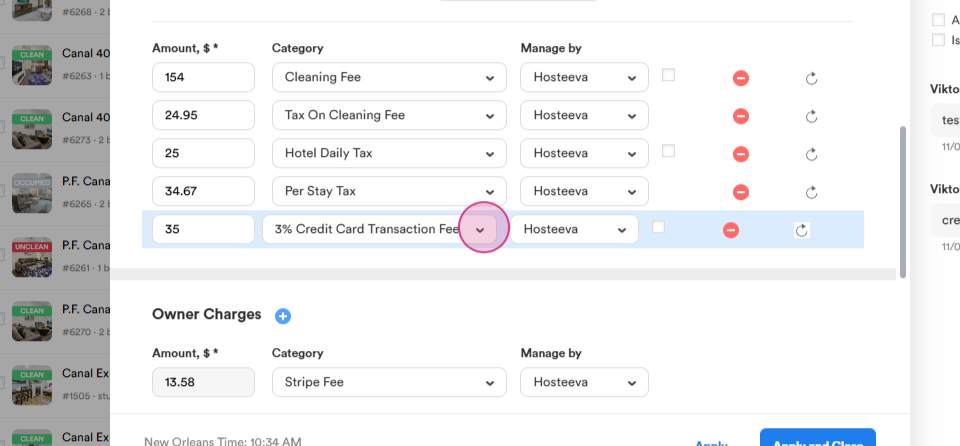
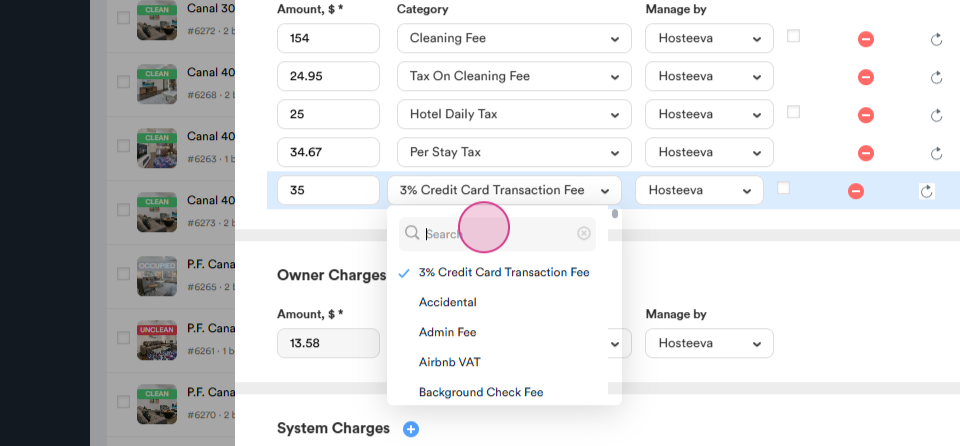
Step 4: From the drop-down, select the appropriate charge, like "Pet Cleaning Fee".
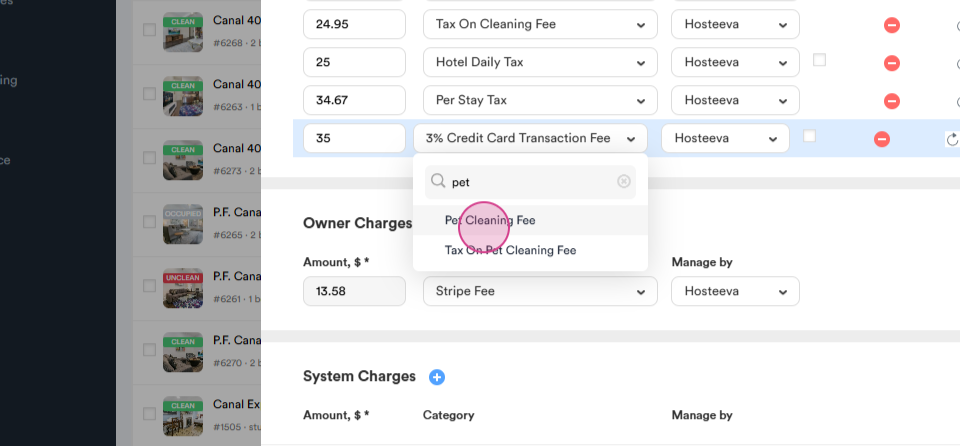
Note: The system automatically includes a tax charge for certain fees, like a pet cleaning fee. Manual addition isn't necessary.
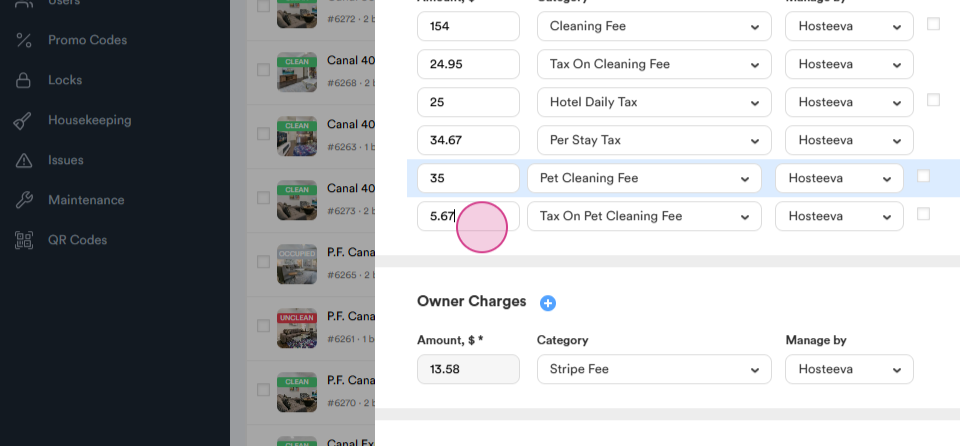
Step 5: Click on apply at the bottom of the reservation dialogue.
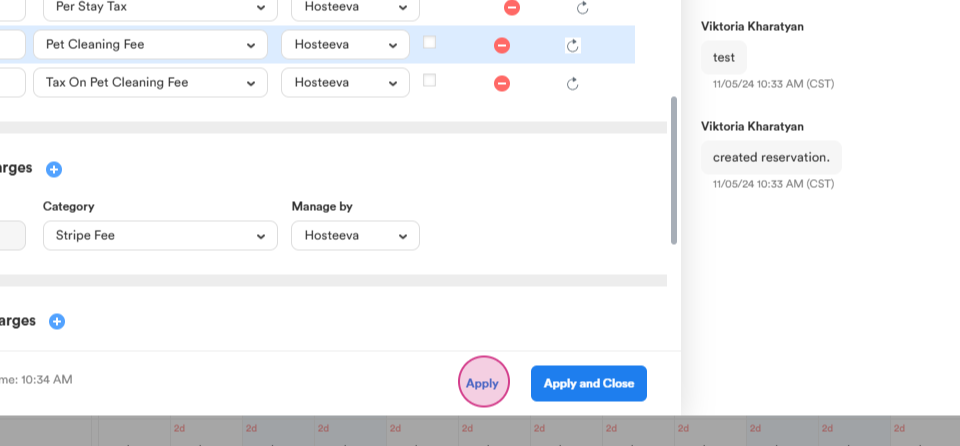
Step 6: Specify the reason for the additional charge and type it in, for example, "pet fee".
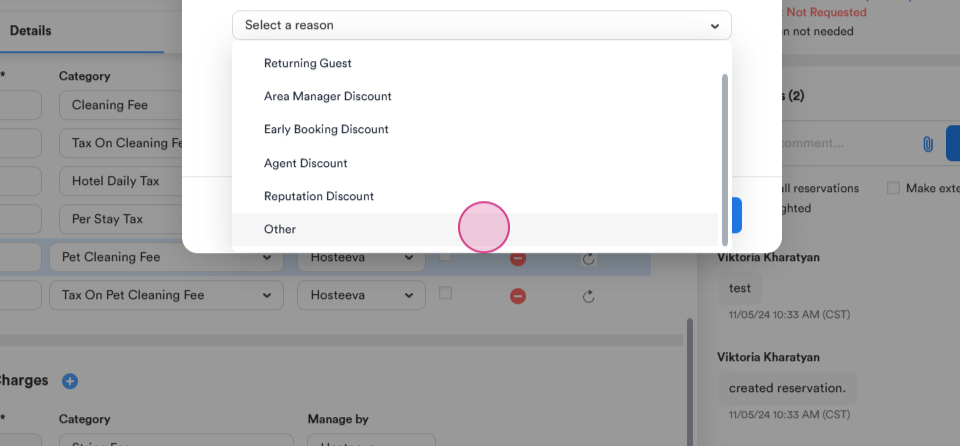
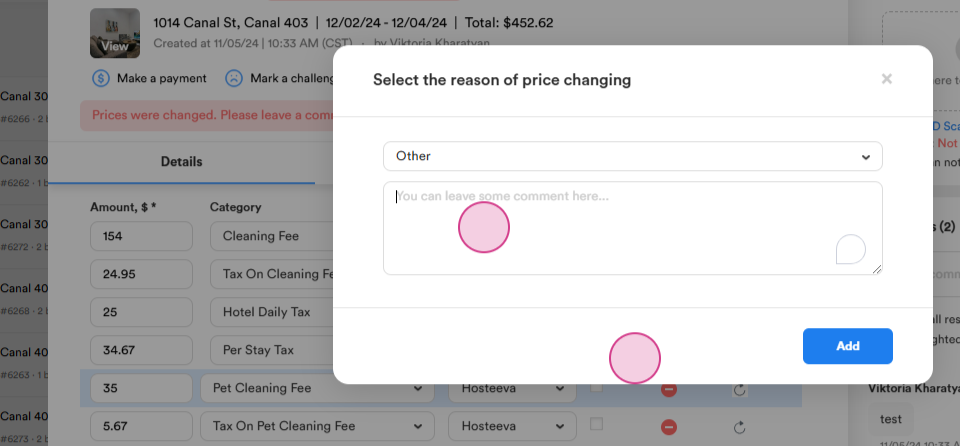
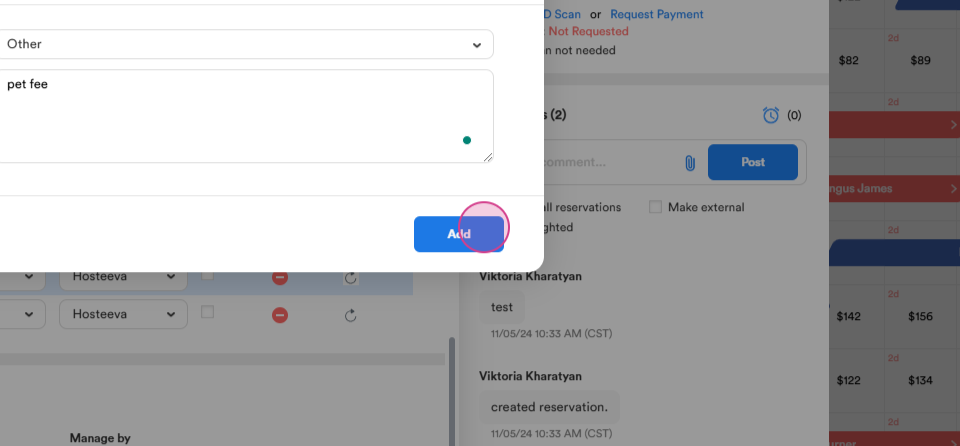
Upon clicking Apply, the additional charge will be included in the reservation's payment details.
Requesting Payment from the Guest
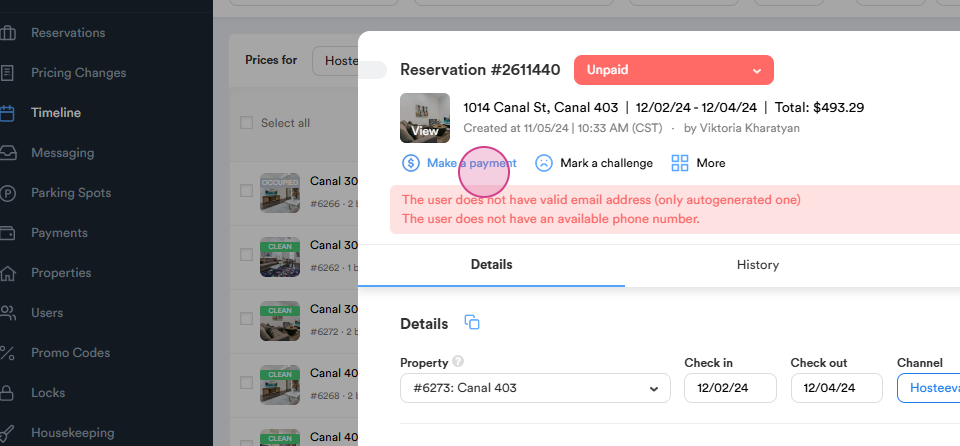
Step 1: Navigate to the Make a Payment section and click on it.
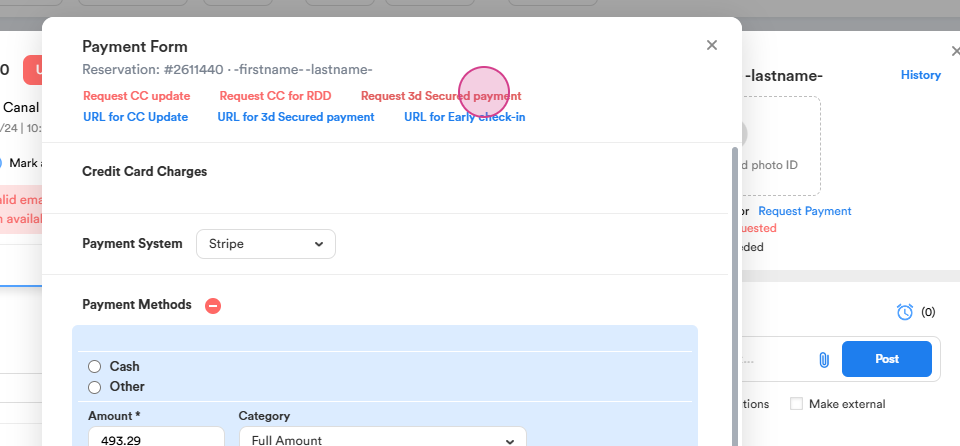
Step 2: Select Request for 3D secured payment at the top of the page.
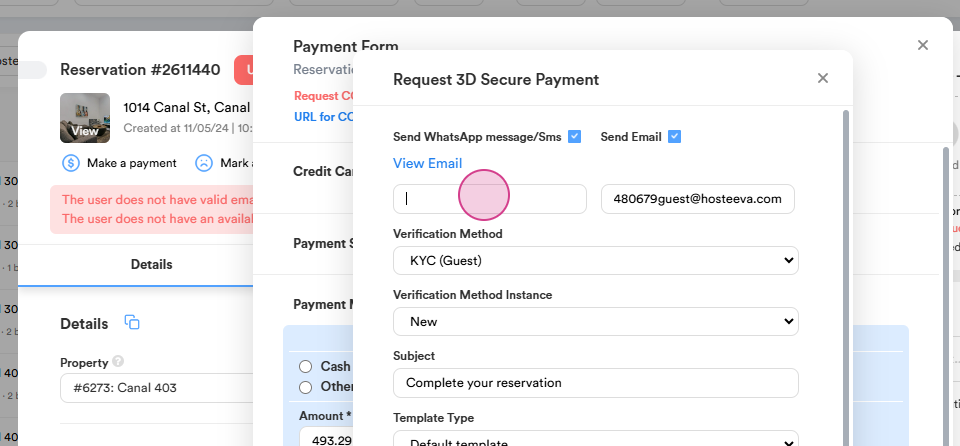
Step 3: Check the Send WhatsApp message/SMS and/or Send Email option boxes as needed.
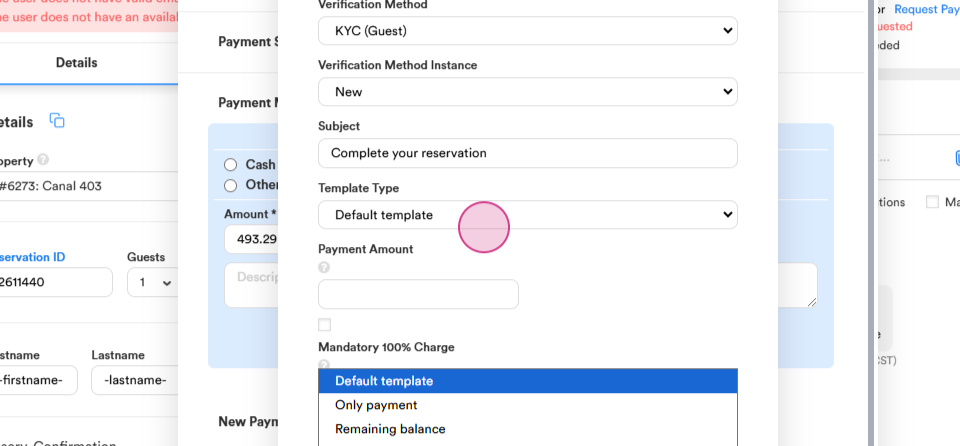
Step 4: Choose the payment template and request a payment from the guest.
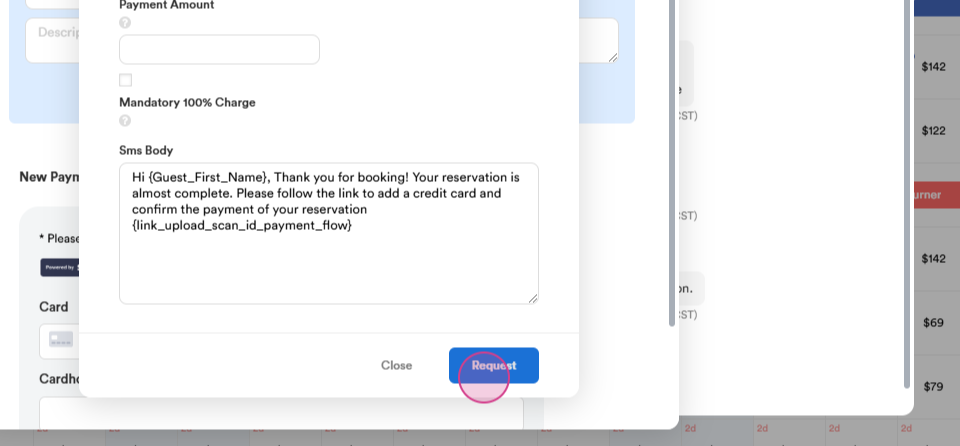
Once the guest makes the payment, it will be visible in the payment section.