In this article, you'll learn how to navigate the Admin Portal, manage reservations, access message logs, manage the banned list, and update user details.
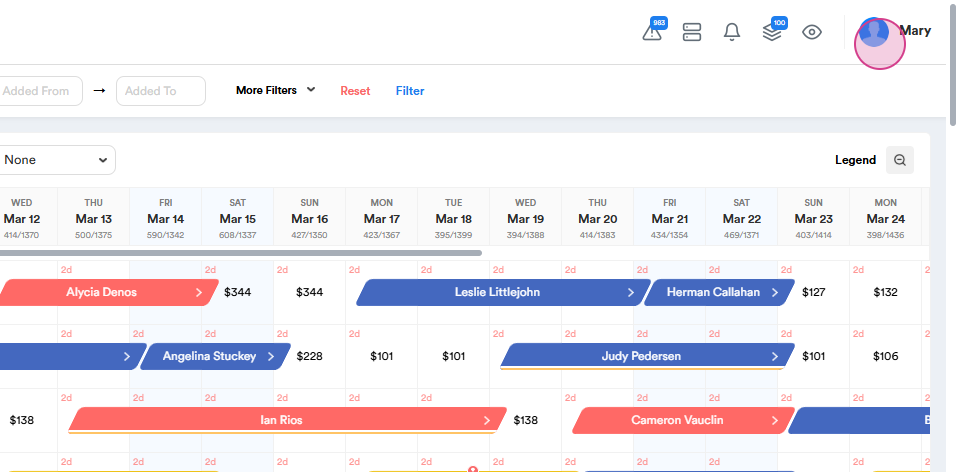
Step 1: Access the Admin Portal by clicking on the icon with your name on the right side.
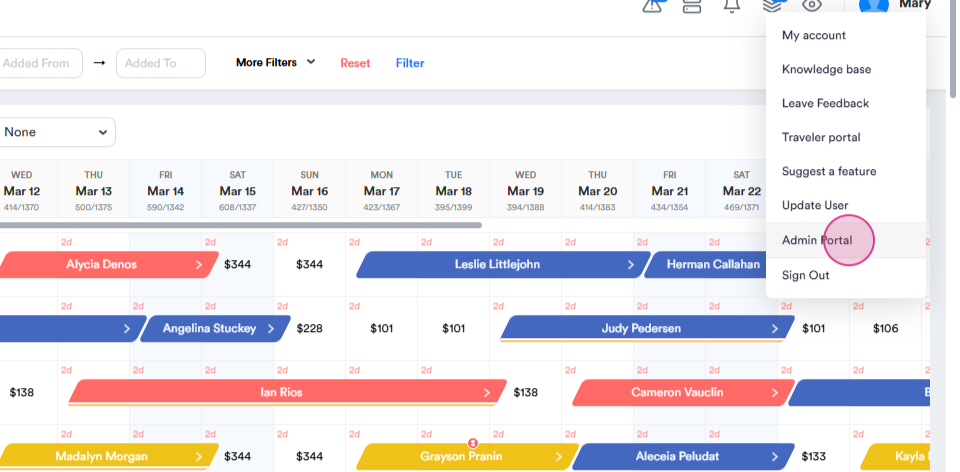
Select Admin Portal from the drop-down menu.
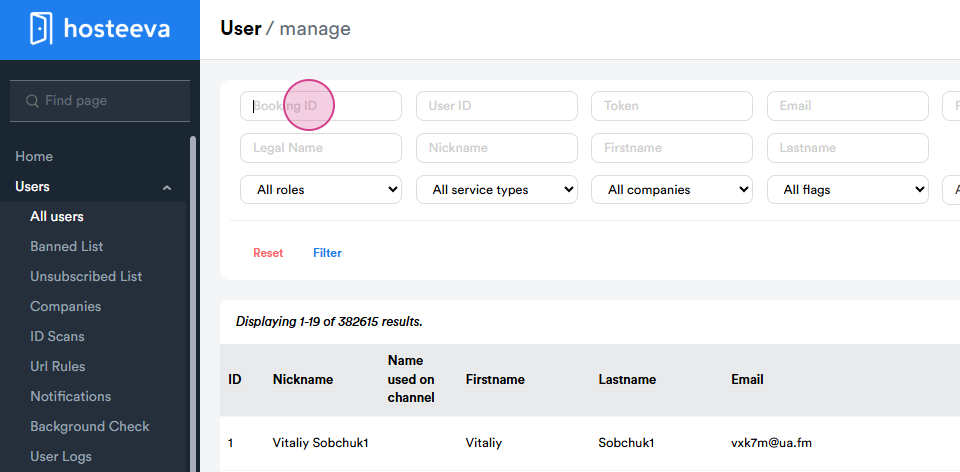
Use the search bar to find any reservation by booking ID, guest name, email, or phone number.
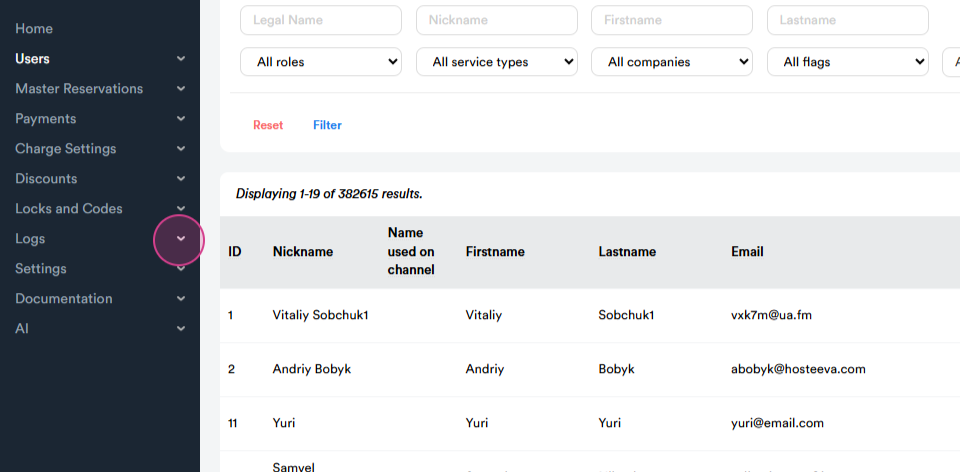
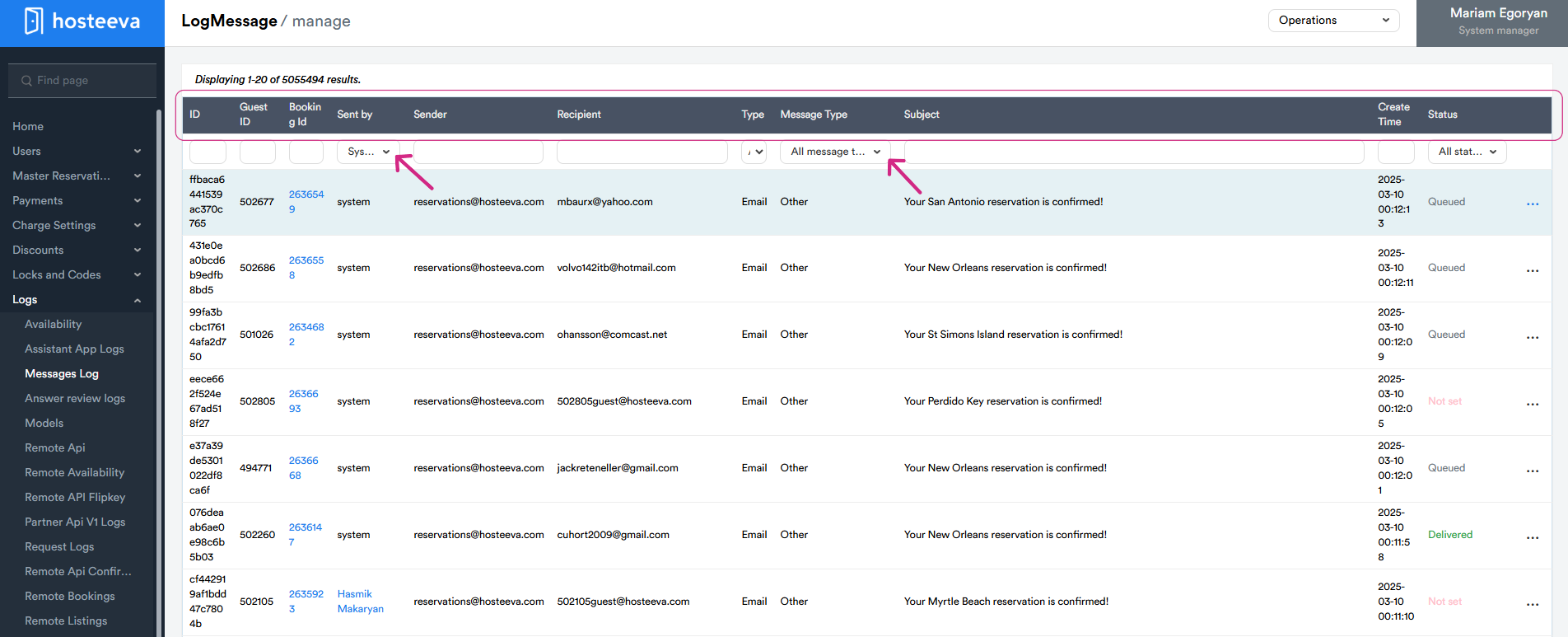
Step 2: Navigate to the Message Log by selecting Logs from the menu, then Message Log from the drop-down menu.
Review the Message Log to find all communications, including SMS, emails, and WhatsApp messages sent to guests, as well as verification codes and messages and emails exchanged among Hosteeva users through Hosteeva.
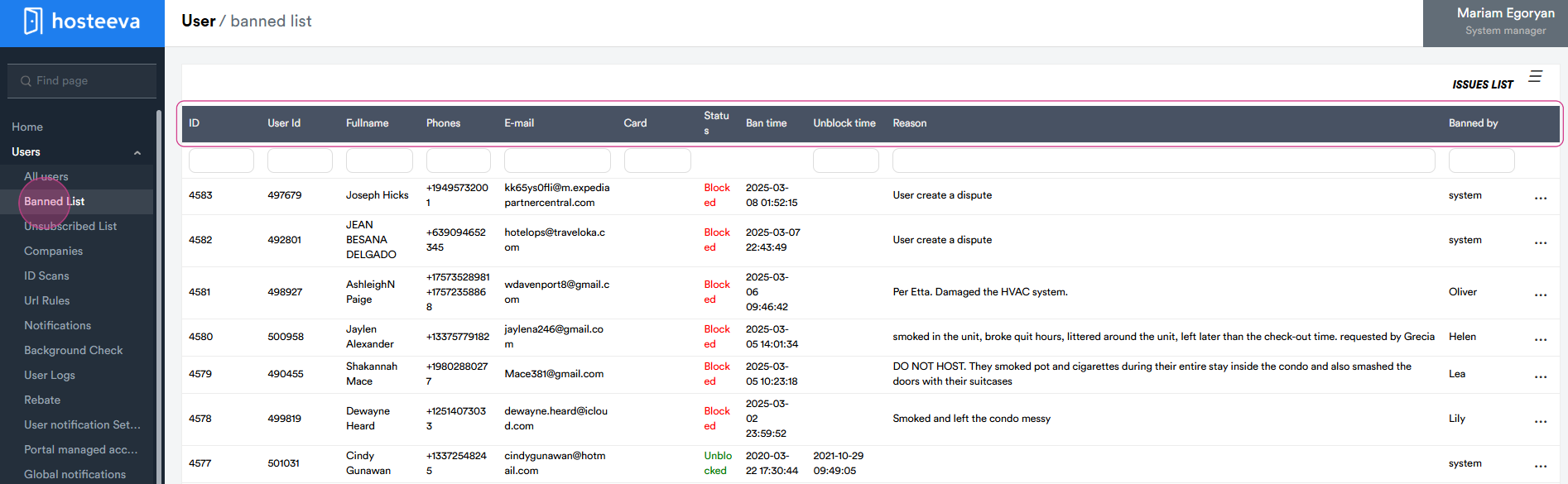
Step 3 Access the Banned List by selecting Users from the menu, then Banned List from the drop-down option. This table displays key details of banned guests, including their ID, User ID, full name, phone number, email address, current status, ban time, unblock time, the reason for the ban, and the person responsible for the ban.
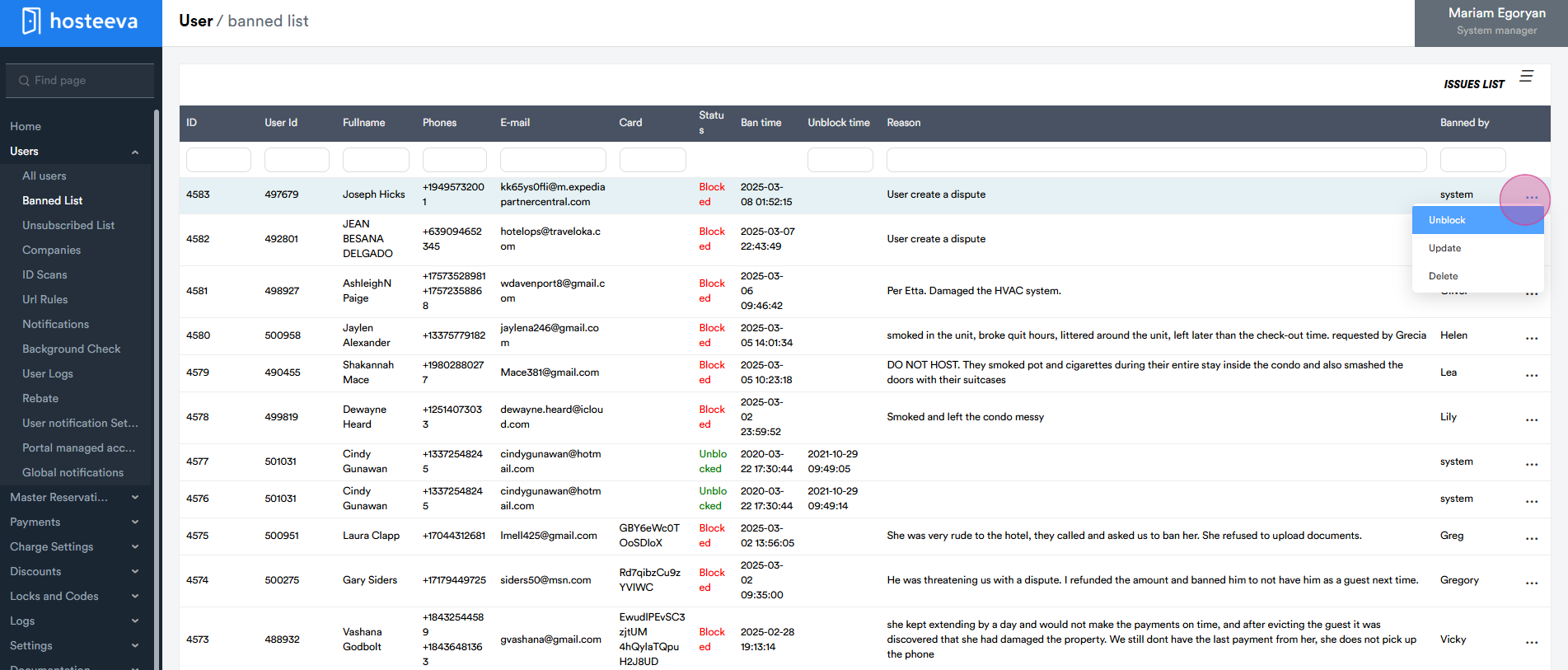
Review the Banned List, where you'll find users who have been banned for various reasons, such as violating house rules (e.g., smoking in the unit, damaging property, etc.). To update the status of a banned guest, simply click on the three dots. A menu will appear with the following actions: Unblock, Update, and Delete. By selecting Unblock, the guest will be unblocked, and all restrictions will be lifted. Choosing Update allows you to modify details of the banned guest, such as editing the reason for the ban or updating personal information. Finally, if you select Delete, the guest will be removed from the ban list and automatically unblocked.
Please note that certain restrictions apply to reservations made by banned guests. For example: Guests on the banned list will not be able to make a direct reservation with Hosteeva. If a guest has made a reservation on a different platform (e.g., Airbnb or Booking ) but their payment is managed through Stripe, they will not be able to complete the payment, and the reservation will be canceled. If the reservation was made on another platform (e.g., Airbnb or Booking ) and the payment is not managed by Hosteeva, the guest will not receive check-in instructions, and the reservation will be canceled.
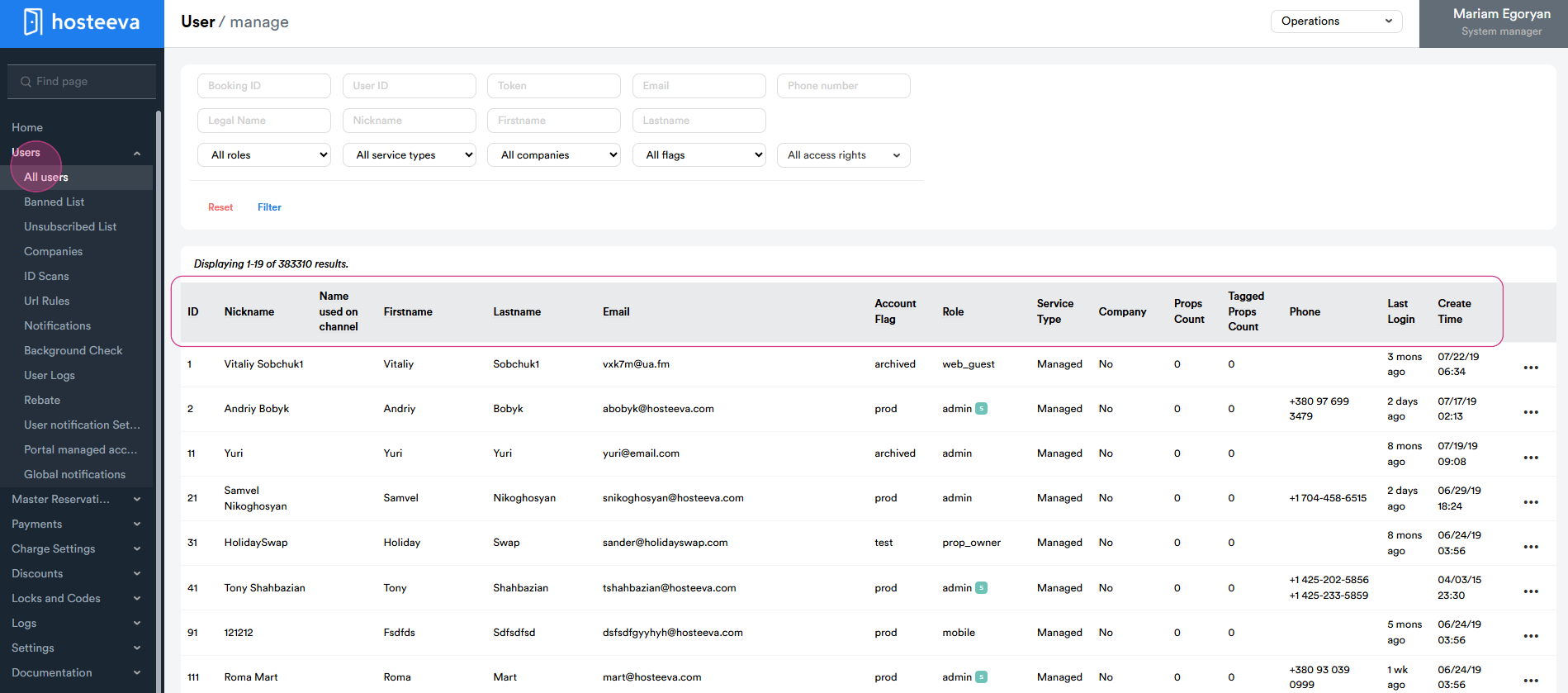
Step 4: Navigate to the Users option and select All Users from the drop-down menu to view all Hosteeva users.
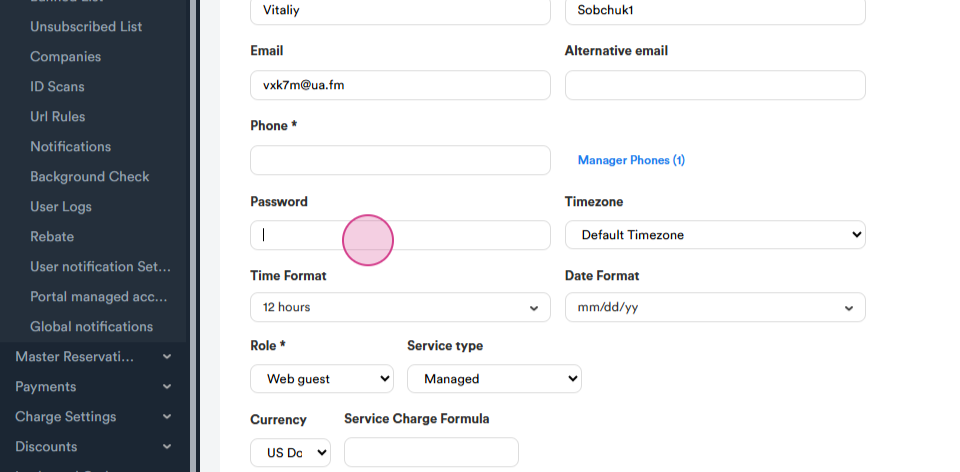
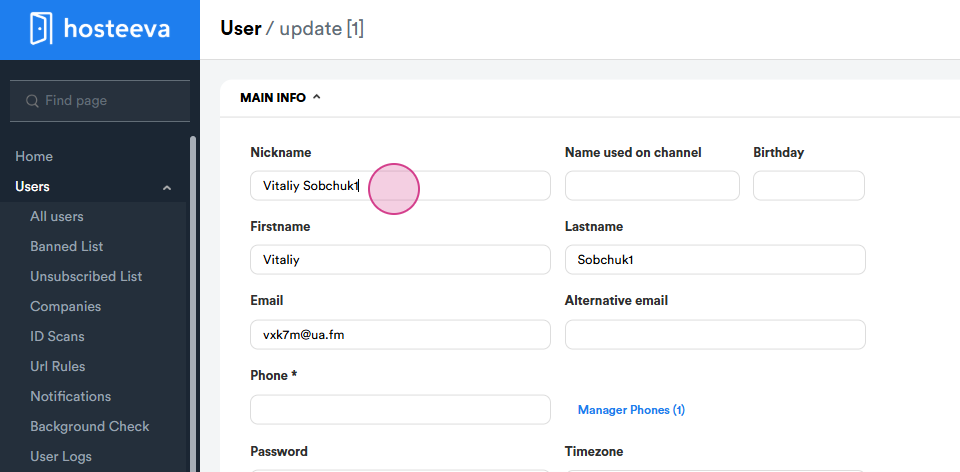
Step 5: Update a user's password by clicking Update and entering a new password in the password section. Click Save to apply changes.
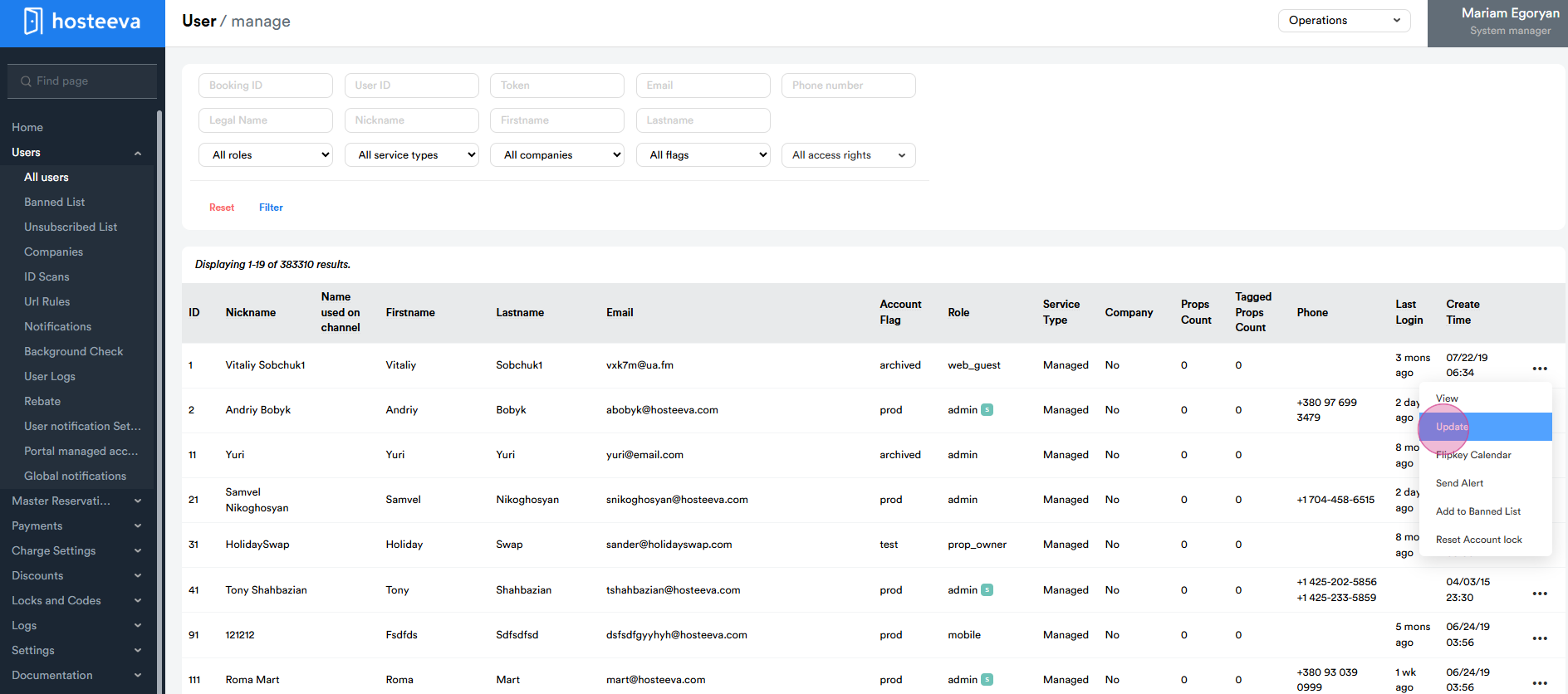
There are two main scenarios in which a user's password may be changed or their account unblocked. First, if a guest repeatedly attempts to sign in but fails, the system will automatically block their account. In this case, other authorized users can unblock the account. Second, if a guest forgets their password, other users with appropriate privileges can update the password to regain access.
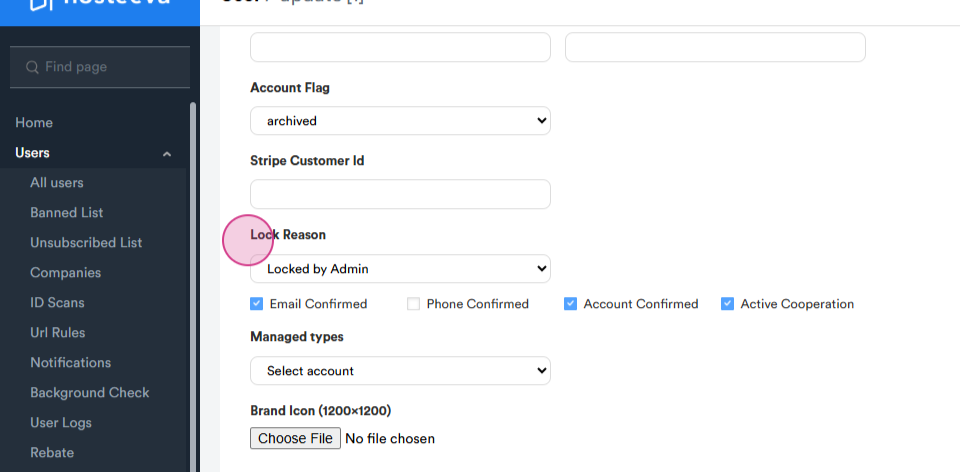
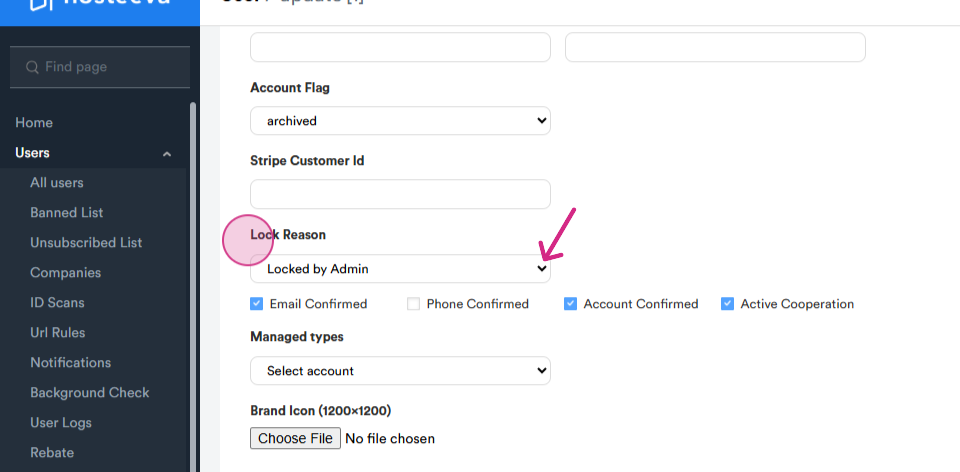
Unblock a user by selecting Not Locked in the Locked Reason section. Click Save to apply changes.
Update user profile information, such as nickname, first name, and email address. Click Save to apply changes.
Thank you for following this article.