This guide explains how to apply a template to multiple properties.
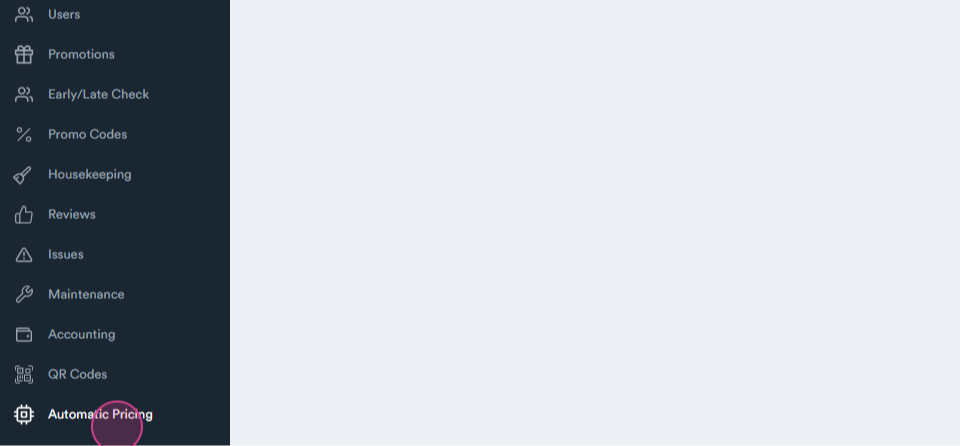
Step 1: Navigate to automatic pricing.
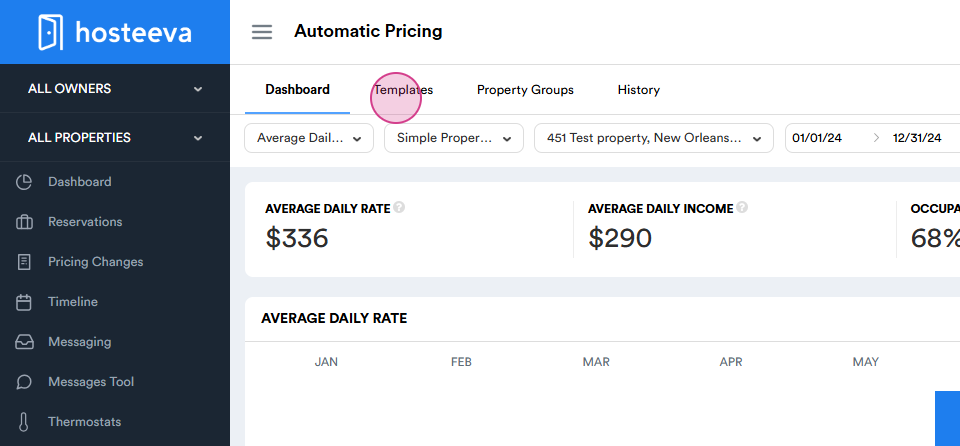
Step 2: Select templates.
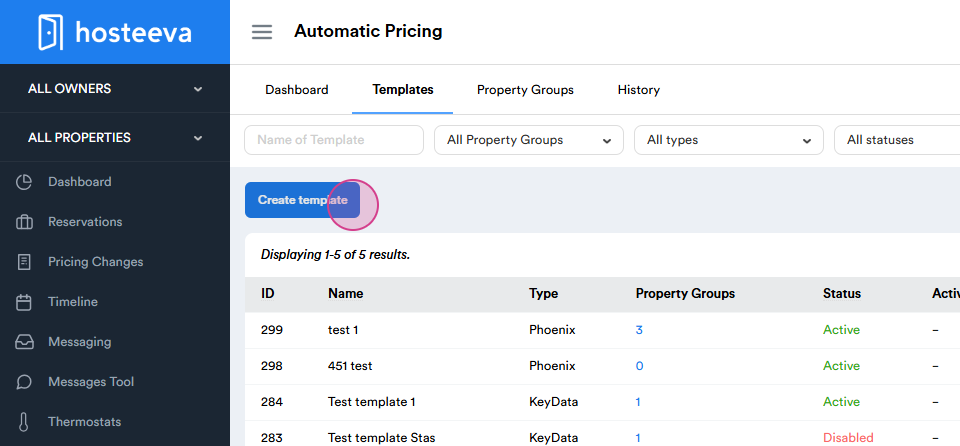
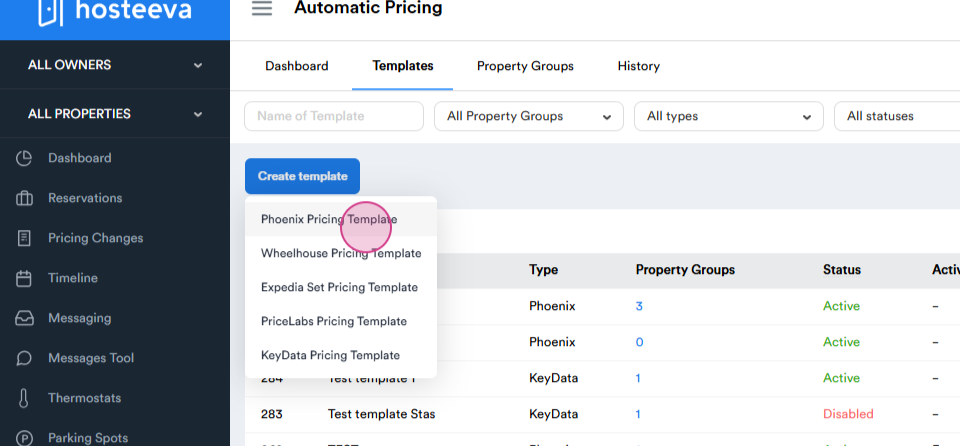
Step 3: Click on create template.
Step 4: Proceed to the next pricing template.
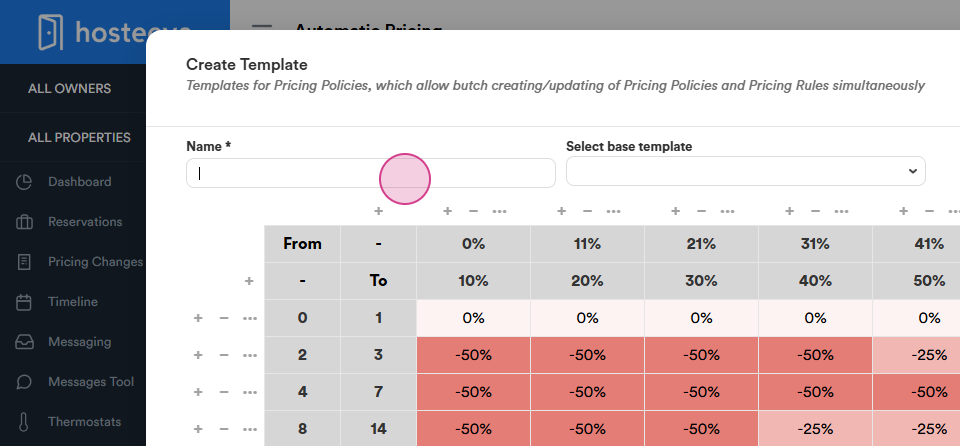
Step 5: Under Name, enter a name for the new template.
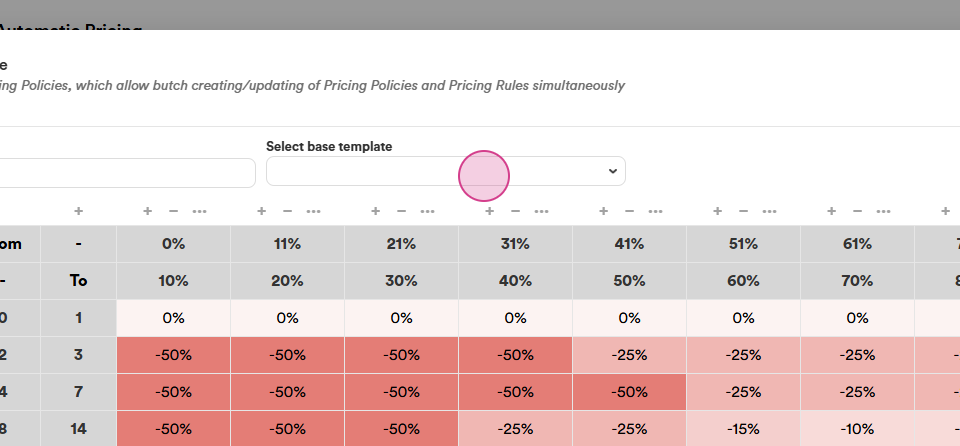
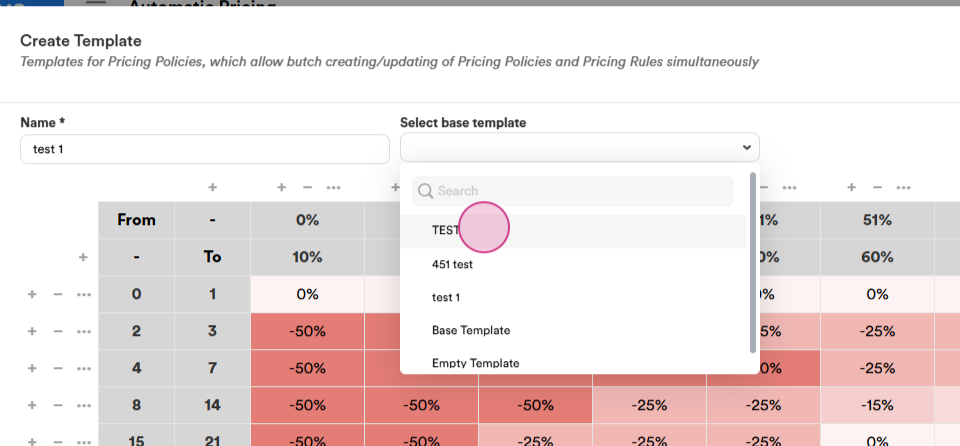
Step 6: Choose from already existing templates or create a new one.
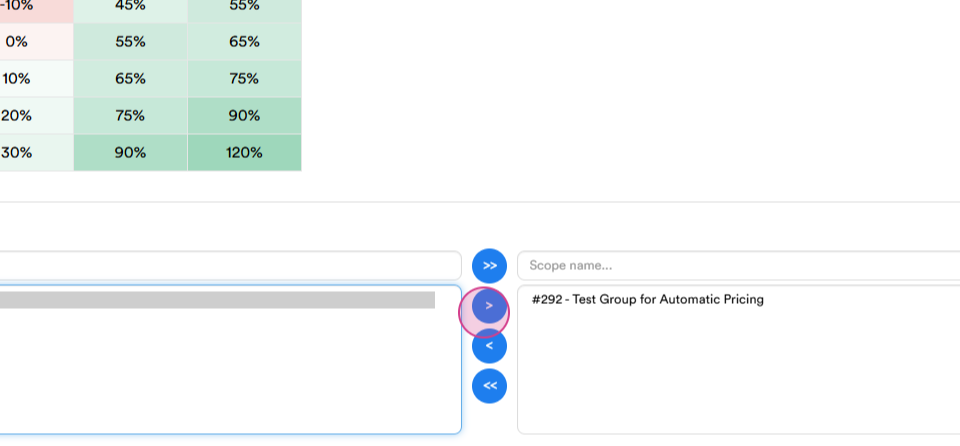
Step 7: Take the property group to the template.
Step 8: Move the property groups to the right for this template.
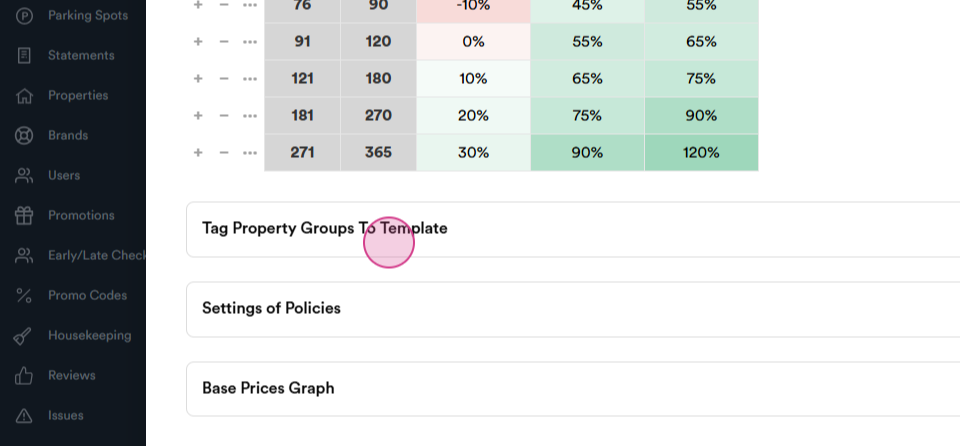
Step 9: Apply the template to one or multiple property groups.
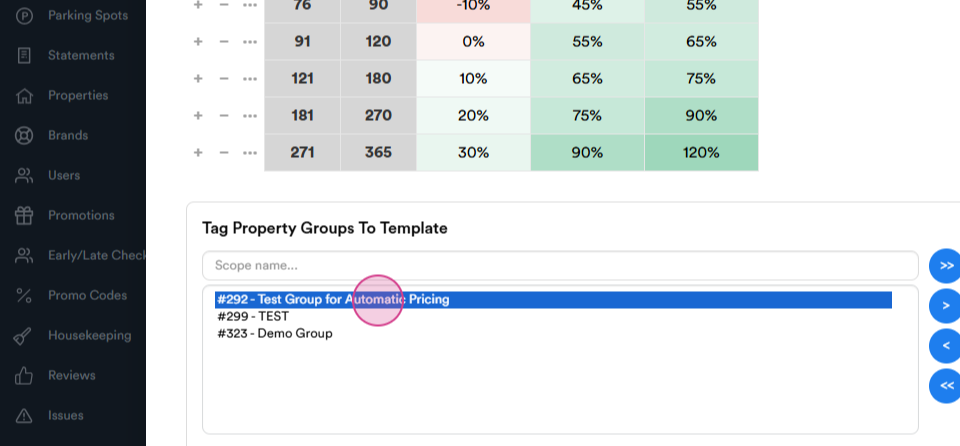
Note: If some or all property rules are logically used in the template, it's possible to apply the same rules multiple times on the same property.
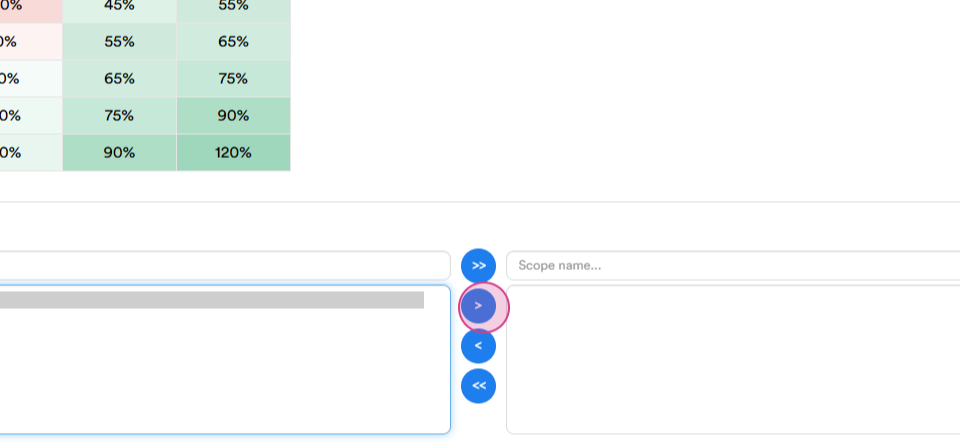
Step 10: Change to the correct and active one.
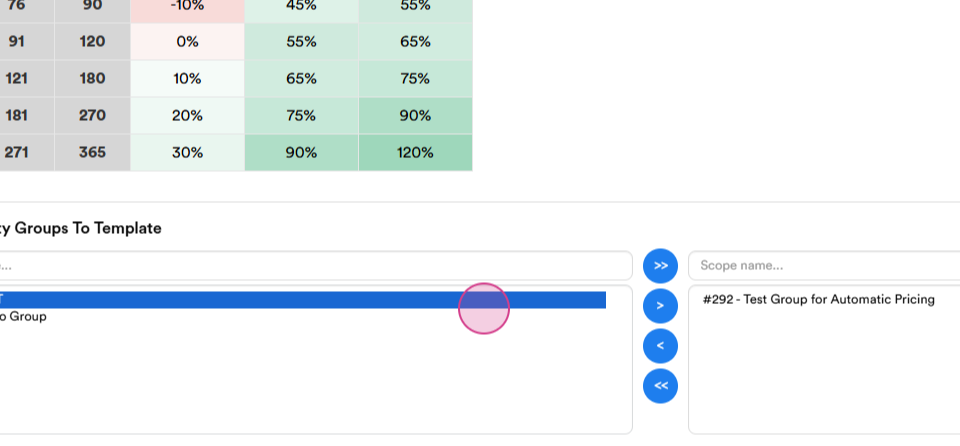
Step 11: The template is now ready for multiple property groups.