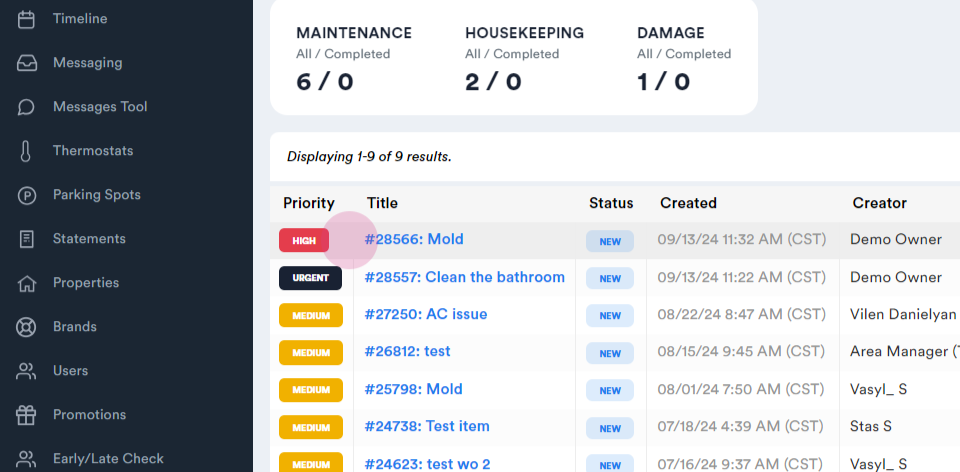
Learn how to create and assign tasks to housekeepers using the Hosteeva dashboard.
This guide covers two methods: assigning tasks directly and creating specific work orders through the maintenance app.
Assigning Tasks Directly
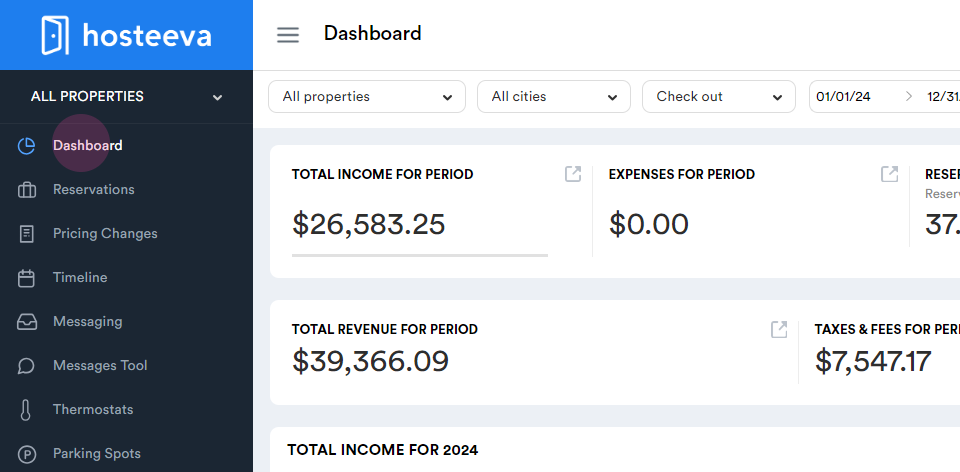
Step 1: Log in to the Hosteeva dashboard.
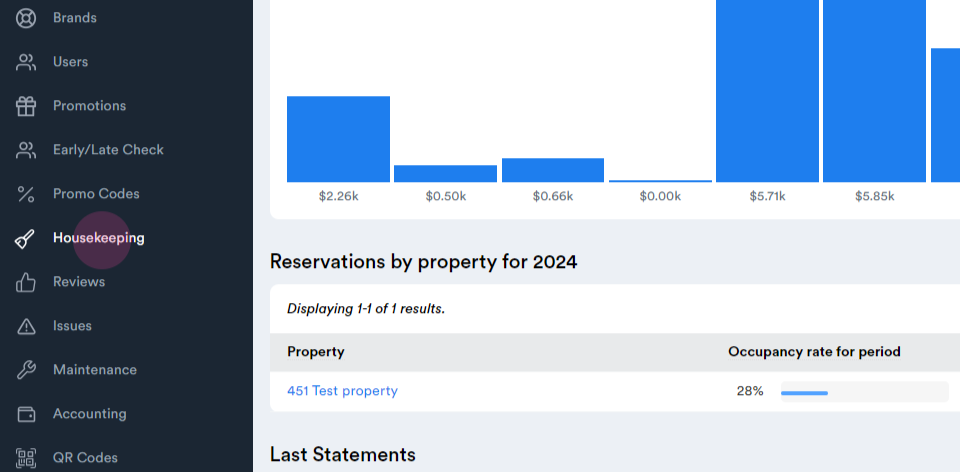
Step 2: Navigate to the housekeeping tab.
Step 3: Select the guest's arrival and departure dates.
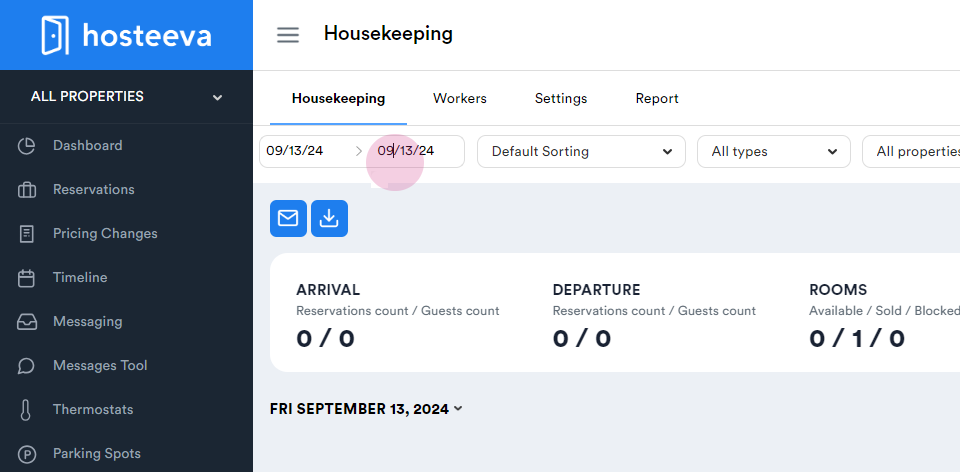
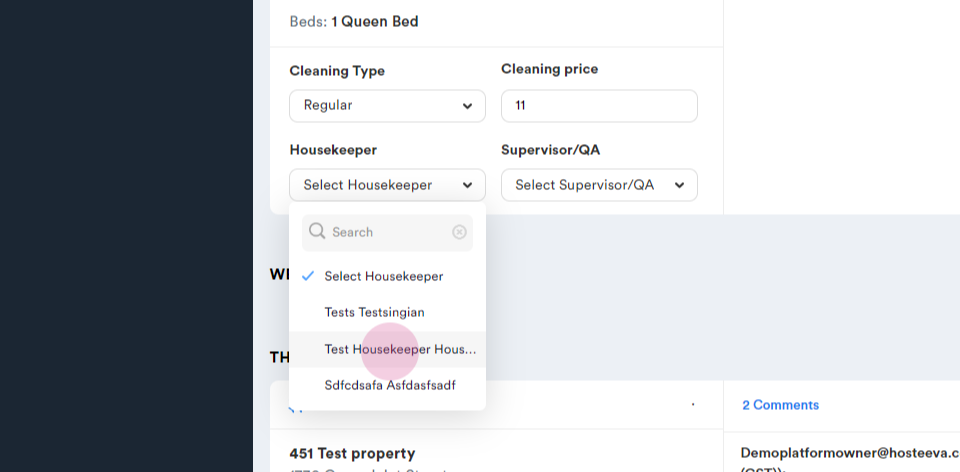
Step 4: From the housekeeper drop-down menu, select the housekeeper for the job.
The selected housekeeper will receive a notification to clean the property.
Creating Work Orders Through the Maintenance App
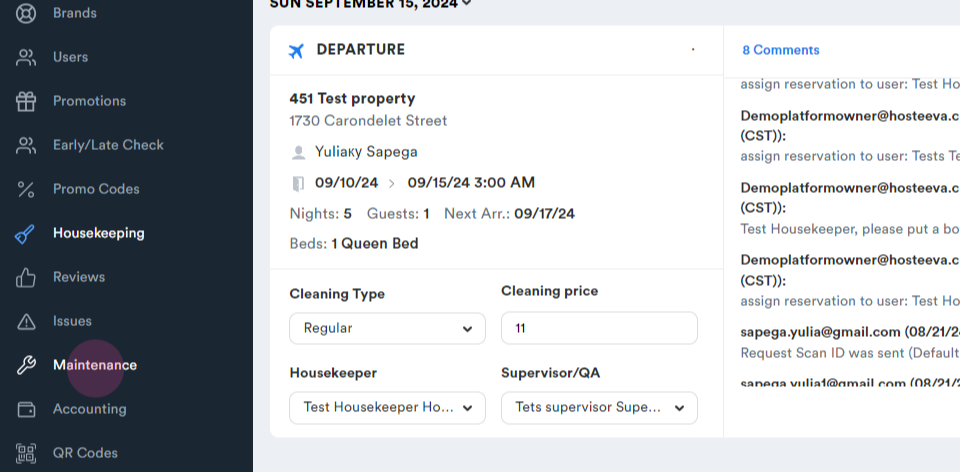
Step 1: Navigate to the maintenance tab.
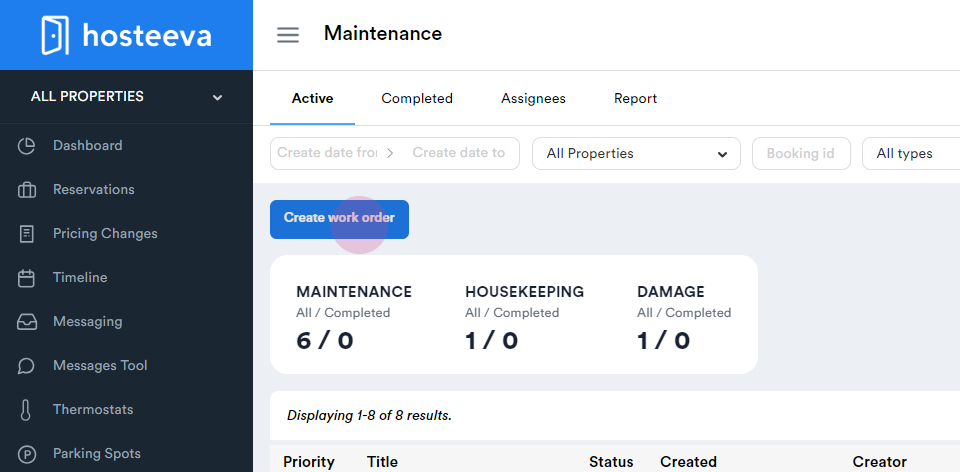
Step 2: Click on the "Create Work Order" option.
Step 3: Fill in the necessary information
-
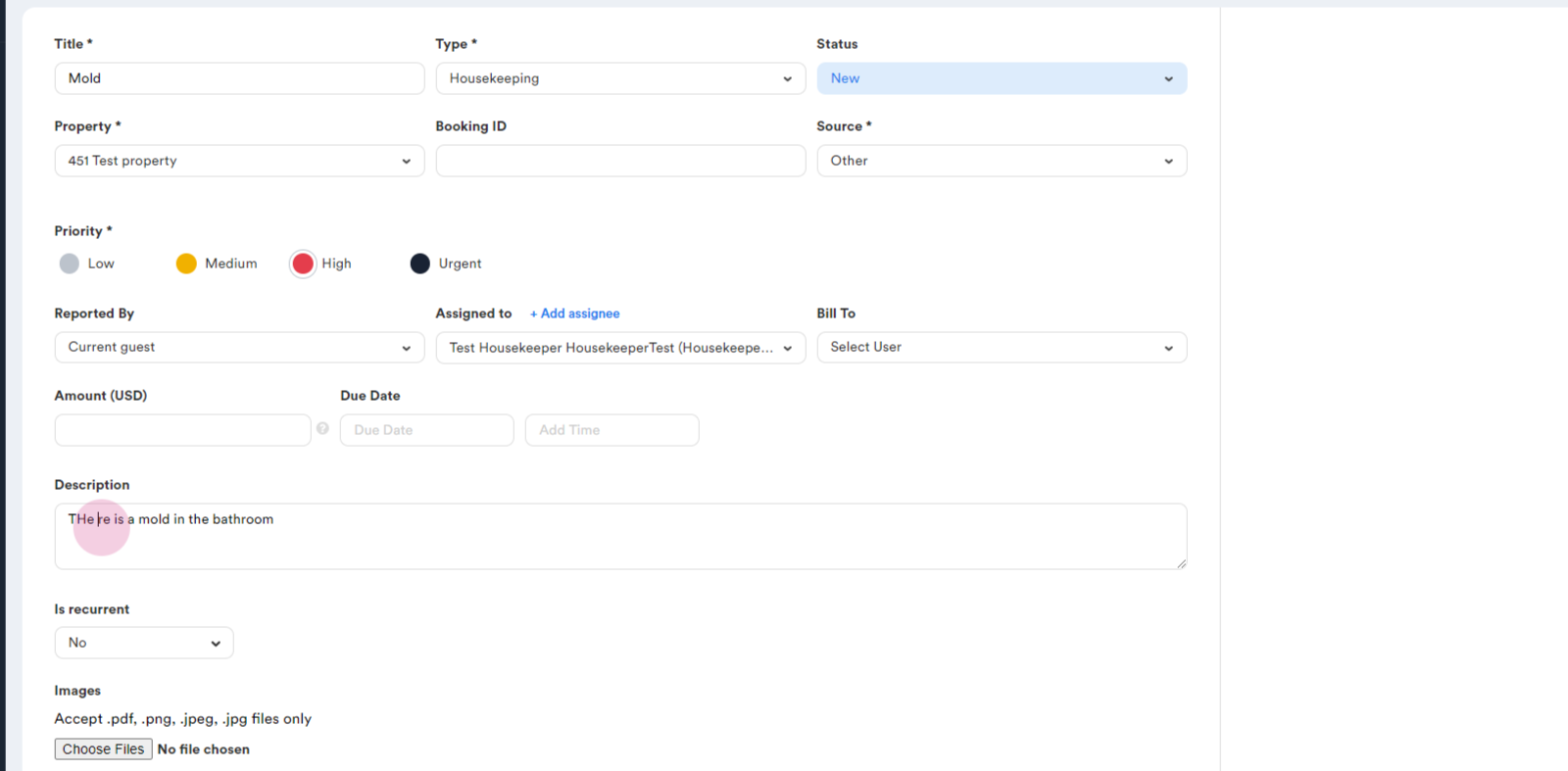
Enter a specific title for the work order or select the type of work order. For instance, select "Mold" for a mold cleaning task.
-
Set the status to "New".
-
Select the property for the work order. Note that the booking ID is optional.
-
Choose the source and set the priority level.
-
Assign the work order to a specific housekeeper.
-
If needed, select a user to bill and enter the amount.
-
Enter a description for the work order. For example, "Mold in the bathroom".
Step 4: Click on the "Create" button to finalize the work order.
A comment section will appear for communication with the assigned housekeeper.
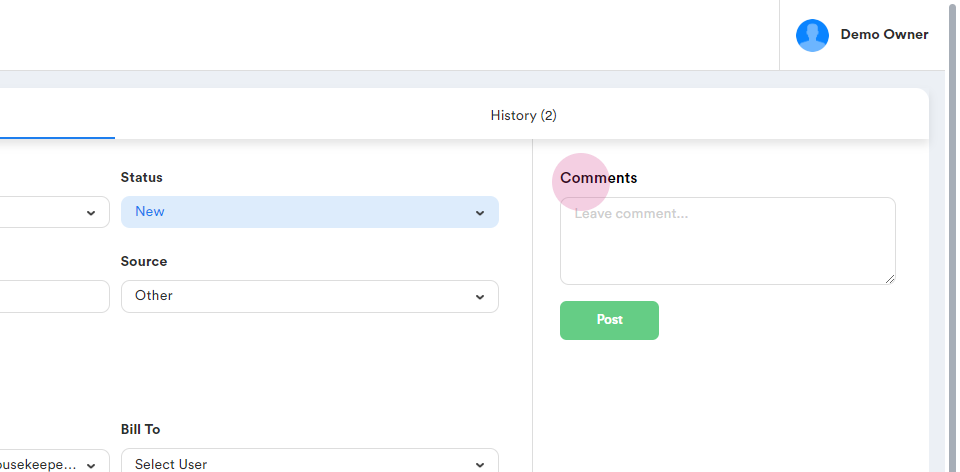
The housekeeper can access the dashboard and change the status of the work order once completed.
Step 5: Save the work order. It will appear in the housekeeper's dashboard.