This article will guide you on how to send bulk emails to your reservations. By the end of this tutorial, you'll be able to filter reservations and send them emails in bulk.
Step 1: Navigate to the reservation section. Use the filter bar to select the reservation status you're interested in. This could be checked in, checked out, or booked reservations.
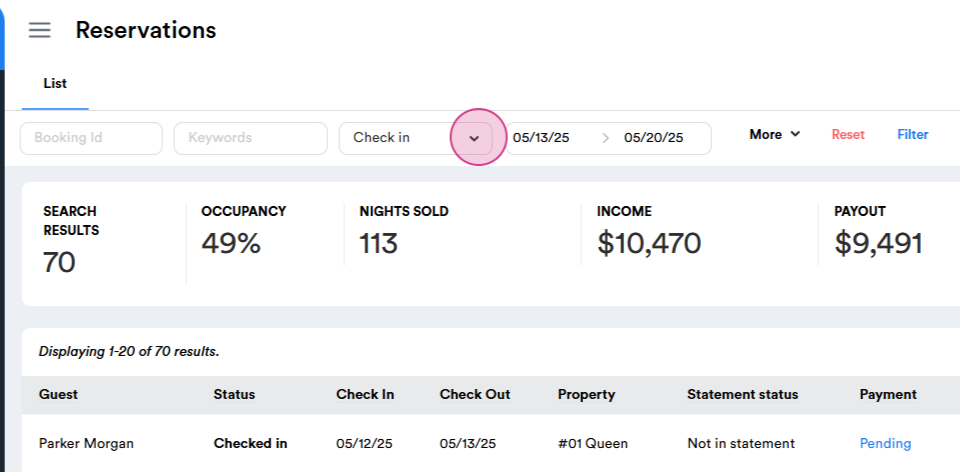
Step 2: Specify the time period or the exact date for the reservations.
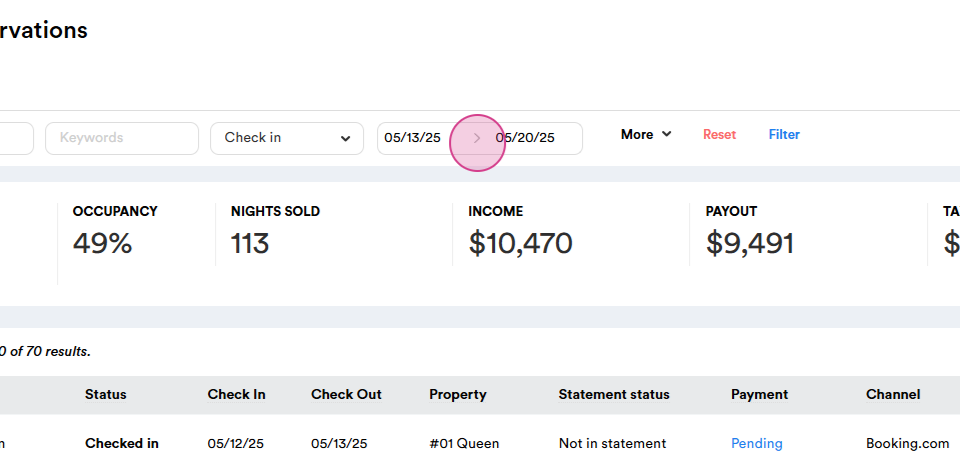
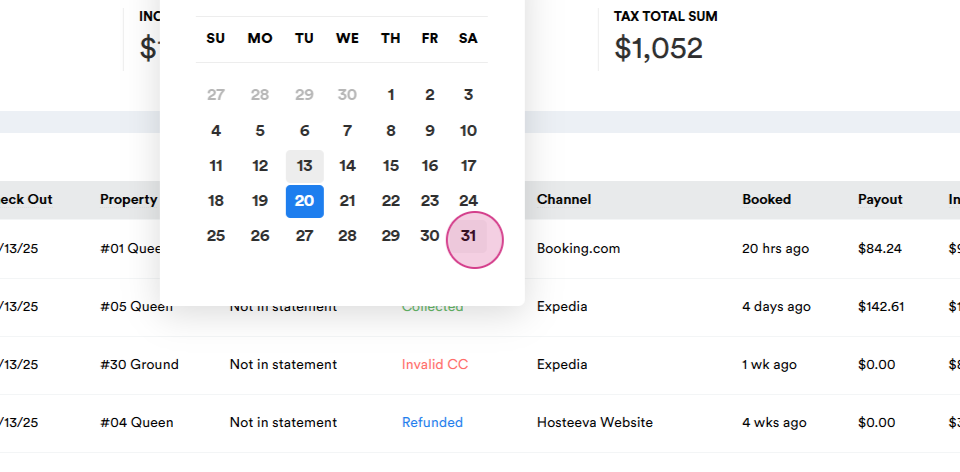
For instance, if you'd like to send emails to reservations checked in from May 1st till May 31st, set this as your date range.
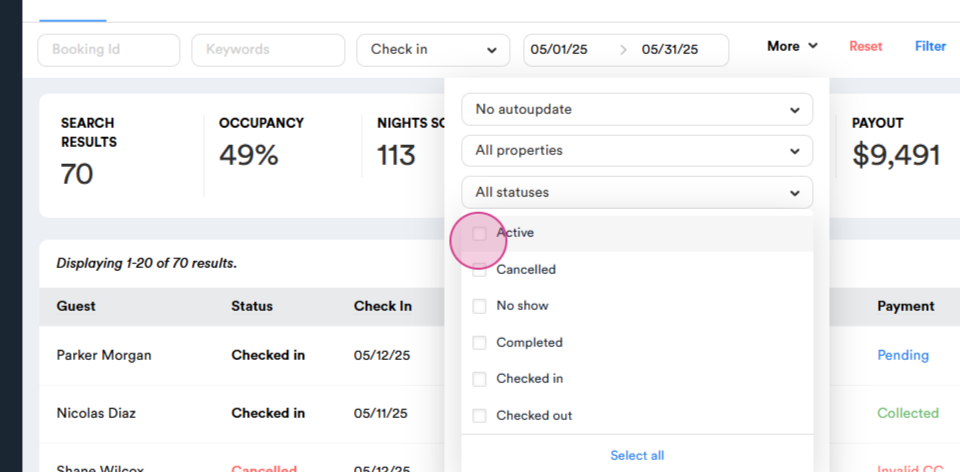
Step 3: Choose the appropriate filter. This could be all status, active status, canceled, no show, completed, full select all, or pay status.
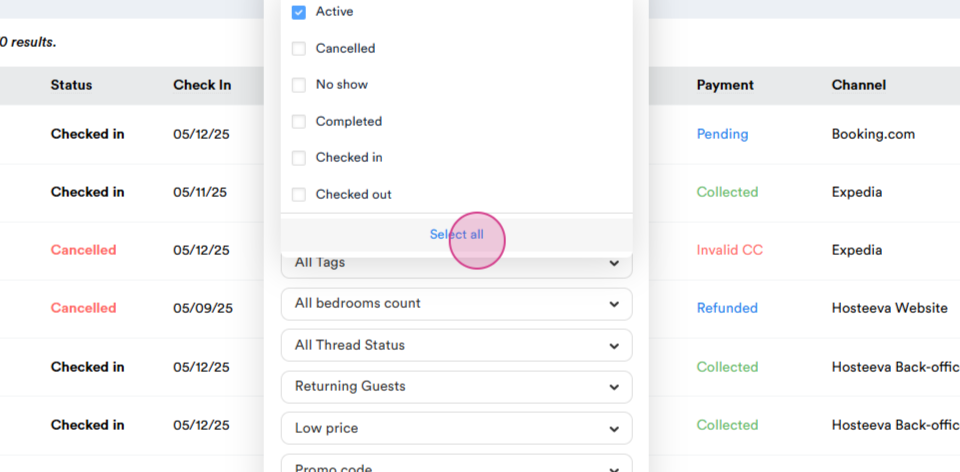
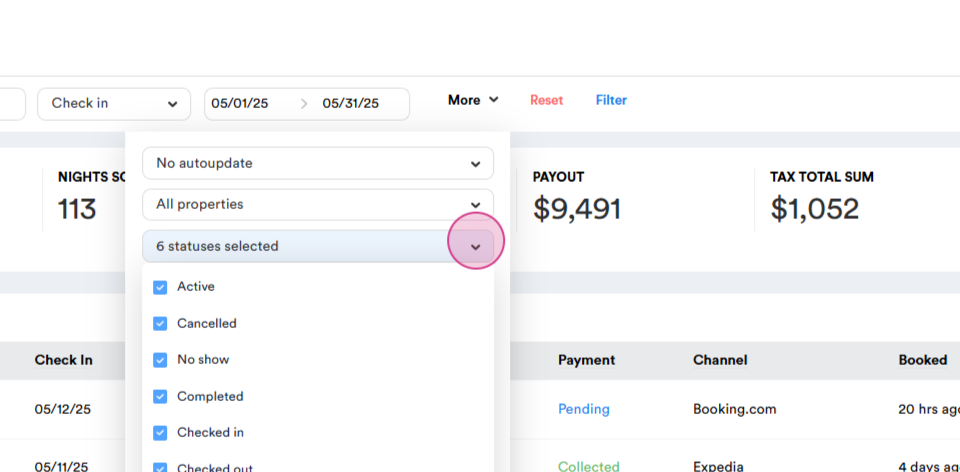
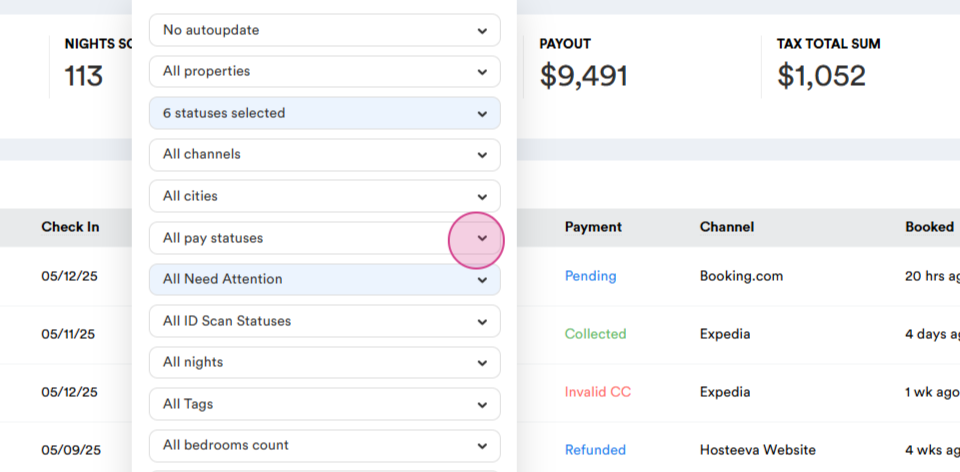
Step 4: After setting your filters, click on 'Filter'. The system will display the number of results according to the filters you've applied.
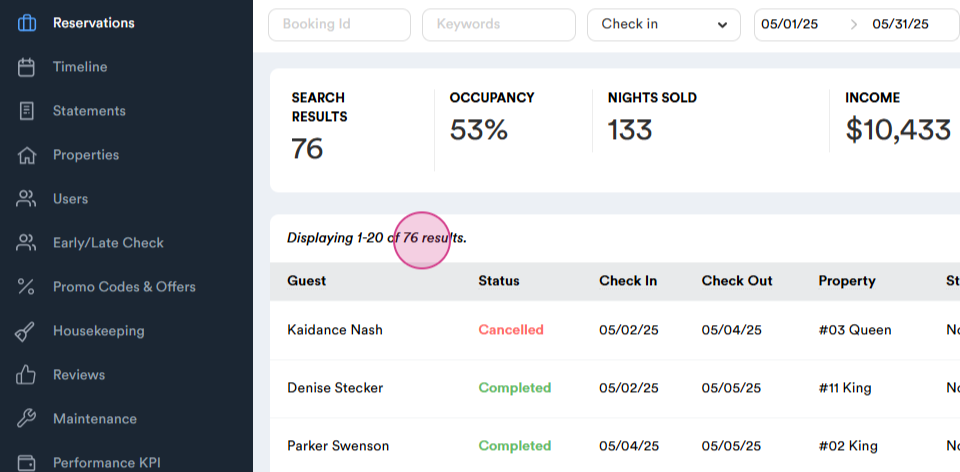
Step 5: Use the messenger to send bulk emails or SMS. You'll find this option in the messenger.
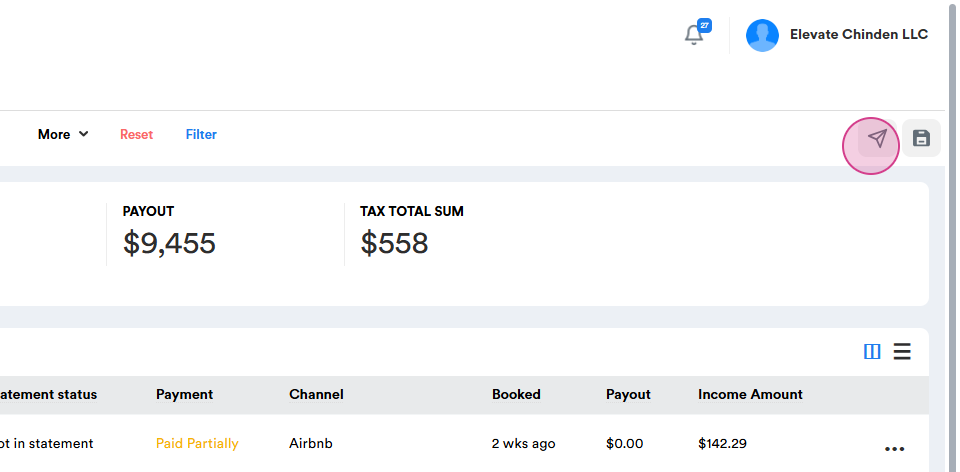
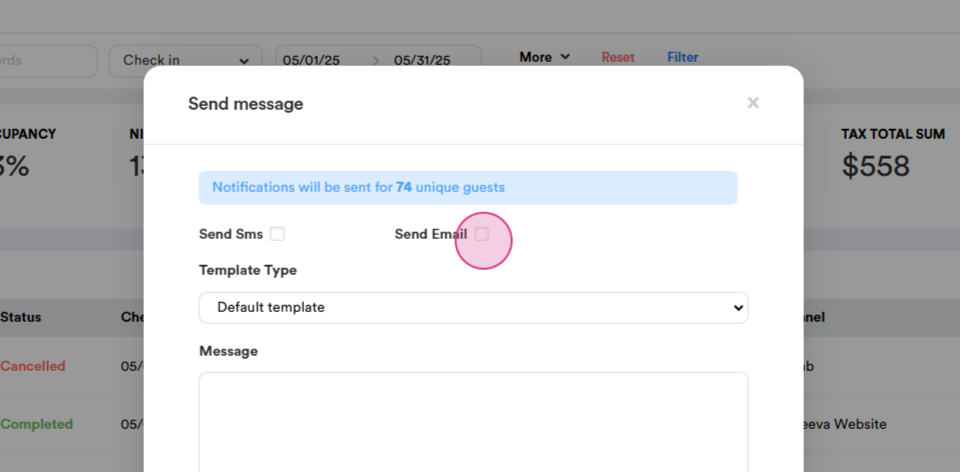
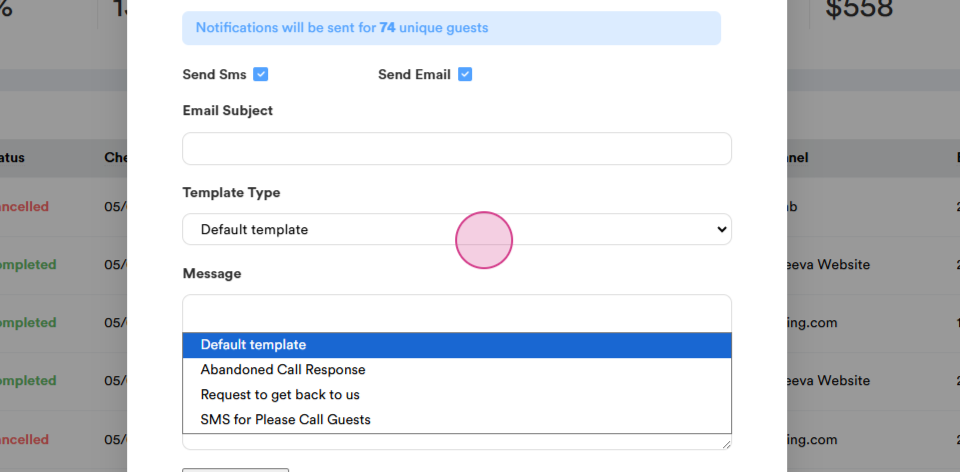
Step 6: Click on the appropriate option, select the subject of the email, and choose the template or type the message yourself.
Step 7: If you need to attach a picture, click on 'Choose Files' to upload it.
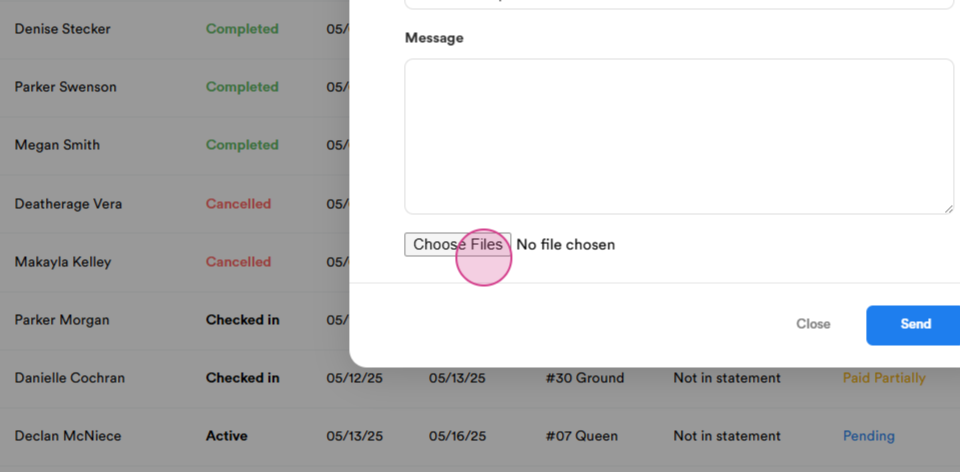
Step 8: Click 'Send' to send the bulk email to all the filtered reservations.
That's it! You've now learned how to send bulk emails to your reservations.