This guide explains how to create an FAQ page for a property using the Hosteeva dashboard. The process involves compiling a list of questions and answers, defining topics, and making FAQ group for a specific property.
Start by collecting a comprehensive list of questions and answers from the property owner or local manager.
After obtaining this list, identify potential topics by reading through all the questions and answers.
Creating the FAQ Page
Step 1: Open the Hosteeva dashboard.
Step 2: Click on the Properties tab.
Step 3: Navigate to and click FAQ groups.
Step 4: Click on Add Group
Step 5: Name the group and select the property for which you're creating the FAQ.
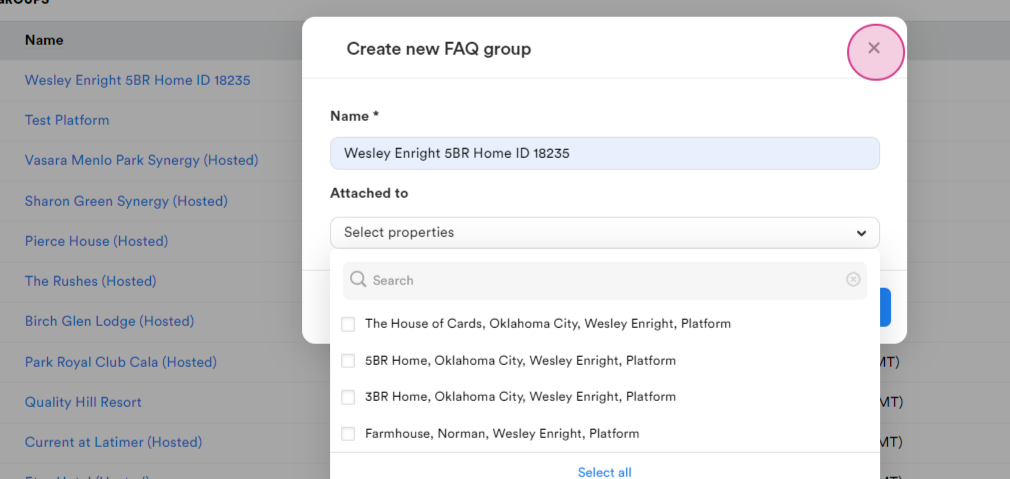
Each group consists of a question, an answer, and a topic.
Adding Topics and Questions
Step 1: Create the topics. Navigate to the Topics tab next to Questions.
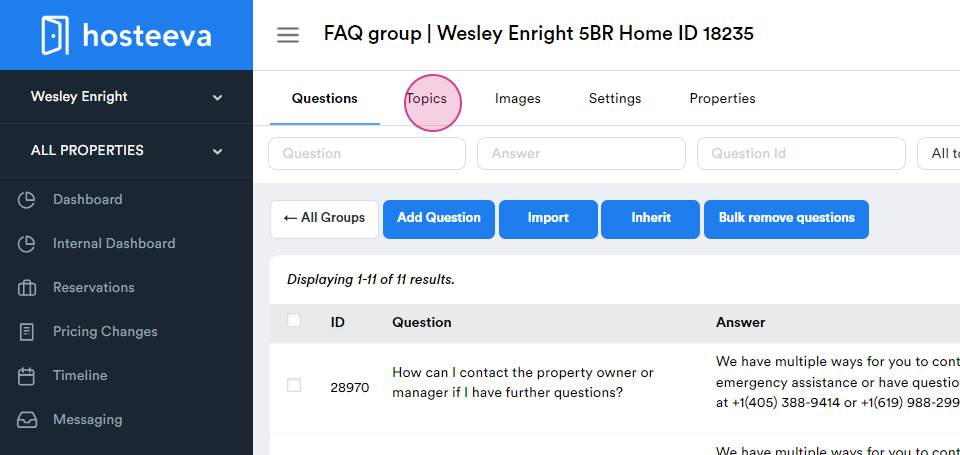
Step 2: Click on Topics.
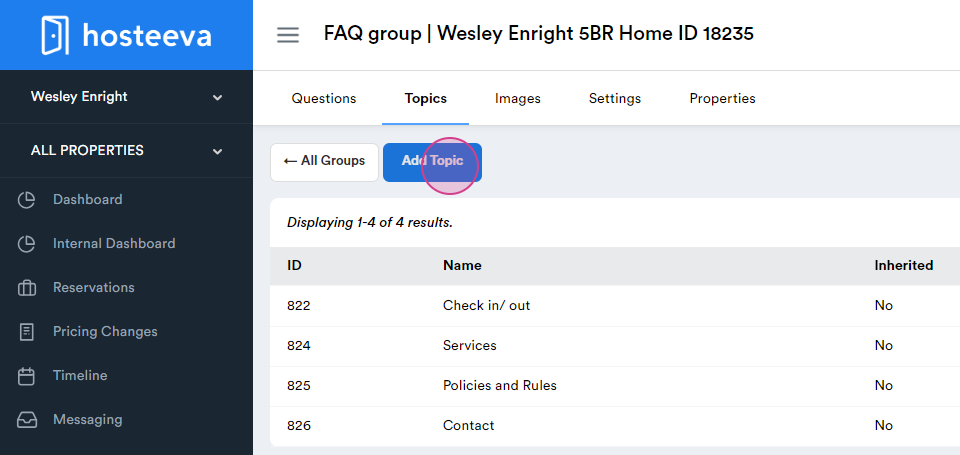
Step 3: To add a topic, click on Add Topic.
Step 4: Enter the topic name and click on Create.
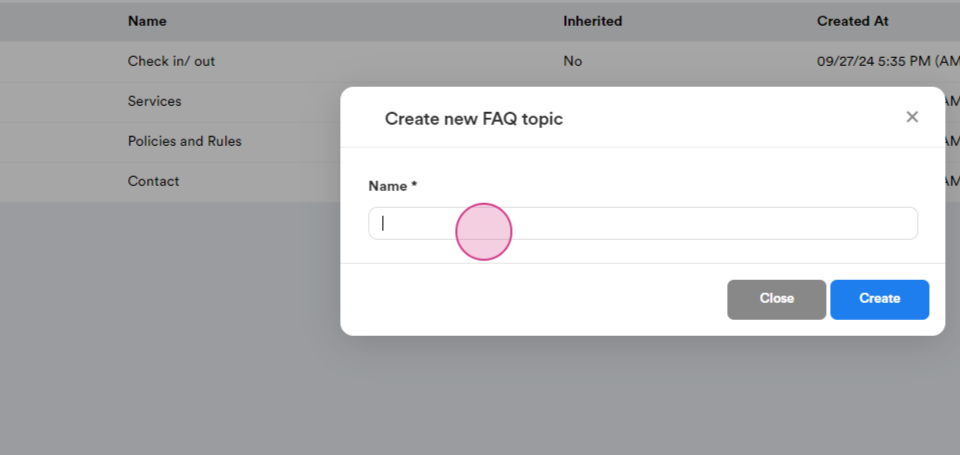
Make sure you create all the topics not to get back to this page
Step 5: Add questions and answers under the Questions tab by clicking on Add Question.
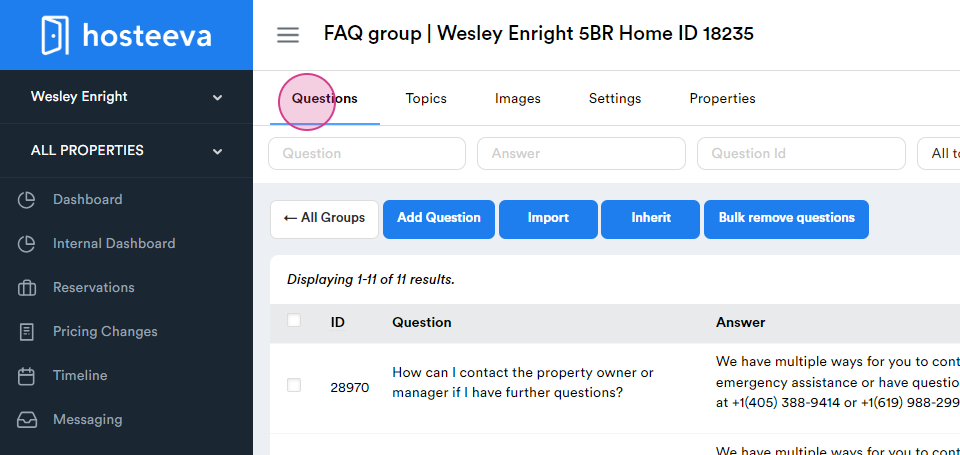
Step 6: Click on Add Question
Step 7: Select the topic and the property. If the question is specific to one channel, select that channel. If it applies to all channels, leave it set to All Channels.
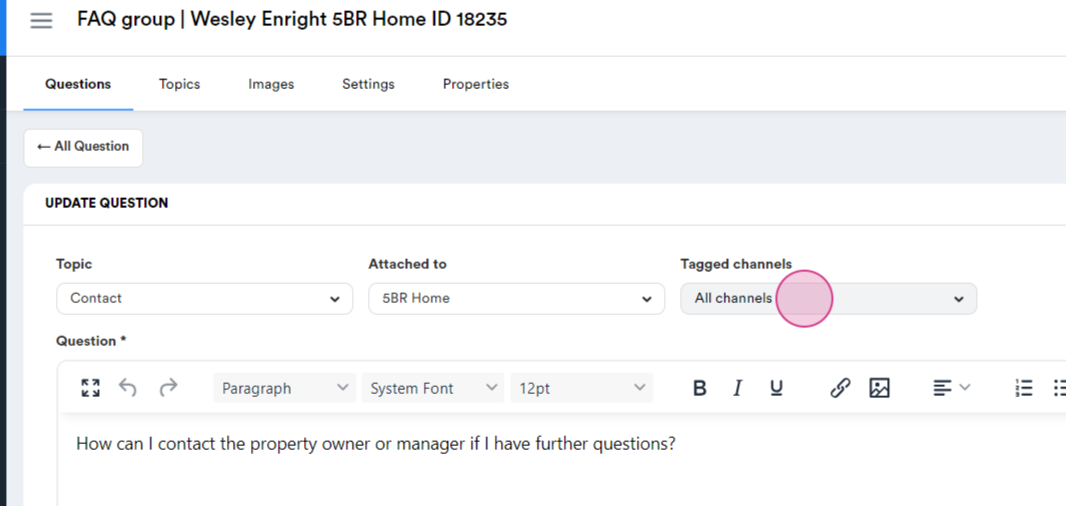
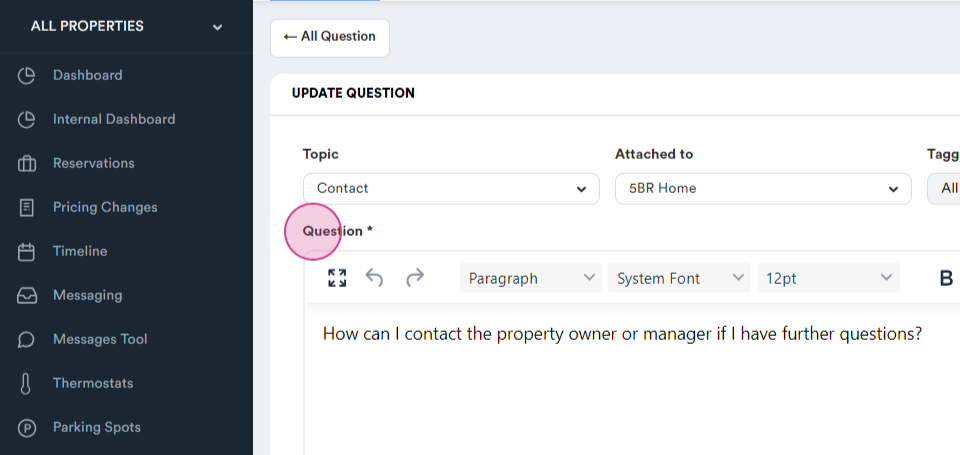
Step 8: Enter the question and its answer.
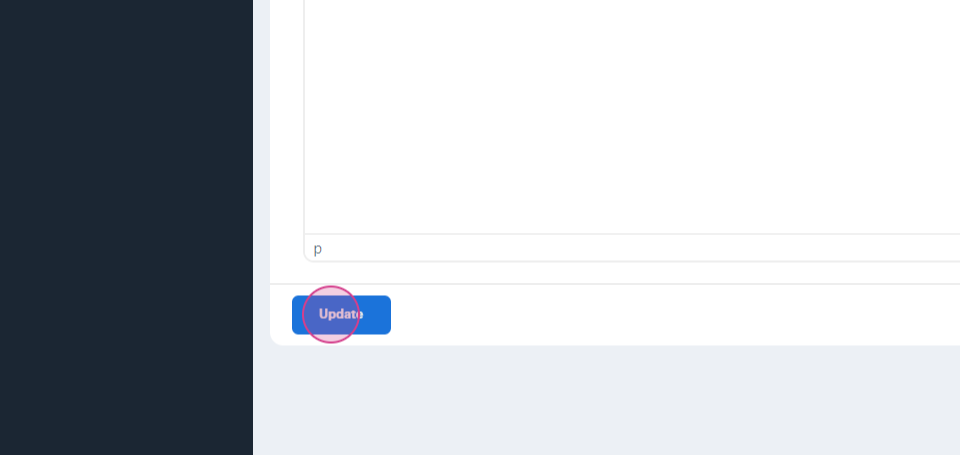
Step 9: Click on Create. To update a question and answer, return to this page and click on Update.
Once all questions and answers are ready, go to the Property FAQ page to view the final version.
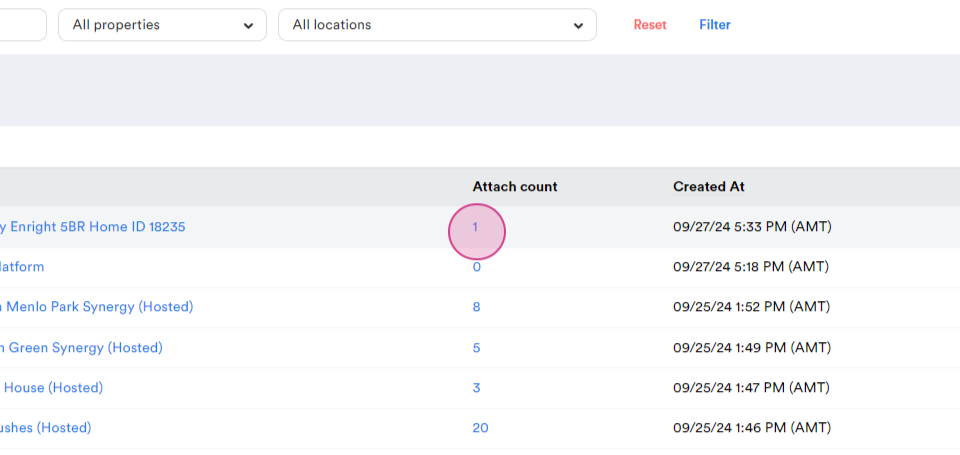
Click on FAQ Page.
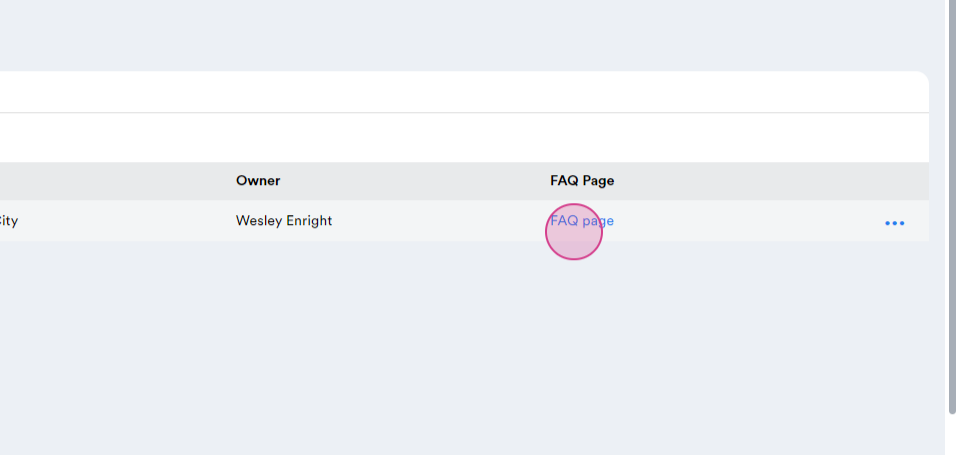
This will display the specific FAQ page for the property that you created.