In this article, you'll learn how to set a fee for platform users.
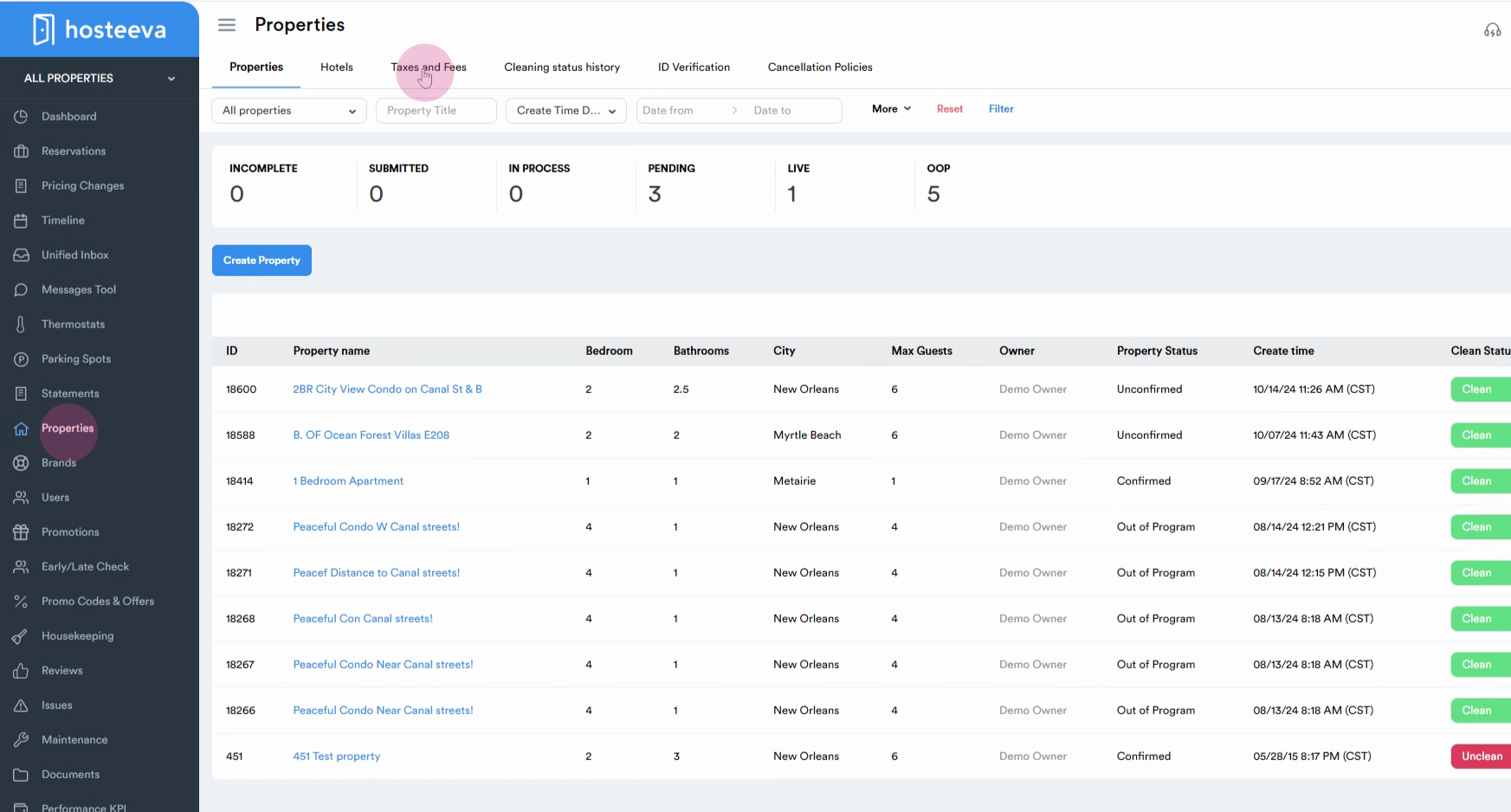
Step 1: Start by navigating to the Properties section. From the top of the page, select Taxes and fees.
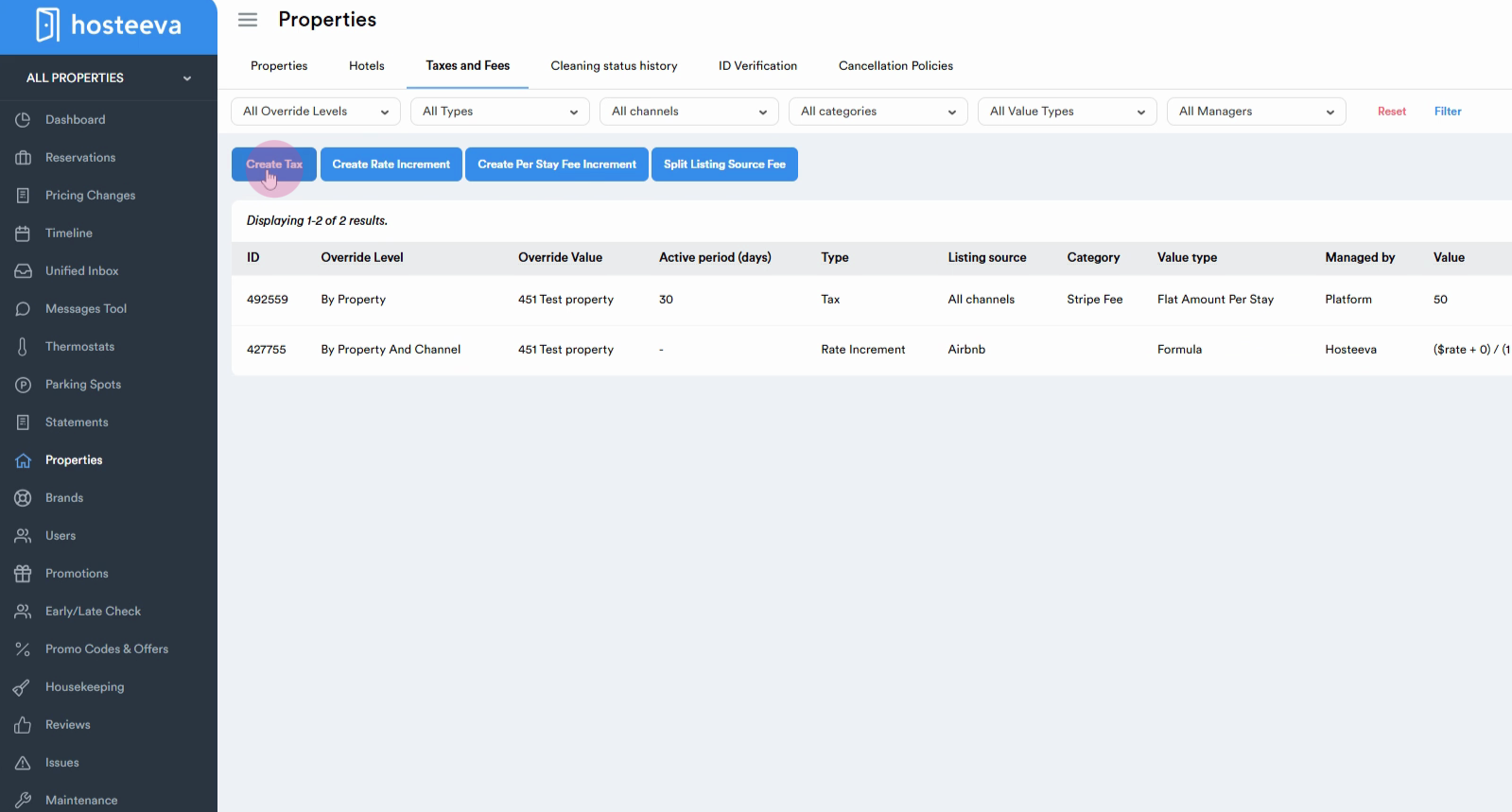
Step 2: Click on the Create tax button. Note that both taxes and fees are created using this button.
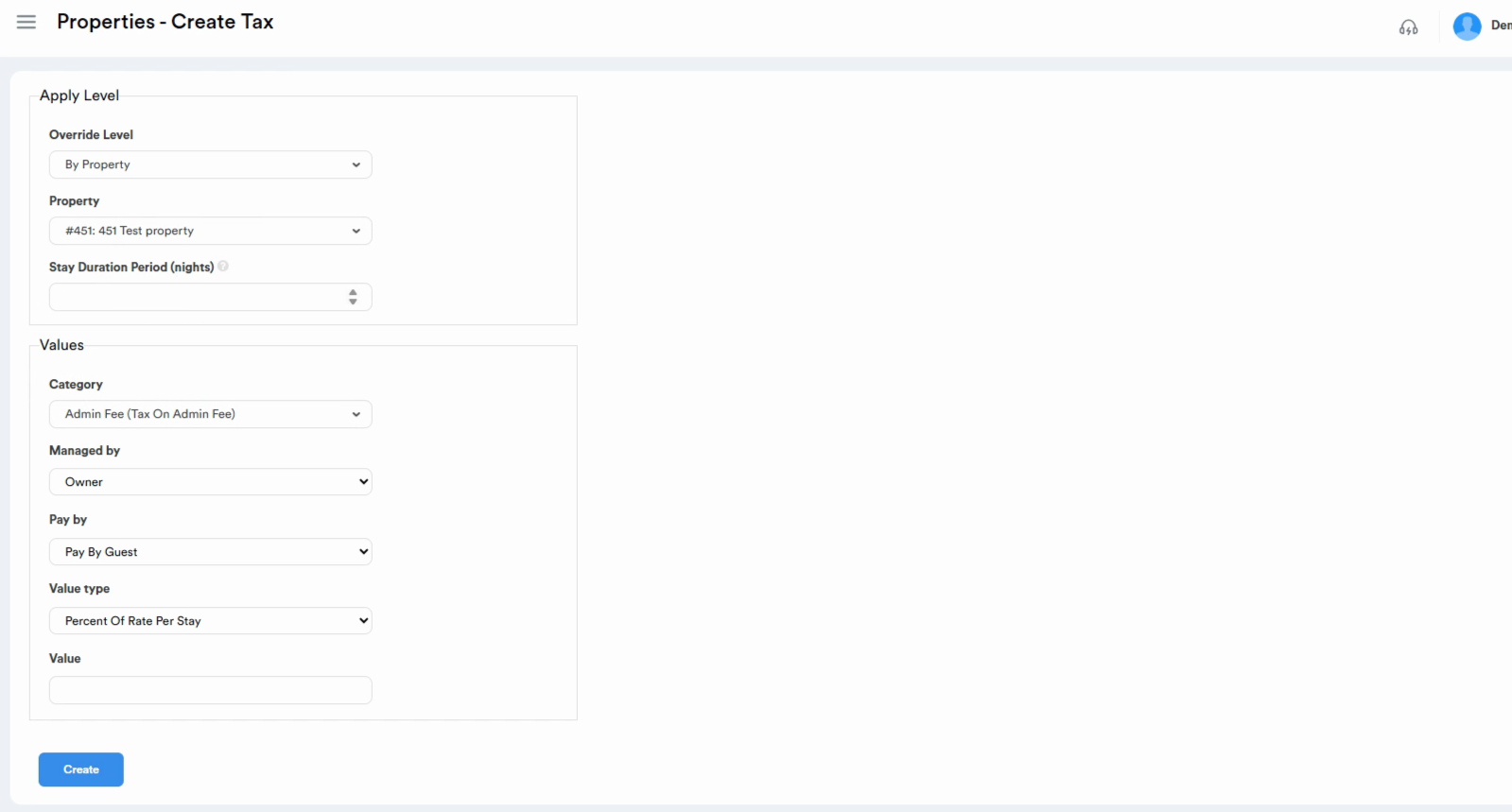
Step 3: Fill in all the necessary fields to create a fee. From Override level dropdown, choose By property if you want to set the fee for all channels, By channel if you want to set a specific fee for a specific channel, and By property and channel and payment method if you want to set a specific fee for a specific payment method of any channel.
Step 4: The next field is Property. For hotels, taxes and fees should be set on the room type. In this case, we'll select Property.
Step 5: Set the Stay duration period in nights.
For instance, if you input 29 nights, the fee will apply for 29 nights and then cease to function.
Step 6: In the Values section, select the fee you want from the Category dropdown menu.
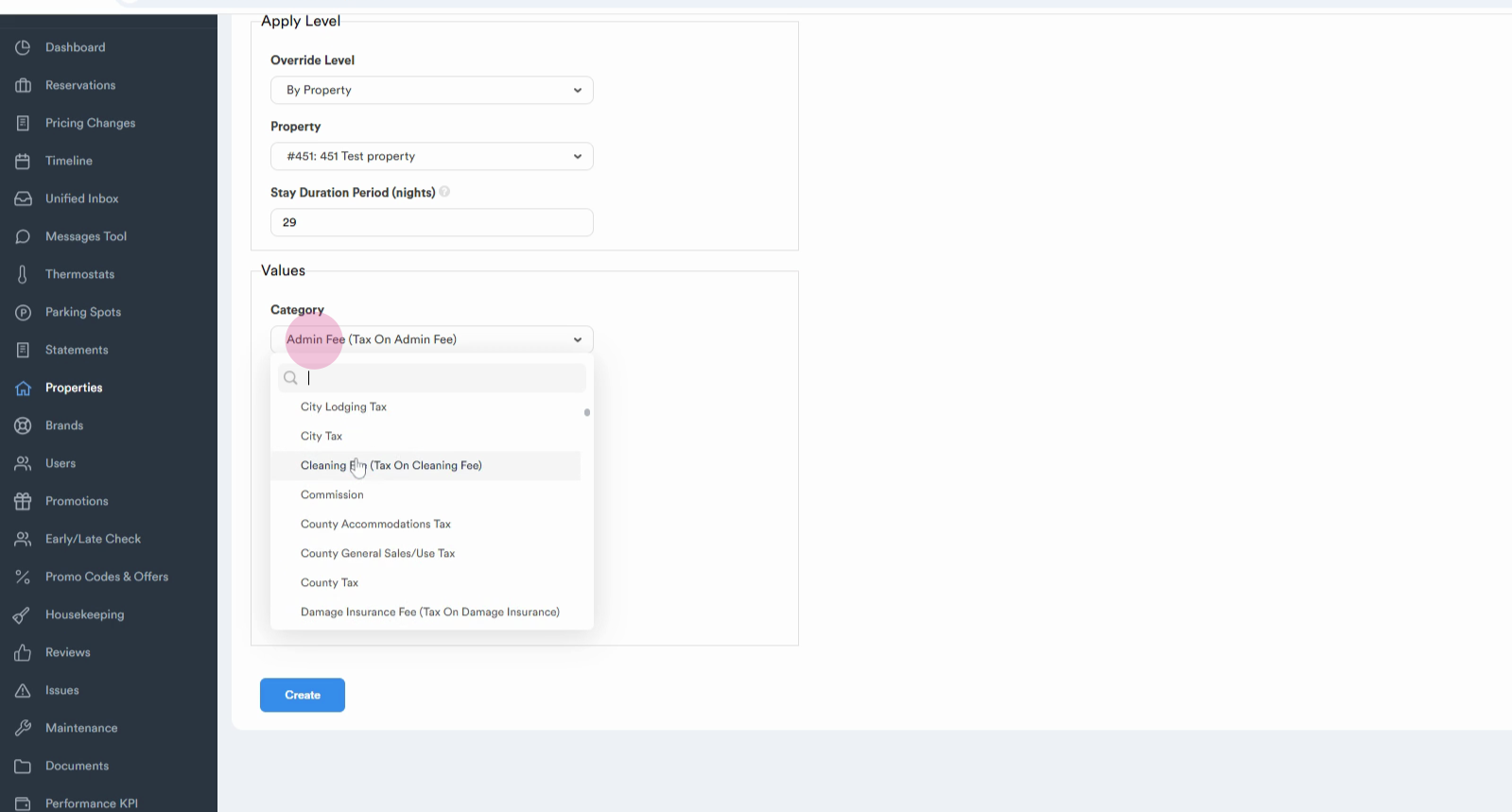
For example, let's select Admin fee.
Step 7: In the Managed by field, choose between Owner, Platform, and Partner.
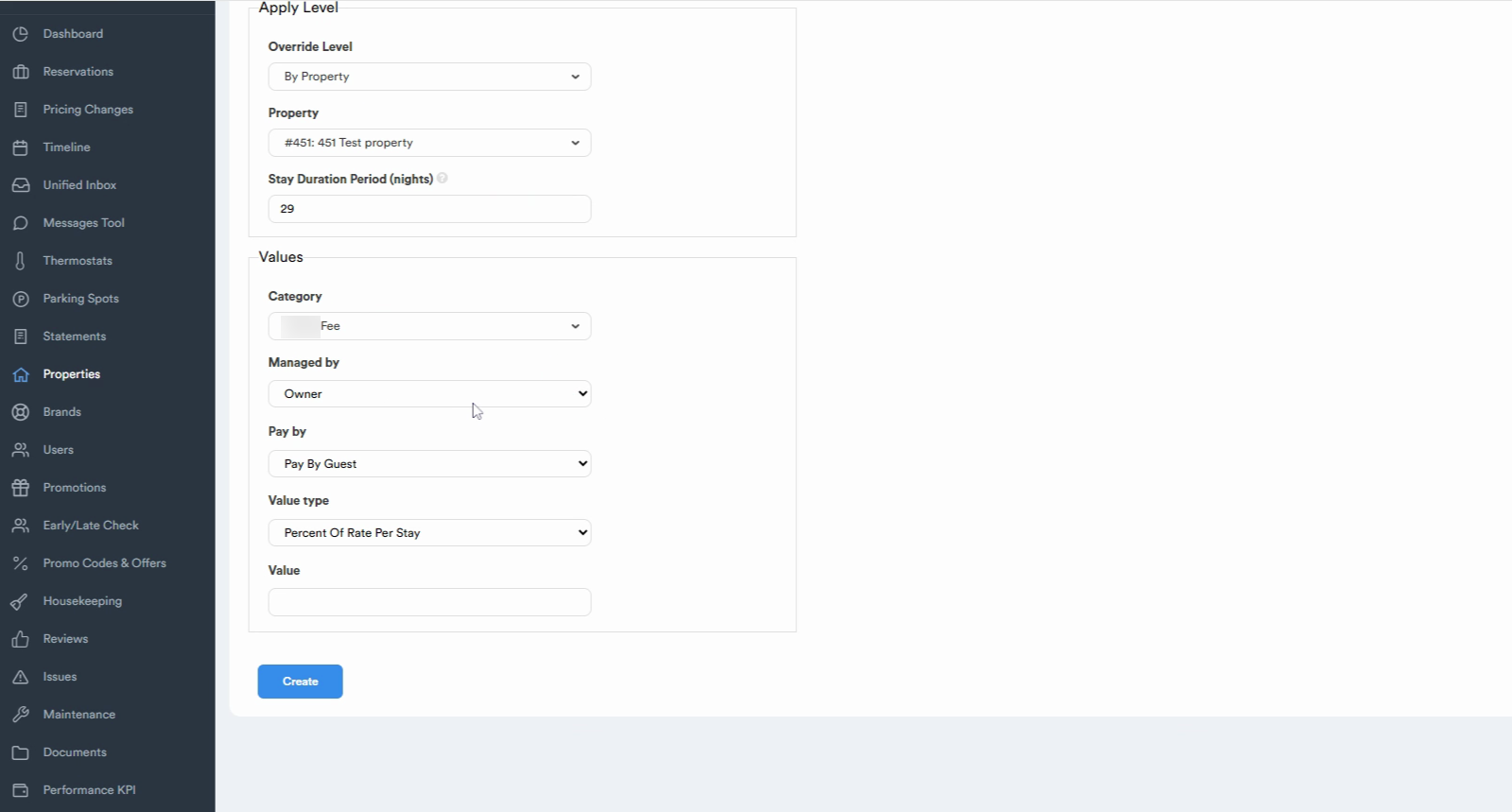
Select Owner if the amount should go to the owner when making payouts, Partner if the amount should go to the property management company, and Platform if the amount should go to the platform.
Step 8: In the Pay by field, choose between Guest and Owner.
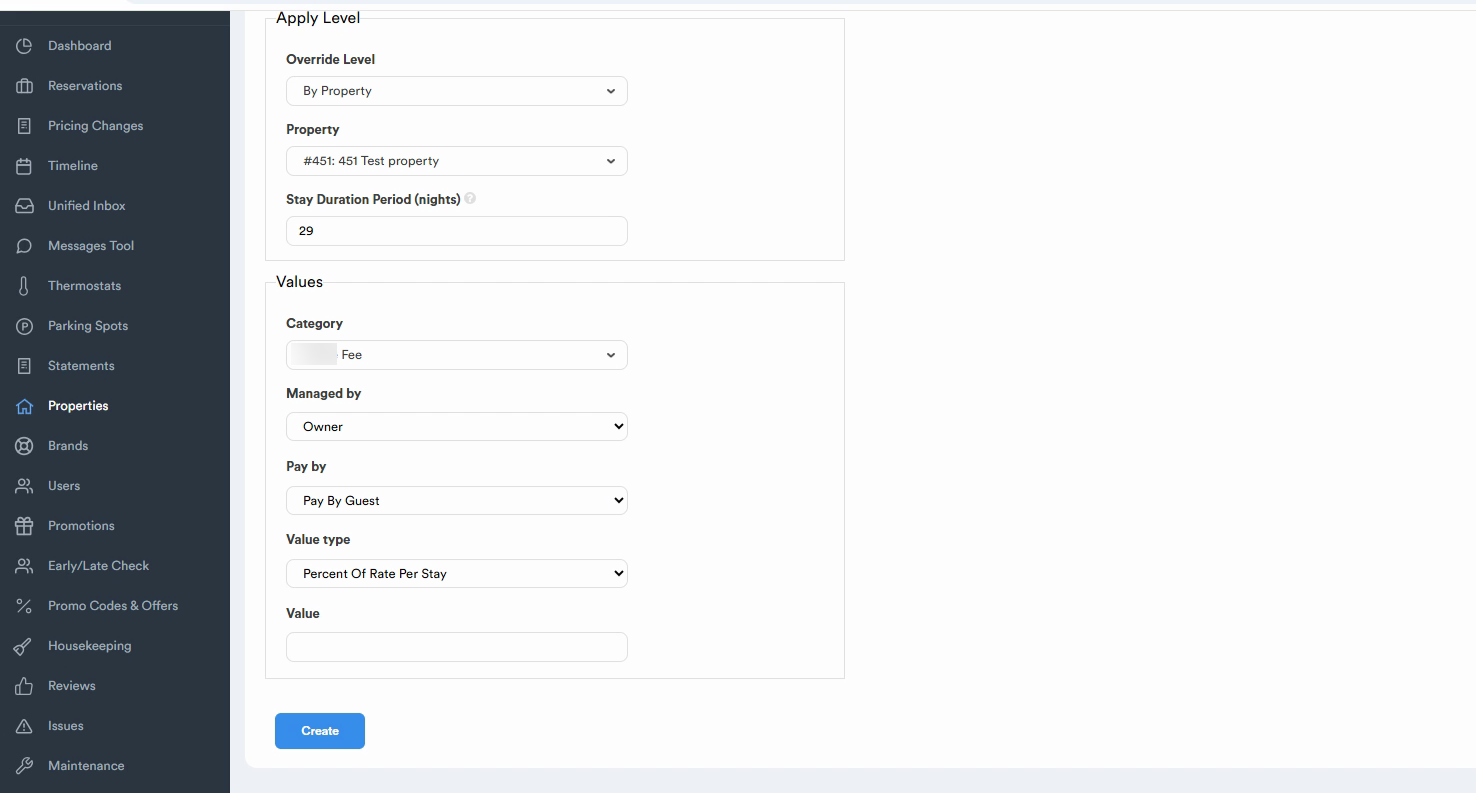
Select Guest if the amount should be charged from the guest, and Owner if the amount should be deducted from the owner's payout.
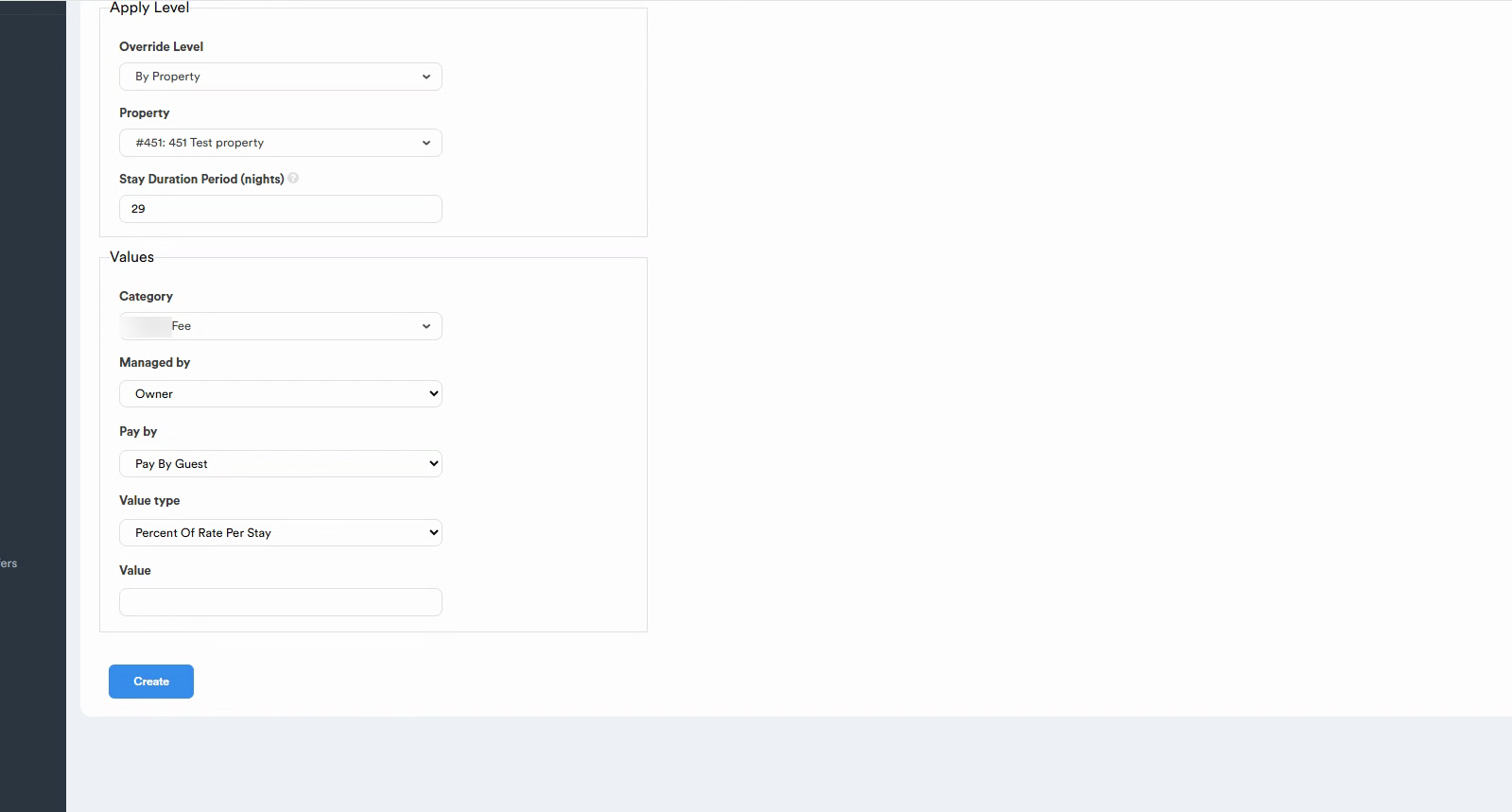
Step 9: Next, select the Value type from the dropdown menu.
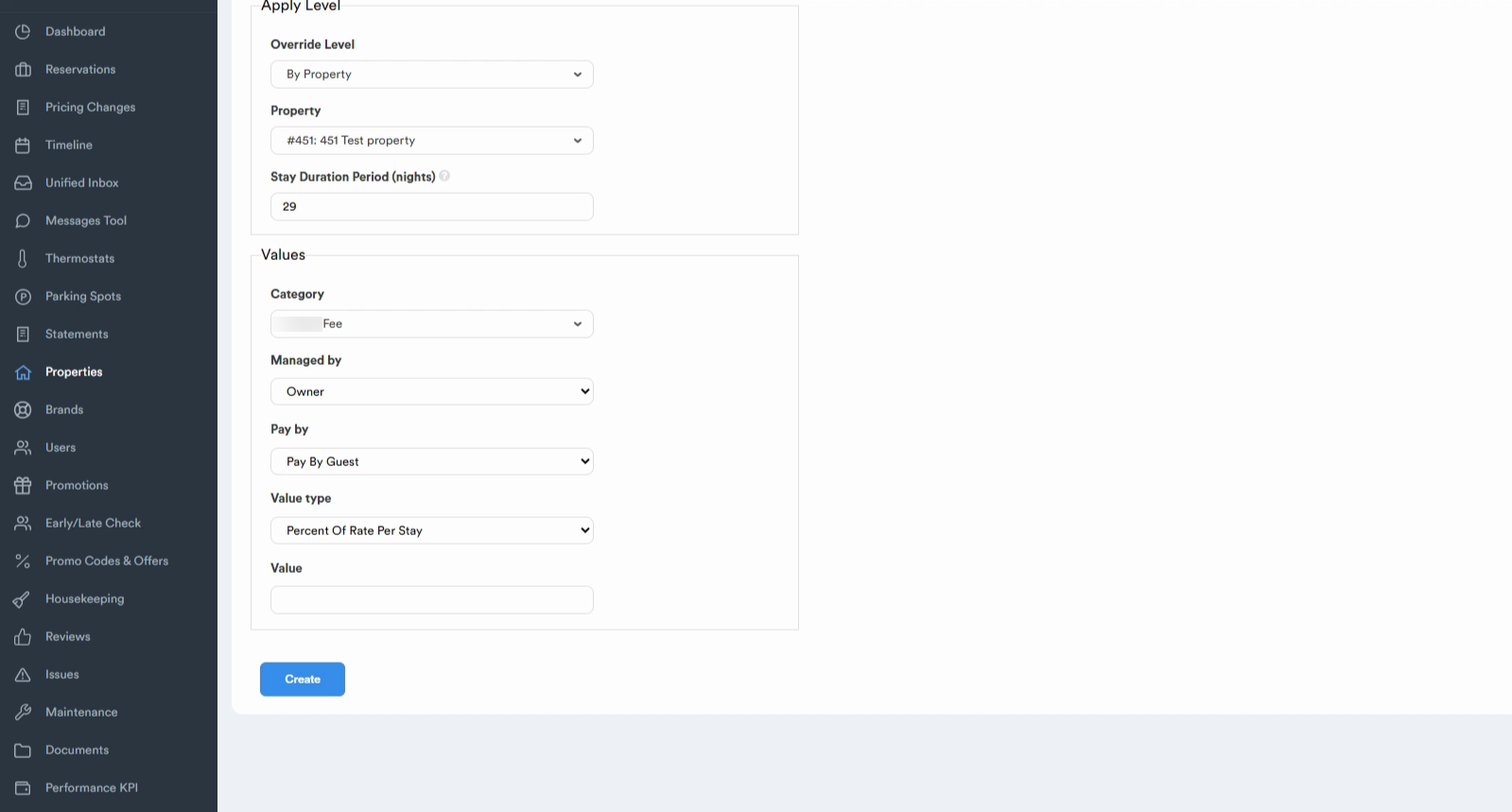
The value can be either a flat amount per stay, a flat amount per night, or a percentage of the rate. Choose the one that best suits your needs.
Step 10: Enter the Value. For example, $50.
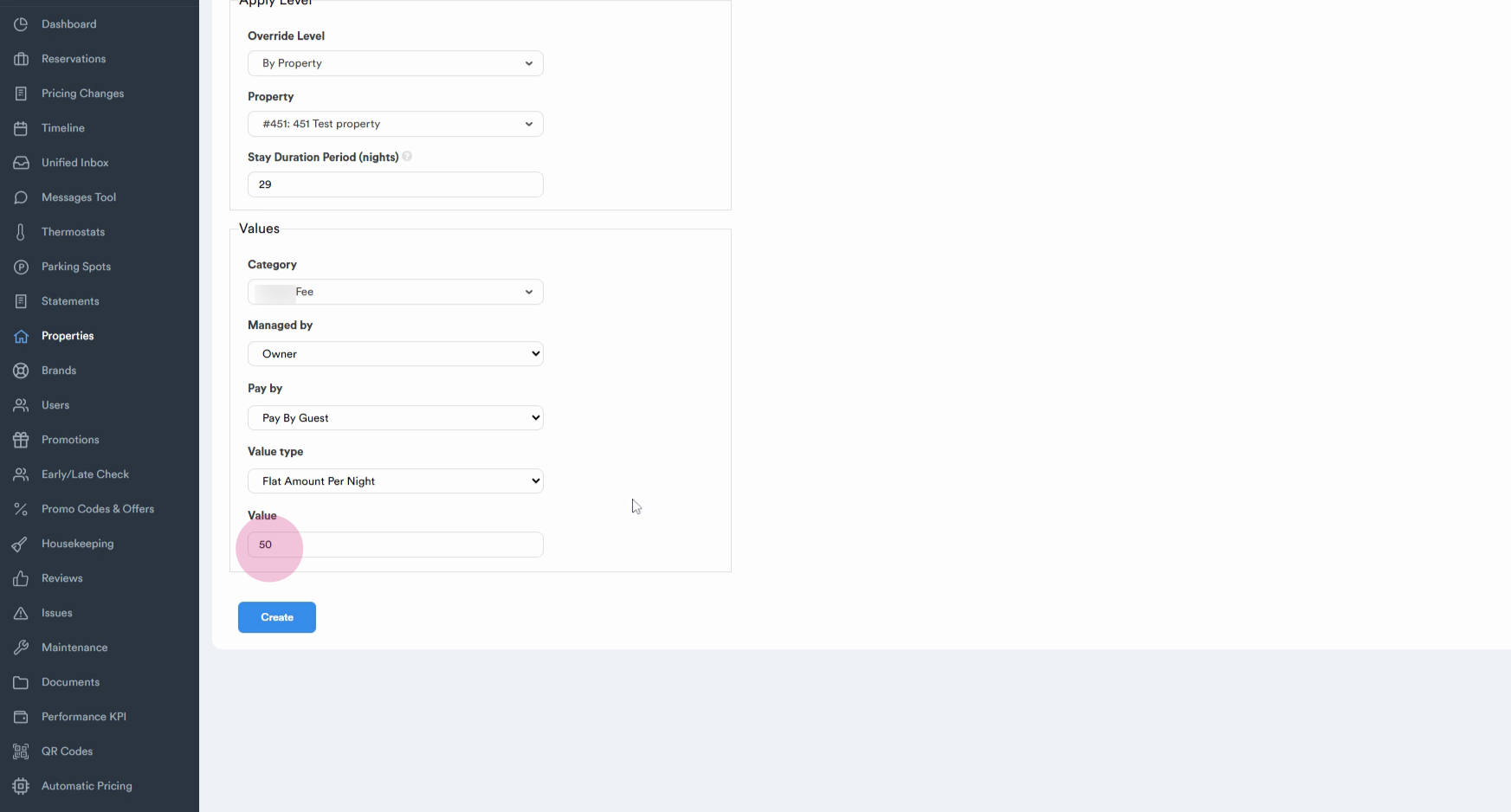
Step 11: Click the Create button to finalize the fee.
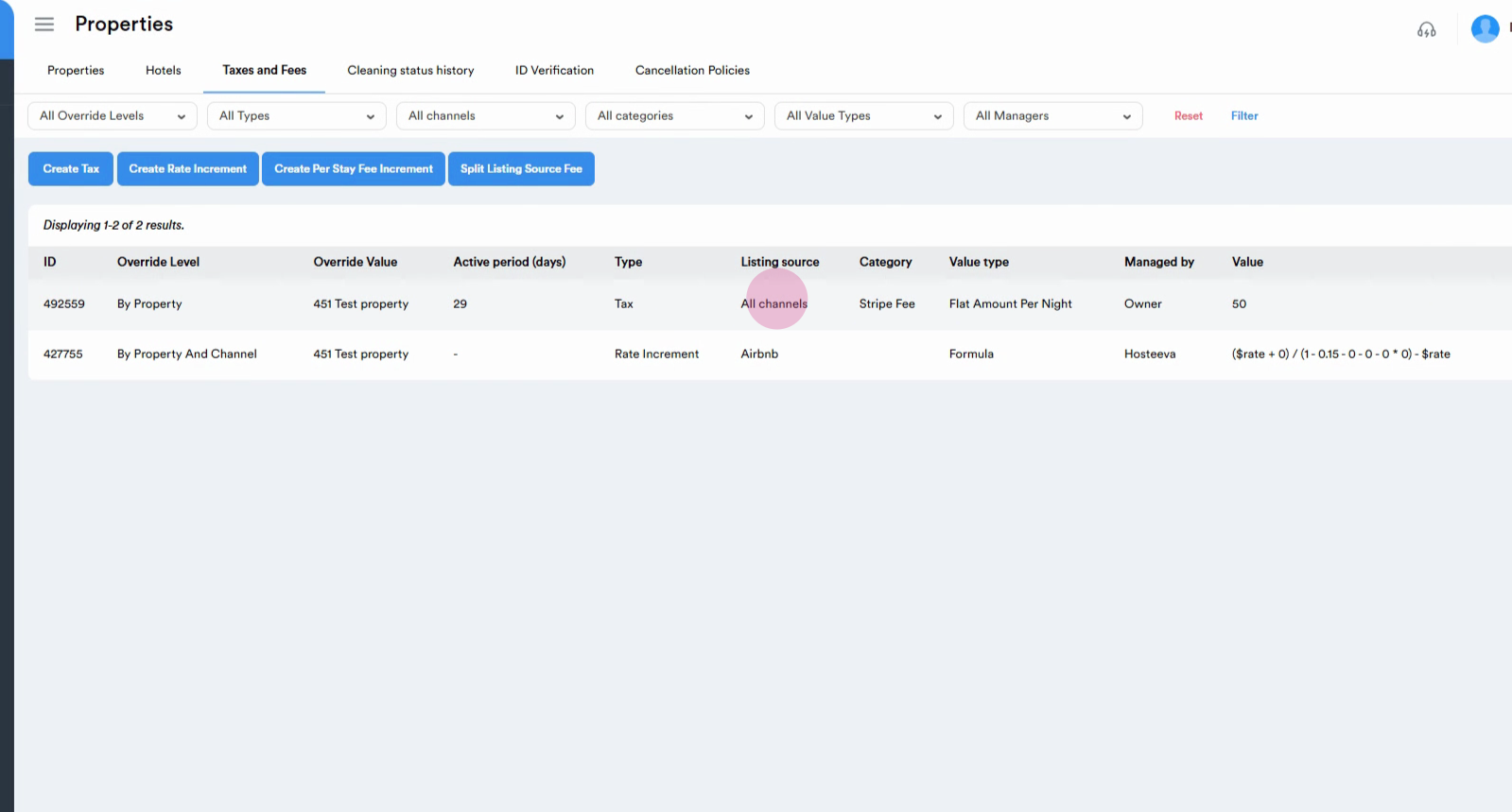
You've now successfully created a fee, as shown in the Category section.
Thank you for following along with this tutorial.