In this article, you'll learn how to create recurring work orders. This feature is useful for scheduling regular maintenance tasks.
Step 1: Start by navigating from the timeline to the maintenance section.
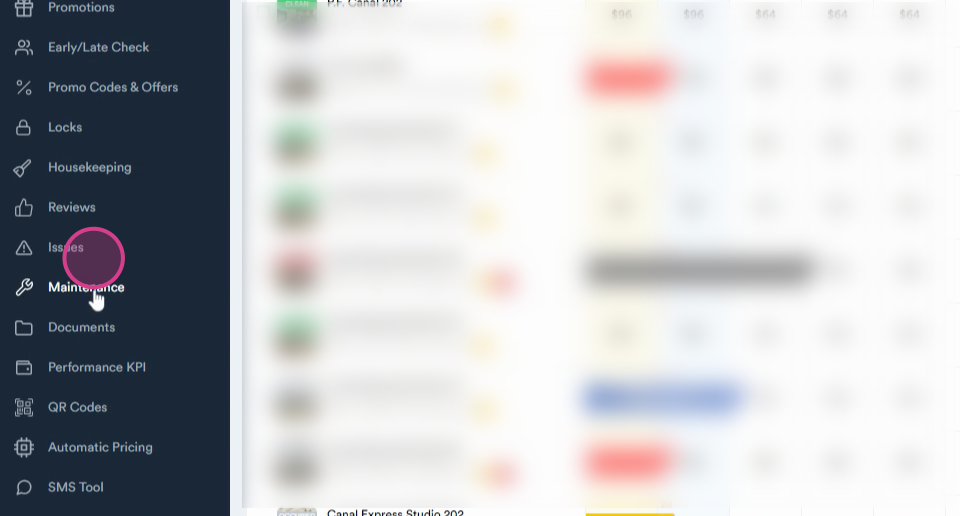
Step 2: Remember, the recurrence feature is only available when creating a new work order. It doesn't work on existing work orders. So, let's create a new work order.
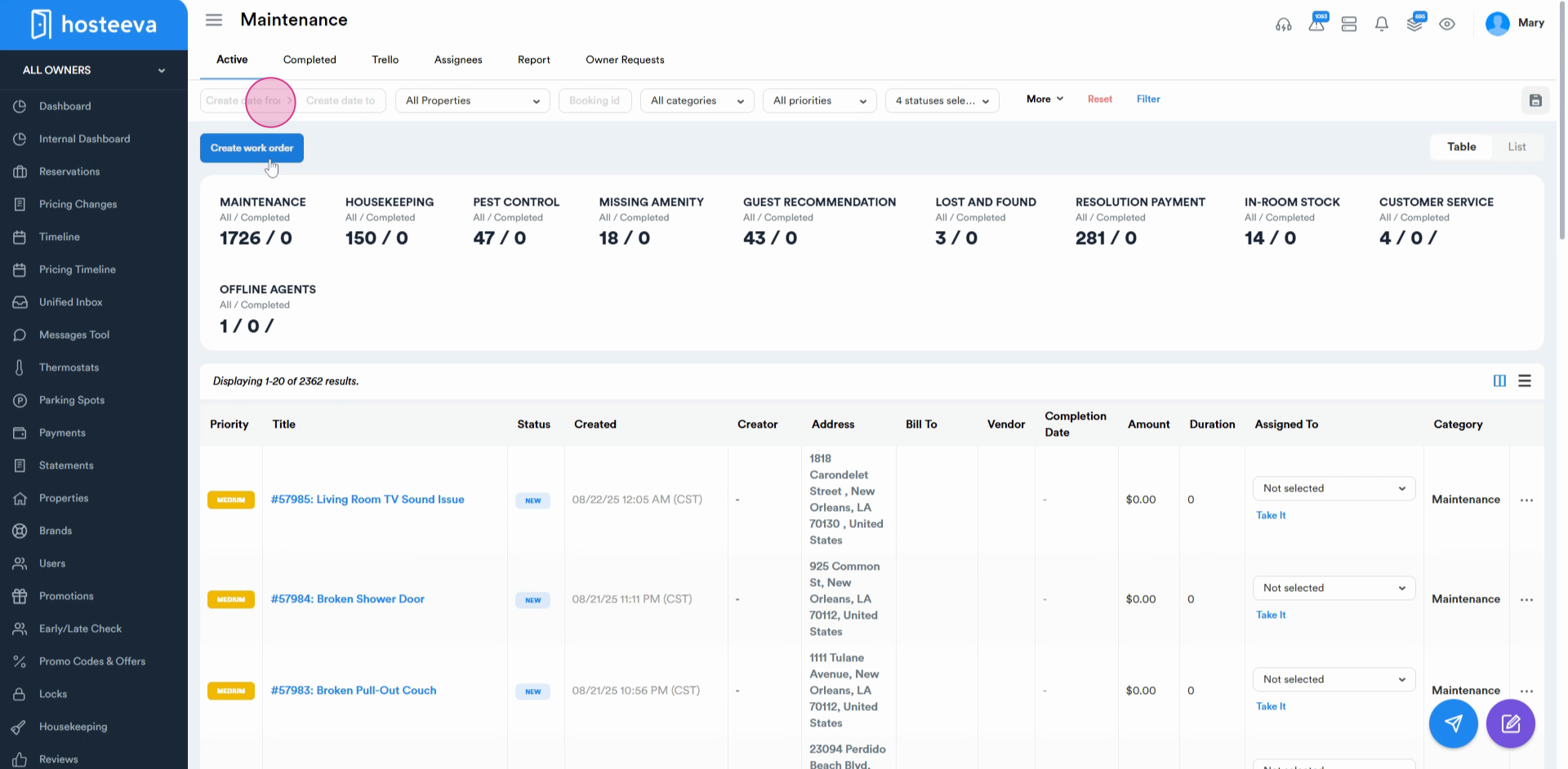
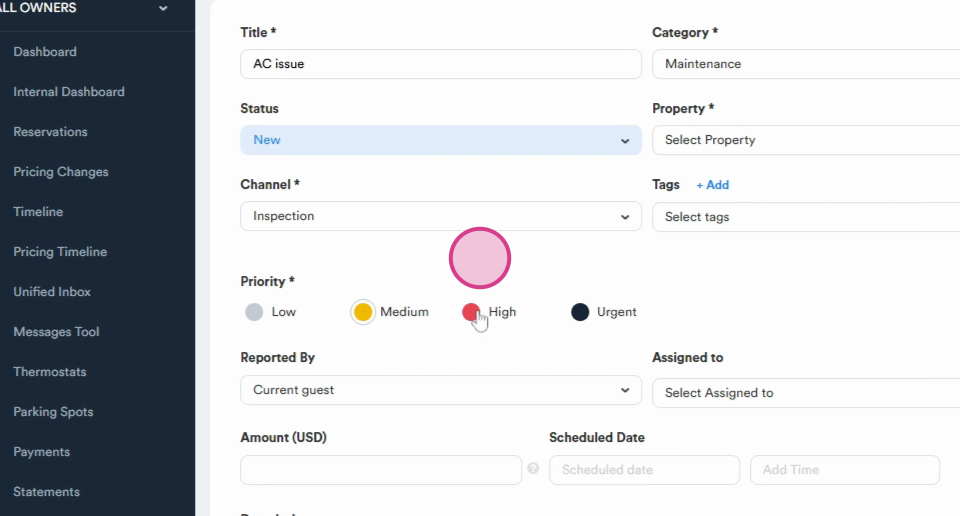
Step 3: Next, enter the title of the work order.
Step 4: Choose the priority of the work order.
Step 5: Provide a description for the work order. This could be details about which room's AC is not functioning well, for instance.
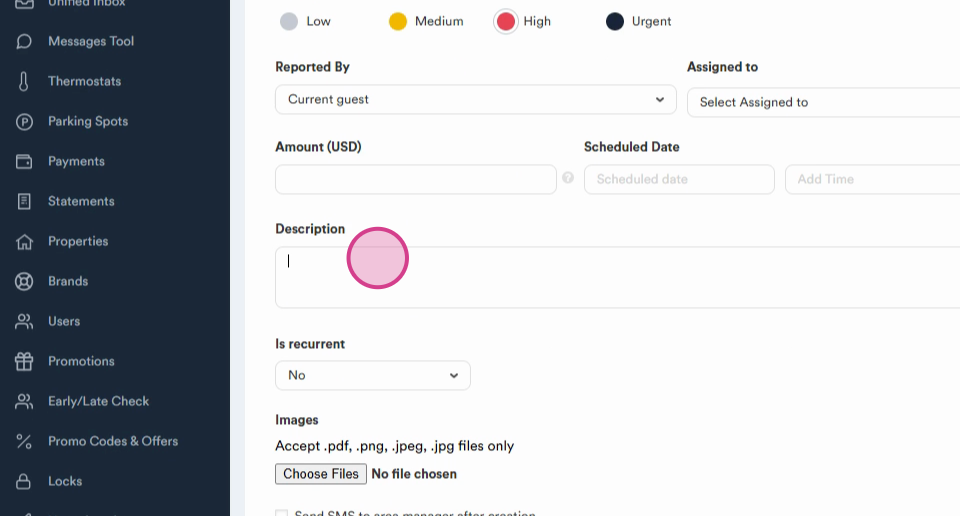
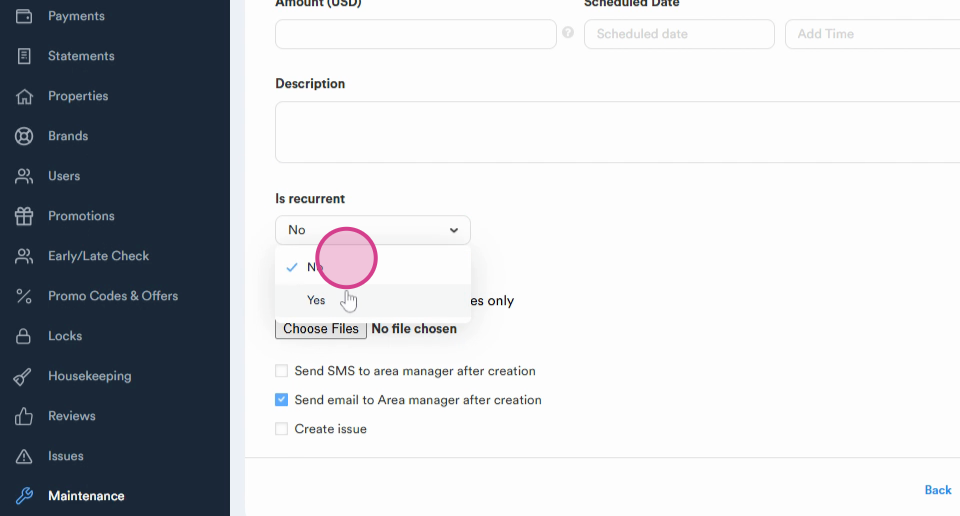
Step 6: While creating the work order, switch the recurrent checkbox from no to yes.
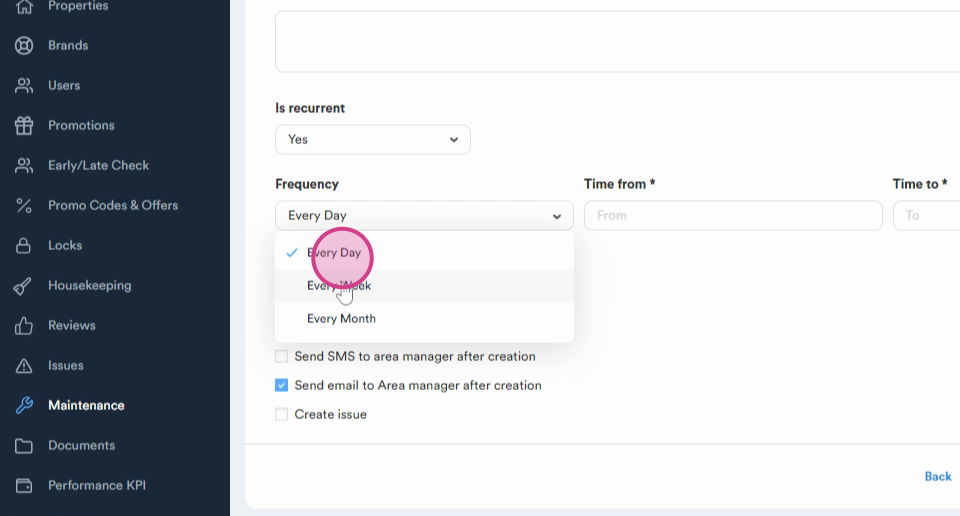
Step 7: Now, select the frequency from the drop-down menu. You could choose daily or weekly.
Step 8: If you choose weekly, you'll need to specify the days. For example, you might want the work order to recur every Monday, Thursday, and Sunday.
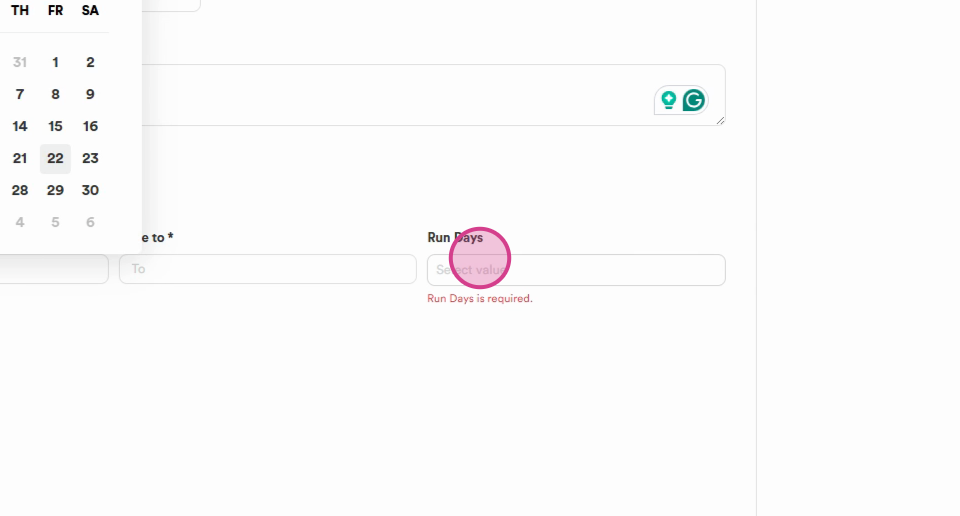
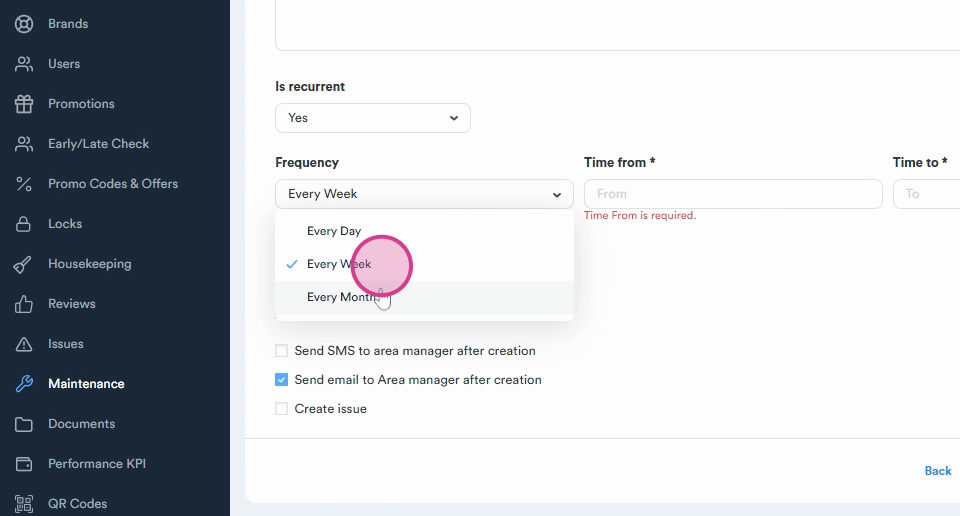
Step 9: If you choose monthly, you'll need to select the specific dates. For instance, you might want the work order to recur on the first and second days of the month.
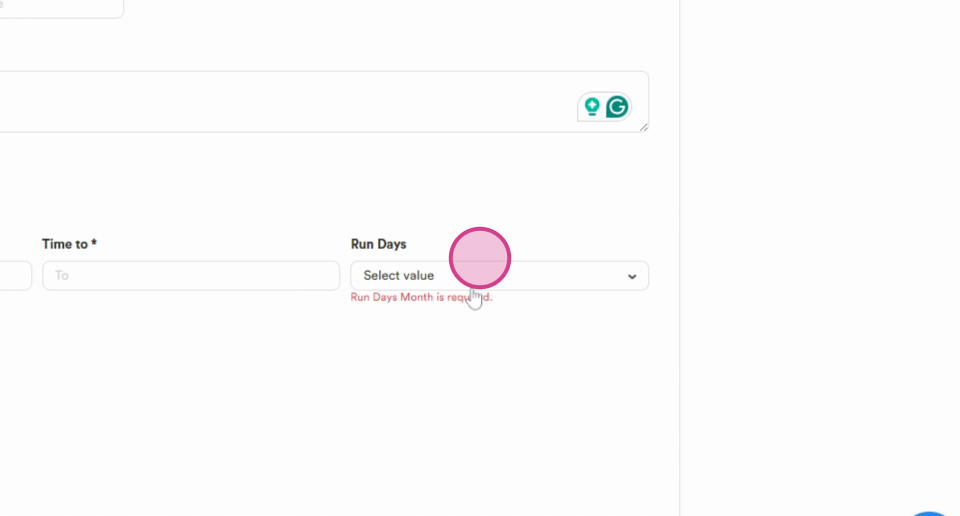
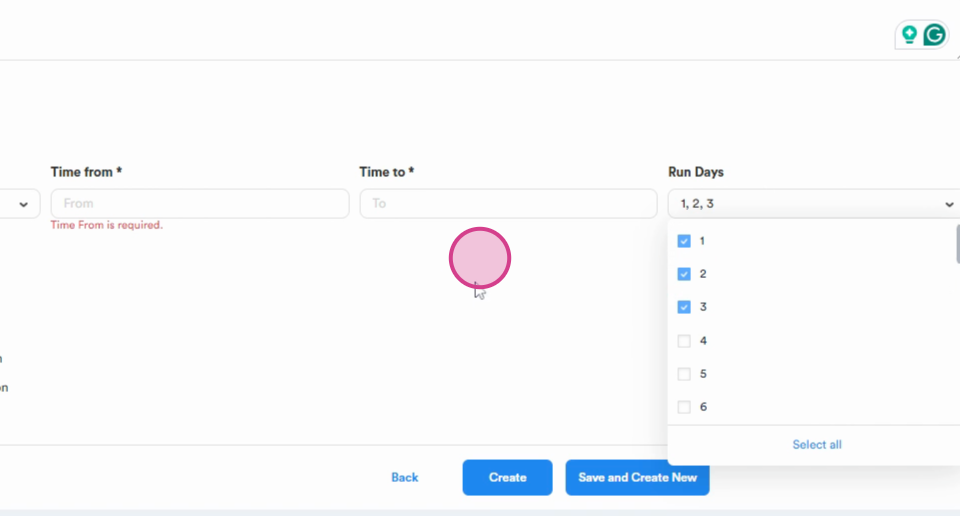
Step 10: After setting all these details, check the box to confirm your settings.
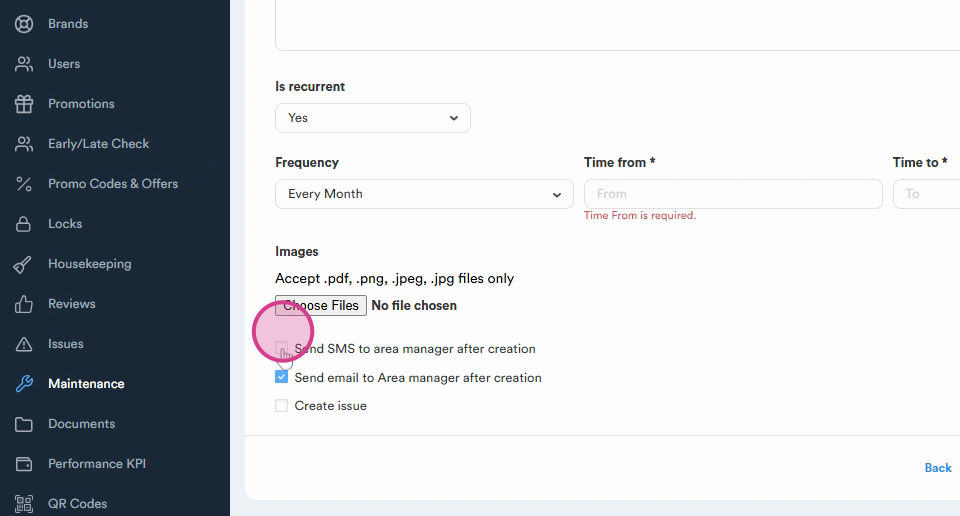
Step 11: If you have any relevant pictures, you can attach them.
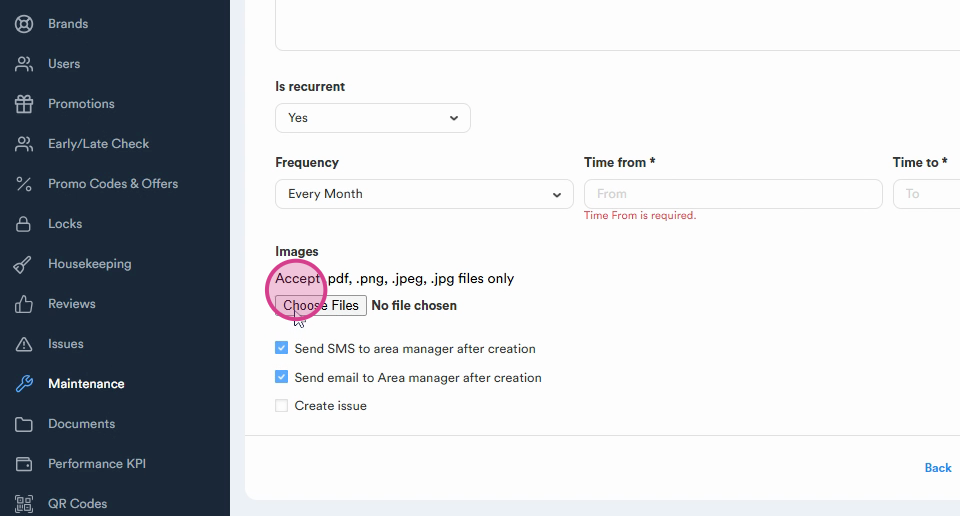
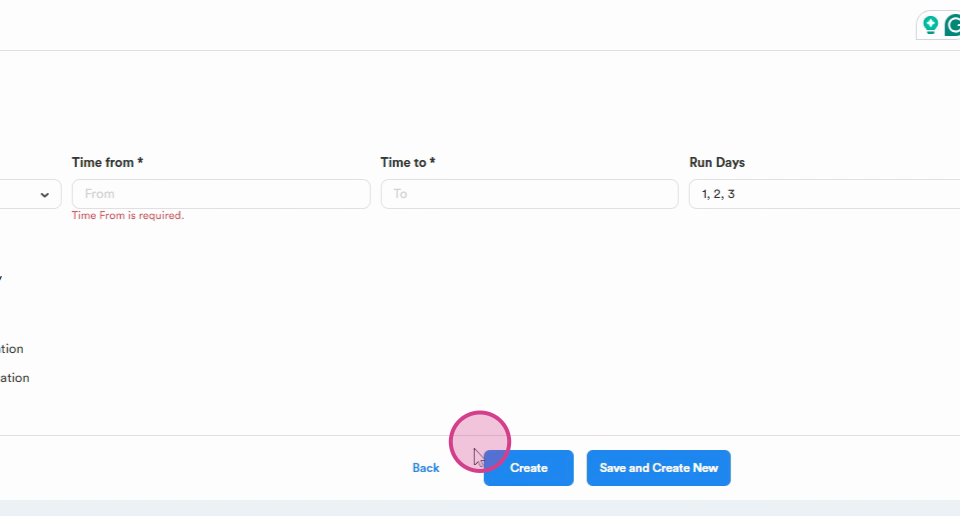
Step 12: Finally, press the Create a work order button.
Thank you for your attention. By following these steps, you'll be able to create recurring work orders efficiently.