This article will guide you through the process of customizing AI responses and training AI to answer specific questions on the Hosteeva platform.
While the AI has access to the property information already submitted in the Hosteeva platform, there may be specific information not available on the platform. For the AI to respond to these specific queries, you need to create an FAQ page with the desired questions and answers. The AI will then have access to this FAQ page and will be able to answer queries not covered in the property description or amenities.
To locate the FAQ page
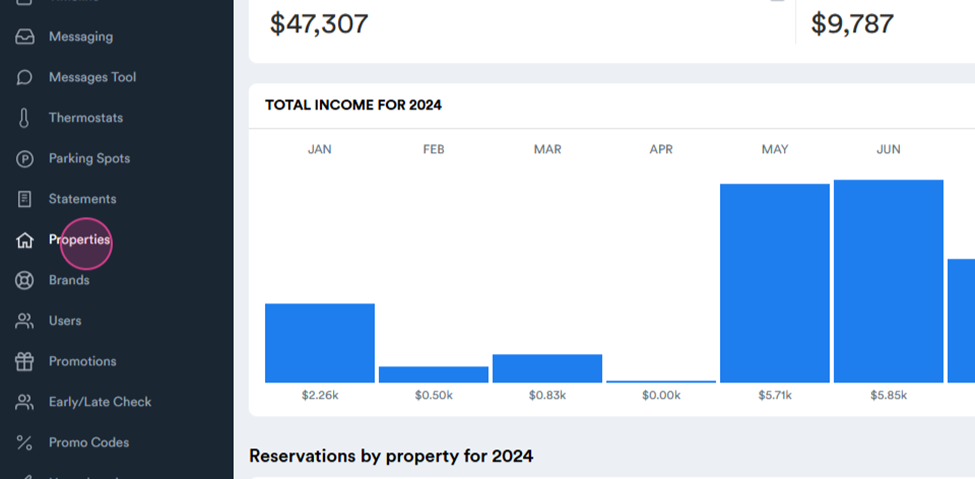
Step 1: Log into your Hosteeva Dashboard and navigate to the Properties tab.
Step 2: Click on FAQ Groups at the top of the page.
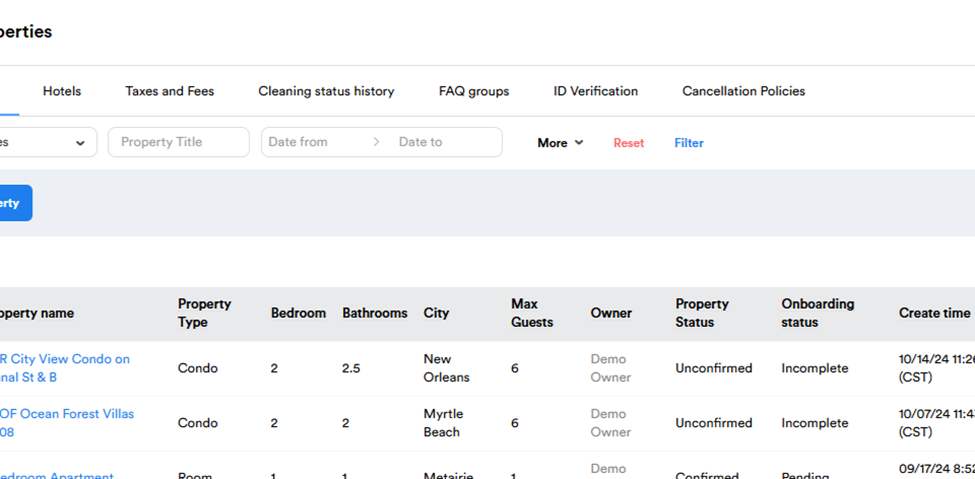
Here, you'll find default questions and answers. To update these, contact your Hosteeva representative and the Hosteeva Onboarding team will assist you.
Step 3: To create a specific property or question and answer, first add a property group.
For instance, if guests frequently ask about luggage storage, you can create an FAQ group to address this.
Step 4: Click on Add group to make a new FAQ group. Name it something relevant, like "Luggage Storage."
Step 5: Attach a property for the property group.
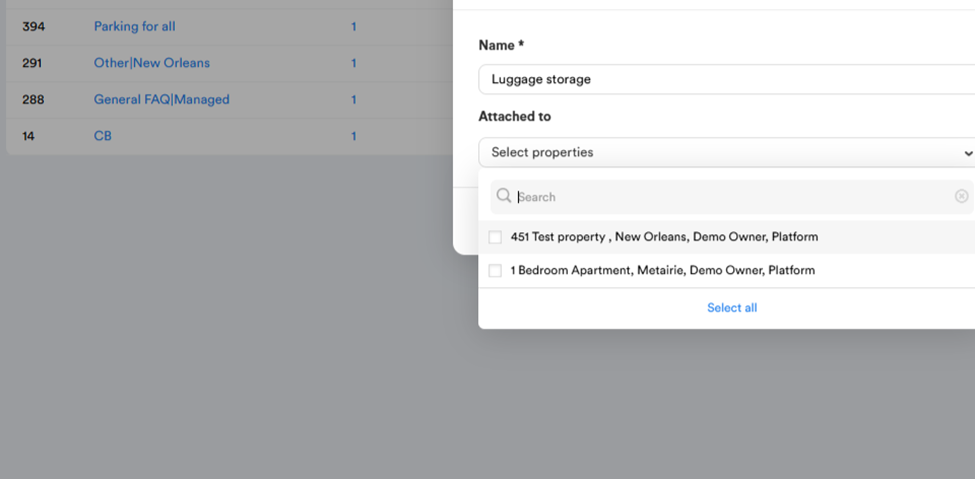
Step 6: Click on Create.
Once the property group is created, you'll need to create a topic.
Step 7: To add a topic, click on Attach topics on the line of your property group.
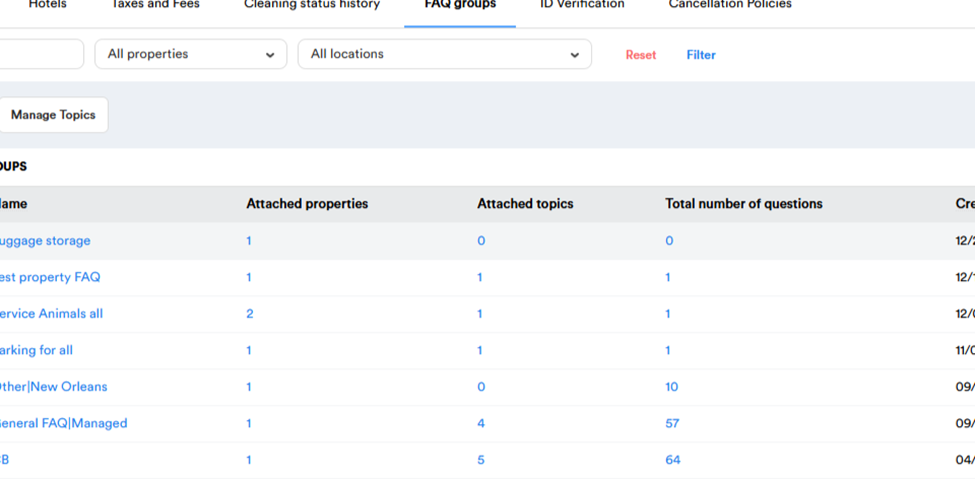
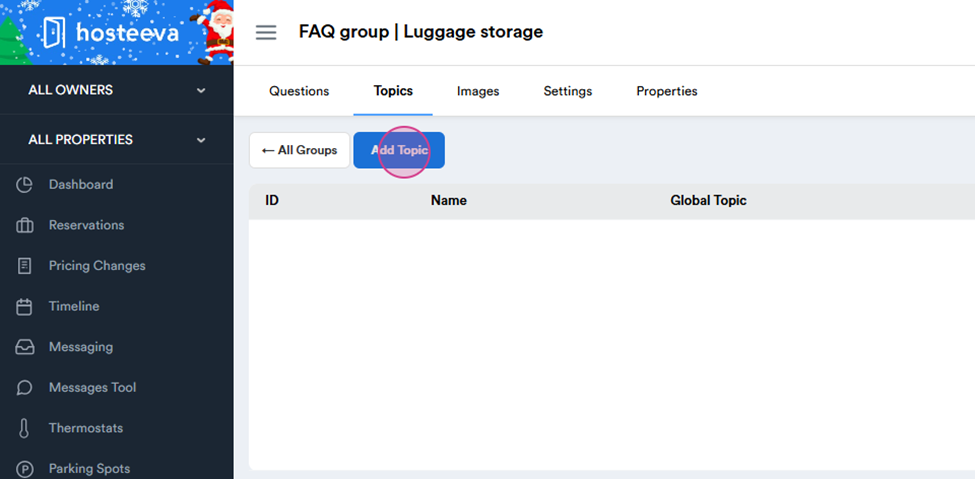
Step 8: Click on Add Topic and give your topic a name. This name will appear in your FAQ page for guests.
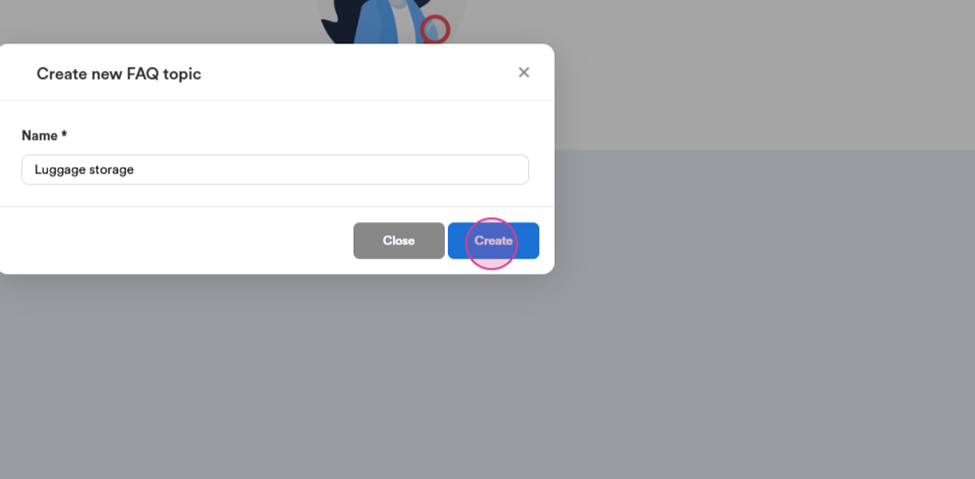
Step 9: Click on Create.
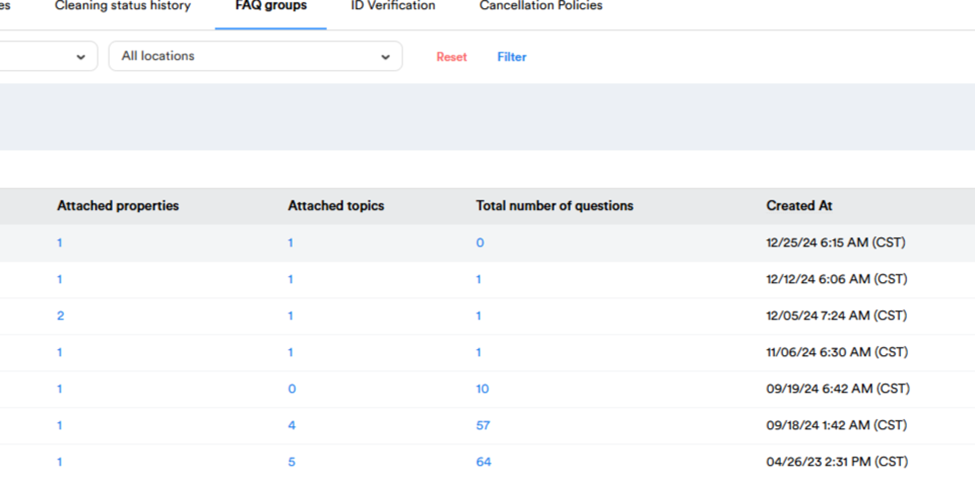
Step 10: To add a question and answer, click on the Total number of Questions on the line of your property group.
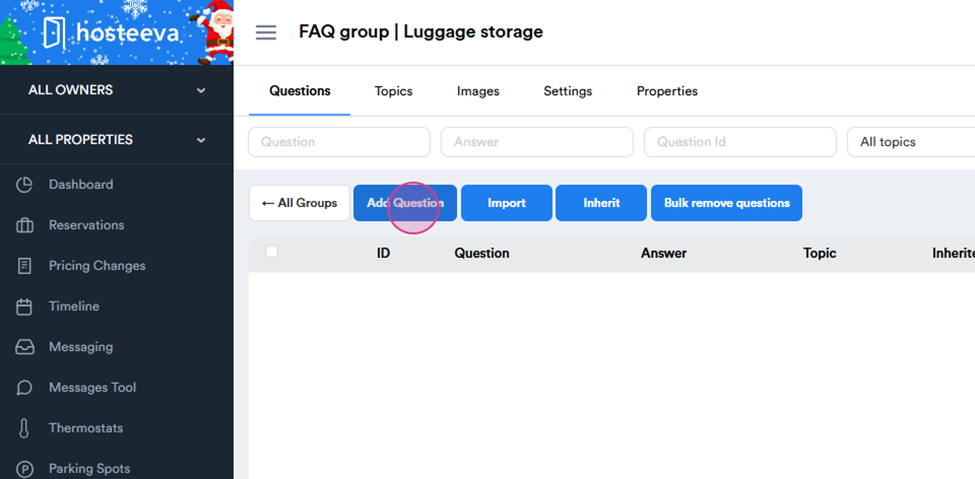
Step 11: Click on Add a question.
Step 12: Choose the topic and select the property. You can also select the channel. If you need to exclude some channels, you can do so here.
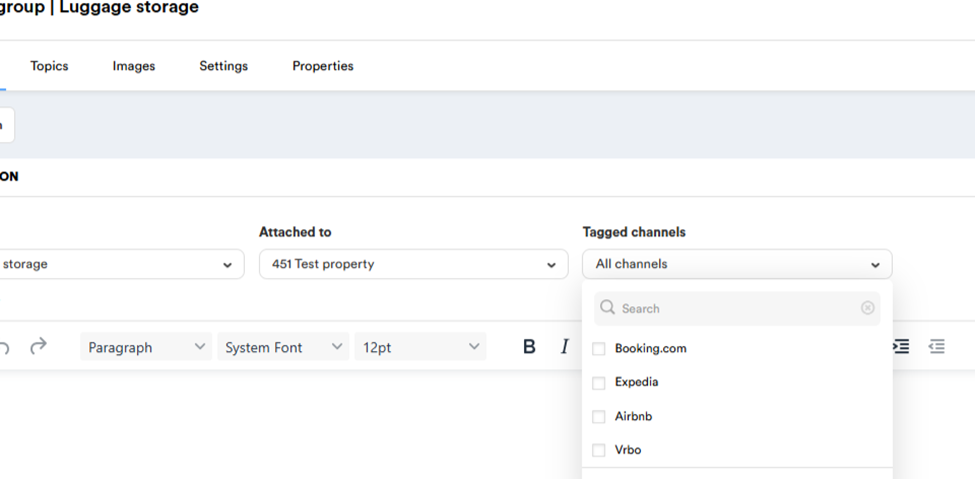
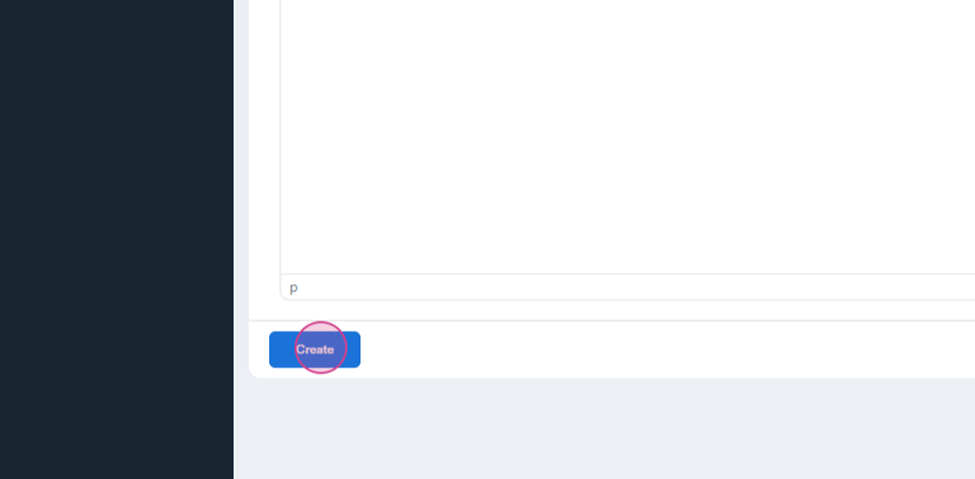
Step 13: Enter your question and answer, for example, "Do you have Luggage Storage?" Then click on Create.
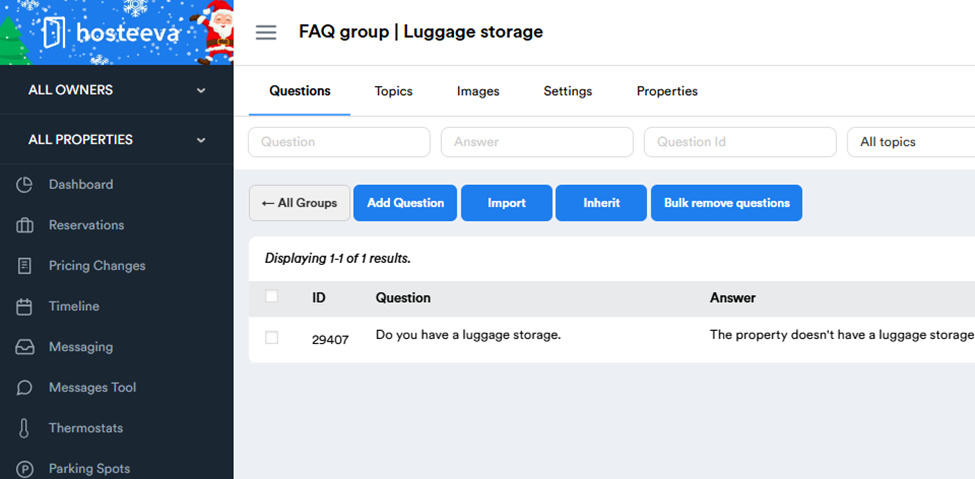
Step 14: Go back to the first page. You should now see your property, topic, and question and answer.
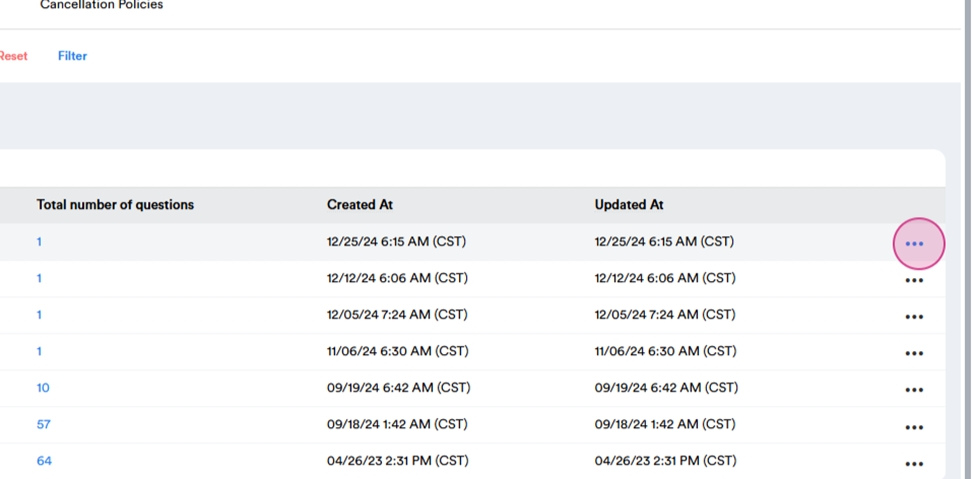
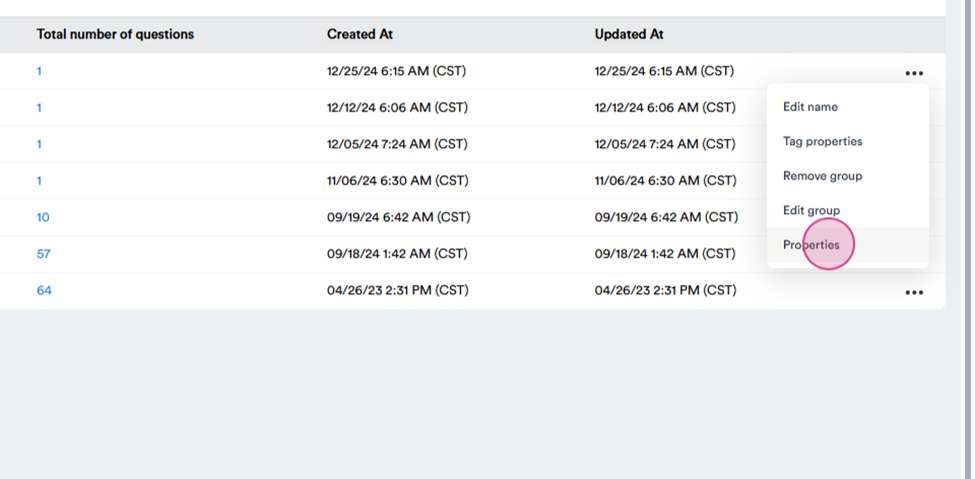
Step 15: To see how it appears on your FAQ page, click on the three dots and select Properties. Here, you'll find your FAQ page.
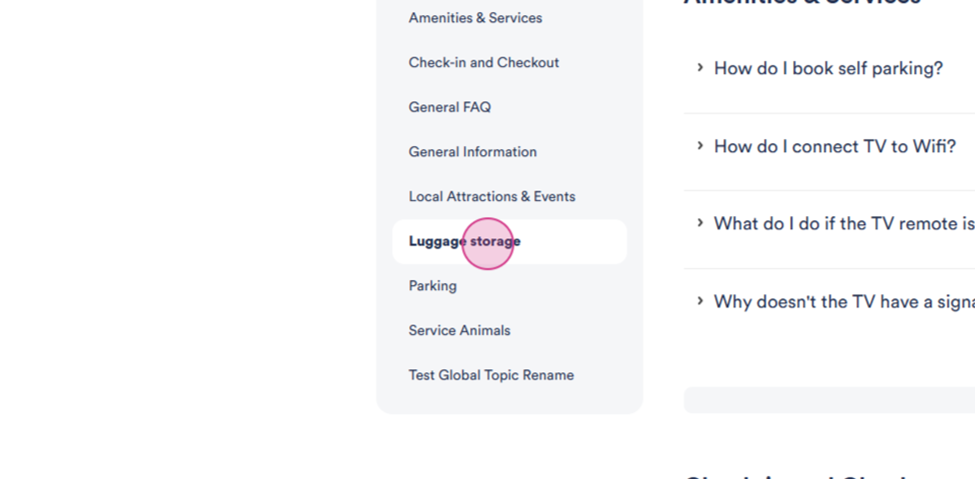
Step 16: Click on the FAQ page and it will open the guest view of FAQ page, you'll see that we have Luggage Storage. This is the topic that we created. Click on it and it will show the Question and the answer.
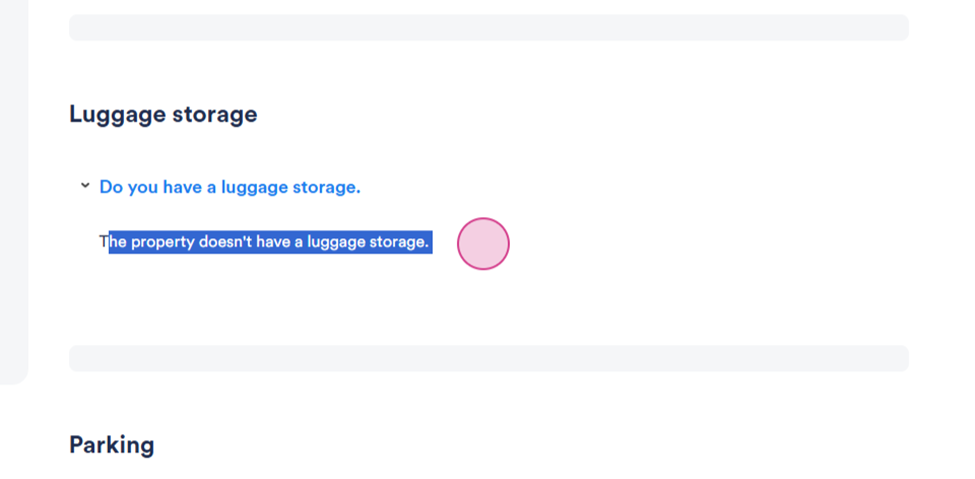
Now, when a guest asks about luggage storage, the AI will provide the answer from this FAQ page.