How to Enable Survey Sending for Properties
Enable survey sending for properties so you can collect valuable feedback and insights directly from each location. Here’s how to turn on this feature for any property.
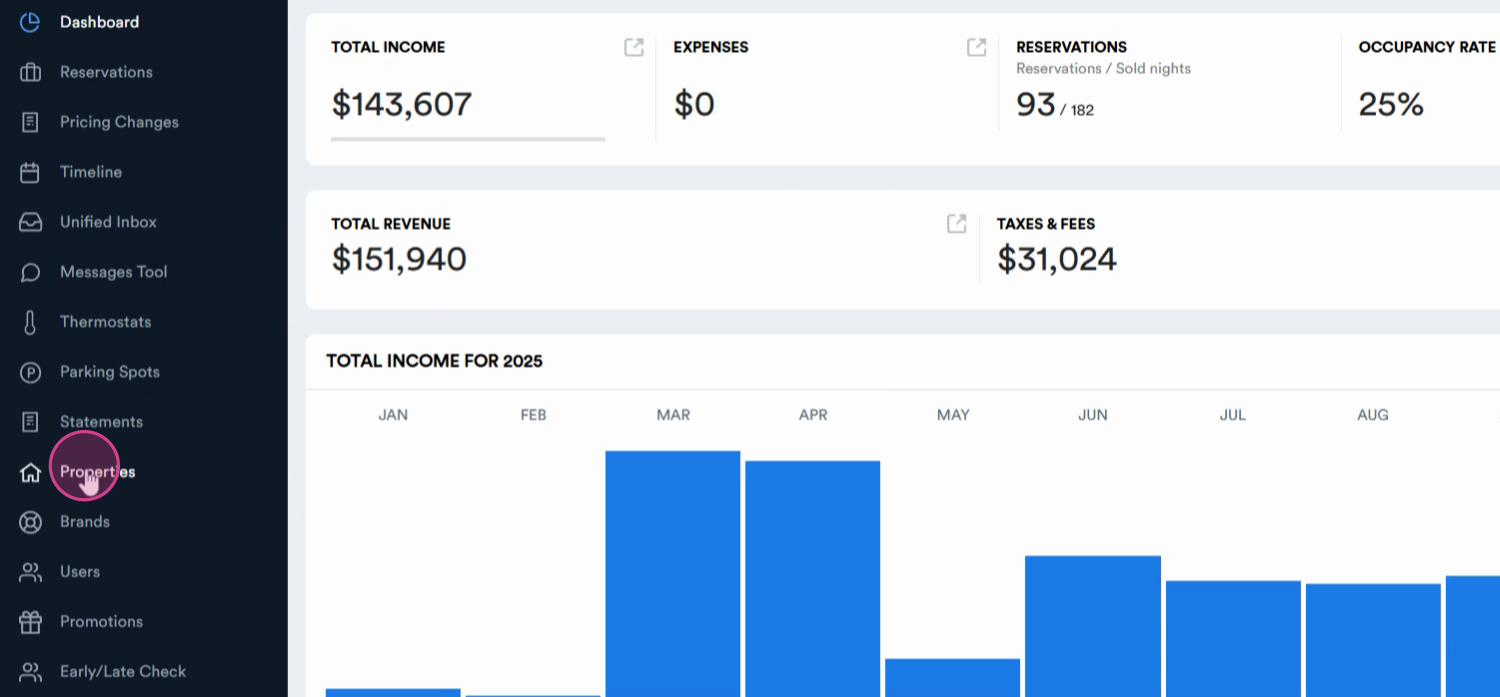
Step 1: Go to the Property section.
Step 2: Select the property you want to update.
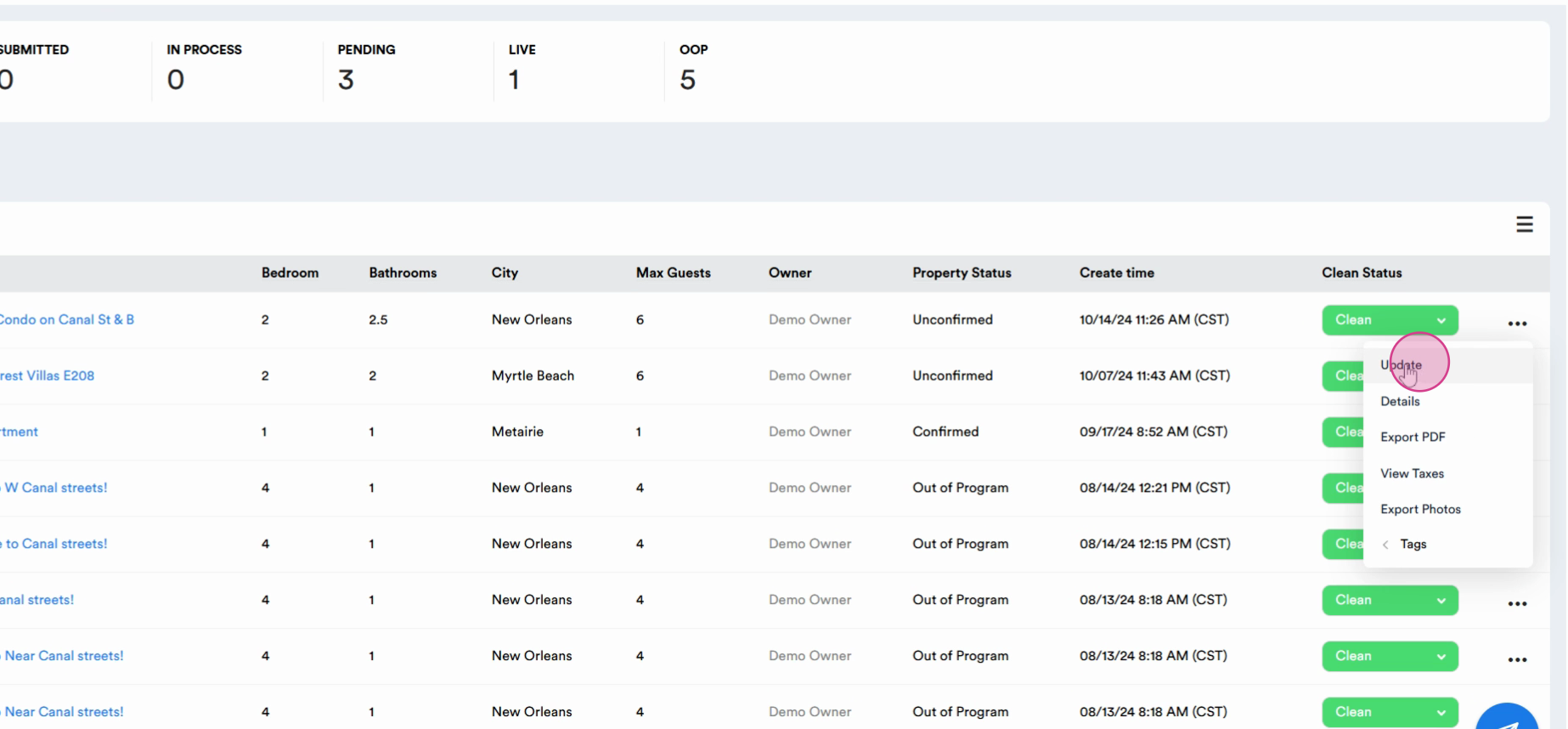
Step 3: Click Update to edit property settings.
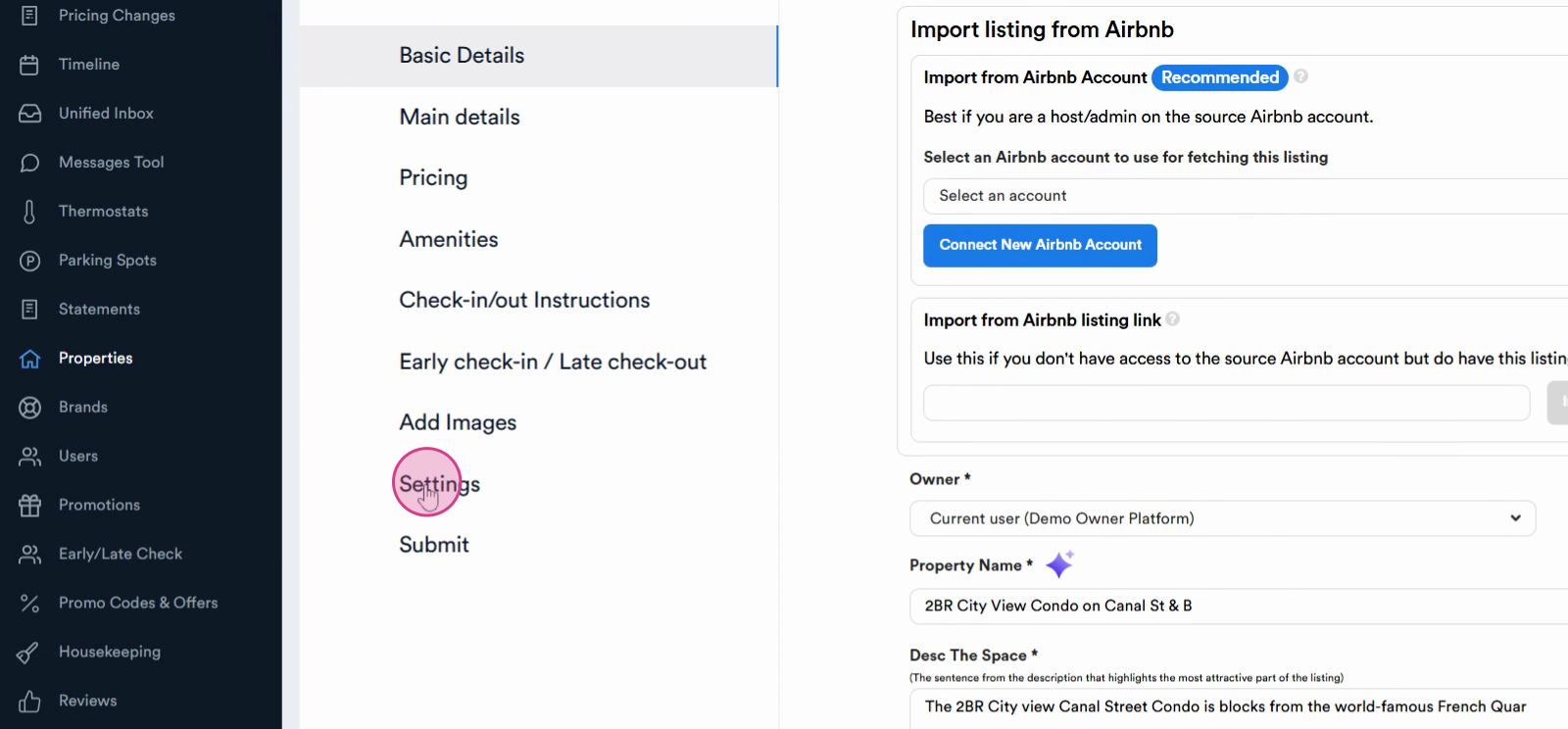
Step 4: In settings, find the Send service option.
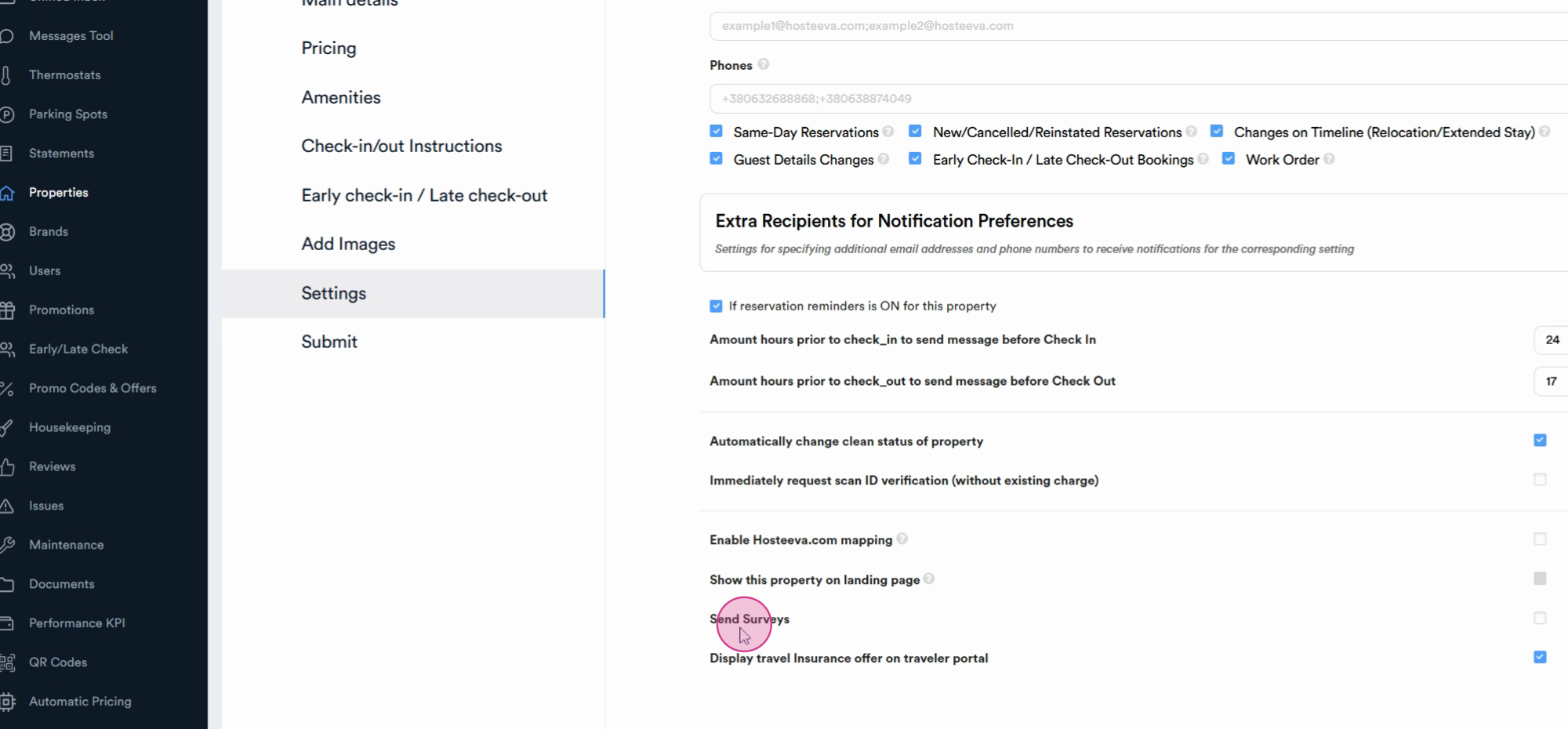
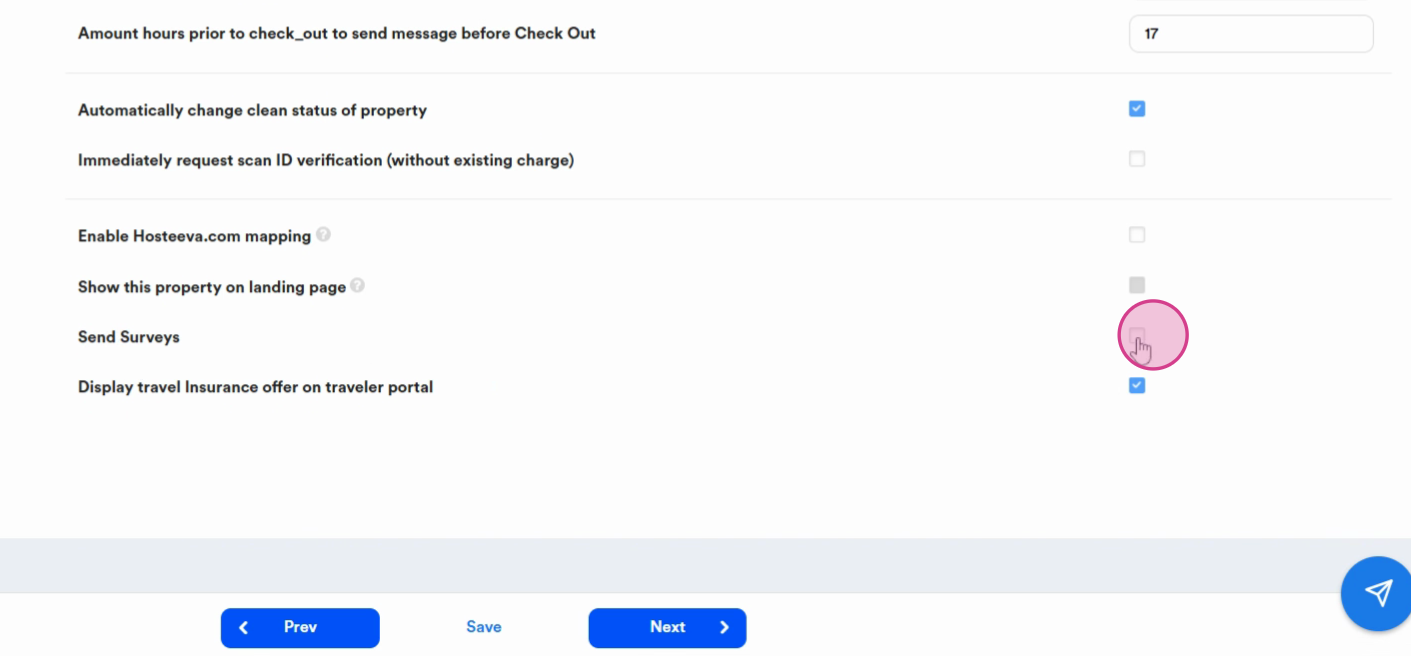
Step 5: Mark the check box next to Send Surveys. Click Save.
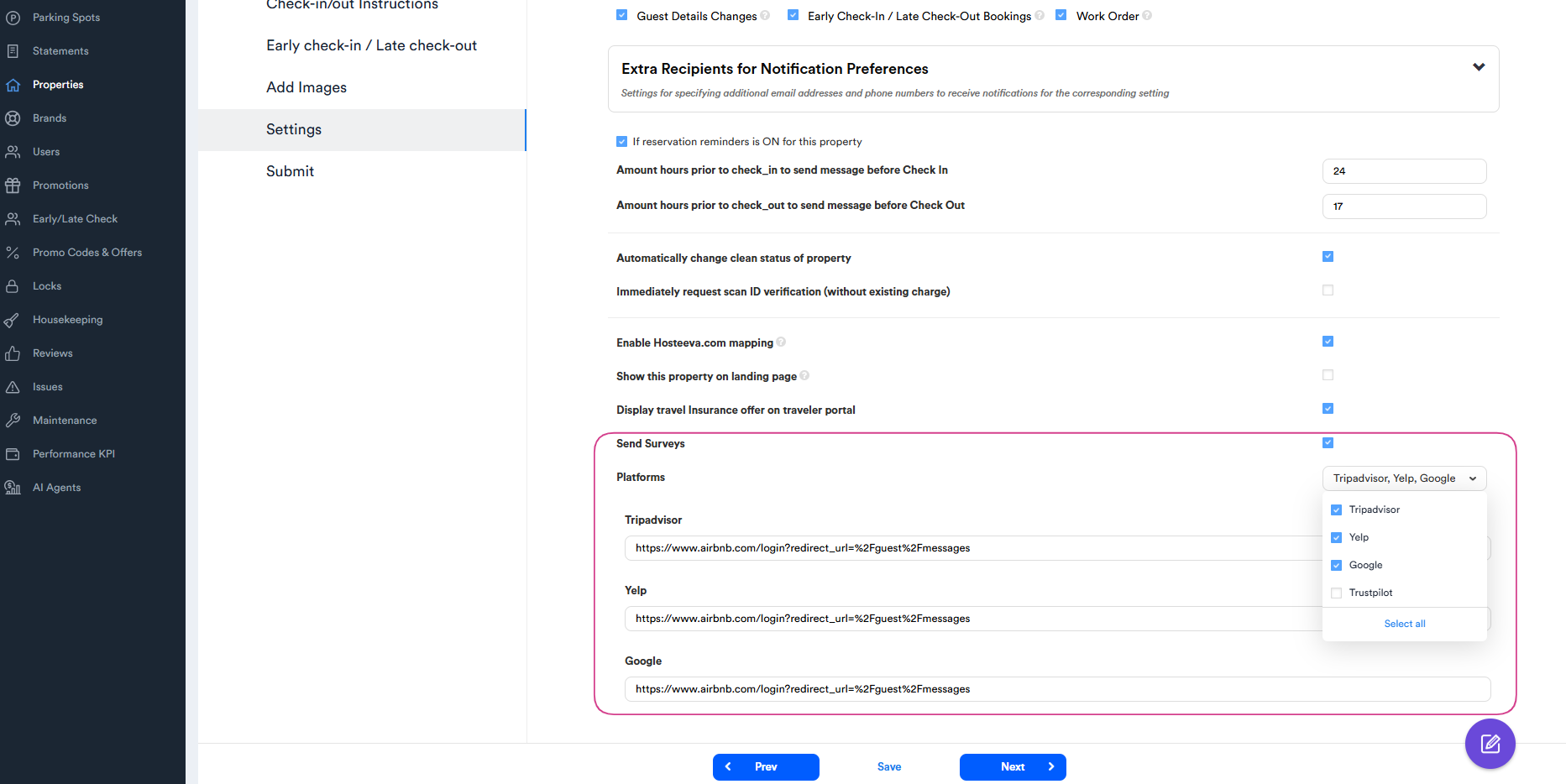
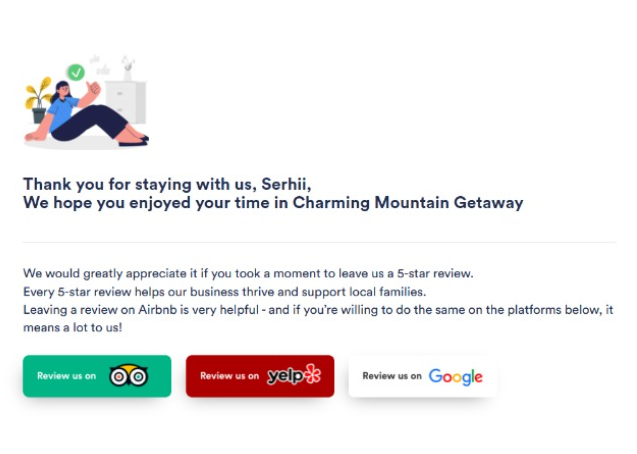
Step 6: The Platforms button allows users to send surveys with custom links to popular review platforms, including Google, Yelp, TripAdvisor, and Trustpilot.
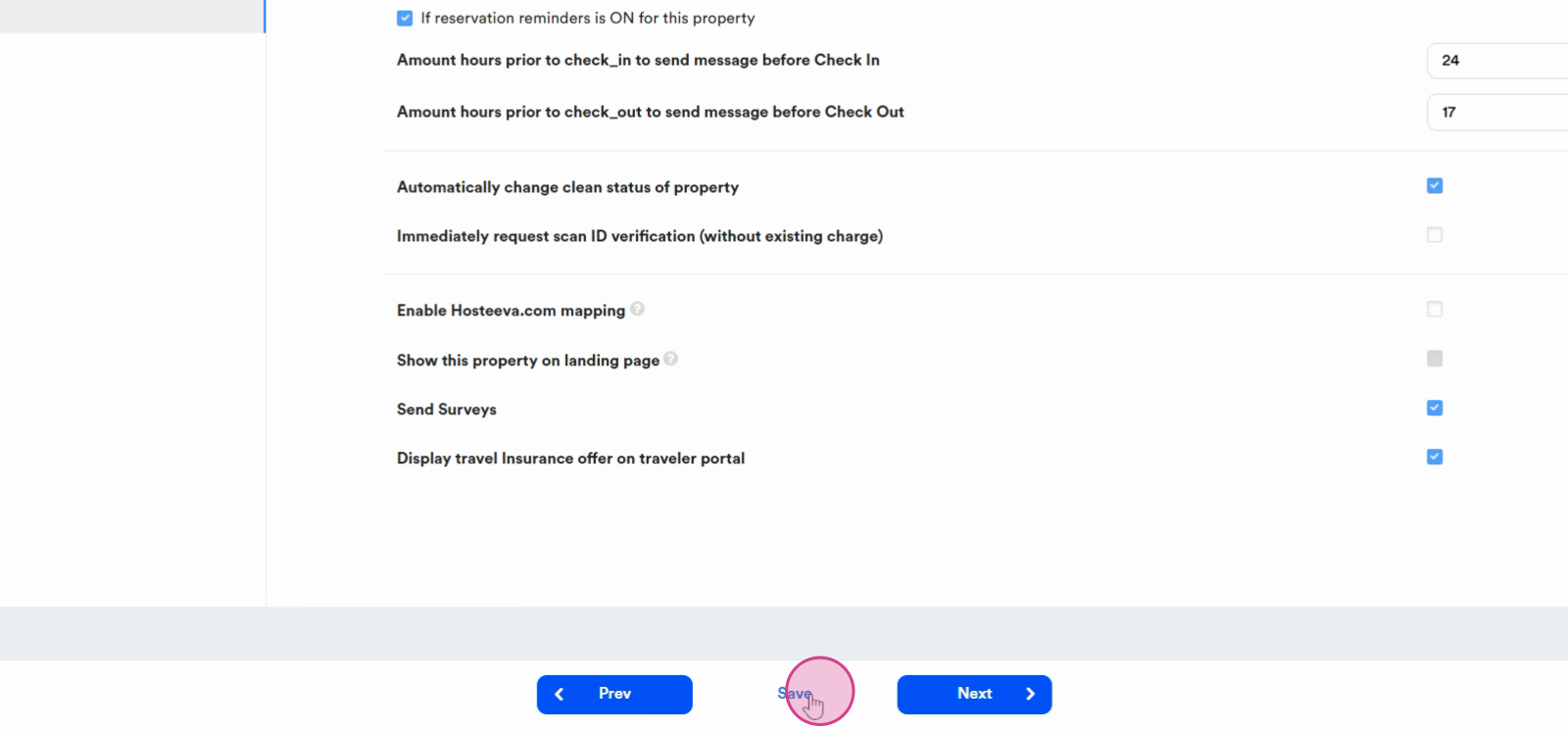
Once saved, survey sending is activated for this property. Now you’re ready to gather responses and drive improvements with direct feedback.