Send Targeted Emails to Guests in Eva AI CRM
Targeted emails help you connect with guests in a personal way—like sending a birthday greeting with a special discount. Here’s how to send personalized emails using Eva AI CRM’s filters and campaign tools.
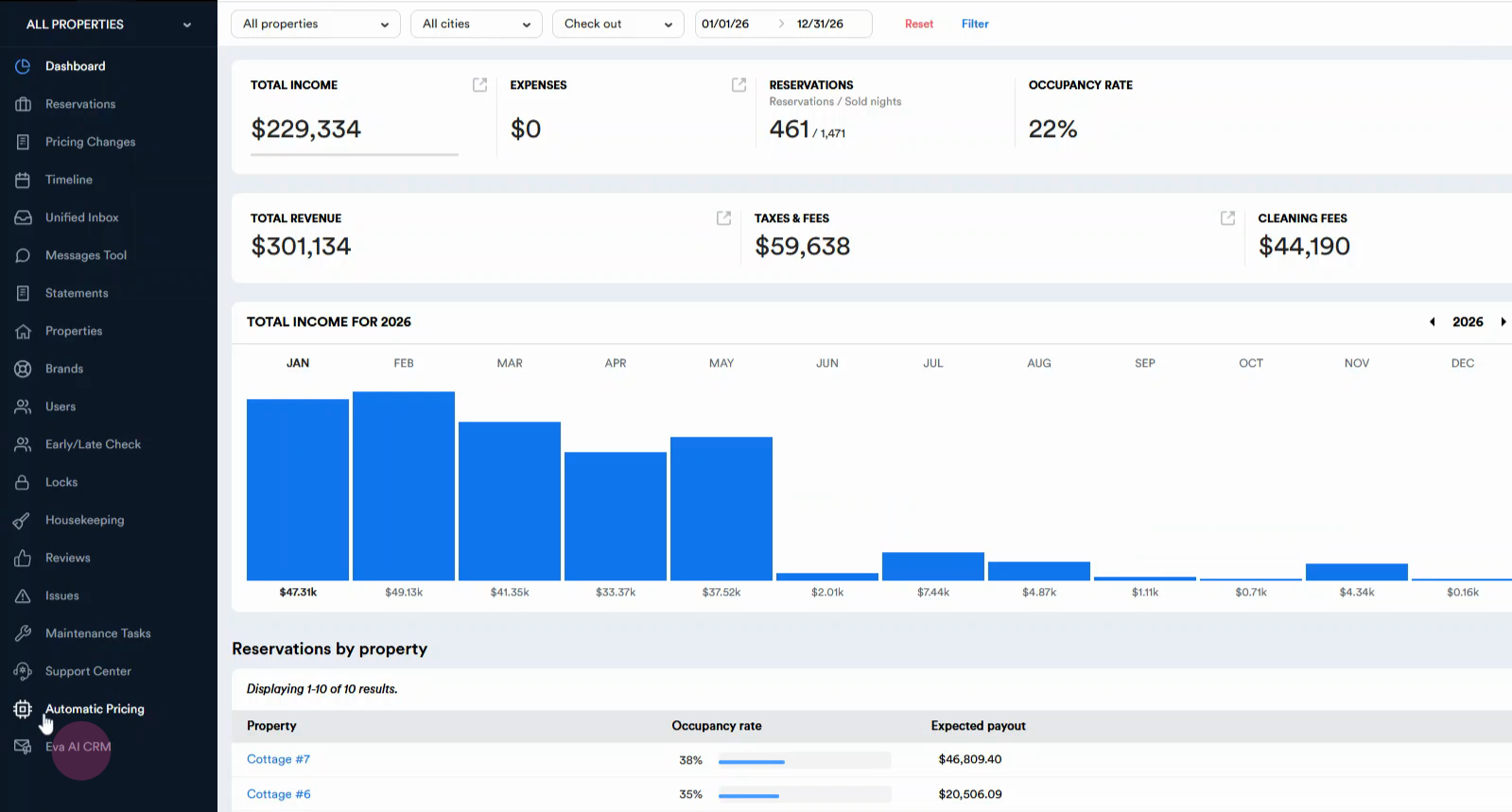
Step 1: Navigate to the Eva AI CRM section.
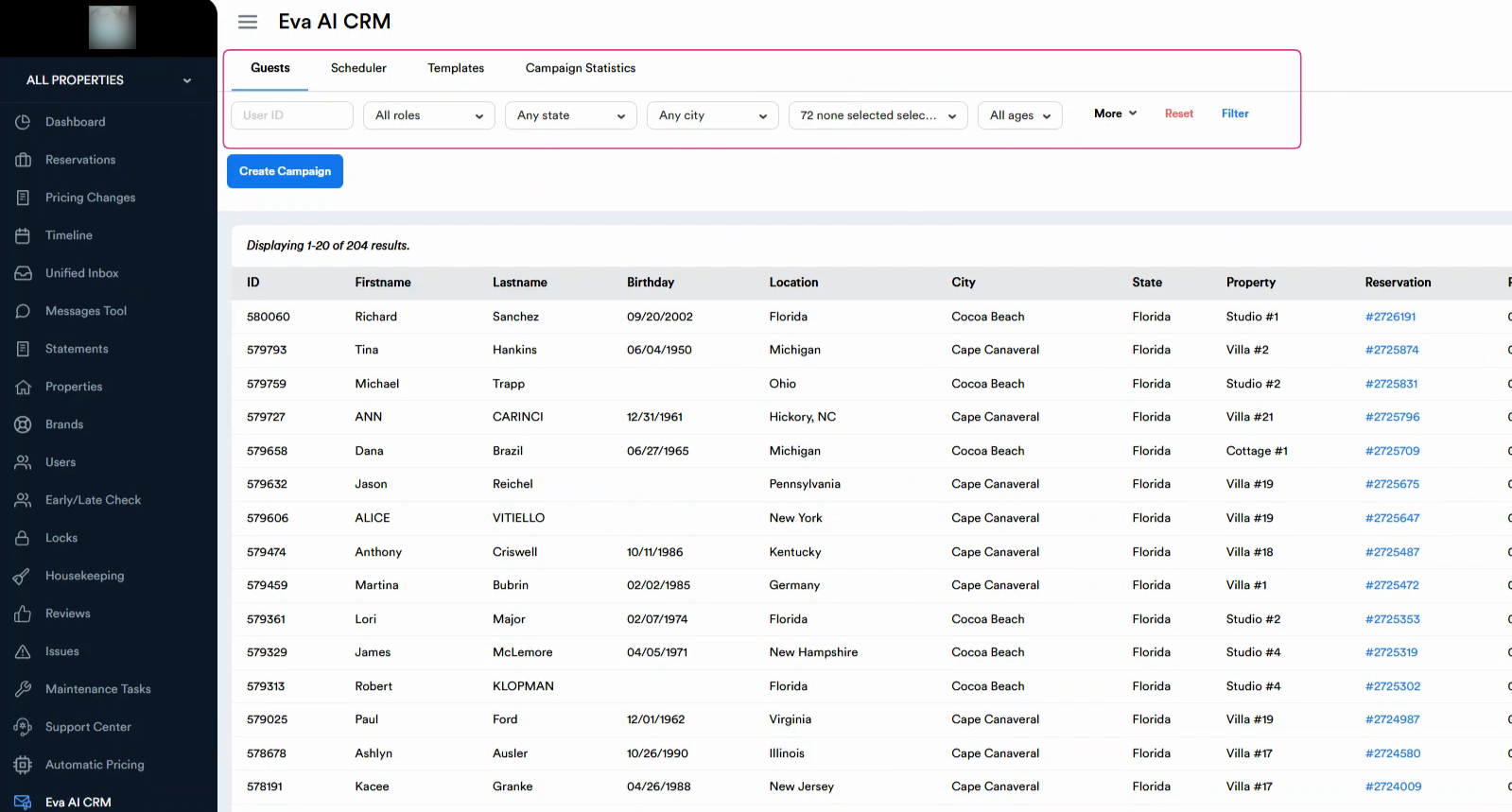
Step 2: Use the Filters panel to search for specific guests.
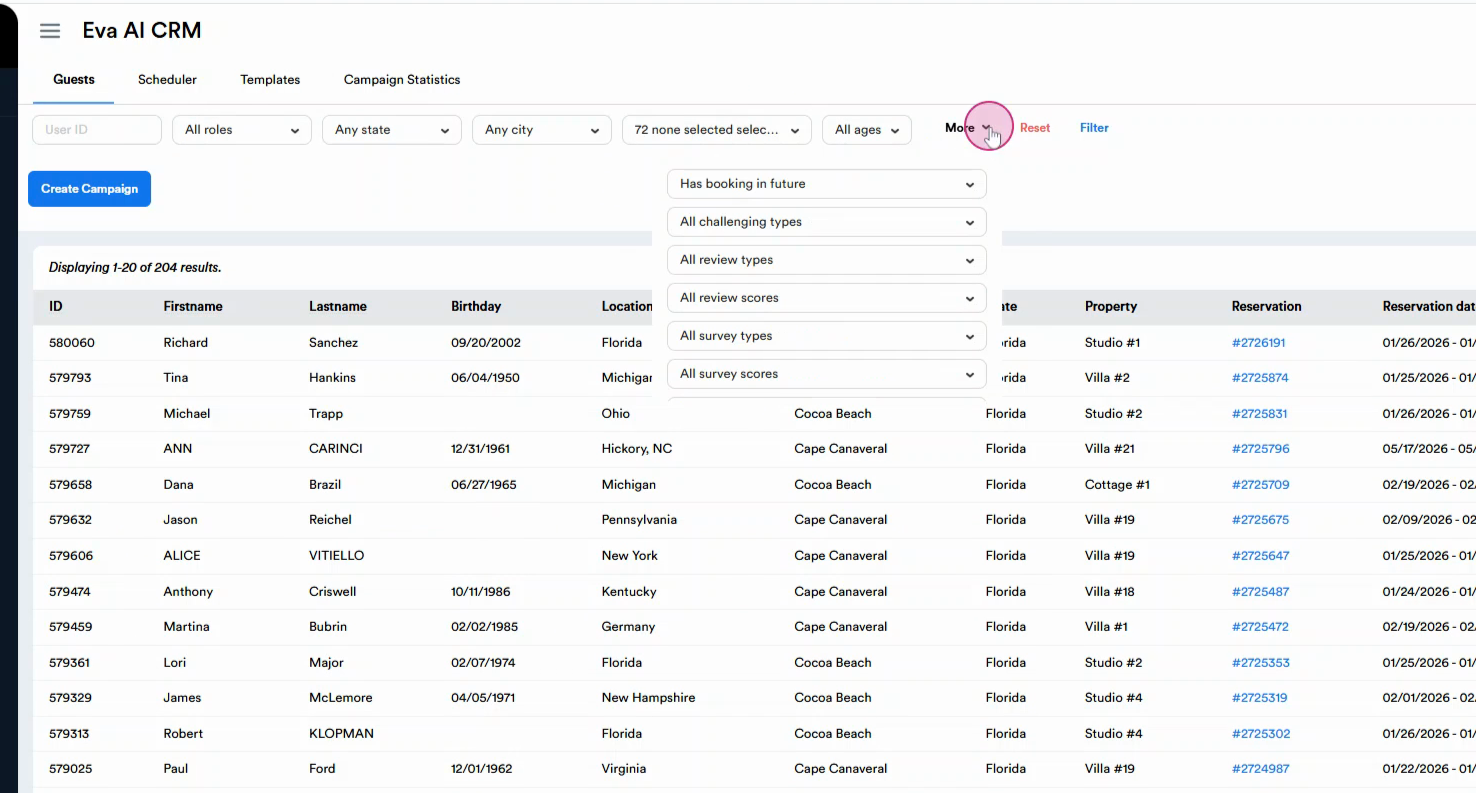
Step 3: Click More to view additional filter options.
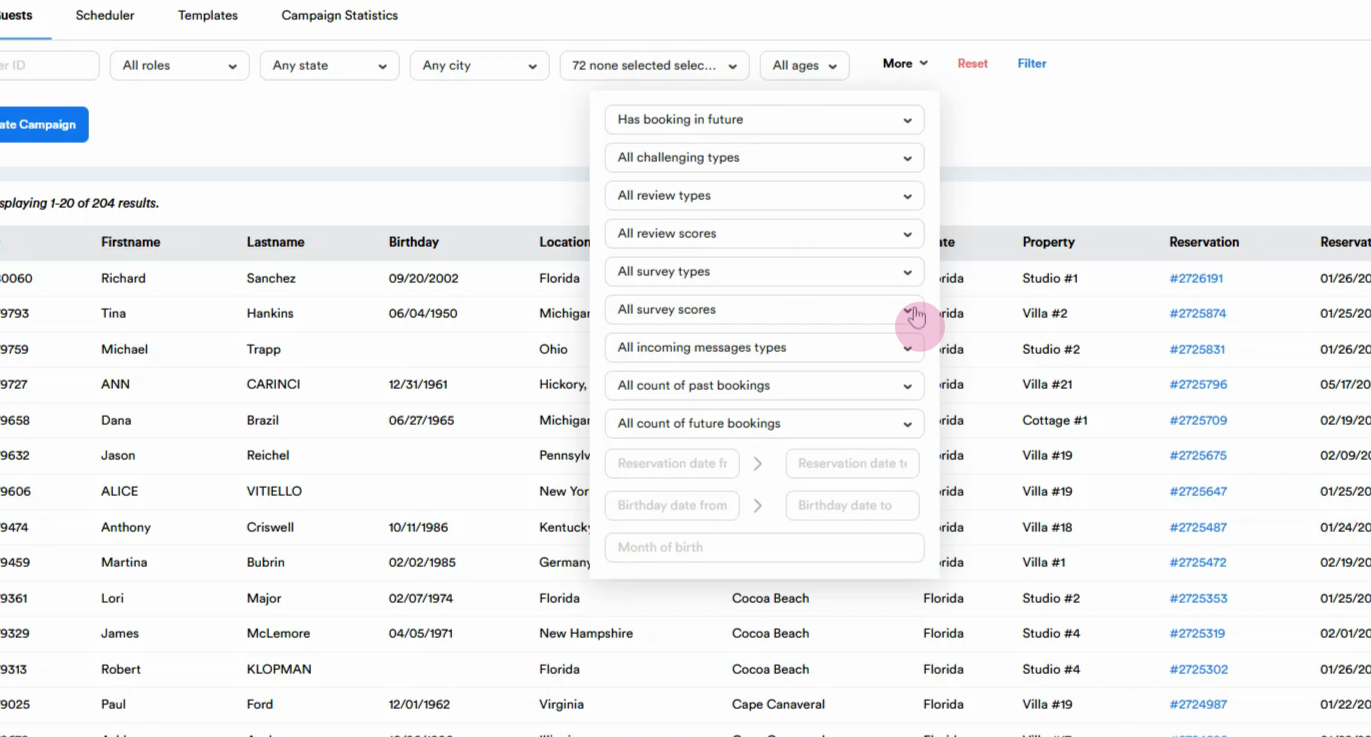
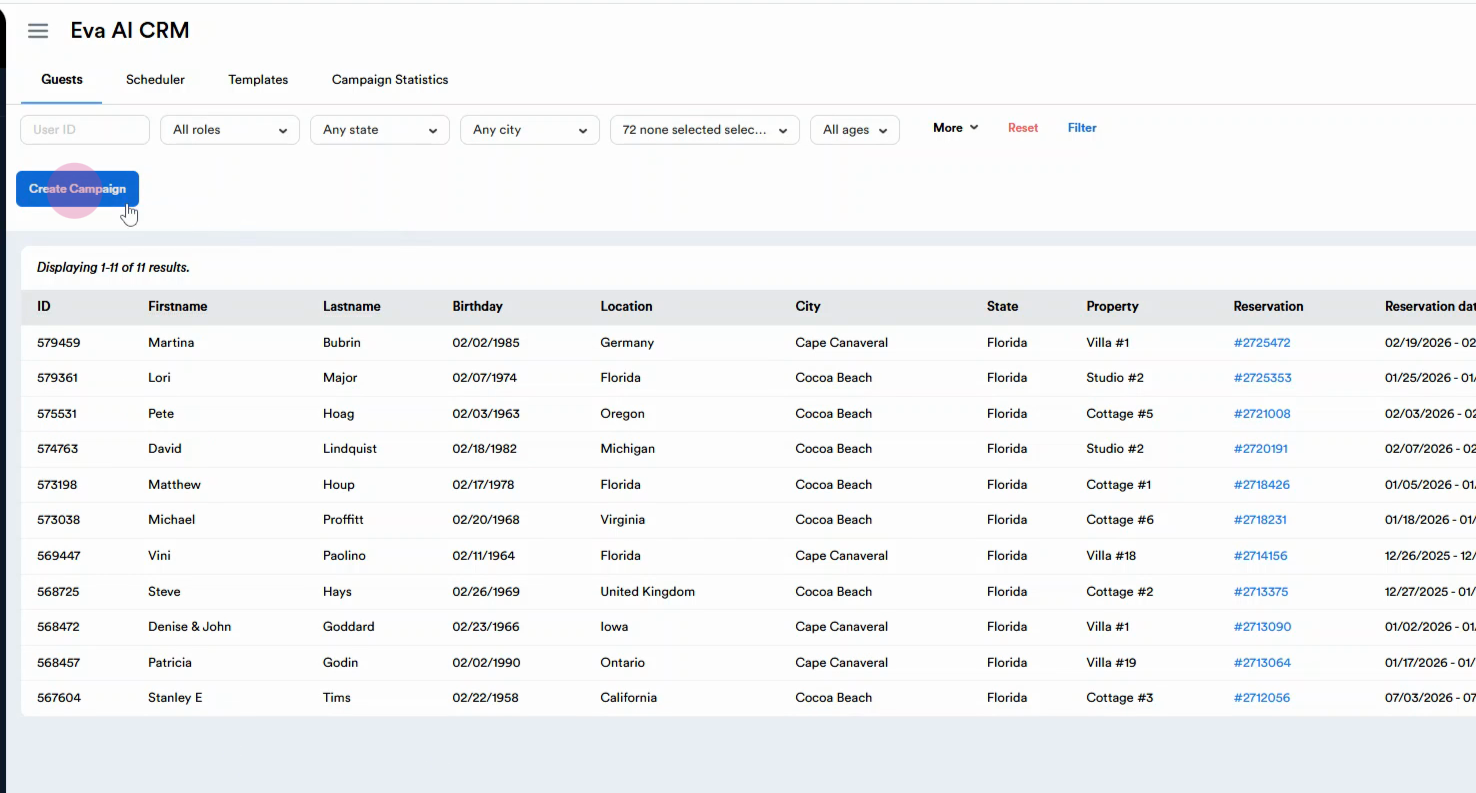
Step 4: Select from filters such as All review scores and All survey scores to target guests based on their feedback ratings. Pick specific scores like 1-2 stars or use ‘Select All’ for a wider range. You can also filter by guest birthdays, selecting a particular month, like February. Click the Filter button to view guests who meet your criteria.
Step 5: After filtering, go to Create Campaign to draft and send your personalized emails.
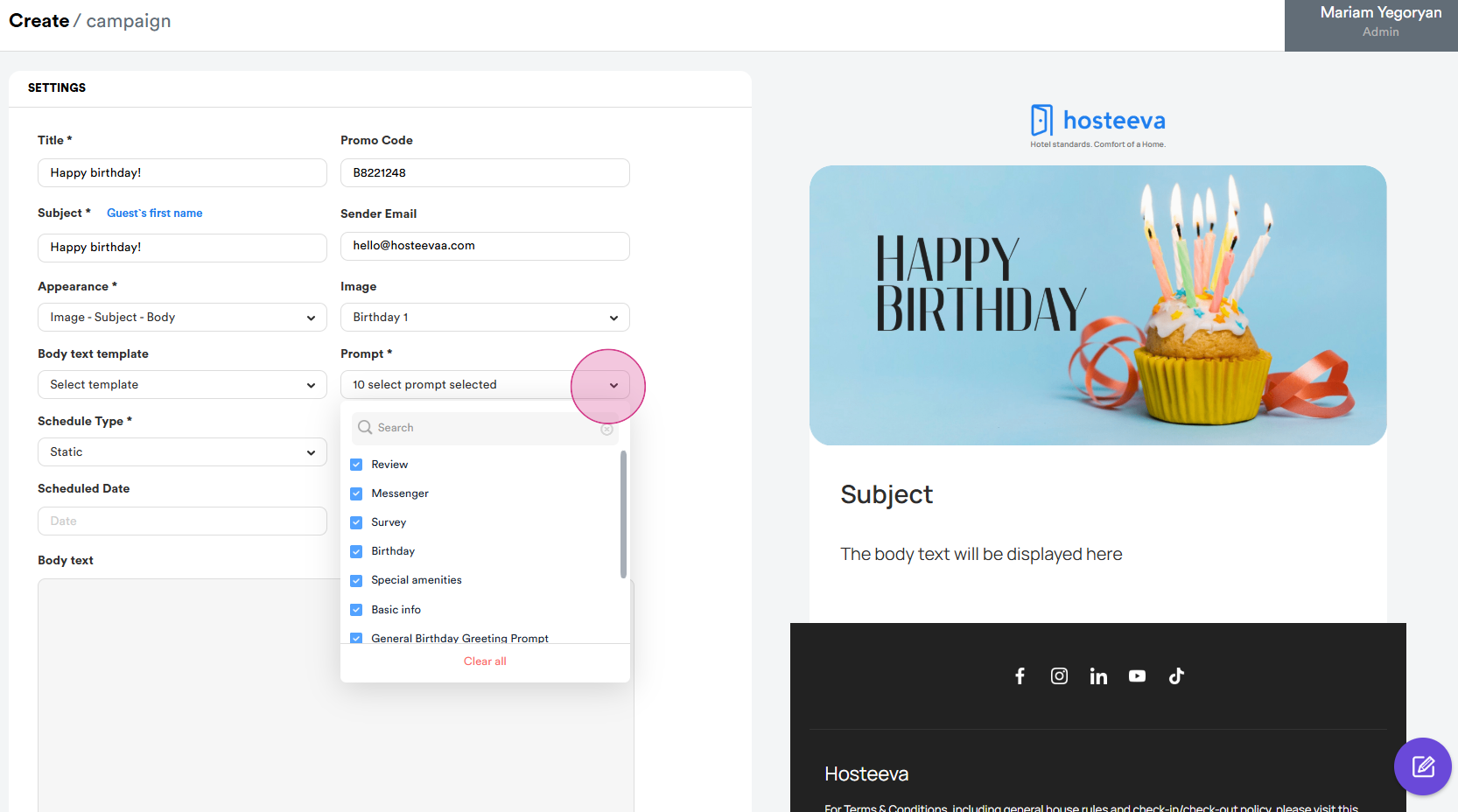
Step 6: Fill in the relevant boxes to create your email. The preview of the email is on the right side. Choose a title for your email, for example, "Happy Birthday". The subject line can be the same as the title. Add a promo code. In this case, we're using a promo code with a 10% discount offer. The sender's email is your company email. Note that email branding and logo are customizable. Choose the structure of your email. Choose an image for your email. Choose the sequence of your email. For instance, you can start with an image, then the subject, and so on. From the body text template, use the templates available. Choose all the prompts. This helps the AI generate a better email. Set the scheduling date and time.
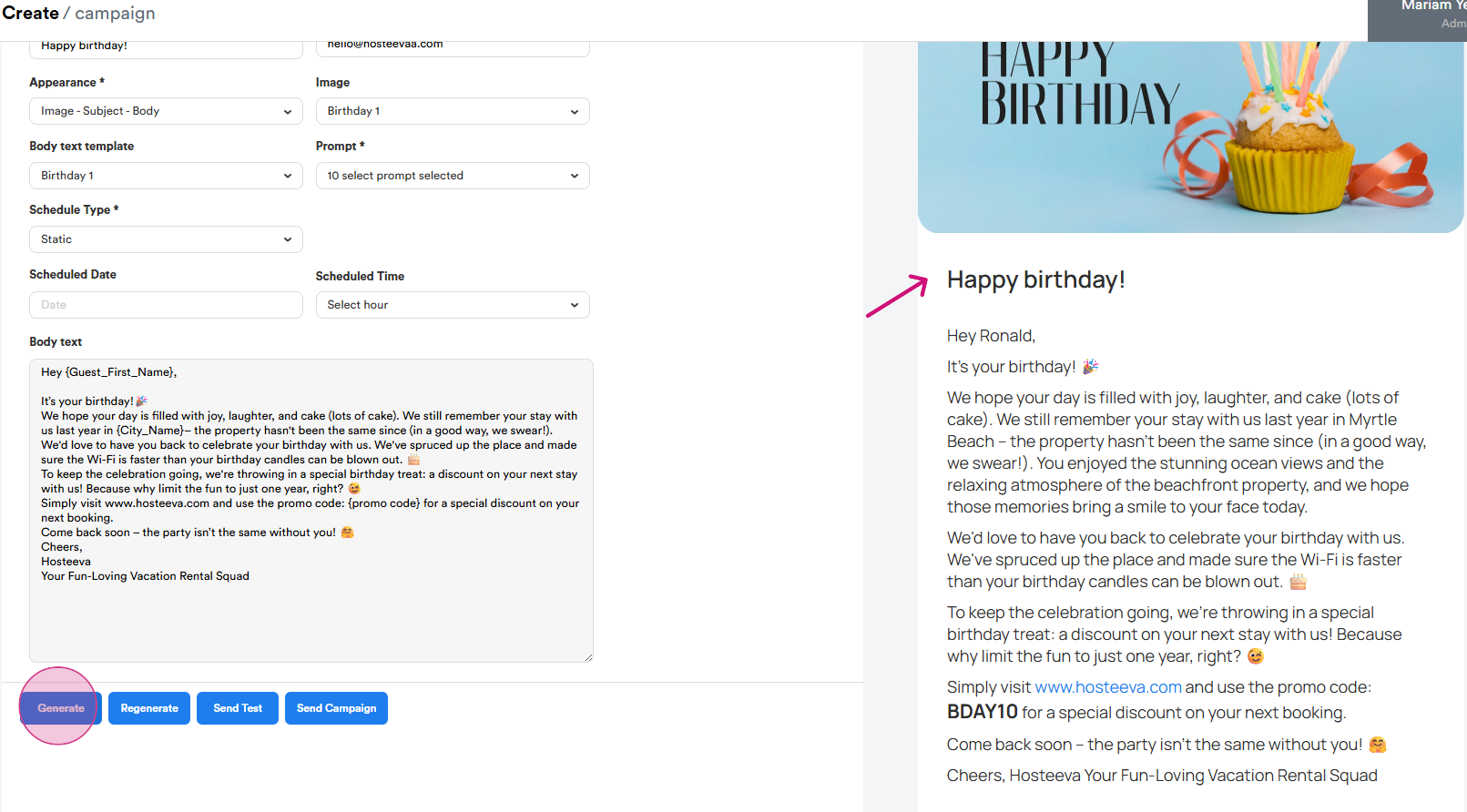
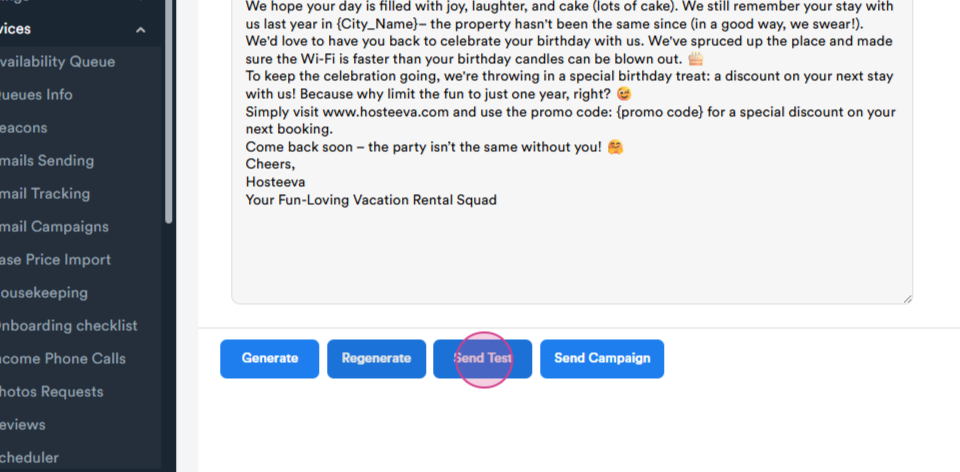
Step 7: Once everything is filled, click generate. The AI will generate an email based on the information from the surveys and the prompts.
Step 8: Use the next and previous guest buttons to send emails to the respective guests in the list.
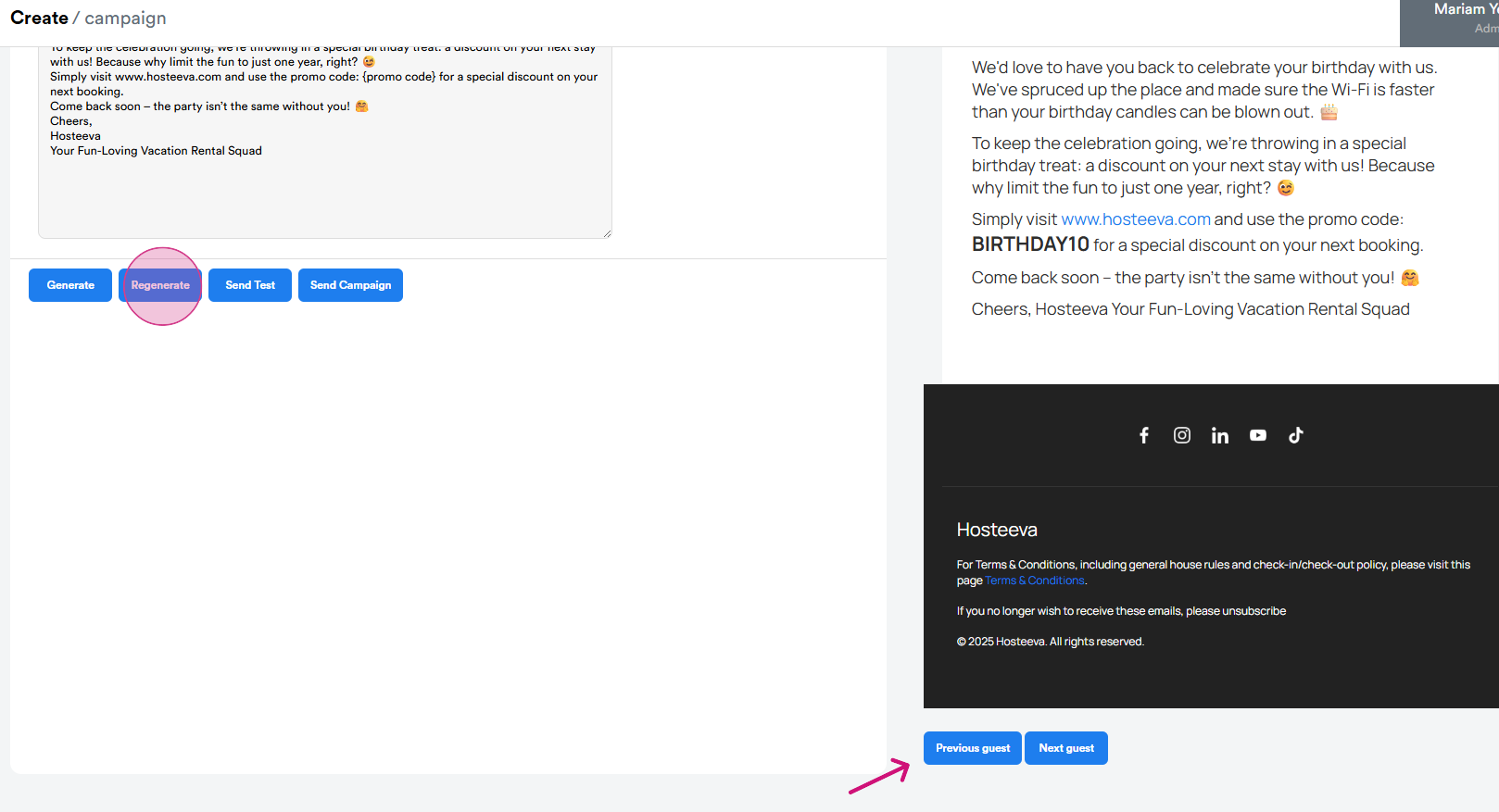
Step 9: Send a test email to your personal email address to see how it looks.
Thank you!