In this article, you'll learn how to check reservation details, partner channels, cancellation and payment policies on Expedia.
Step 1: Start by locating the reservation received from Expedia.
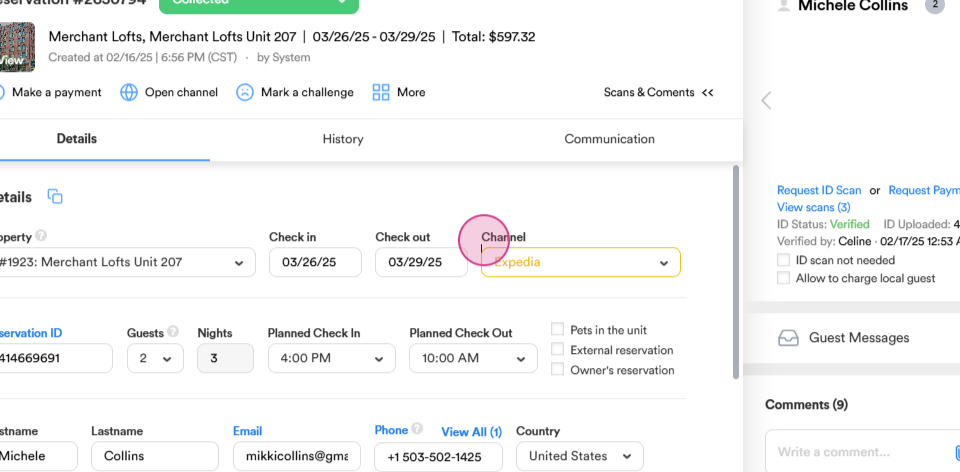
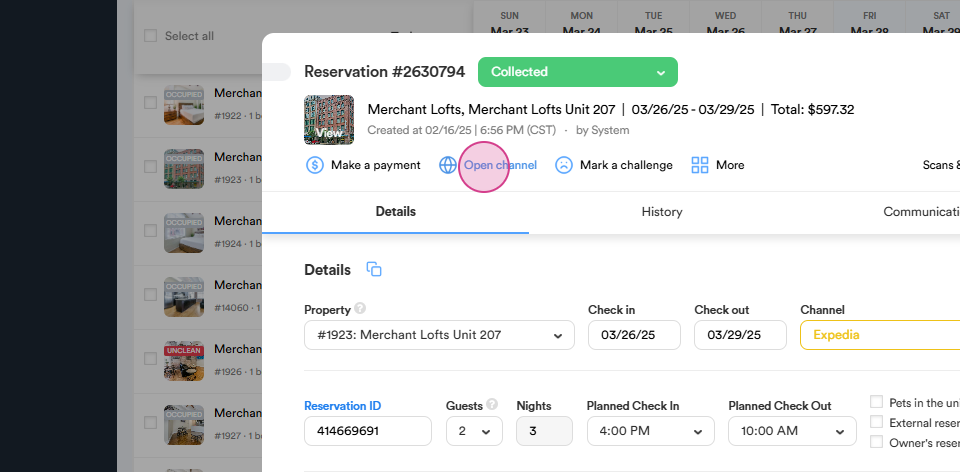
From reservation dialog choose Open channel button. This will redirect you to the Expedia website.
Step 2: On the right side of the screen you can see the general information about the reservation. At the bottom, click on the see all reservation details button to view all reservation details.
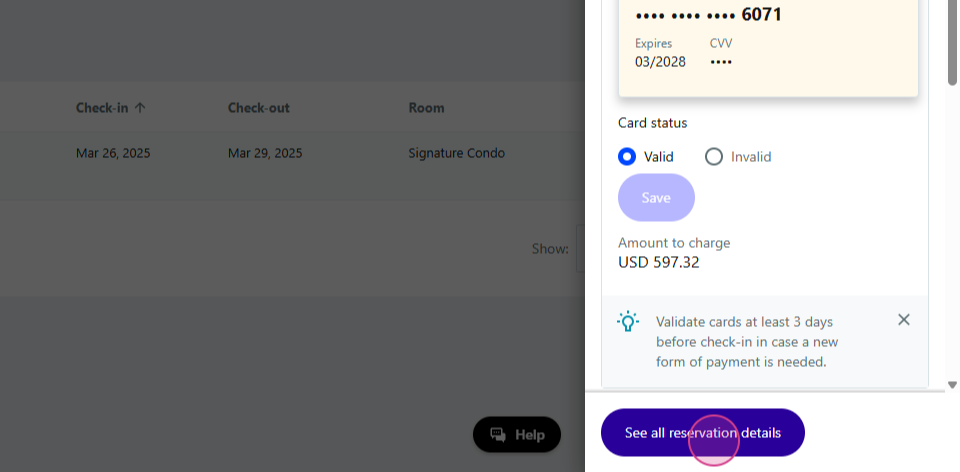
This will show whether the reservation came directly from Expedia or an affiliate channel like Orbits, Travelocity, or Hotels.com.
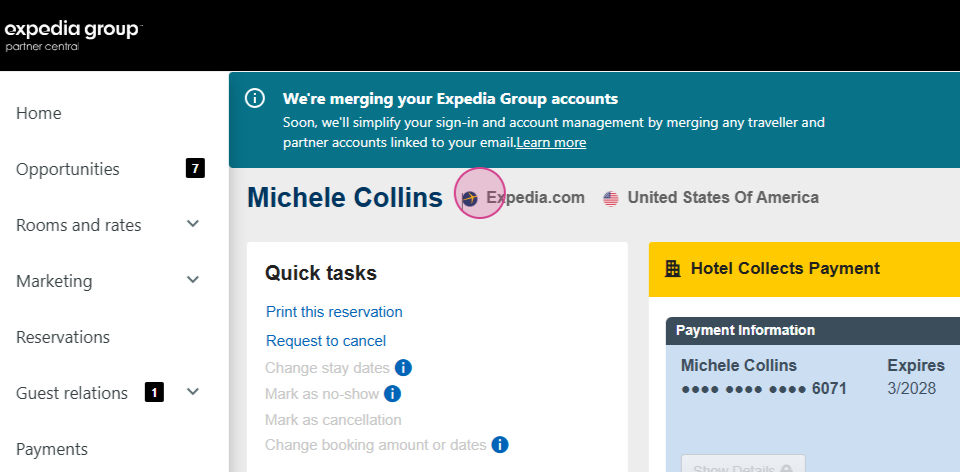
Step 3: Check the reservation details such as check-in and check-out dates, payment details, guest information, and cancellation policy.
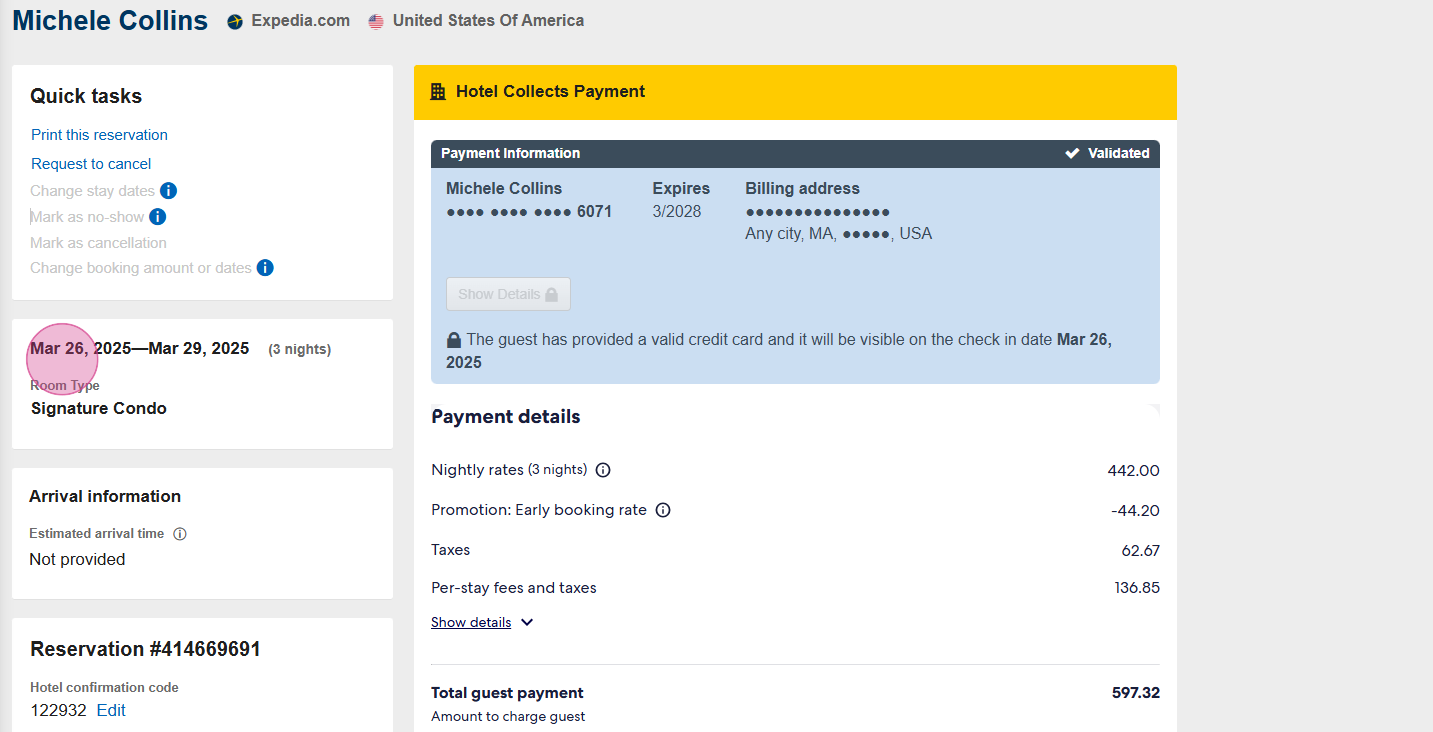
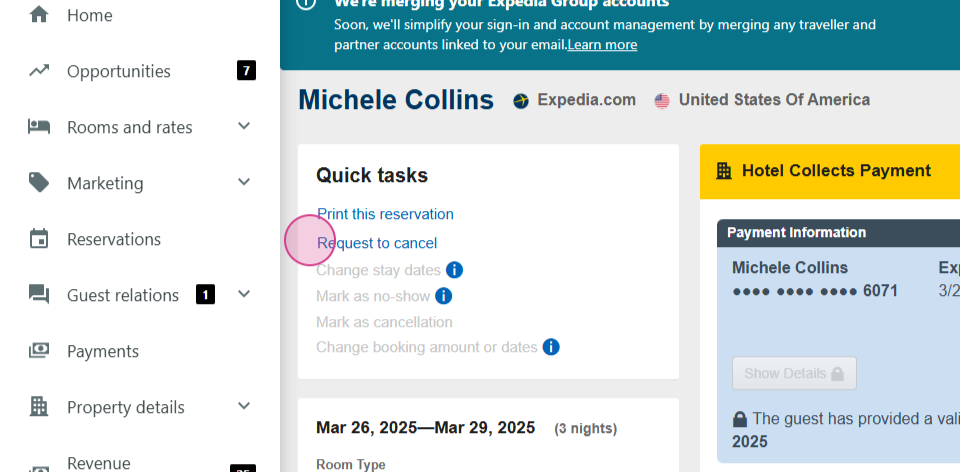
You'll also find buttons for Request to cancel and Mark as no show. The latter only works with the Stripe payment method and not virtual cards. It activates on the check-in day, allowing you to mark a reservation as a no-show and cancel it without penalty.
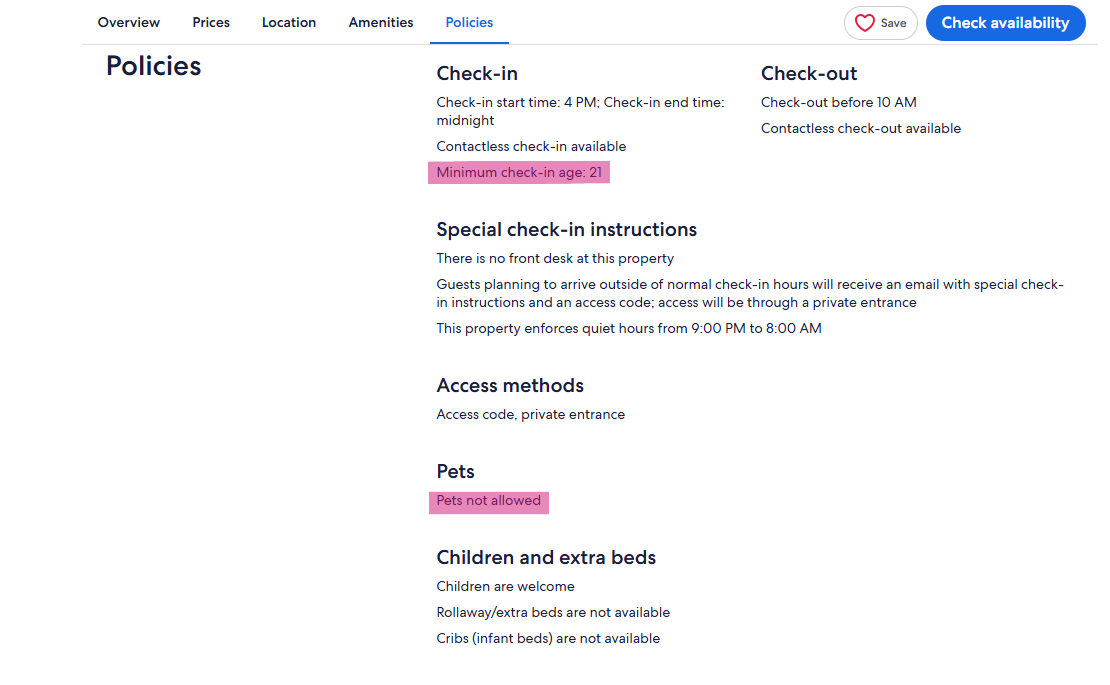
Step 4: To check the house rules, go back to the reservation dialog and click on the property name. From the menu, choose listings and select the Expedia listing. Scroll down to the important information section to find the house rules.
Step 5: To check virtual card payments and add virtual card details, locate a reservation with a virtual card payment method.
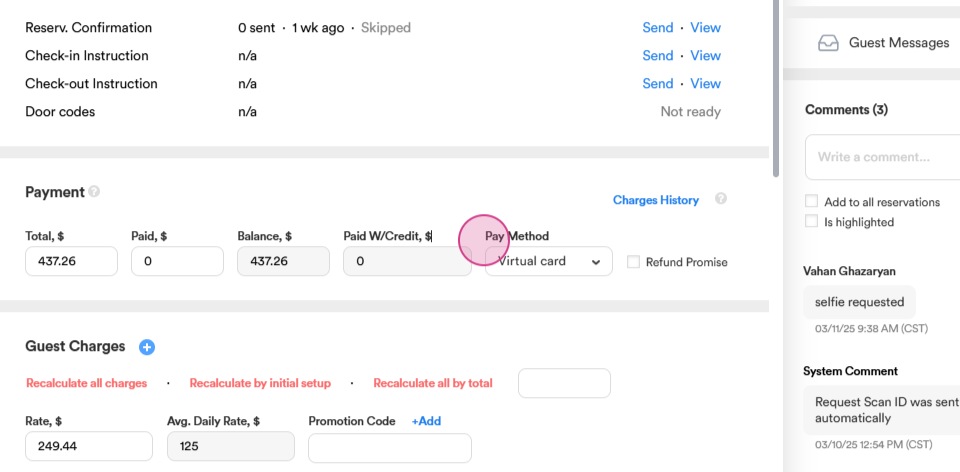
Click on open channel to find the card information.
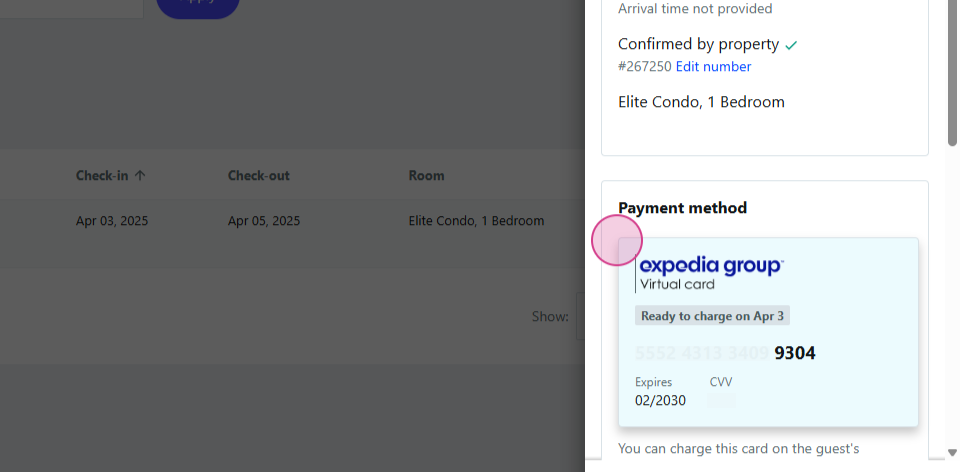
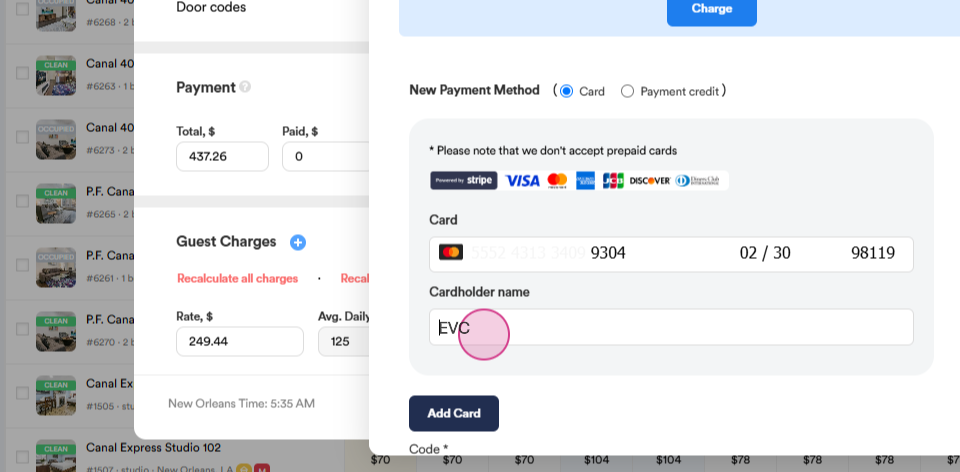
Copy the card information and add the 16-digit number, expiration date, CVV, and zip code, and mark under cardholder name EVC through Make a payment option.
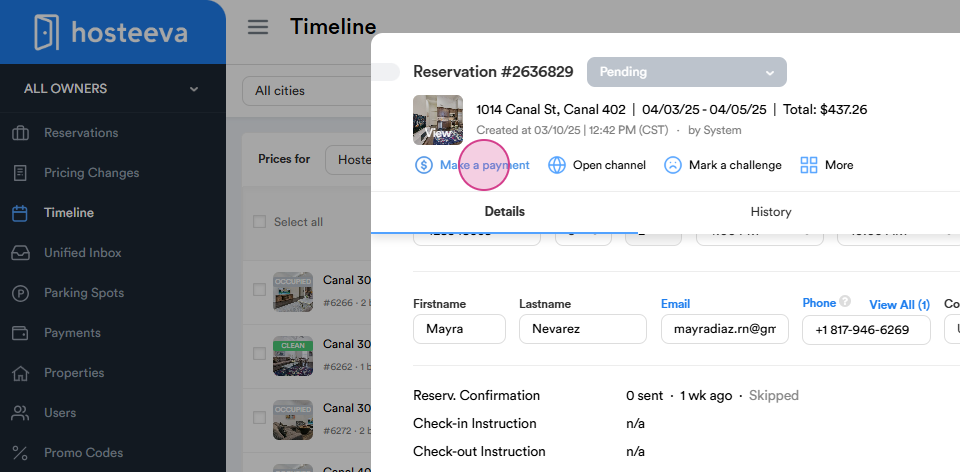
Finally, add the card and charge it manually on the day of arrival.
Thank you for reading.