How to View and Update Fees and Taxes on Booking.com
Make sure your property listings on Booking.com display the correct fees and taxes for guests. This tutorial walks you through the steps to review and edit tax setup, request changes, and update fees directly in the extranet.
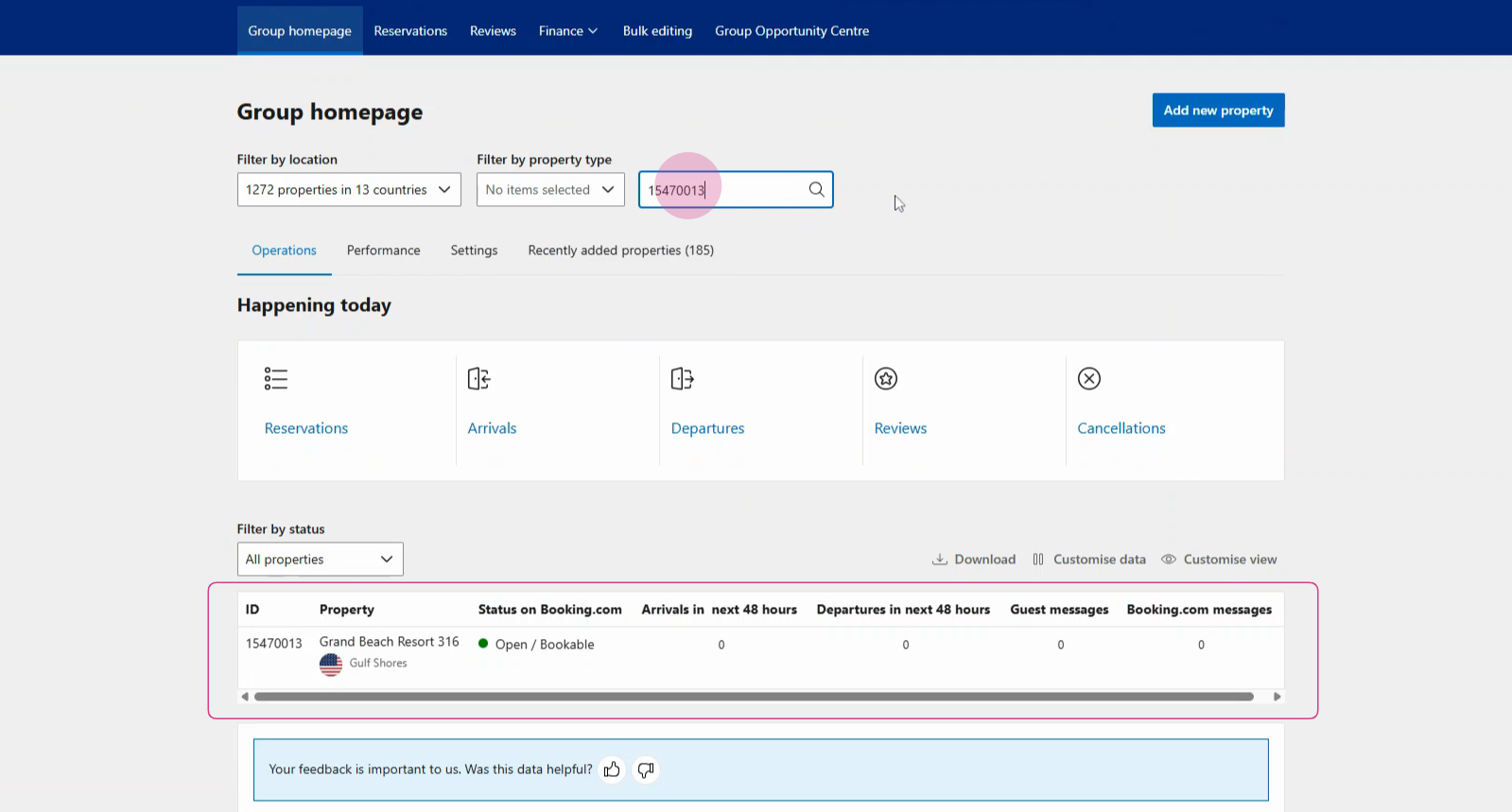
Step 1: Log in to your Booking.com extranet account. Find the property you want to update by entering its property ID in the search bar. Click Search to locate your property.
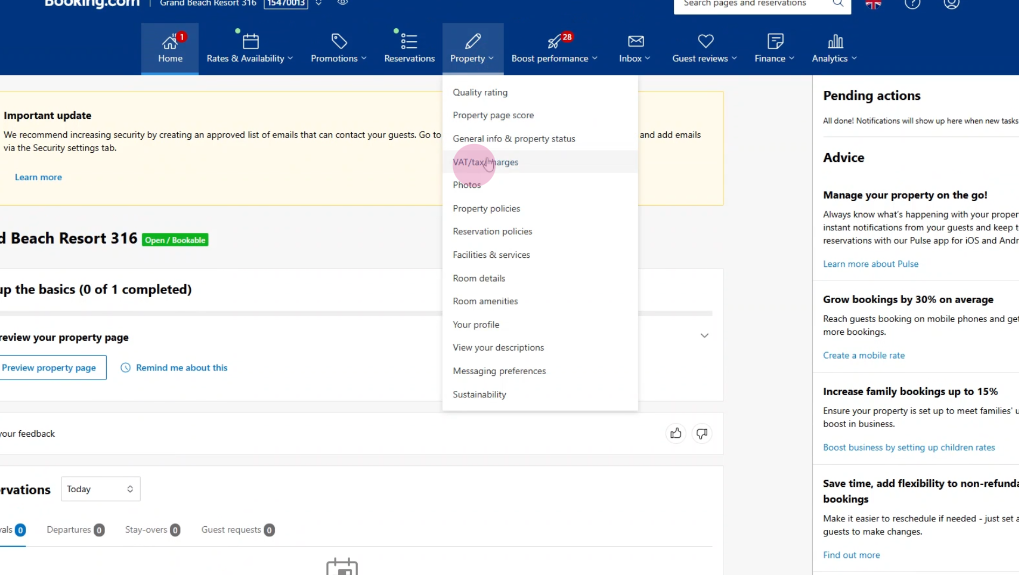
Step 2: Select your property from the search results. Navigate to VAT, tax, and charges in the Property section to view your current tax setup.
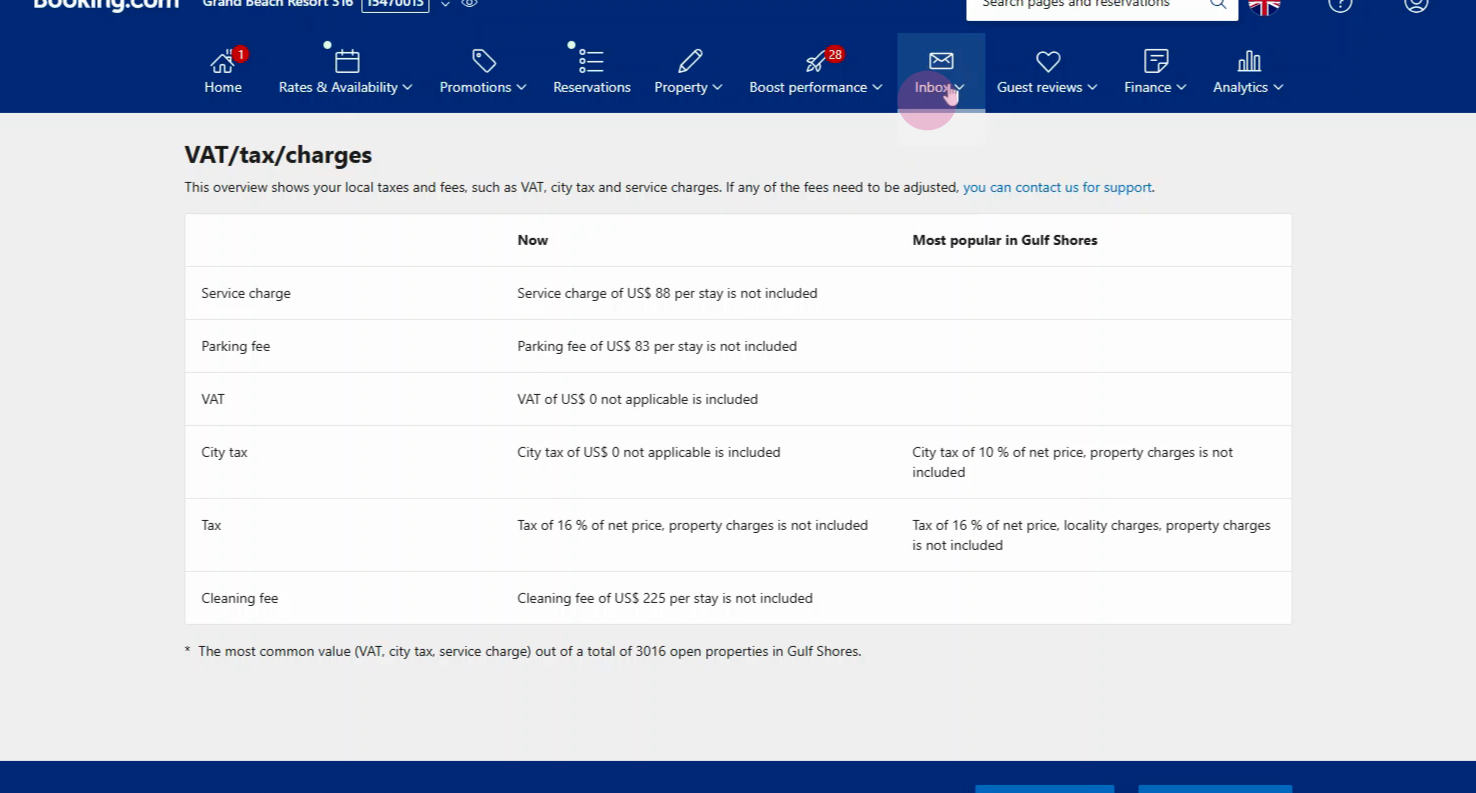
If you find the tax setup is incorrect, or you want to set different cleaning fees for properties within the same listing, you’ll need to message Booking.com support.
Step 3: Go to the Inbox in the extranet.
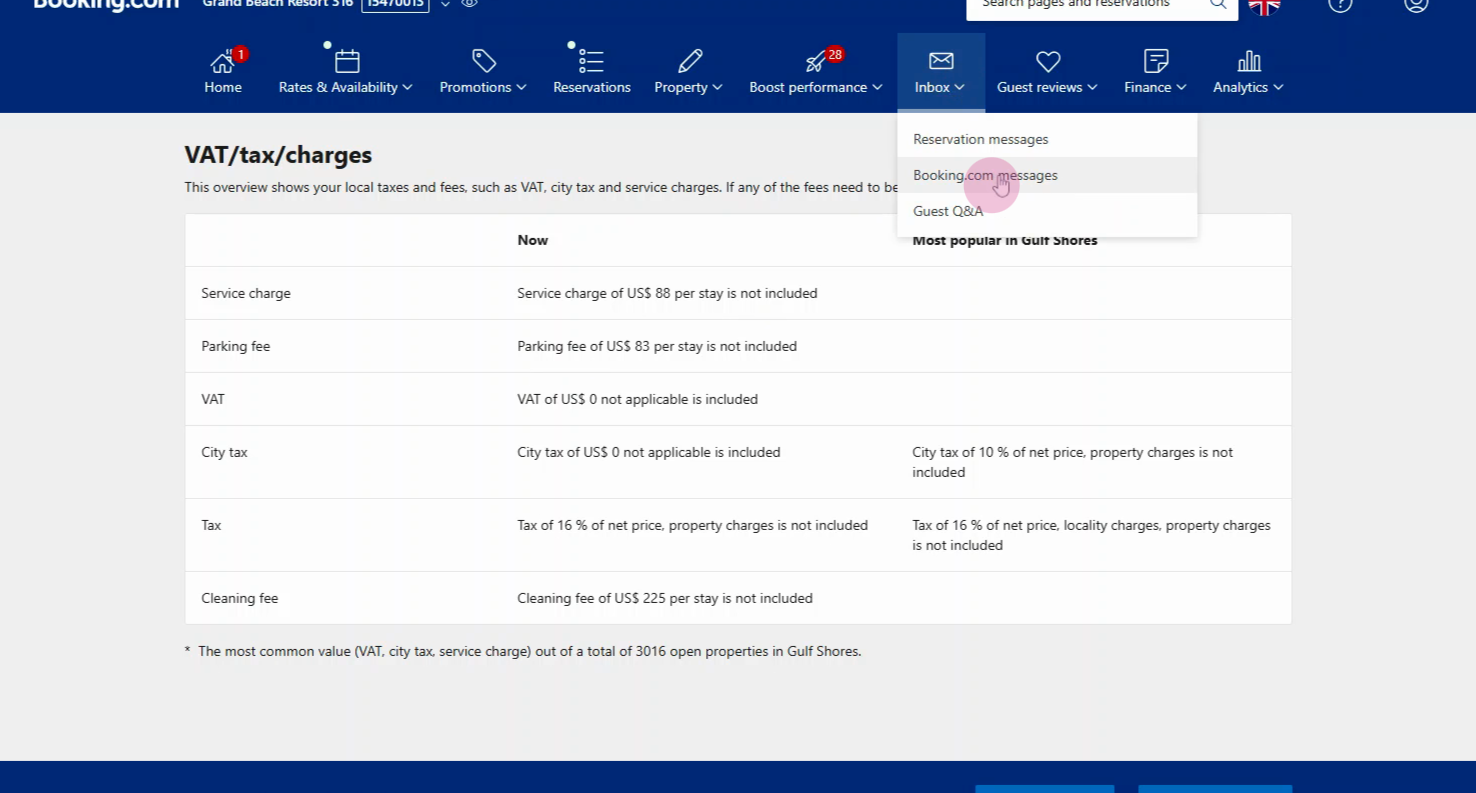
Step 4: Select Booking.com messages from the options.
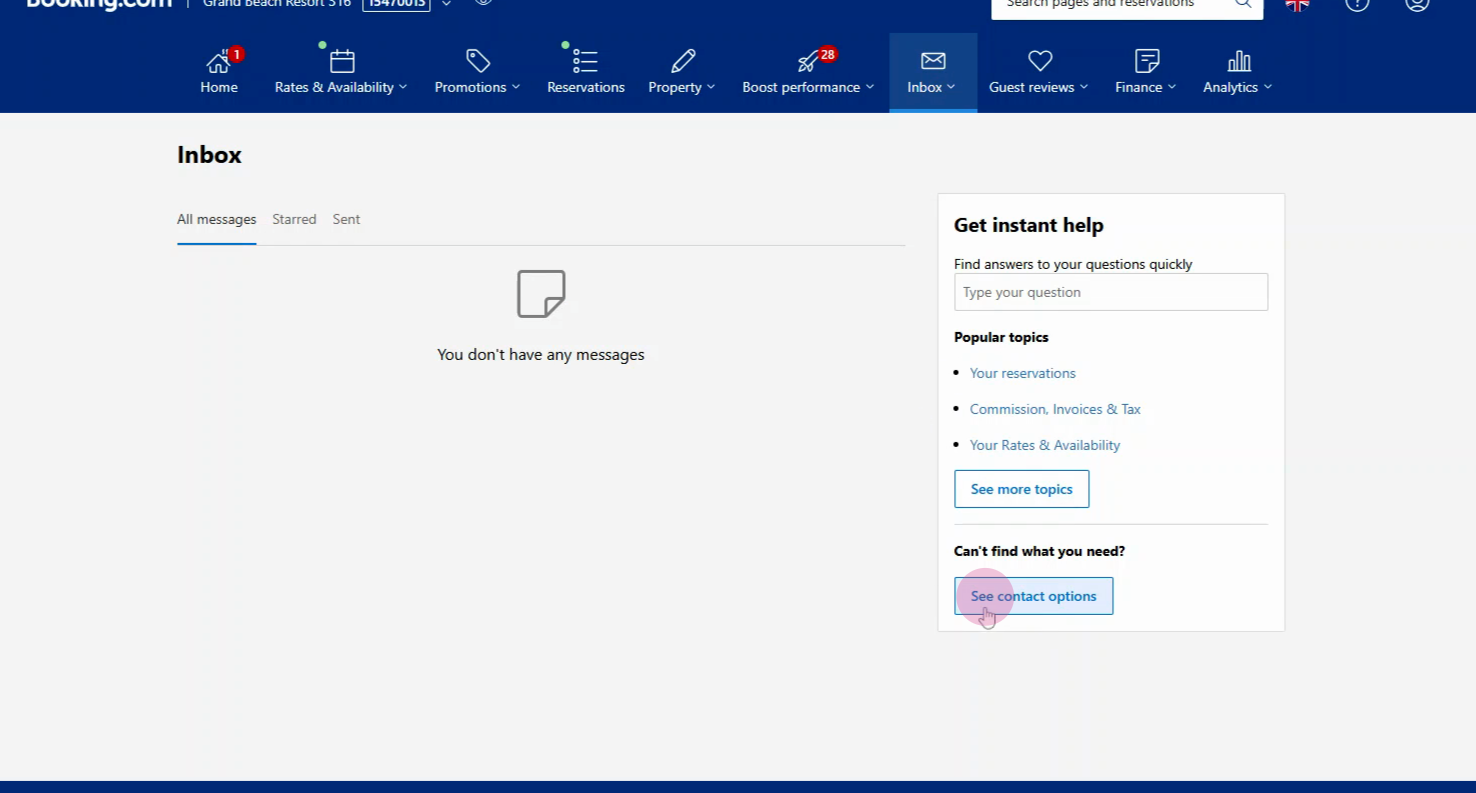
Step 5: Click See contact options.
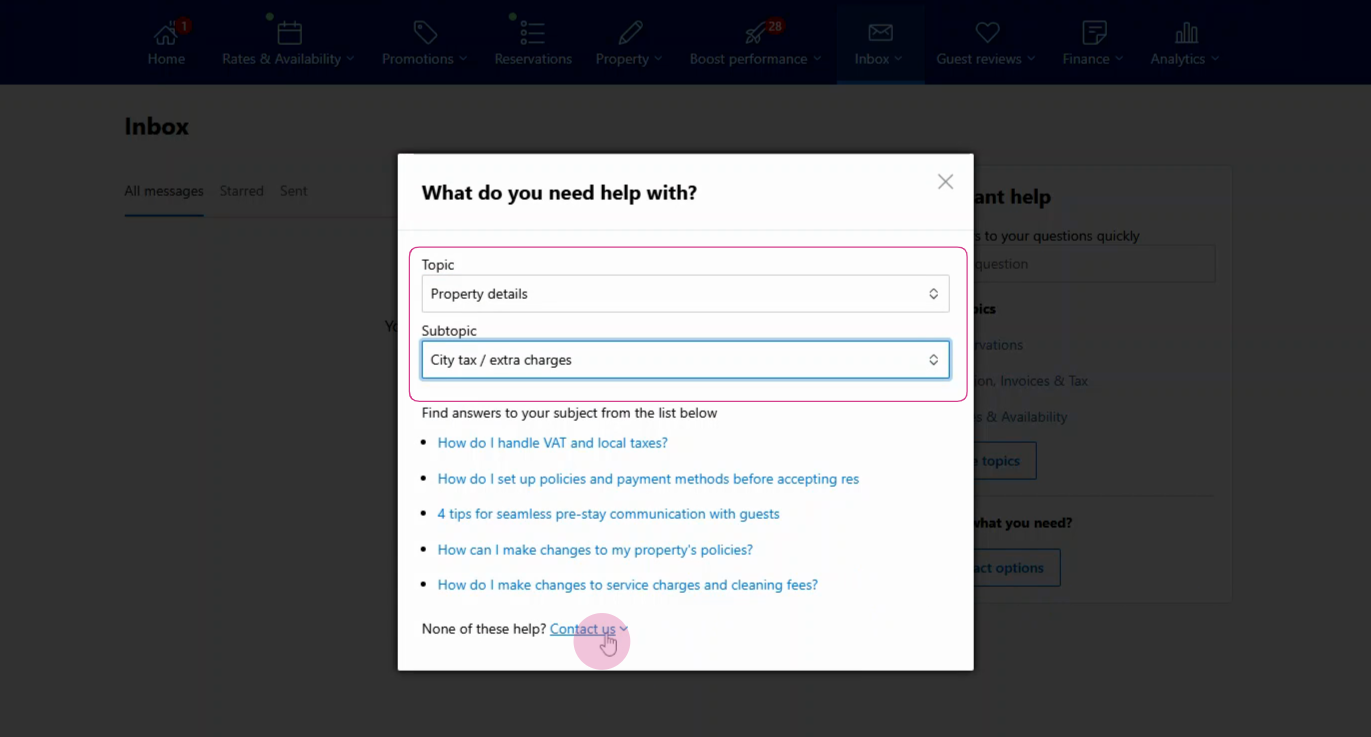
Step 6: For the topic, choose Property details, then pick the sub-topic City tax and extra charges. Click Contact us to write your message detailing the required changes.
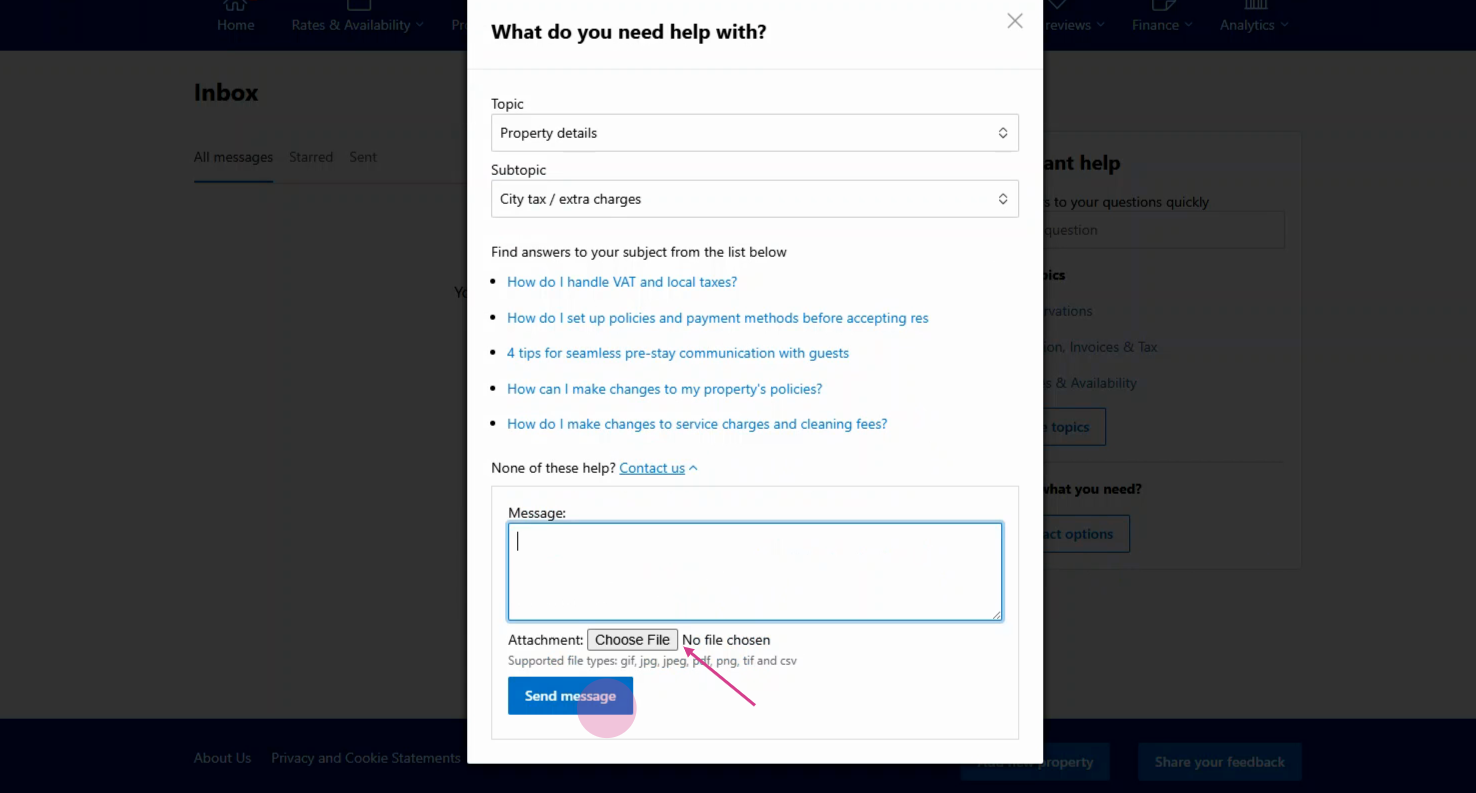
If you need to attach files, use the Choose file button.
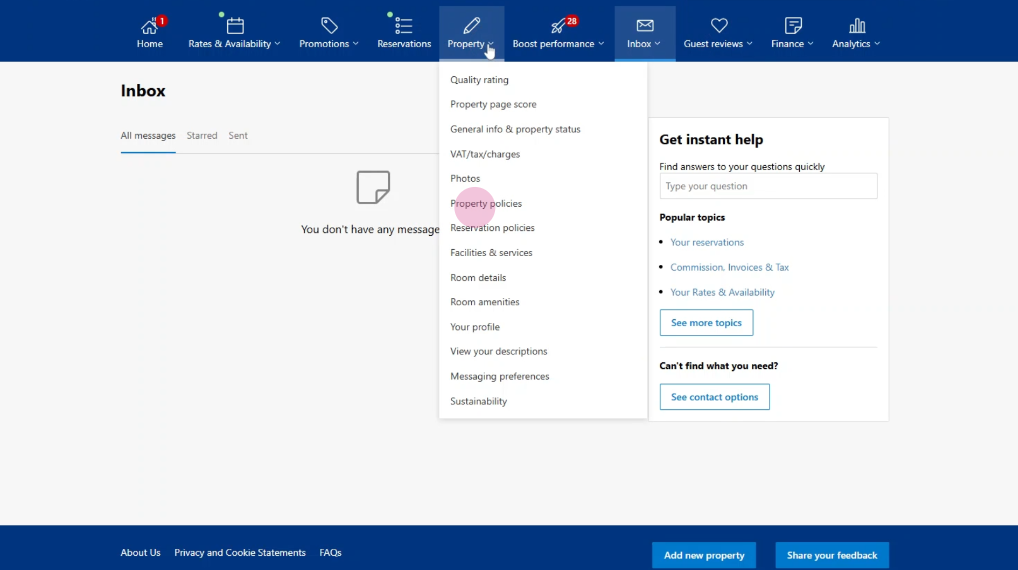
Updating Fees and Charges in Property Policies
Step 1: Go to your property and find Property policies.
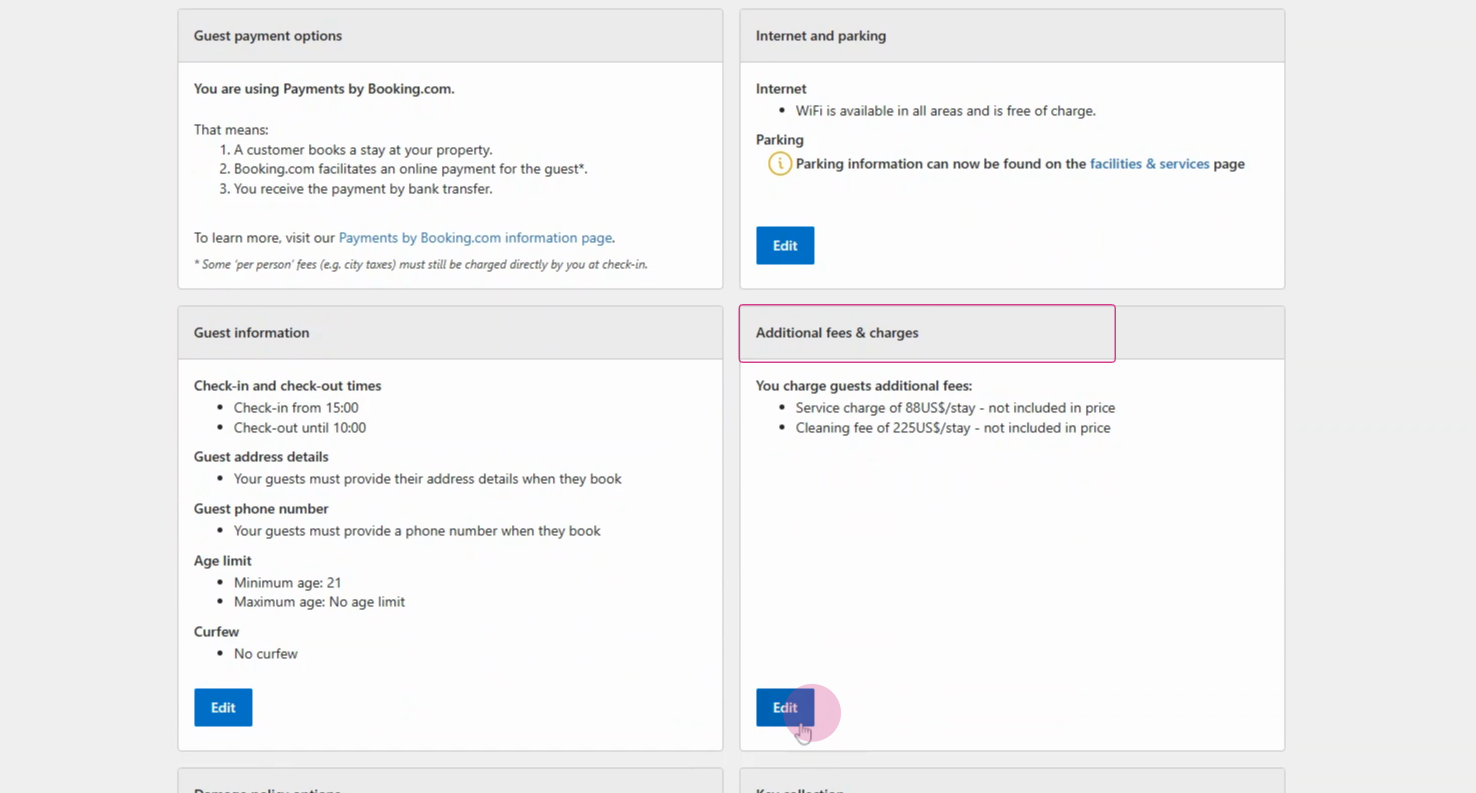
Step 2: Click Additional fees and charges. Click Edit.
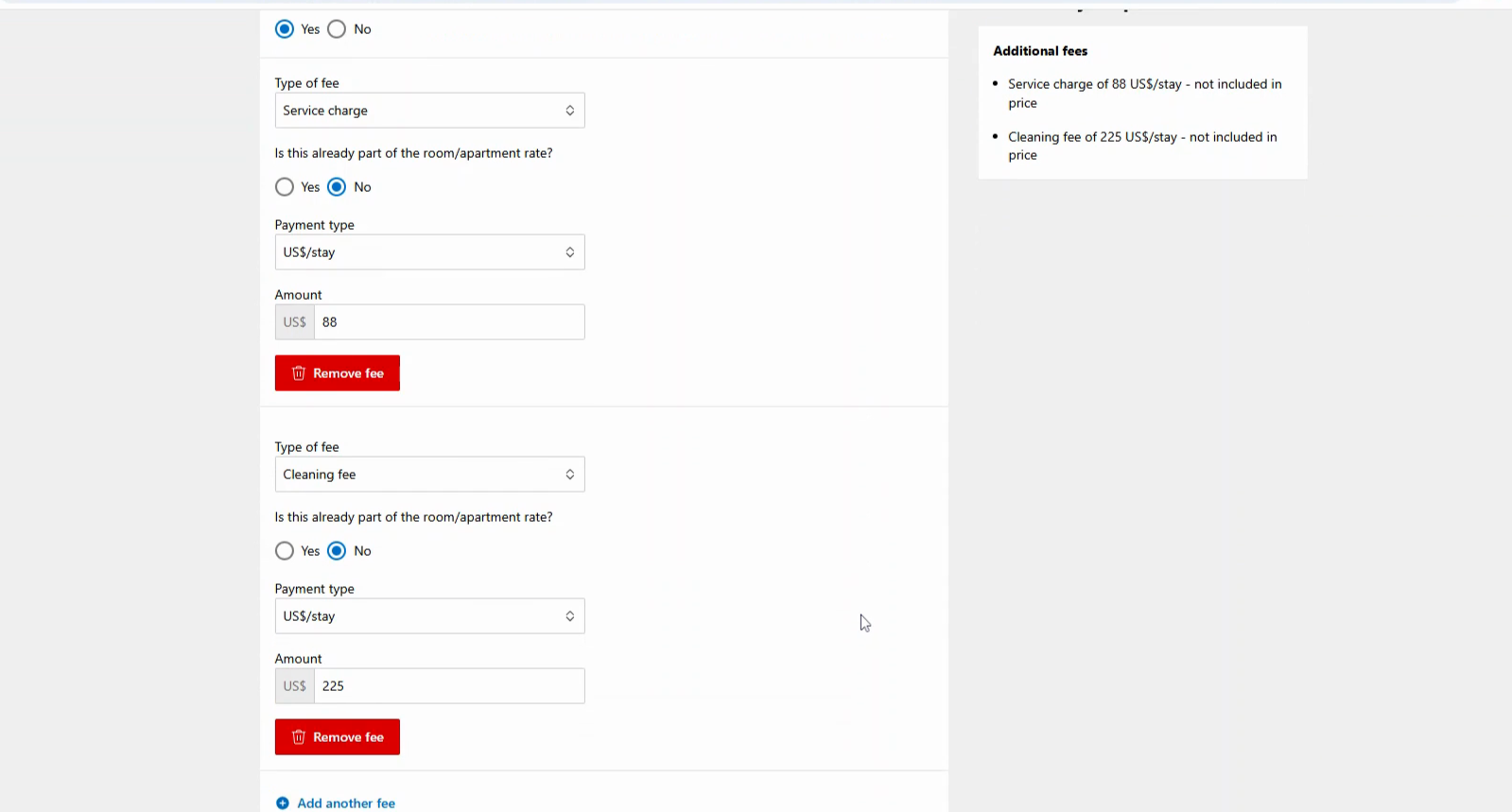
Step 3: Choose the right fee type, payment type, and enter the amount. Press Save to apply your changes.
Thank you!