In this tutorial, you'll learn how to use the newly added filters in the property section. This will help you sort properties based on their live status and specific time ranges.
Step 1: Navigate to the properties section. Here, you'll find the new filter feature.
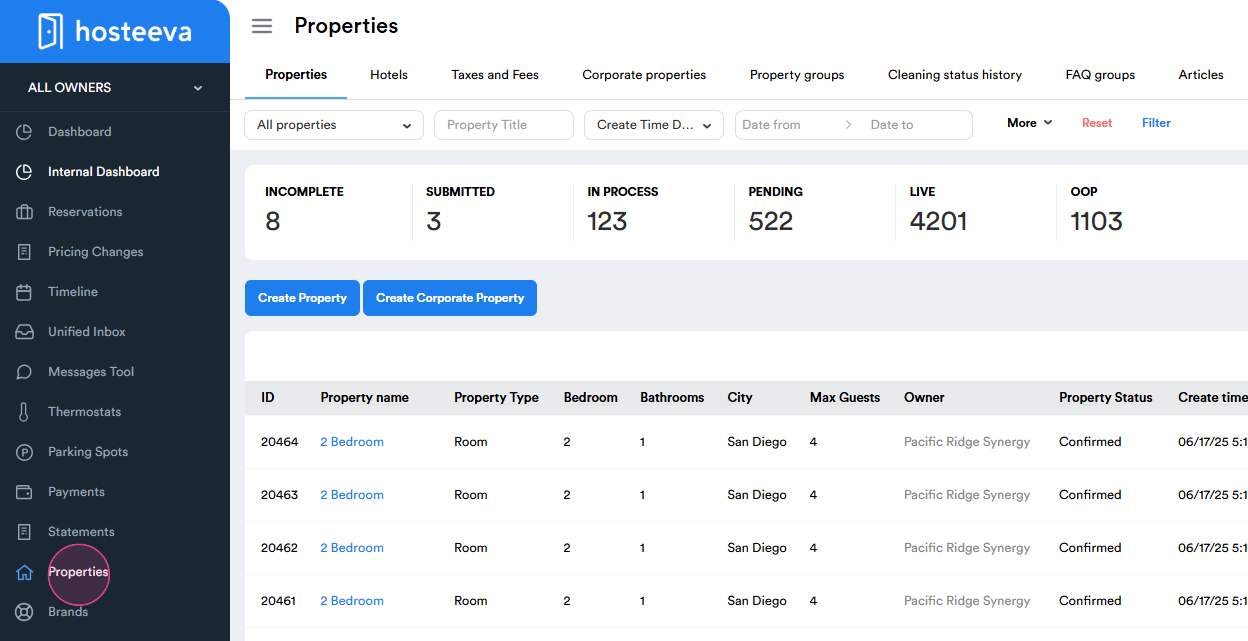
Step 2: Observe the live property number and the OOP (out of program) property number.
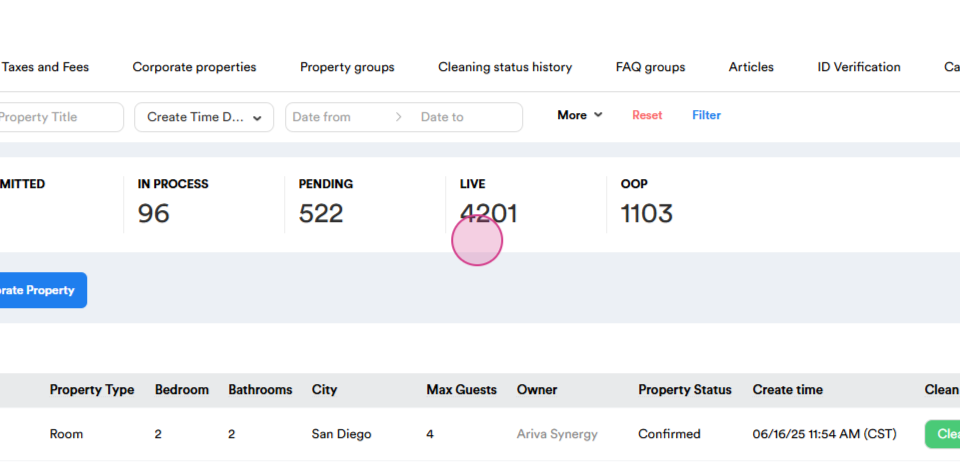
Step 3: Use the filter to select property statuses based on Go Live date, OOP date, or a combination of both.
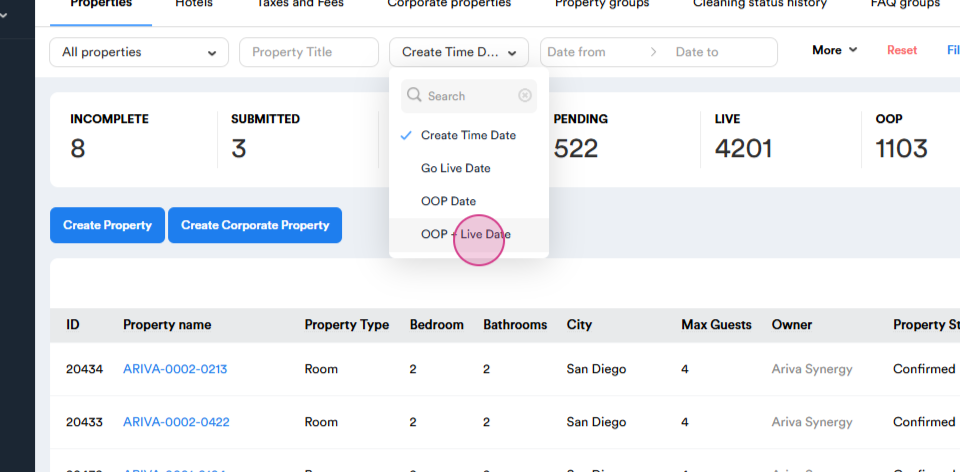
Step 4: After selecting OOP/ Live date., choose the time range for filtering the properties.
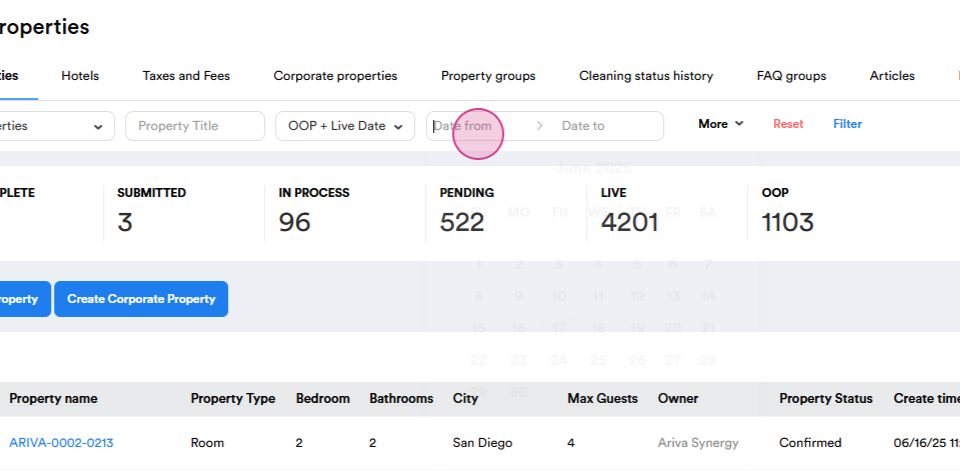
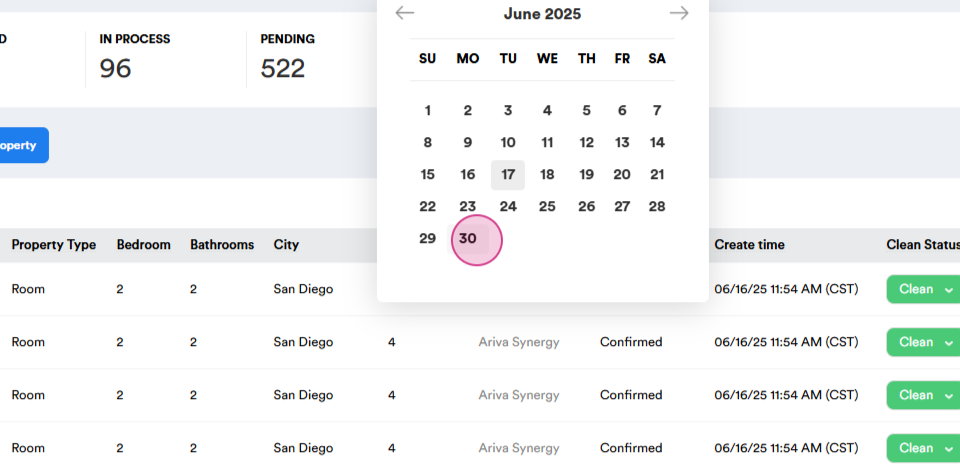
Step 5: For a specific time range, select June 1st till June 30th and apply the filter to see the results.
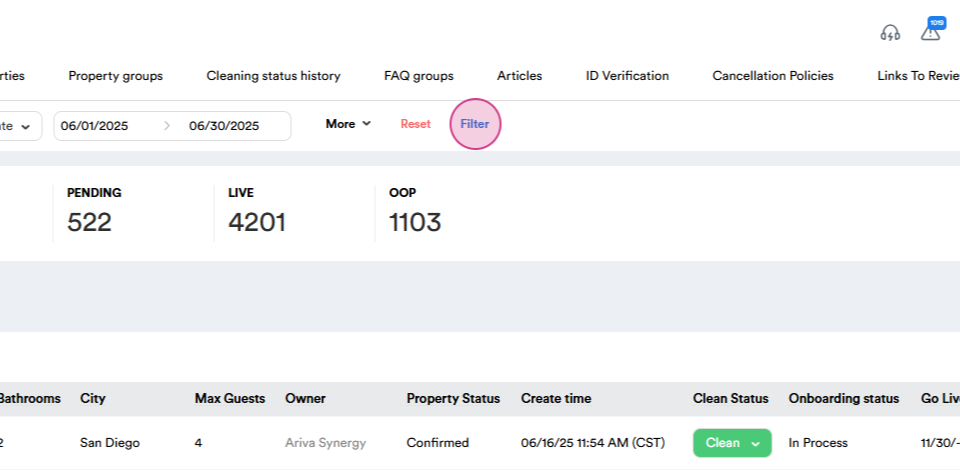
Step 6: Review the results. From June 1st till June 30th, the total number of live properties is 4104, with 7 going live and 12 going OOP during this period.
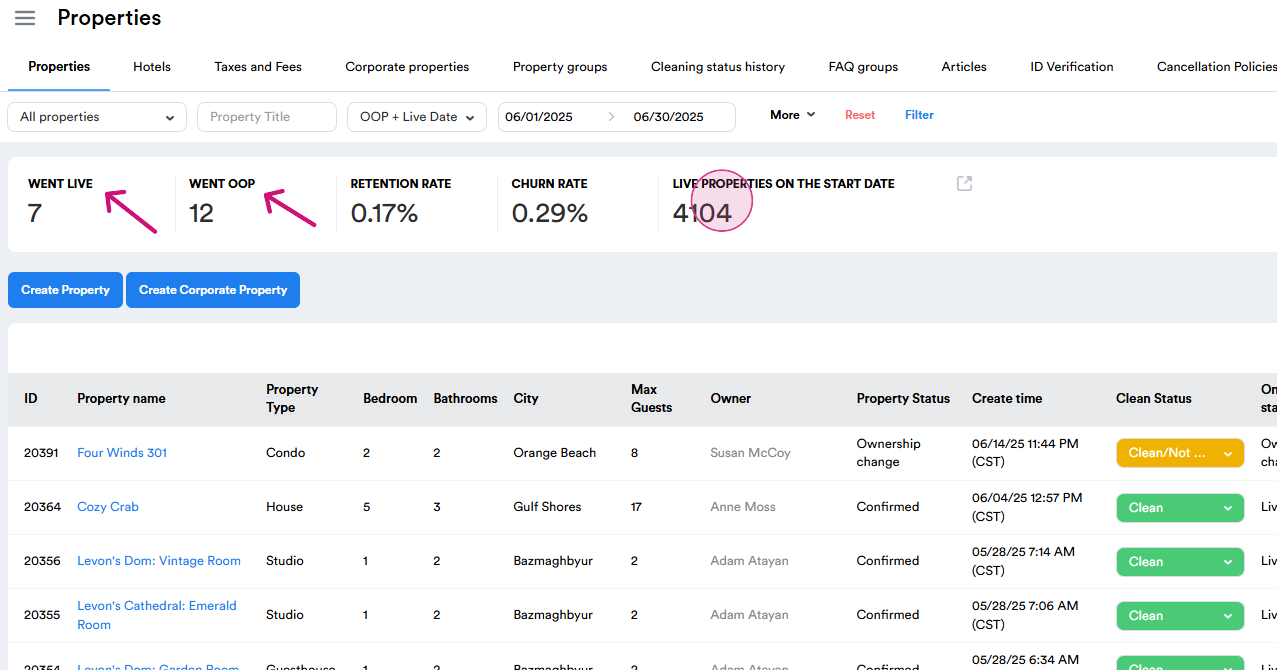
Step 7: Also, note the property decrease and increase percentages. In this case, the decrease is 0.29% and the increase is 0.17%.
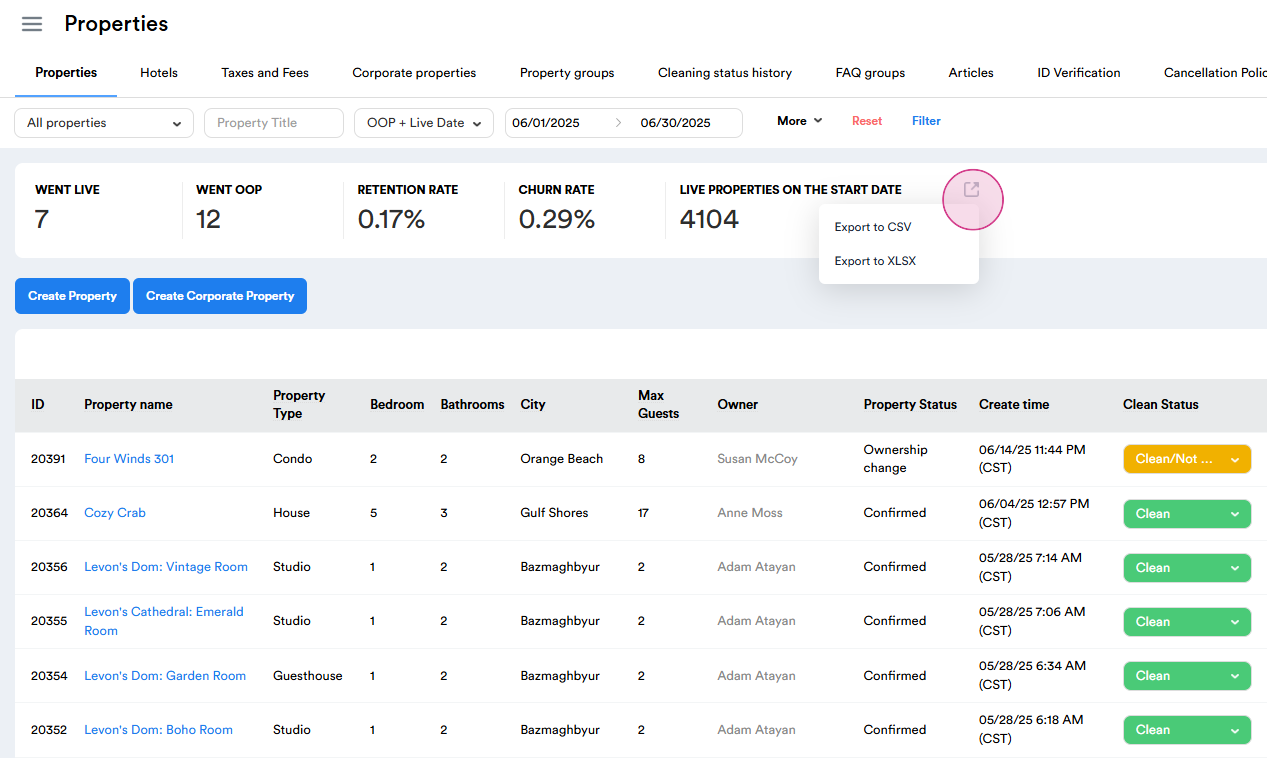
Step 8: The report can be exported in CSV or XLSX format.
Thanks for your attention!