This guide explains how to generate statements for property owners.
This guide explains how to generate statements for property owners.
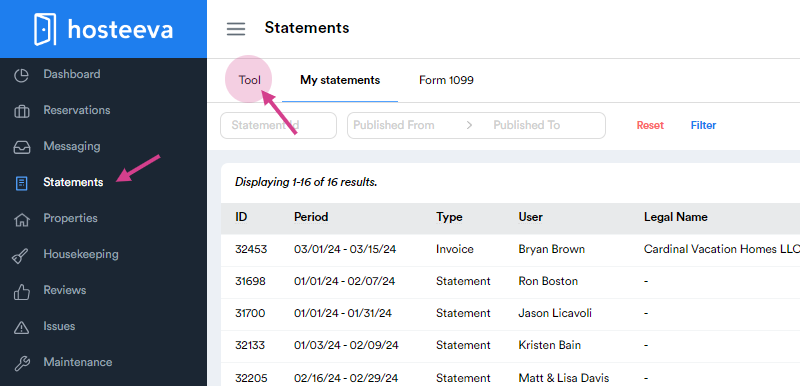
Step 1: Navigate to the dashboard and select the Statements tab.
Step 2: Once on the Statements tab, click on the tool.
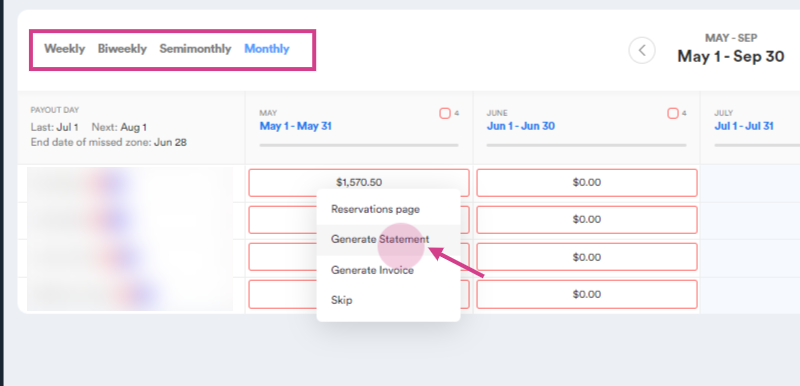
Step 3: A list of owner names appears. Click next to the name of the owner for whom you're generating a statement. Ensure the payout period is correctly selected as either monthly or semimonthly.
Step 4: Click on the box next to the owner's name and select Generate Statement from the dropdown menu.
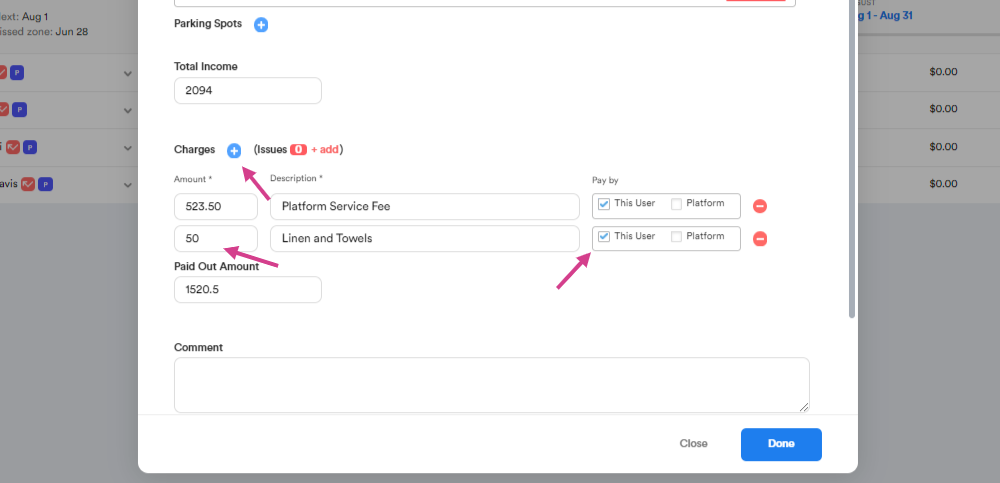
Step 5: The number of reservations included in the statement appears. The total income and platform service fee (also known as the management fee) are also displayed. In this example, the platform service fee is 25% of the income amount. The system automatically calculates the platform service fee based on the setup and the final payout amount.
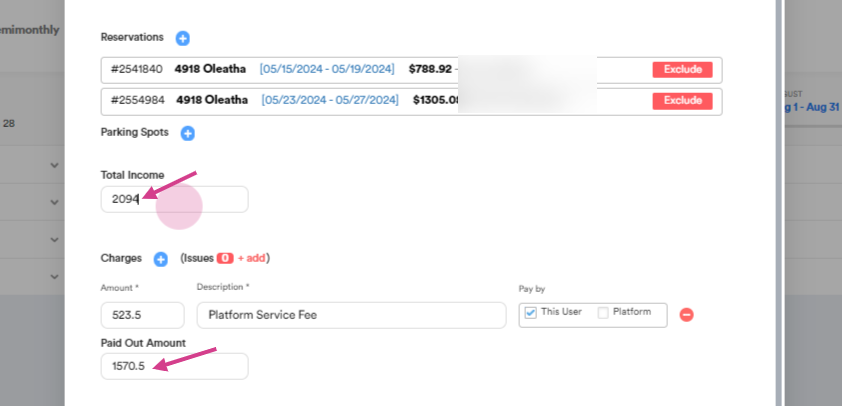
Step 6: If all information is correct, click Done.
Step 7: A new statement is generated but it's not visible to the owner yet. To make it visible, click on Publish from the dropdown menu.
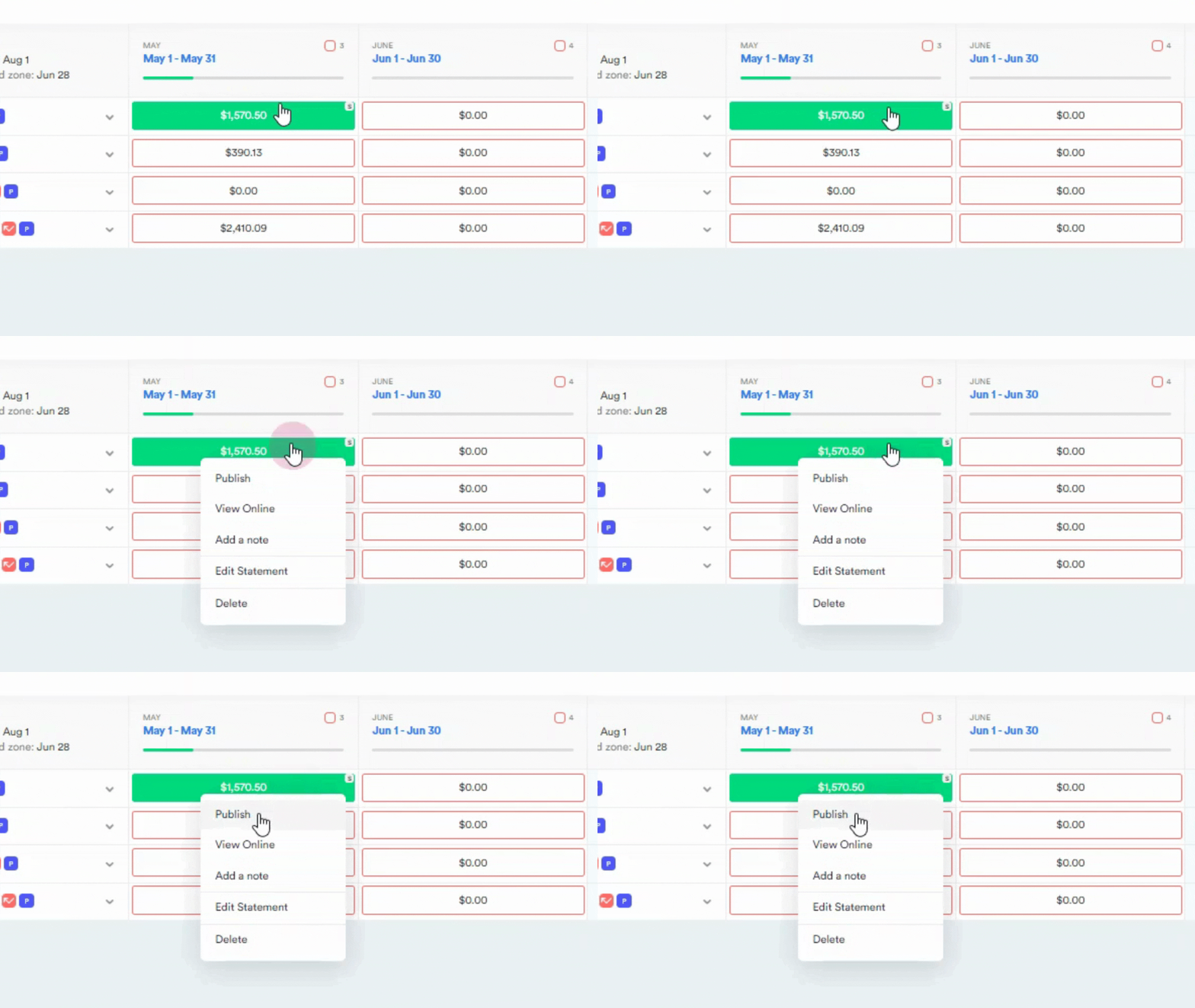
Step 8: If you need to add expenses to the statement, select Edit Statement from the dropdown menu. This returns you to the view where you can make adjustments. To add charges, click on the plus sign next to Charges.
Step 9: A box appears where you can enter the expense amount. In this example, $50 was used to buy linen and towels.
Step 10: When you select this expense, the $50 amount is deducted from the payout amount. Once all adjustments are made, click Done.
Step 11: To make the statement visible to the owner, click on the box again and select Publish.
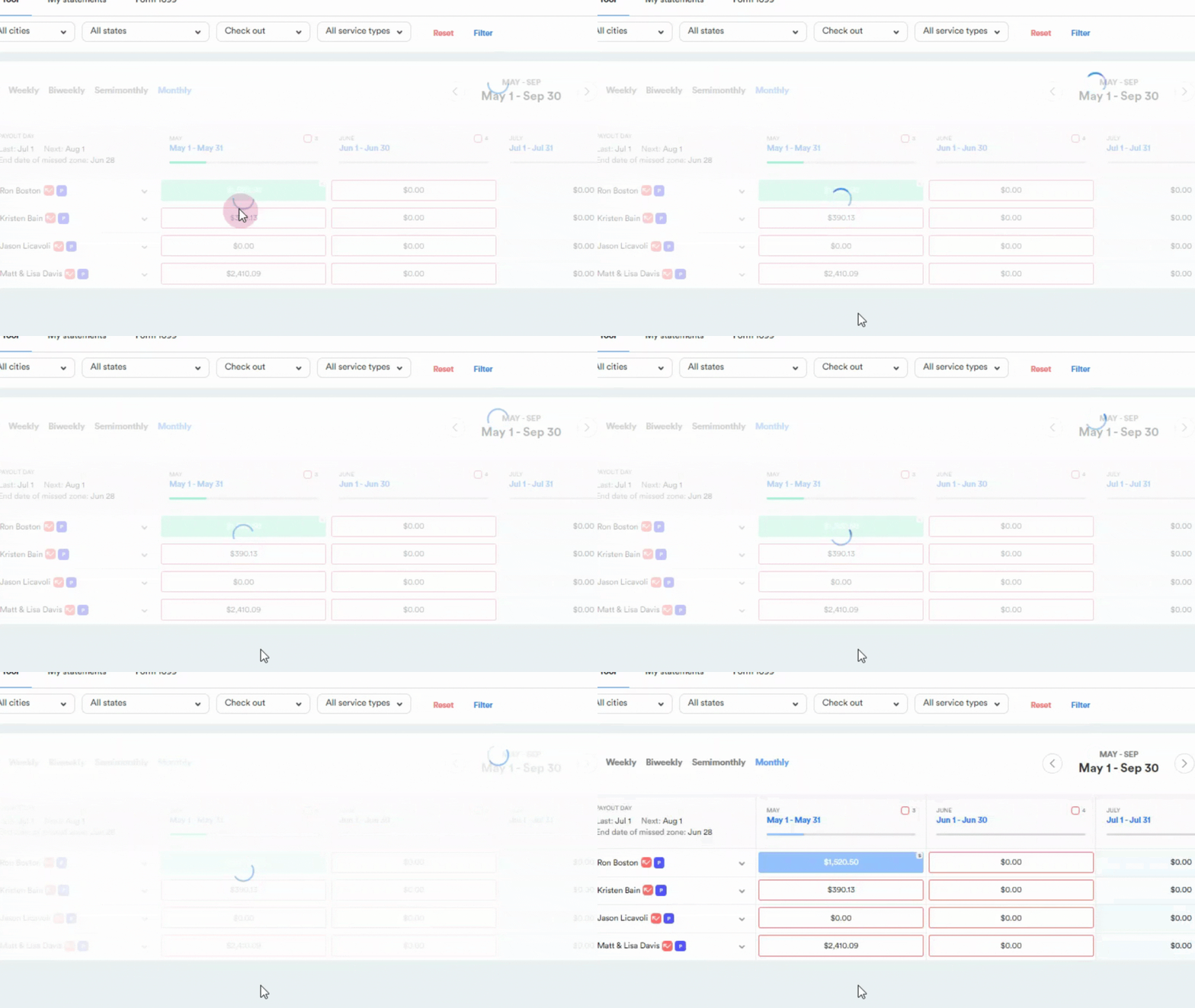
Step 12: The box turns blue, indicating that the statement is now visible to the owner.
Thank you!