In this article, you'll learn how to create work orders and assign appropriate statuses to reservations based on guest complaints. This process helps in efficient issue tracking and resolution.
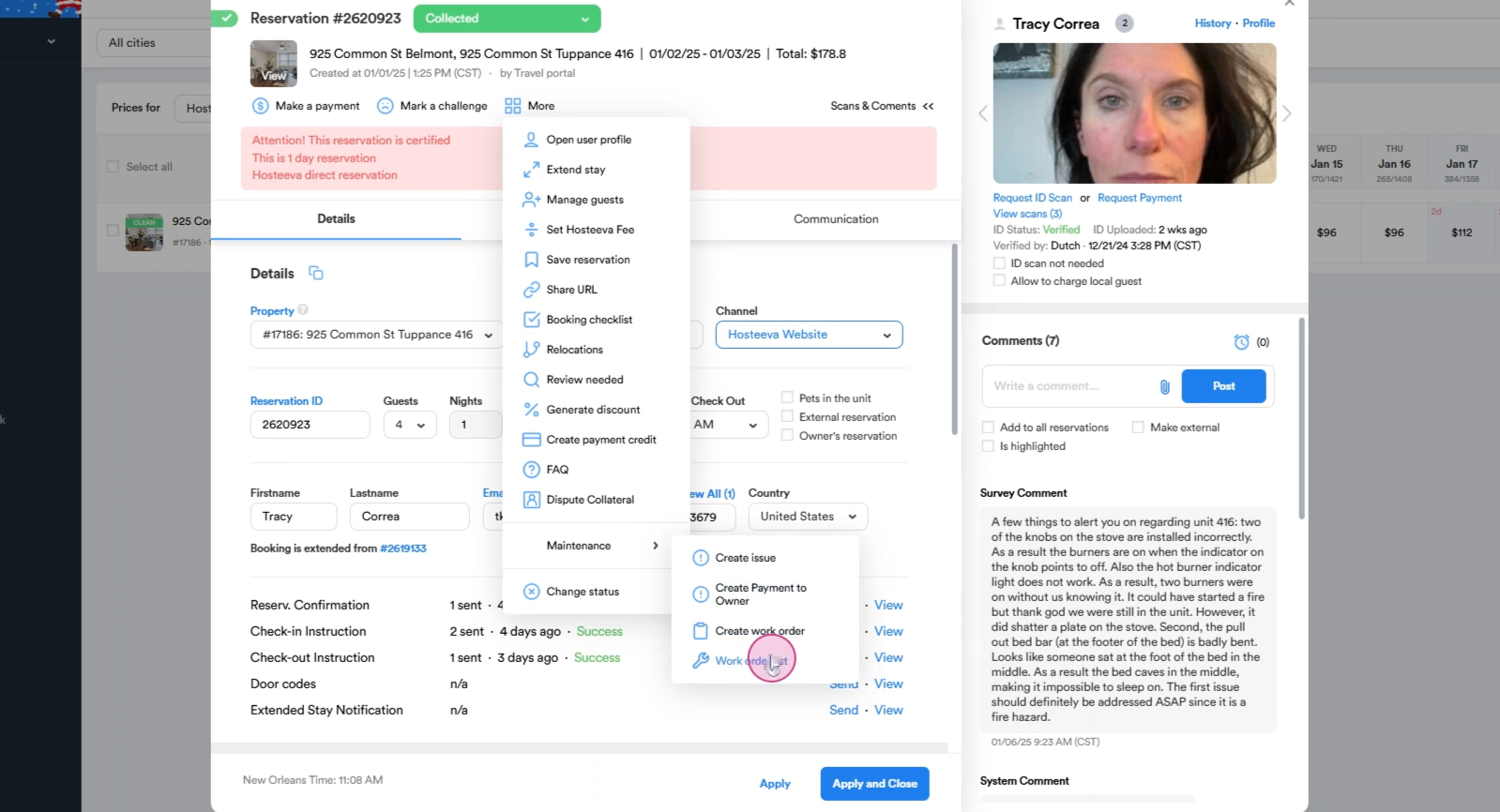
Step 1: Open the relevant reservation to avoid duplicating work orders for the same issue. Check if any related work orders have already been created. To do this, hover over the More menu to open the pop-up list, navigate to Maintenance and select Work Order Order list.
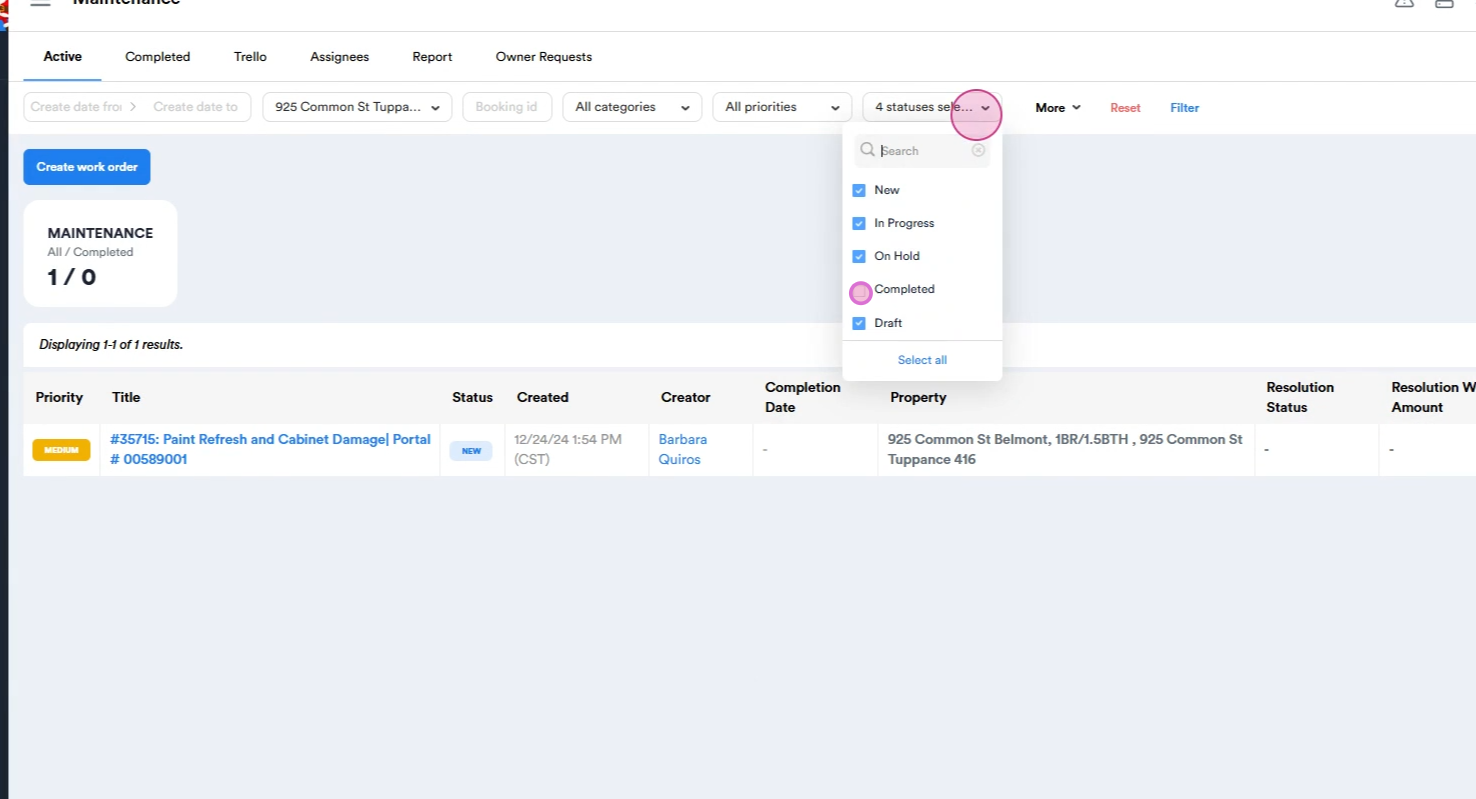
Step 2: In the new window, select all statuses at the top.
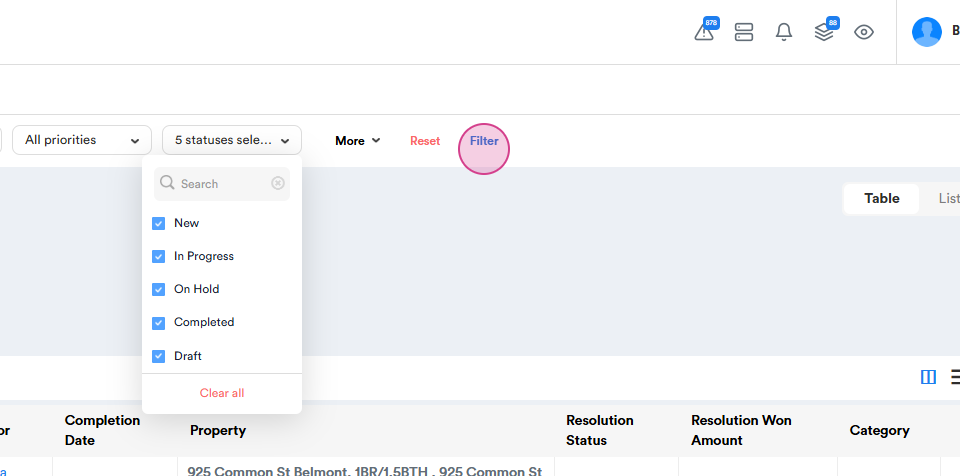
Step 3: Click Filter.
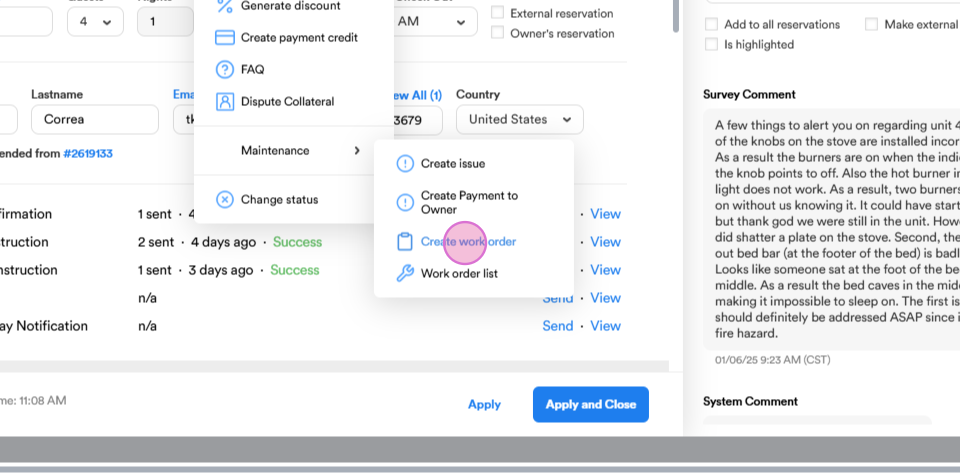
Step 4: If no relevant work order exists, return to the reservation window using the same More menu, go to Maintenance and click Create Work Order.
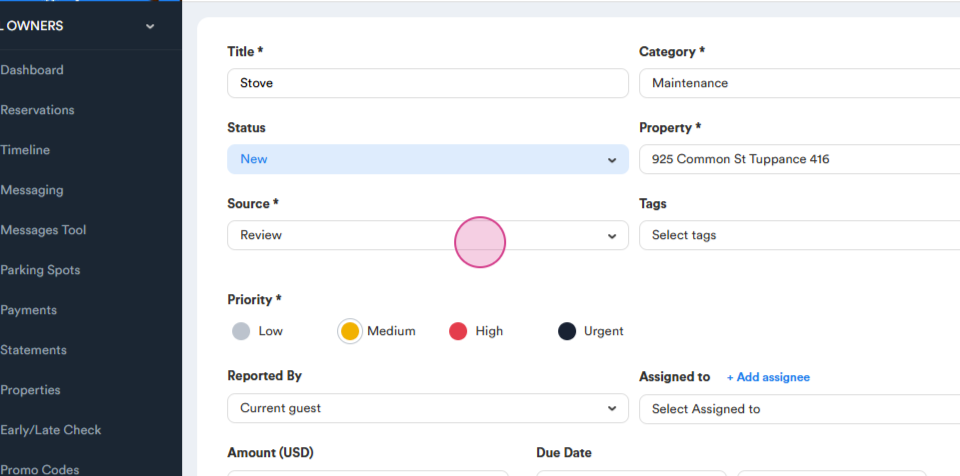
Step 5: Fill in all mandatory fields with a concise title.
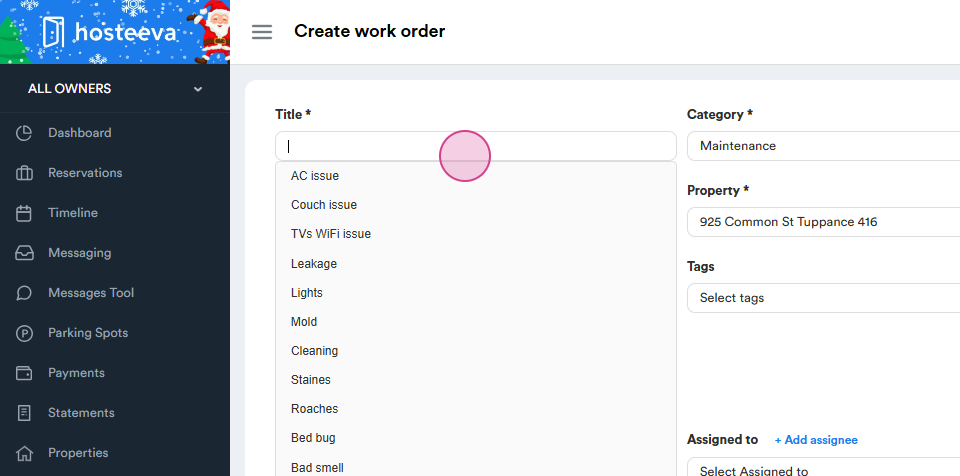
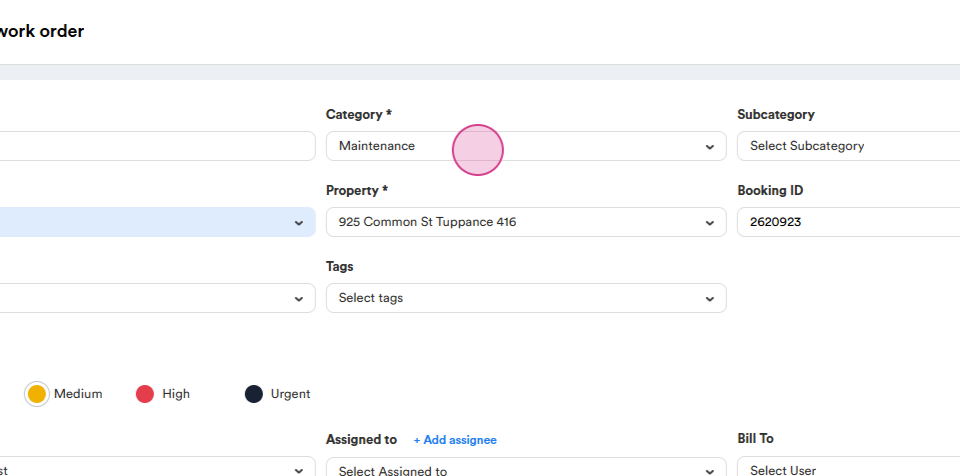
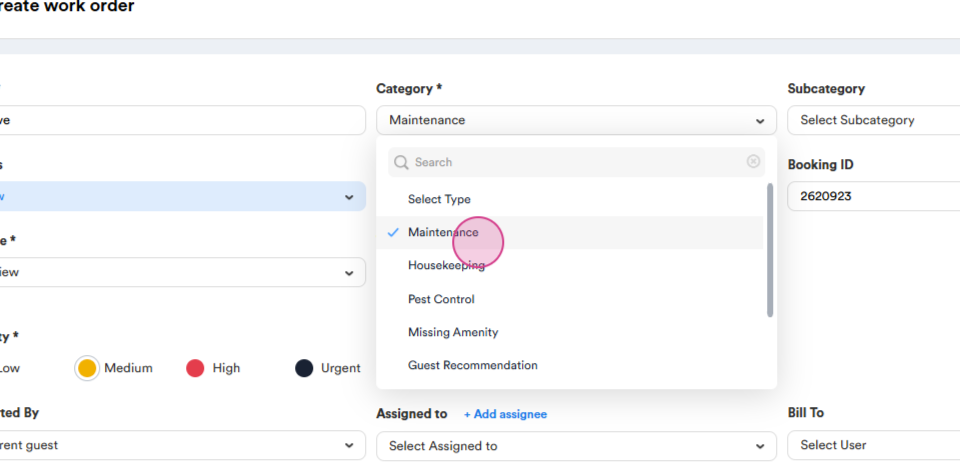
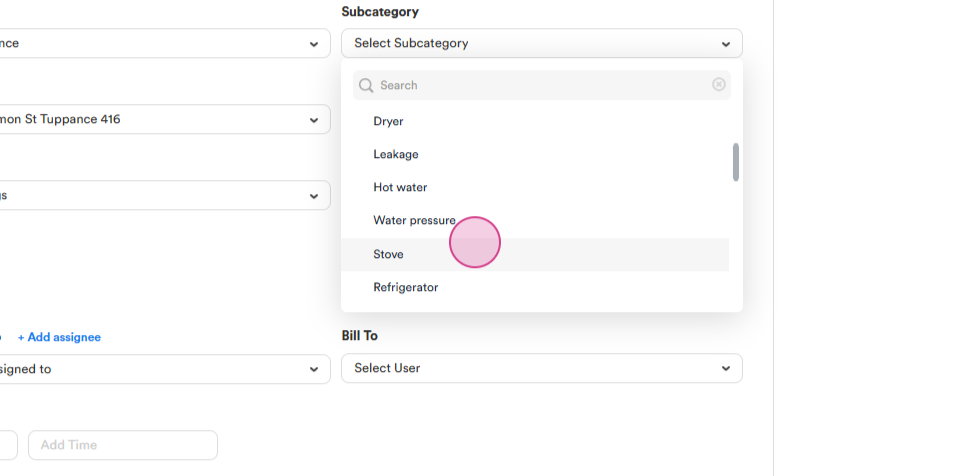
Step 6: Choose the appropriate category and subcategory.
Step 7: Provide a clear description of the issue.
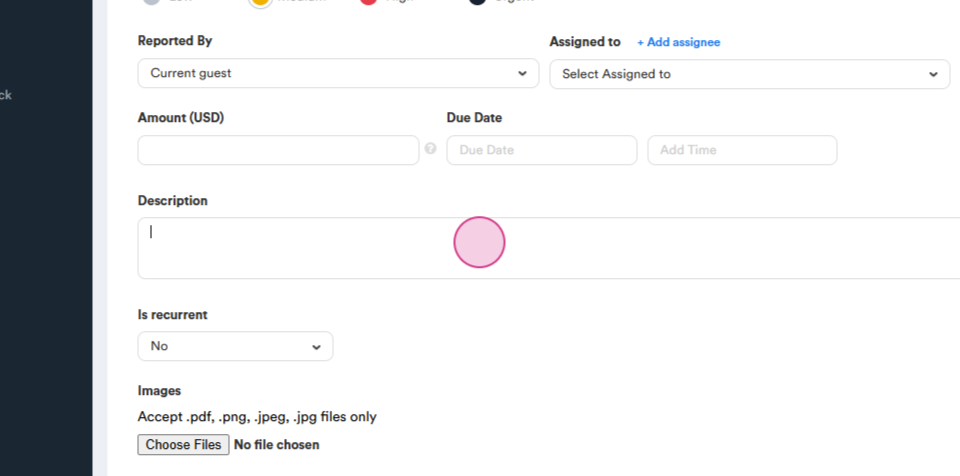
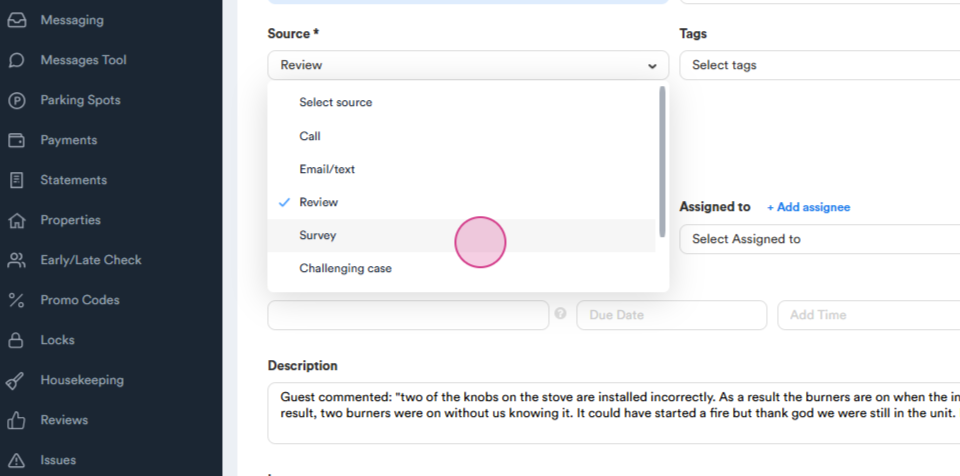
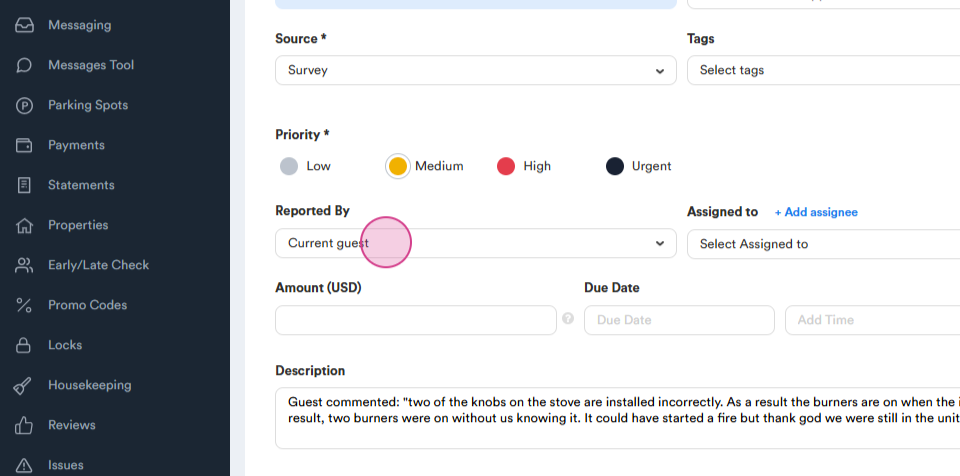
Step 8: Select the source of the complaint, the reported by status, and the priority. Attach any photos provided by the guests if applicable.
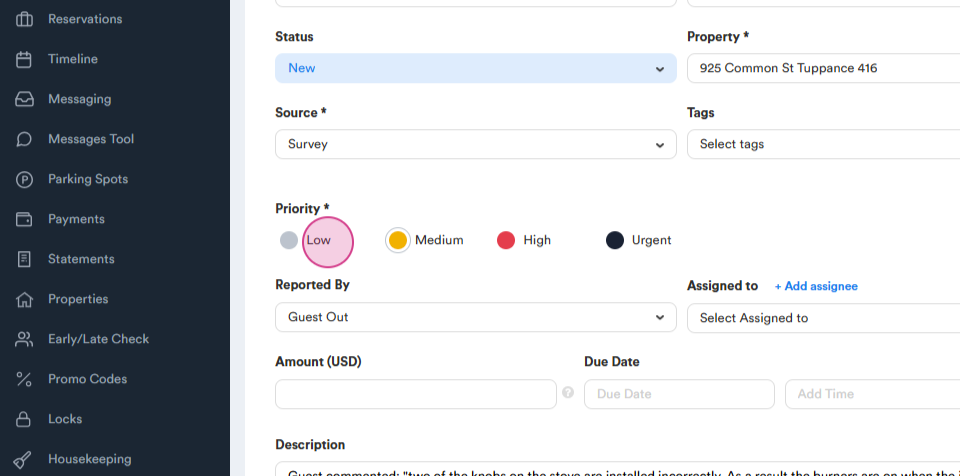
Step 9: After completing all fields, click Create.
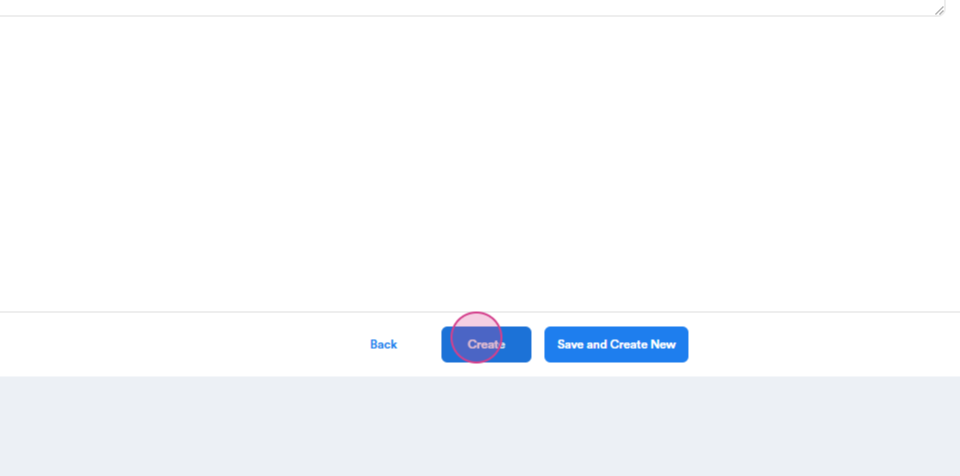
Step 10: If you need to create multiple work orders for the same unit, use the Save and Create New option. This refreshes the form, allowing you to enter new details.
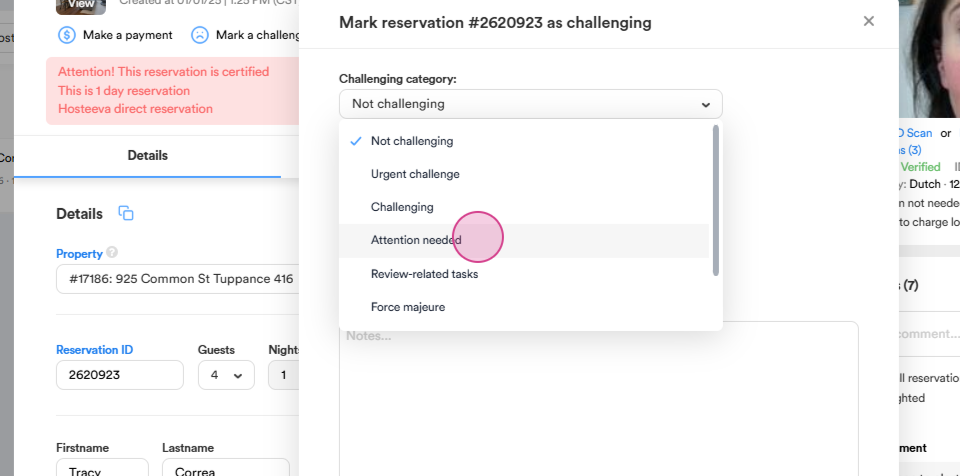
Step 11: Assign an appropriate status to the reservation based on the severity of the complaint. The options include Attention needed, Challenging, Urgent Challenge, Force Majeure or Review Related. The first three are used for in-house reservations or those that have recently checked out. Force Majeure applies to exceptional cases like a guest unable to arrive due to urgent personal circumstances. Review Related is used when no complaints were received during the stay but a negative review was left afterward. To assign a status, go to the reservation window and click Mark a Challenge.
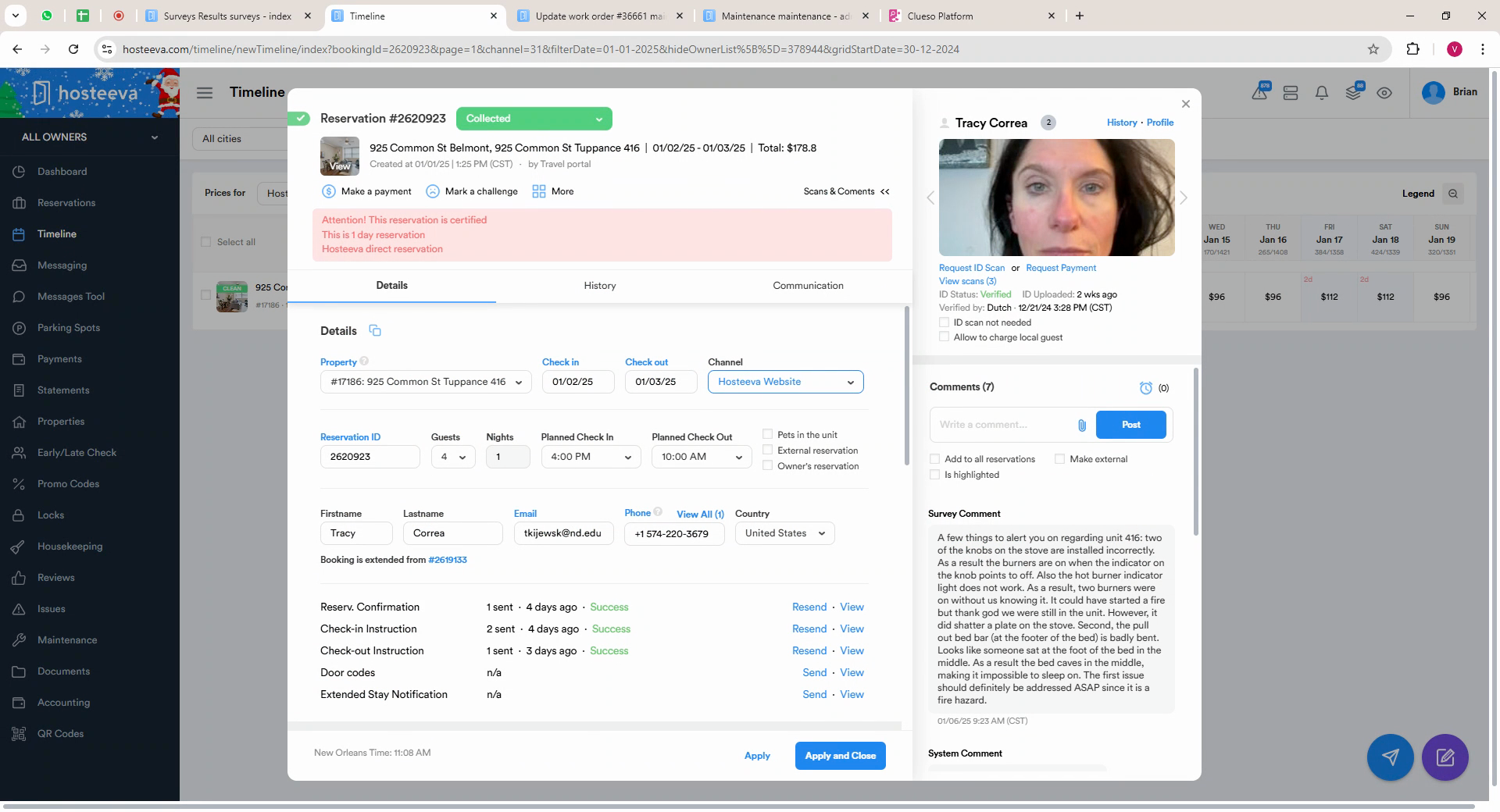
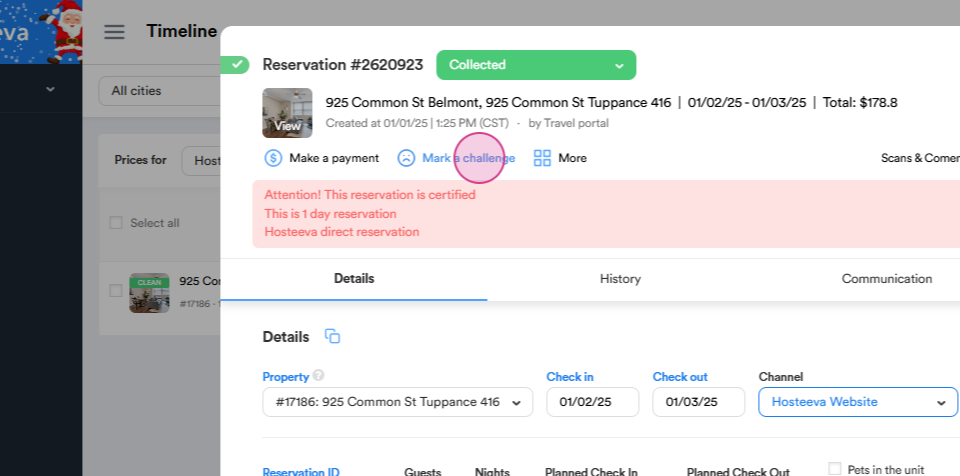
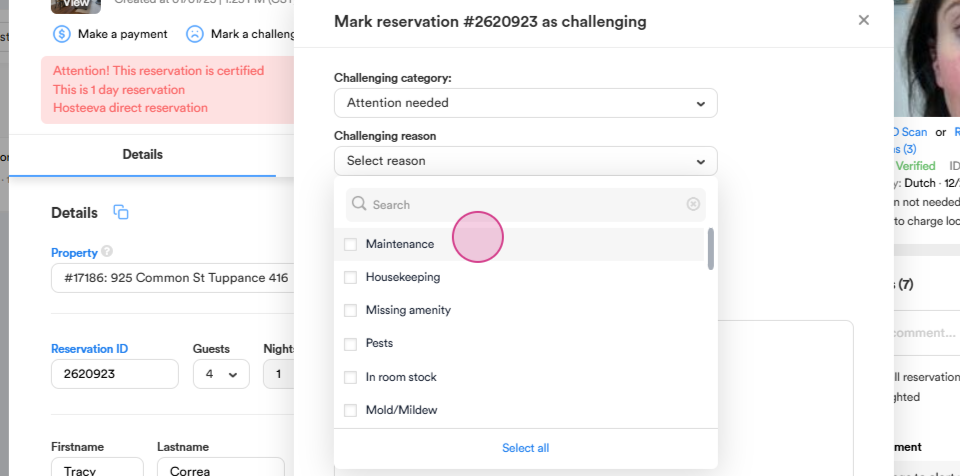
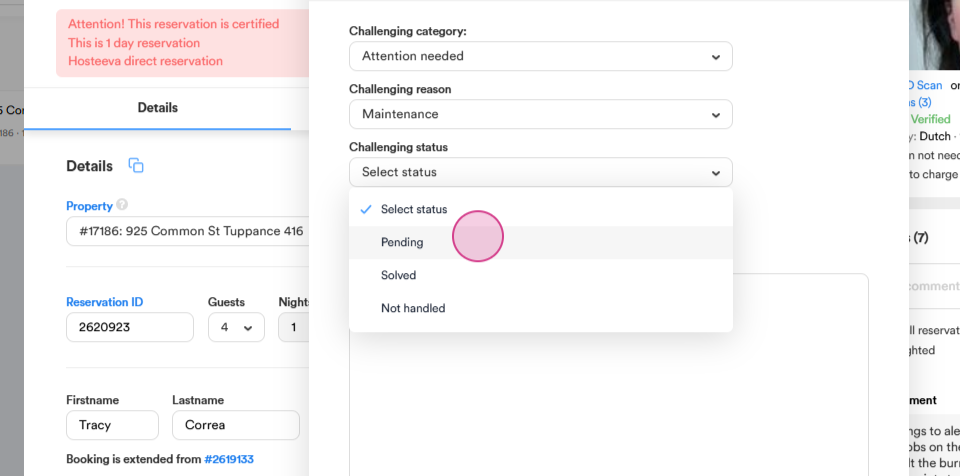
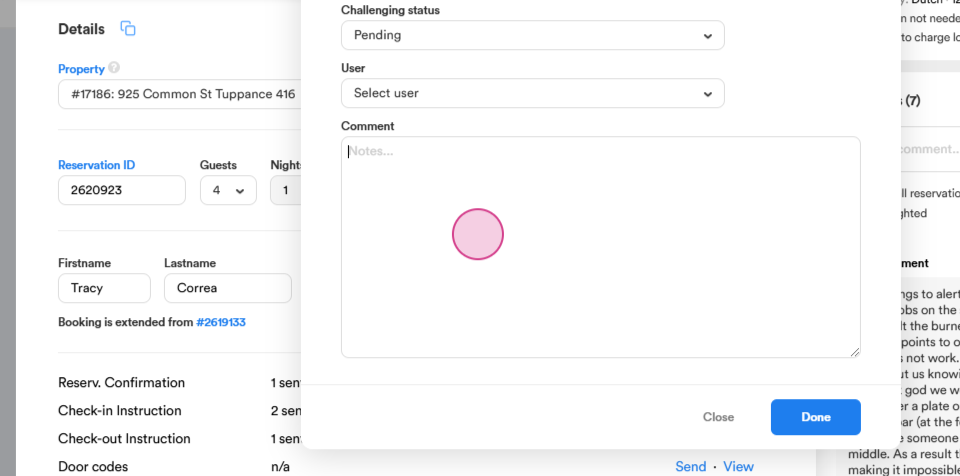
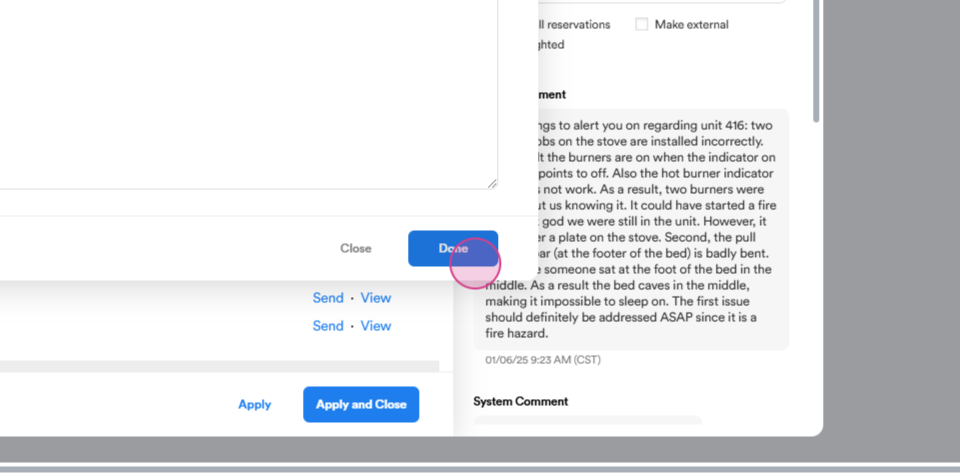
Step 12: In the pop-up window, select the appropriate category, challenging reason, and set the status to pending. Provide a brief description of the issue.
Step 13: Once you're ready, click Done to finalize.
Also, do not forget to enter appropriate notes in our daily doc for the work orders created.
By following these steps, you'll ensure all issues are locked, escalated appropriately, and tracked efficiently for follow-up and resolution.