In this tutorial, we will showcase the instances where the Guest Relations Department uses emailing and texting outlets in our daily tasks. This includes accessing our email account, managing guest reservations, and responding to feedback.
Step 1: Access the Email Account
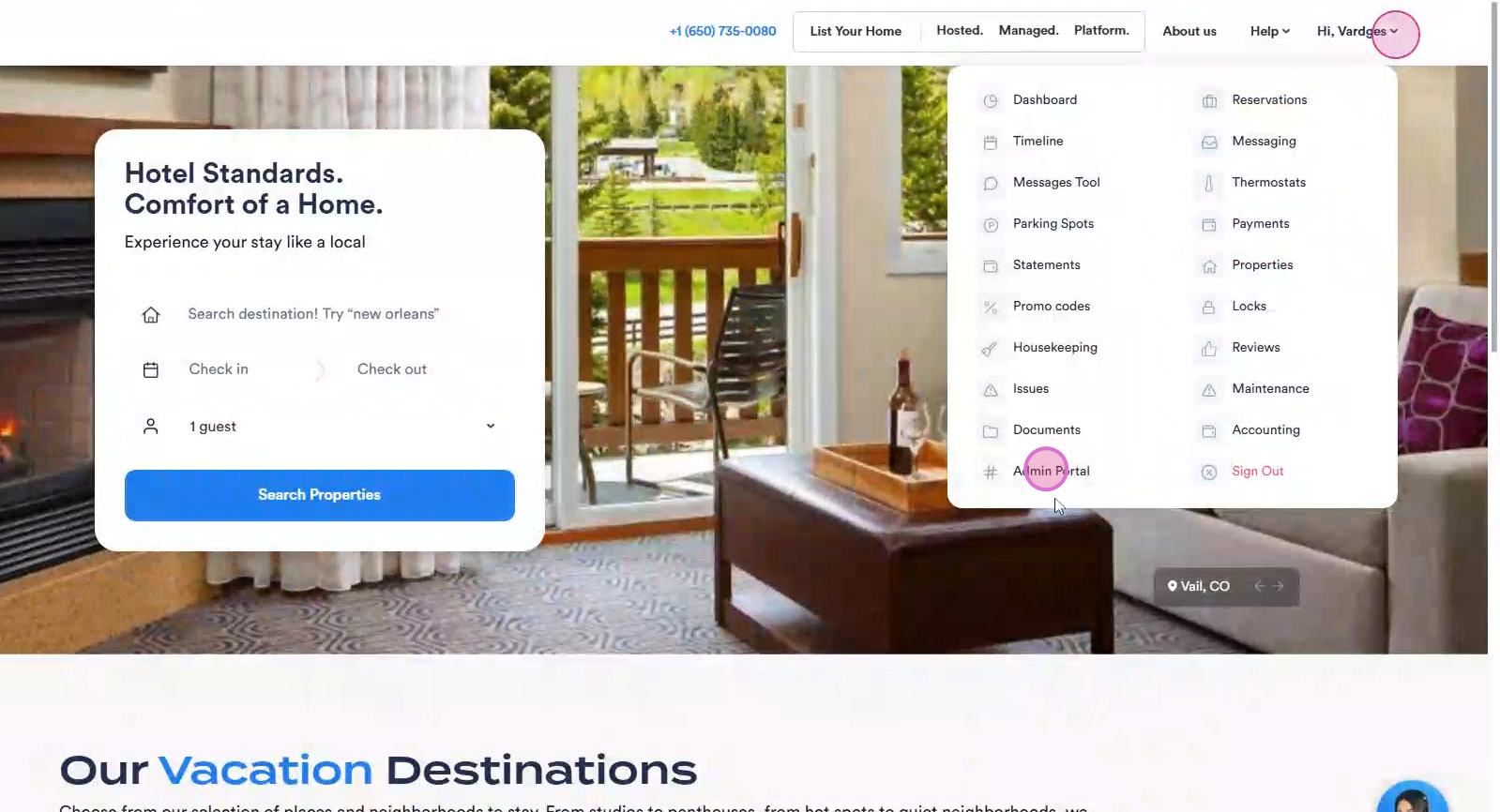
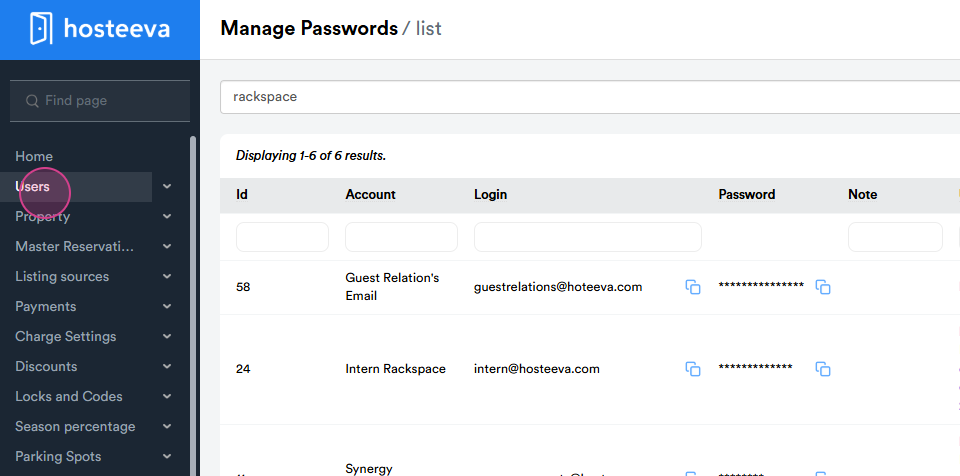
To access our email account, visit hosteea.com and open the Admin Portal.
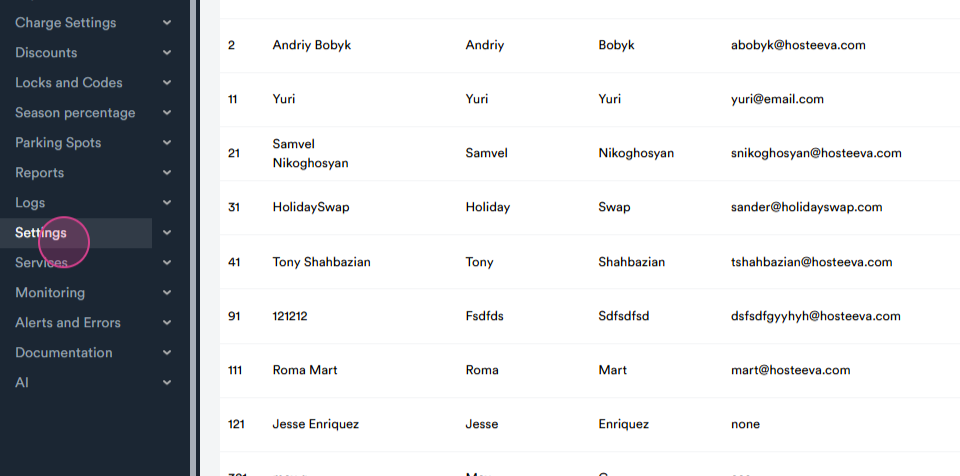
Next, click on Settings.
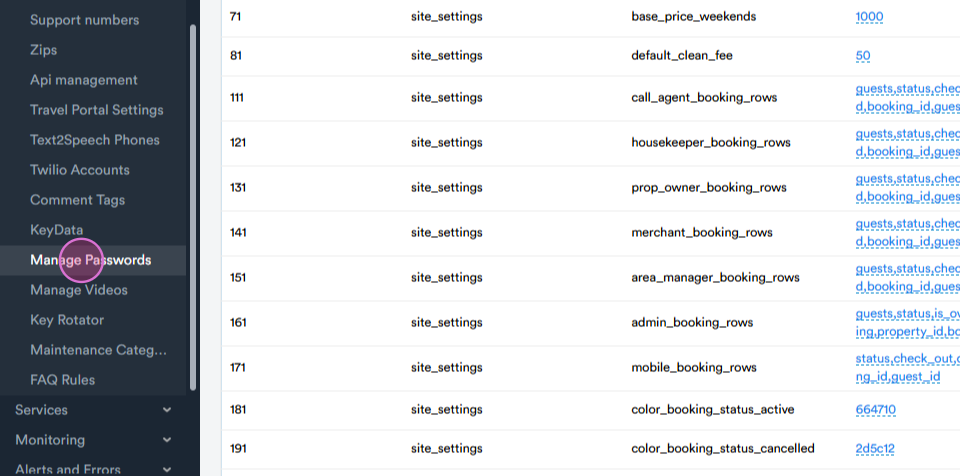
From here, select Manage Passwords.
Then, search for Rackspace.
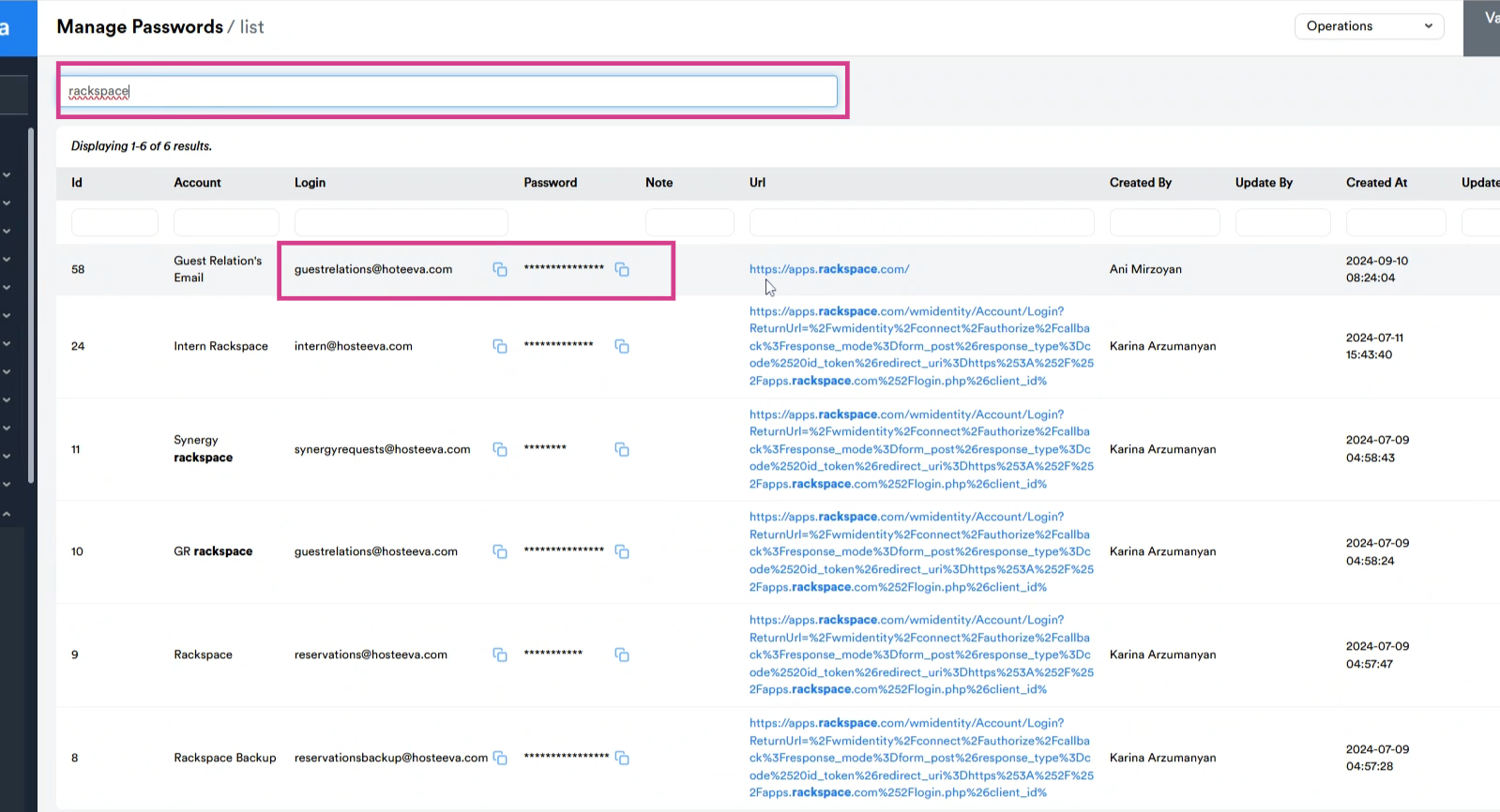
Copy the necessary credentials and proceed to the website.
Step 2: Manage Guest Reservations
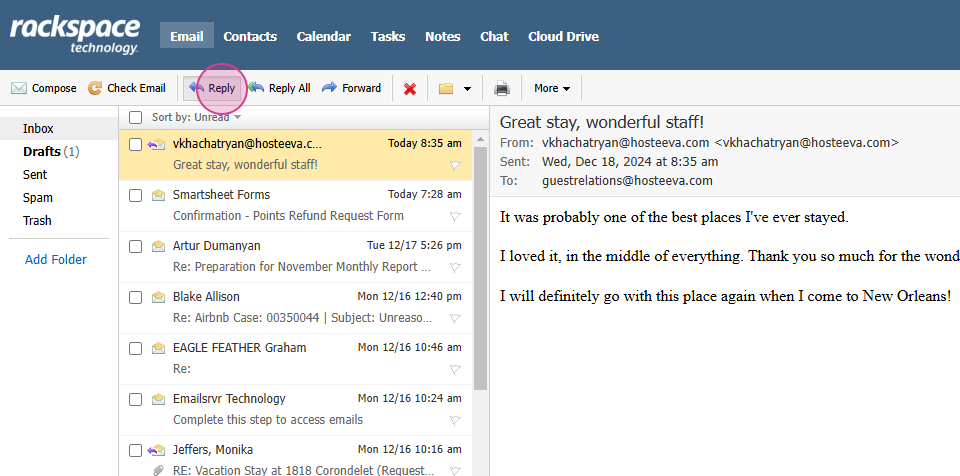
If we receive a new email from a guest, open the email and copy the address.
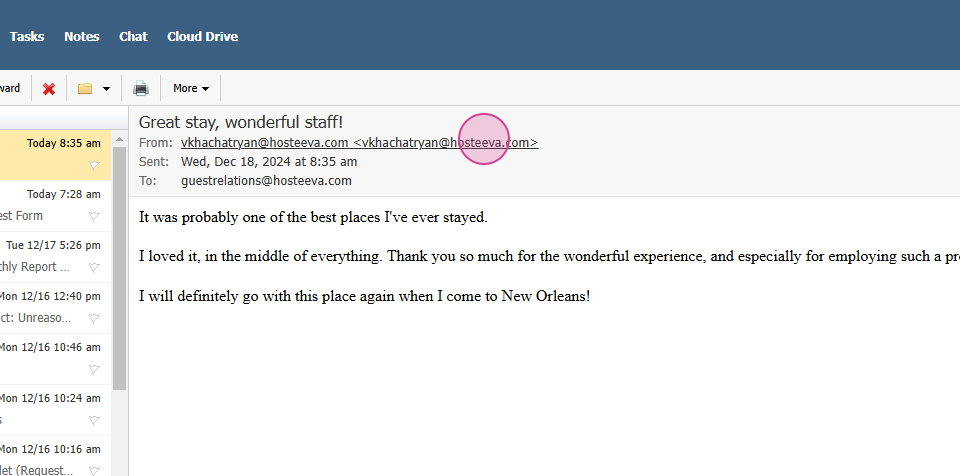
Search for the reservation in our admin portal.
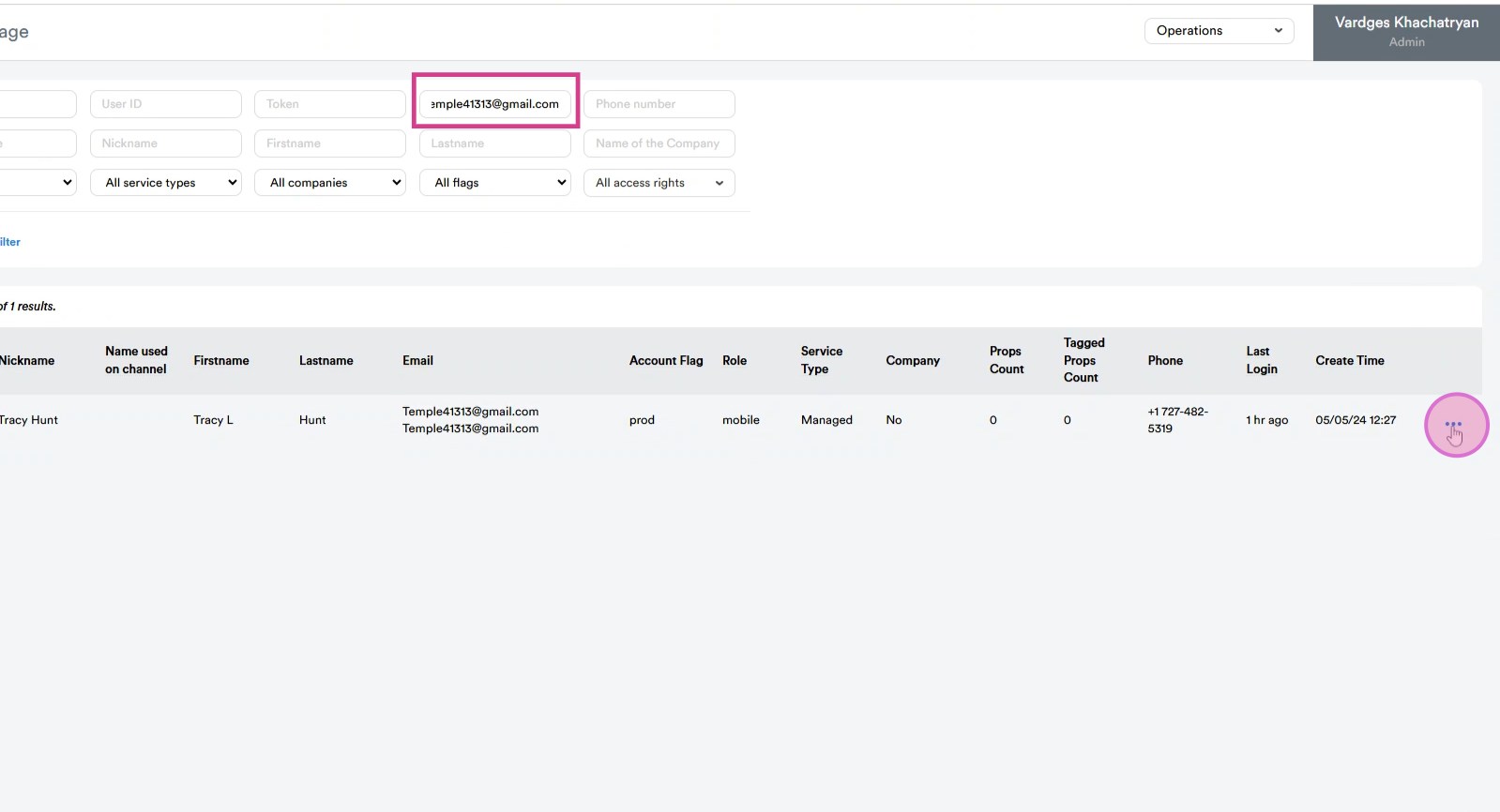
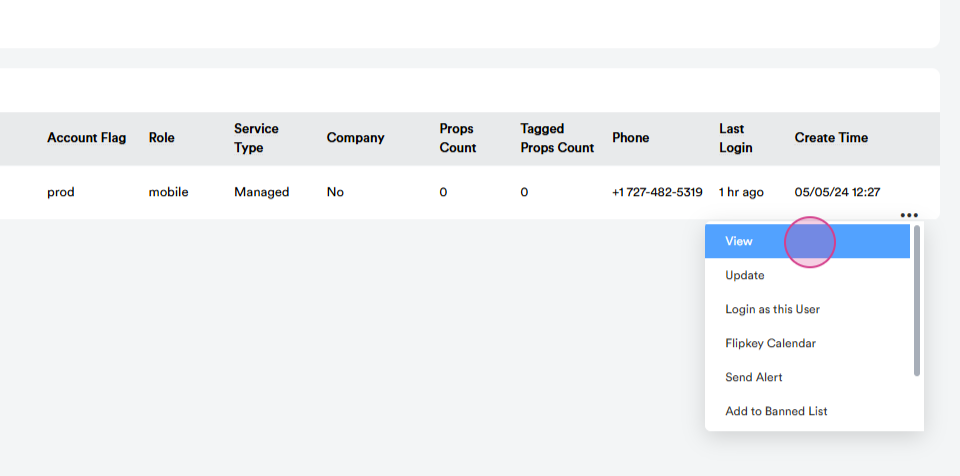
Paste the email address, find the user, and click on Ellipsis next to it. Then, click View.
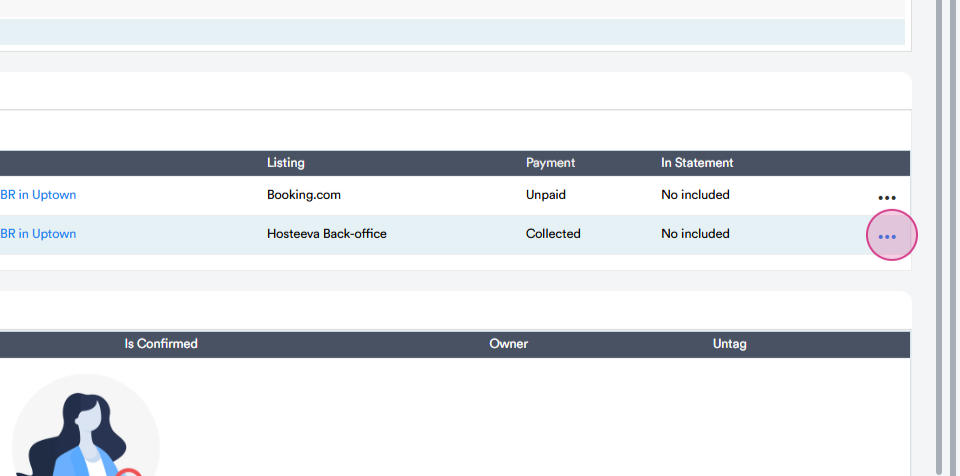
Identify the exact reservation needed, click on Ellipsis next to it, and open the reservation dialog.
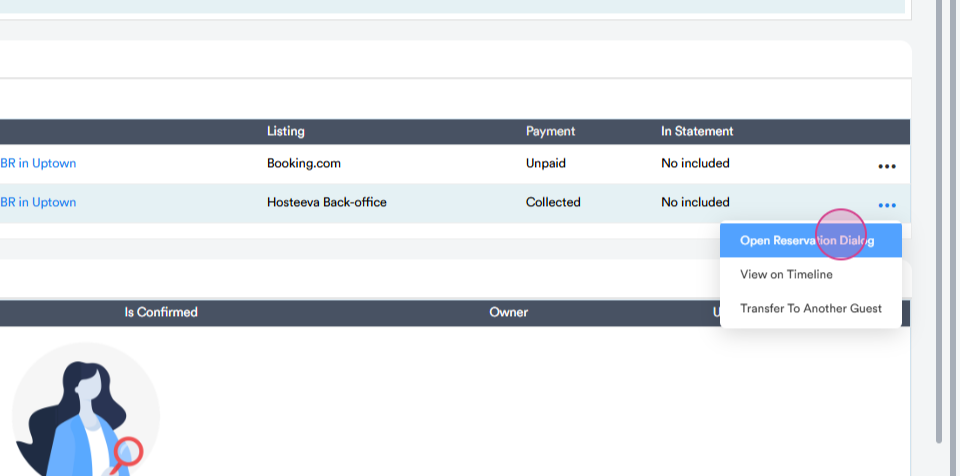
After checking the reservation thoroughly, respond based on the feedback received.
Step 3: Use the Email Functionality
Our email is also linked with our internal system. To review this functionality, click on the email button on a reservation dialogue.
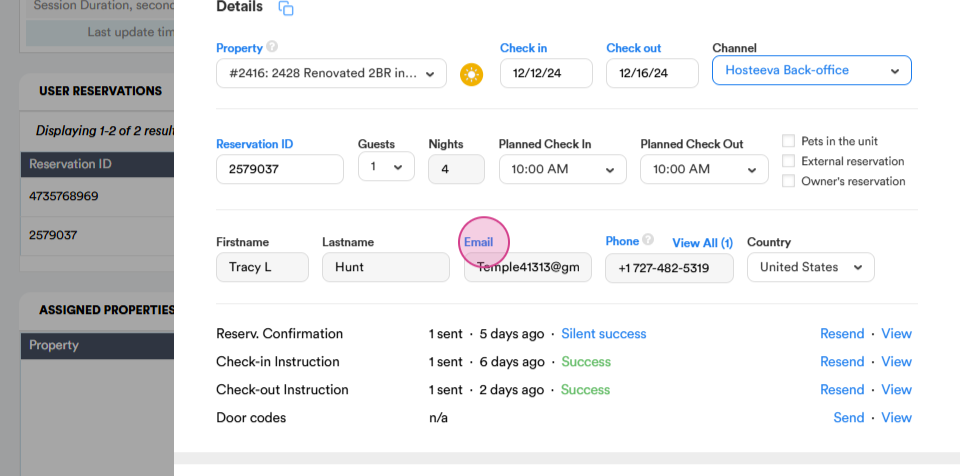
A small window will open where you can select the GR dedicated email address and compose your email.
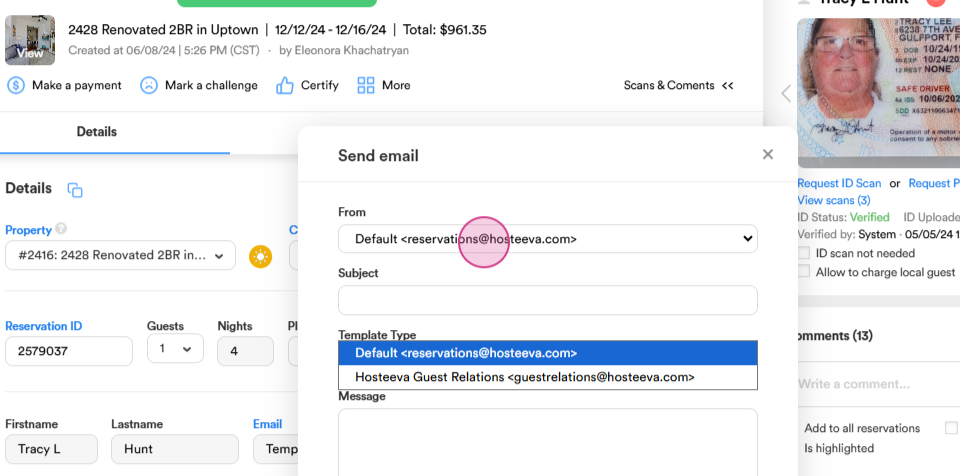
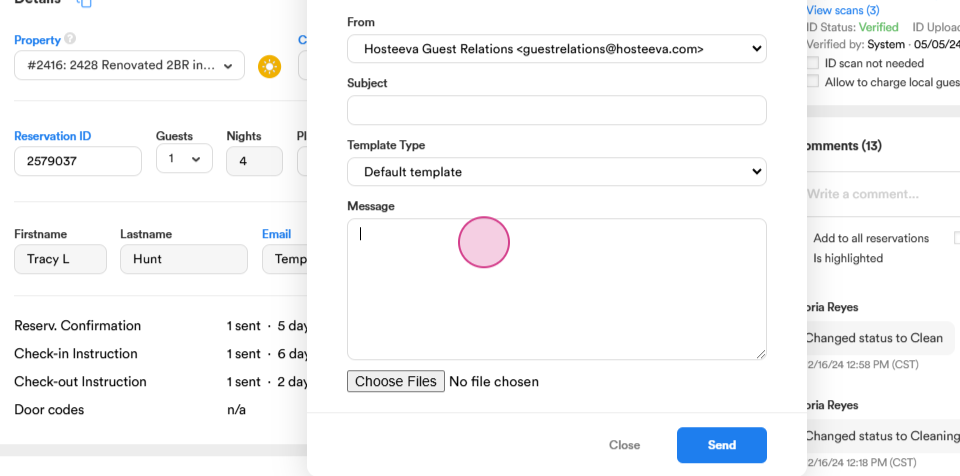
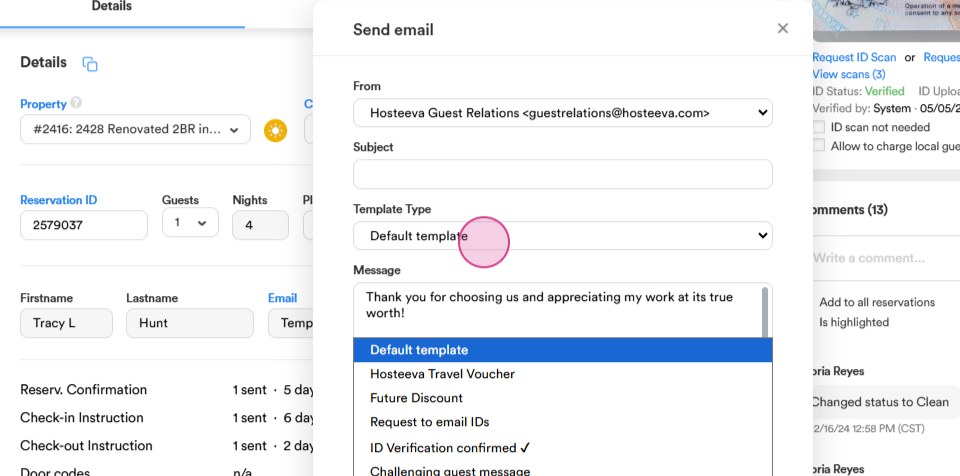
We also have a selection of email templates to automate the process. After composing and sending your email, track it in the history section of the reservation dialog.
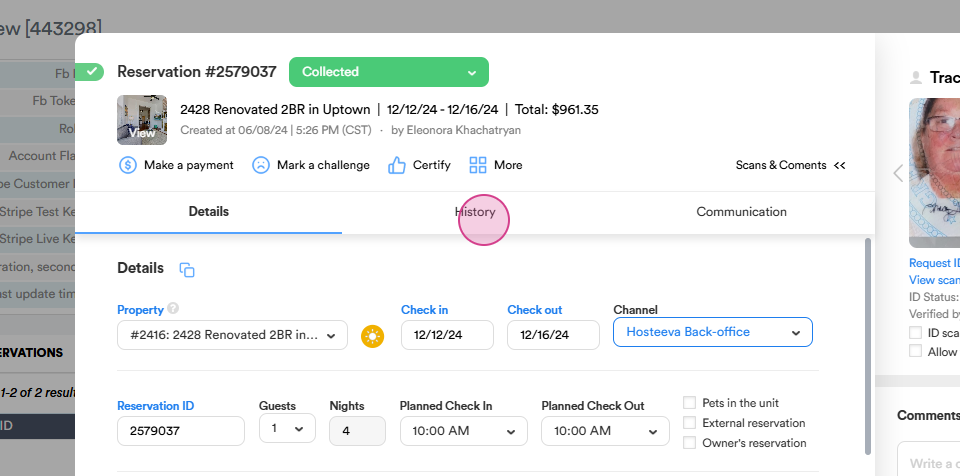
You can see whether the email has been sent successfully and if the guest has opened it.
Step 4: Use Text Communication
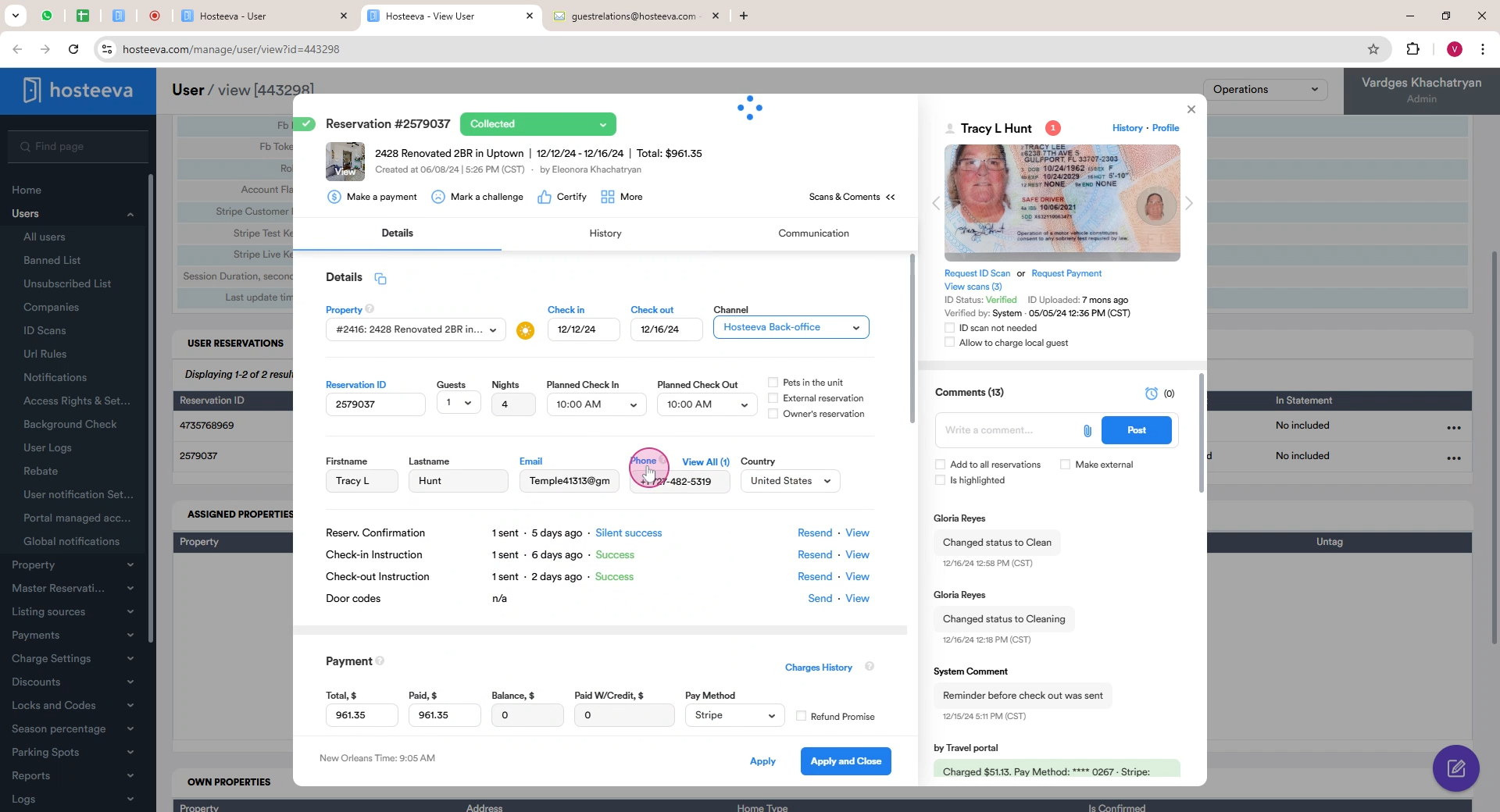
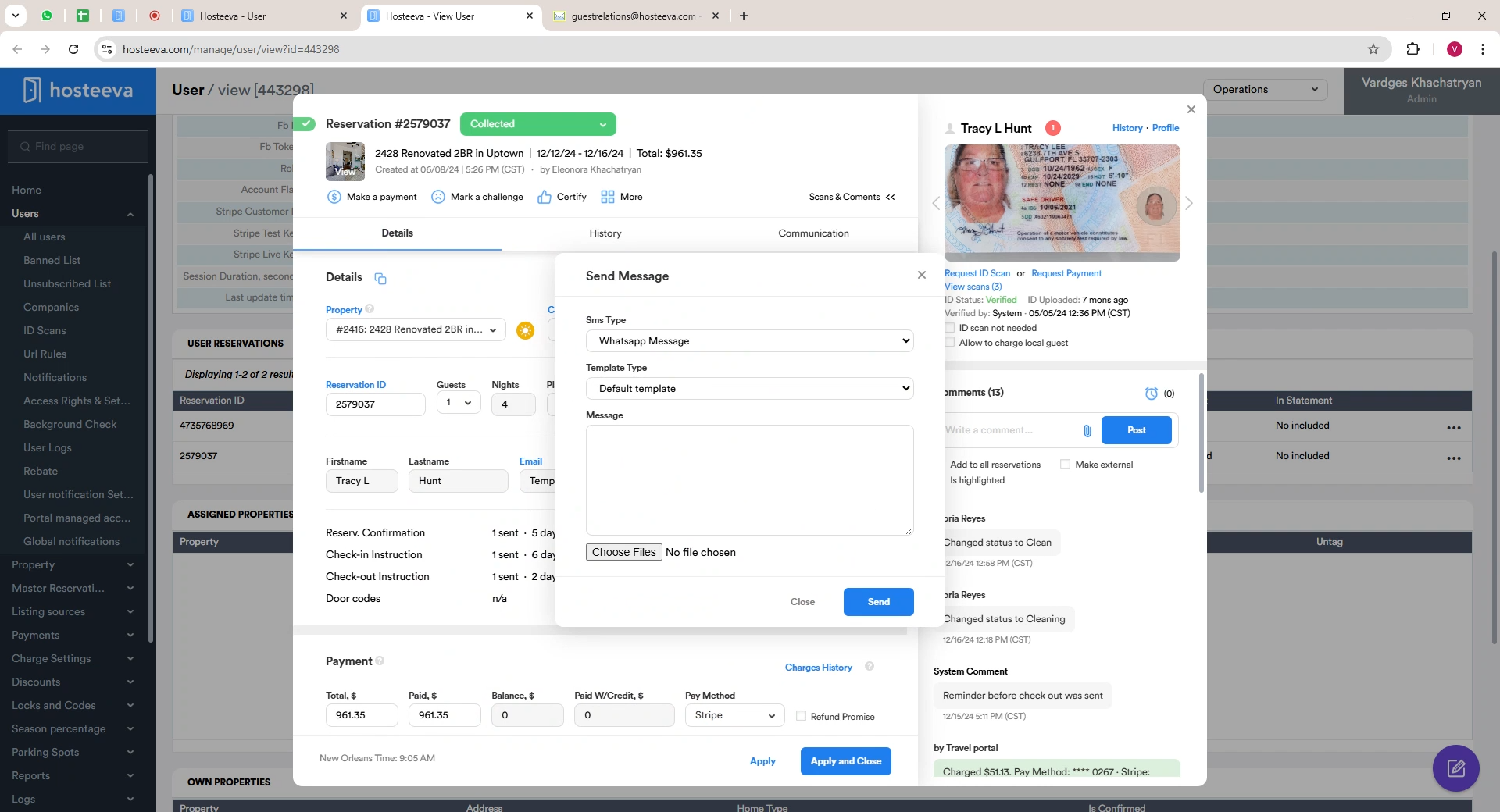
The same principle applies to text communication. Click on Phone and a similar window opens for you to compose and send a message.
Remember, when communicating with guests in writing, avoid mentioning specific refund, compensation, offer amounts, or other sensitive information. Ideally, handle this type of communication tactfully during phone conversations. Also, ensure you log all relevant actions in our daily doc.