This article will guide you on how to manage, filter, and respond to reviews from various channels through Hosteeva.
Step 1: Navigate to the Reviews page.
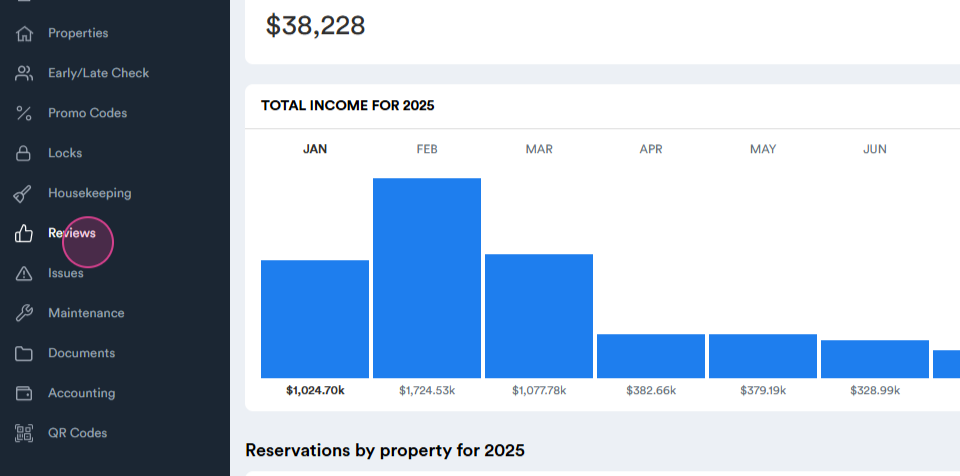
Step 2: Proceed to the All Reviews page.
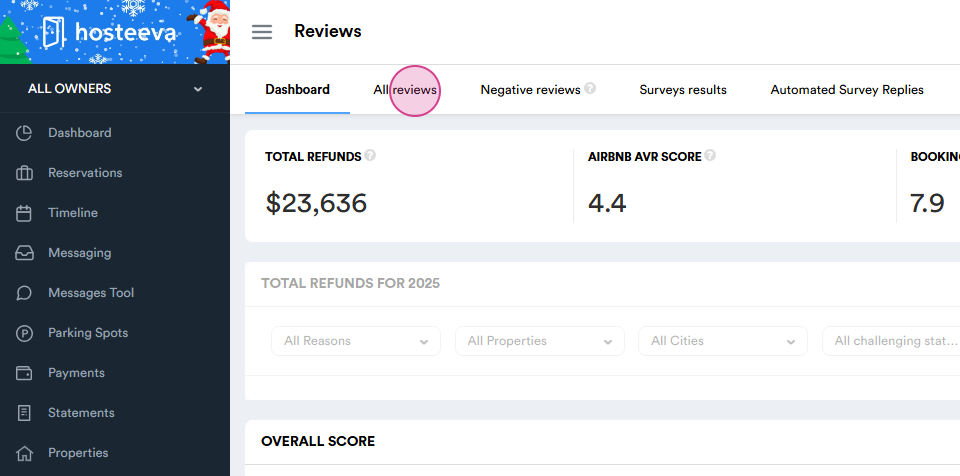
This page is your hub for managing reviews from various channels. By default, it displays reviews from Airbnb, Booking.com, and Expedia from the past two months.
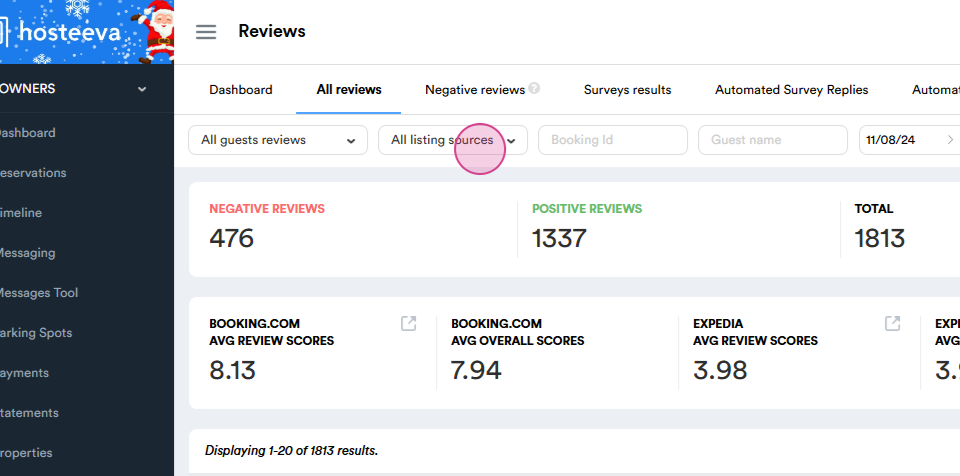
Step 3: Customize the channel and time frame using the options at the top of the page.
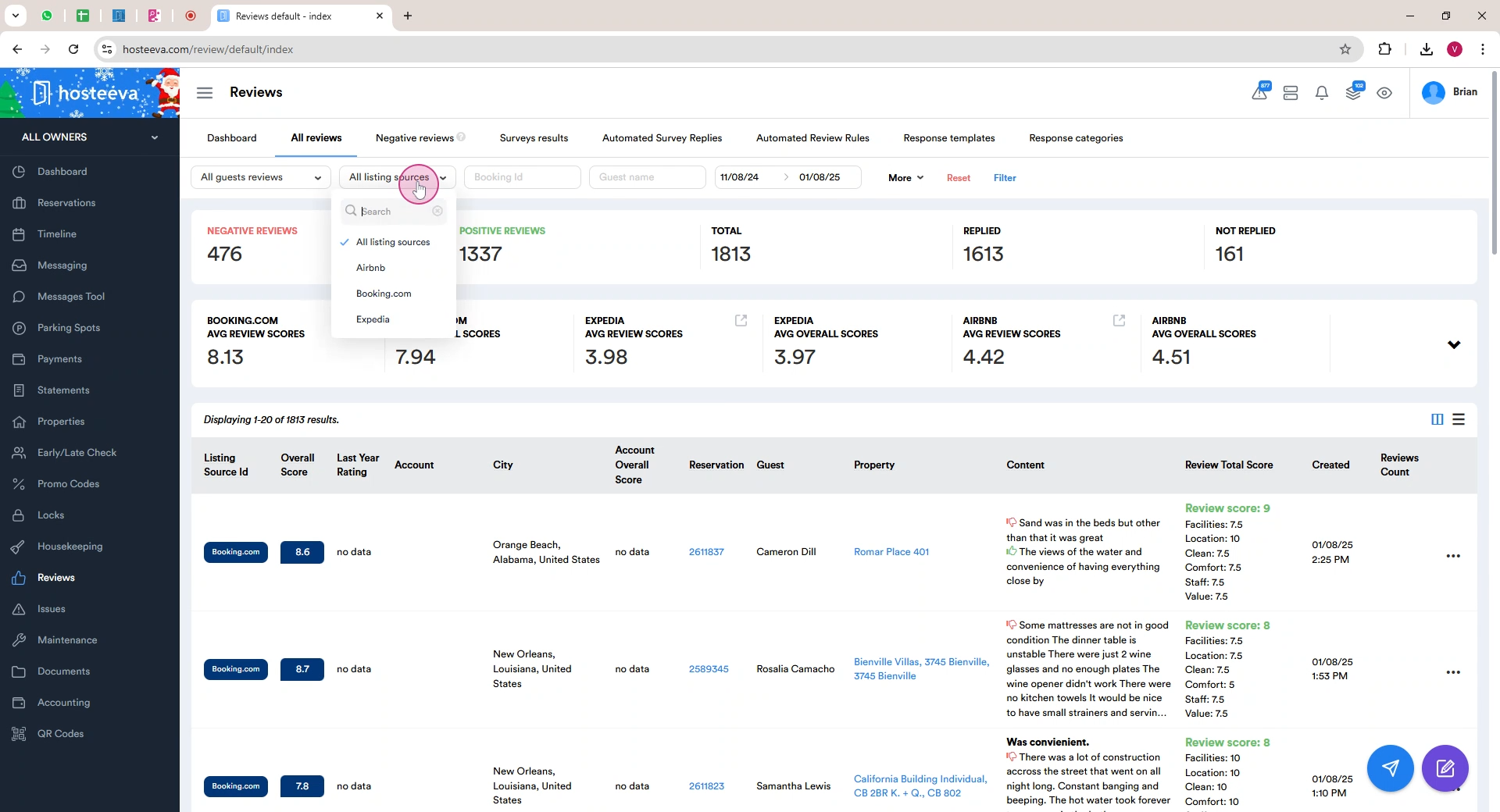
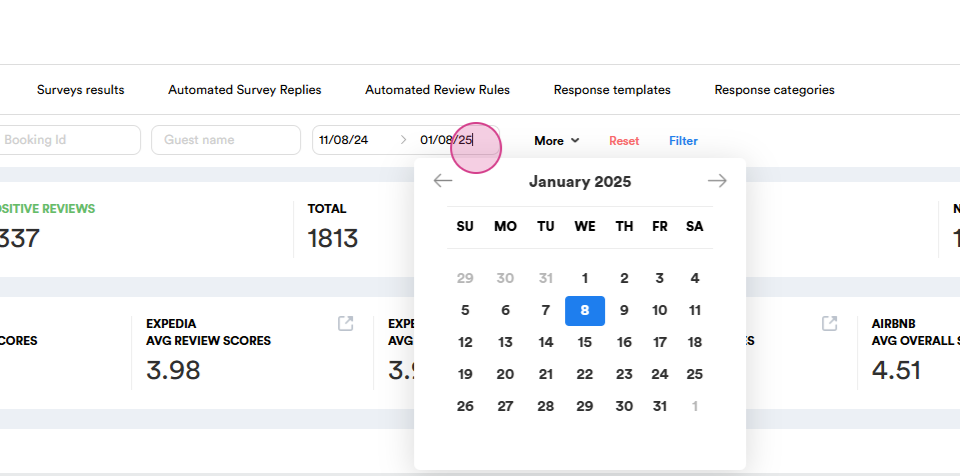
This page also provides a detailed overview of review statistics, including the number of positive
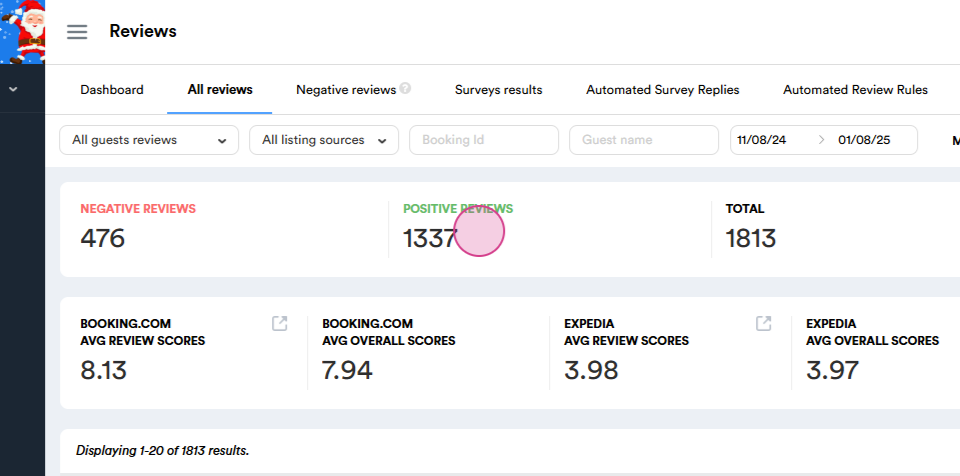
and negative
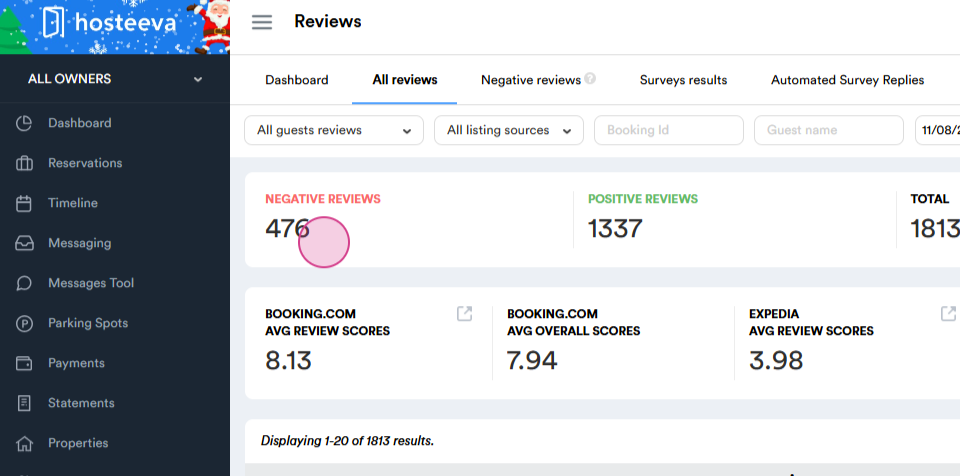
reviews, total reviews,
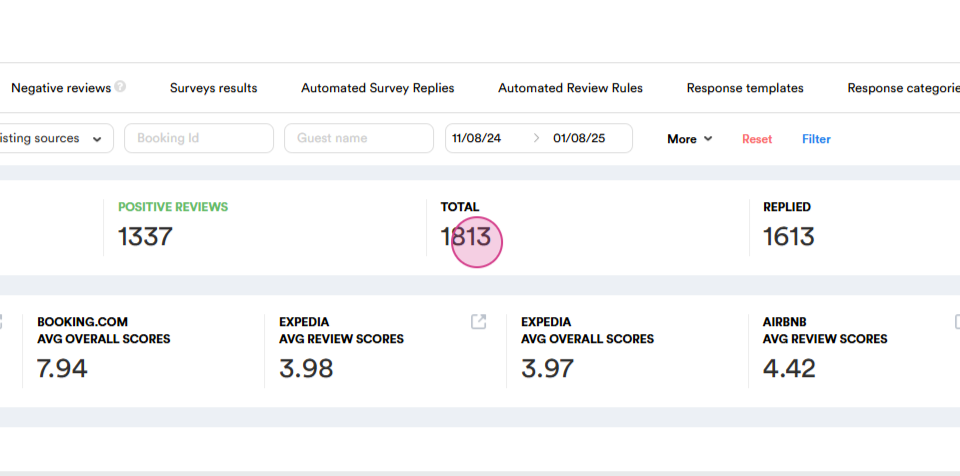
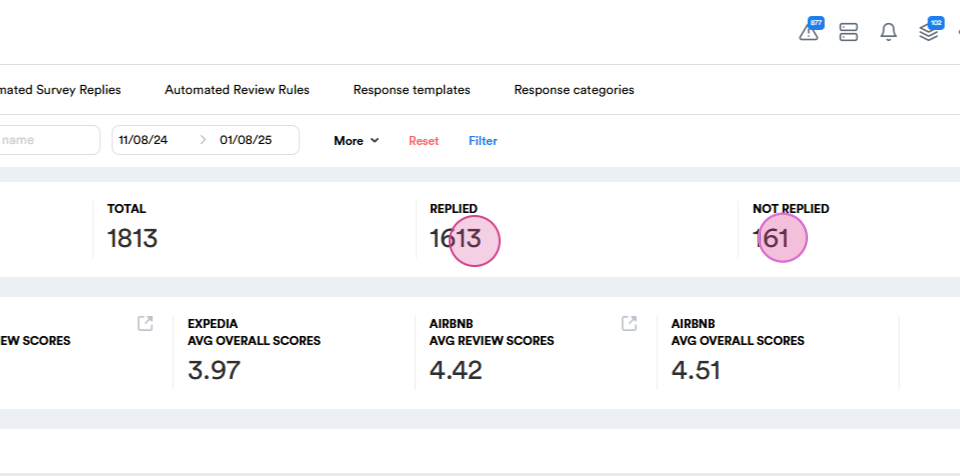
the count of replied and unanswered reviews,
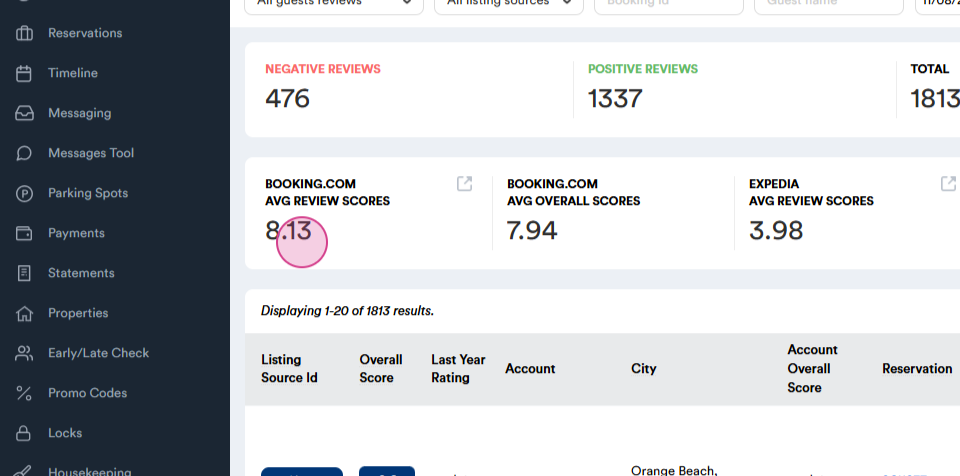
as well as the average review score
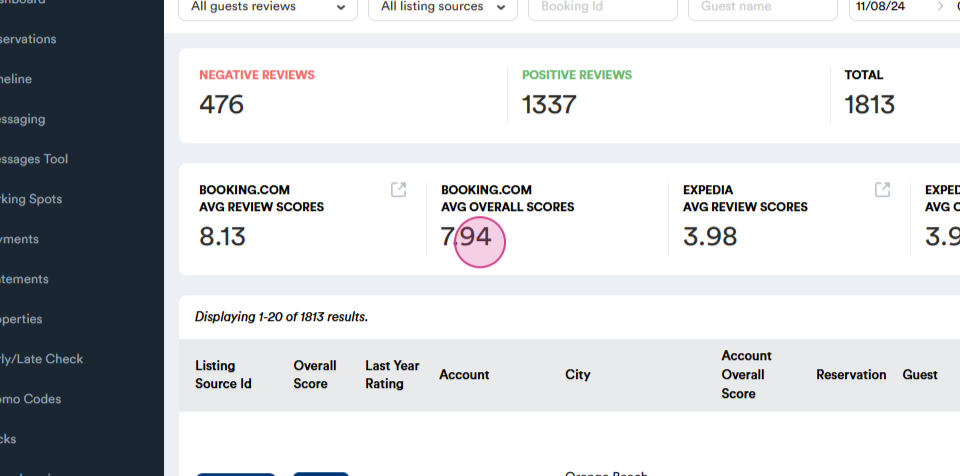
and the average listing scores.
Step 4: Apply filters similar to the ones used for Surveys. Click on more
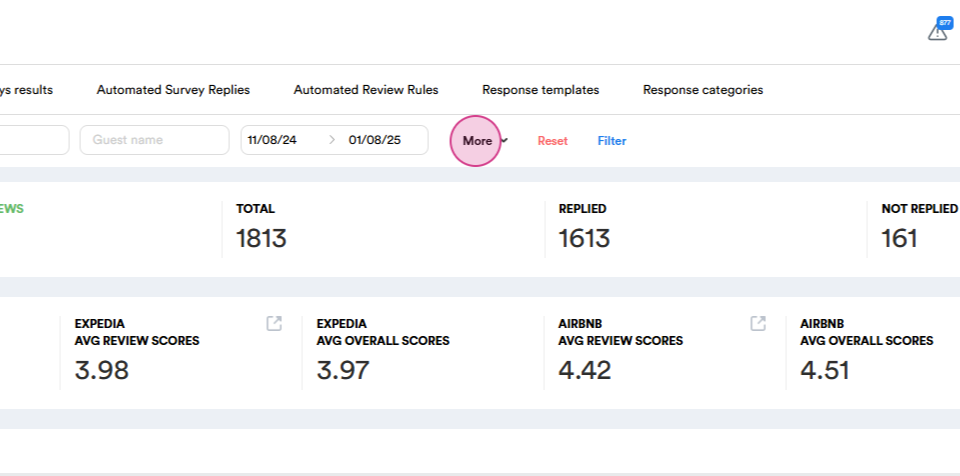
and choose all cities except those where reviews are being answered by property management.
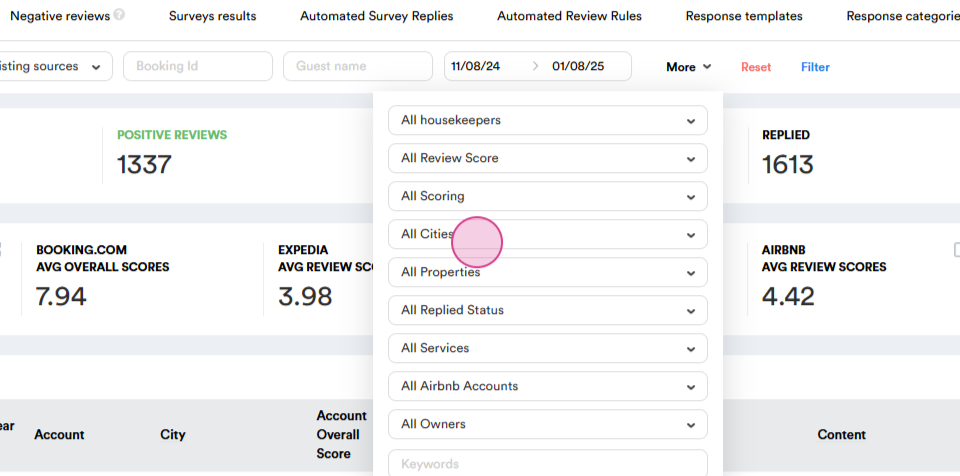
Step 5: Finalize the filtering by selecting the not replied option to display only unanswered reviews.
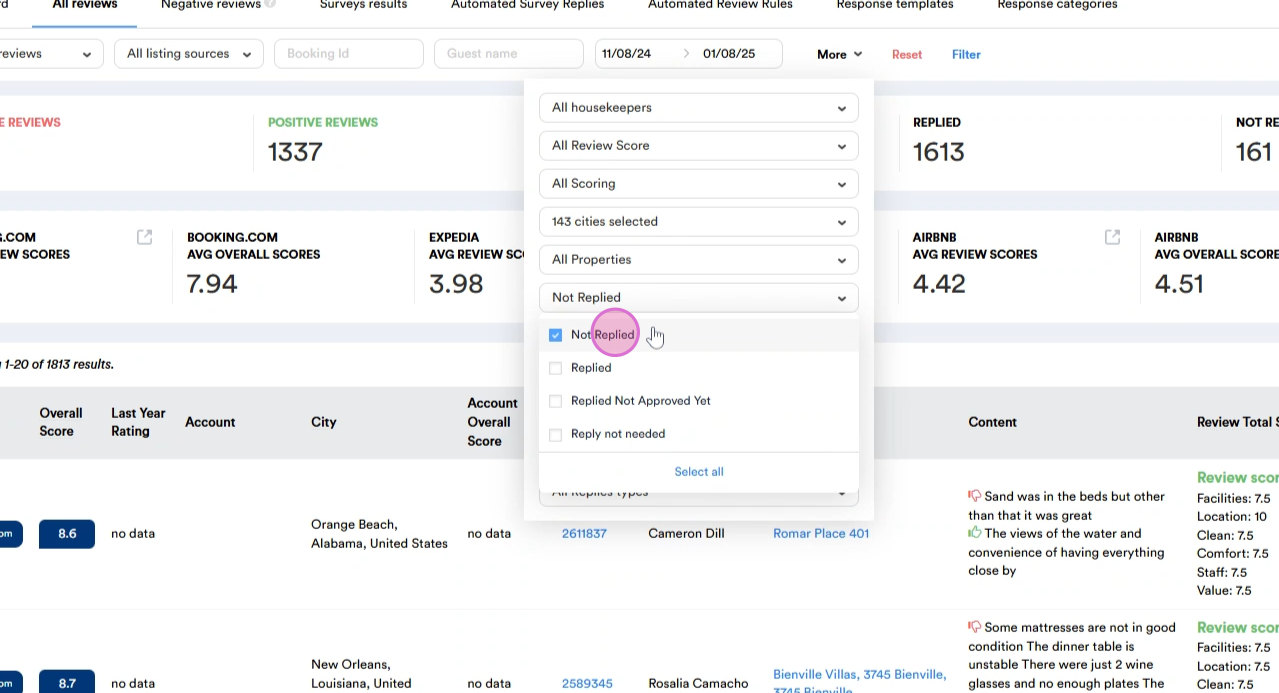
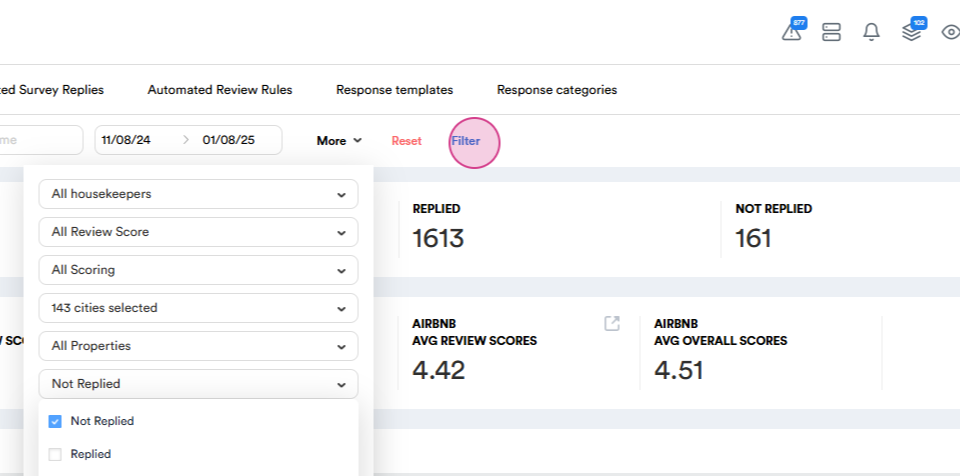
Step 6: Click Filter,
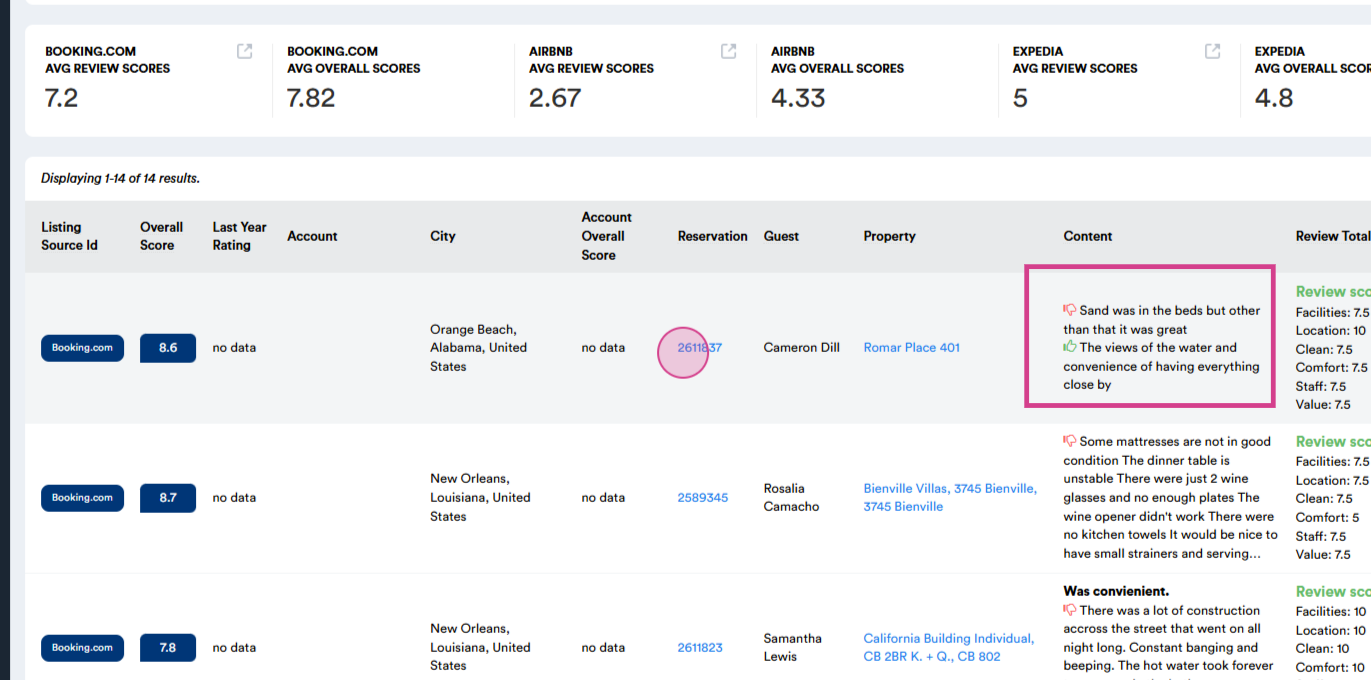
Step 7: Select the review, analyze the content and the reservation,
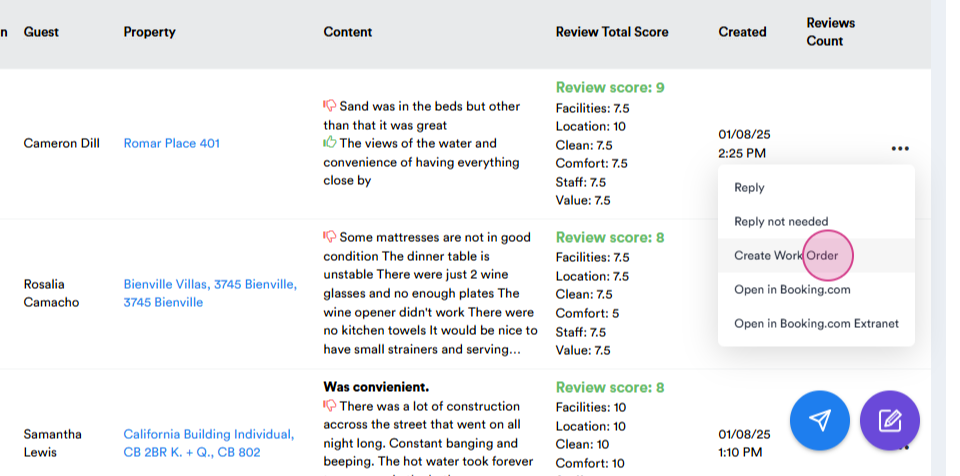
Step 8: If the guest mentioned an issue that should be reported to the local team, use our integrated AI functionality to automatically create work order. Click the ellipsis next to the review
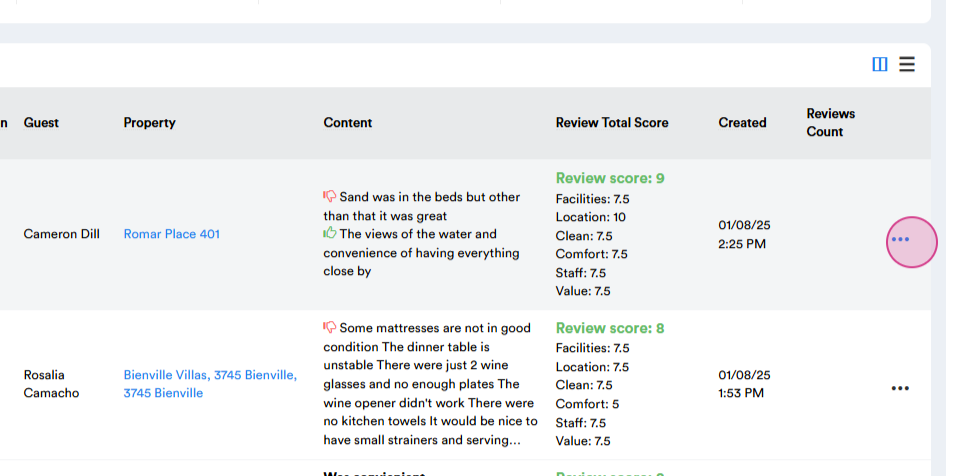
and choose Create Work Order from the drop-down menu.
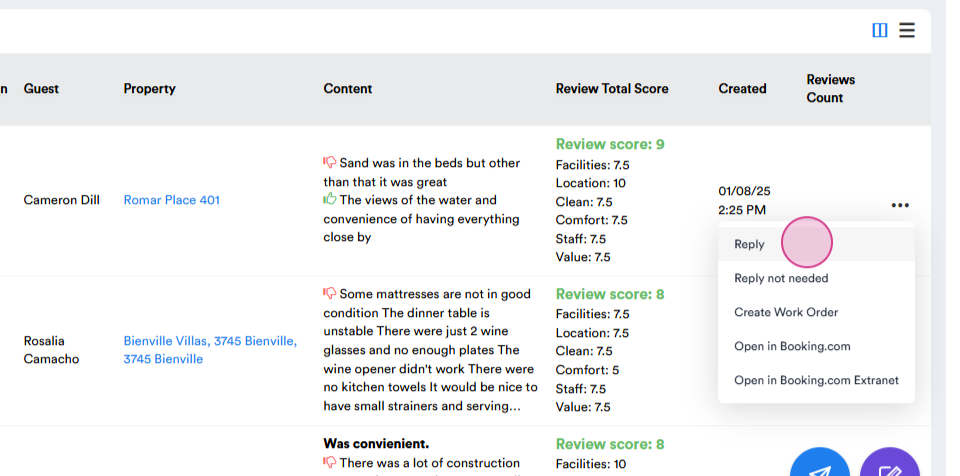
Let's delve into the options our integrated tab offers when it comes to replying to reviews. Click on the ellipsis next to the review
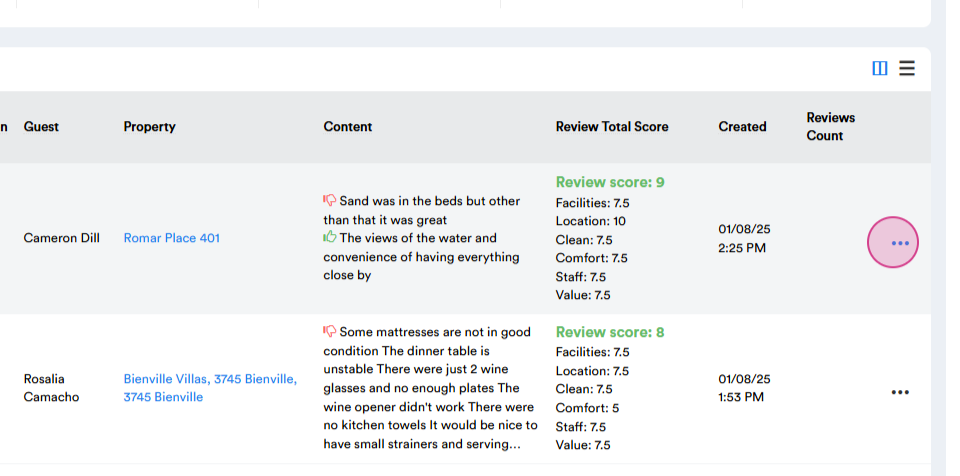
and choose Reply.
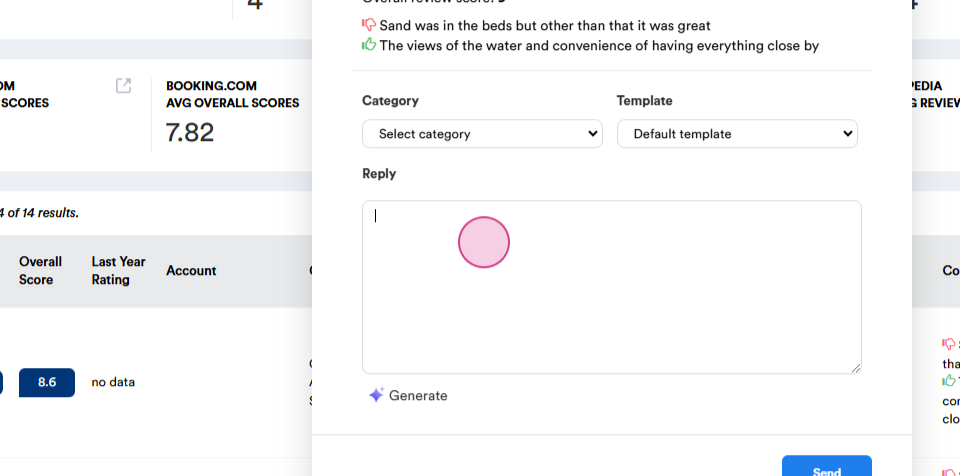
A pop-up window will appear with multiple response options. Craft a custom reply,
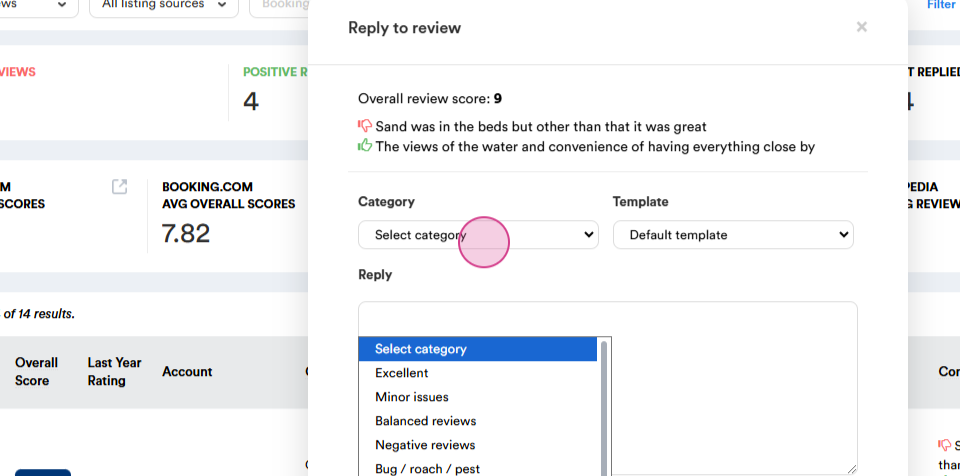
use a pre-saved template
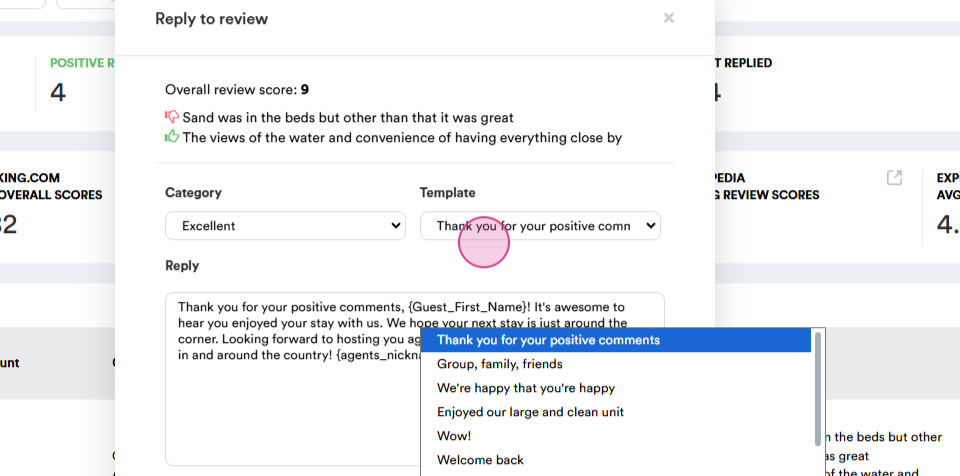
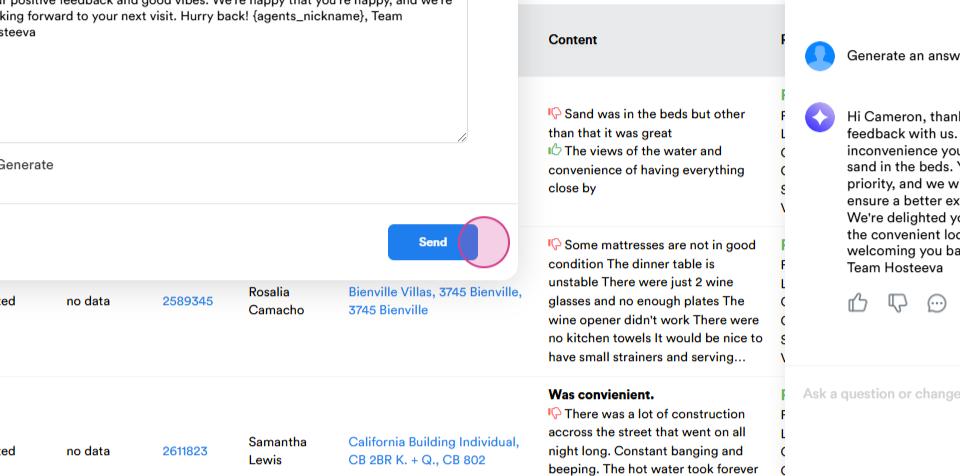
or use AI to generate a response based on the content of the review or a combination of the review and the selected template.
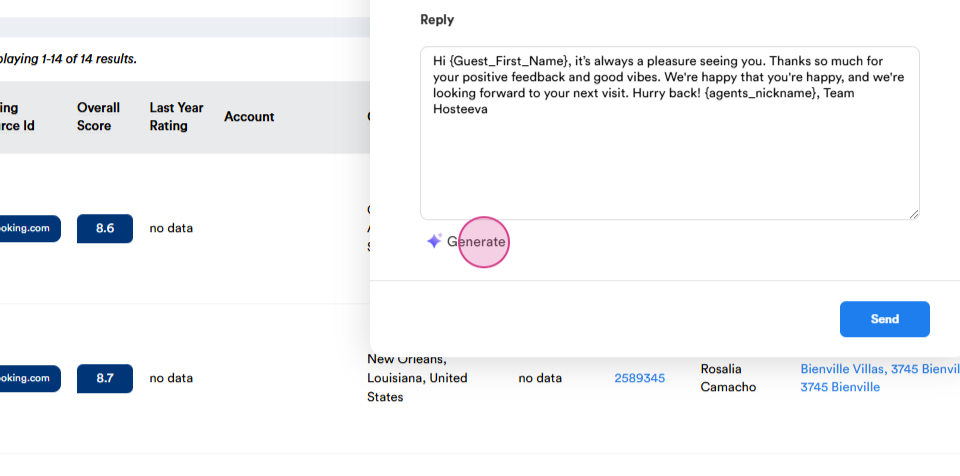
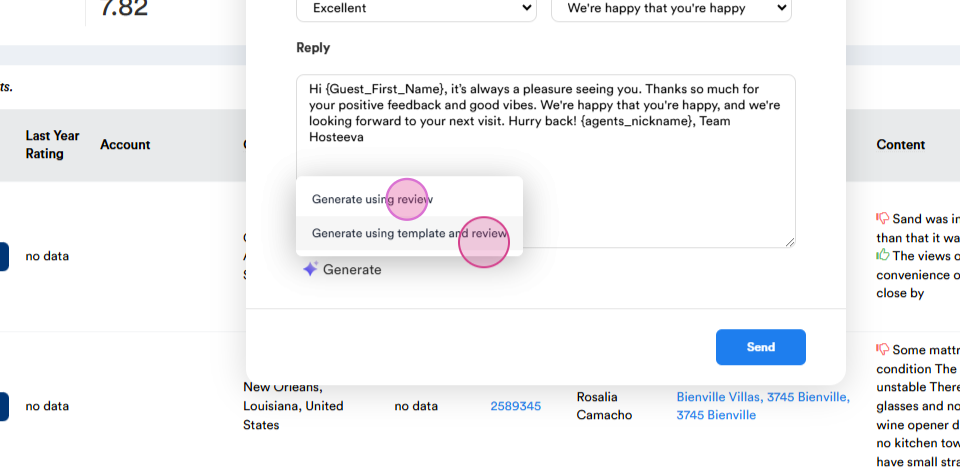
Once everything is ready, click Send to post your reply online.
Remember to add necessary notes regarding the actions taken in our daily doc. Additionally, remember to mark the reservation as review-related if necessary.