In this guide, you'll learn how to process refunds for reservations made through major OTAs. Once you've reached an agreement with the guest regarding compensation, our team creates tasks in Trello. The details and procedures for these tasks will be covered in later sections.
Let's dive into the refund process, as each channel has its own payment methods and refund steps.
Getting Started
Step 1: Open Trello and navigate to the To be refunded list.
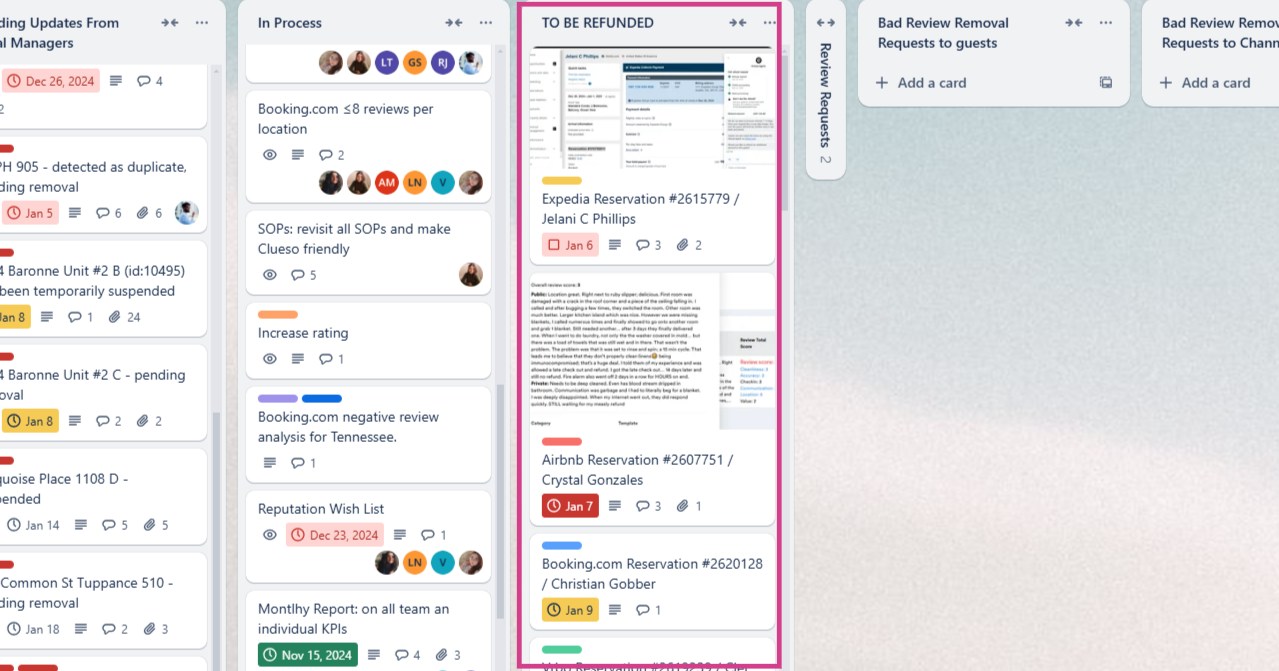
Step 2: Locate tasks with a due date of today.
Step 3: Click the relevant task to view the reservation details and refund amount.
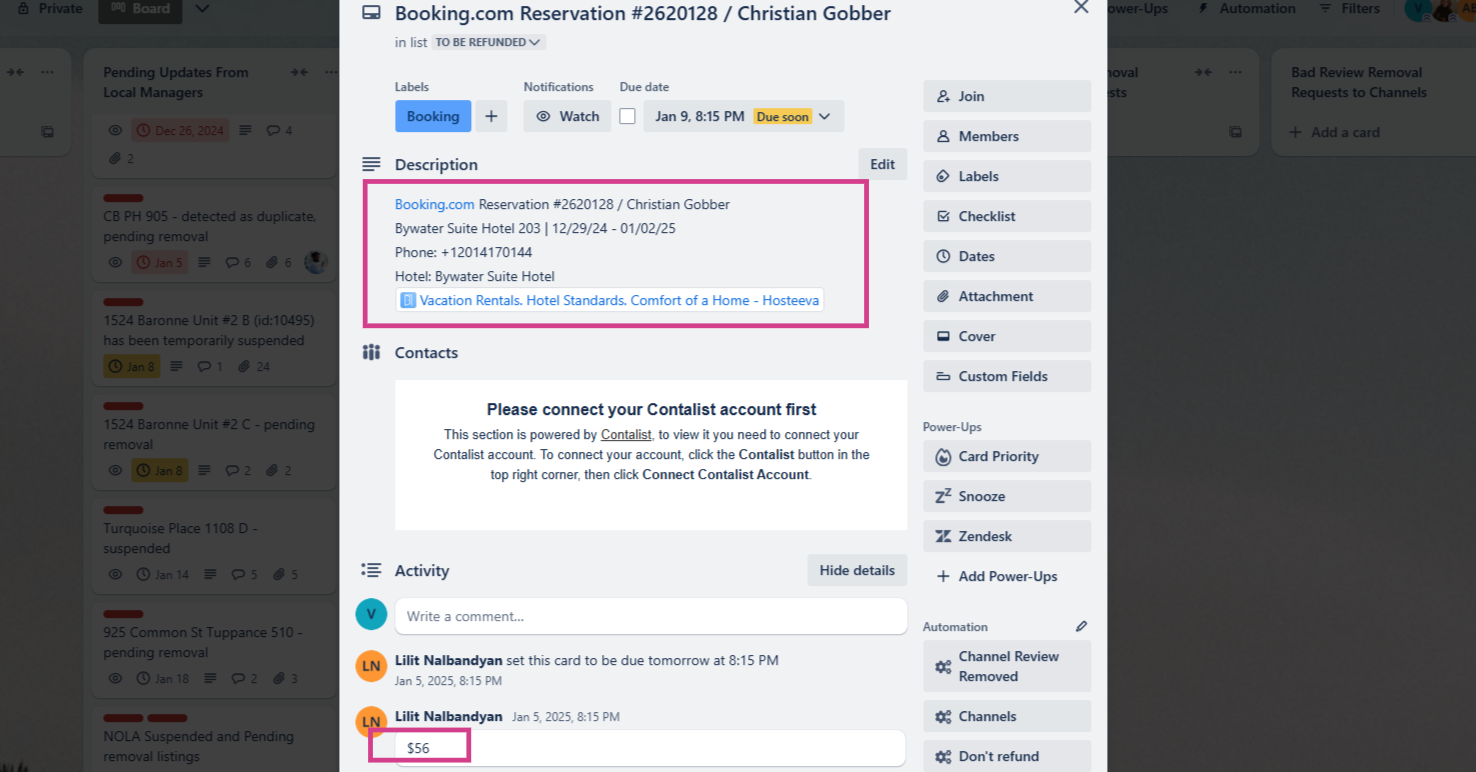
Step 4: Open the reservation link and ensure no negative review has been left.
Refunds for Expedia Reservations
For Expedia reservations, identify the payment method—Expedia Collects or Hotel Collects—as the refund process differs.
- Hotel Collects: Follow the same process as direct reservations, which is outlined in our departmental video here: https://www.hosteeva.com/article/read/66
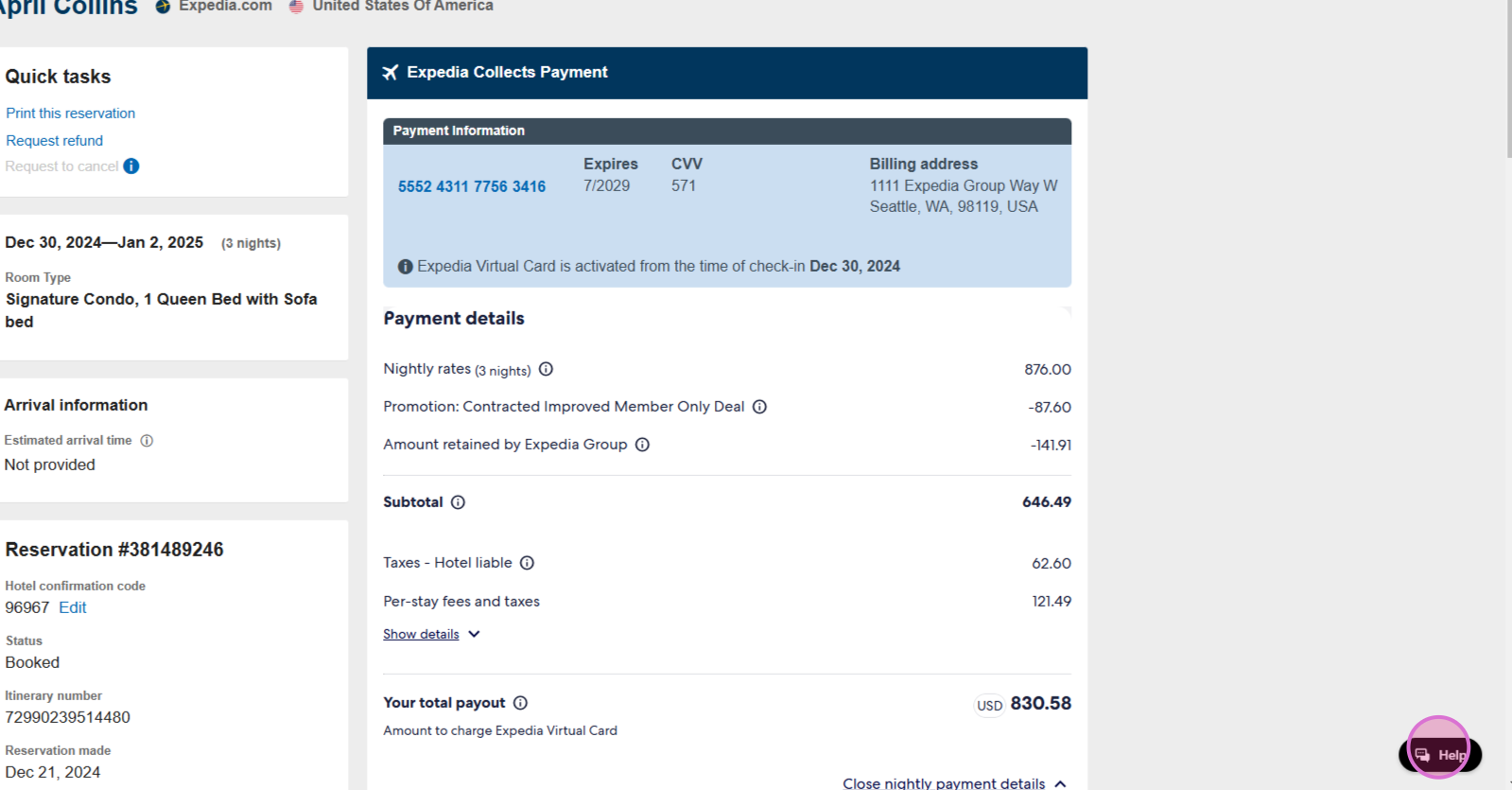
- Expedia Collects: This is the most common status, where the guest paid Expedia directly. Expedia issued a virtual card for us to receive the funds. Refunds must be processed via Expedia since we don't have direct access to the guest's card.
Step 1: In the reservation dialogue, click Open Channel, click See all reservation details and check the payment method field.
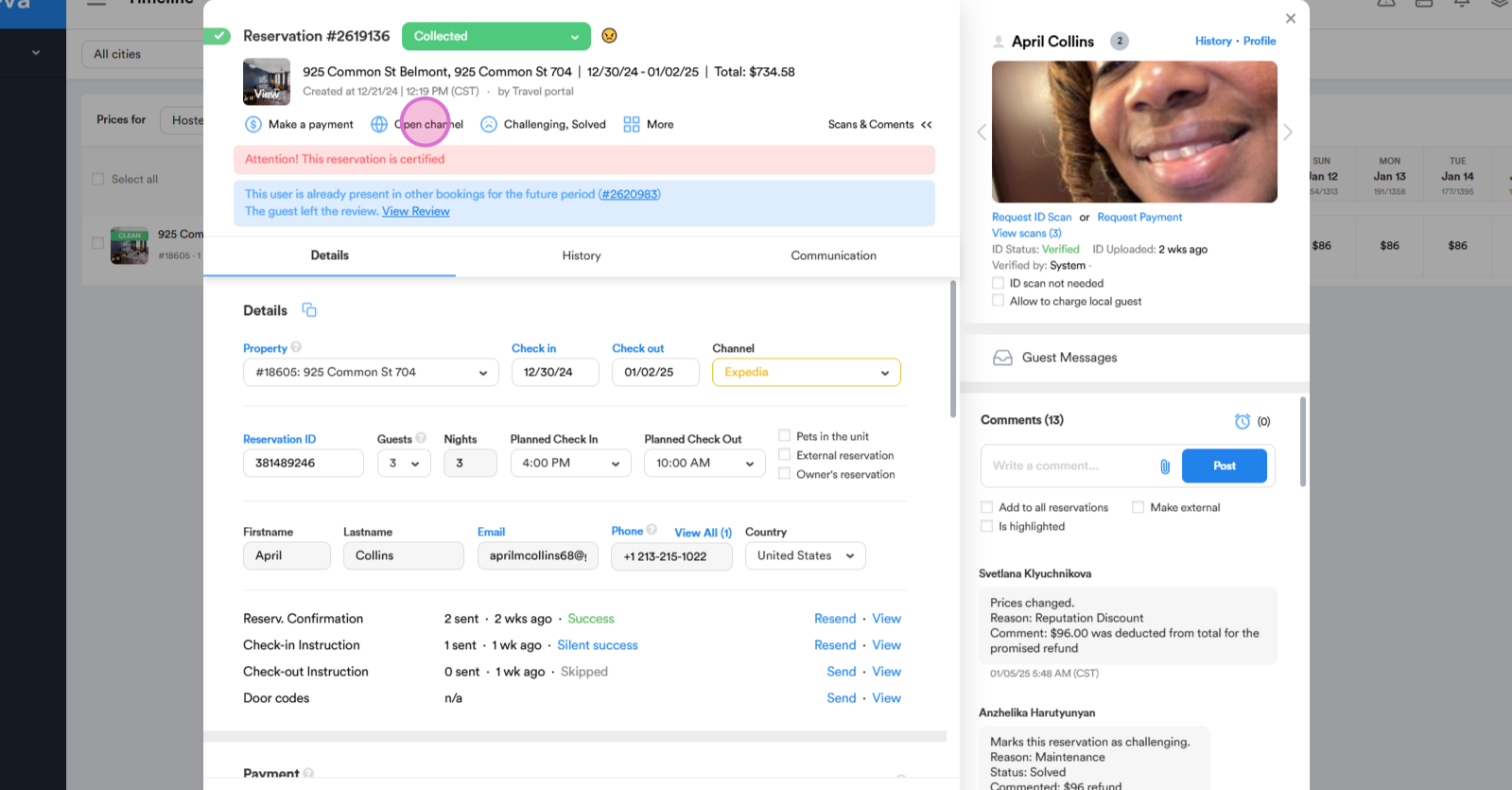
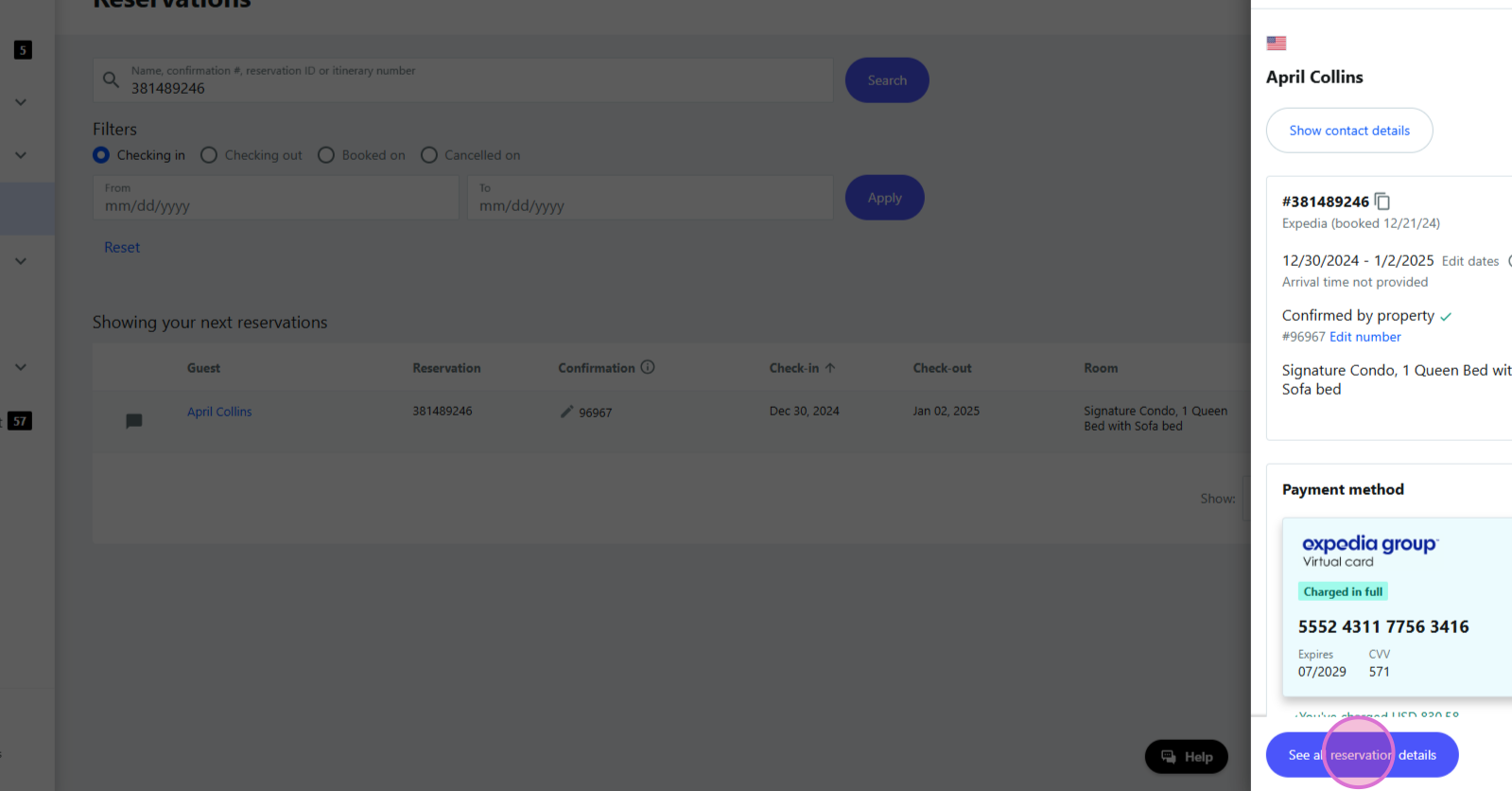
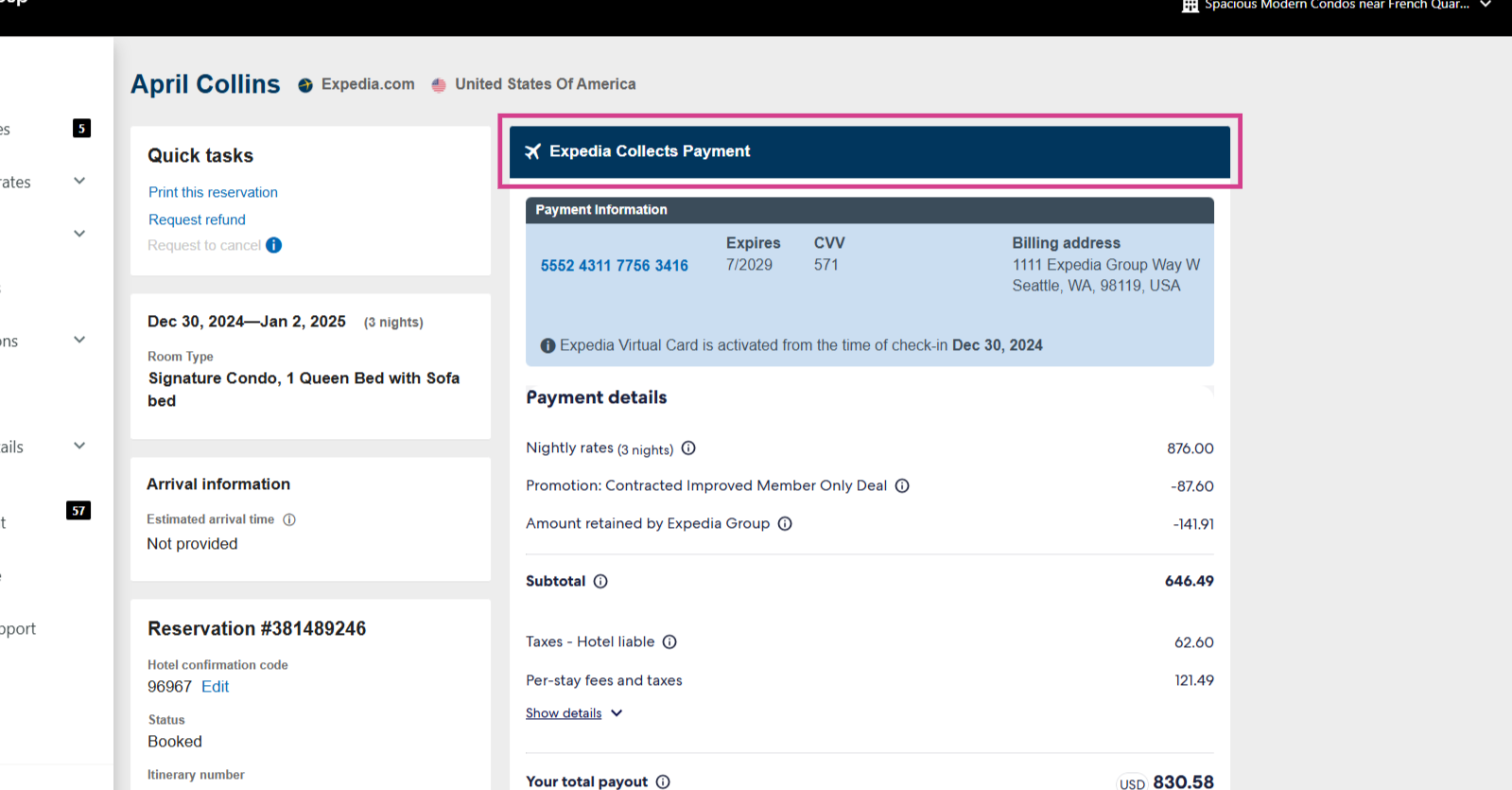
Step 2: Return to the reservation window. Refund the amount to the virtual card:
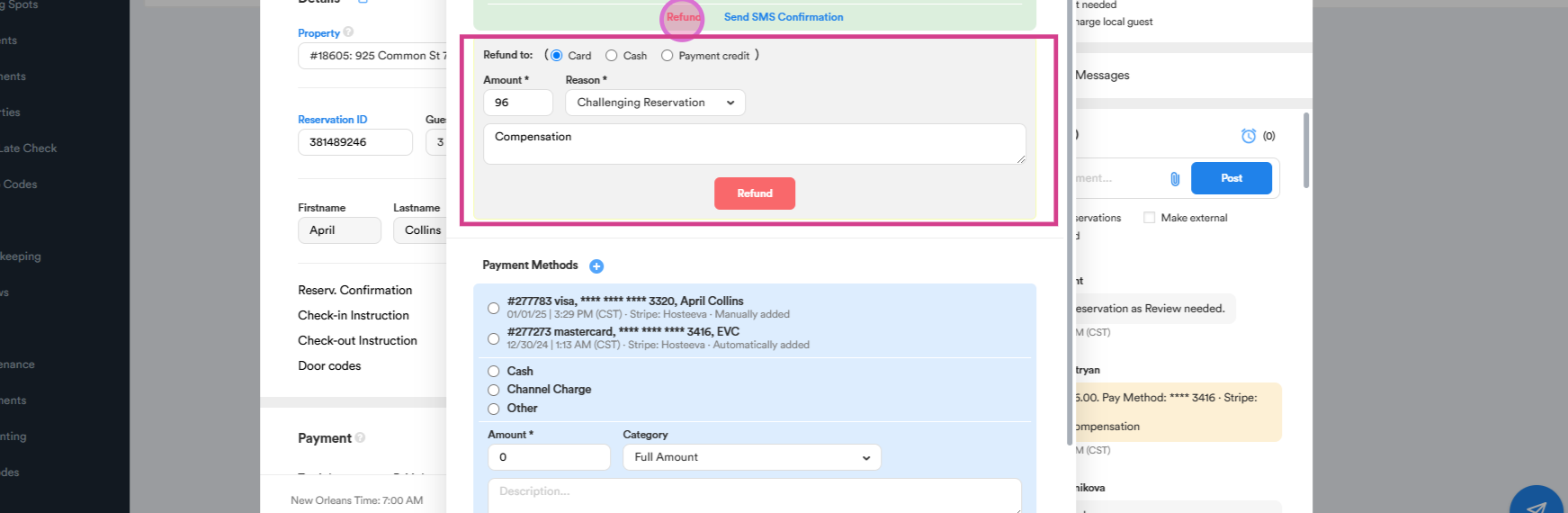
- Click Make a Payment, 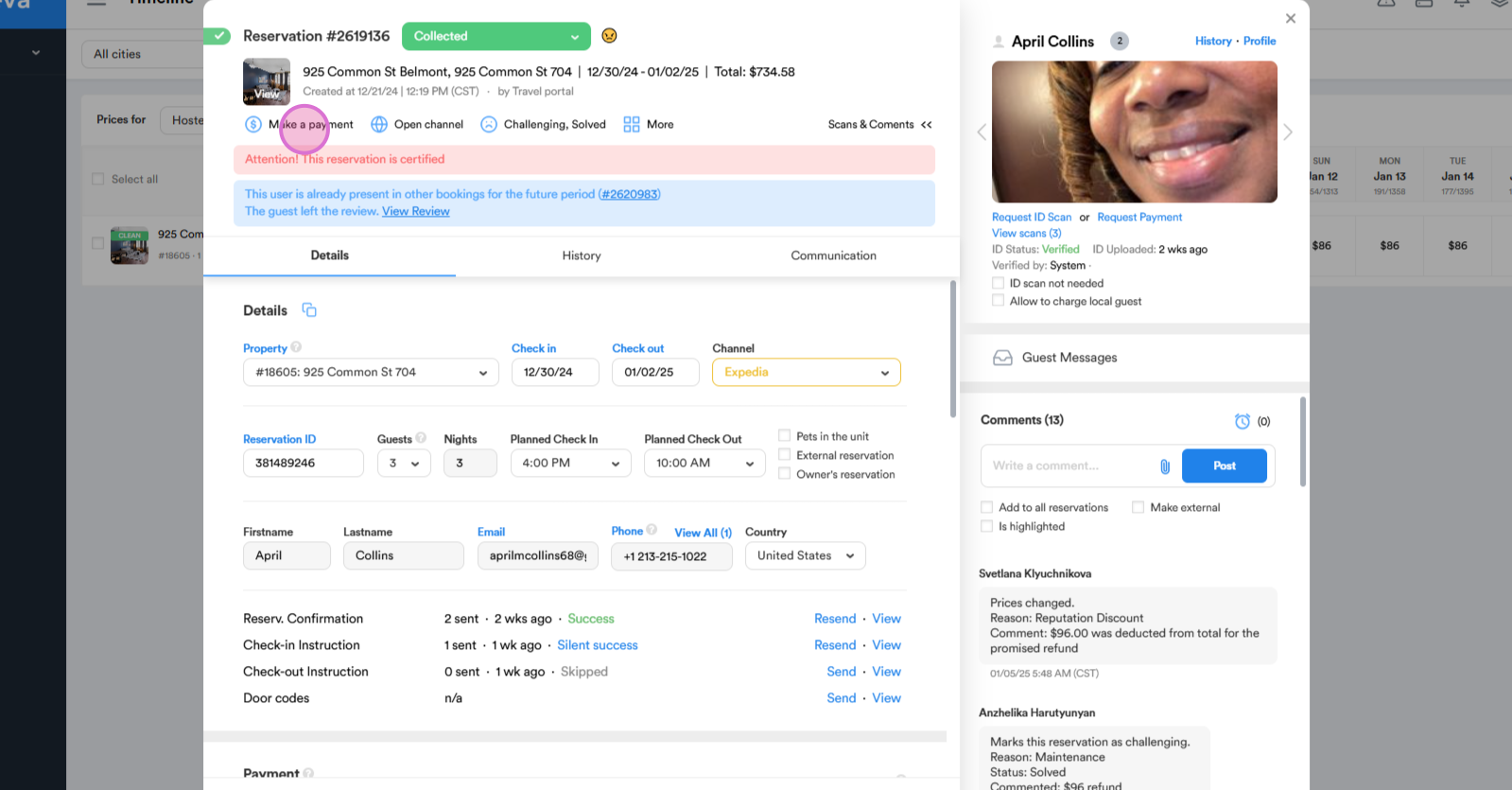
- Locate the corresponding charge, and select Refund. Enter the refund amount, choose Challenging Guest as the reason, and leave a comment. After everything is complete, click red Refund button.
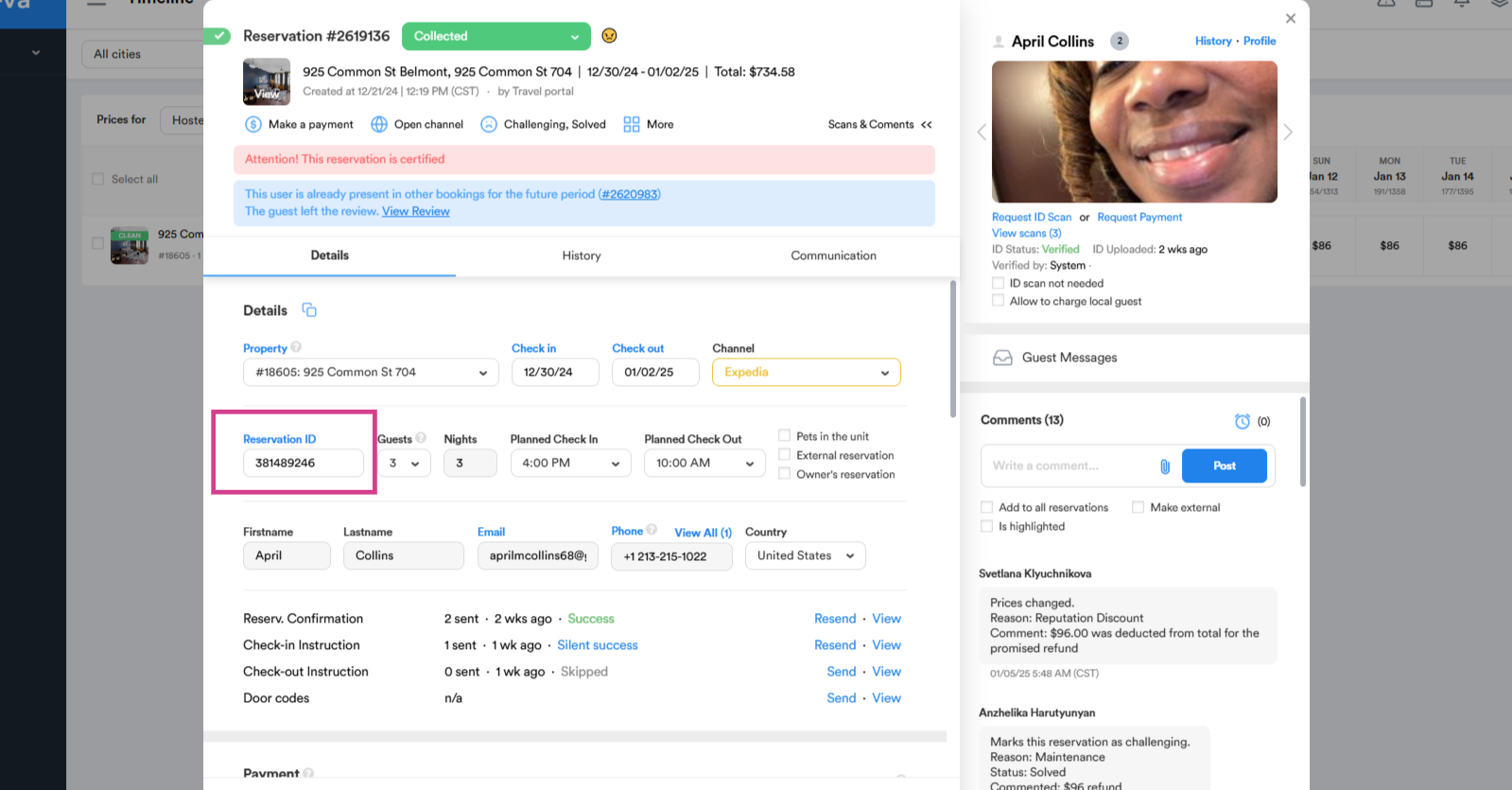
Step 3: Copy the reservation number and return to Expedia.
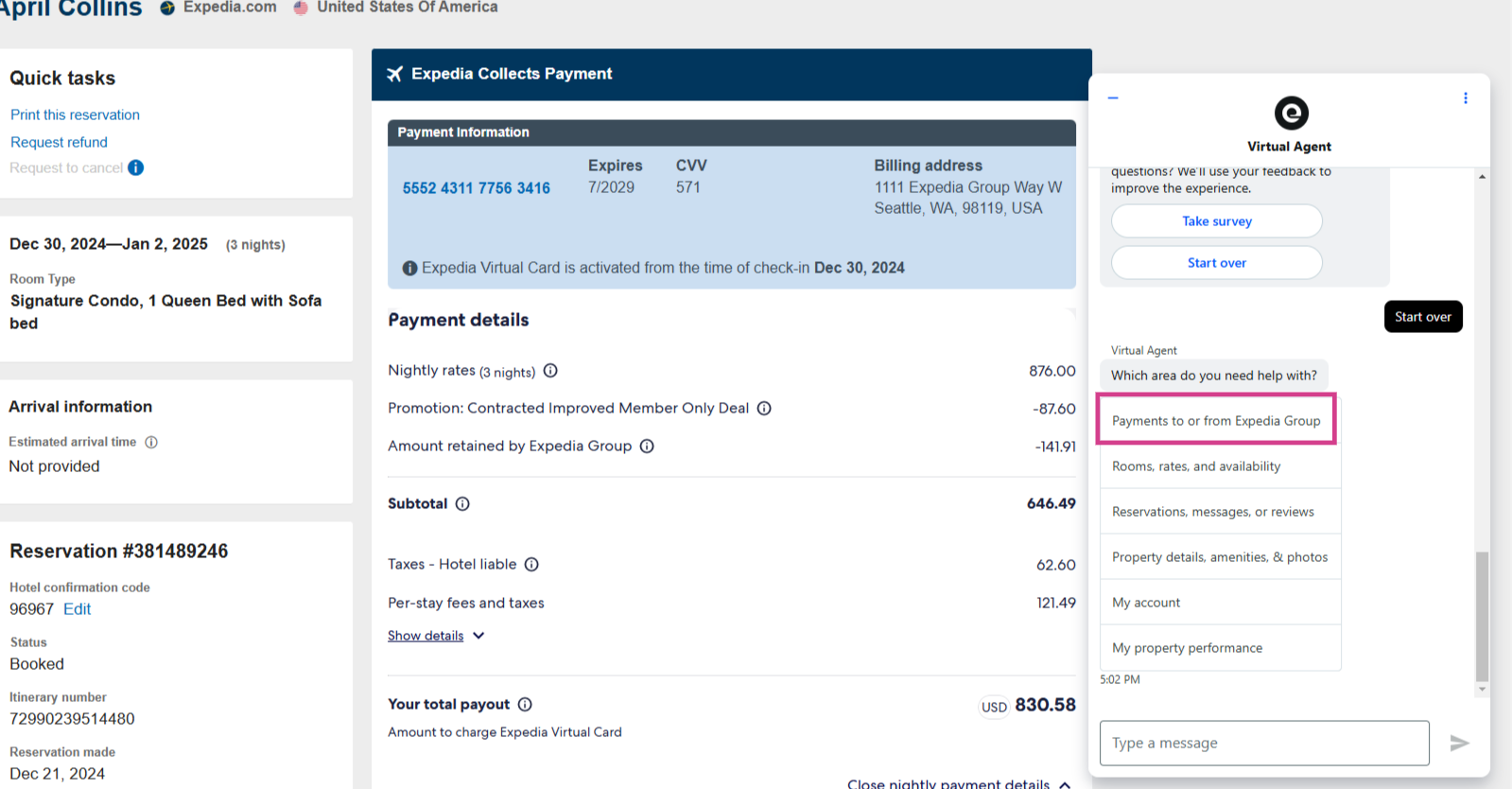
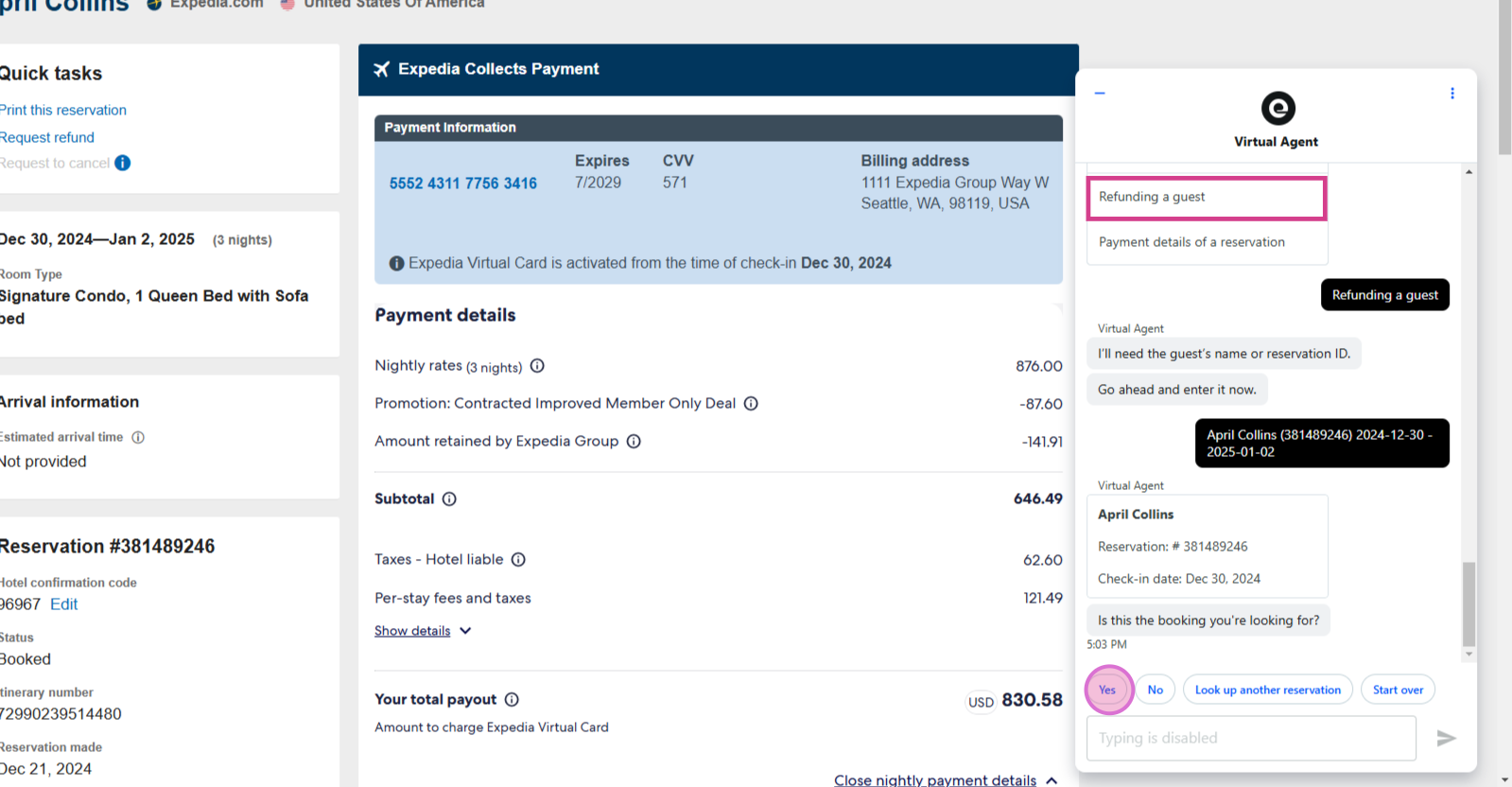
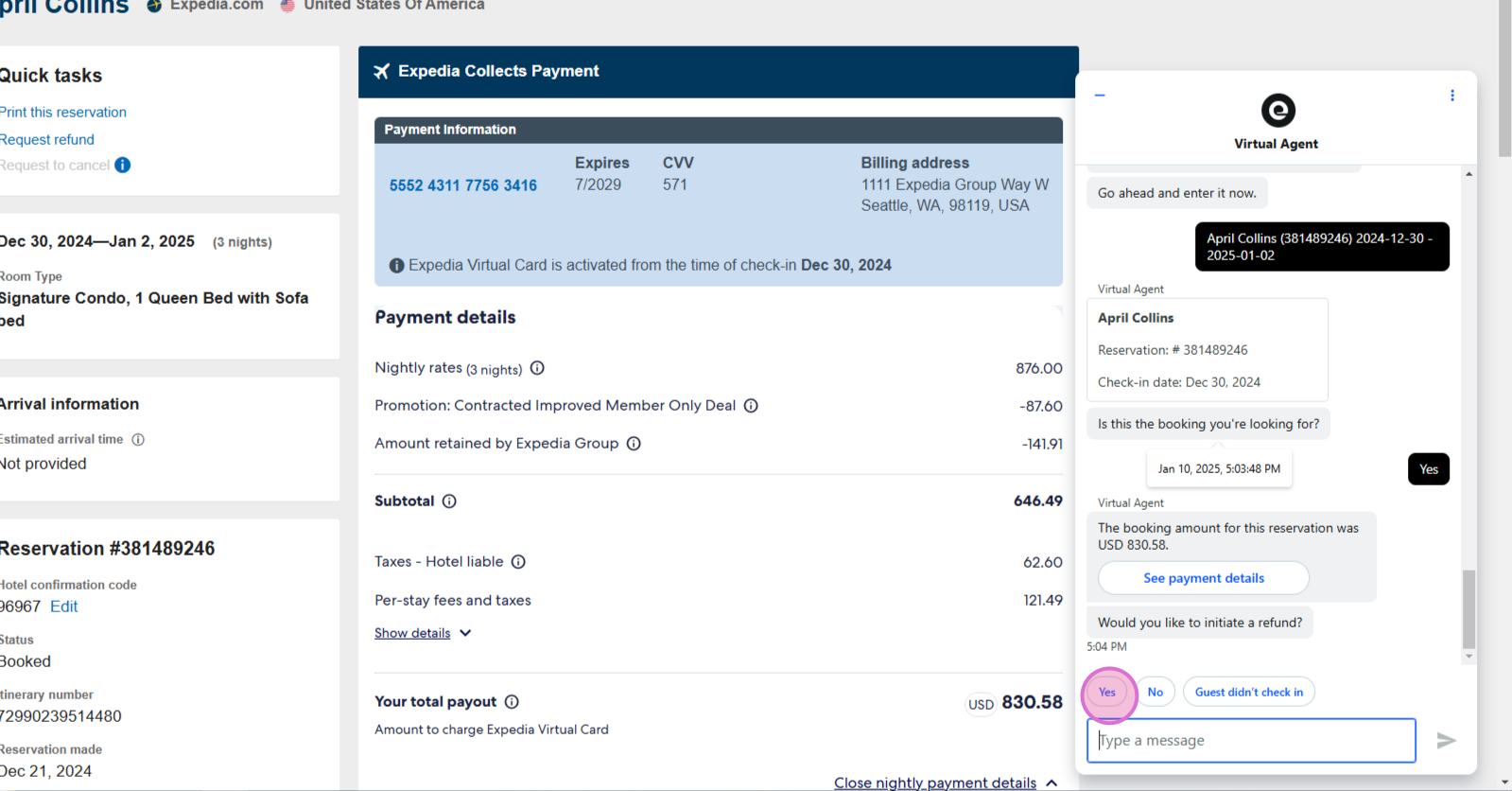
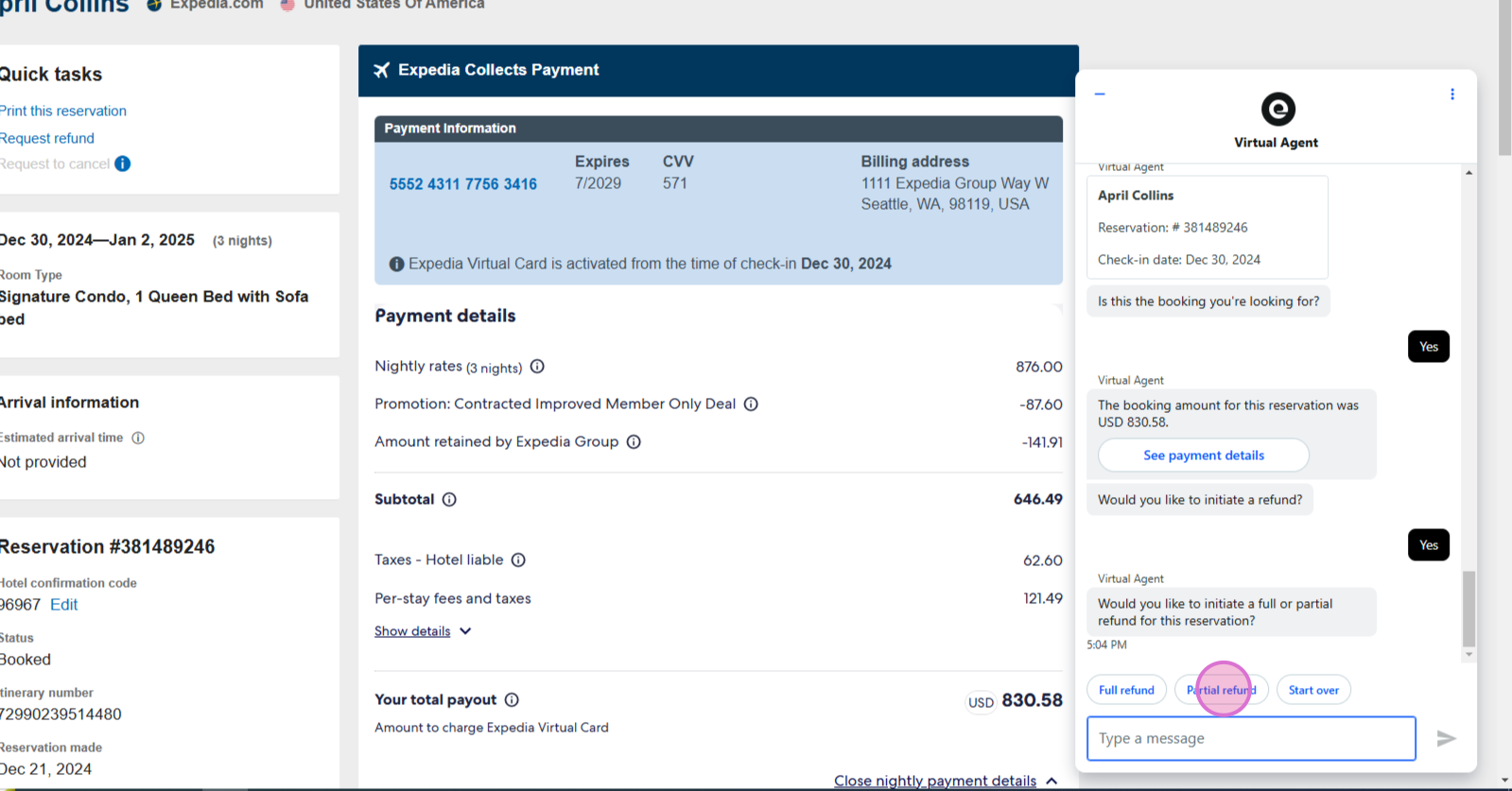
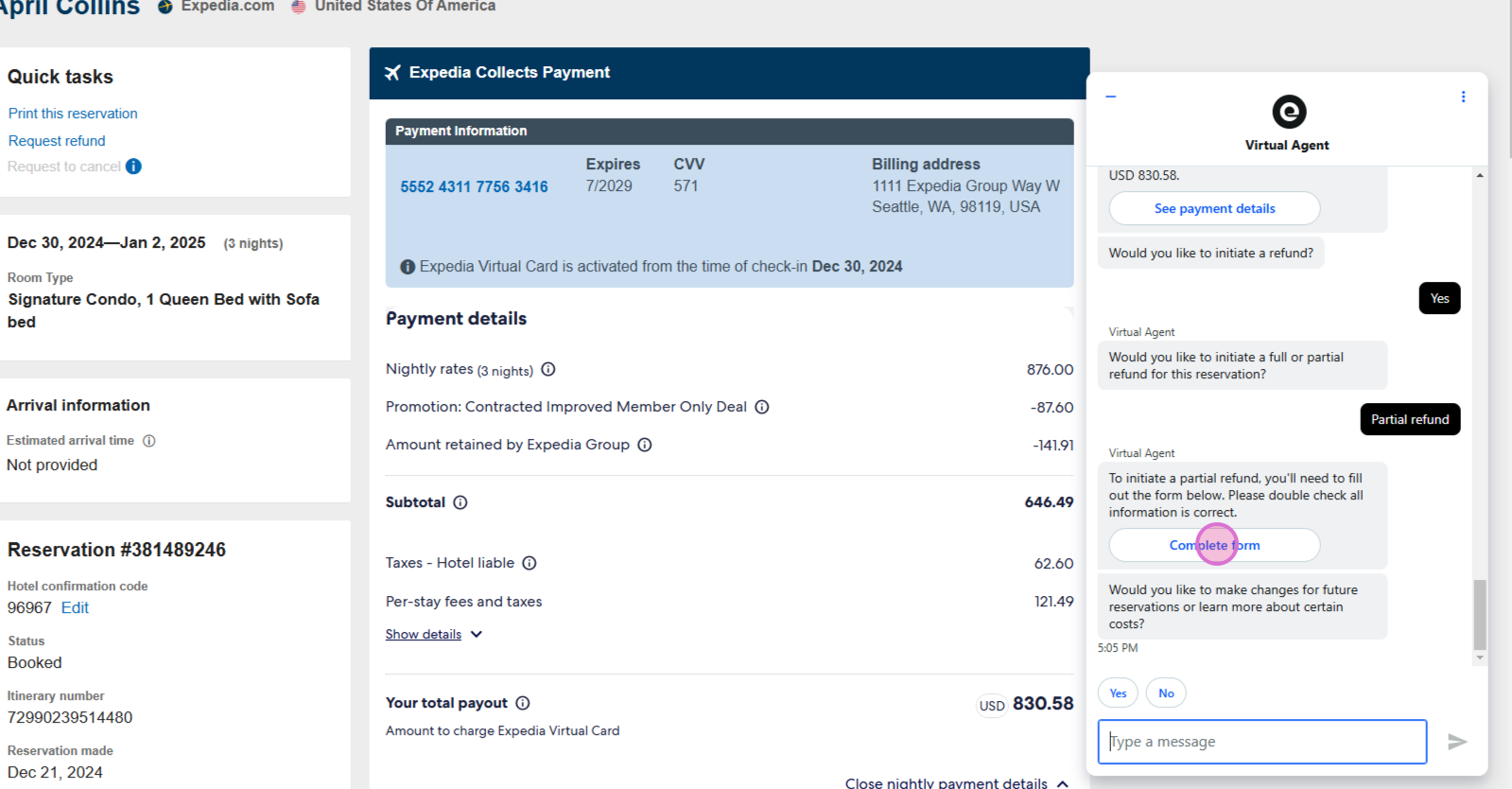
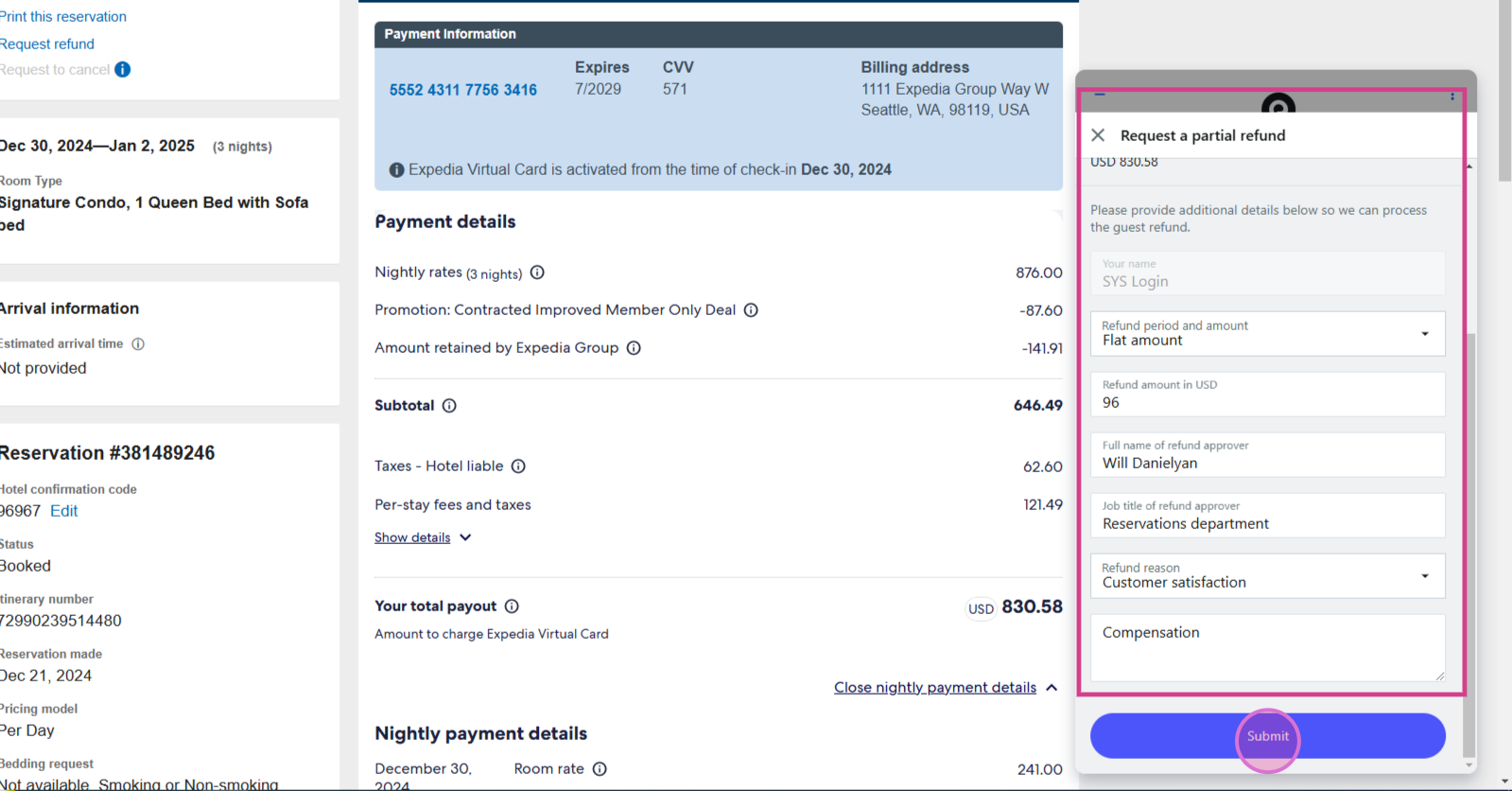
Step 4: Click Help to open the chatbot, select Refund a Guest, paste the reservation number, search the reservation needed and complete the flat amount refund form as shown below. Important: the "Job title of refund approver" and "Full name of refund approver" should always be the same as shown on the corresponding screenshot.
Refunds for Booking.com Reservations
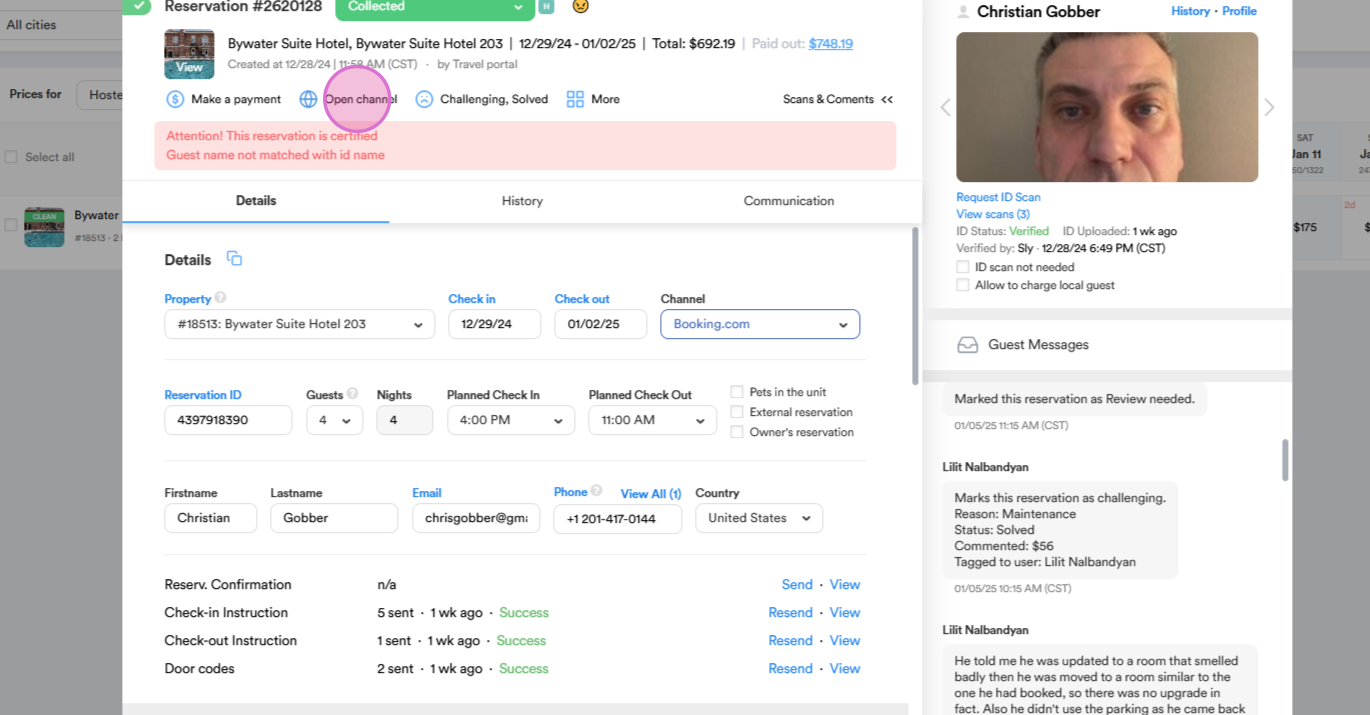
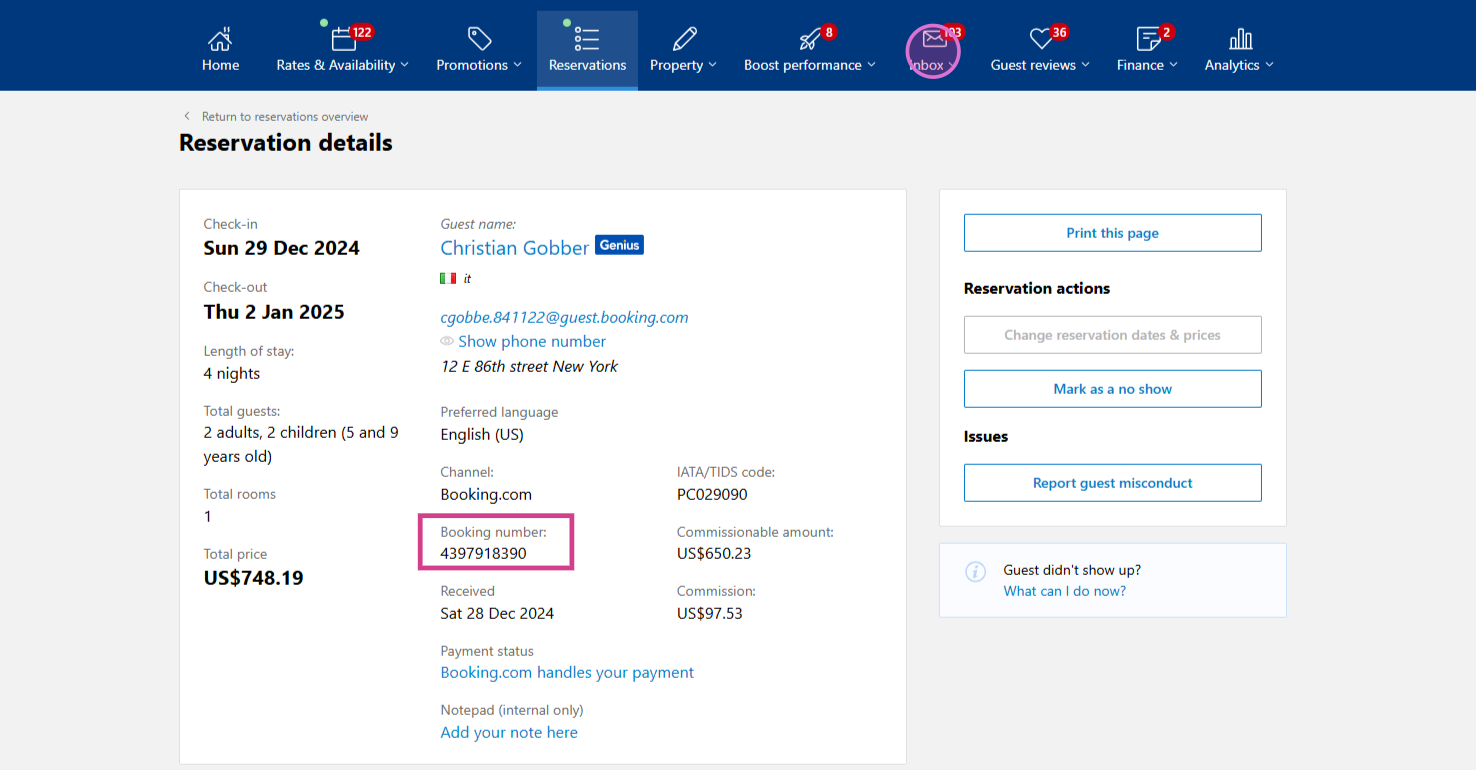
Step 1: Navigate to the reservation, and click Open Channel.
Step 2: Log in, copy the reservation number, and click Inbox to access Booking.com messages.
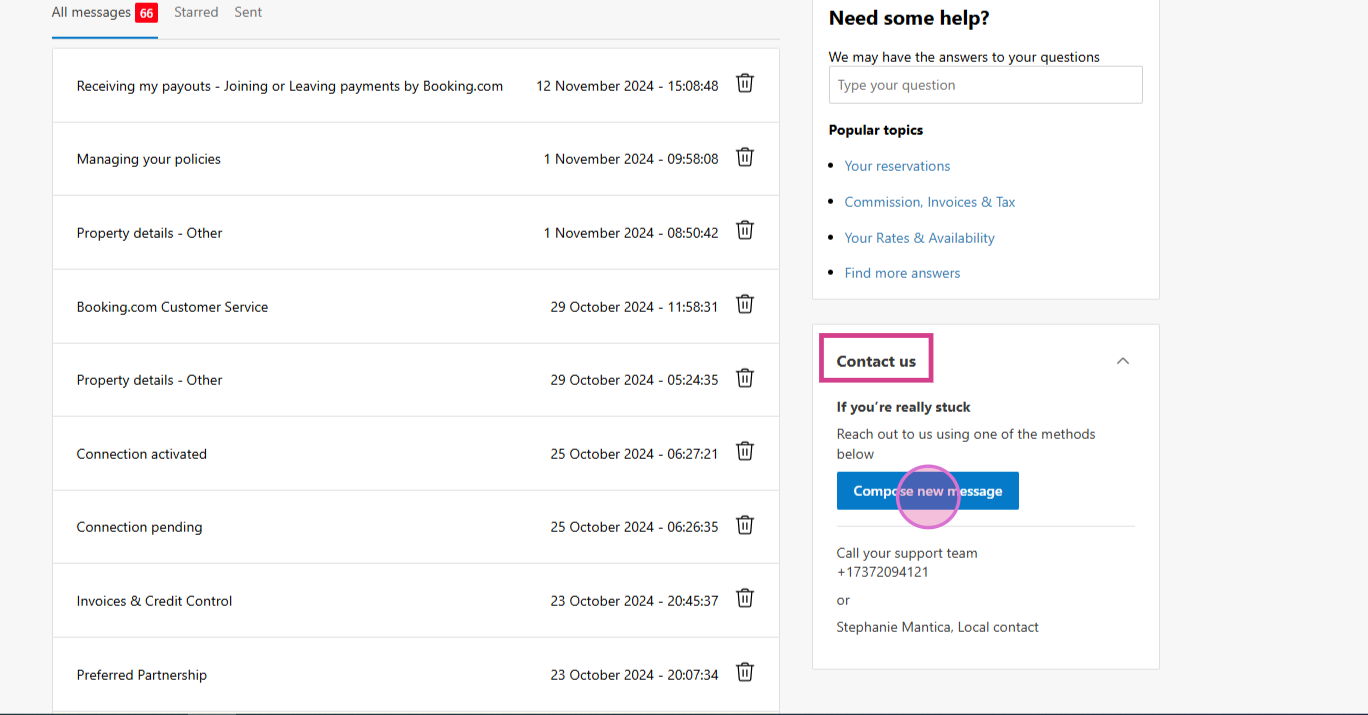
Step 3: Click Contact us and select Compose New Message and use:
- Topic: Reservations
- Subtopic: Payment
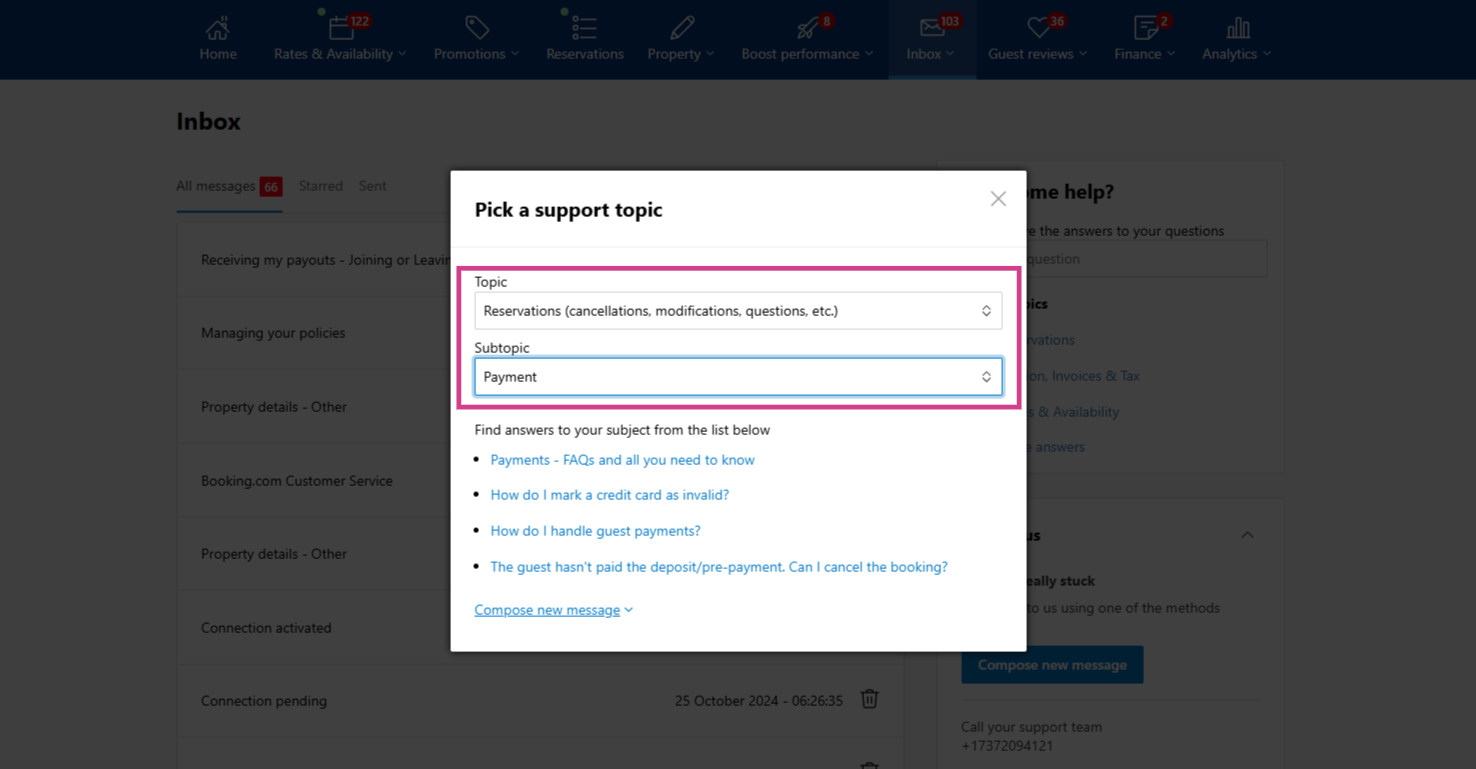
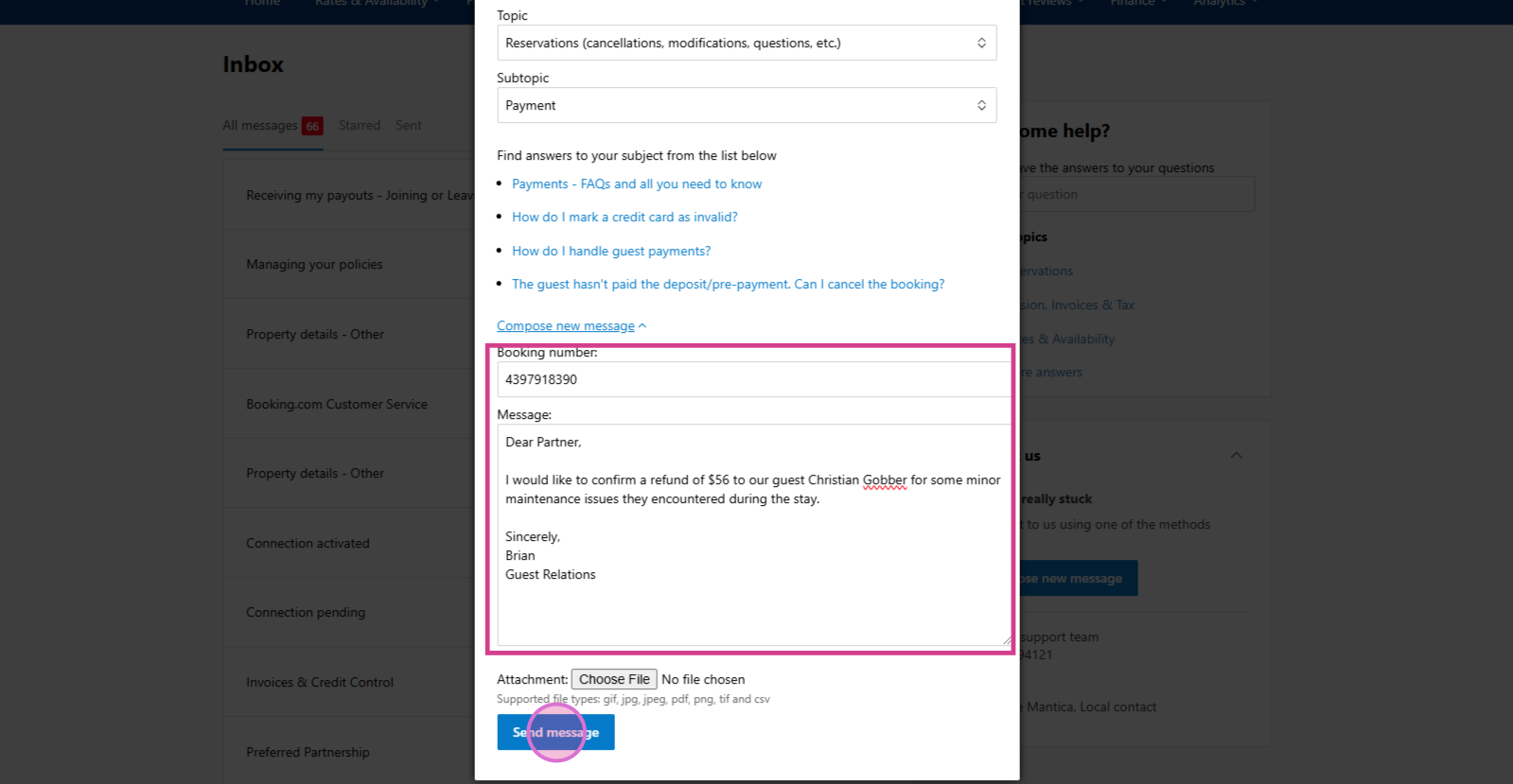
Step 4: Enter the reservation number in the required field and include the guest's full name, the refund amount, and the reason for the refund in your message. Click Send Message and wait a few minutes for the messaging to update.
Step 5: Navigate to Reservation Messages, select Customer support, take a screenshot of your message, and return to Trello.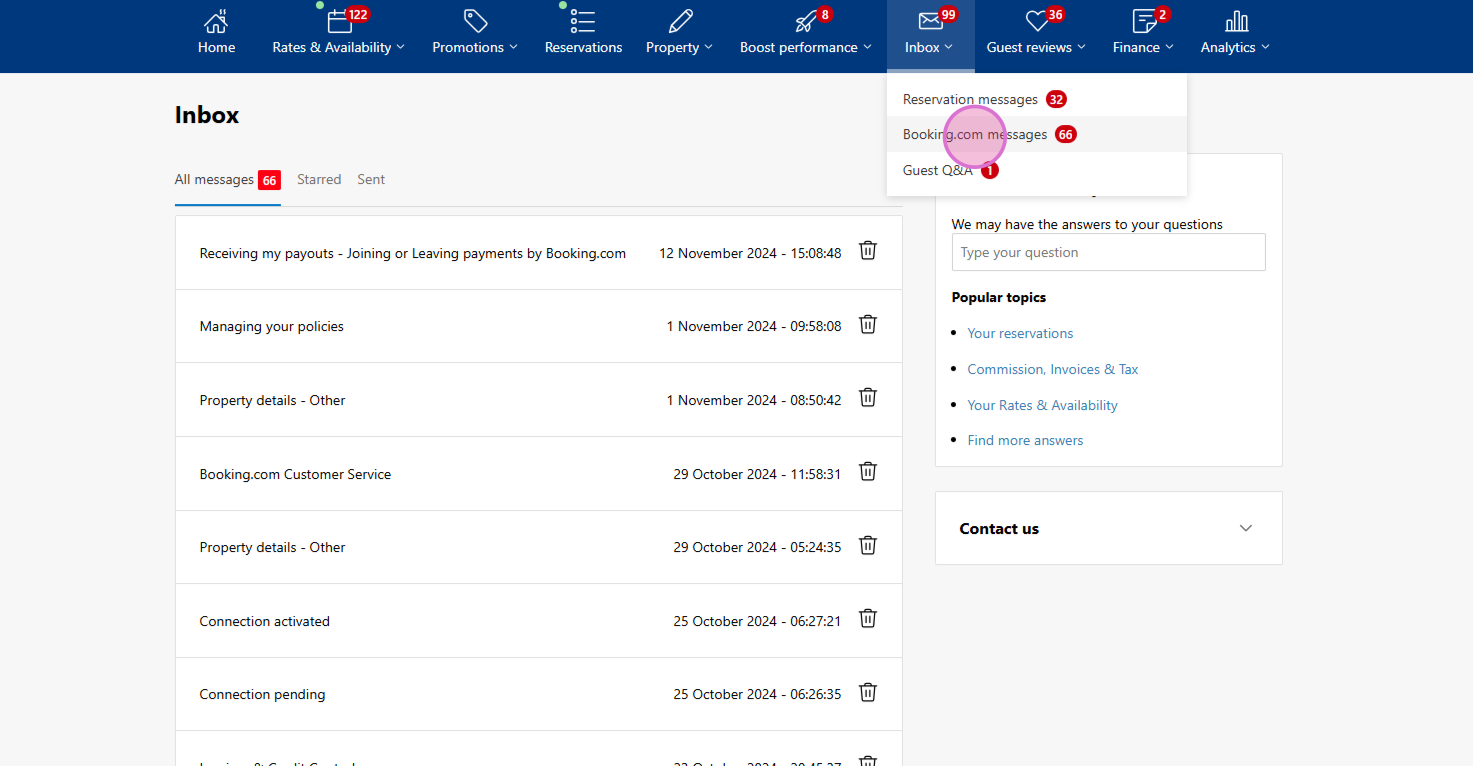
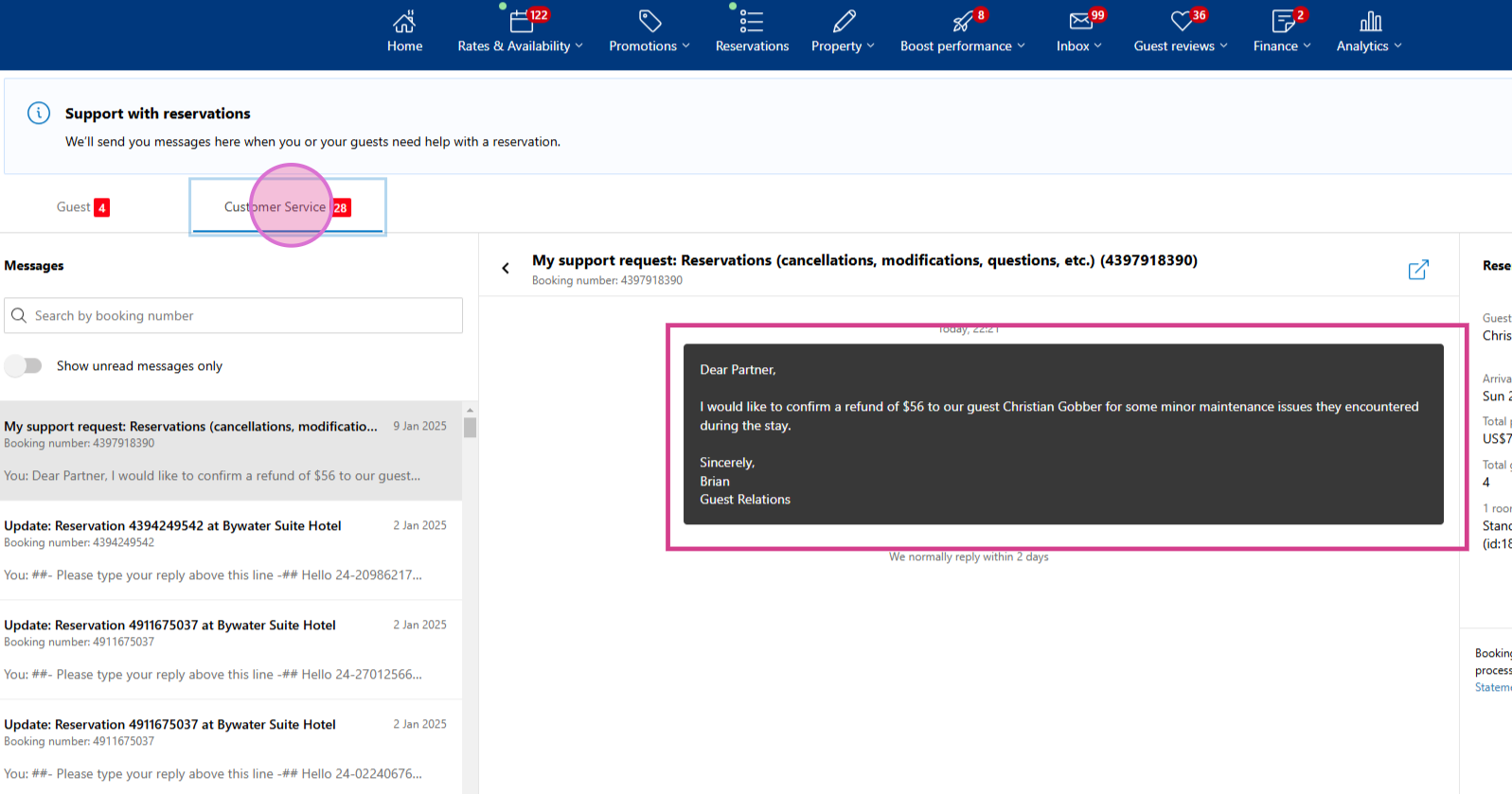
Step 6: Add the screenshot as a comment on the task and adjust the due date to two days later. Colleagues will check the task on rescheduled due date and verify the refund status with Booking.com and, upon confirmation, update the reservation details.
Refunds for Airbnb Reservations
Step 1: Open the reservation window, select the key icon and copy the login credentials. and click Open Channel.
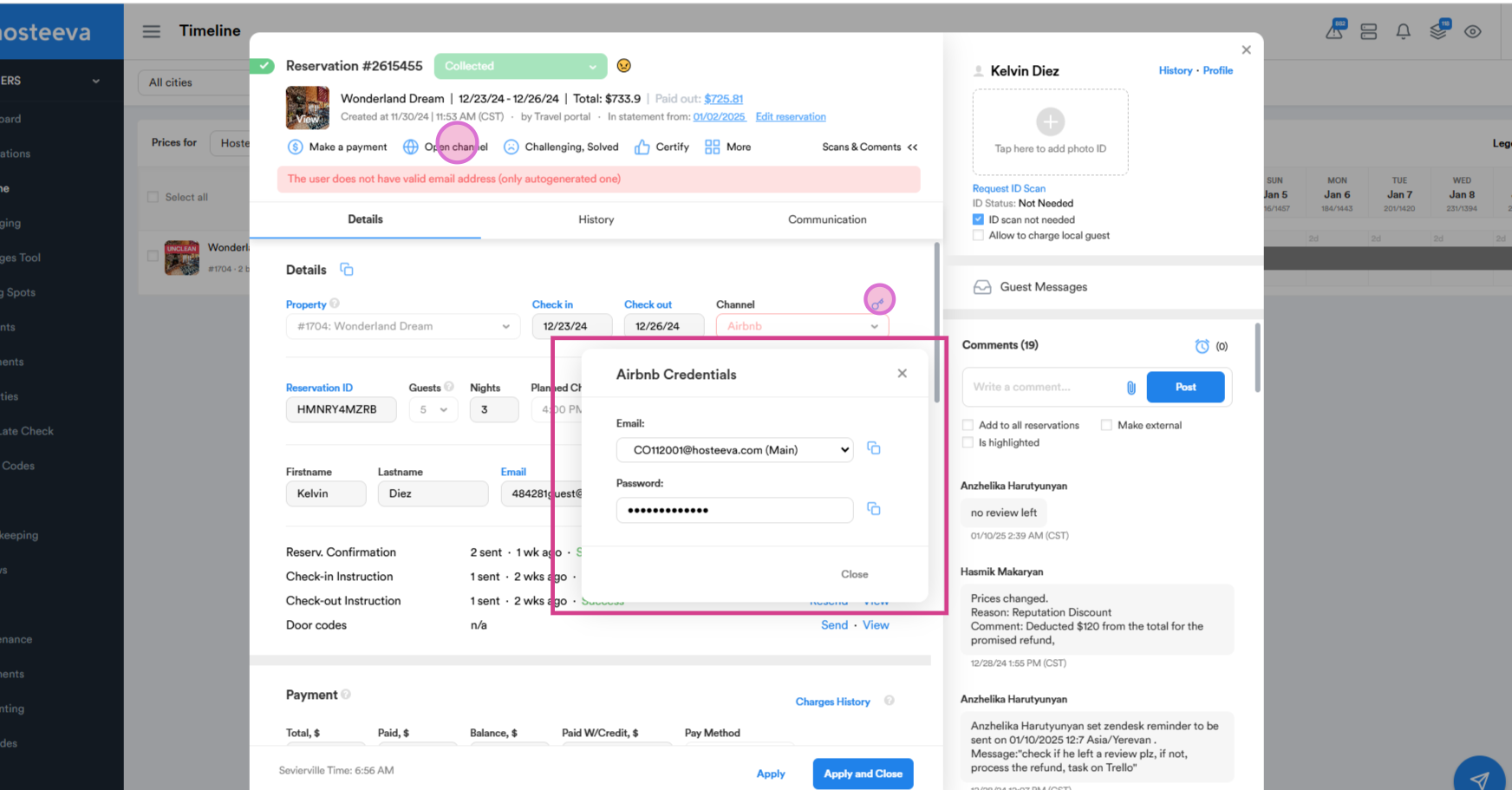
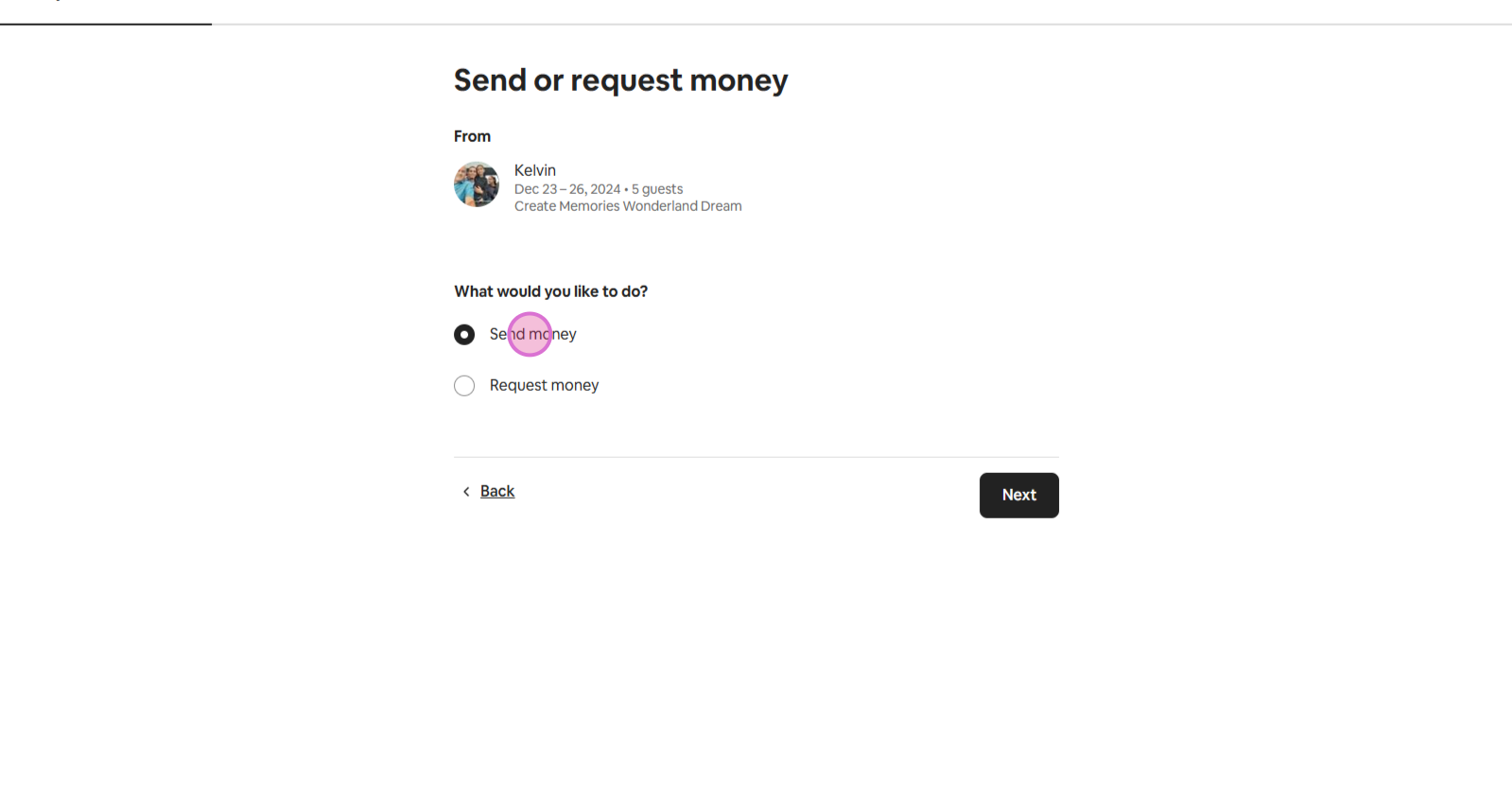
Step 2: Verify the review period is over, and ensure no negative review has been left unless otherwise agreed with the guest. Then, Click Send or Request Money.
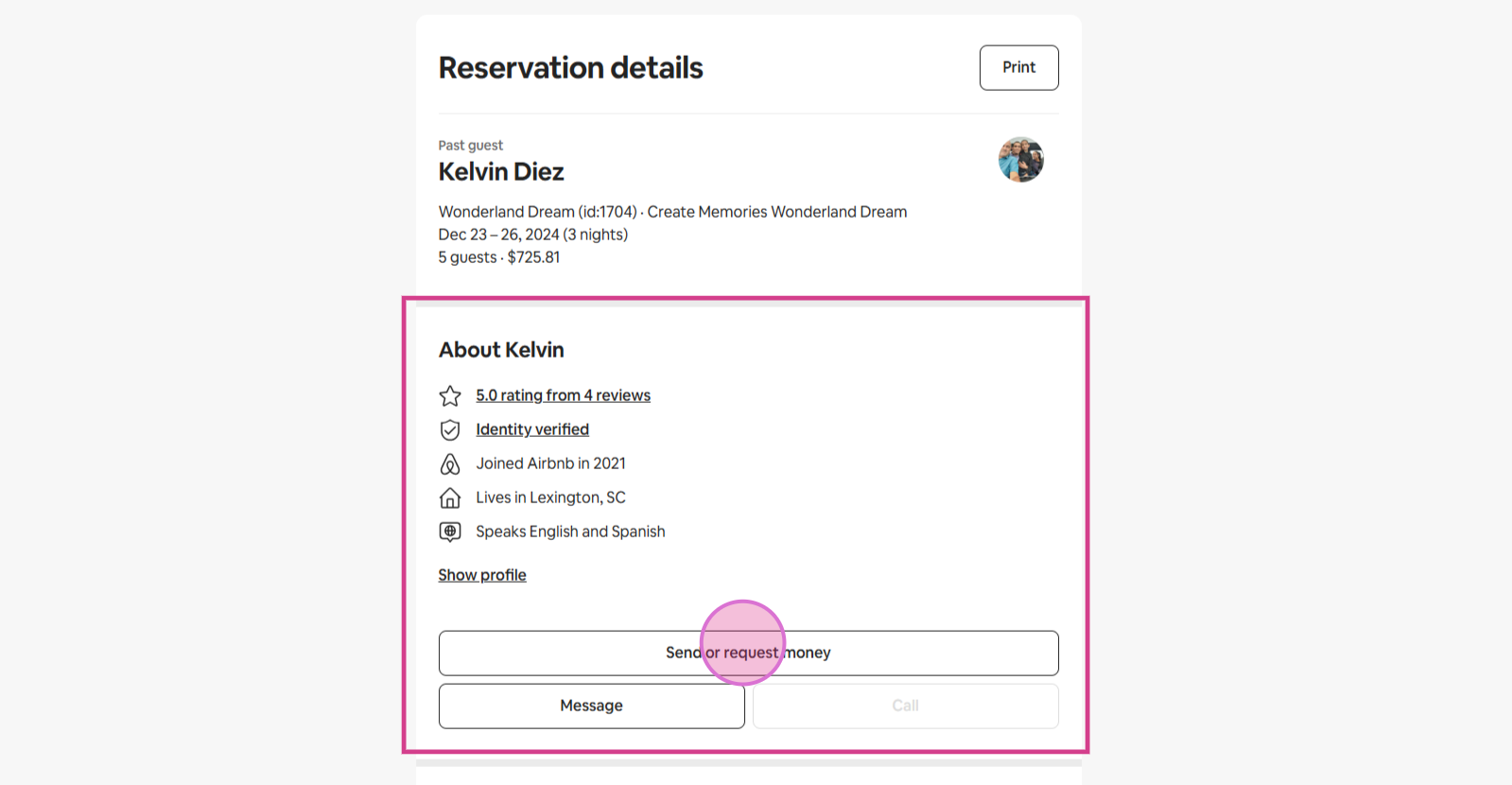
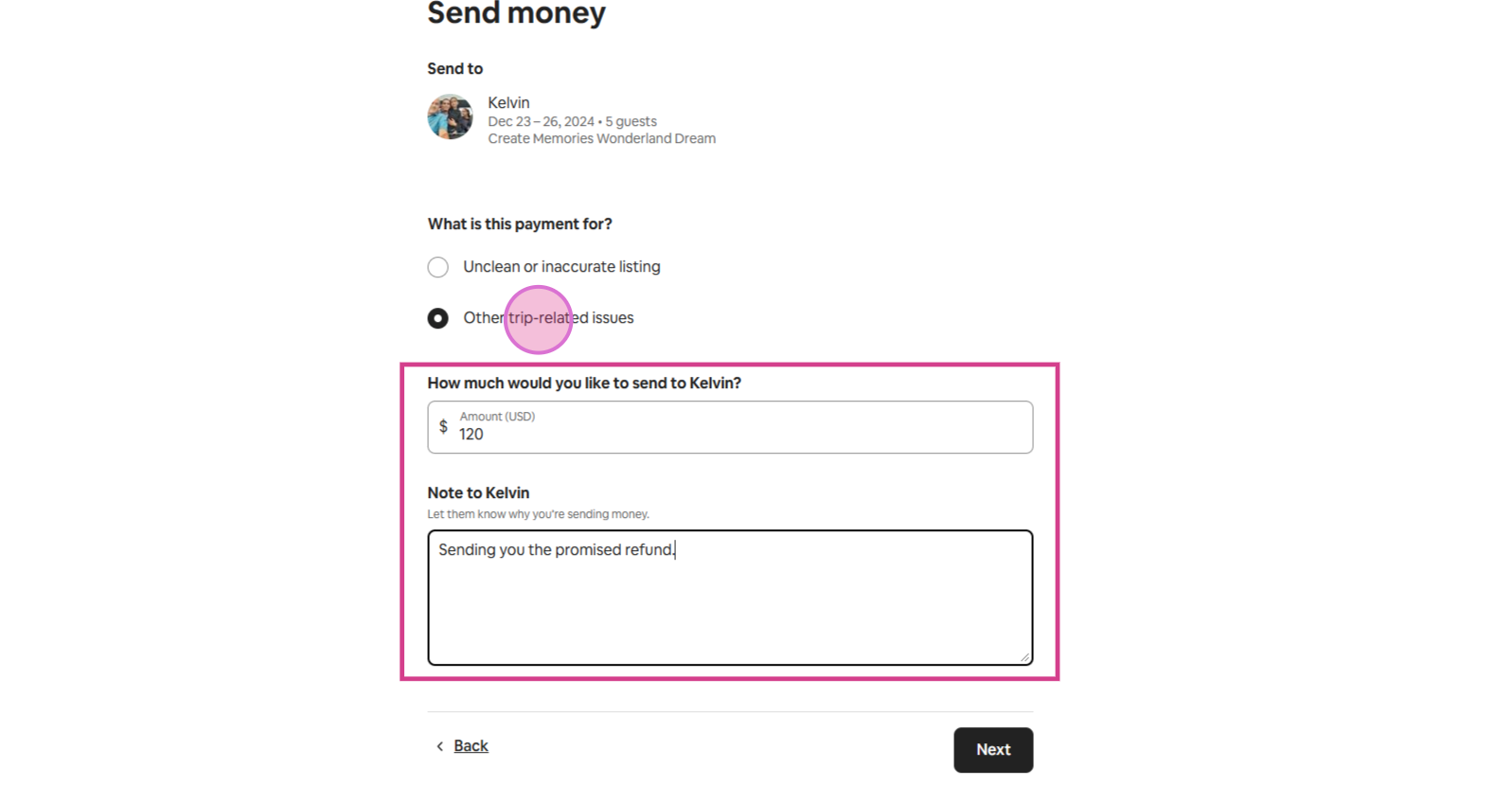
Step 3: Choose Send Money > Other Trip Related Issues, enter the flat refund amount, and leave a brief comment for the guest. Click Next, then Confirm and Pay.
Step 4: After submitting the refund, take a screenshot and add it to the Trello task comments.
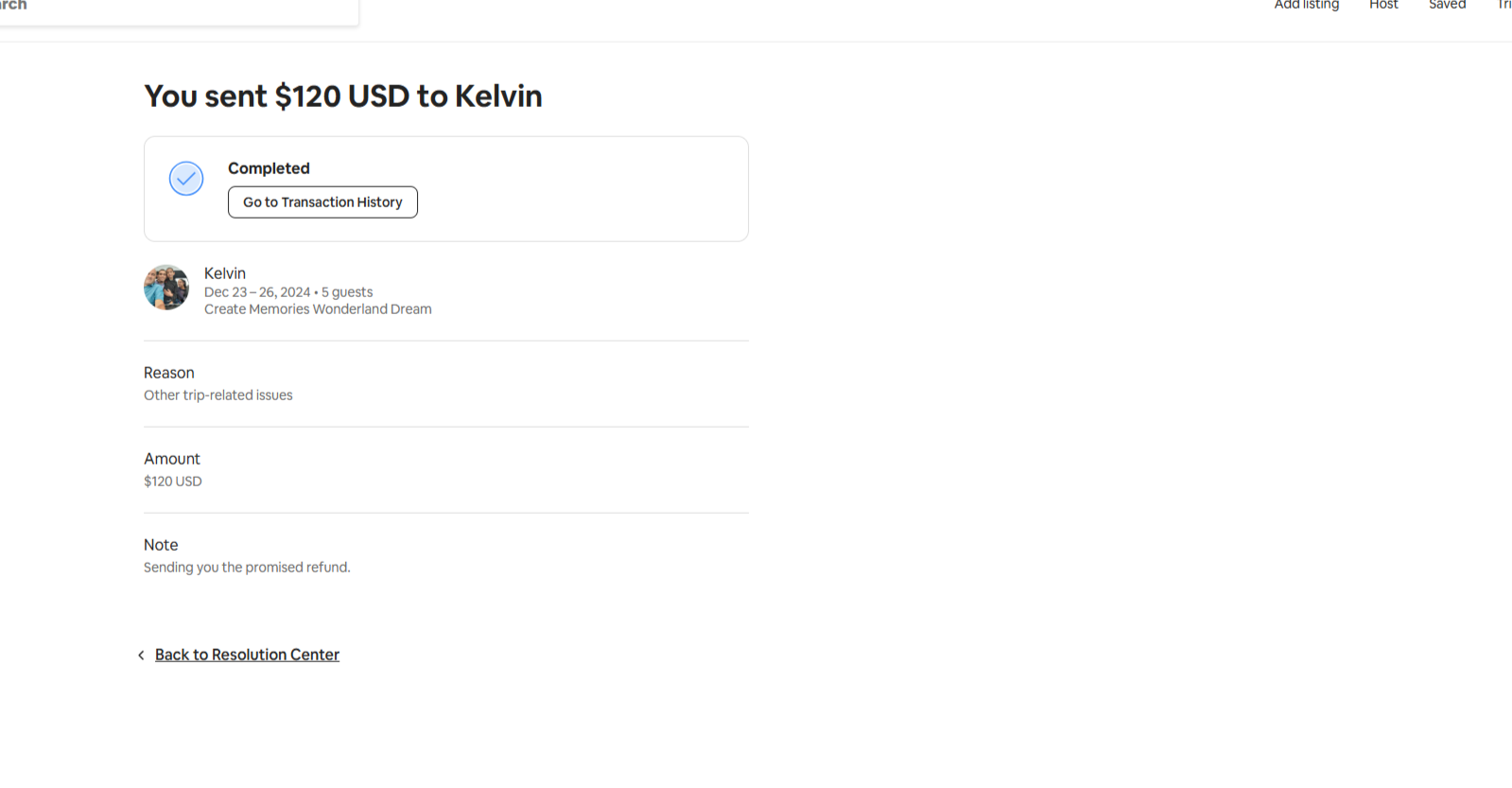
The refund will automatically reflect in the reservation details after some time.
Refunds for VRBO Reservations
Processing refunds for VRBO reservations is simple and mirrors the Hosteeva Direct process. Make sure to confirm that no review has been left before issuing the refund.
Final Note
Log all completed refund cases in our daily doc—this is the primary way we track refunds issued by the team each month.