In this article, you'll learn how to work with various ticket types in Zendesk, understand their specific features, and the priorities assigned to them.
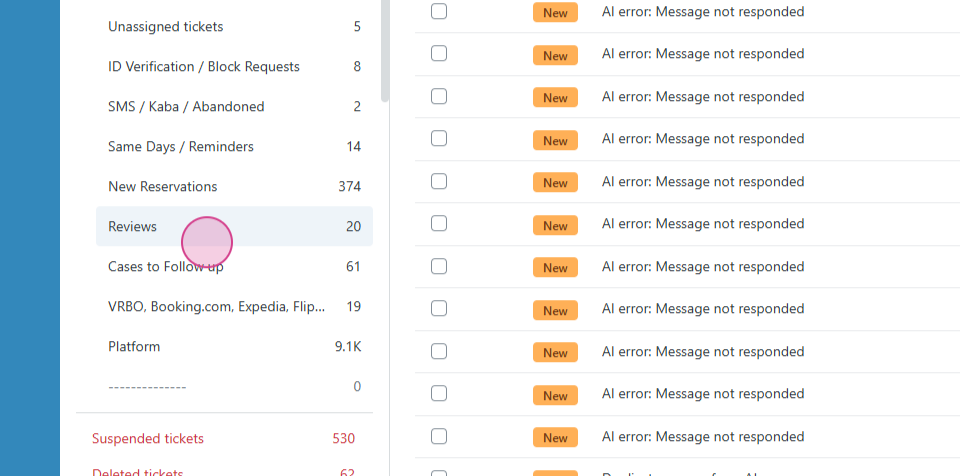
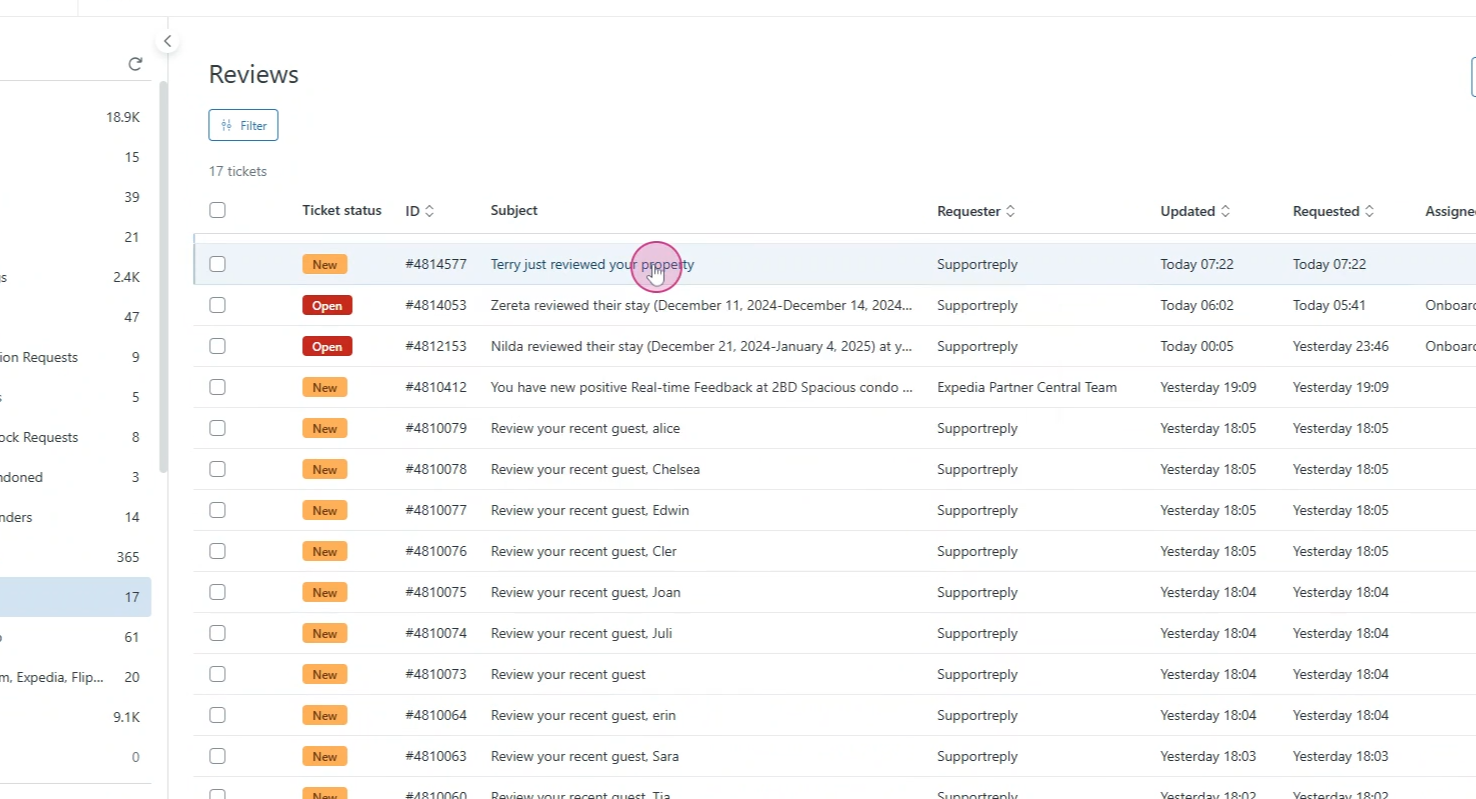
Navigate to the Reviews tab where most of the work is conducted.
It's important to note that some guests provide feedback by replying to the survey email instead of completing a survey form. These tickets also require the same level of work and analysis as correctly completed surveys.
In-house Feedback from Expedia Reservations
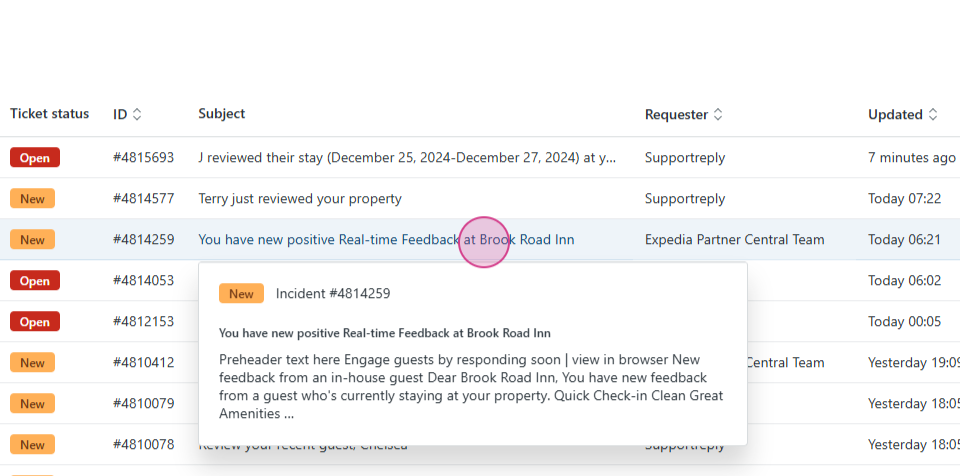
We begin with analyzing and responding to tickets with In-house Feedback from Expedia Reservations.
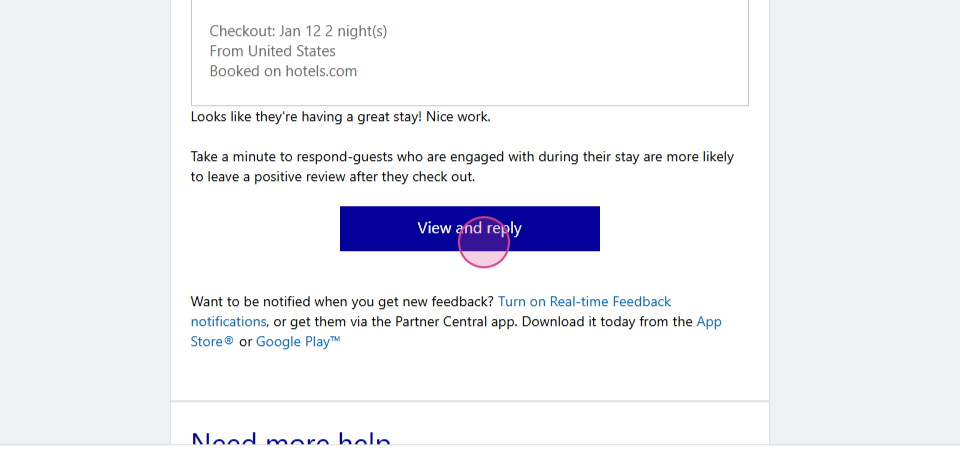
Step 1: Open the ticket and click View and Reply.
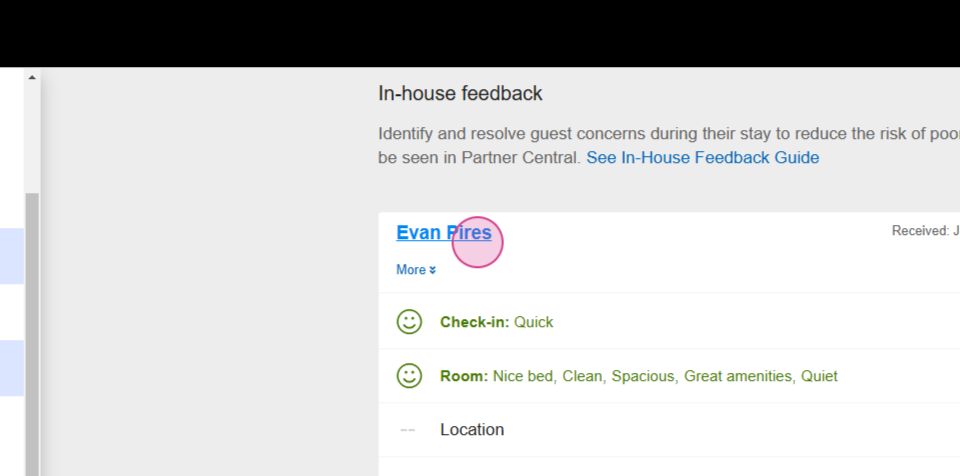
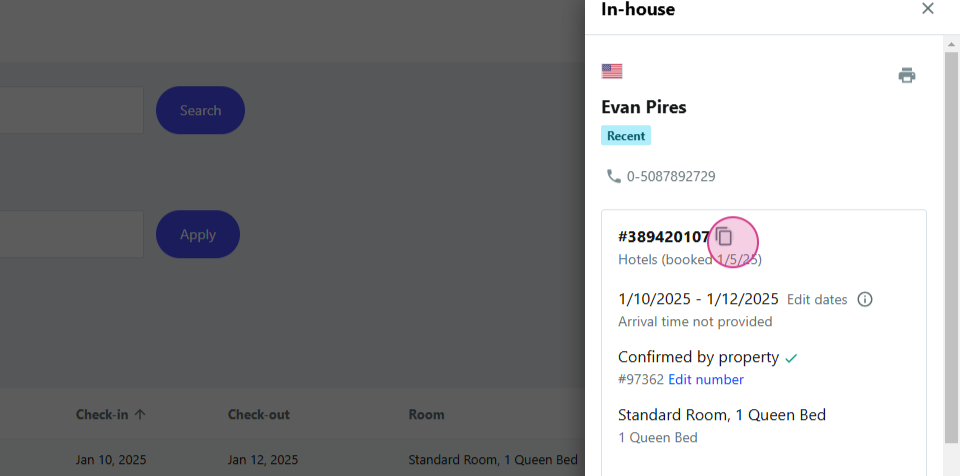
Step 2: After logging into Expedia, the feedback page will open. Click the guest name to access the reservation page and copy the booking ID.
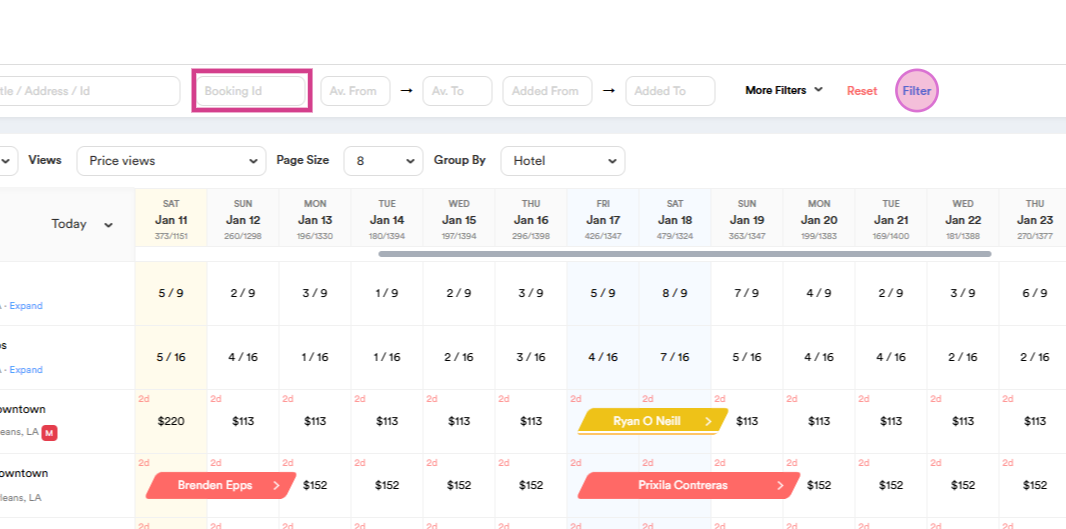
Step 3: Go to our timeline and paste the Booking ID into the appropriate field. Click Filter. Complete these steps before responding to feedback as your reply and any actions taken are directly tied to the property status.
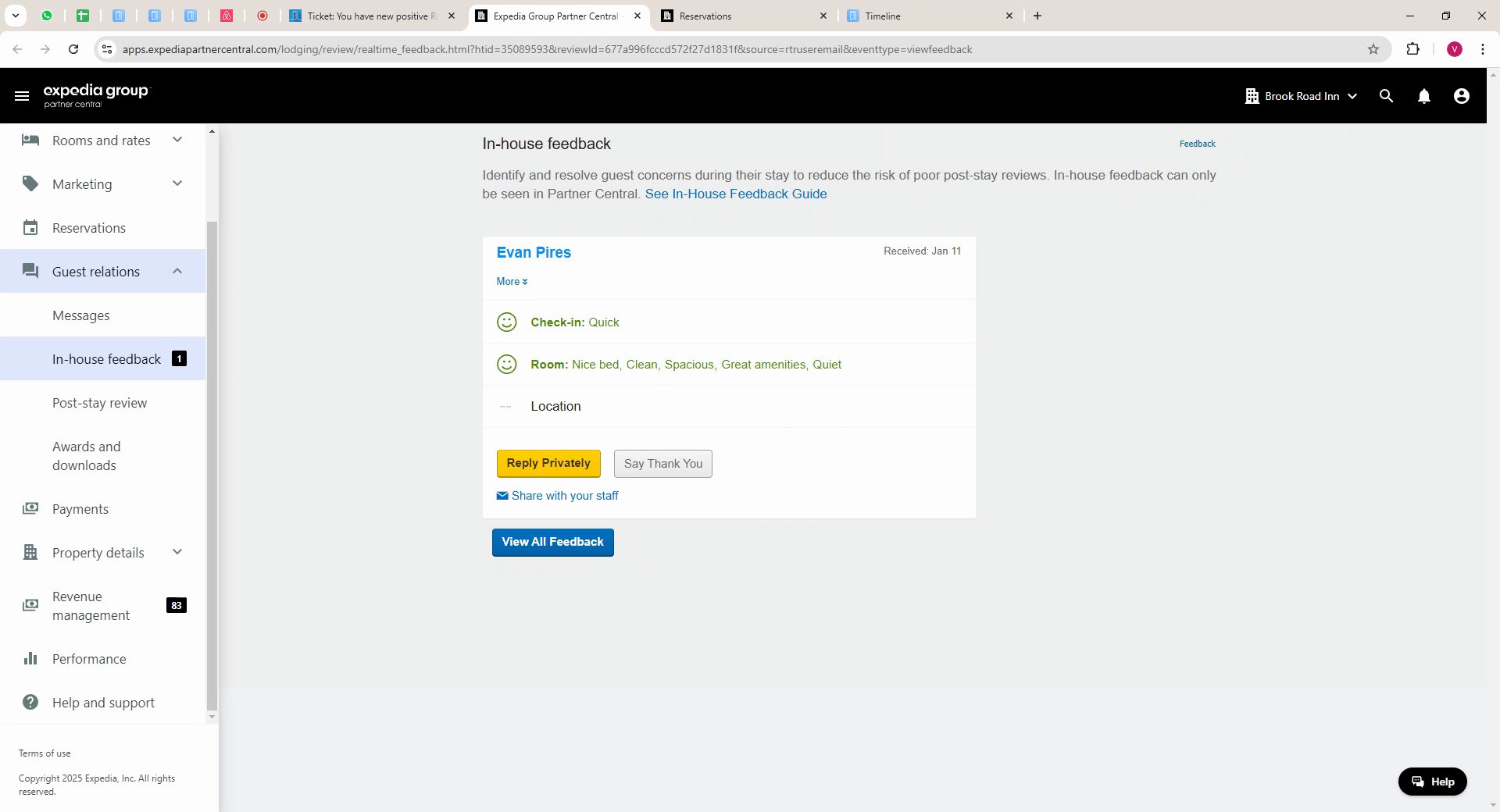
Step 4: Analyze the reservation and the details, return to the feedback page and carefully analyze the information provided. For managed properties, create the necessary work orders and if needed, mark the reservation as Attention Needed, Challenging or Urgent Challenge. For hosted properties, create work orders to notify the property management of potential areas for improvement.
Step 5: To respond to In-House Feedback, you have two options: Say thank you or Reply privately.
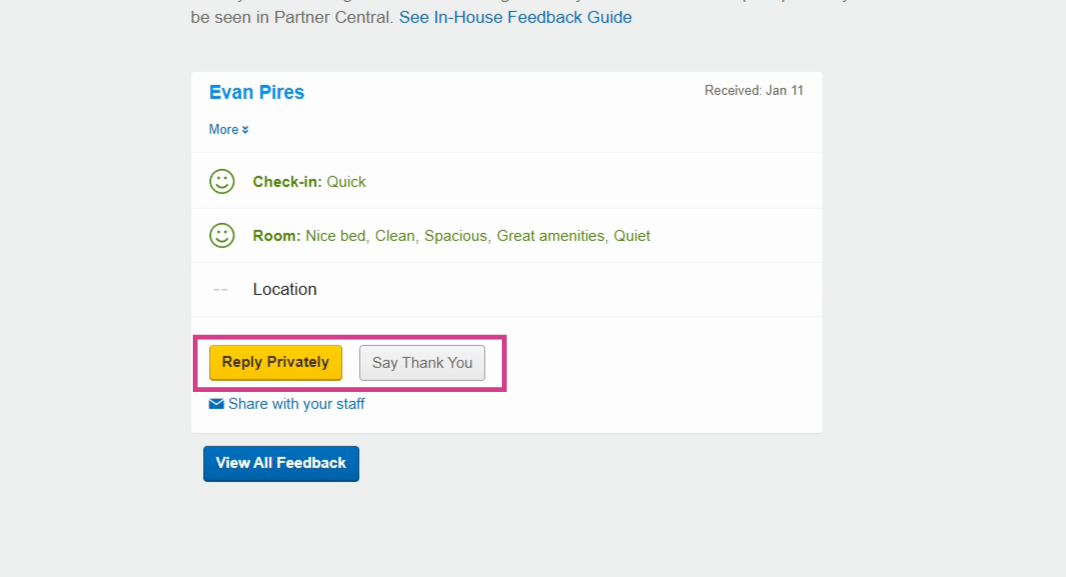
Choose the appropriate option based on the content and whether a personal touch is required, then click Submit.
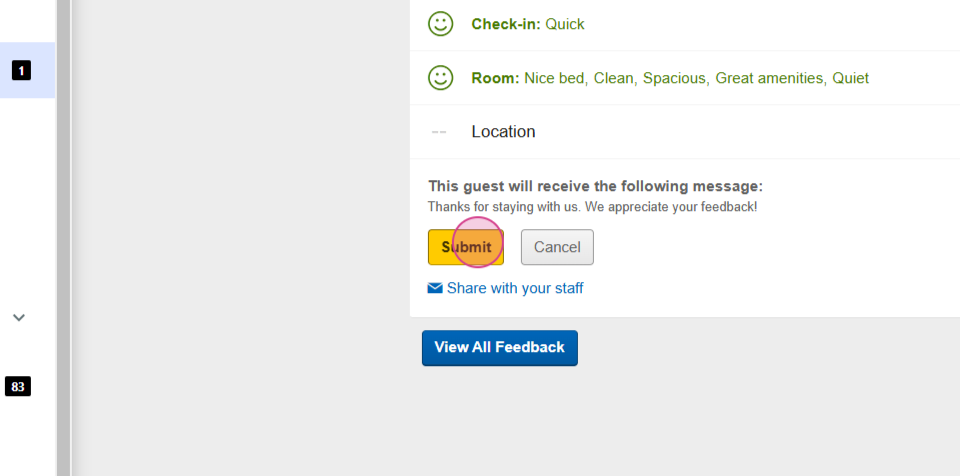
Step 6: After all the steps are completed, return to the ticket page and solve it.
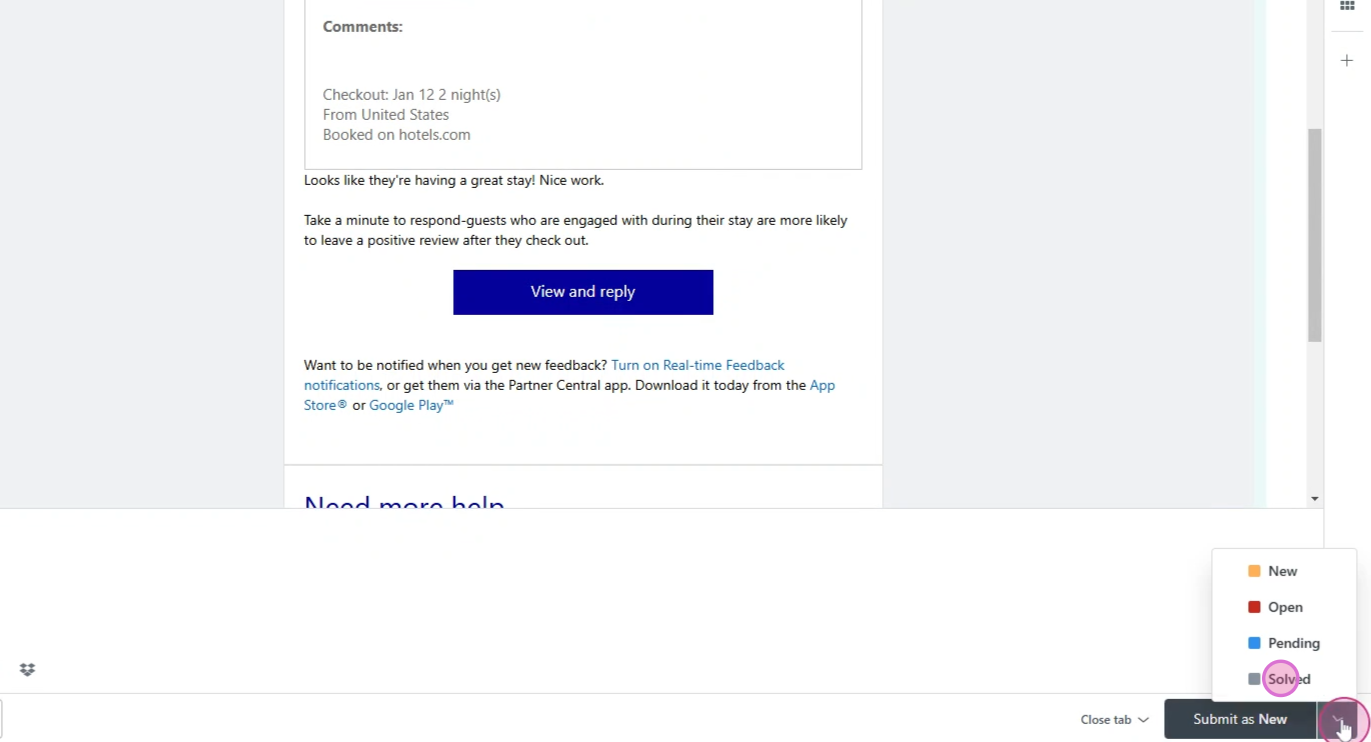
VRBO Reviews
Next in priority are reviews received from VRBO. Reviews from this channel are not yet integrated into our system.
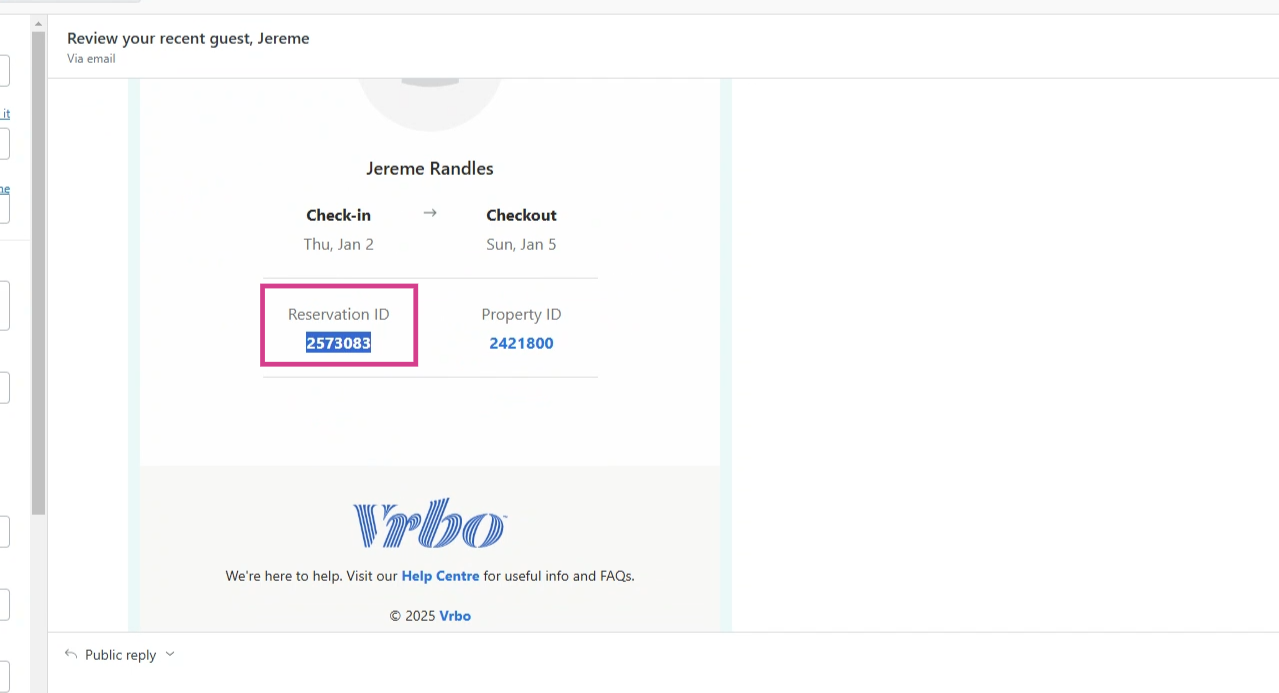
Step 1: Open the ticket and copy the reservation number.

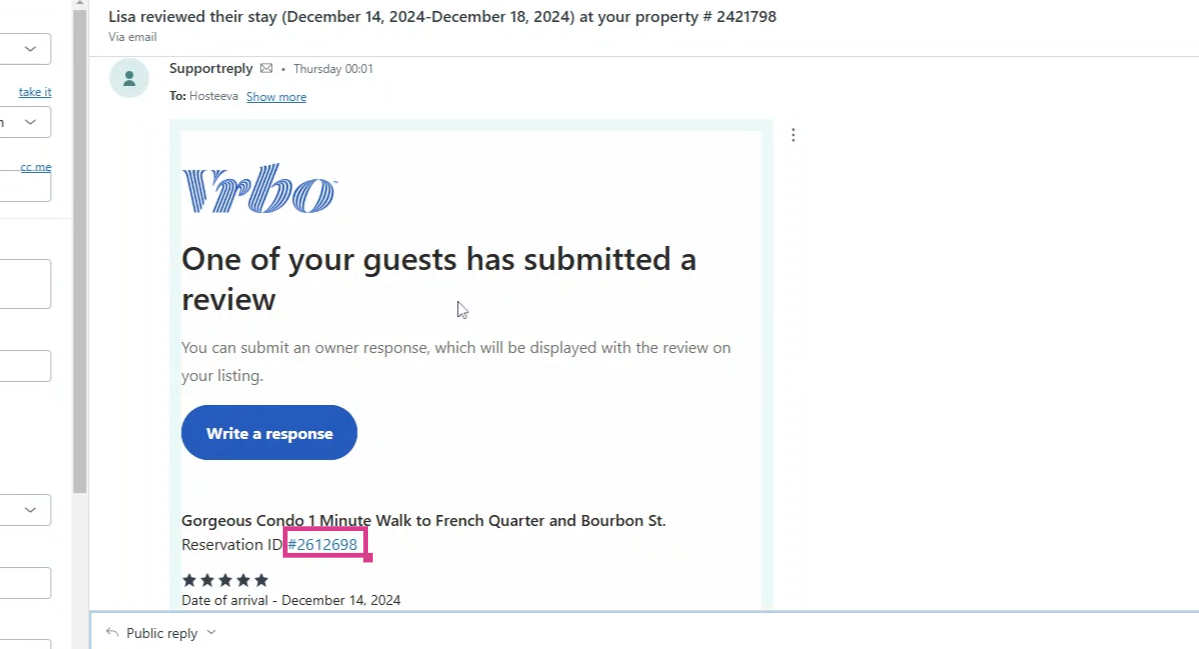
Step 2: Perform the same steps outlined for in-house feedback, with one key difference:
-
Instead of marking reservations with statuses like Attention Needed, Challenging or Urgent Challenge, after the guest’s stay and review, mark the reservation as Review-related, if needed.
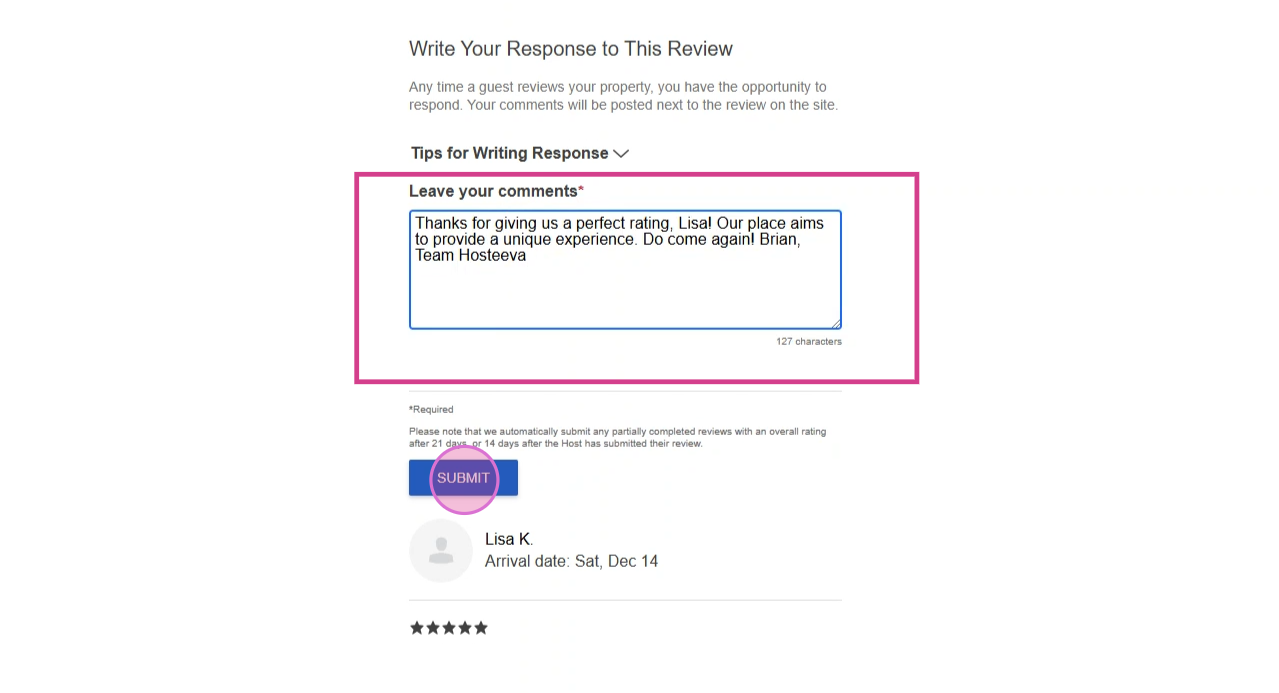
Step 3: Return to the ticket page, click Write a Response and in an appropriate field compile your response text. Once all the steps are completed, click Submit.
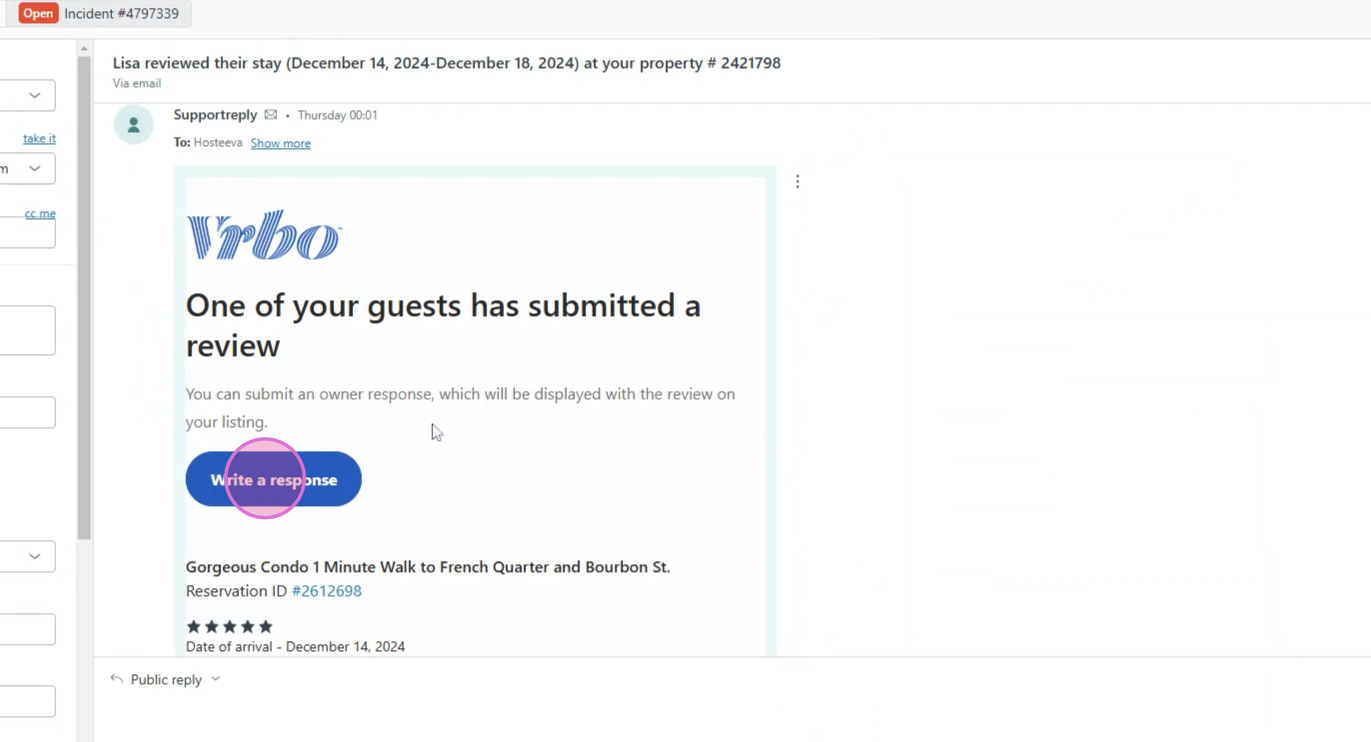
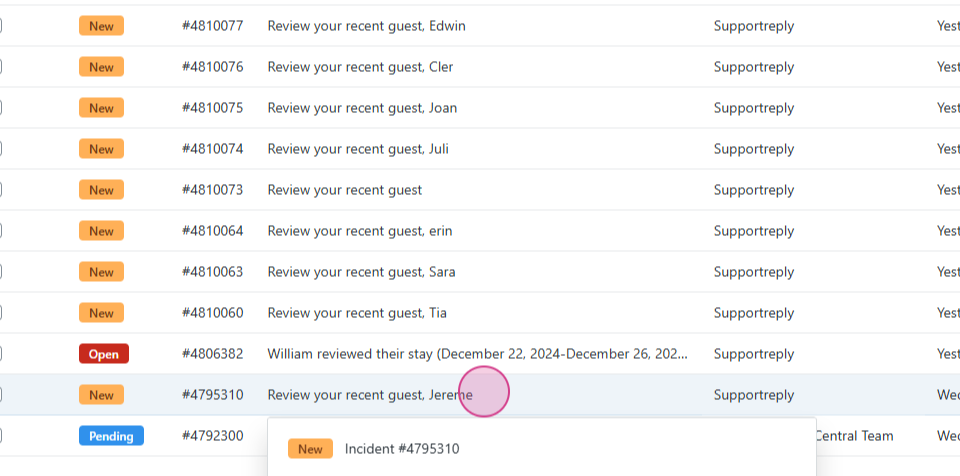
Step 4: Solve the ticket.
Other VRBO Ticket Categories
Next in priority are Rate & Request tickets received from VRBO. These are received after guest stay.
Step 1: Open the ticket, copy the booking ID and return to our timeline. Paste it in the appropriate field, click Filter and review the reservation.
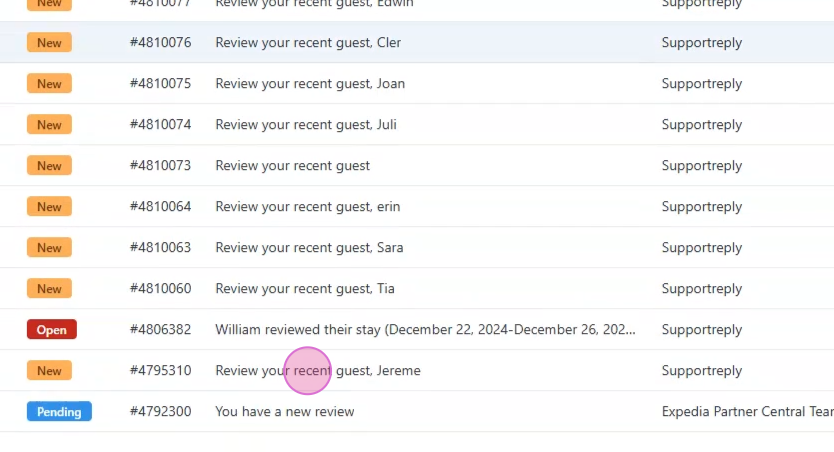
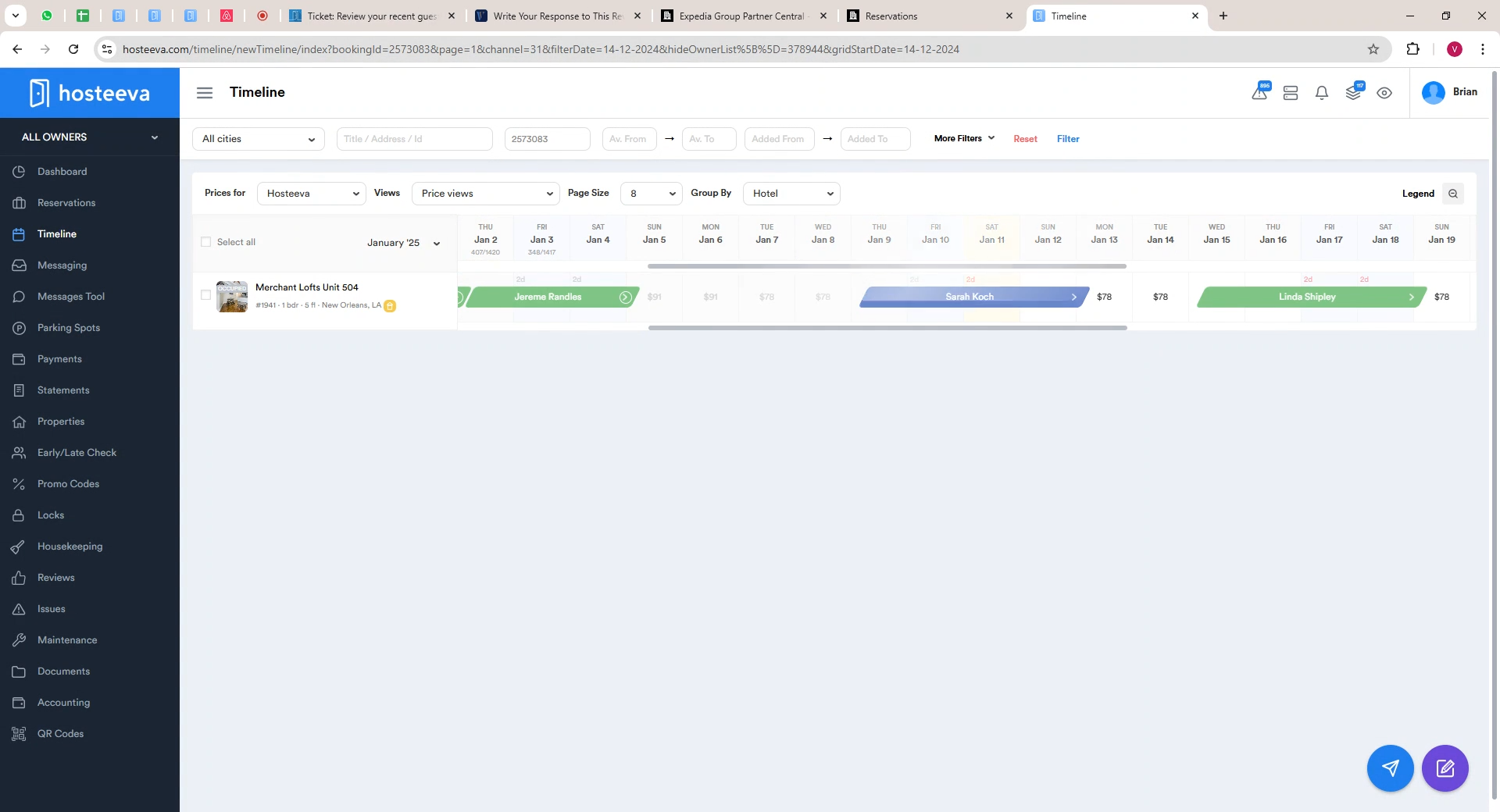
Step 2: If no issues are identified, return to the ticket. Click on Reservation ID.
Step 3: Login into VRBO. Check the messaging with the guest and all the necessary details that might affect their review.
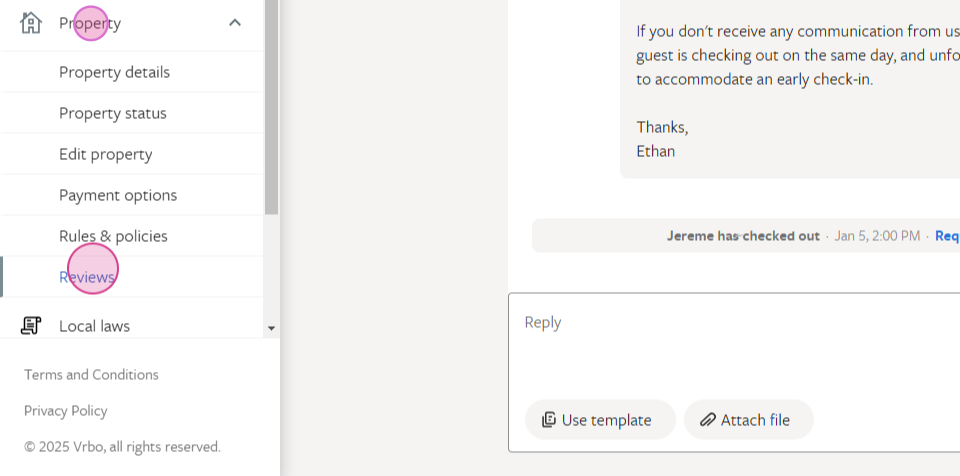
Step 4: If everything seems fine, click Property, navigate to Reviews, locate the guest in the list and give them a perfect rating and click Save.
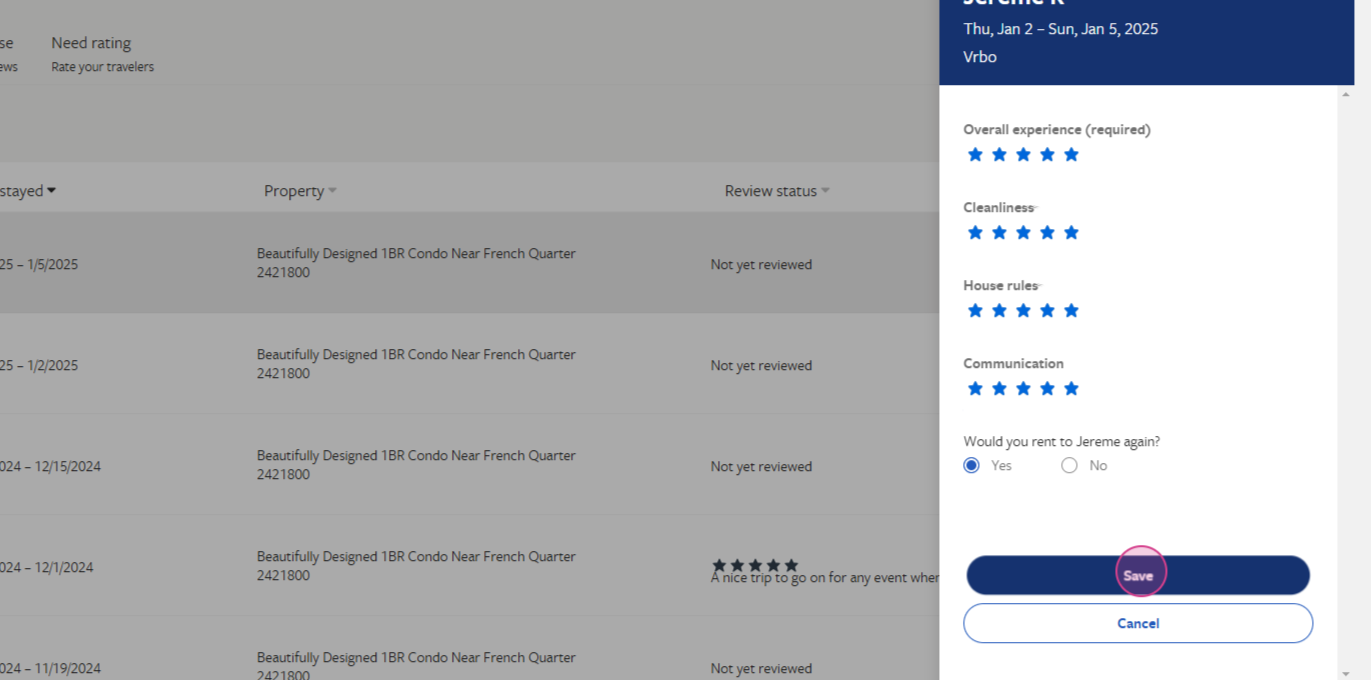
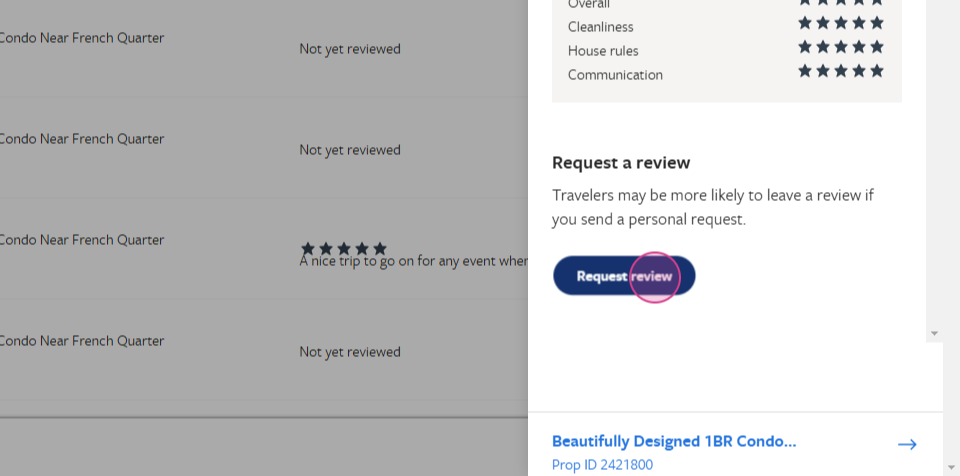
Step 5: Request a review in return. Note the request review functionality on VRBO often glitches, so you may need to click twice to send the request successfully. Send the request, return to the ticket page and solve it.
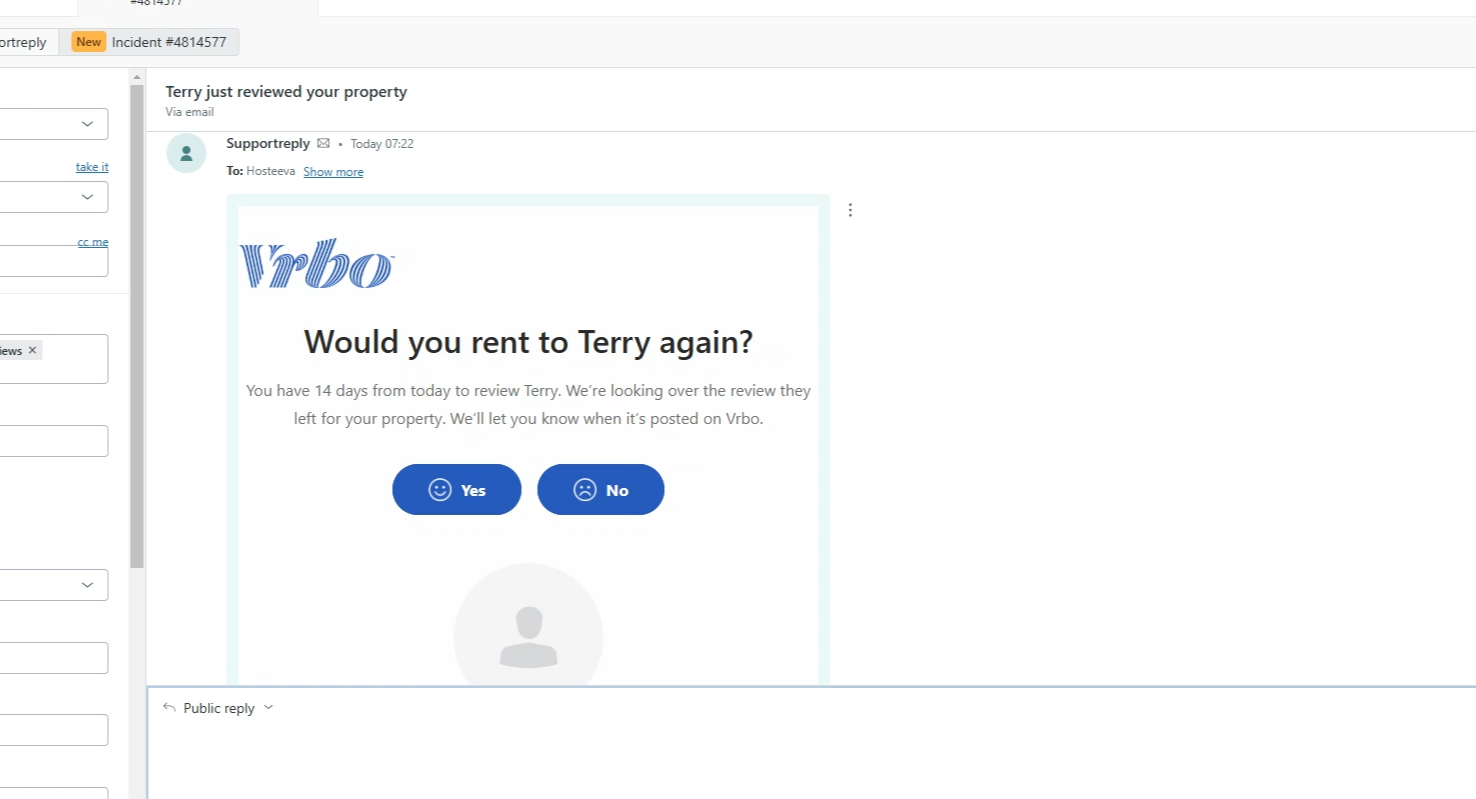
Review Notifications with Rate Request
These tickets notify you of a guest review with a request to evaluate them in return. Follow the same steps as above for analyzing the booking and assigning ratings.
Expedia reviews
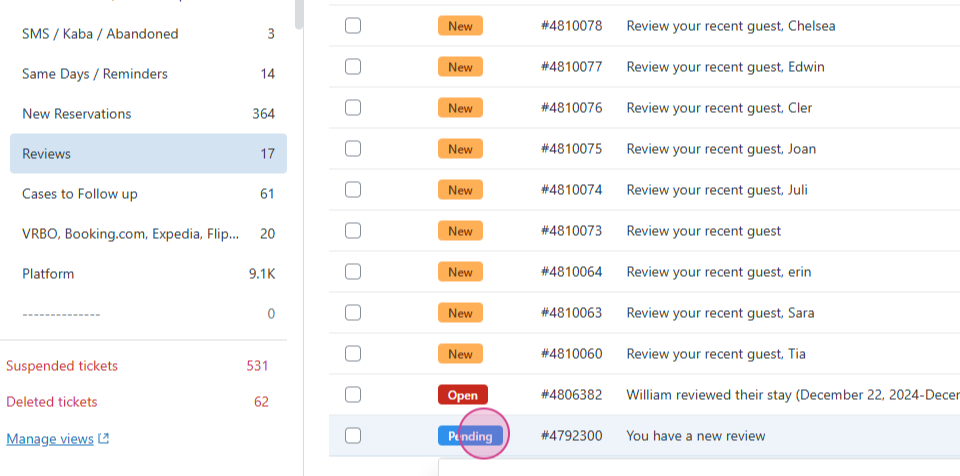
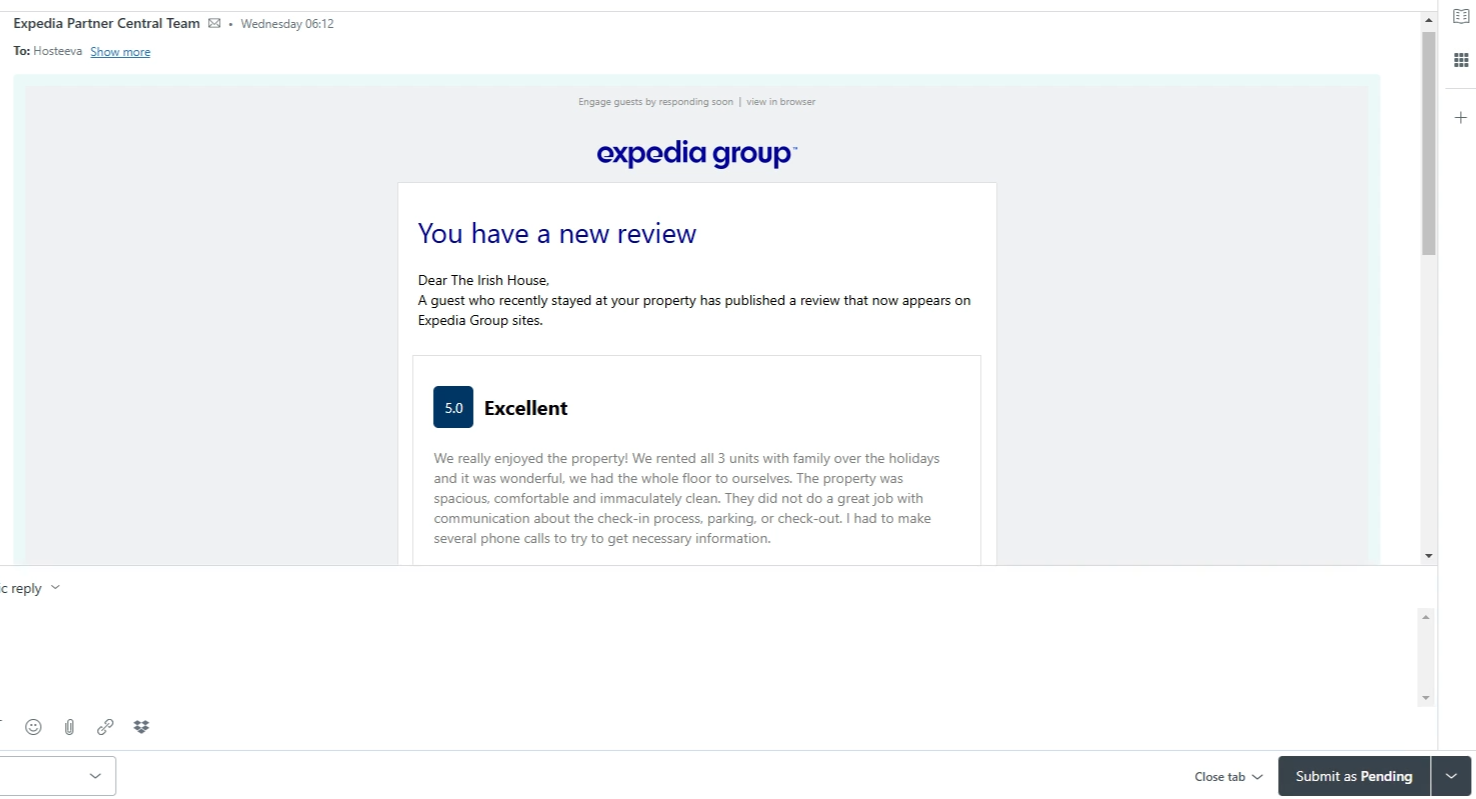
We also receive notifications about post-stay reviews received from Expedia guests, however, these are already integrated to our system. Mark this type of tickets as pending because it takes some time for the Expedia reviews to appear in our system. Once everything is synchronized and the review is replied from our system, solve the ticket.
After completing the work for any of the above ticket types, log all relevant actions in our daily doc. Remember, we do not handle tickets for platform property reservations. These should be marked as sold without taking any further action.