This guide provides a step-by-step process for communicating with guests via text message and email.
Communicating via Text Message
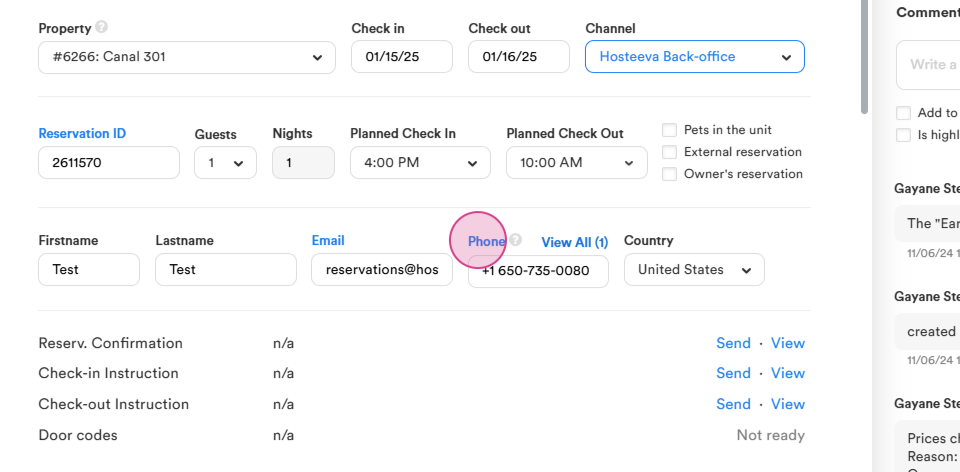
Step 1: Click on Phone.
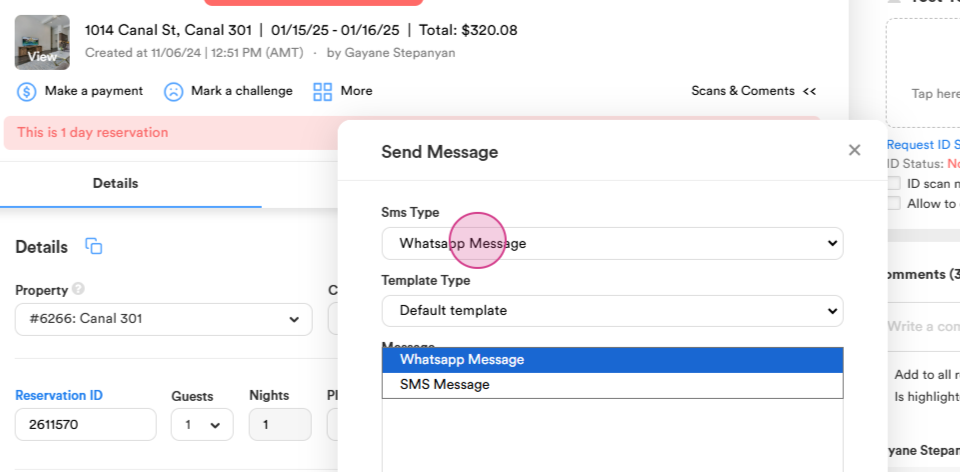
Step 2: Select SMS Type as SMS Message.
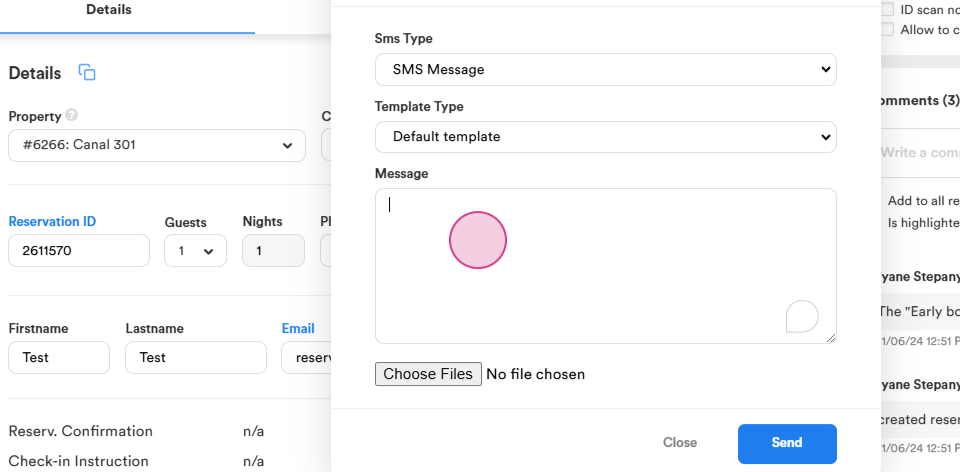
Step 3: Type your message.
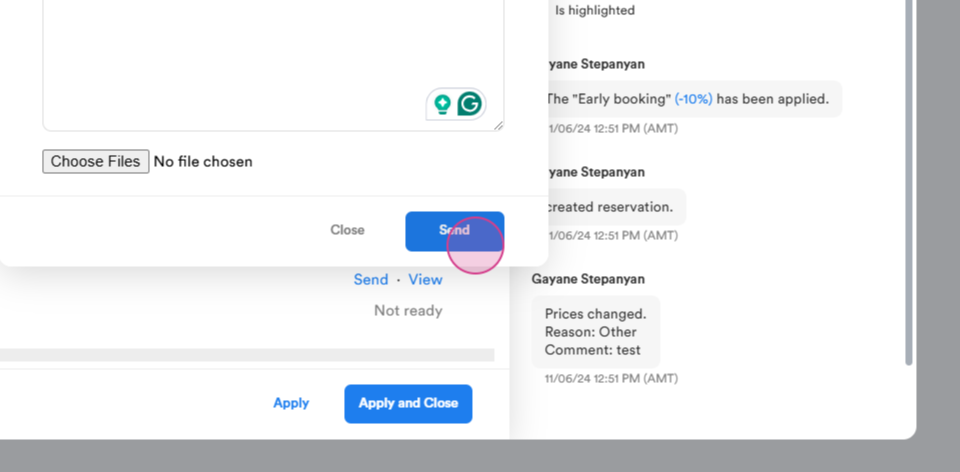
Step 4: Click on Send.
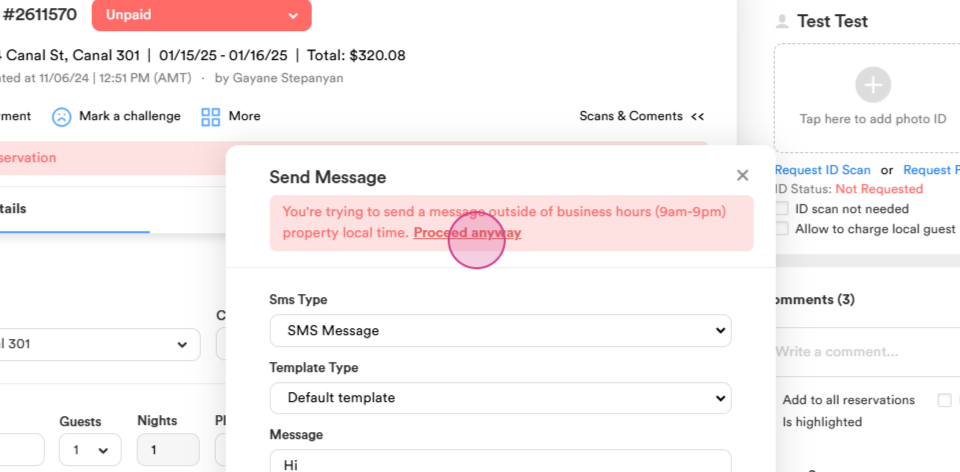
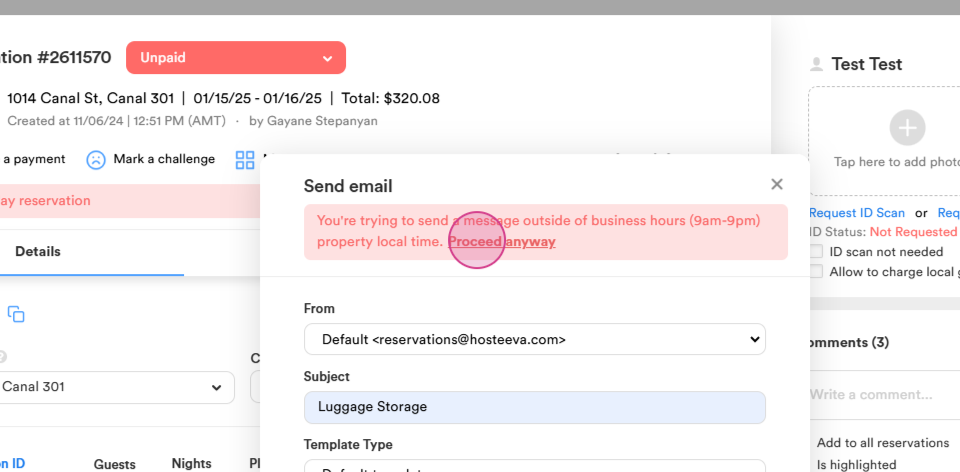
Step 5: If sending outside business hours, click on Proceed anyway.
Communicating via Email
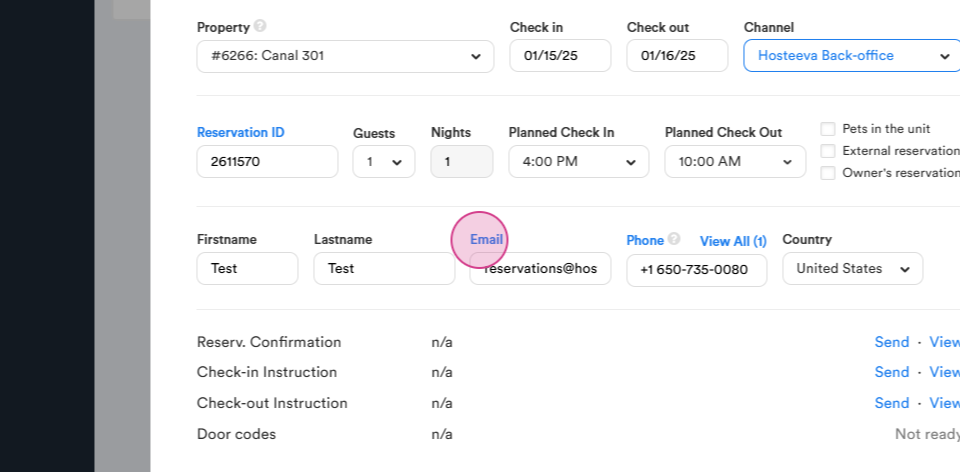
Step 1: Click on Email.
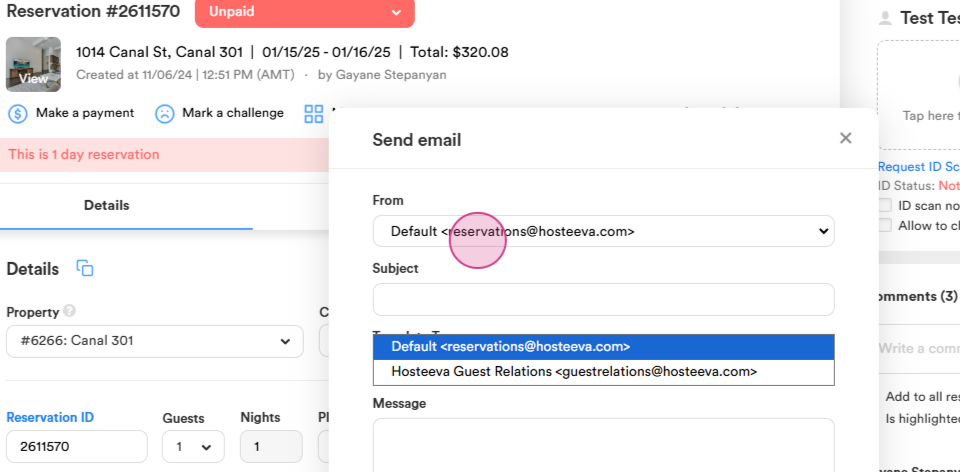
Step 2: Choose your email address.
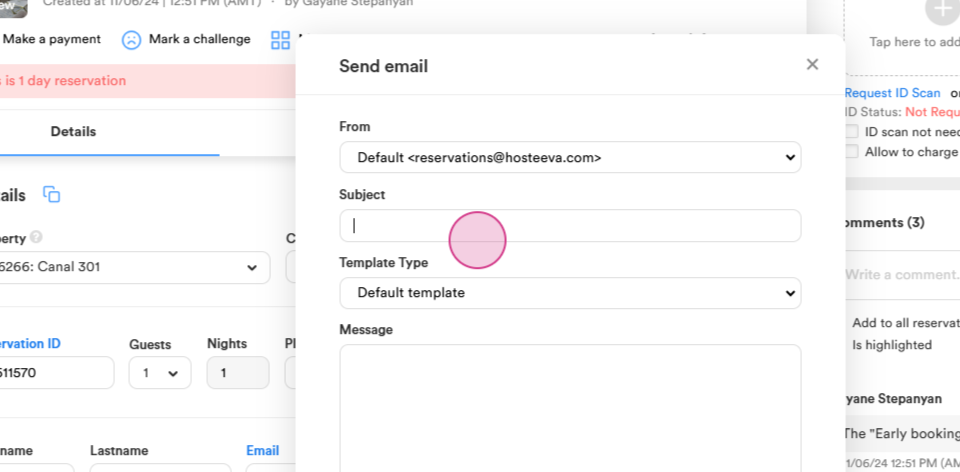
Step 3: Type the Subject of the email.
Step 4: Type your email.
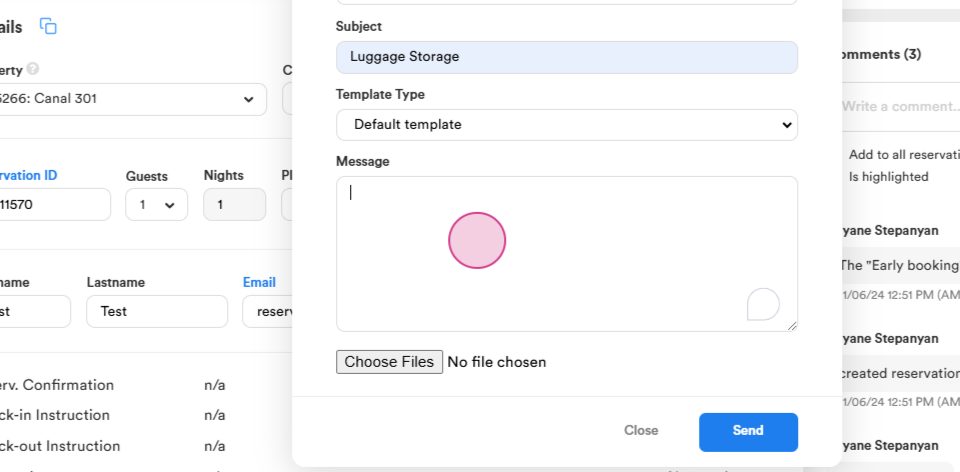
Step 5: Click on Send.
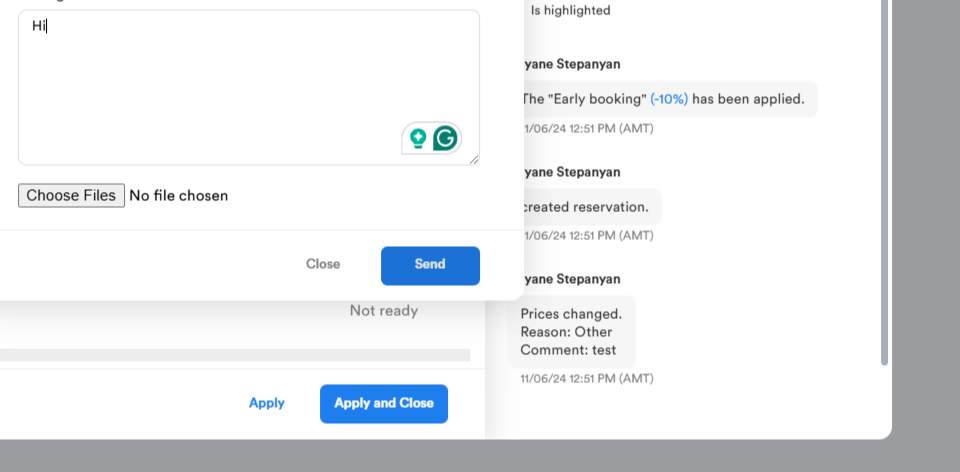
Step 6: If sending outside business hours, click on Proceed anyway.
Sending Messages from the Timeline
Step 1: Click on the blue icon at the bottom right side.
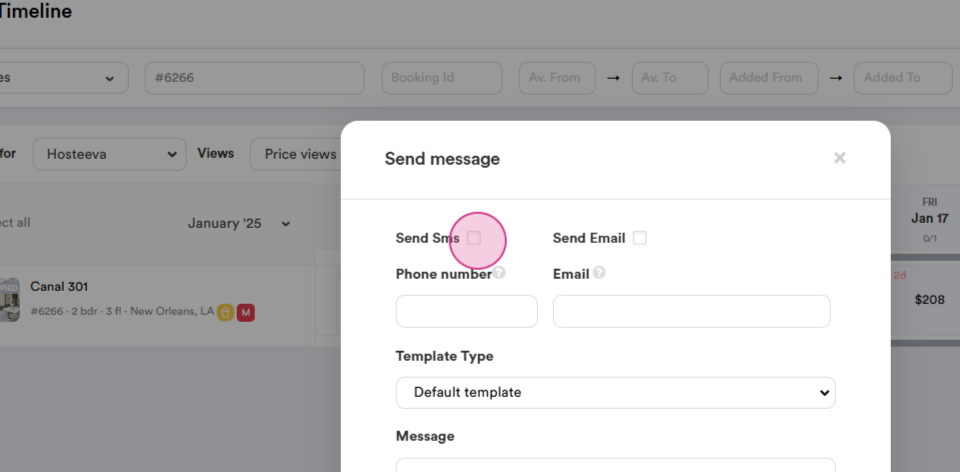
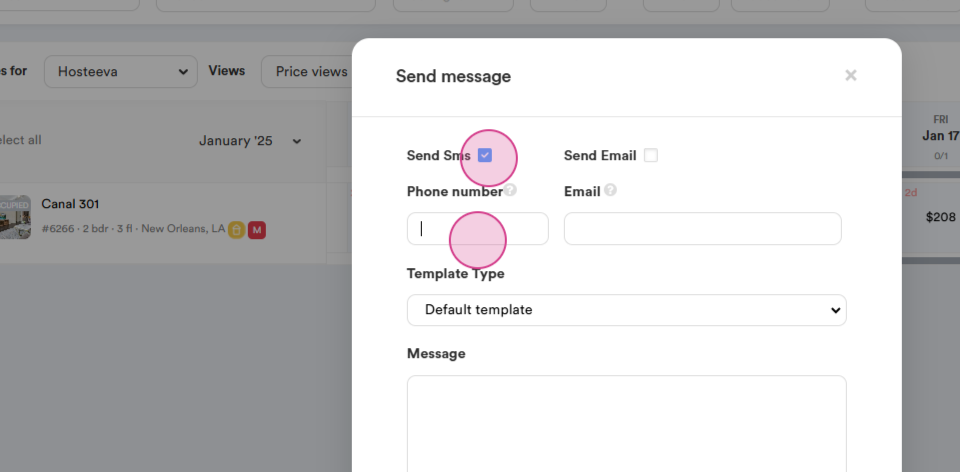
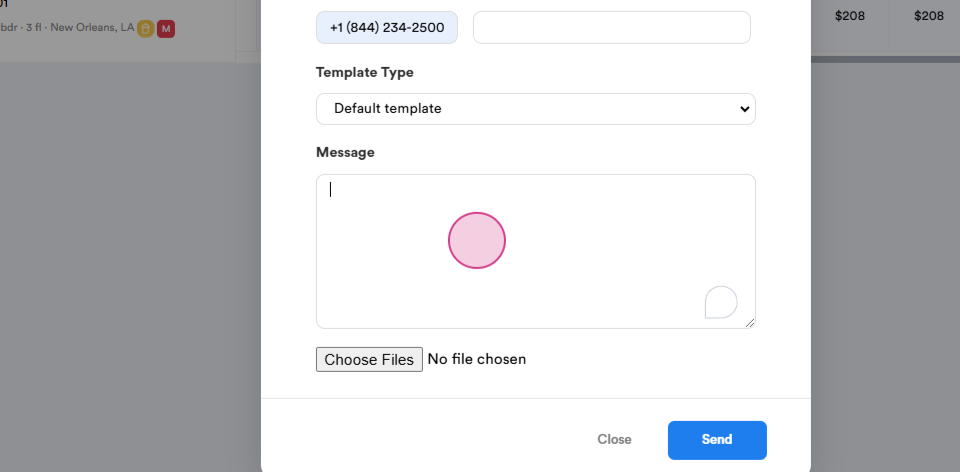
Step 2: To send a text message, mark the send SMS checkbox, type in the phone number and your message.
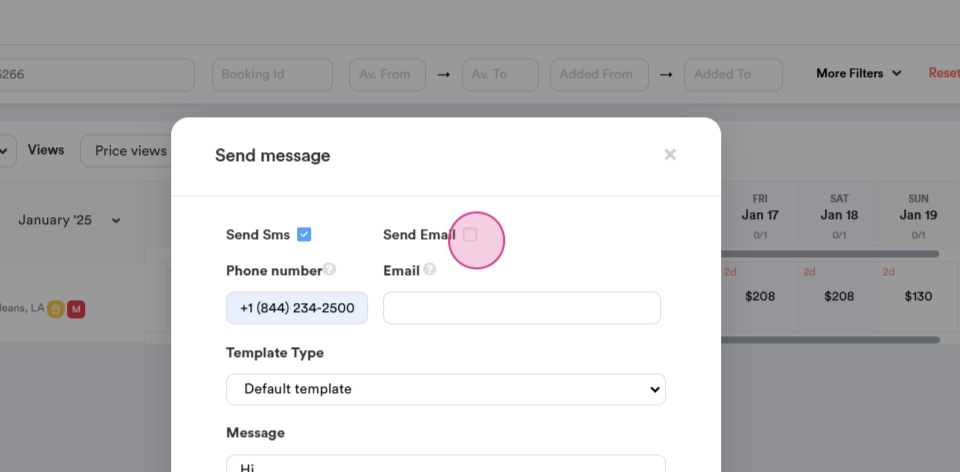
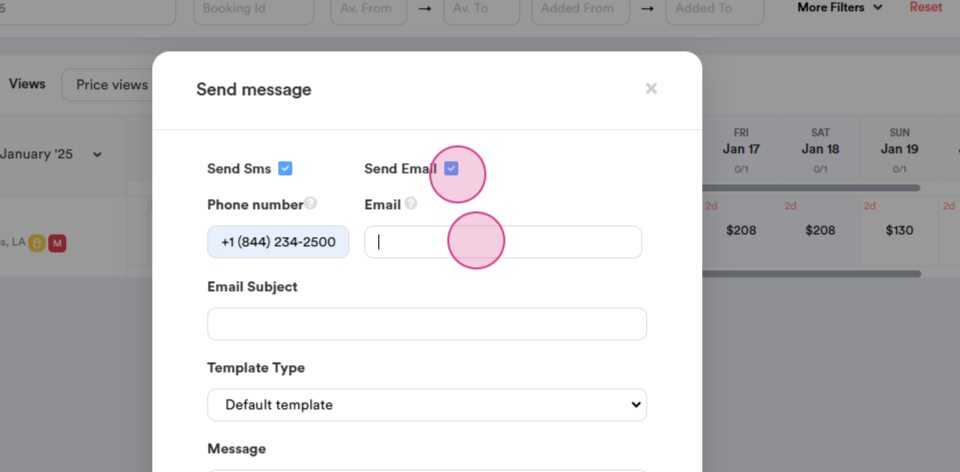
Step 3: To send an email, mark the Send Email checkbox, type in the email address, subject, and your email.
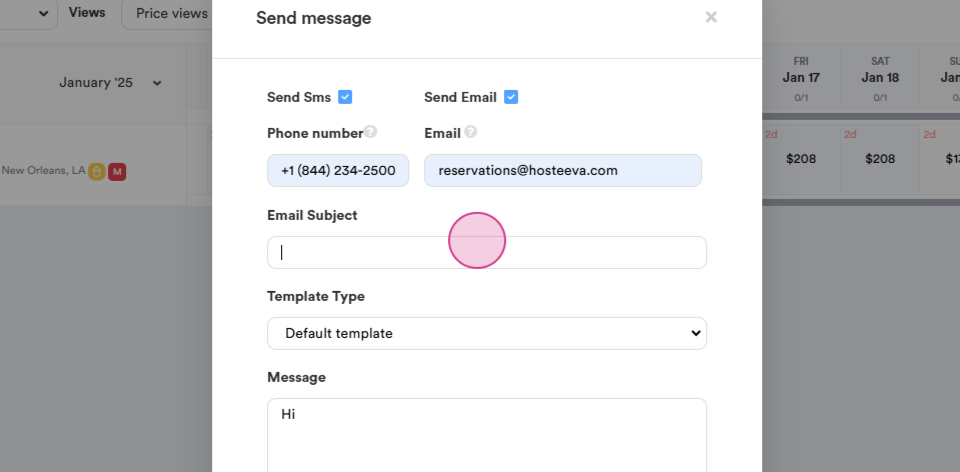
Step 4: Click on Send to proceed.