In this article, you'll learn how to copy settings to other properties in our system. This includes copying both restrictions and prices.
Step 1: From the Timeline, select the Room type for which you want to enable the Copy Settings to Other Properties button. Ensure you've selected the correct Room type. Remember, you can't make changes for units that belong to a Room type. Changes are made at the Room type level. Ensure you've selected the correct Room type. Remember, you can't make changes for units that belong to a Room type. Changes are made at the Room type level.
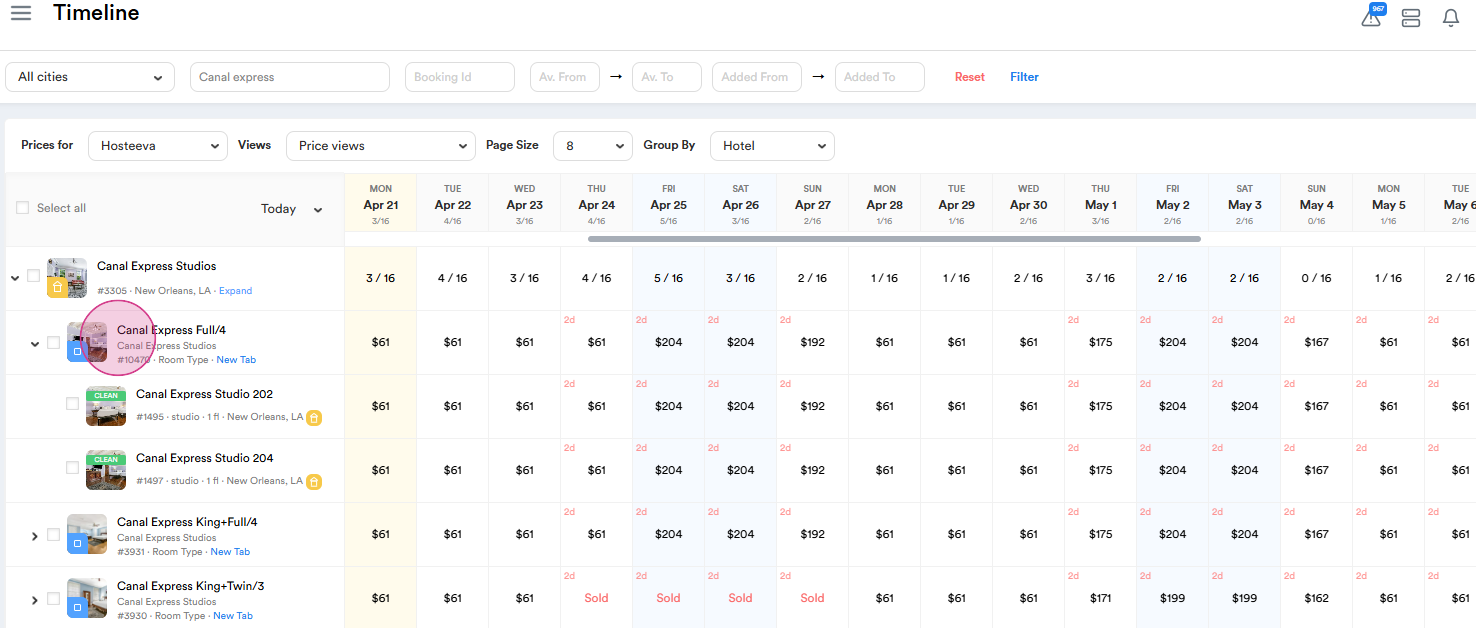
Step 2: If you select a unit, you'll see the bottom, but it won't work. Instead, click on the Room type and then click on the Copy Settings to Other Restrictions button.
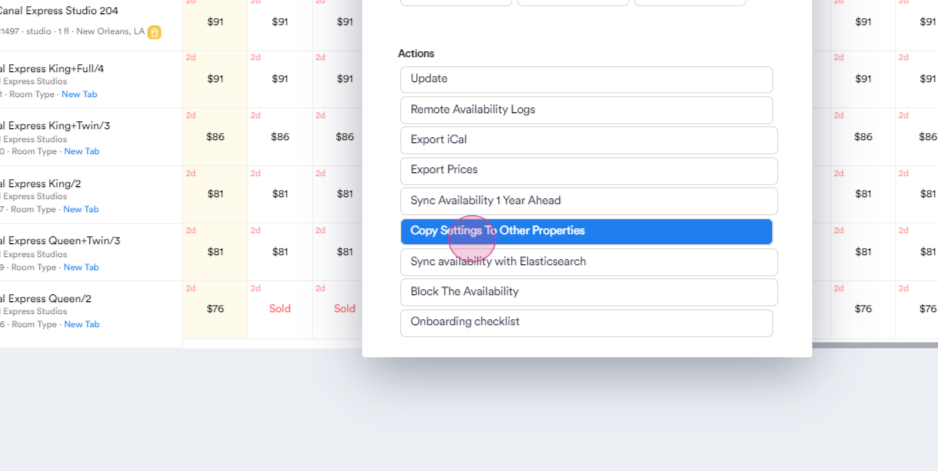
Step 4: After clicking, the Copy Settings window will open. Here, you'll see two options: Copy Restrictions and Copy Prices. In the Source Property ID field, enter the unit from which the settings will be copied. In the Target Property ID field, enter the unit or units to which the settings will be copied.
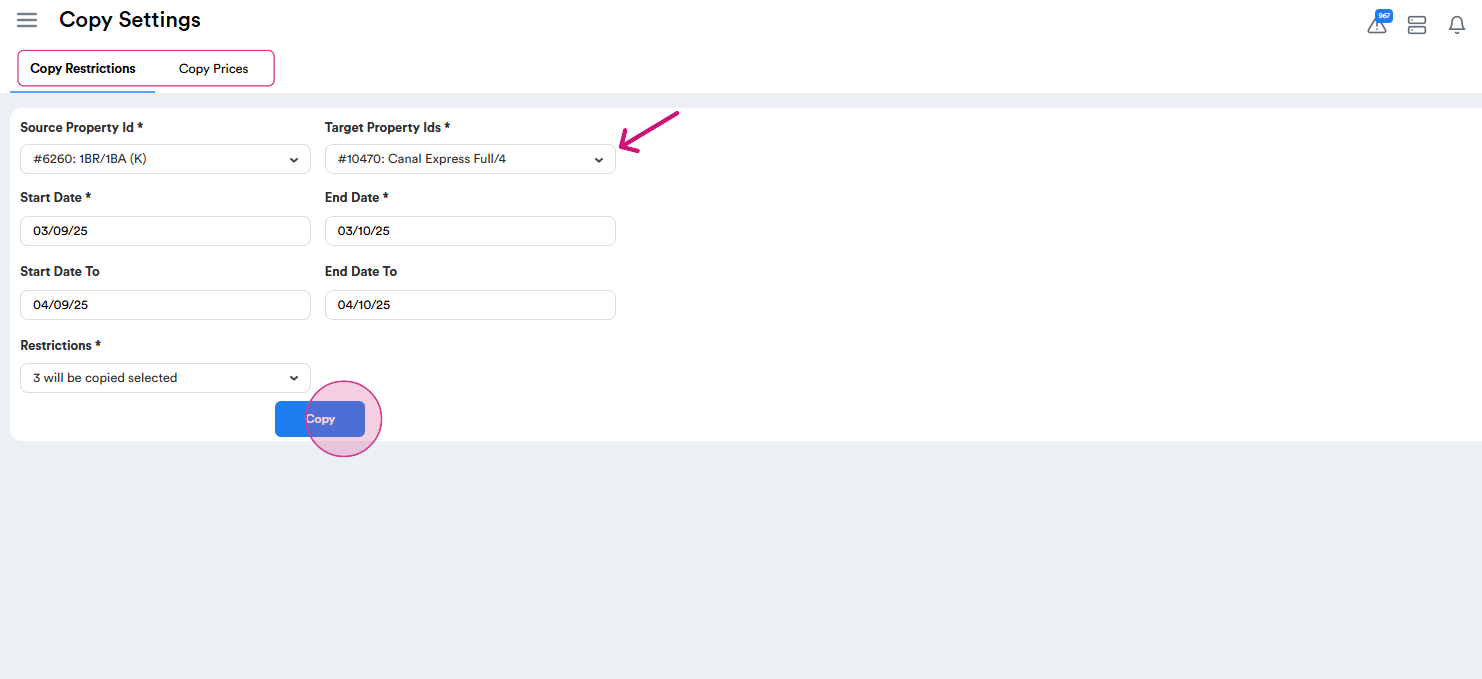
Set the Start Date from which the settings will be copied. Set Start Date 2. This is the date from which the changes will take effect. Note: The number of dates must match, otherwise the changes will not be applied. Select the settings you want to copy. Options include Minimum stay, Arrival, Closed on arrival, and Closed on departure functions. Once you've selected everything, click on the Copy button.
Step 5: Now, let's copy prices. The process is similar to copying restrictions. Select the property from which you want to copy and the property to which you want to copy.
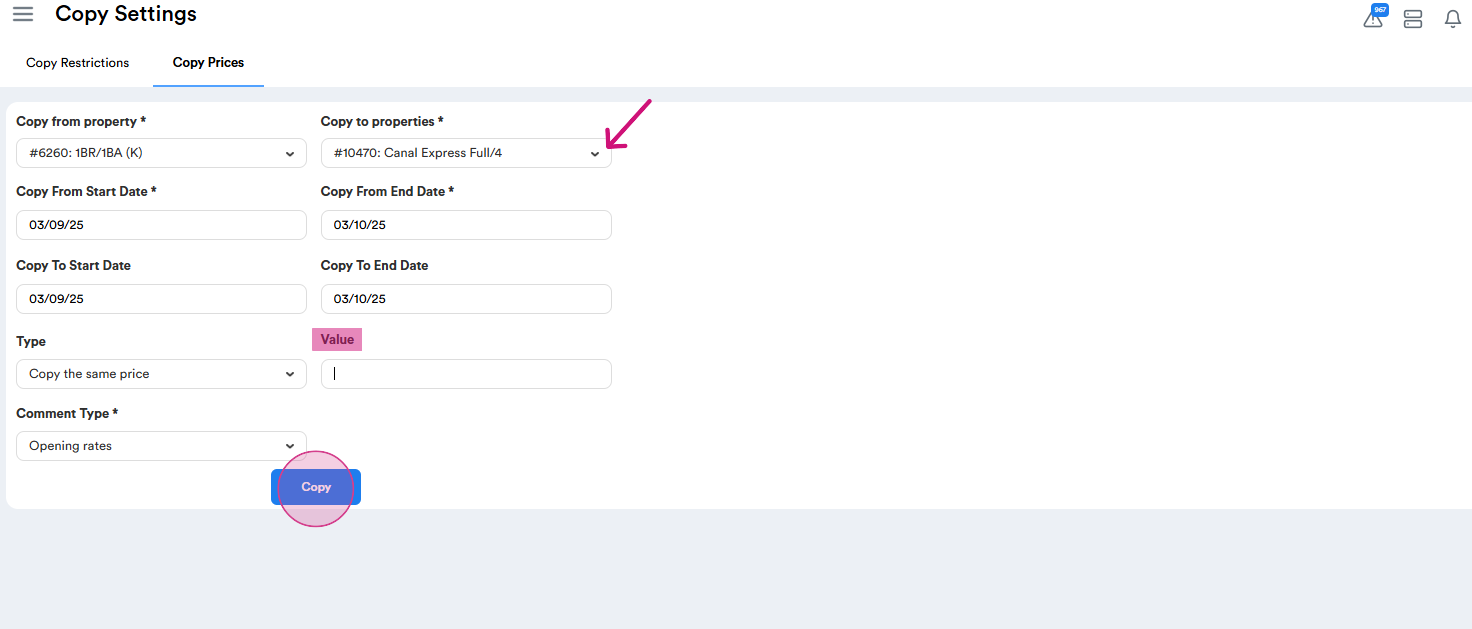
Choose the Start Date and End Date. Also, set Start Date 2 and End Date 2. If you want to copy the exact same price, click on the Copy Same Price button and leave the Value field empty. Choose the comment type you want and then click on the Copy button.
Step 6: You can also copy and adjust prices. If you want to increase or decrease prices, you can adjust them by either percentage or value. To apply a fixed amount, click Increase by value or Decrease by value and enter the value in the Value field. Choose the comment type and then click on the Copy button.
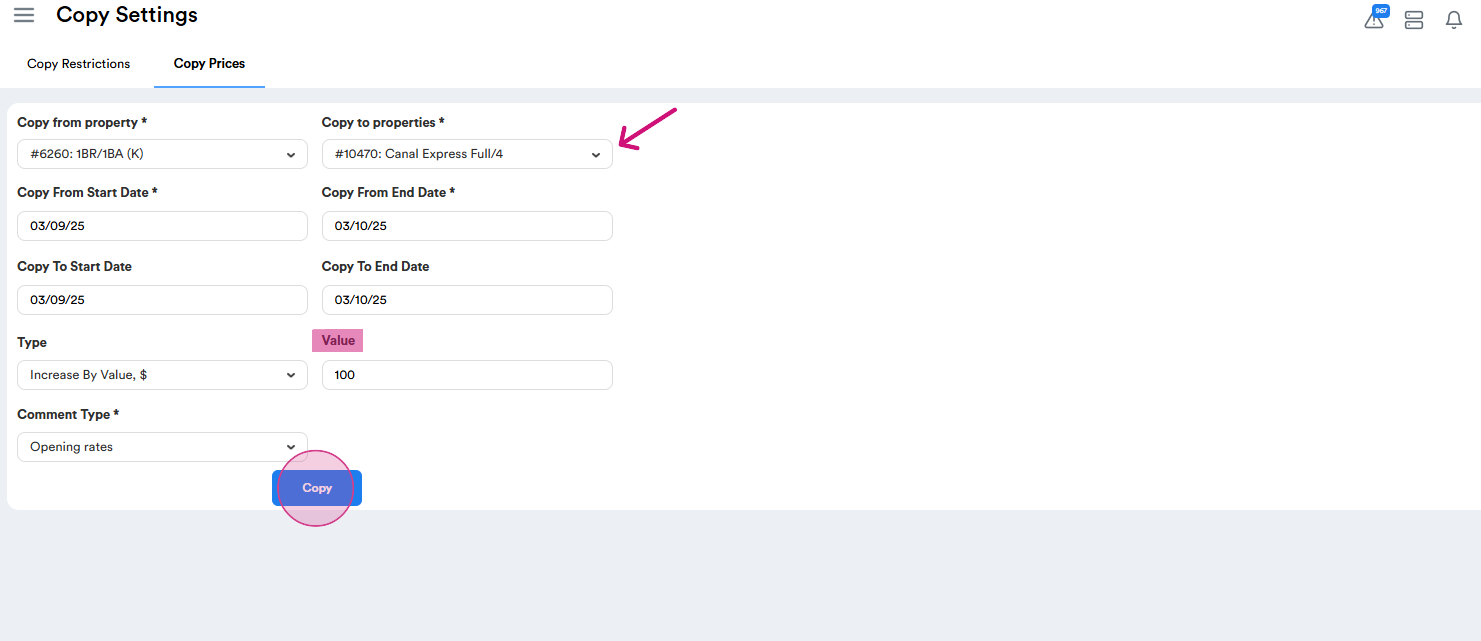
Step 7: To change by percentage, select Increase by percent or Decrease by percent. In the Value tab, enter the percentage you want to increase or decrease by.
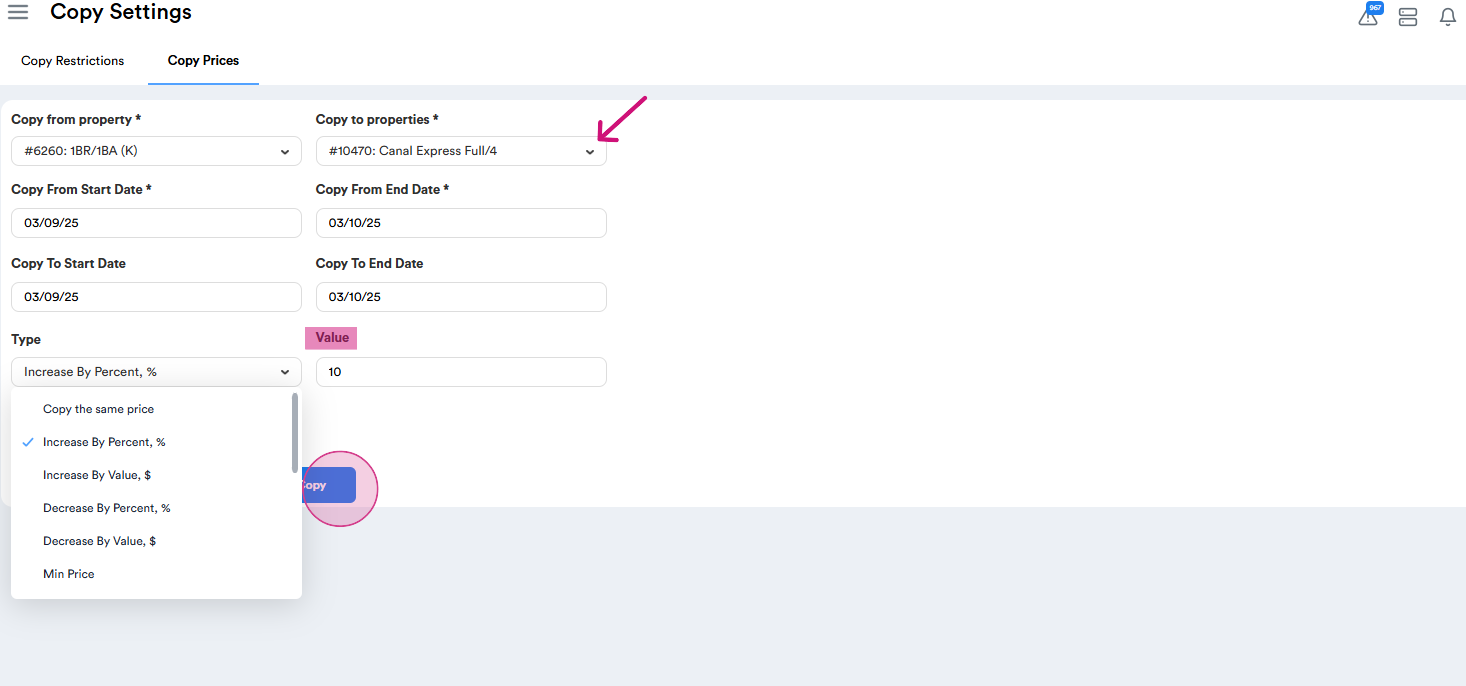
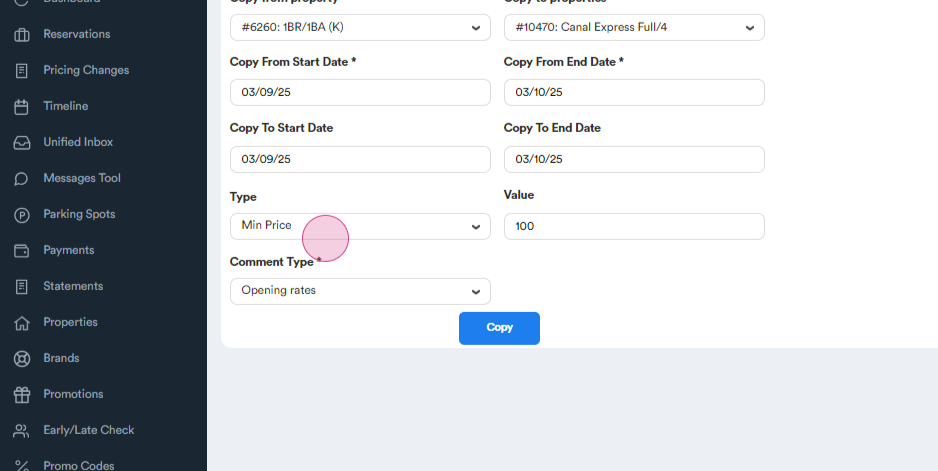
Step 8: These operations can also be applied to the Minimum price.
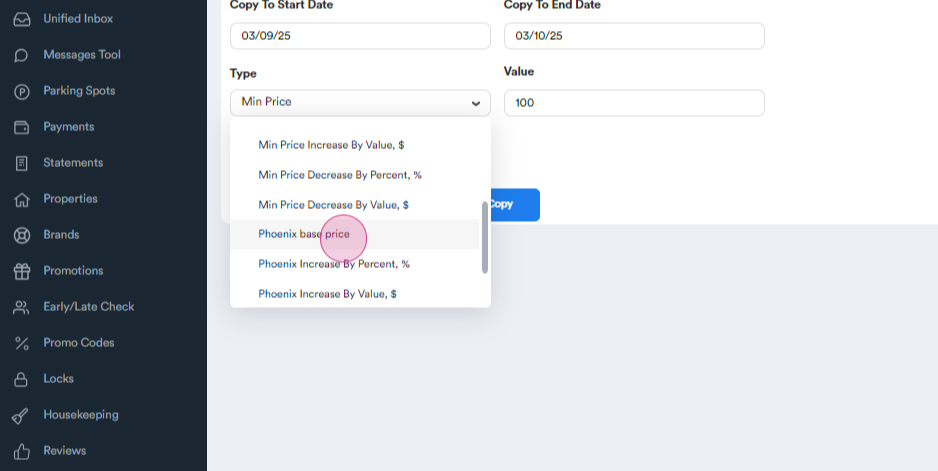
Step 9: You can increase or decrease by a percent and by month also for the Base price.
That's it! You've successfully copied settings to other properties.