In this article, you'll learn how to navigate and use the features of the Hosteeva Platform app.
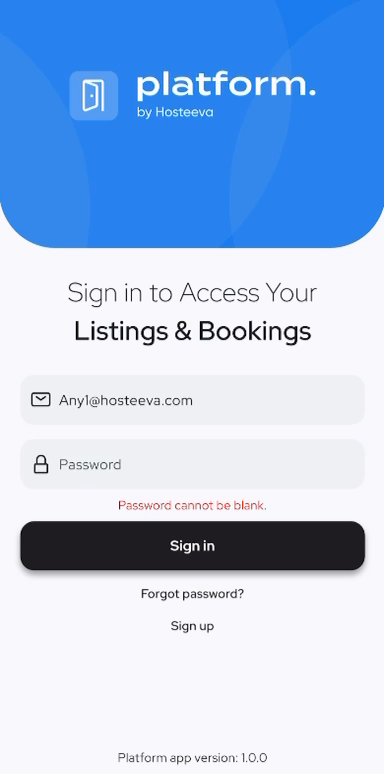
Step 1: Start by logging into your account. Enter your email address in the provided field. Next, input your password. Click on the Sign In button to access your account.
Step 2: Once logged in, you'll notice three tabs at the bottom of the screen: Reservations, Messaging, and More. Click on the Reservations tab to view your properties and their respective reservations.
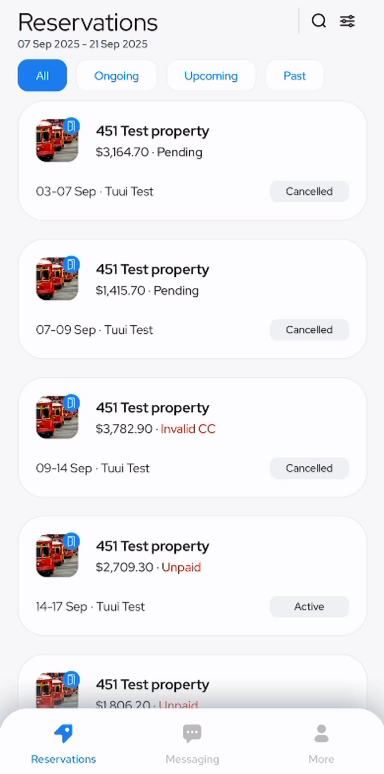
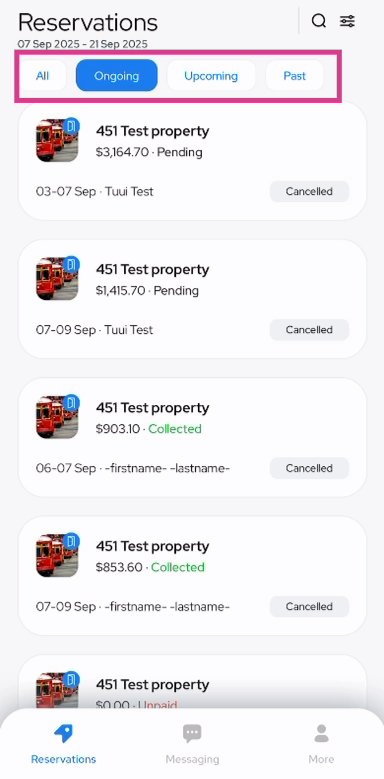
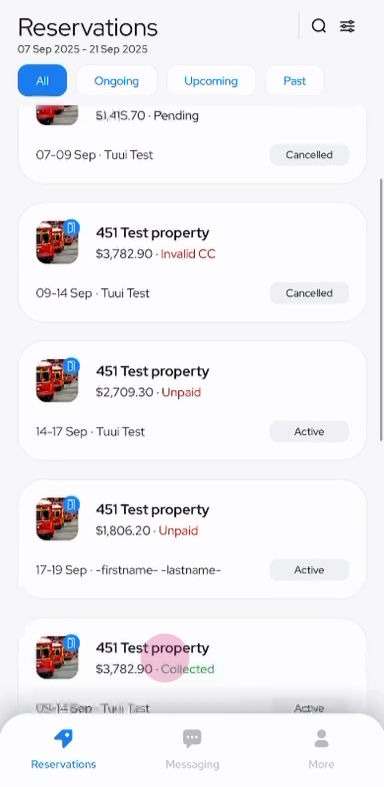
Step 3: Here, you'll see all your reservations. You're able to select ongoing, upcoming, or past reservations.
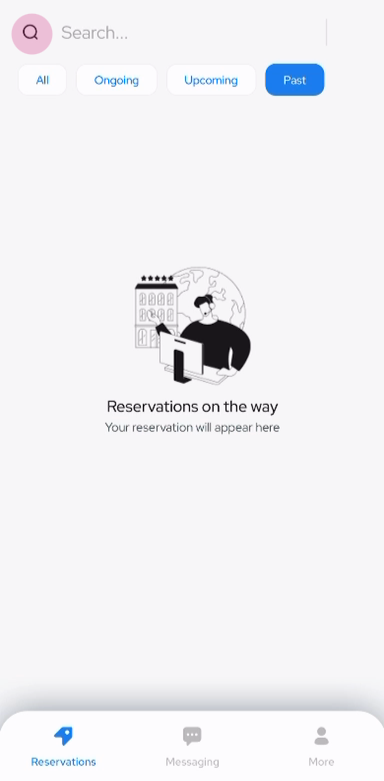
Step 4: Use the Search button to find a specific reservation by its ID.
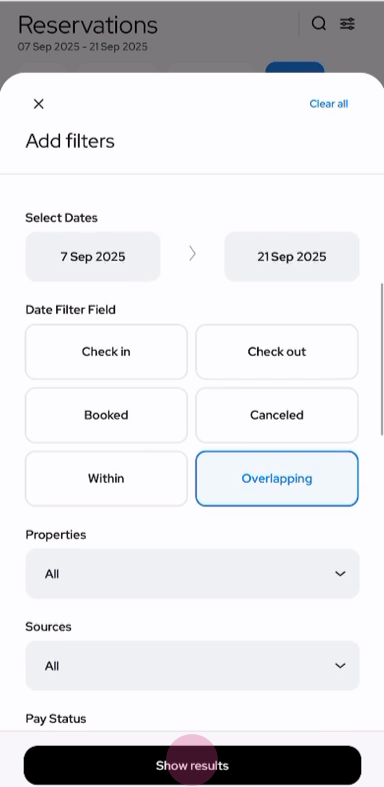
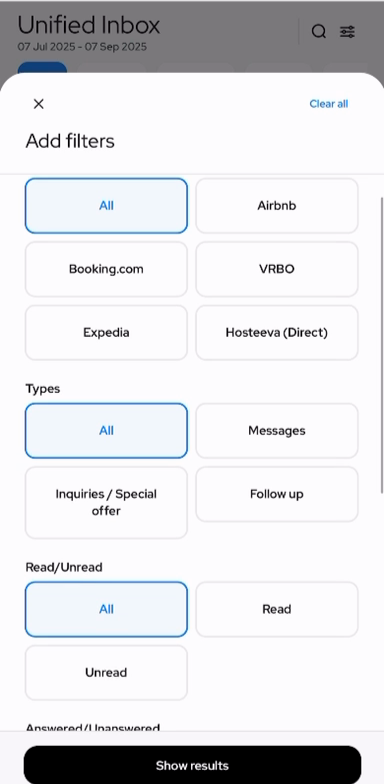
Step 5: The Filter button allows you to sort your reservations by status, date, property, source, and more.
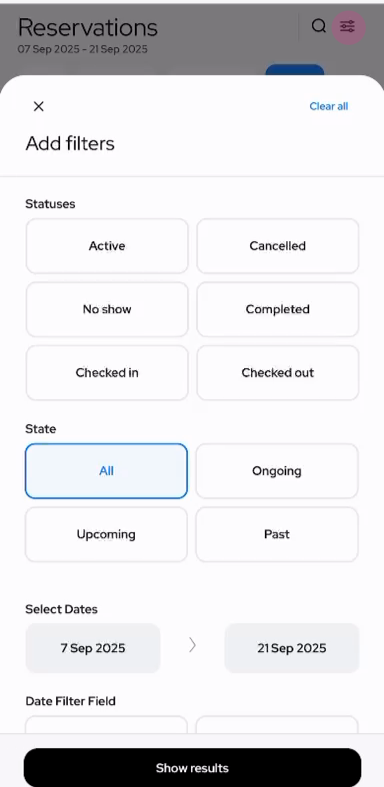
Step 6: After setting your filters, click on Show Results to view the filtered reservations.
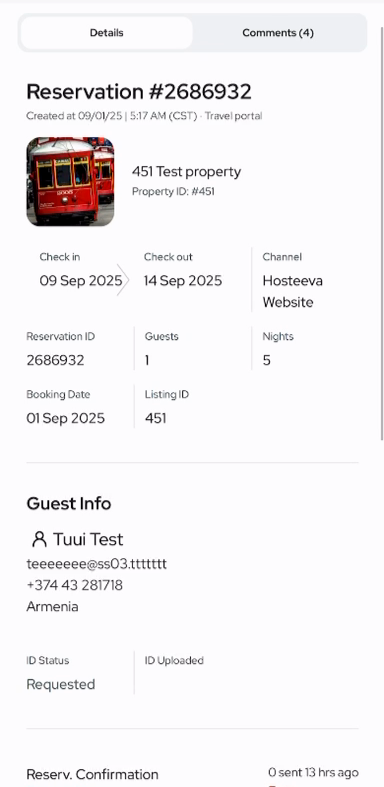
Step 7: Click on a specific reservation to view its details. Here, you'll find the reservation ID, check-in and check-out dates, guest information, and more.
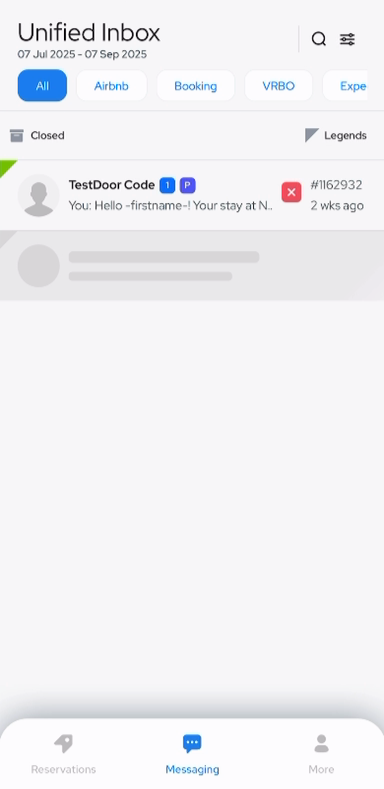
Step 8: Next, click on the Messaging tab. This is where you'll find your unified inbox and messages from various channels like Airbnb, Booking.com, VRBO, and others.
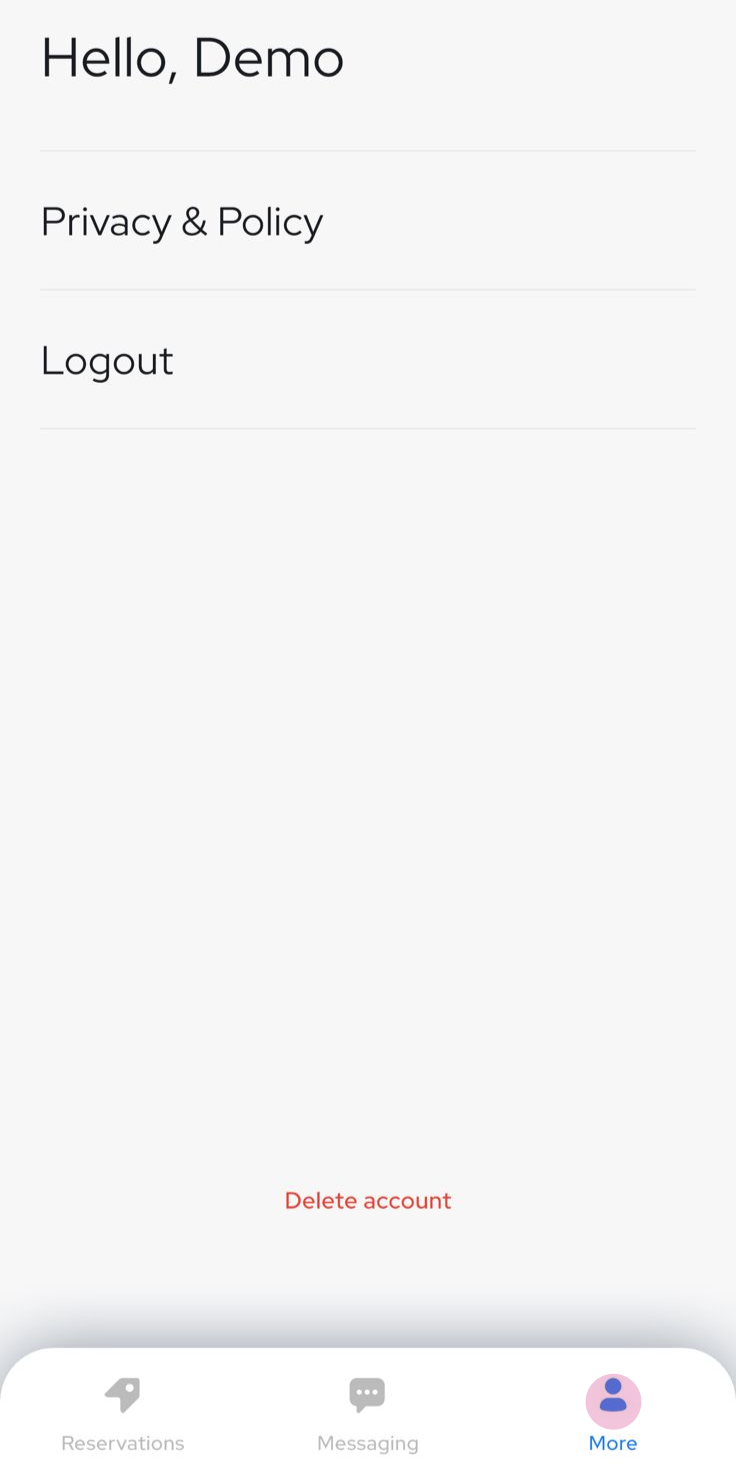
Step 9: Lastly, click on the More tab. Here, you'll find the Privacy and Policy section and the Logout button. At the bottom of the screen, you'll find the Delete Account option.
Thank you!