In this article, you'll learn how to add a housekeeper or a QA inspector to our system and manage their tasks effectively.
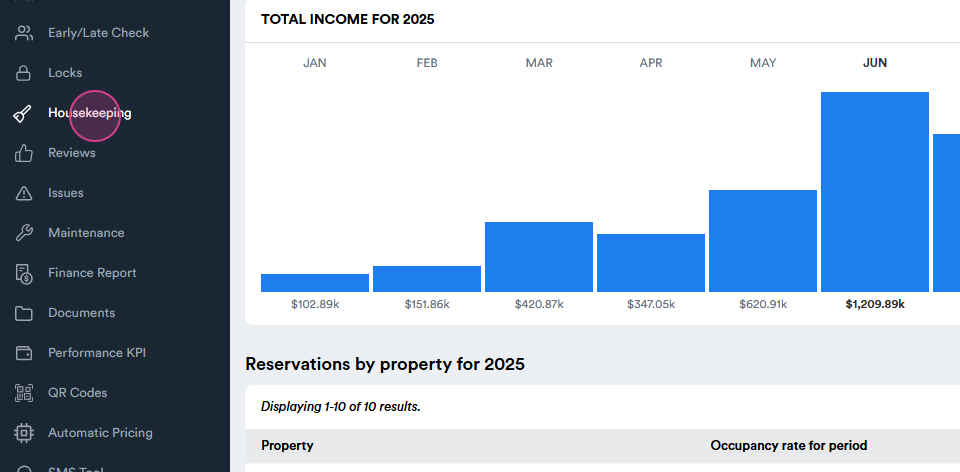
Step 1: Start by navigating to the housekeeping section.
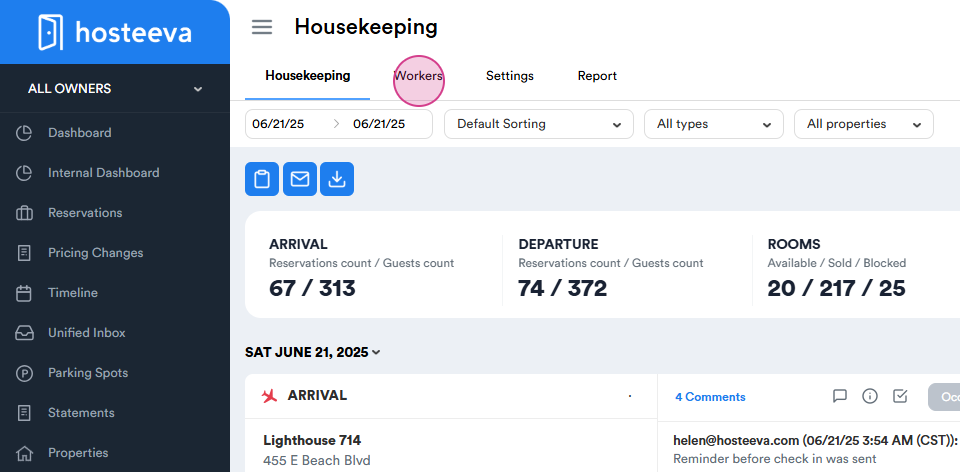
Step 2: To add a new housekeeper or QA inspector, move to the workers section.
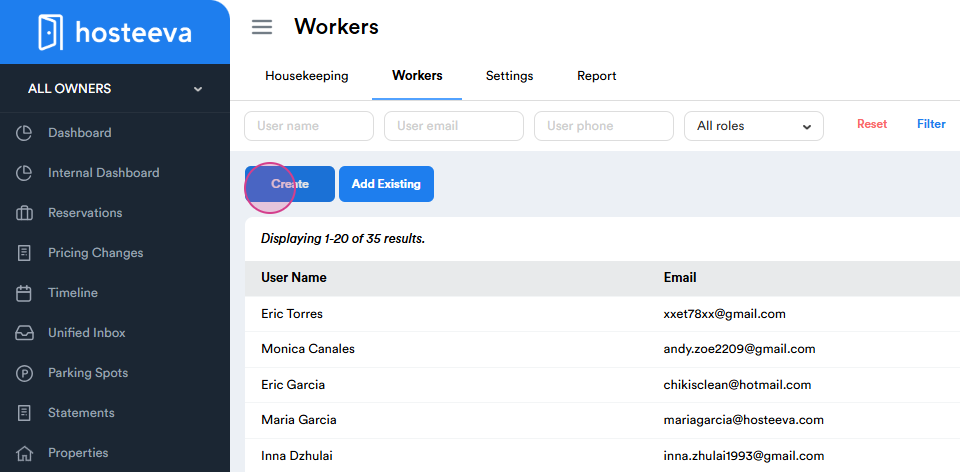
Step 3: Click on the create button to add a new housekeeper.
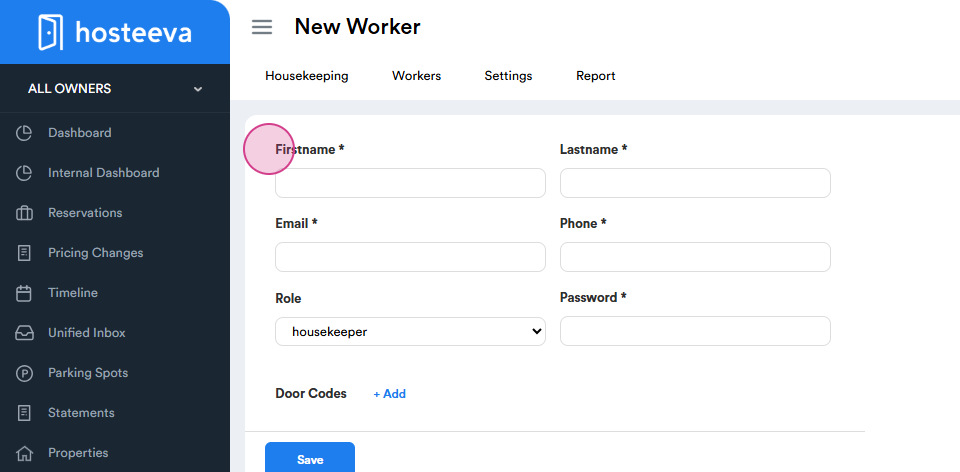
Step 4: Fill in the necessary fields such as first and last name, email address, and phone number. Choose the role, either a housekeeper or a supervisor (QA inspector). Set a password for the housekeeper to log into their Frontline app.
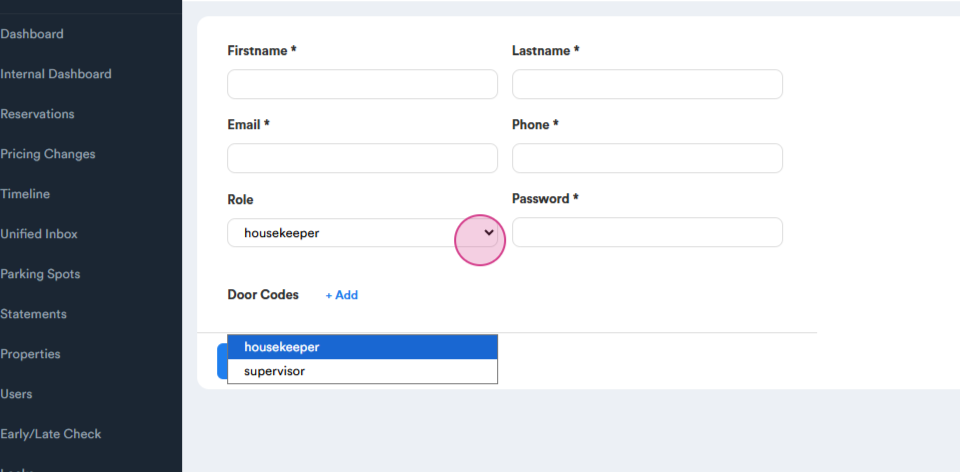
Step 5: After filling in all the required fields, click on save to add the new housekeeper to the system.
Step 6: Next, navigate to the settings section.
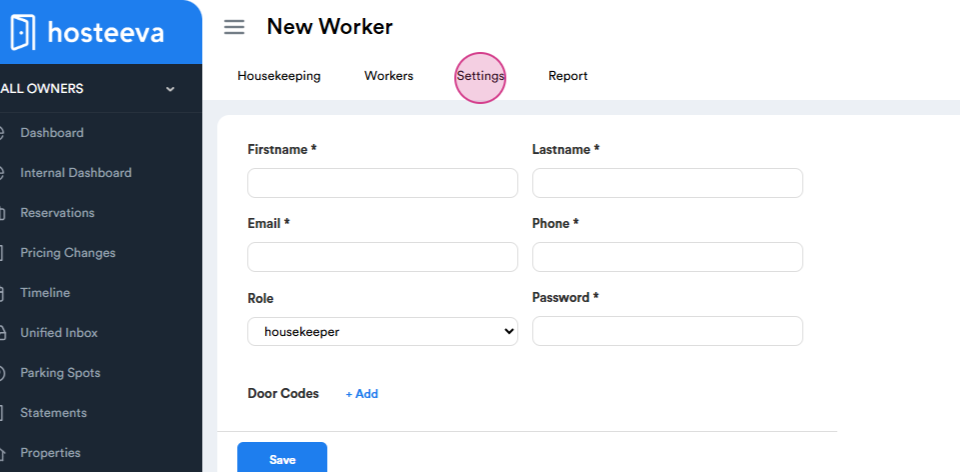
Here, you'll find the manage workers option. This allows you to assign properties to housekeepers.
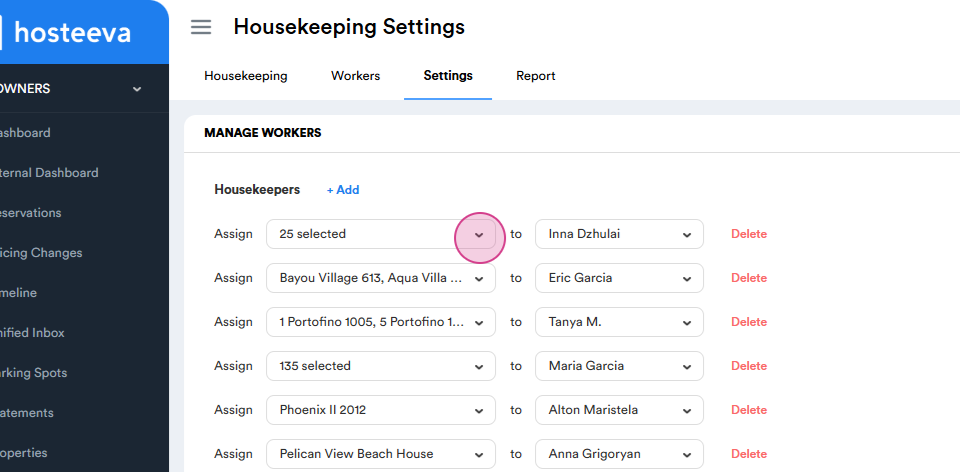
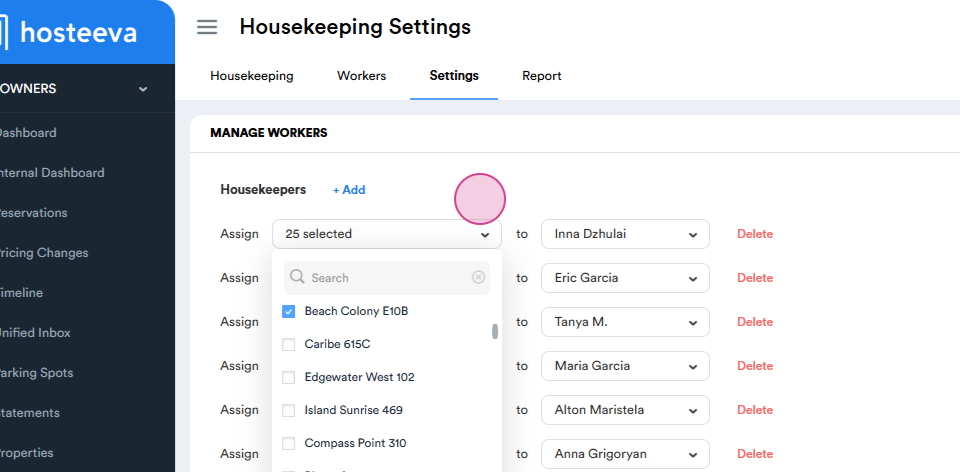
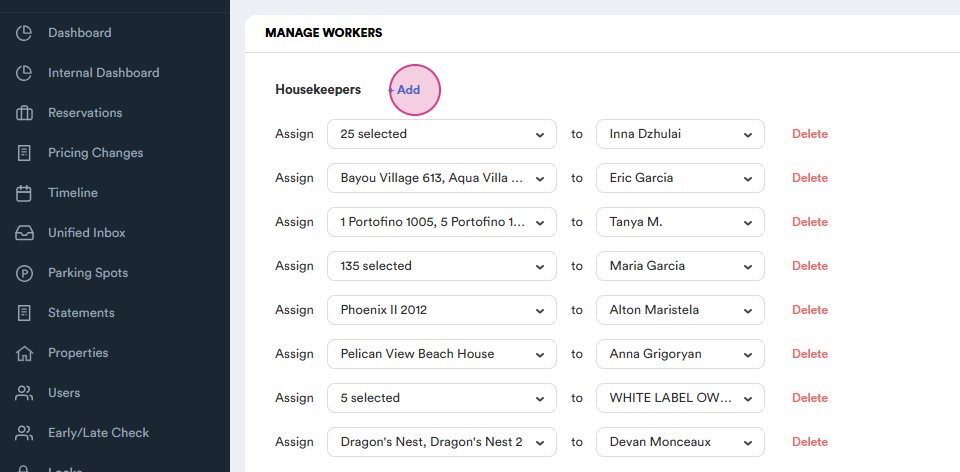
Step 7: At the bottom, you'll find an option to add a new housekeeper and assign properties to them.
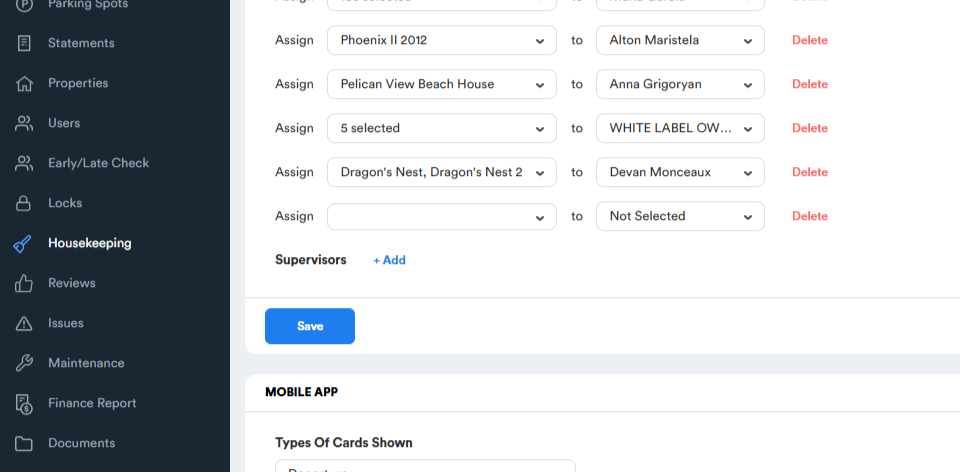
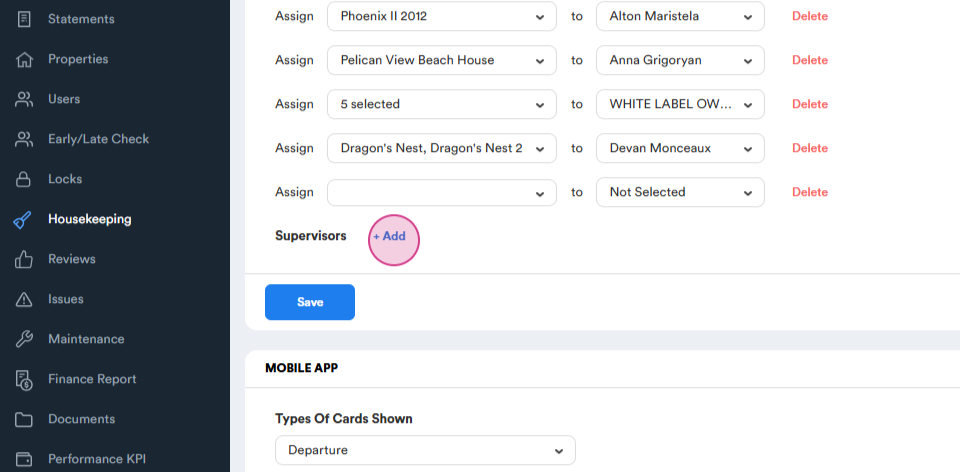
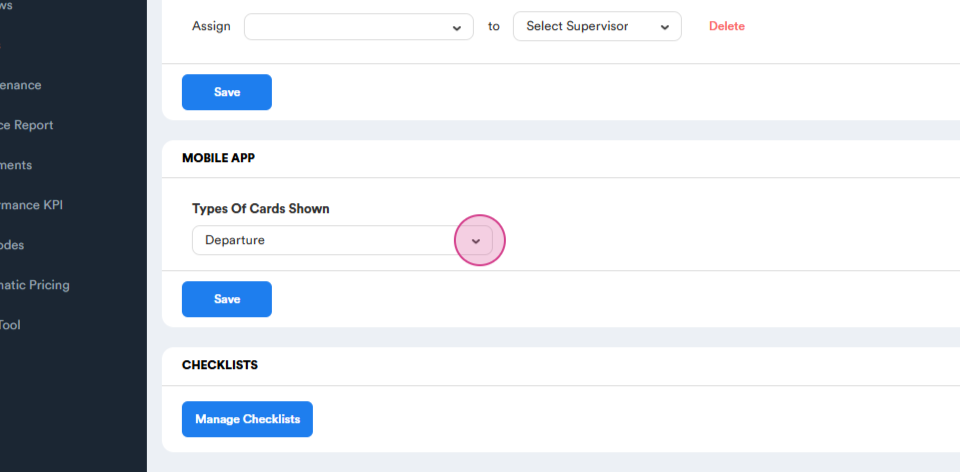
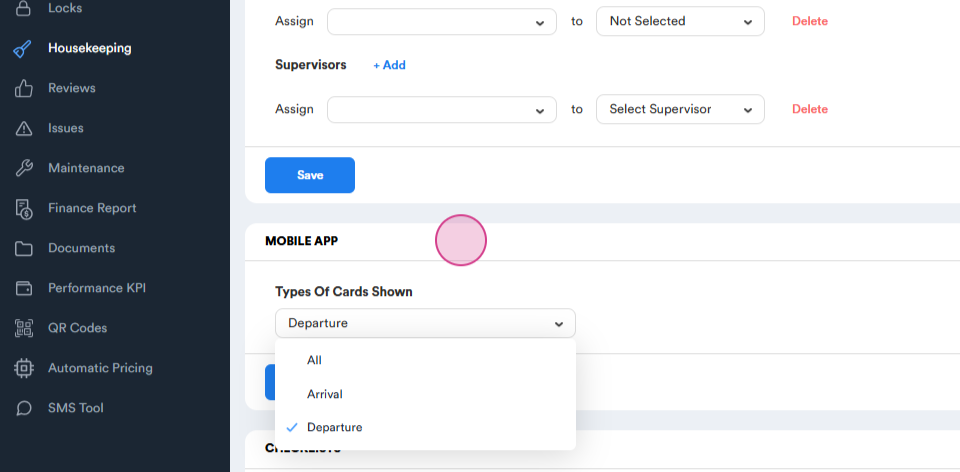
Step 8: Navigate to the mobile app section.
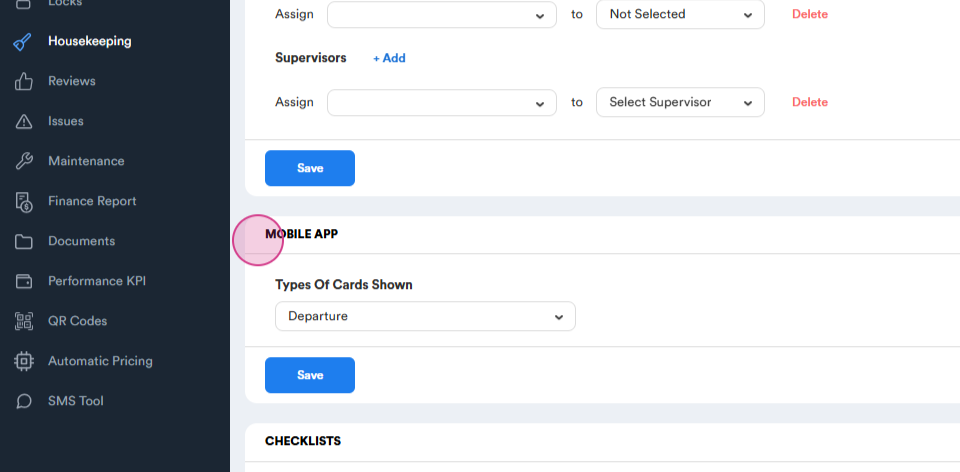
Here, housekeepers can choose to view departures, arrivals, or both.
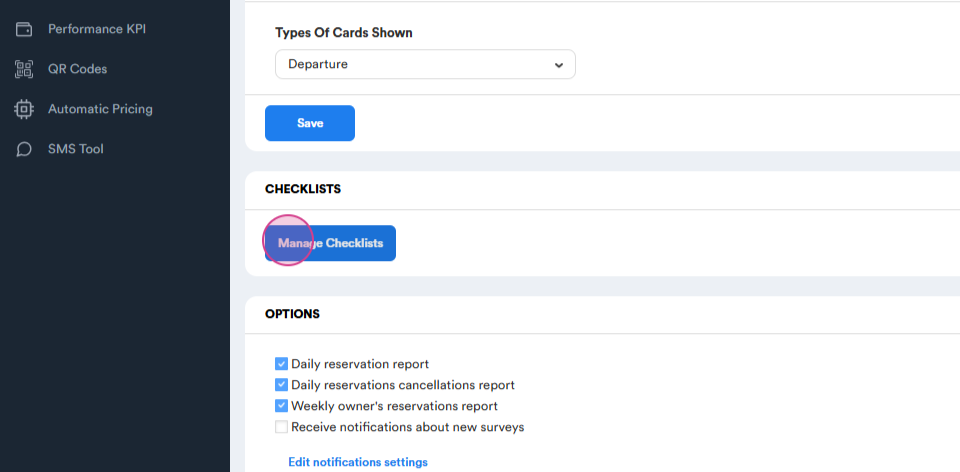
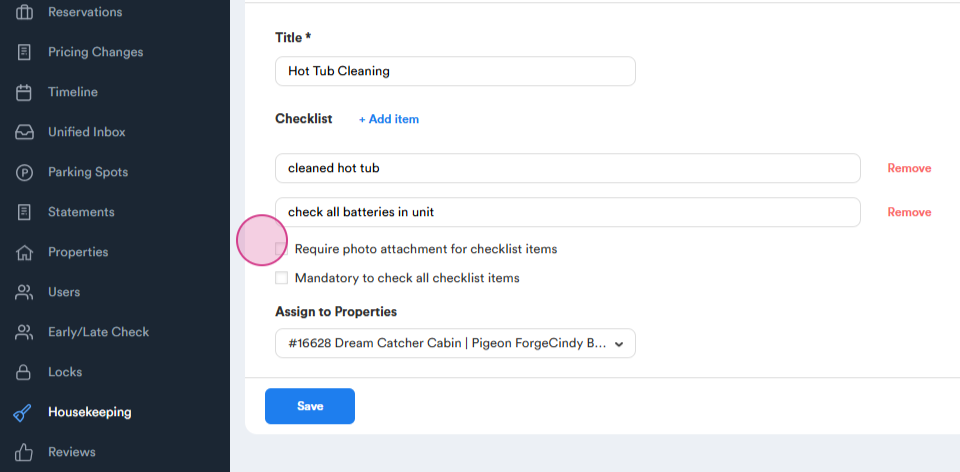
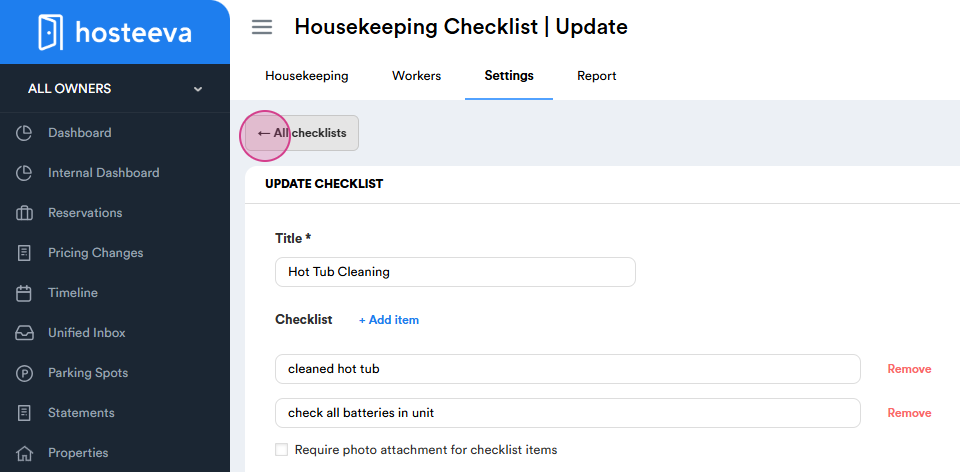
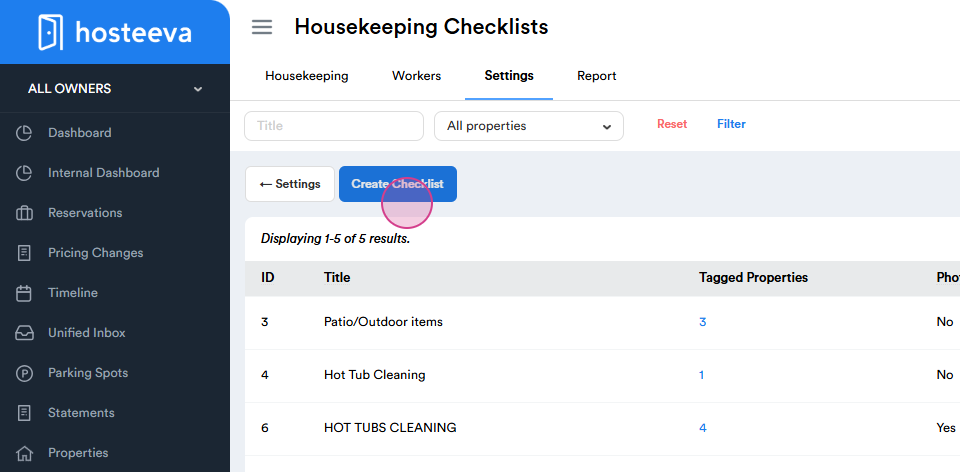
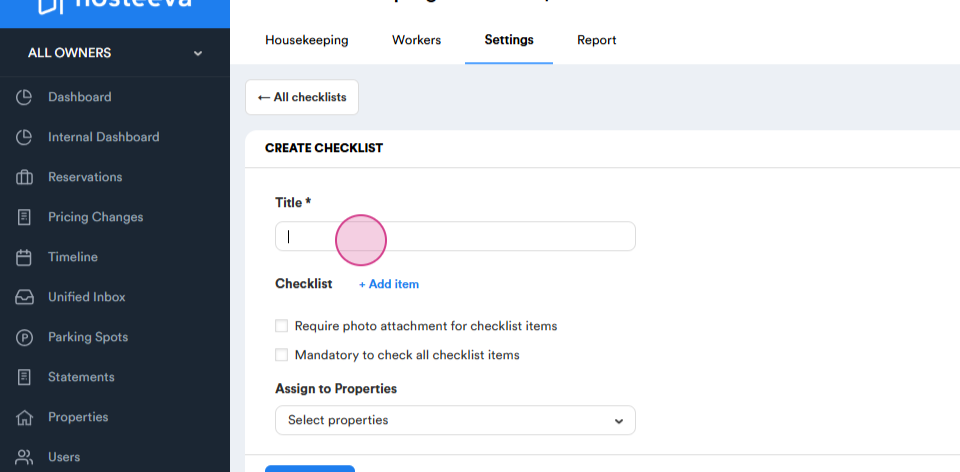
Step 9: Scroll down to find the checklists.
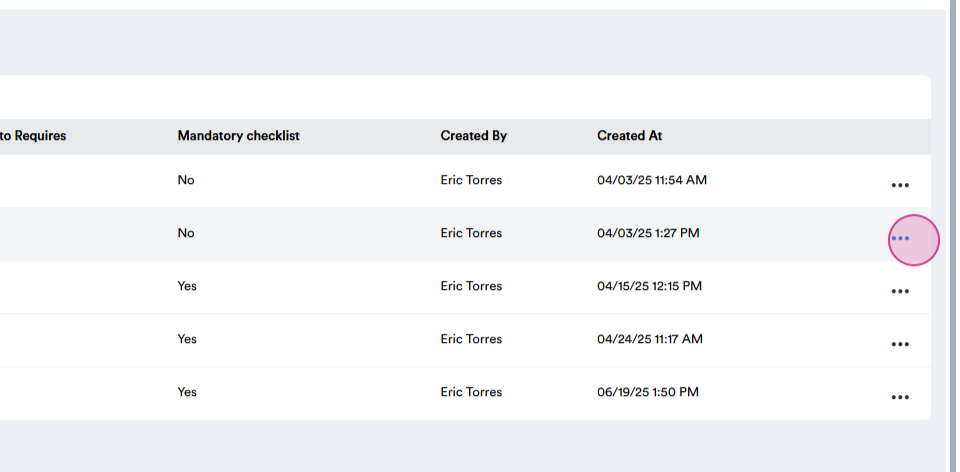
Step 10: Here, you can view and create checklists for specific properties.
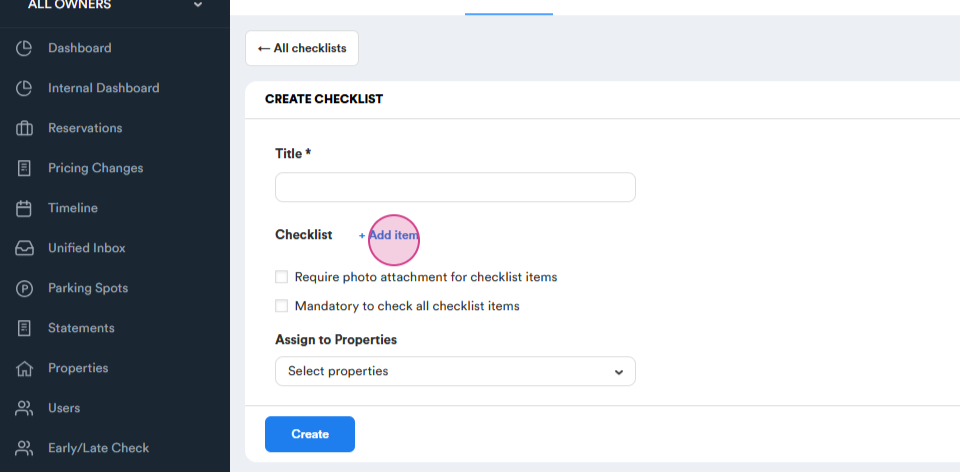
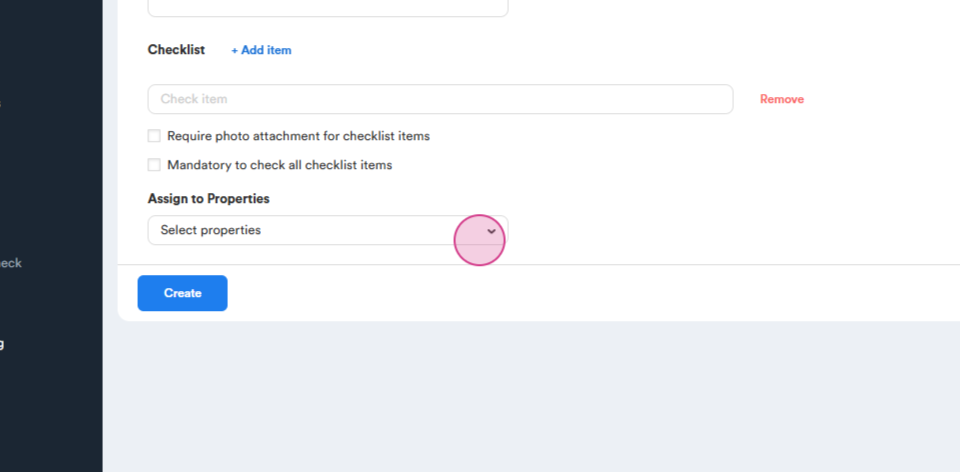
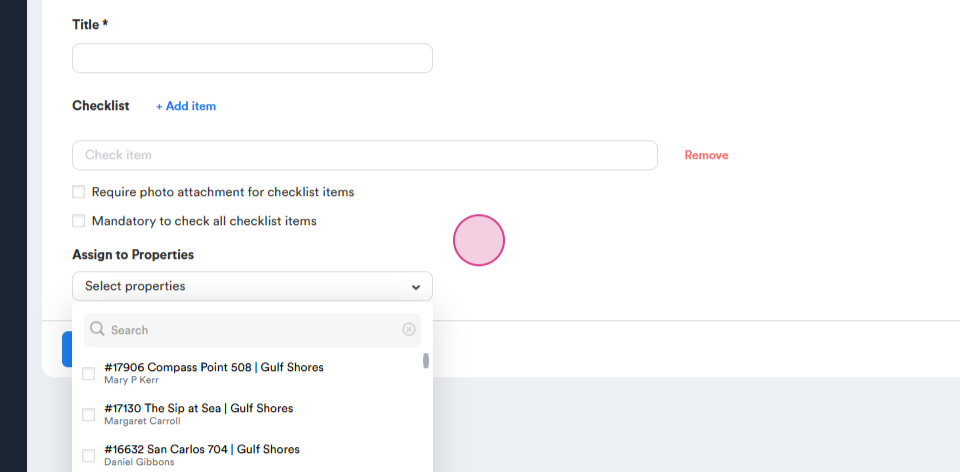
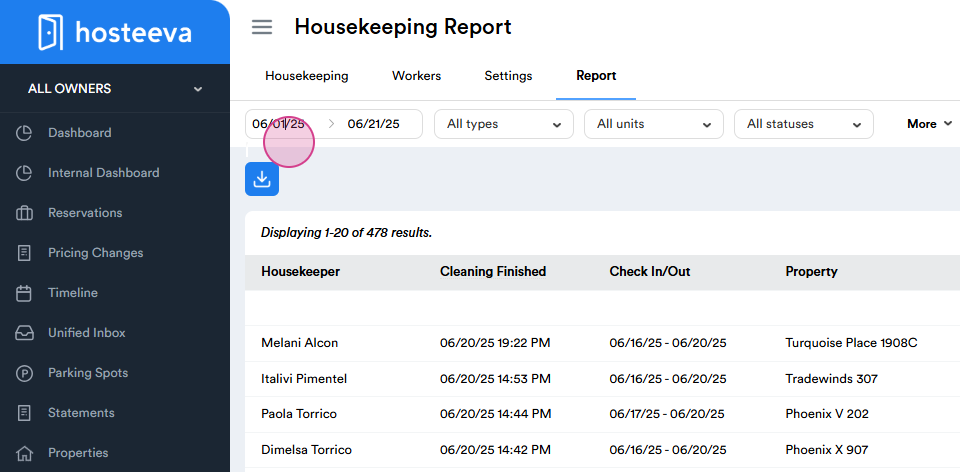
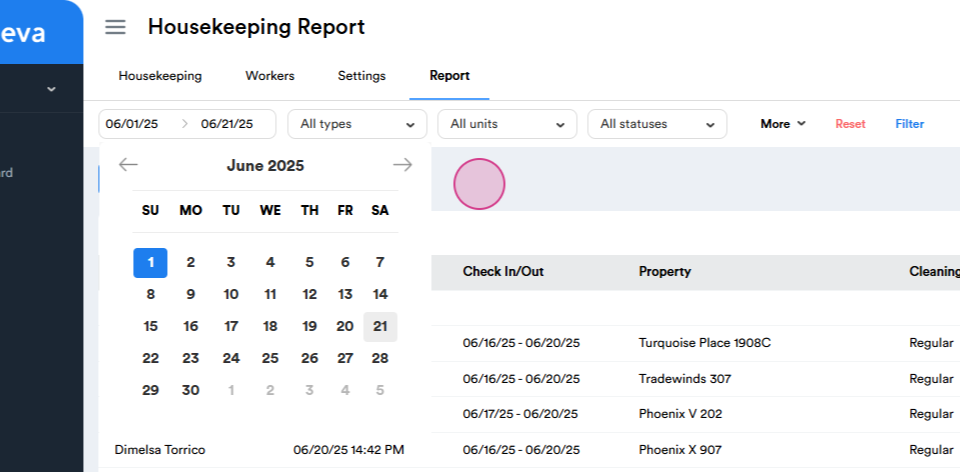
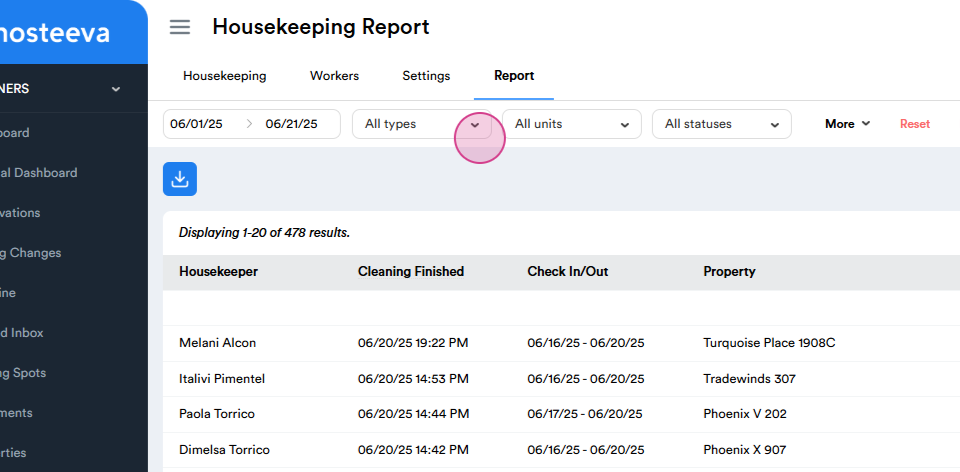
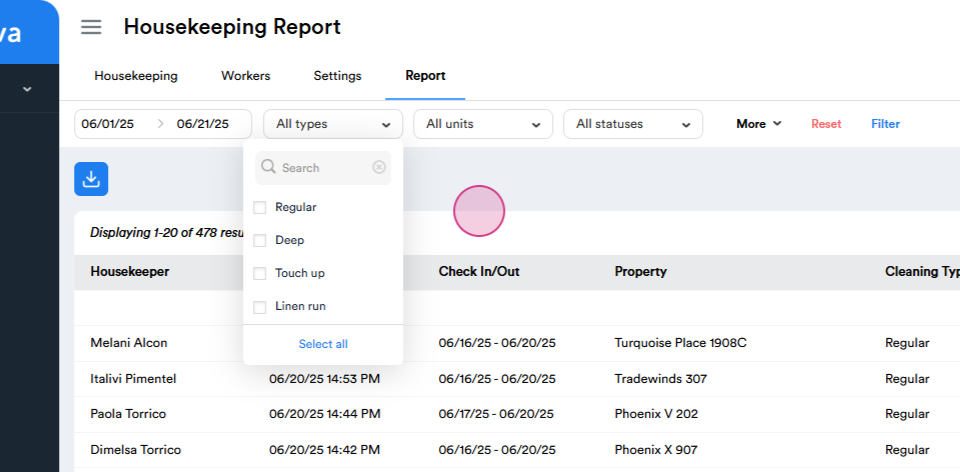
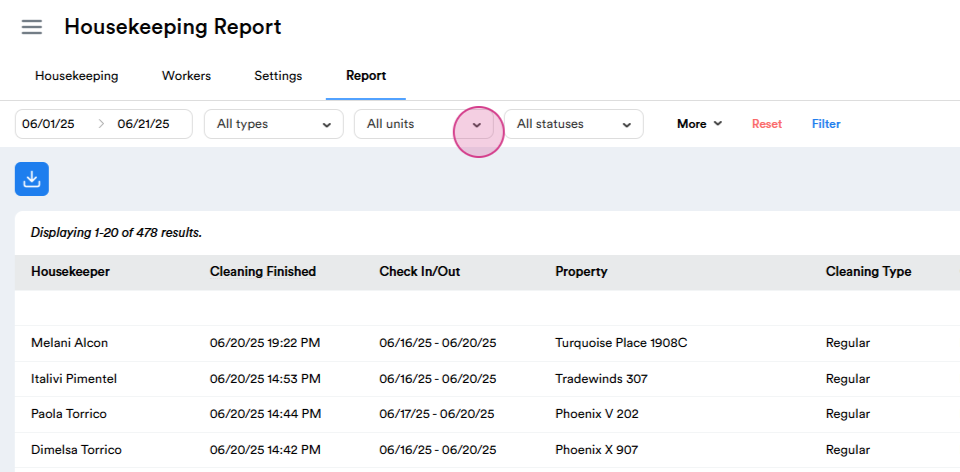
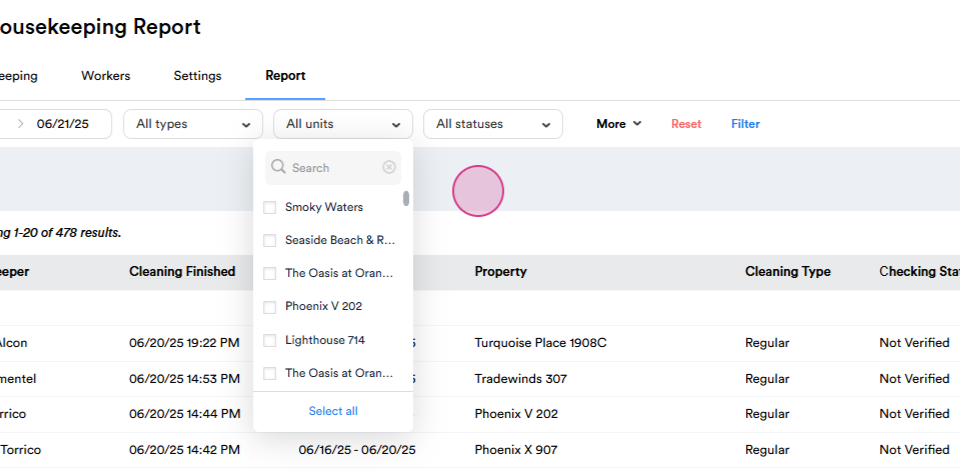
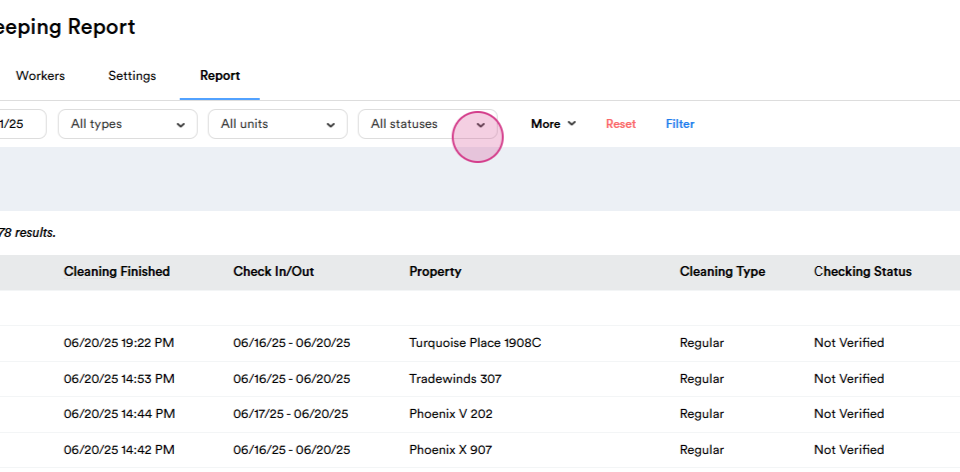
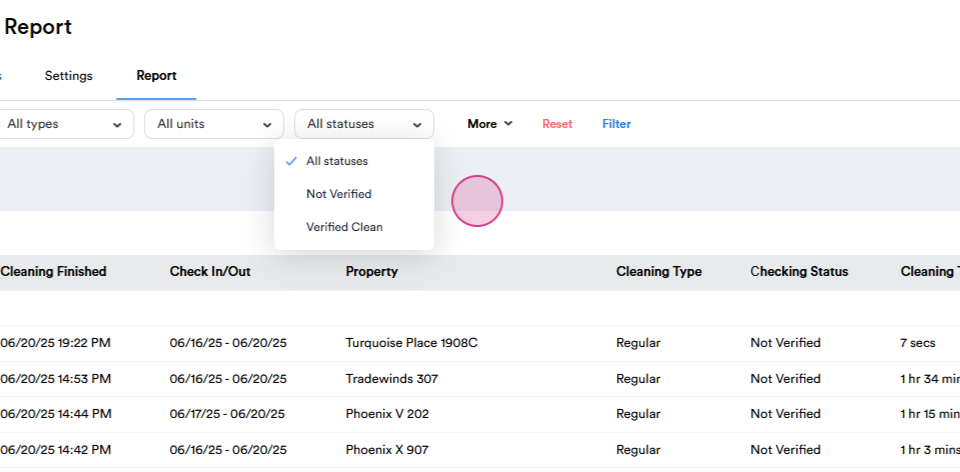
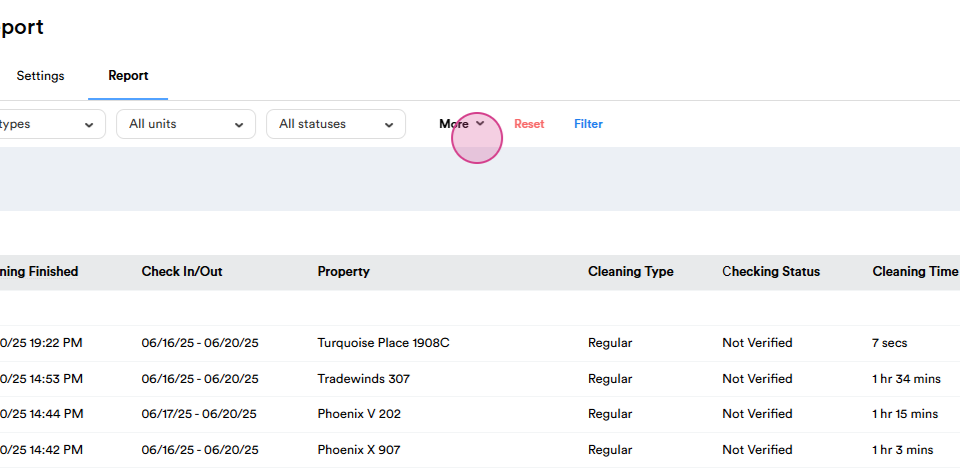
Step 11: Once done, navigate to the report section.
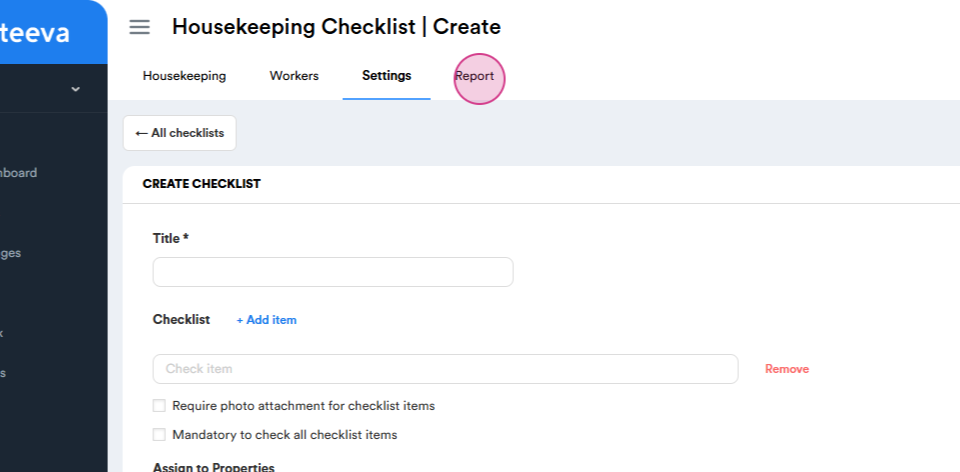
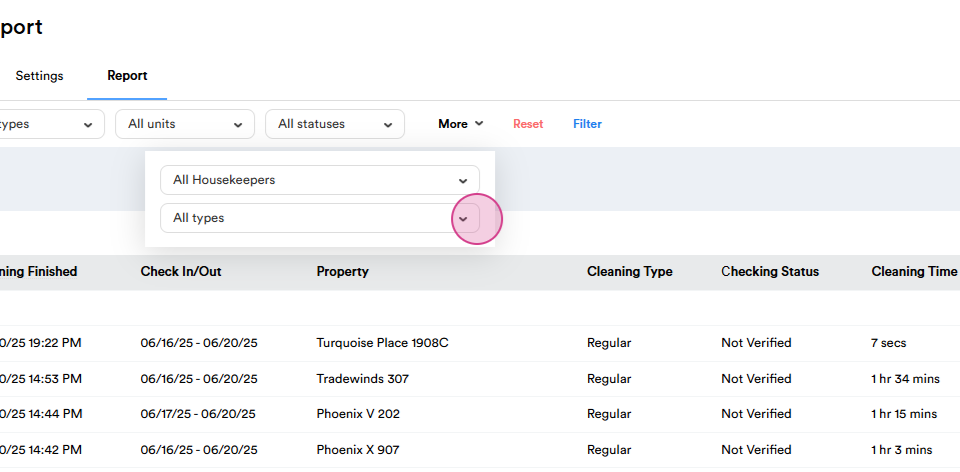
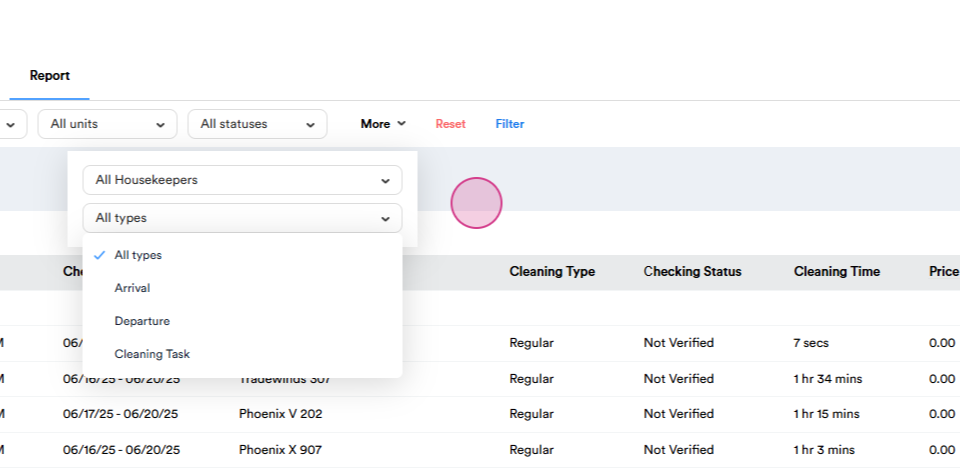
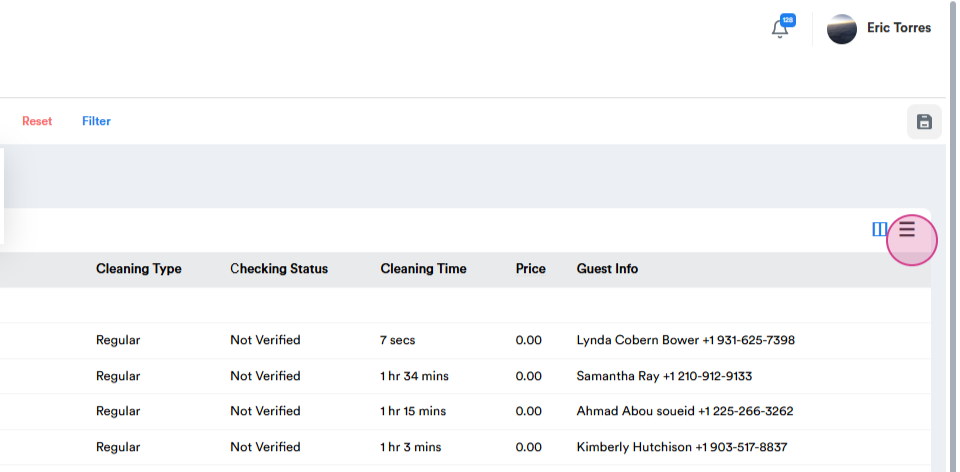
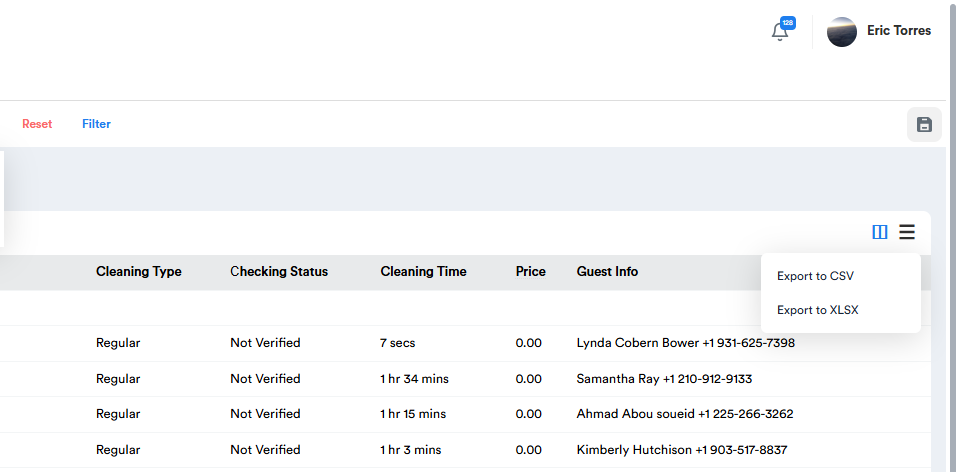
Here, you can generate reports based on various criteria.
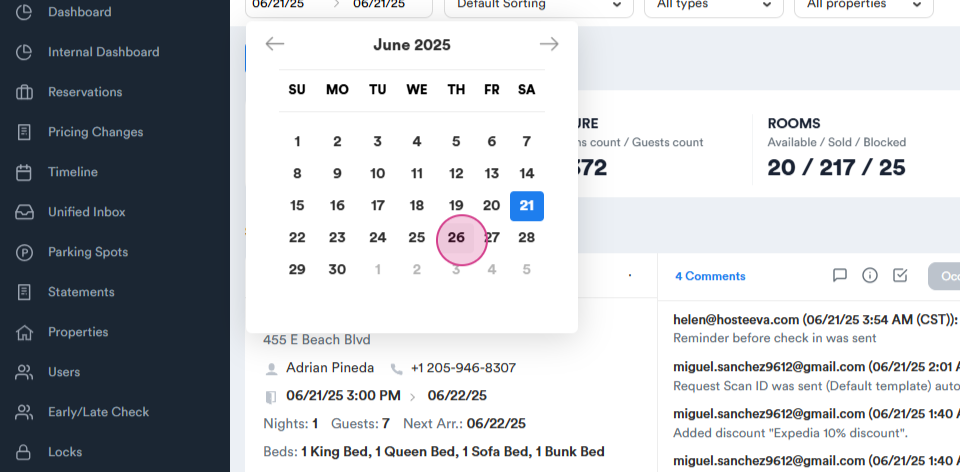
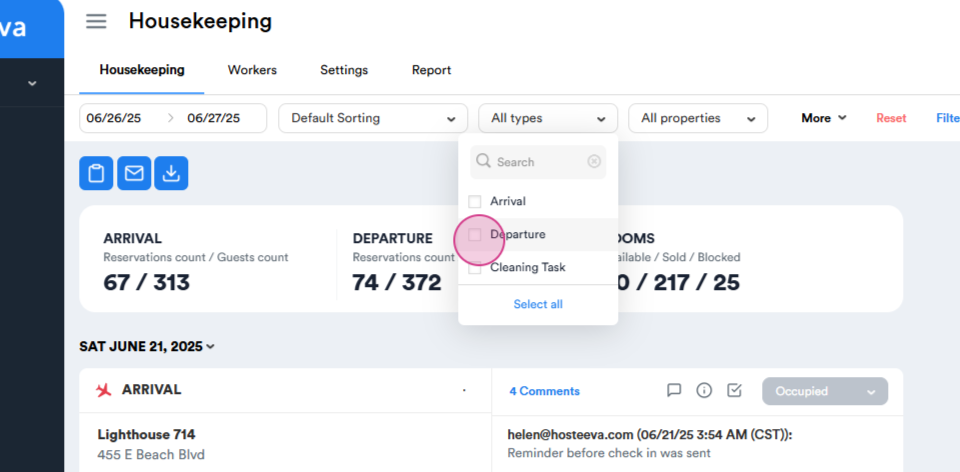
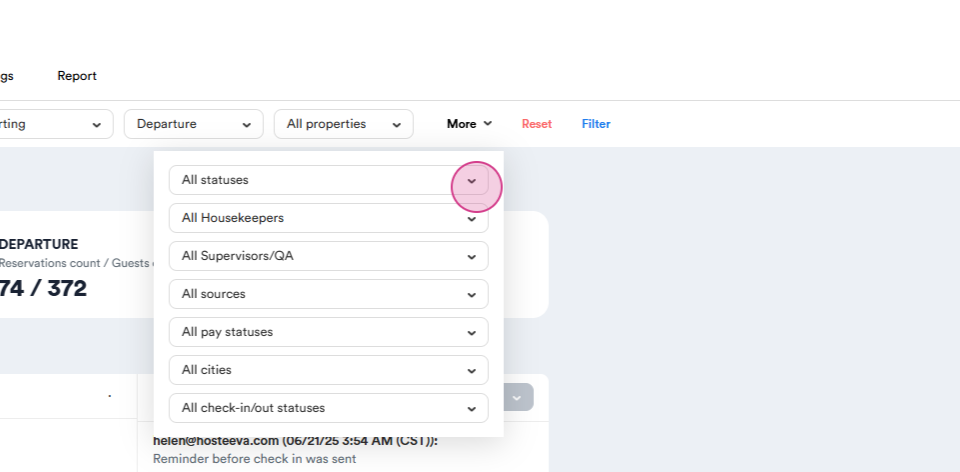
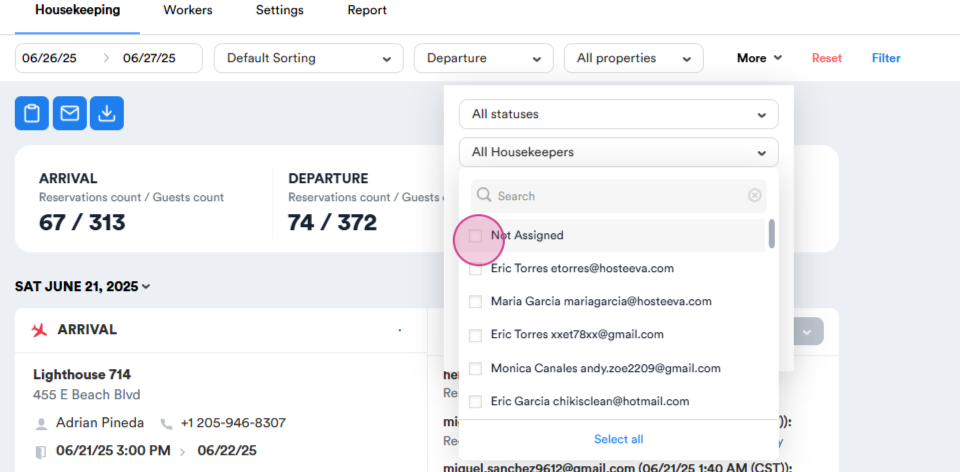
Step 12: After setting up the new workers, navigate back to the housekeeping section.
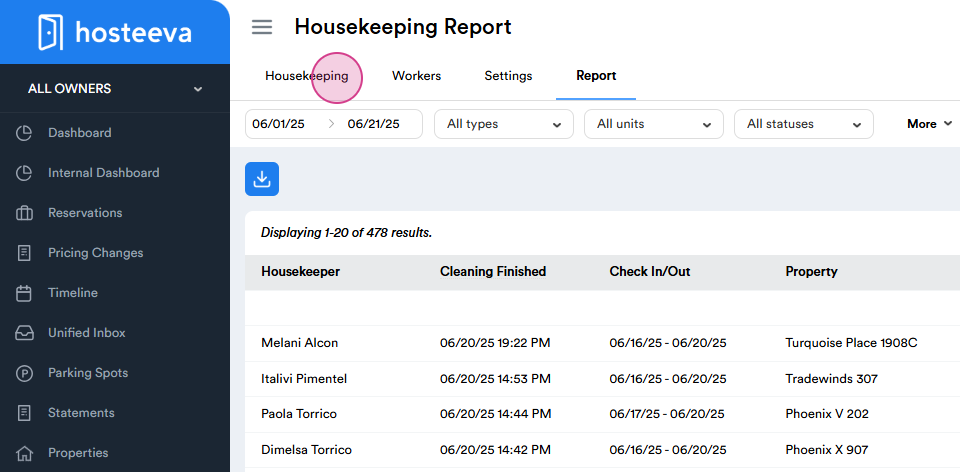
Here, you can schedule tasks for the housekeepers.
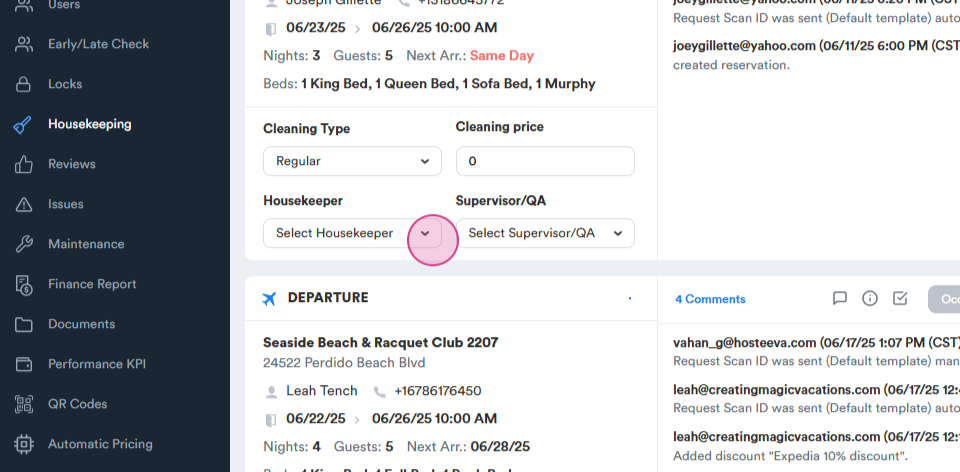
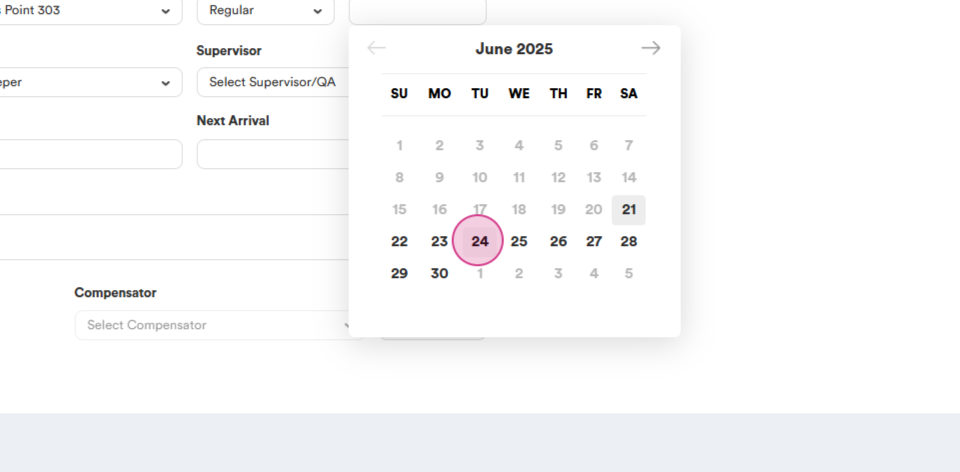
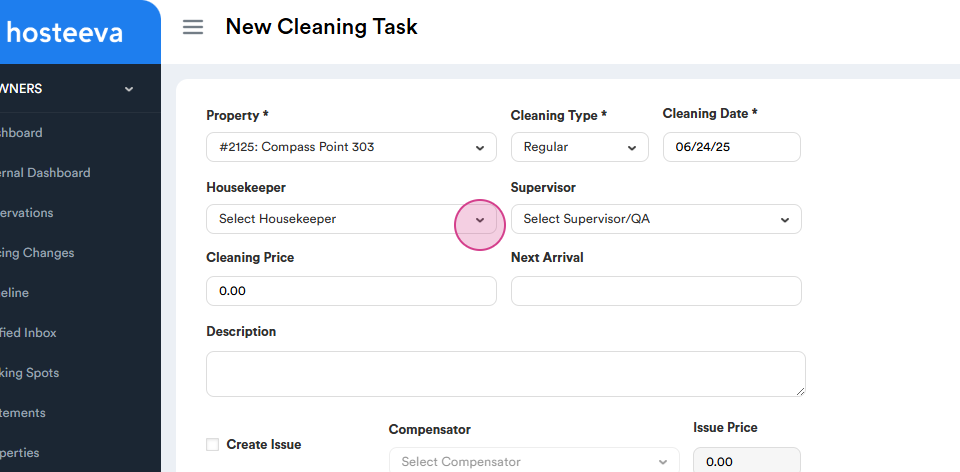
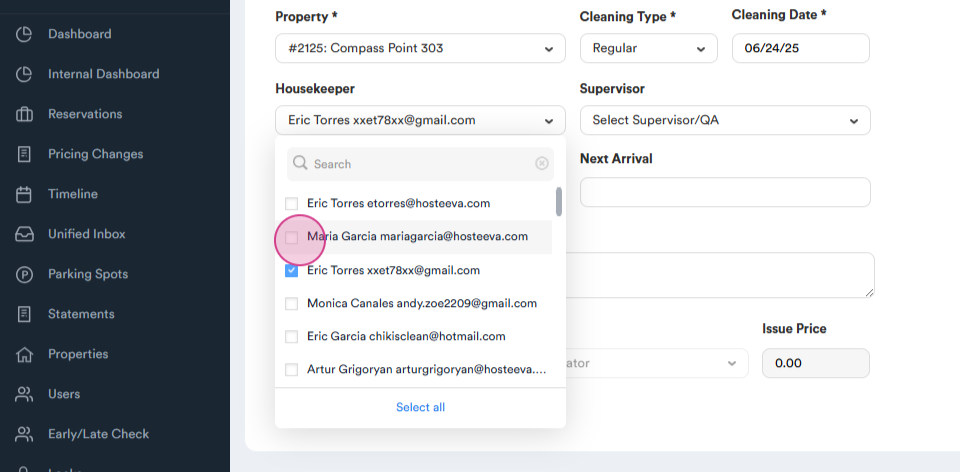
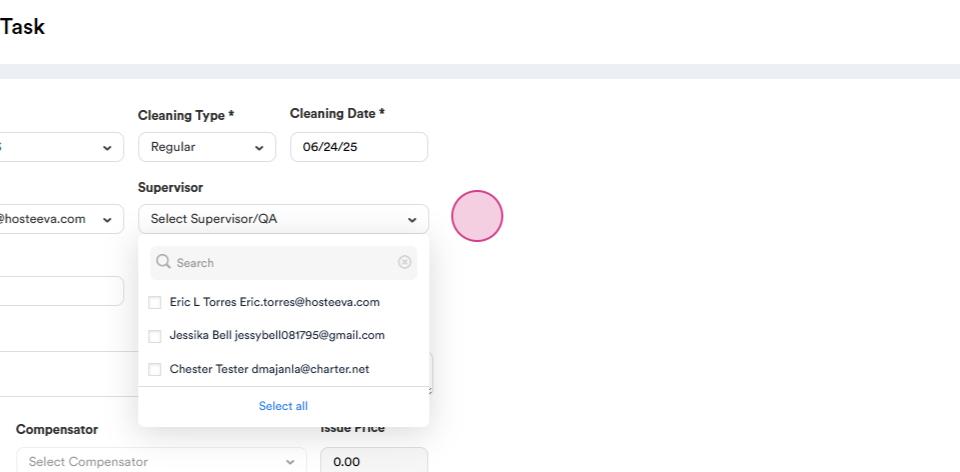
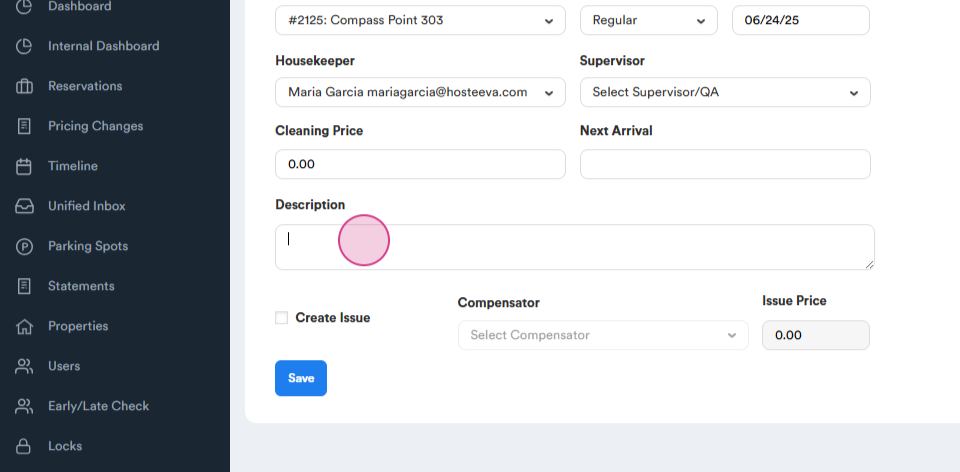
Step 13: You can also create a cleaning task for specific properties.
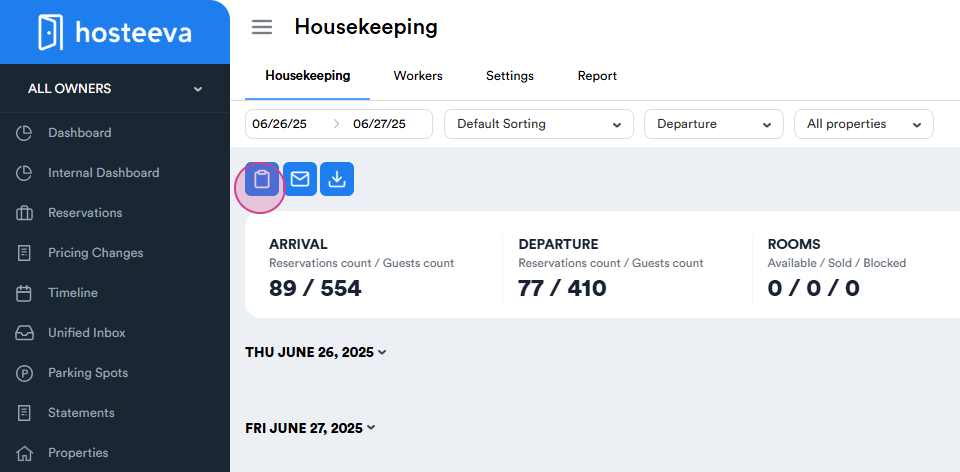
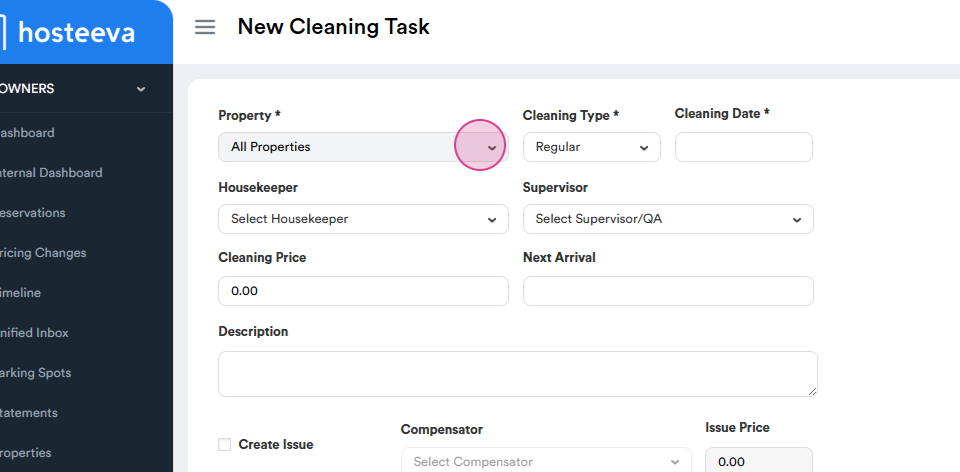
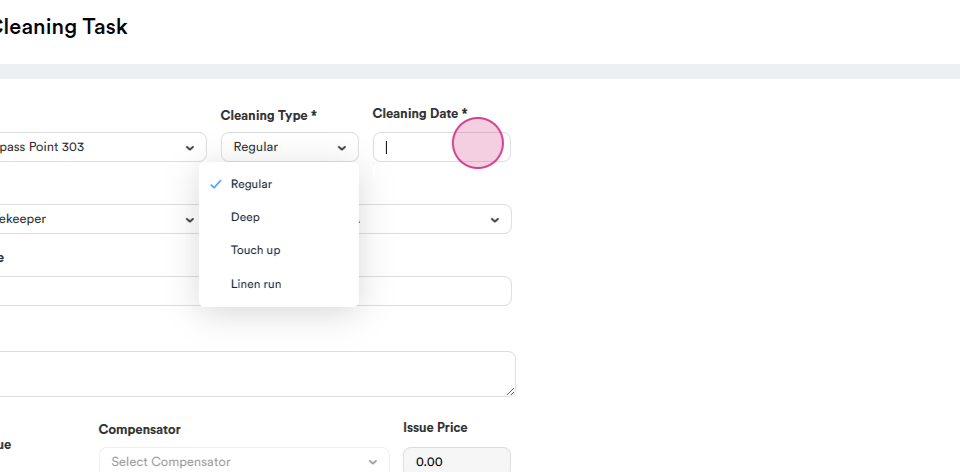
Once you've completed these steps, you'll have successfully added a housekeeper or QA inspector to the system and managed their tasks.