This guide outlines the process of creating an automatic pricing template.
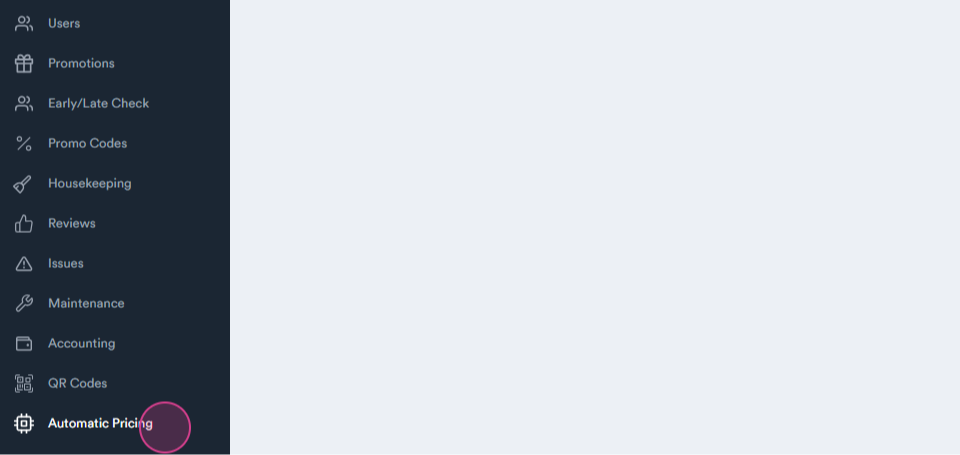
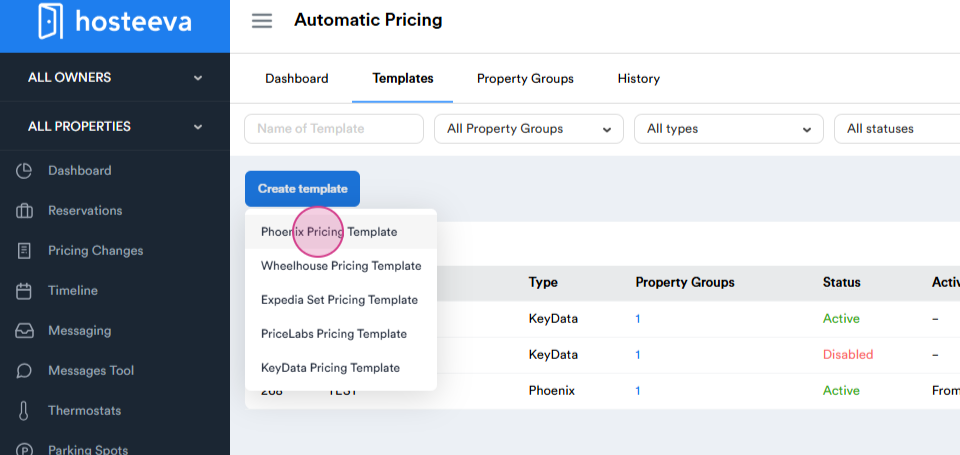
Begin by navigating to the Automatic Pricing tab.
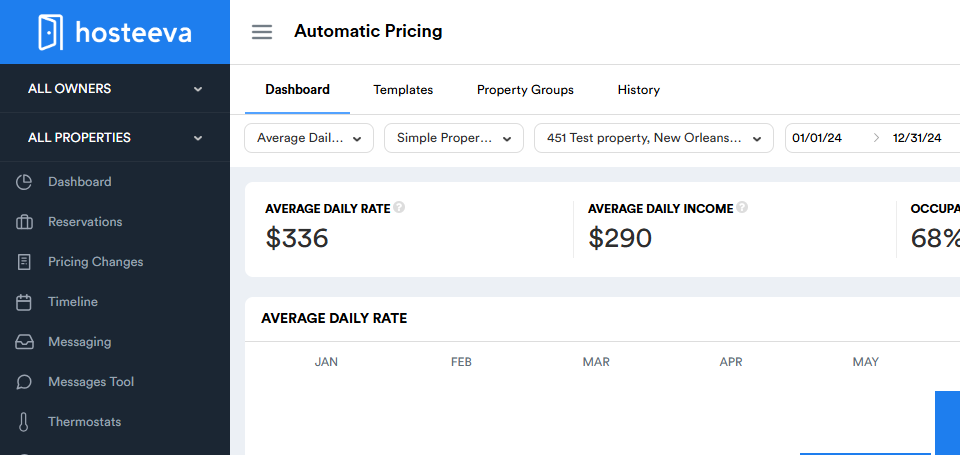
Proceed to Templates.
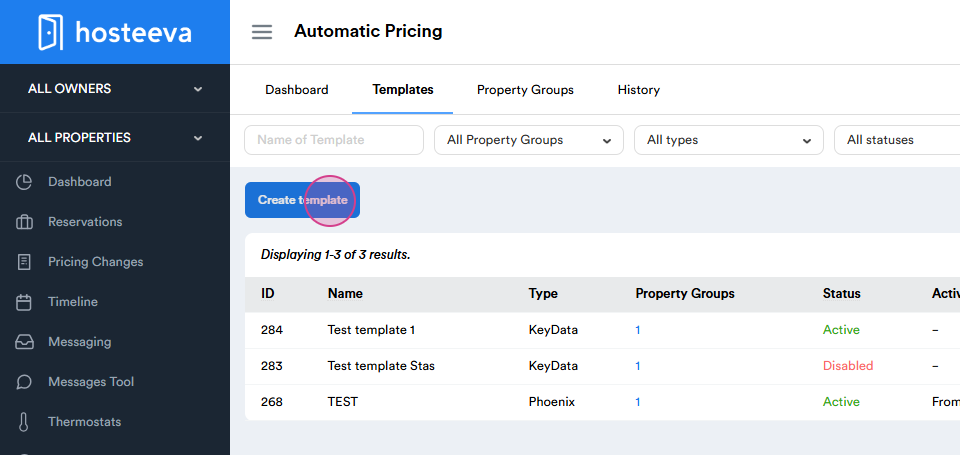
Next, select Create Template.
Choose the Phoenix Pricing Template.
Algorithmic pricing is a practice that automatically sets the requested price for short-term rentals to maximize total revenue for each property, considering any calendar changes.
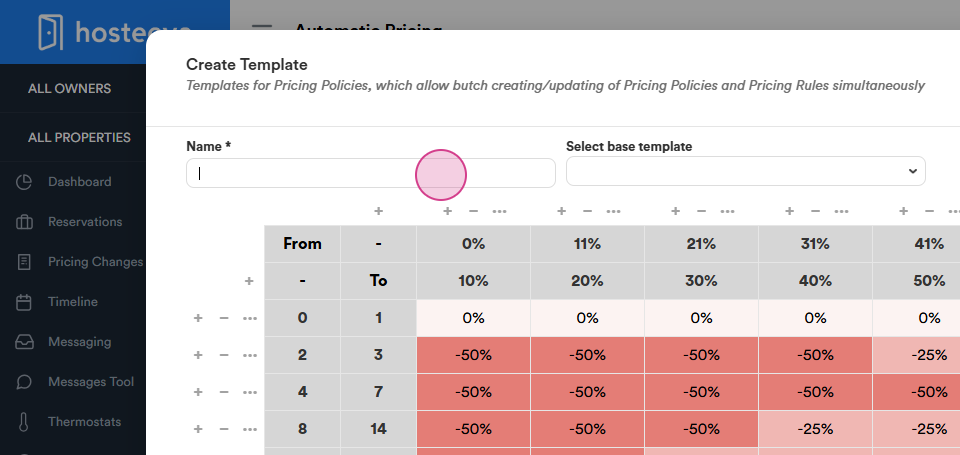
Step 1: Start by naming the template.
Step 2: Select the Base Template.
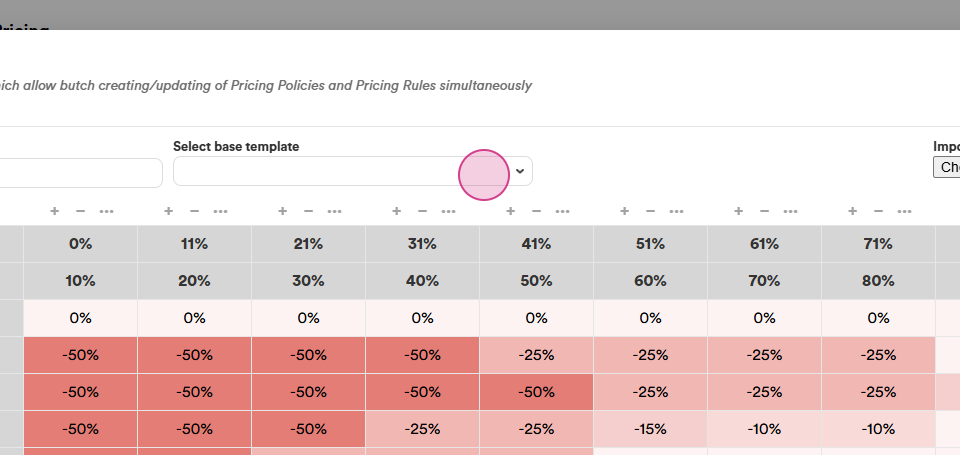
Step 3: Update the selected template.
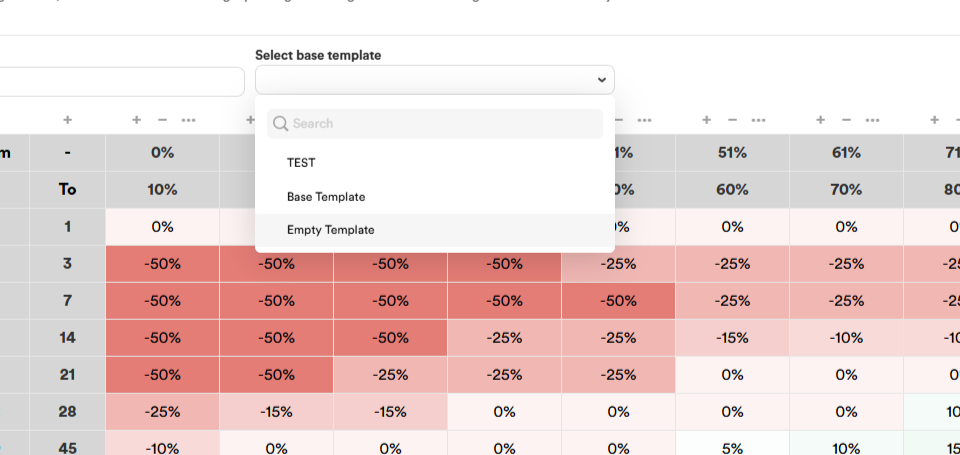
Alternatively, choose an Empty Template.
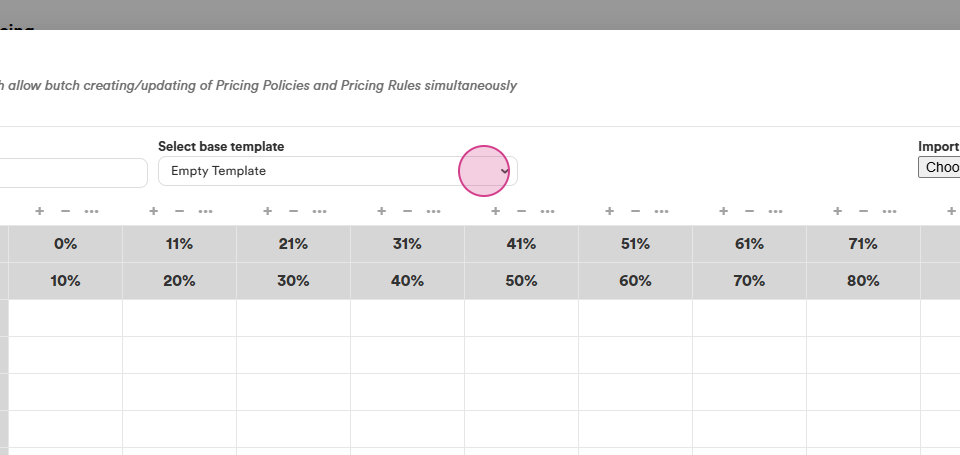
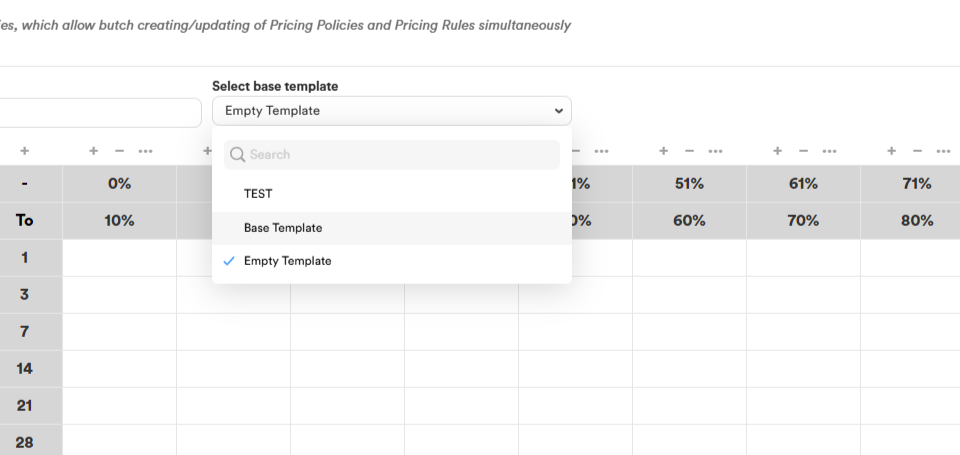
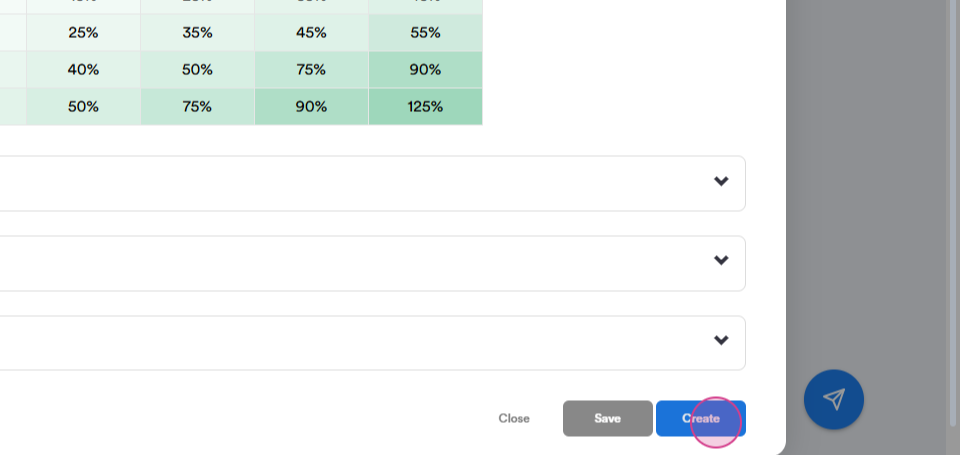
The columns represent different occupancy levels, typically increasing from left to right. The rows represent different time ranges in days. Each row shows the adjustment applied when a booking is made within that specific time frame. The cells contain percentage values, which adjust the base price up or down.
Step 4: Update the percentages.
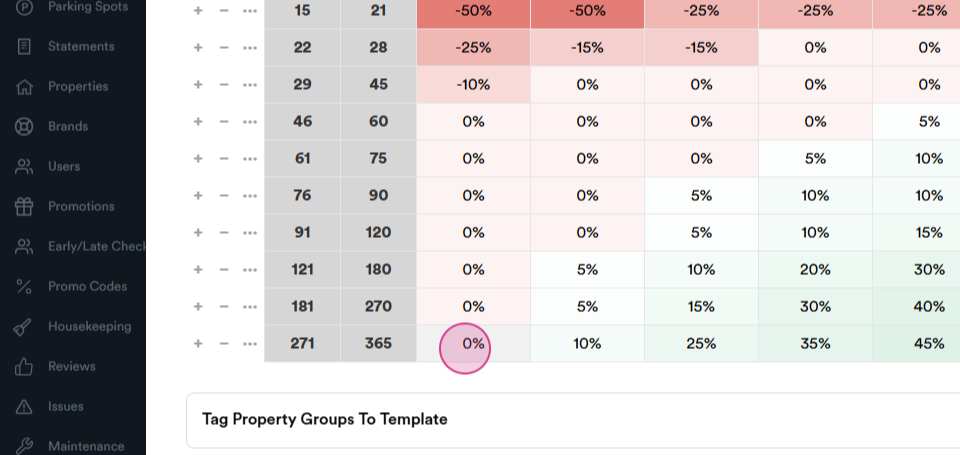
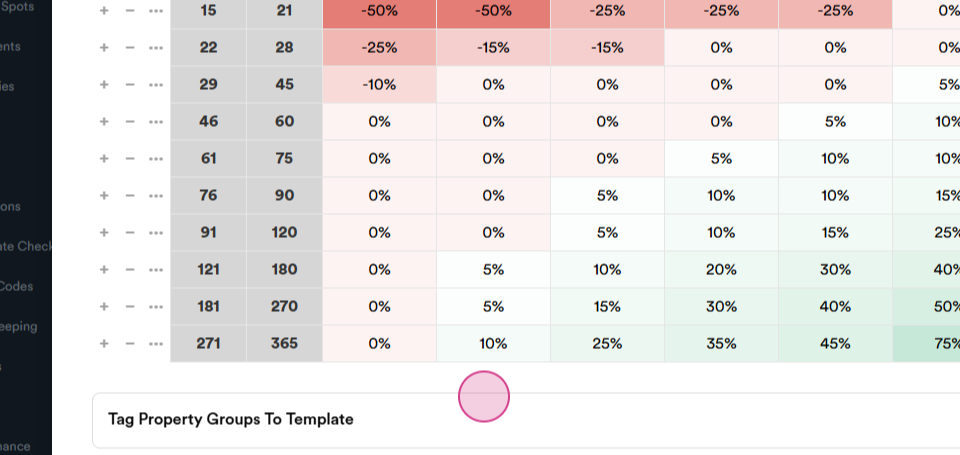
Step 5: Upgrade the percentages.
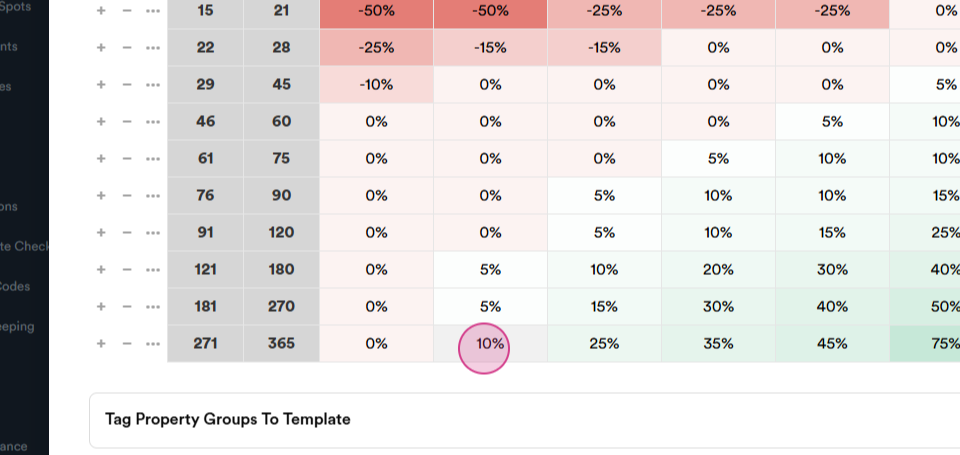
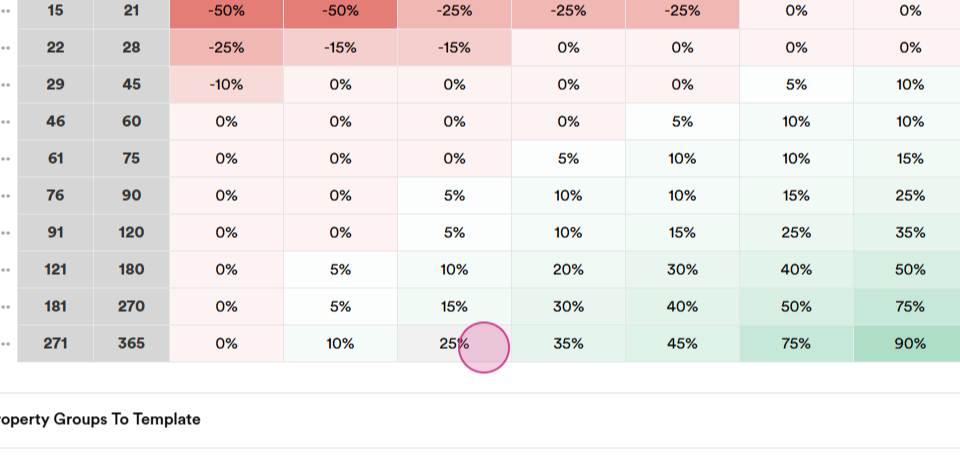
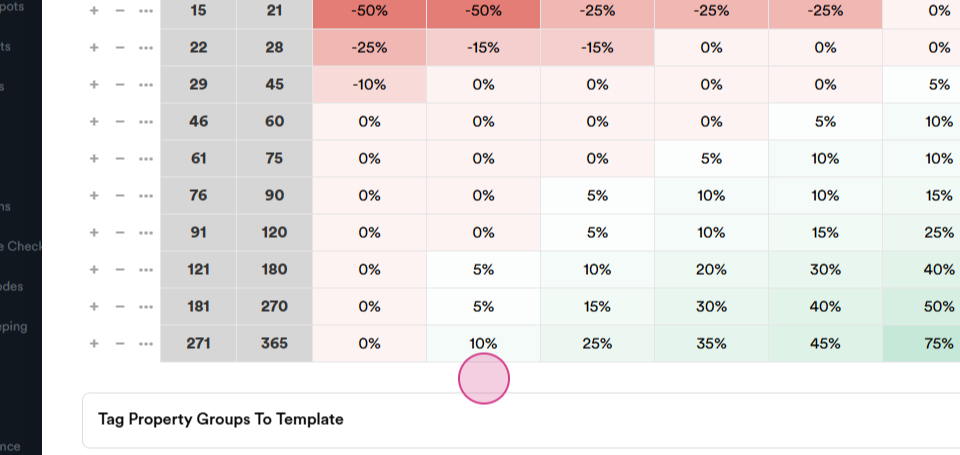
For instance, if a reservation is made within a specific date range and occupancy is at 20%, the prices will increase by 5%. If occupancy reaches 30%, the rate will increase by 15%. Rates can also decrease based on the days range. For example, a price change of 10% can be seen here.
Step 6: Update the price change.
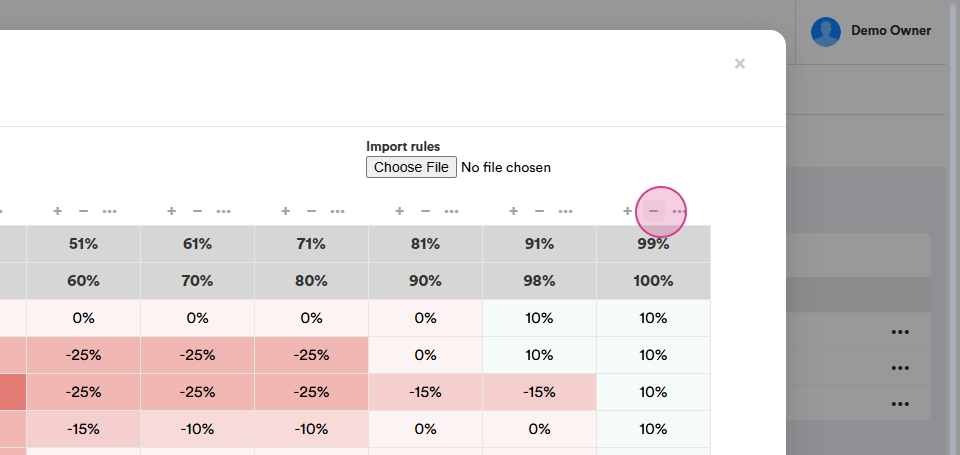
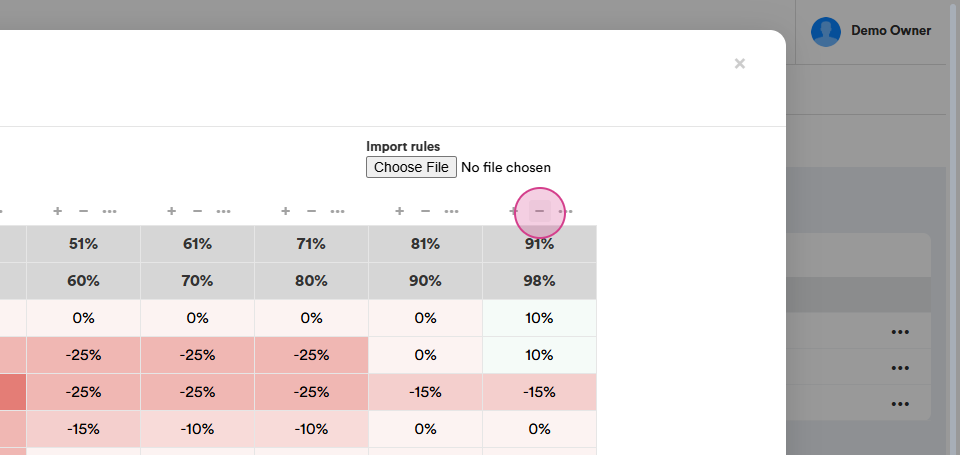
Step 7: Make any necessary changes.
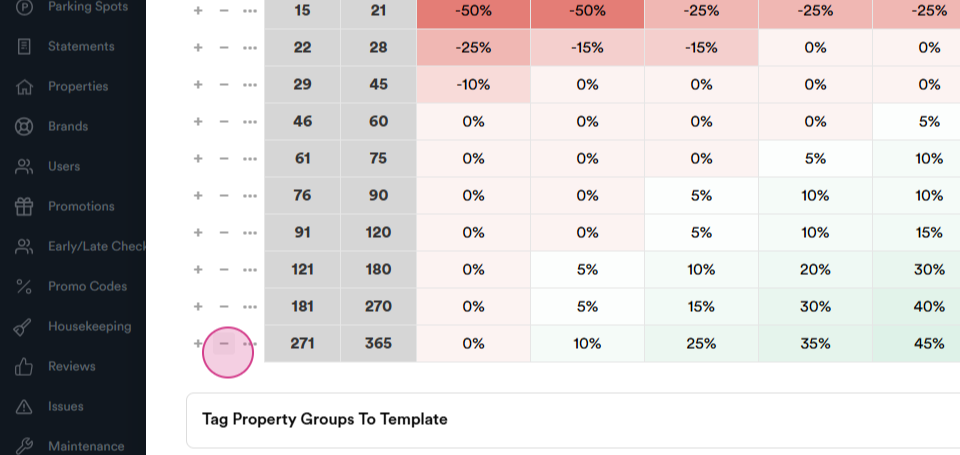
Once all changes have been made, click on Active.
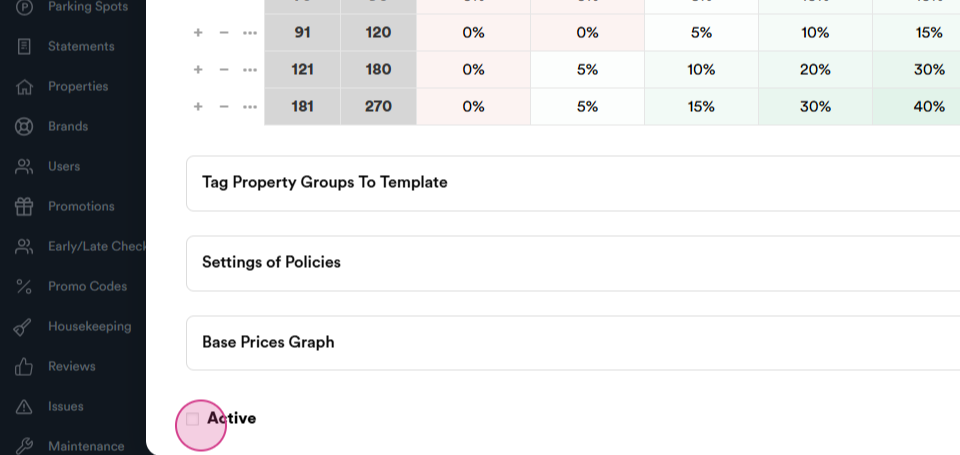
Finally, click on Create.