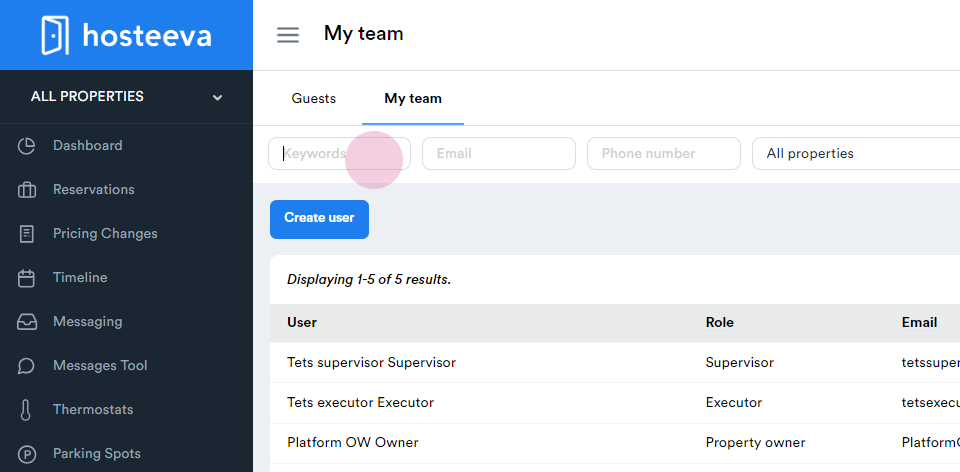
This guide explains how to search for a specific guest or team member on the Hosteeva platform.
Start by logging into the Hosteeva dashboard and navigating to the User's tab.
Step 1: Log into the Hosteeva dashboard.
Step 2: Navigate to the User's tab.
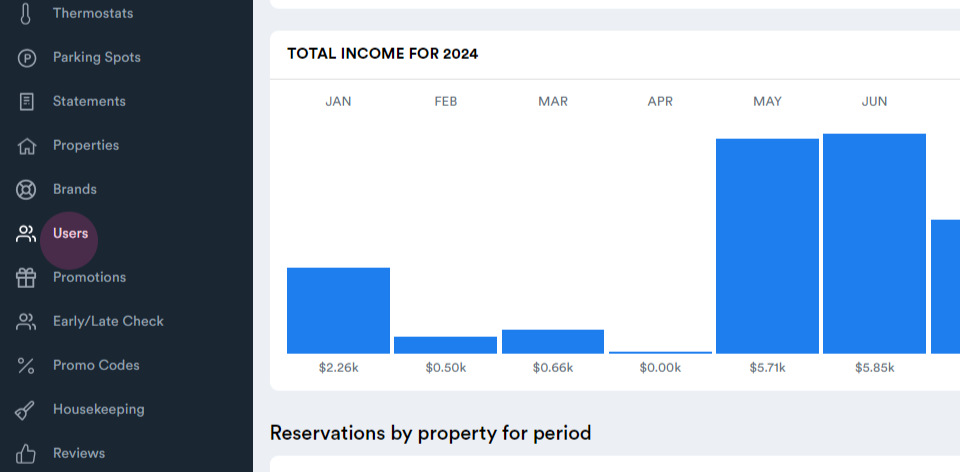
Here, there are two options: Guests and My Team.
To find a specific guest, use the filters available.
Step 3: Select the Guests option.
Step 4: Use the filters to find specific guests.
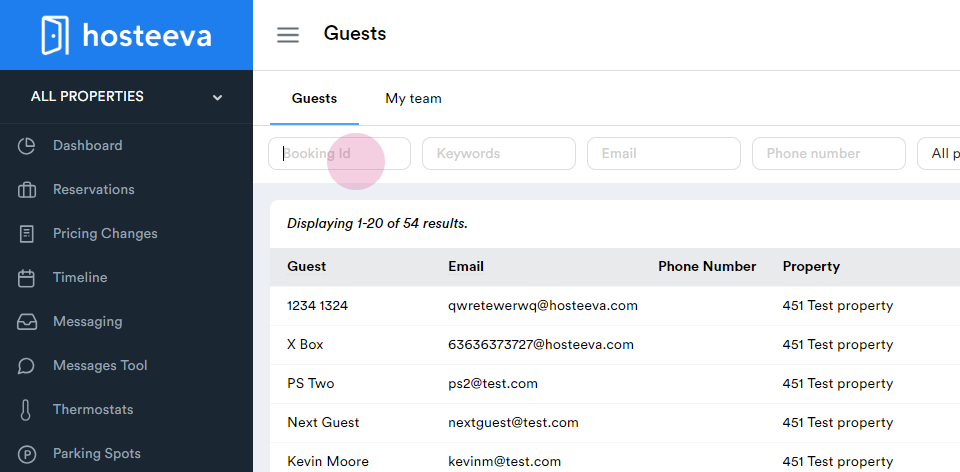
For instance, check the booking ID if it's known.
Step 5: Check the booking ID.
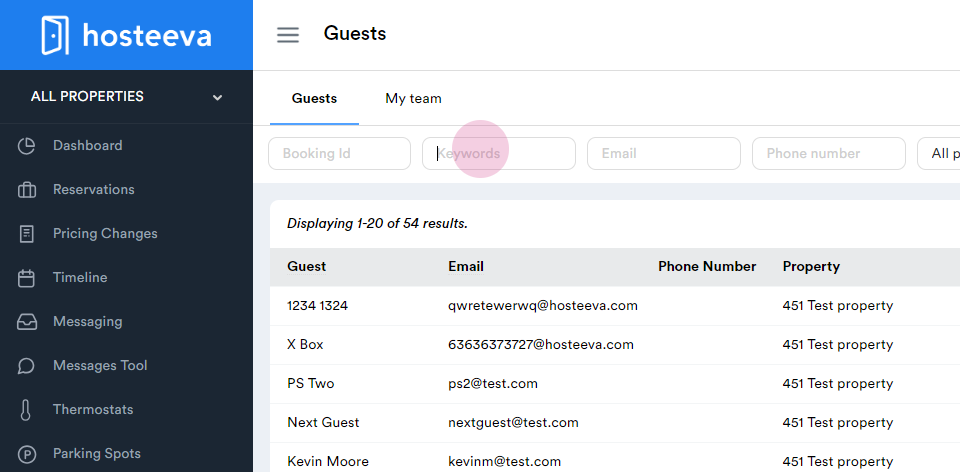
The keyword filter allows for the addition of the guest's first and last name.
Step 6: Add the first and last name of the guest in the keyword filter.
Searches can also be conducted using the guest's email and phone number.
Step 7: Search using the guest's email.
Step 8: Search using the guest's phone number.
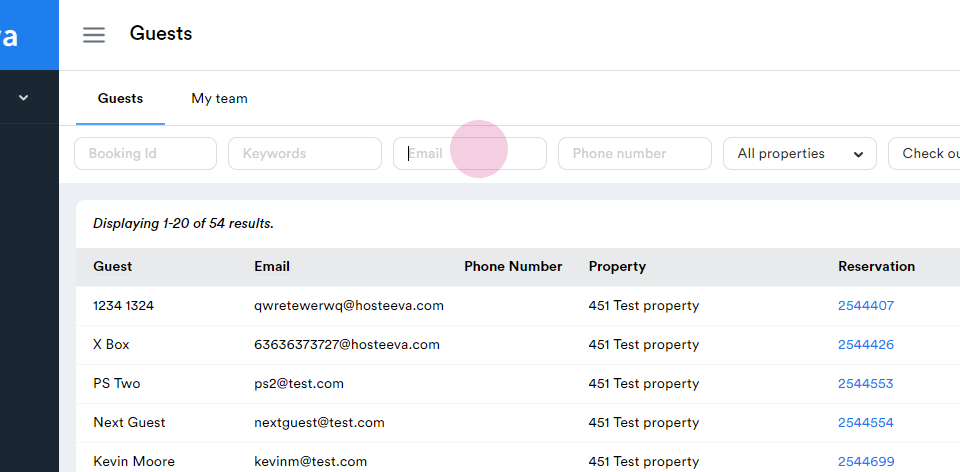
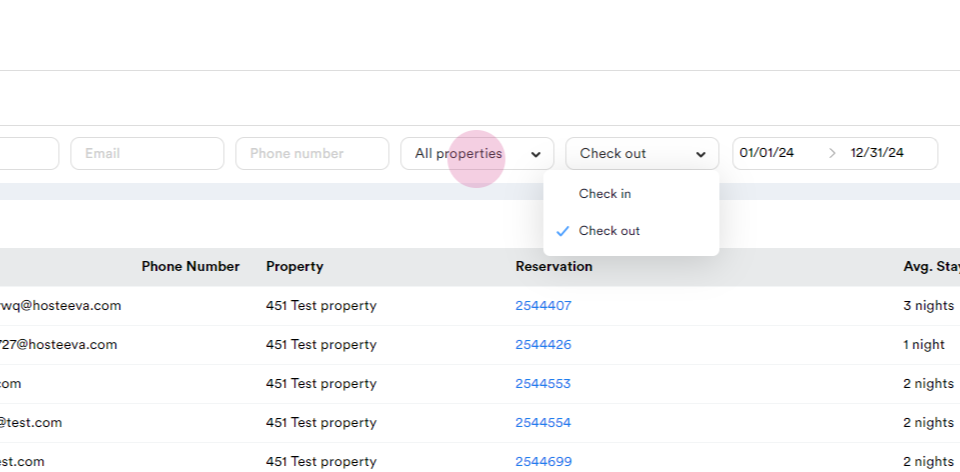
Additional filters include check-in and checkout dates, and property name.
Step 9: Filter using check-in and checkout dates.
Step 10: Choose the property name and apply the filter.
To find a team member, the same search boxes are available under the My Team tab.
Step 1: Select the My Team tab.
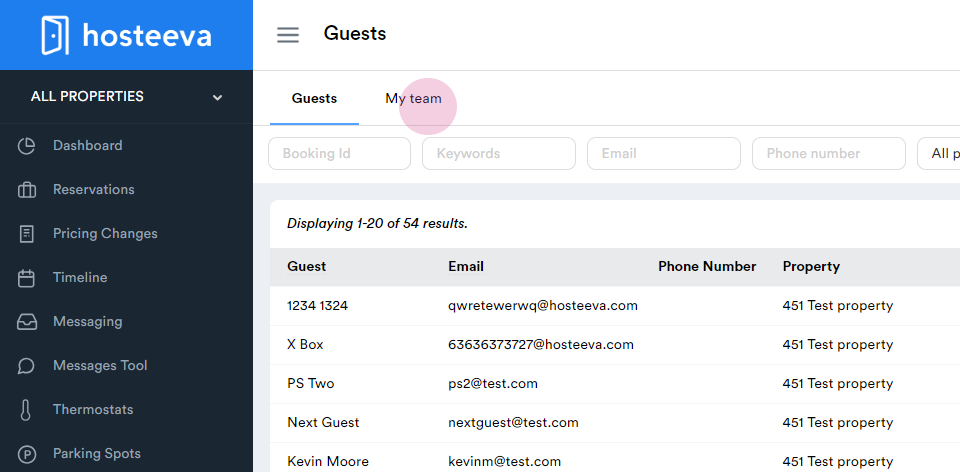
Step 2: Use the search boxes to find a specific team member.