How to Request and Complete ID Verification for Guest Reservations
ID verification is essential for legal compliance, property security, and ensuring only authorized guests access your property. Here’s a clear walkthrough of how to request ID verification and what the guest experience looks like.
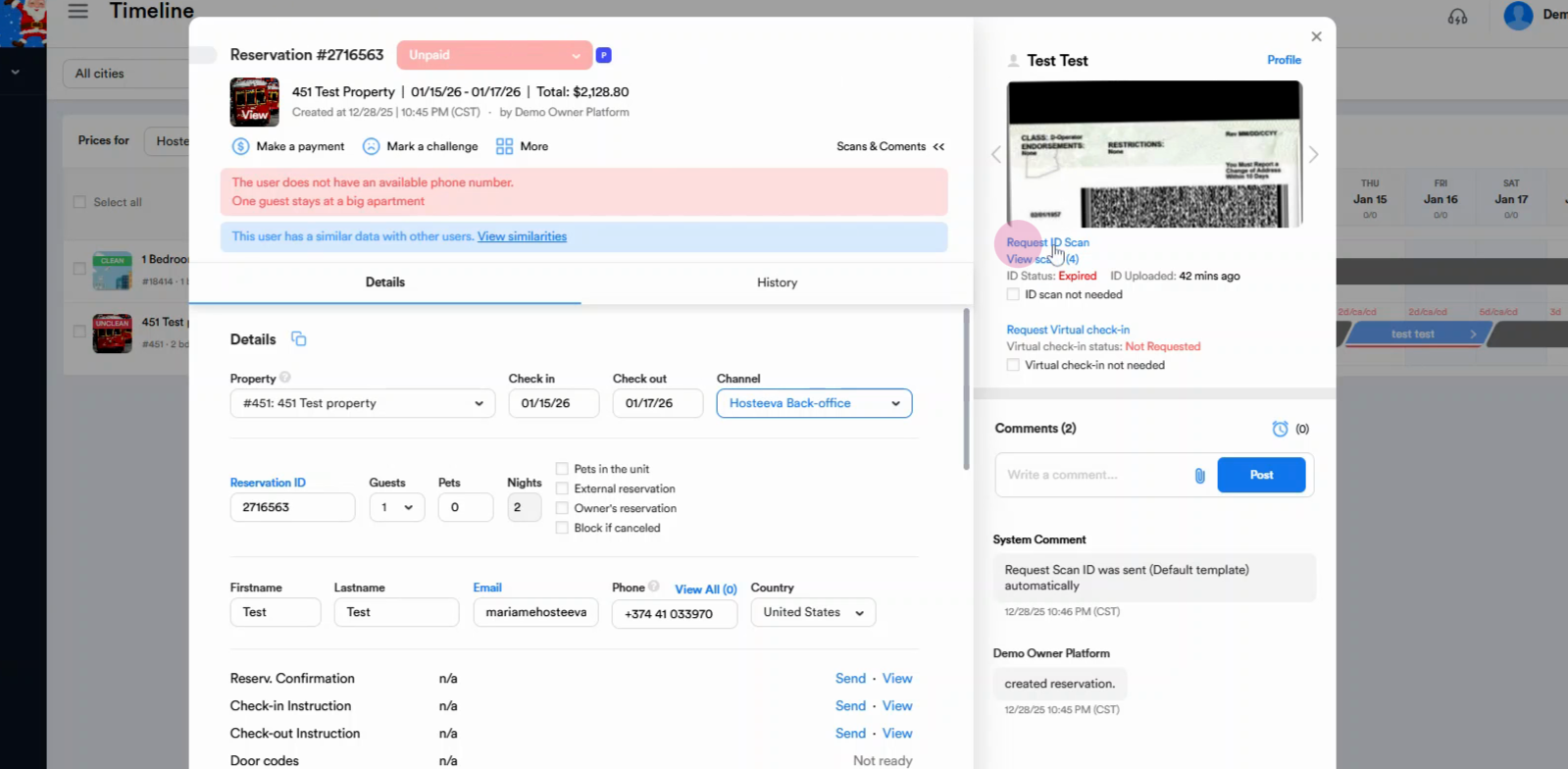
Step 1: Click Request ID Scan.
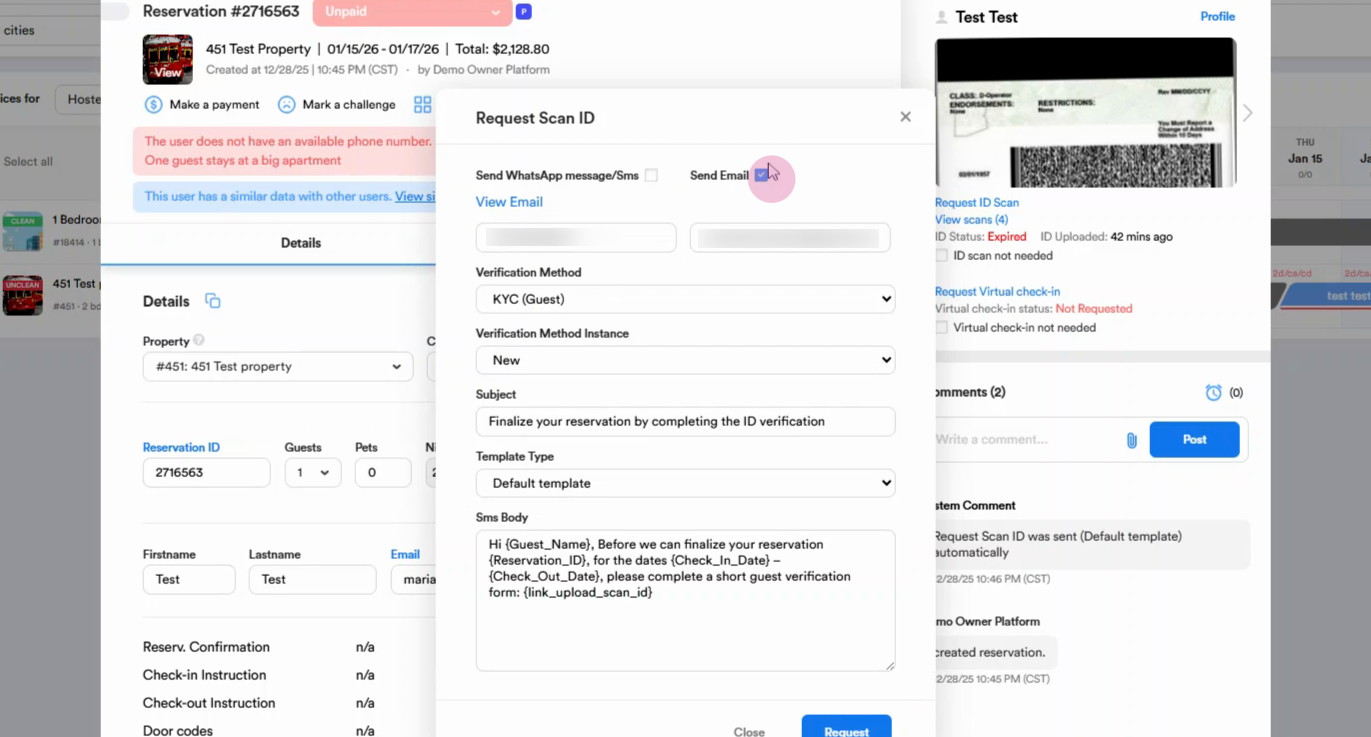
Step 2: Choose how to send the verification form—by text message or email address. Select email address for this example and confirm.
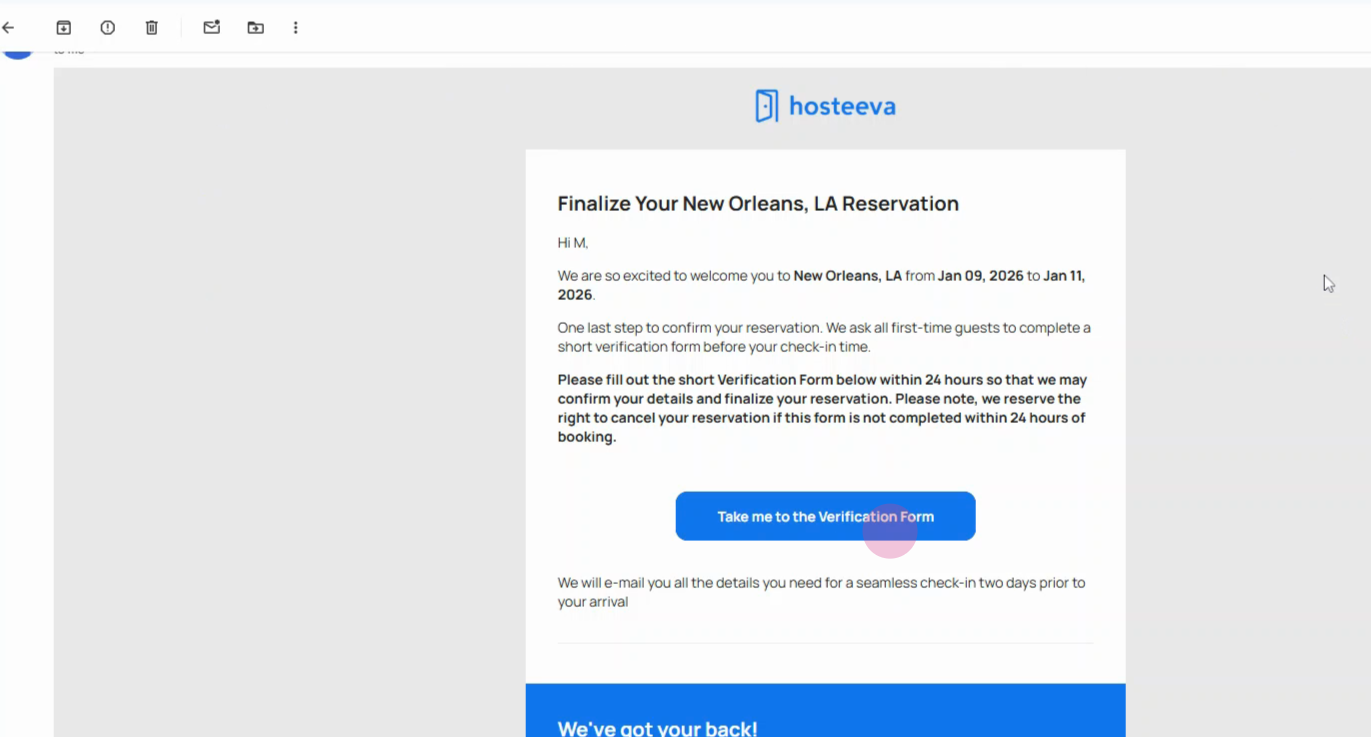
Step 3: The guest will receive an email with their check-in information. At the bottom of the message "Take Me to the Verification Form" button should be chosen, and the instructions should be followed.
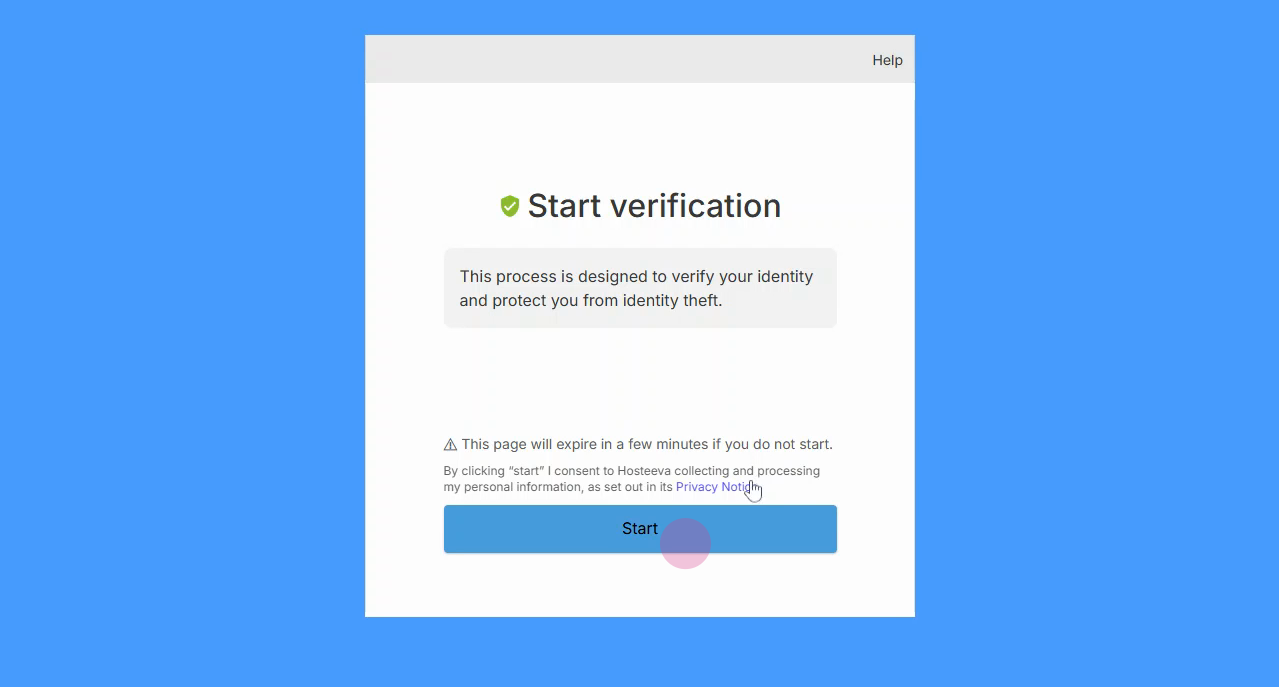
Step 4: Next, click on the "Start" button to activate the process.
Step 5: Choose the country from the drop-down and Select ID type to provide—passport, driving license, or identity card. For US residents, a driver's license is typically requested.
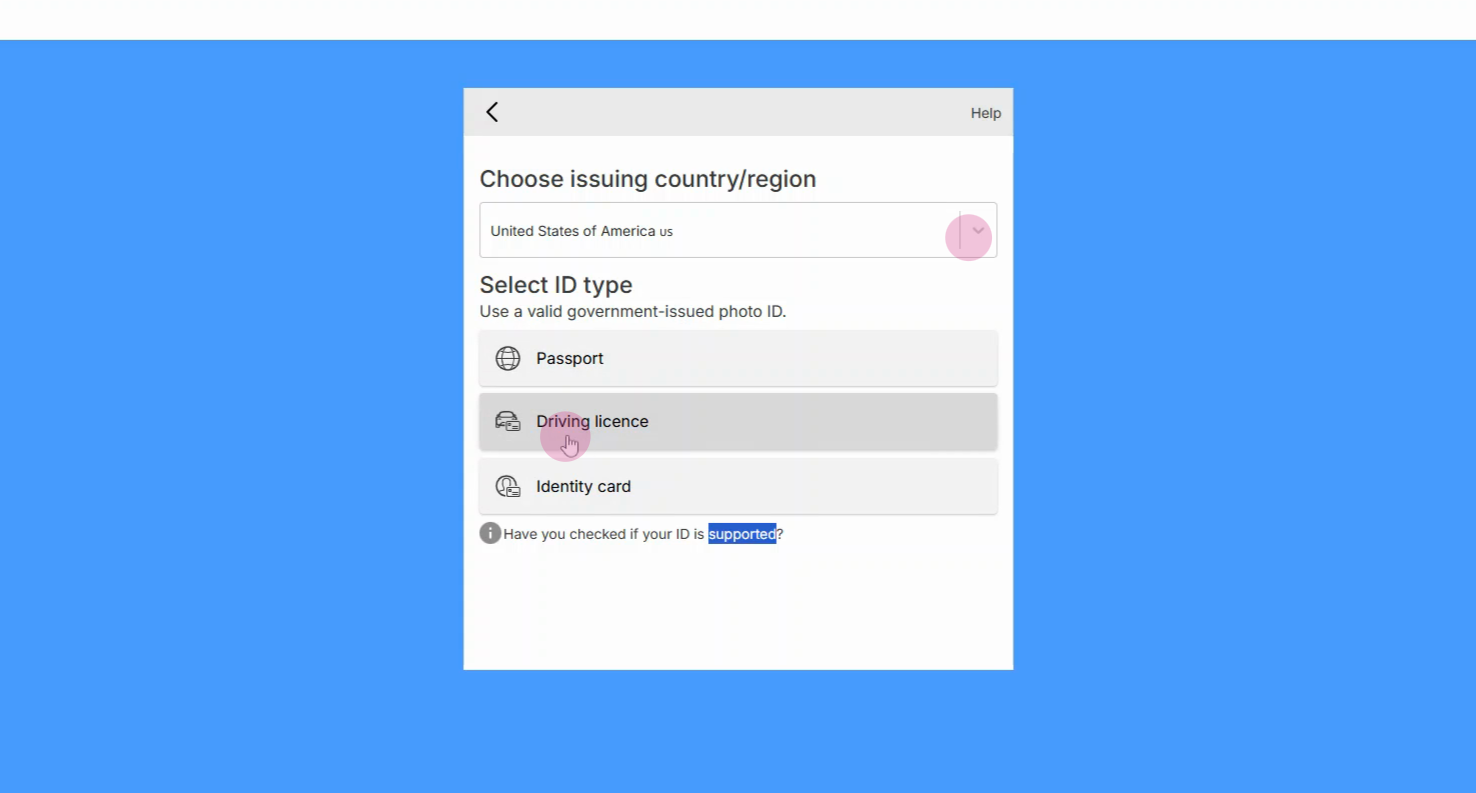
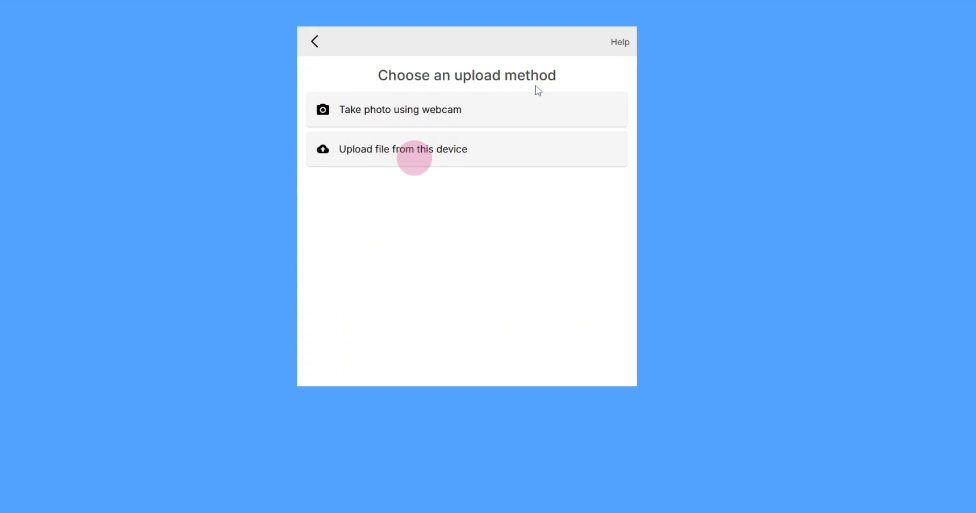
Select Driving License. Choose either to scan live with the camera or upload image files. Select the upload file from the device.
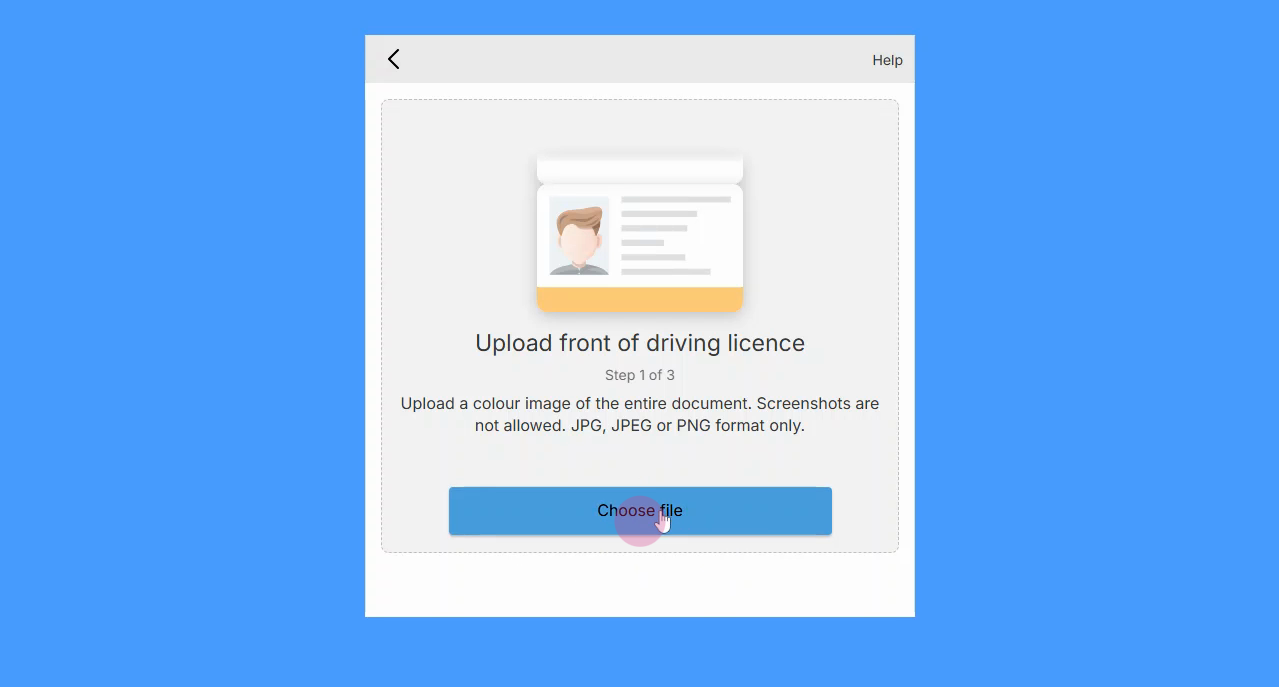
Step 6: Upload the front and back images of the driver's license.
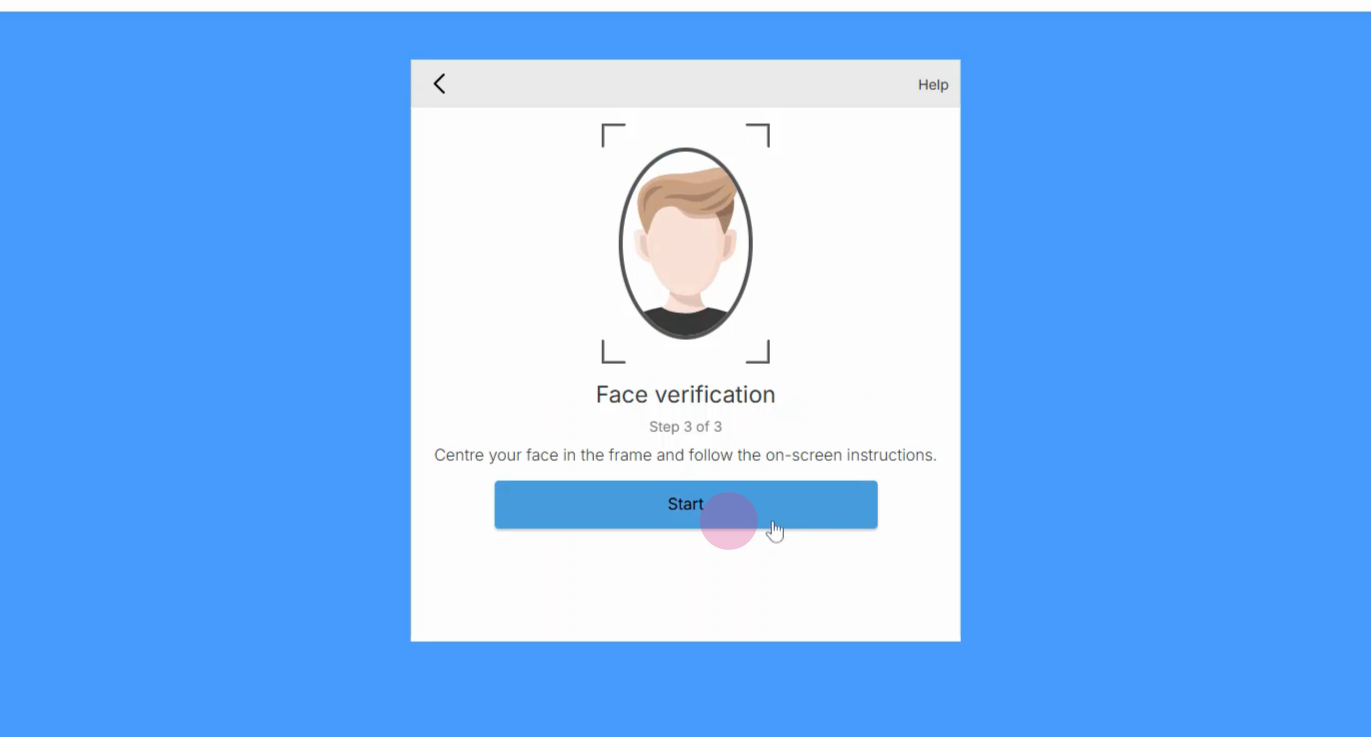
Step 7: The guest is prompted to take a real-time selfie to confirm their identity.
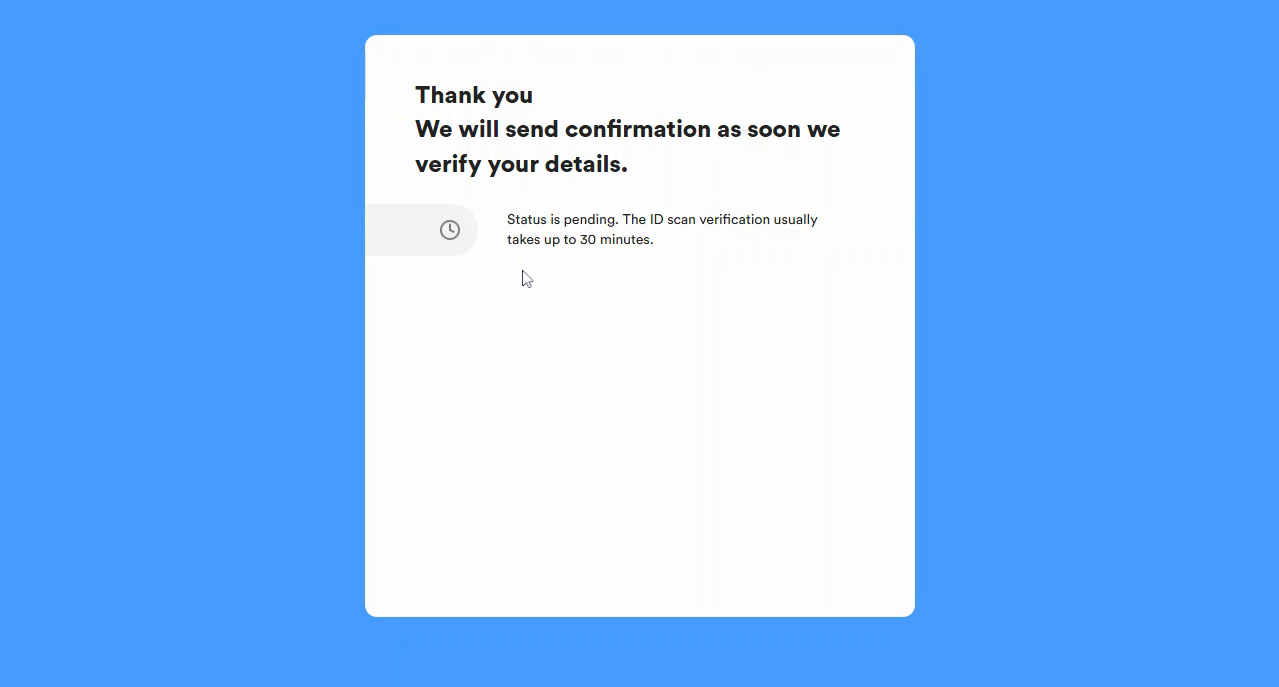
Step 8: The system confirms the submission is complete and notifies the guest that they’ll receive a confirmation once their details are verified. Go back to the reservation dialog. Check that the ID scans are provided.
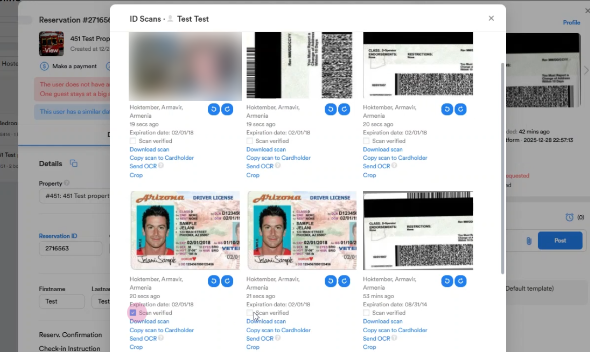
Step 9: Click the provided IDs to review them. Tick the Scan verified check box to verify it.
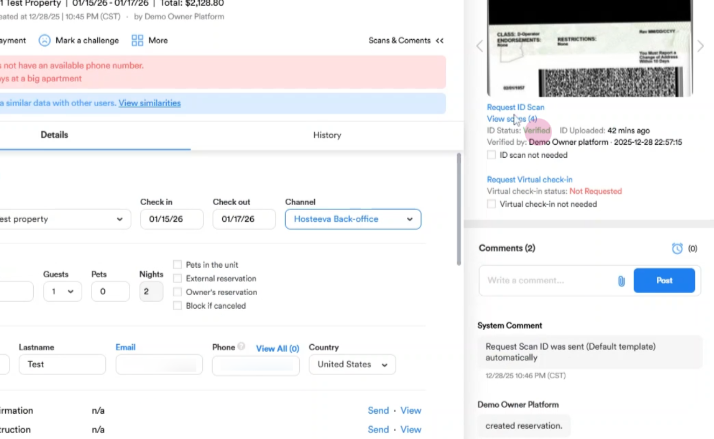
A green verified status will appear after, and the reservation confirmation will be sent automatically.
Requesting and verifying guest IDs helps ensure security and smooth guest check-in. Use this process for every reservation that requires compliance or added safety.