This article provides a step-by-step guide on how to manage payment-related activities using the Hosteeva platform.
Start by navigating to the Hosteeva timeline.
Step 1: Locate the reservation for which you want to add, charge, or refund a payment.
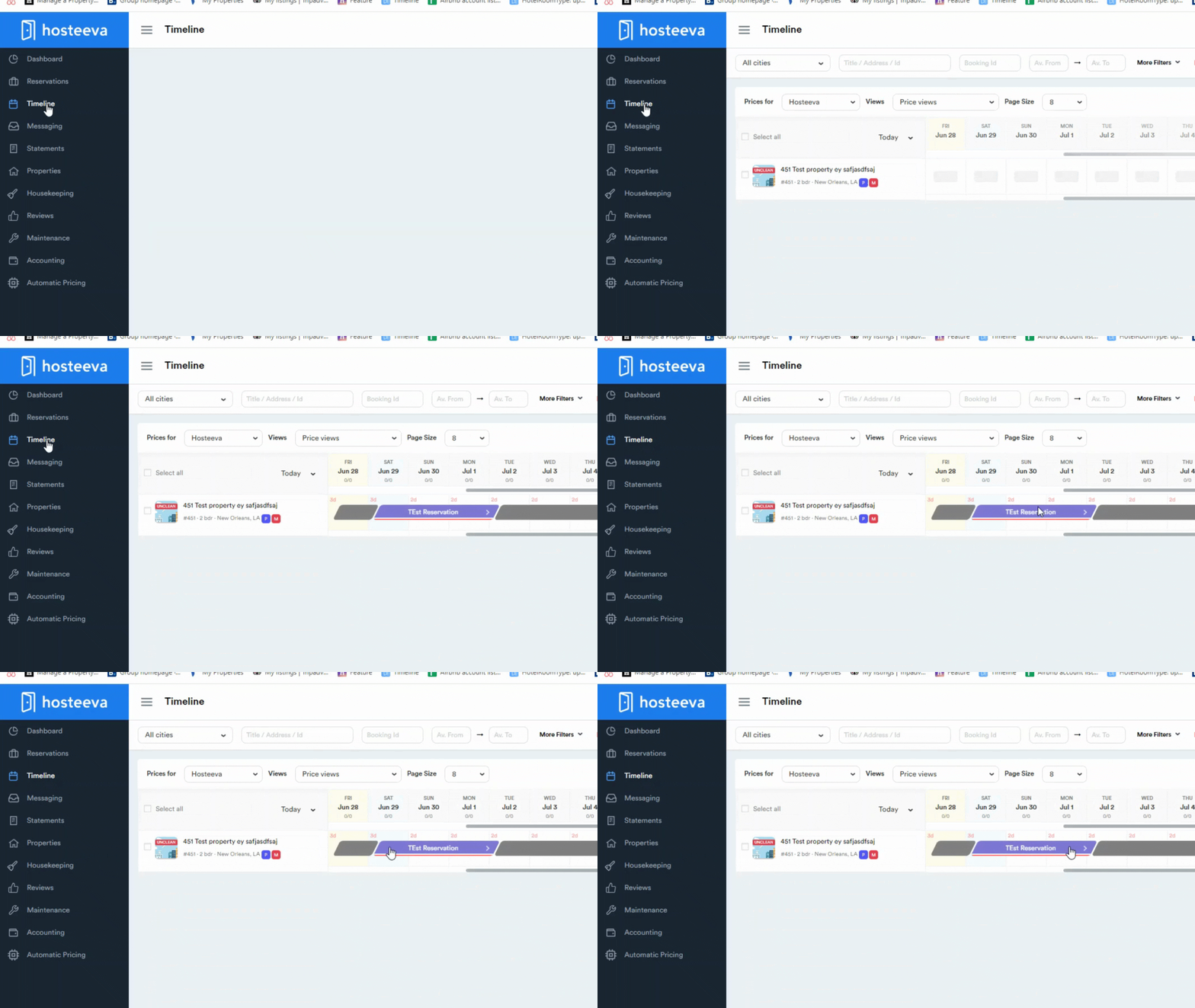
Step 2: Open the reservation and click Make a Payment.
This action opens a payment window.
Step 3: Add a credit card:
3.1 Click Request Credit Card Update, Request Credit Card for Refundable Damage Deposit, or Request 3D Secure Payment to request credit card details from the guest
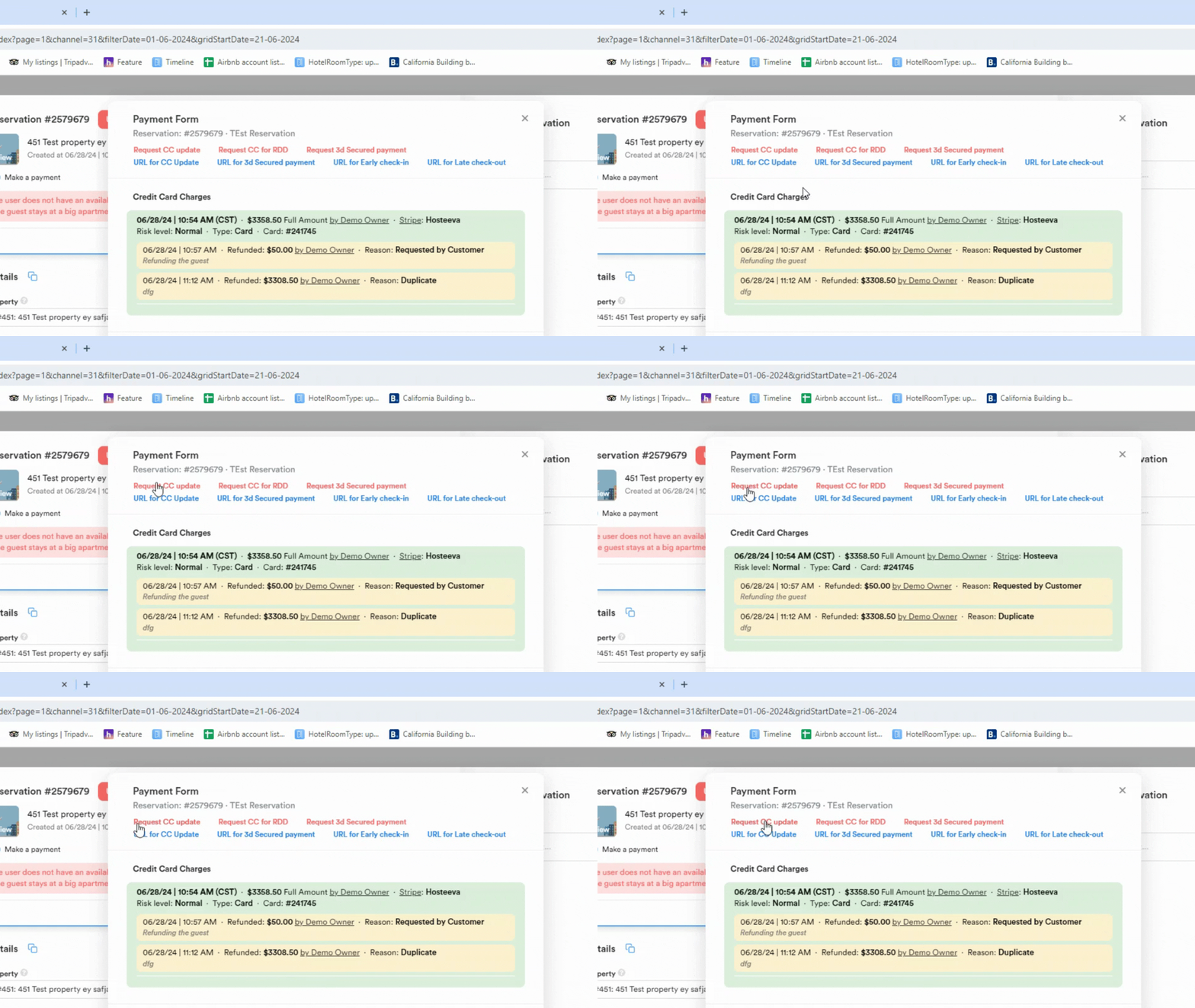
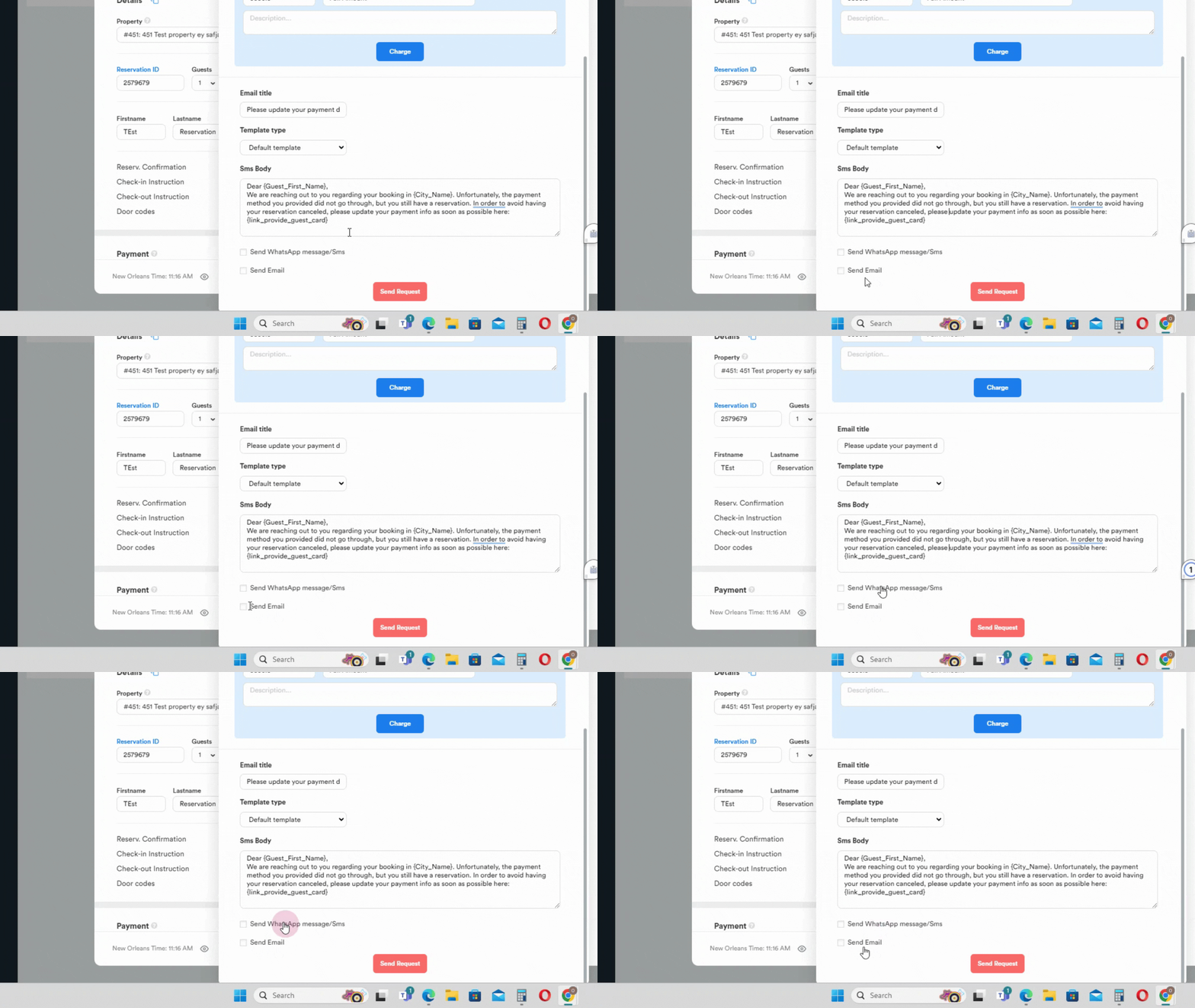
3.2 Each action opens a message template that you can review, update, and send to your guest.
3.3 Choose to send the message via WhatsApp, SMS, or Email. Click Send Request.
The guest will receive a message to update their credit card details. Once updated, these details will appear in the reservation dialogue under the payment form.
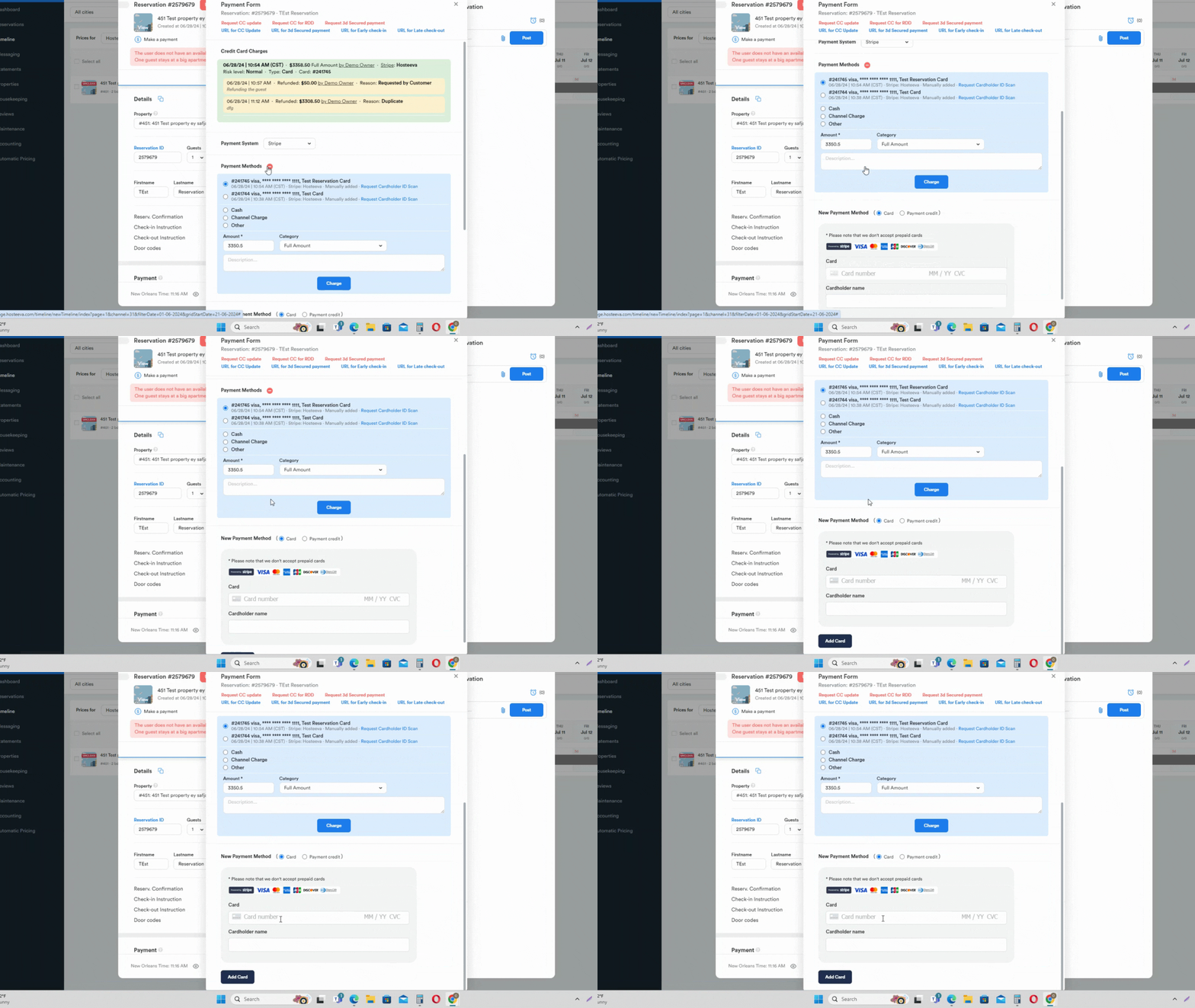
3.4 Alternatively, to add the credit card details manually:
Click the (+) icon next to the Payment Methods
A new window will appear for you to add the credit card number.
3.5 Fill in the guest's credit card details and name. Click Add a Card.
Now, the credit card details are available in the reservation dialogue.
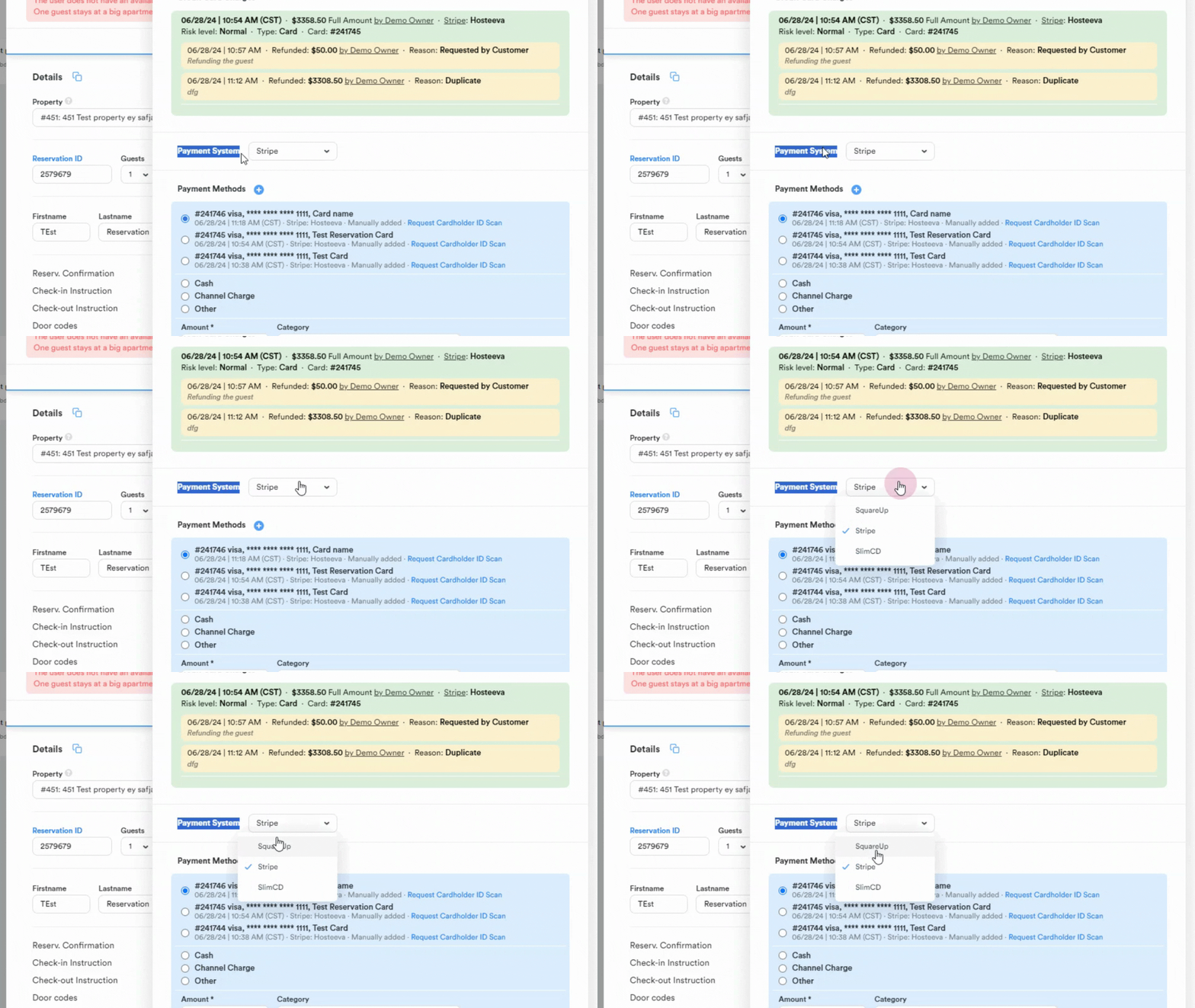
Step 4: Choose the payment system currently in use. For instance, select Stripe.
Before charging the guest, please make sure the correct payment system is selected.
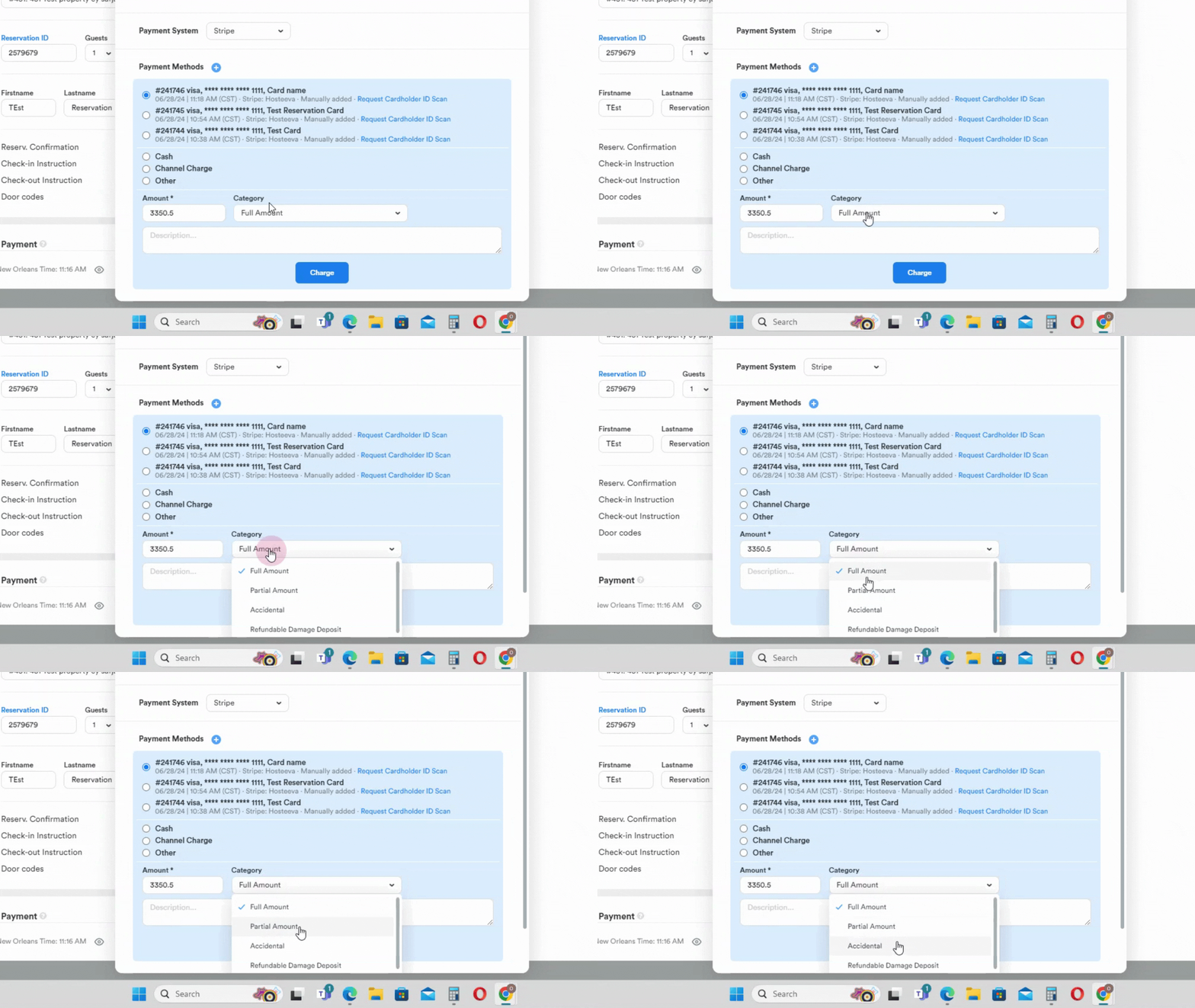
4.1 Choose the payment category, such as Full Payment, Partial Amount, Accidental, Refundable Damage Deposit, Parking, etc.
For instance, to charge the full reservation amount, select Full Amount.
Ensure the full amount matches the total reservation amount.
Step 5: Select the payment method, such as Credit Card, Cash, Channel Charge, or Other.
This option records the payment in the system history without processing a charge.
If a credit card is selected, clicking on Charge will charge the provided credit card.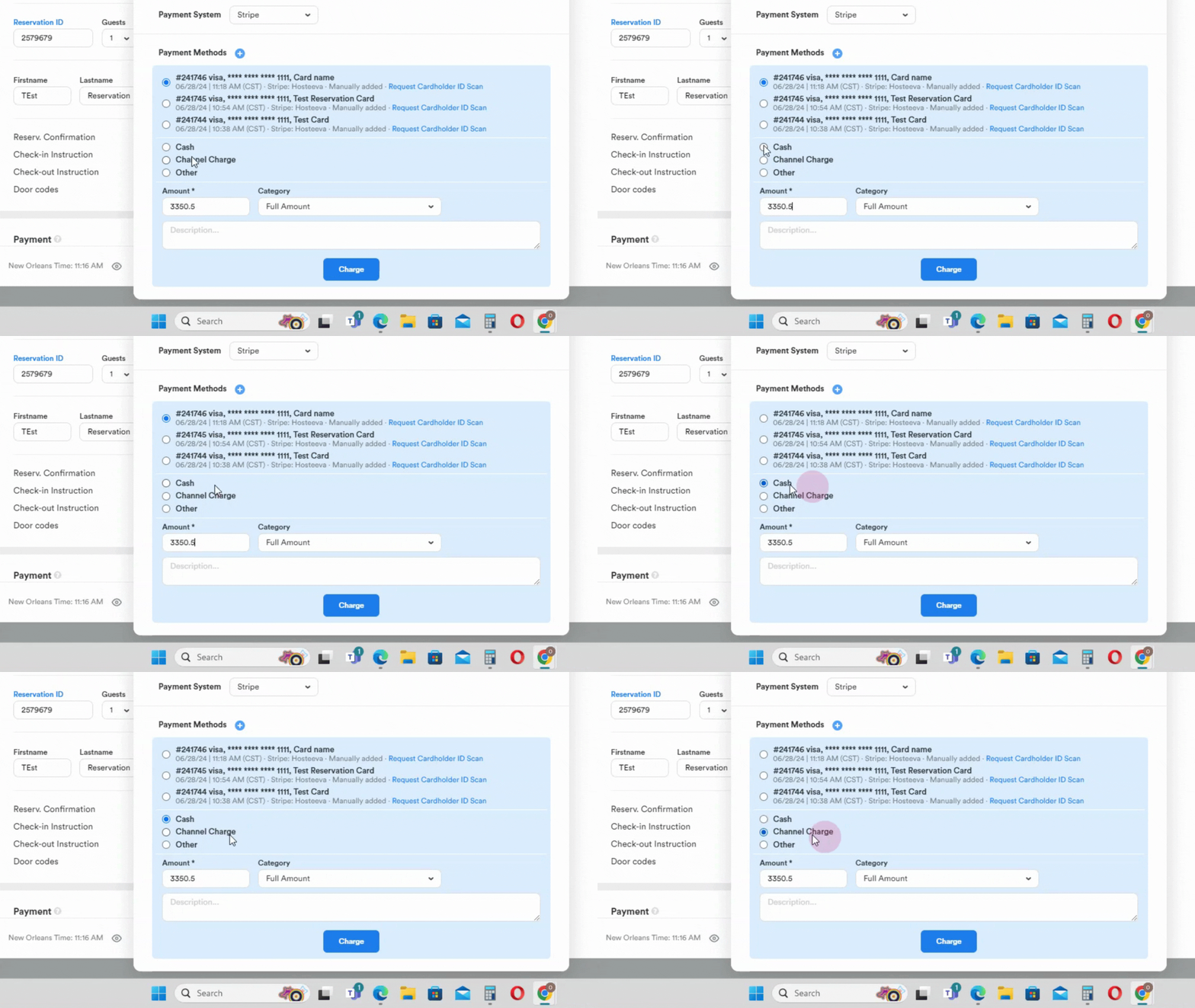
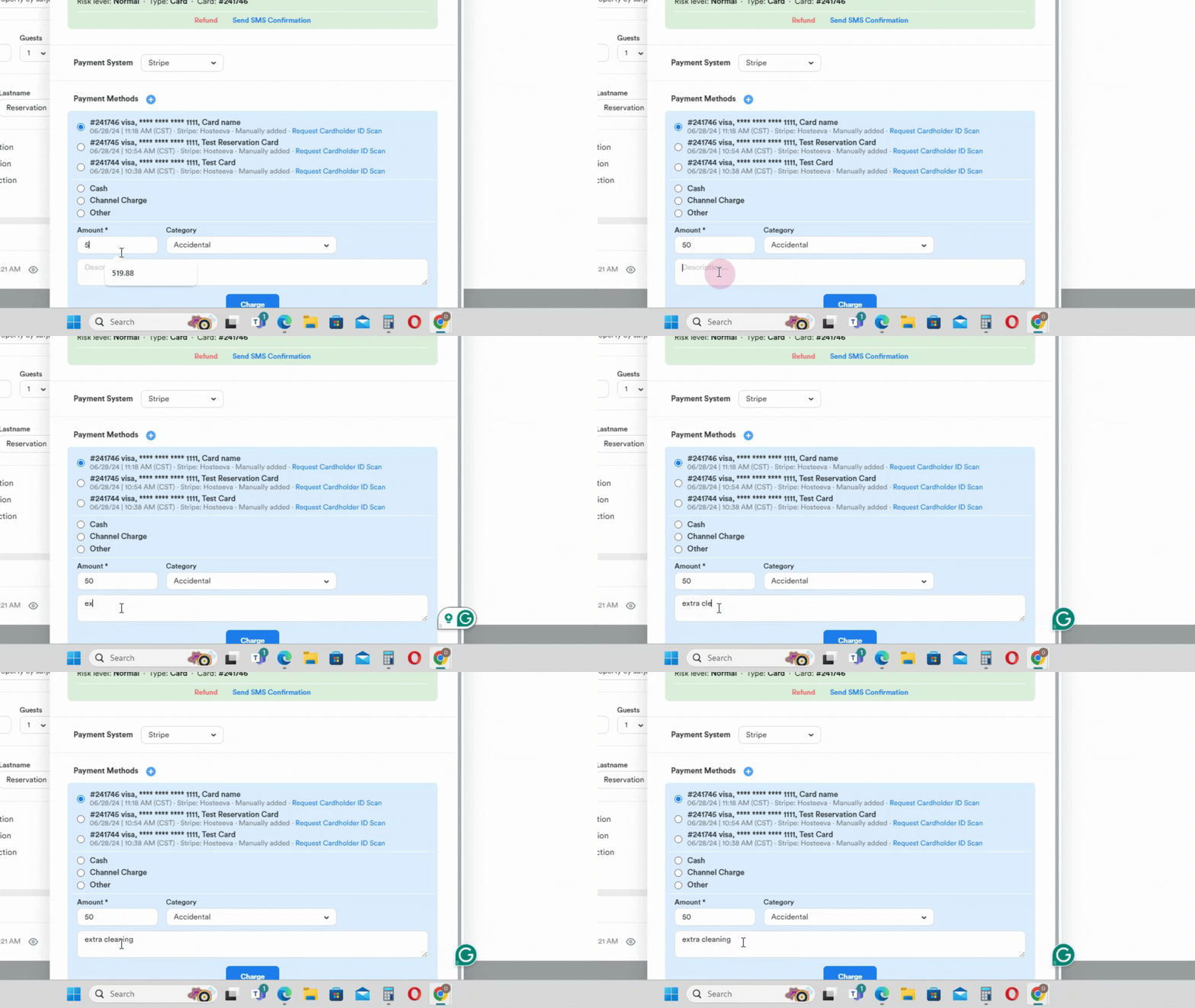
5.1 To charge a partial amount or an accidental amount: Select Partial Amount or Accidental from the dropdown.
For instance, to charge an extra $50 for cleaning, enter this amount, leave a comment, and click on Charge.
Step 6: Refund
To refund the guest: Click Refund. Enter the refund amount.
For instance, to refund $100, enter the amount, set the reason, leave a comment, and click Refund.
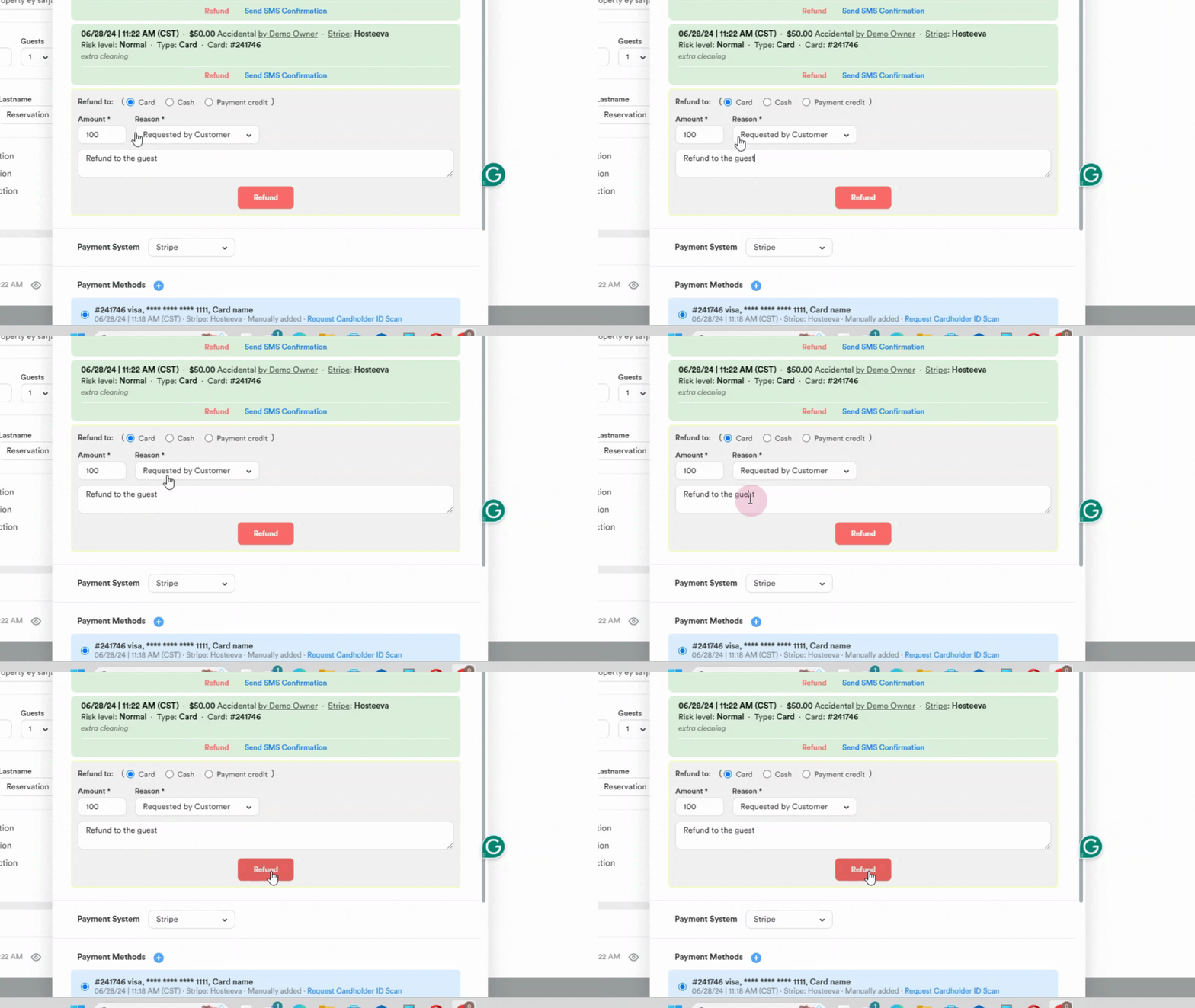
6.1 Confirm the refund.
The refund will then be processed.
This concludes the guide on managing payments on the Hosteeva platform.