In this article, you'll learn how to use the Morph filter from the reservation dialog, allowing you to manage user profiles, extend guest stays, save reservations, copy reservations, relocate guests, create issues, and change reservation statuses.
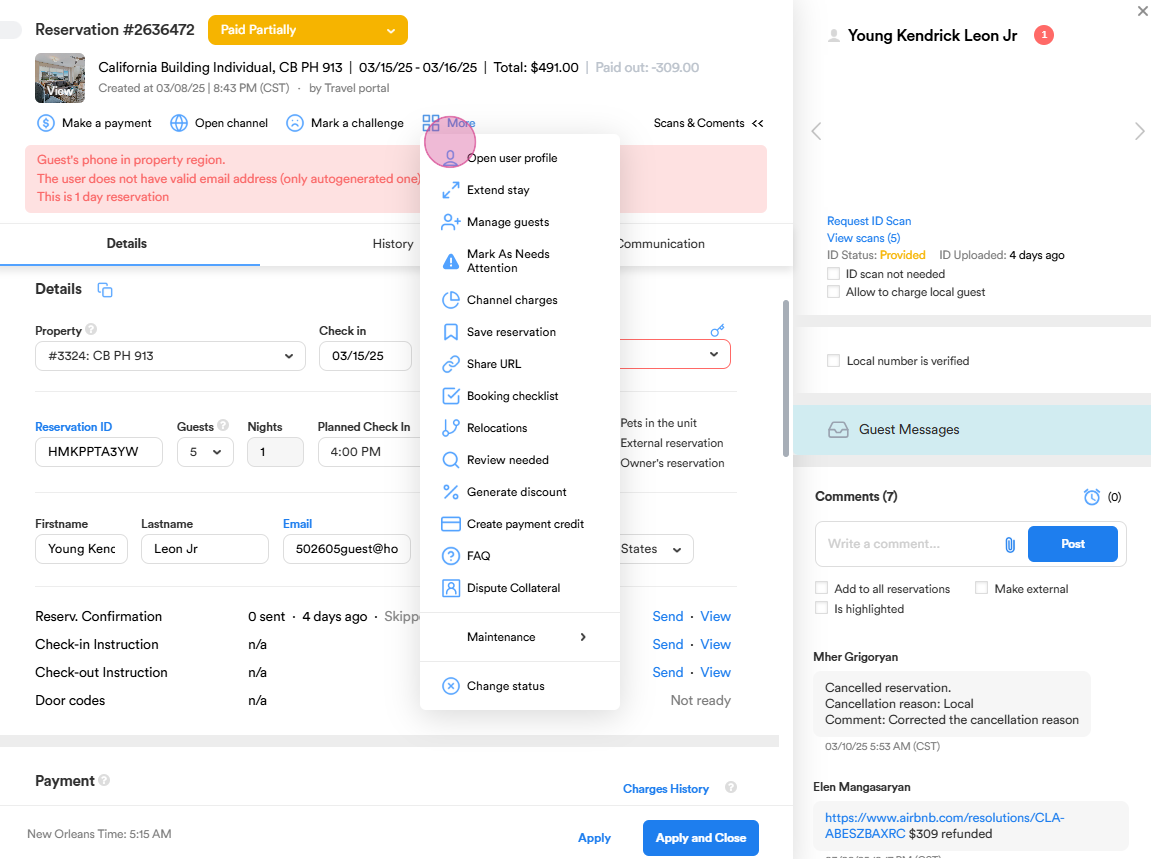
Step 1: Click on the More button to access additional options such as opening the user profile, extending the guest's stay, and relocating the guest from original property to a new one.
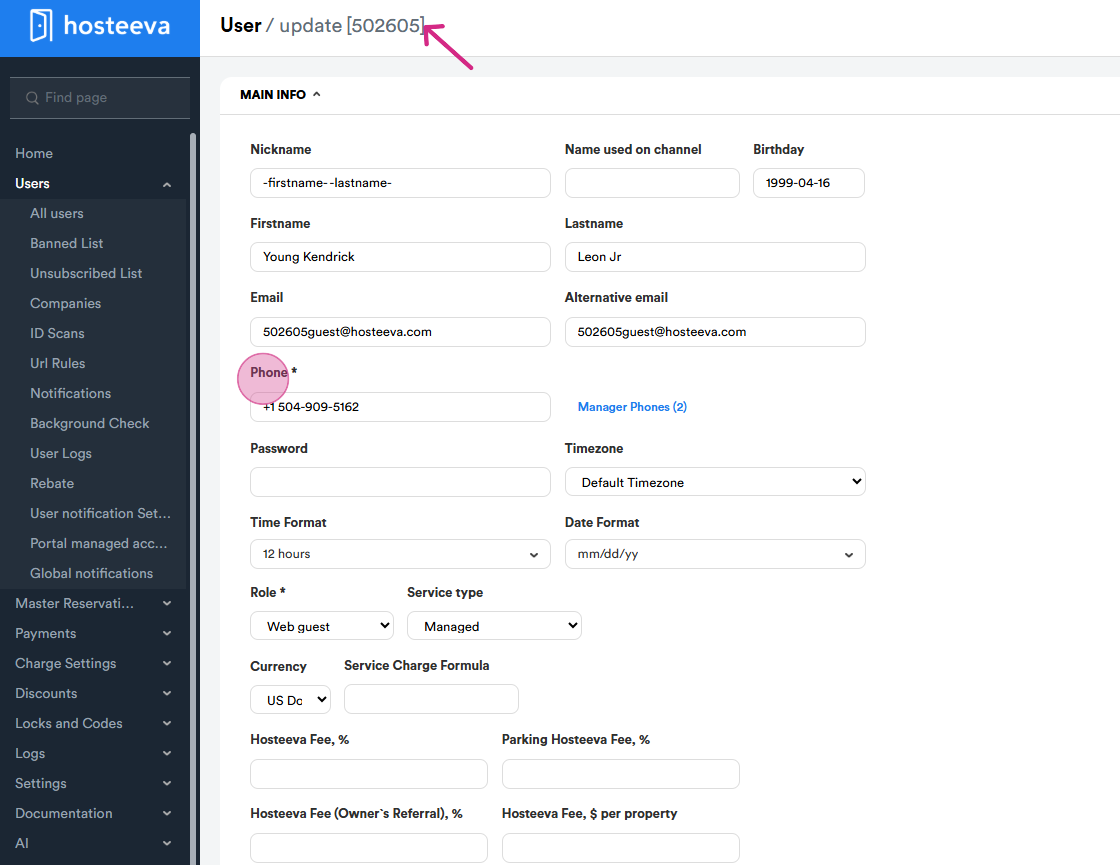
Step 2: Click on the user profile. This action takes you to another page where you can view and modify user information. Change the user's details, such as number, first and last name. After making changes, remember to hit the save button to store all modifications.
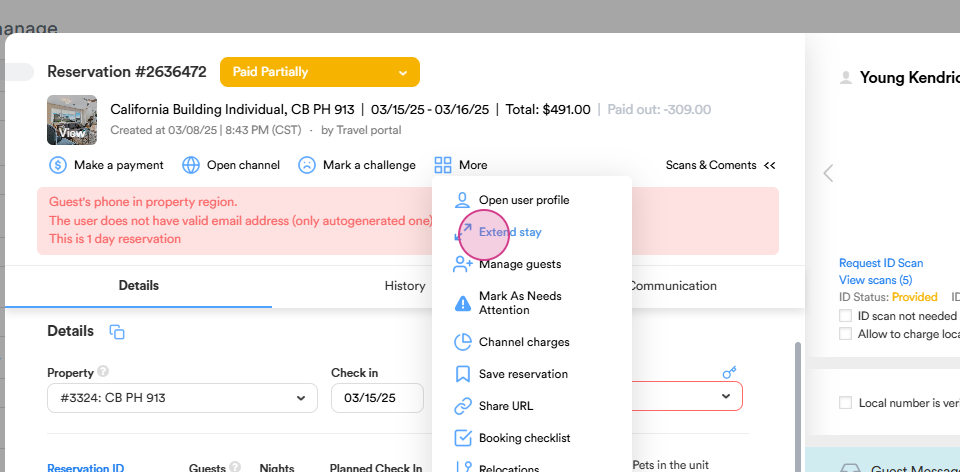
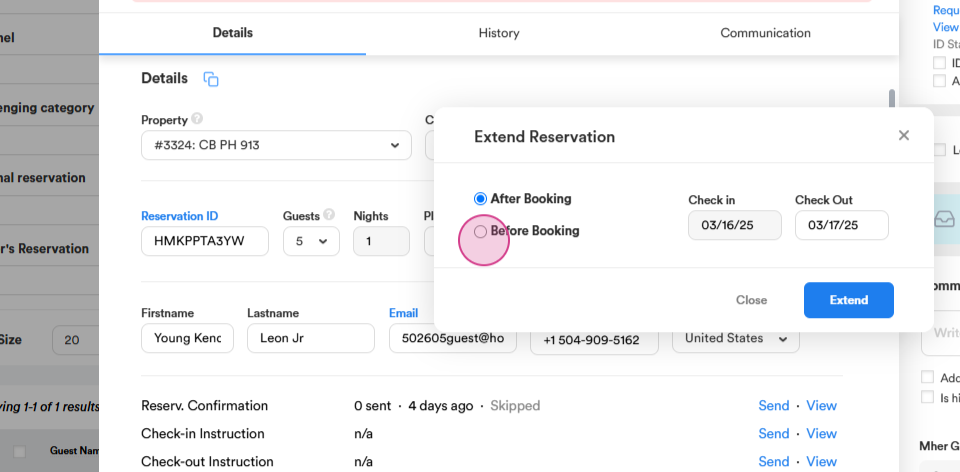
Step 3: The Extend Stay option allows you to extend a guest's stay either before or after their initial booking, provided there is availability.
Modify the dates and press extend.
Step 4: Save the reservation by clicking on save reservation.
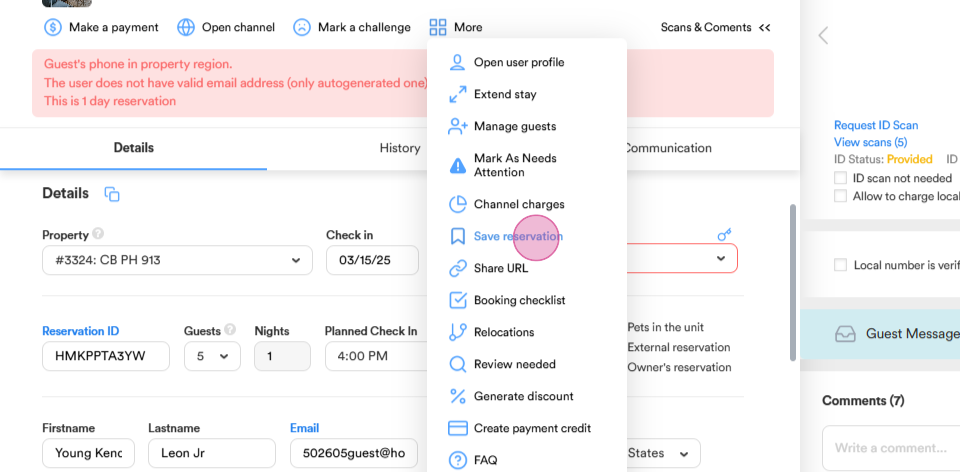
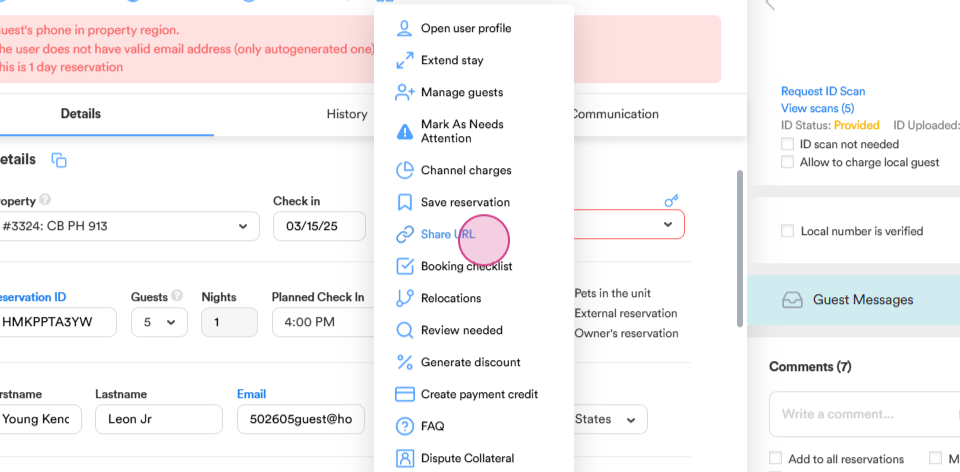
Step 5: Copy the reservation from the More drop-down menu. Click on the share URL to copy the link.
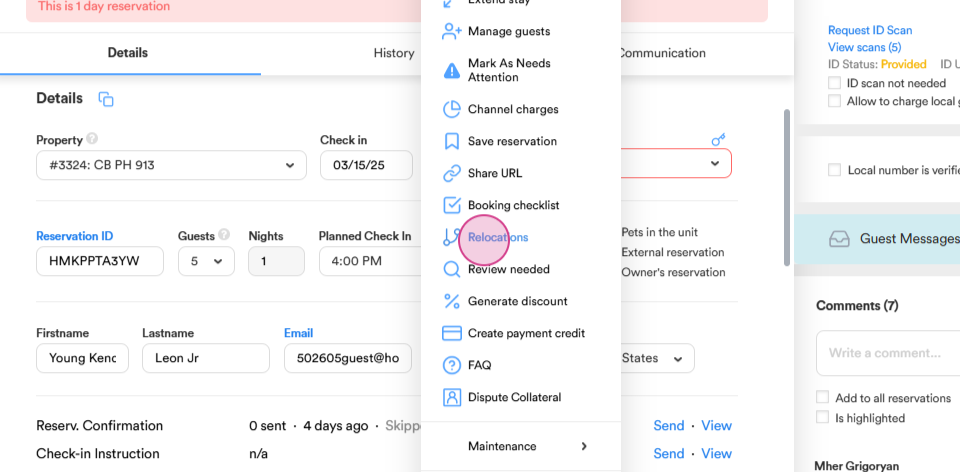
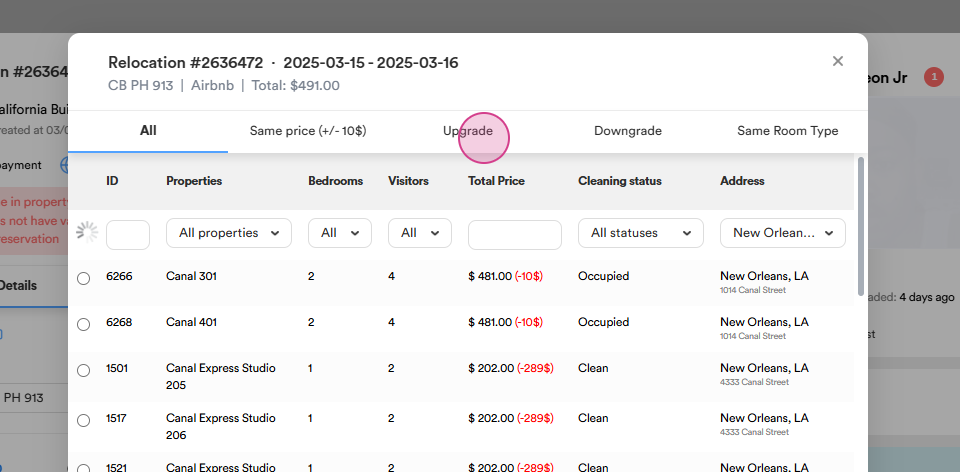
Step 6: The Relocations option allows for transferring a guest to a different property from their original unit if they encounter significant maintenance and housekeeping issues after check-in. This option allows you to select from a variety of filters to customize the view and narrow down the information based on specific criteria.
You can upgrade or downgrade the property, and to find the desired options, simply select filters such as property name, number of bedrooms and visitors, total price, cleaning status, or address. Click OK to finalize the changes.
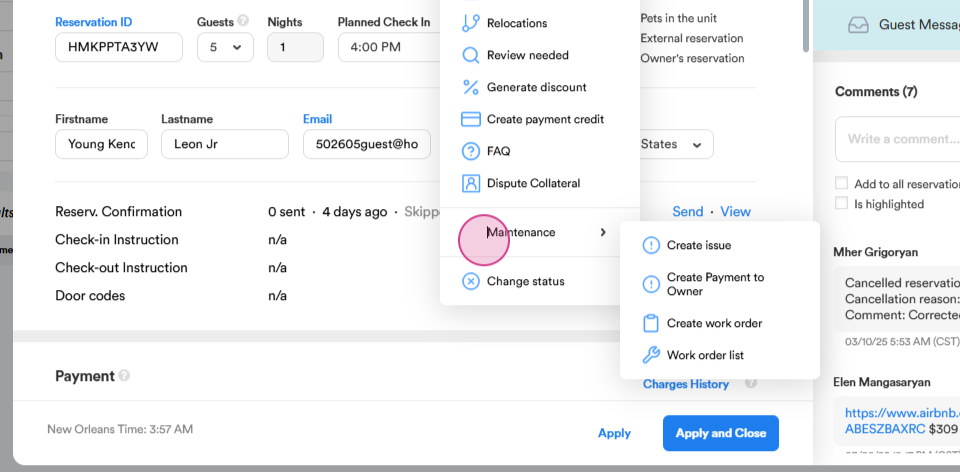
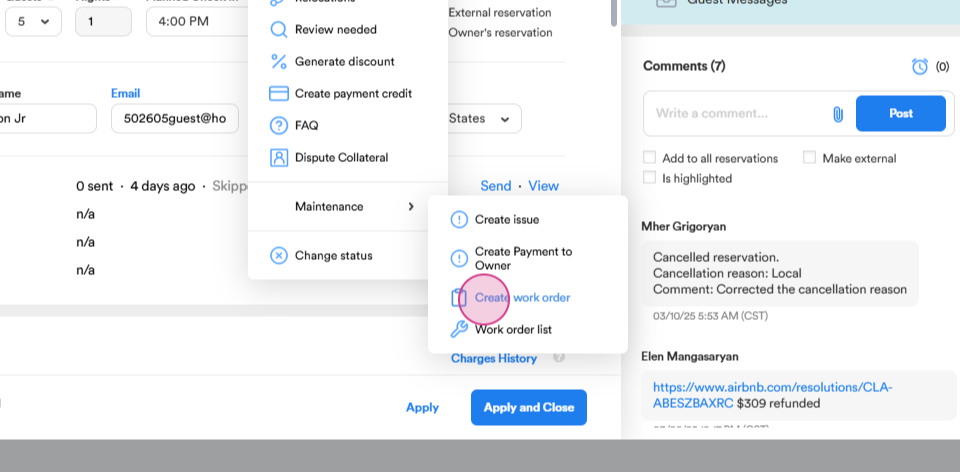
Step 7: From the More button you can also use the Maintenance option which allows us to create an issue and create a work order.
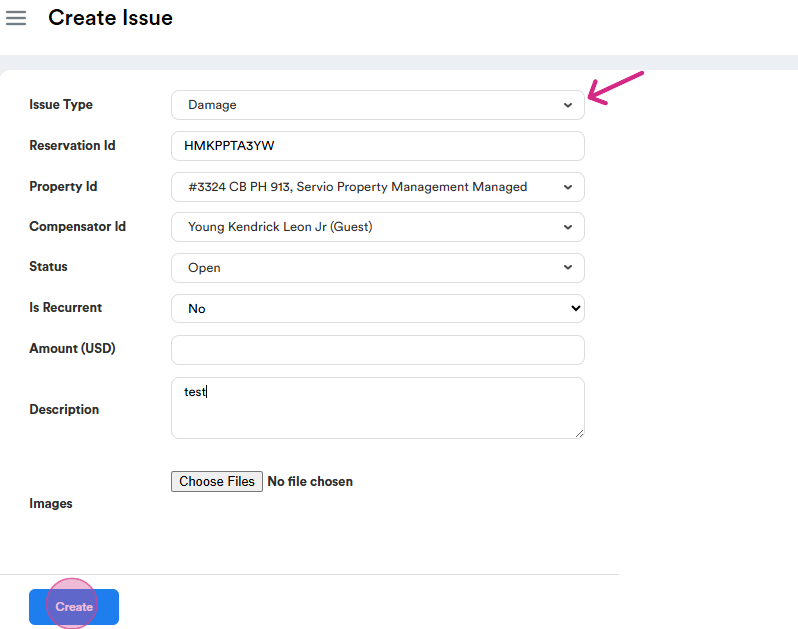
We create an issue whenever a guest causes damage to the property. This could include situations where they break an item, damage an amenity, or create a mess at the property. In such cases, it’s important to document the issue so that we can charge the guest for the damage they have caused.
Choose the issue type, add the amount, descriptions if needed, attach pictures, and create the issue.
If a guest reports any issue during their stay, such as problems with housekeeping, maintenance, missing amenity we create a work order for the local team to resolve the problem as quickly as possible.
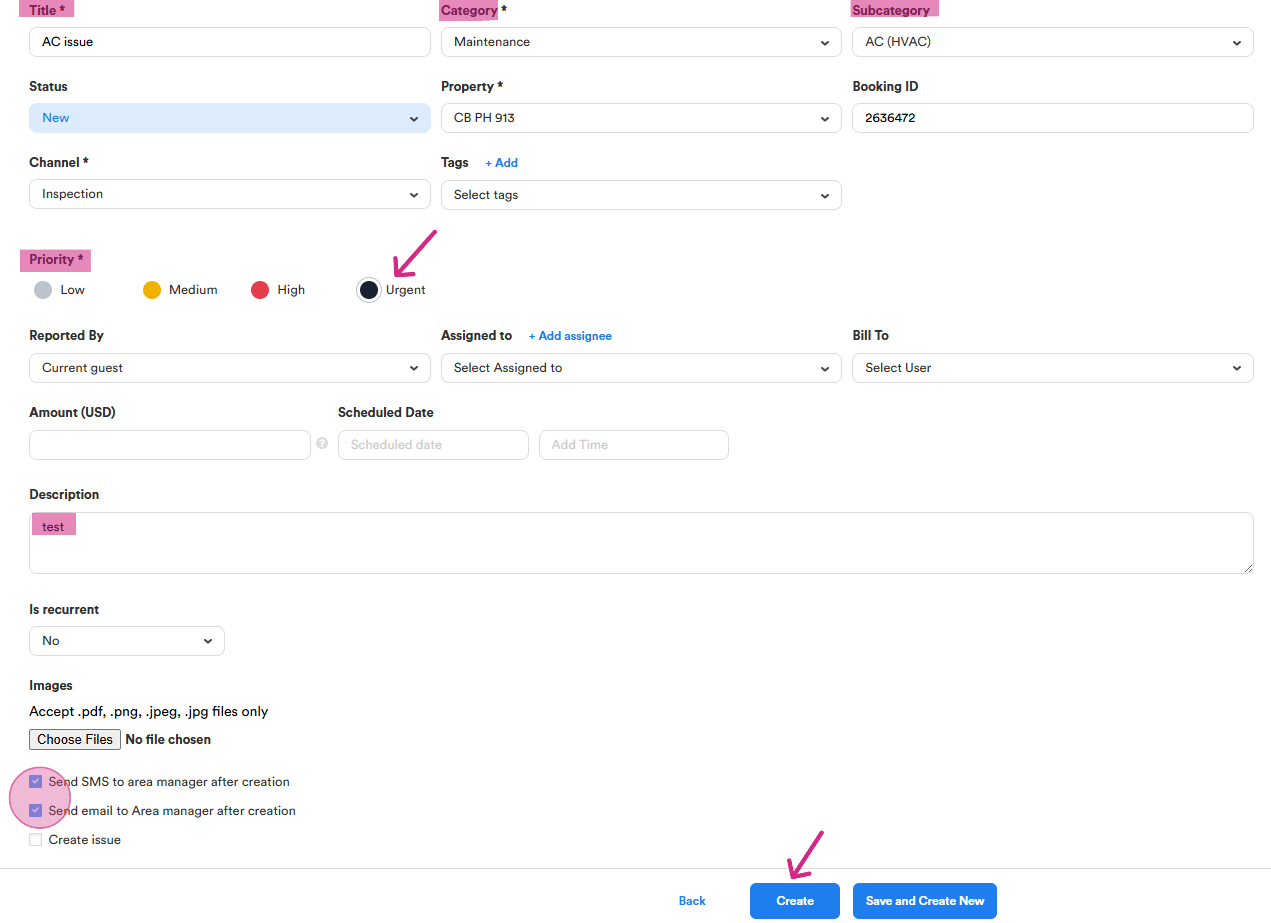
Let's create a work order for maintenance. The issue could vary, such as an AC problem, which falls under category of maintenance, and choose an AC as the subcategory. Alternatively, it could be a cleanliness issue, such as an unclean unit, which would fall under category of housekeeping. We also assign a priority level to the issue: low, medium, high, or urgent, depending on the severity of the situation. In the Description section, we include any extra details provided by the guest regarding the issue. If there are any relevant photos, we attach the appropriate files to provide further context. After selecting the files and confirming the information (by ticking both checkboxes), we can then proceed to create the work order.
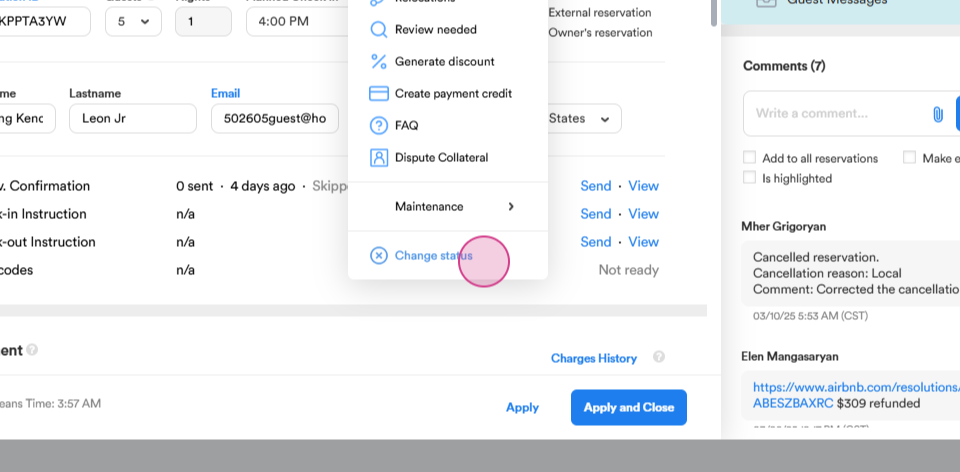
Step 8: The Change Status option allows you to update both the reservation status and the pay status as needed.
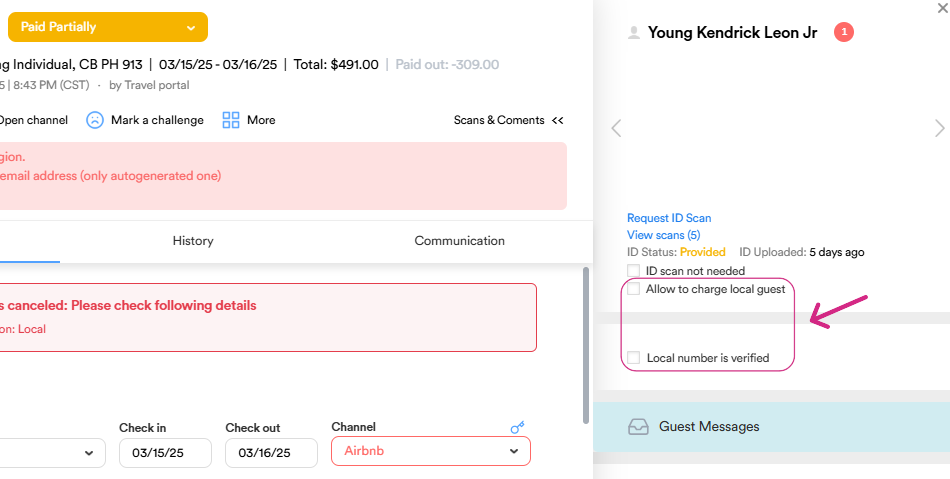
Step 9: On the right side, use the checkboxes to charge a local guest and verify their local number.
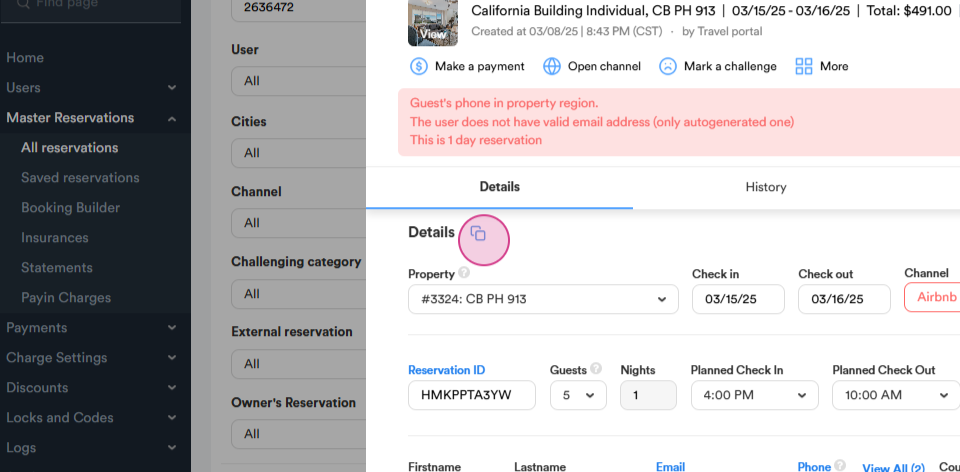
Step 10: From the details part, use the reservation copy button to copy the reservation link.
Thank you for following along with this tutorial.