In this article, you'll learn how to use the timeline feature to view and set unit prices, and check date availability.
Step 1: Navigate to the timeline. This is where you'll find units with various filters applied.
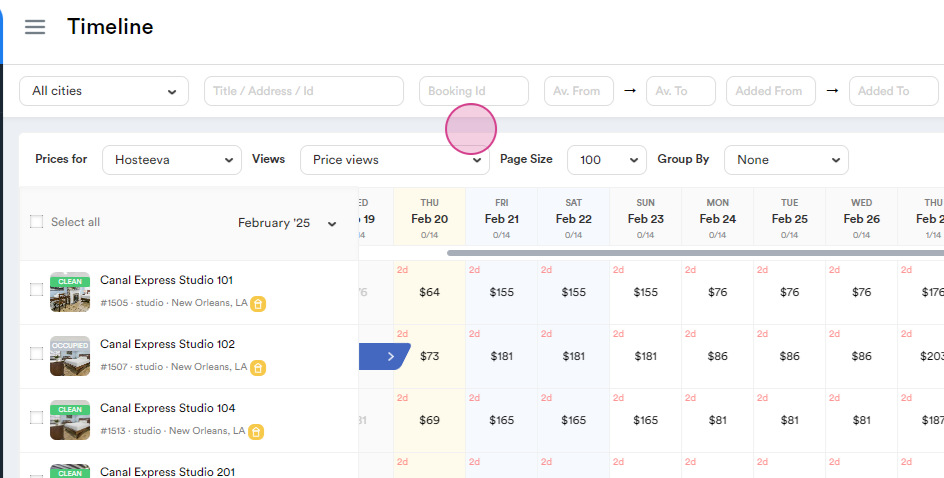
Step 2: Filter units by City.
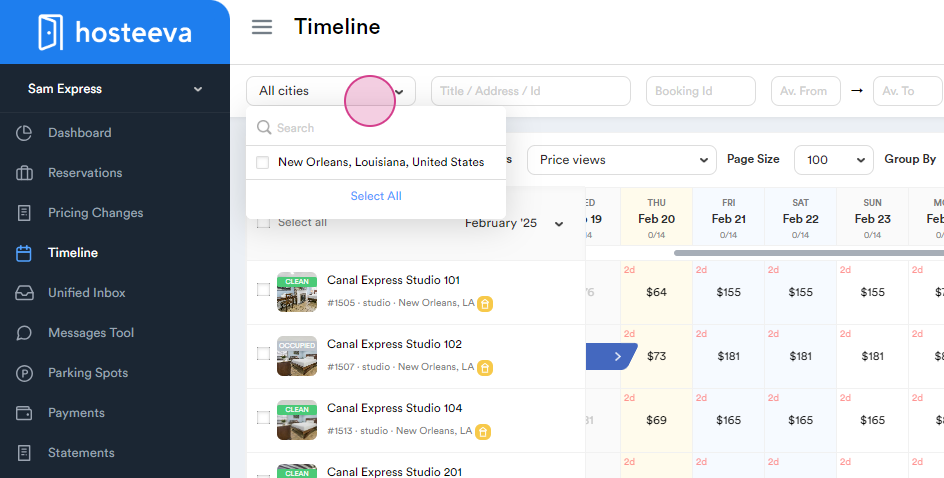
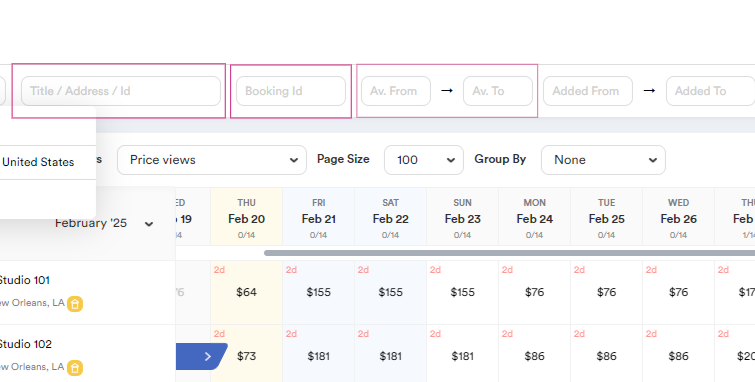
Step 3: Filter by:
-
Property Name, Property Address or Personal ID,
-
Booking ID
-
Available Dates
Step 4: After all of that click on Filter bottom to make changes.
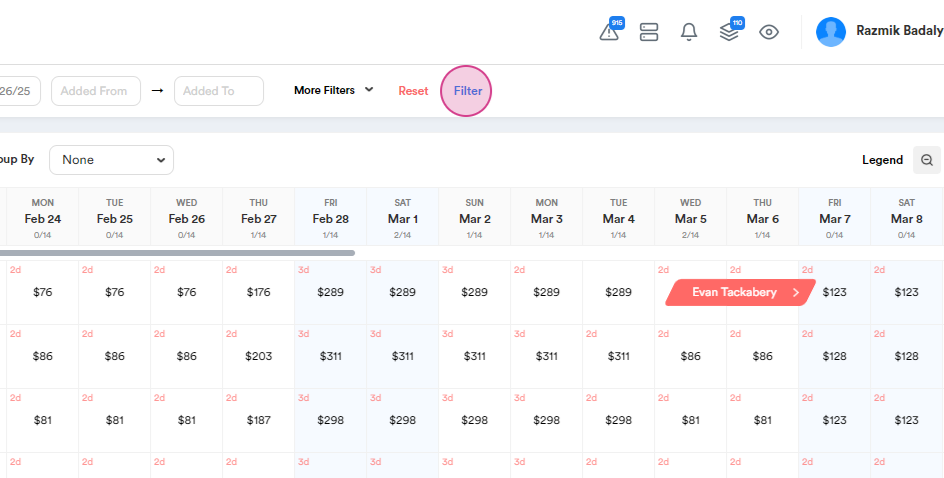
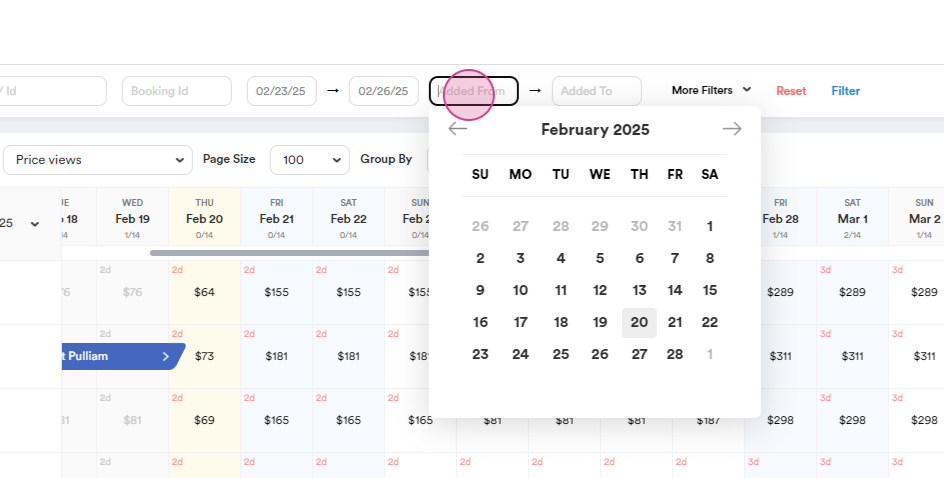
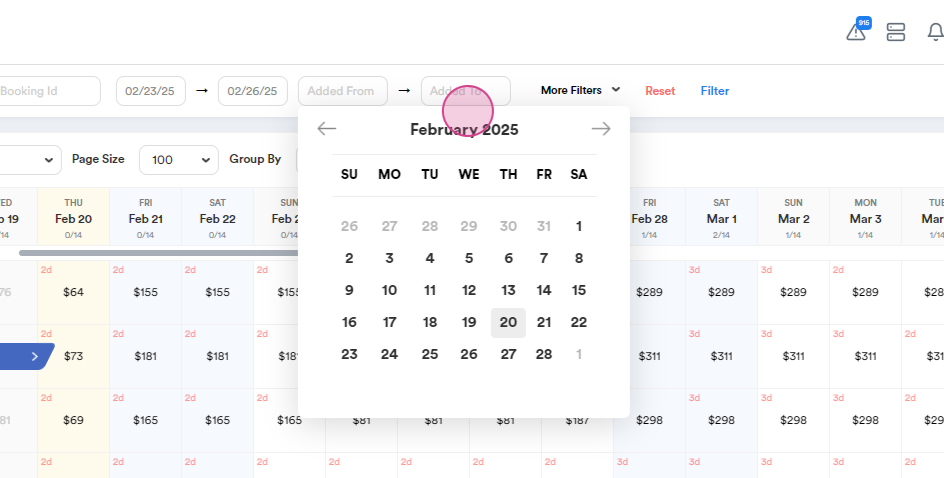
Step 5: If you have multiple units, you can find when each one was added using special dates.
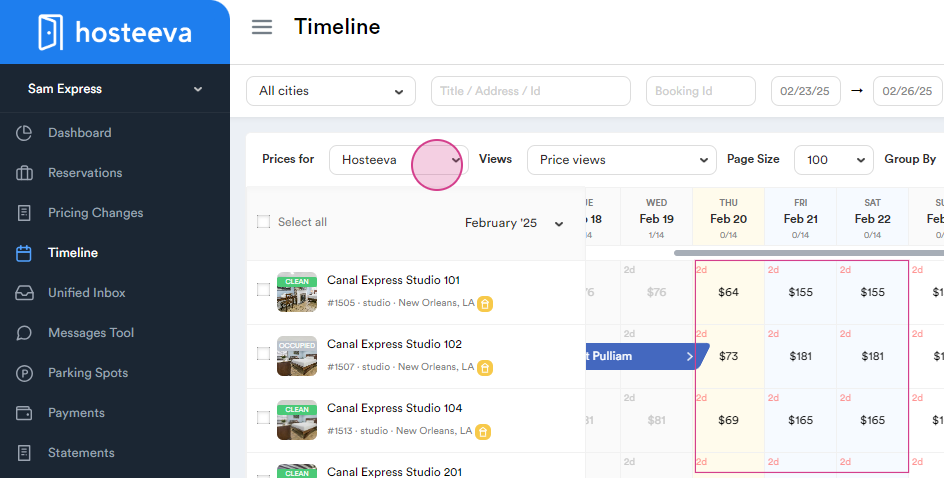
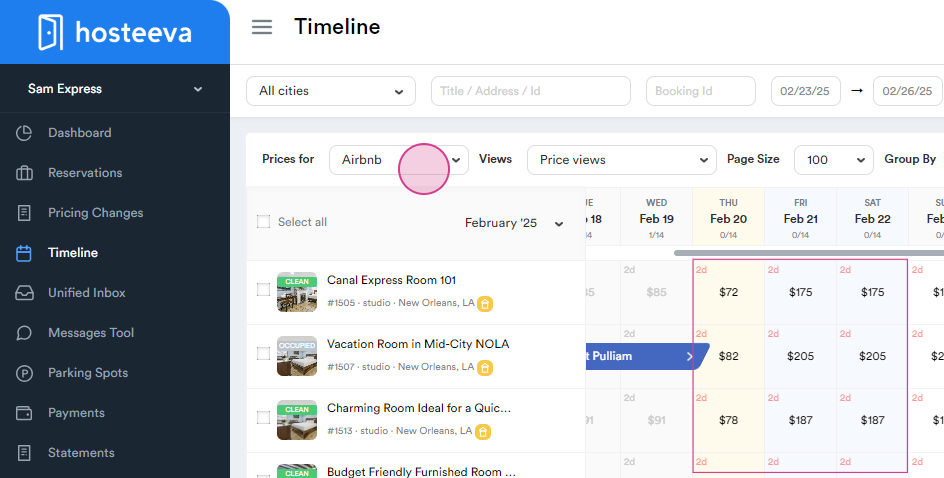
Step 6: You can Set and View Prices for Each Channel. In this case, we're looking at prices for Hosteeva and Airbnb.
Step 7: Use the Price Views feature to filter All Basic Prices. This will show you the prices behind reservations.
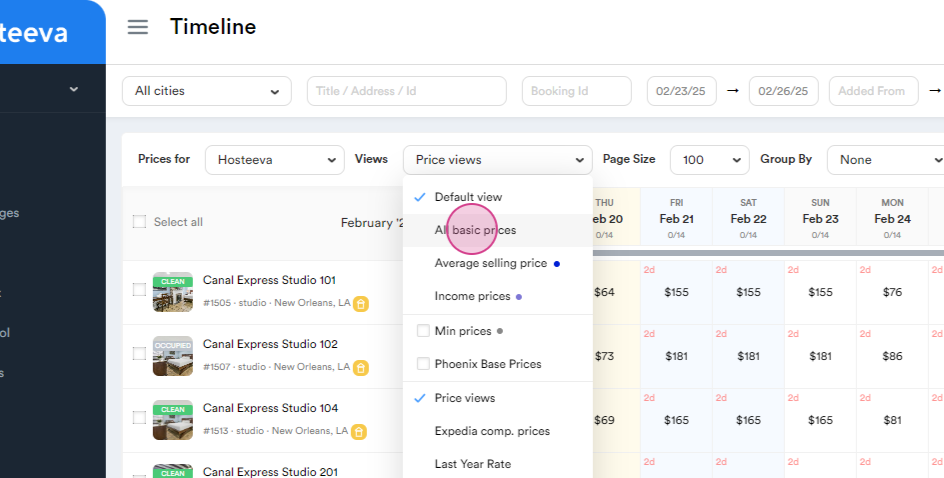
Step 8: To see reservation details on Timeline, you can filter the view by Average Selling Price and Income Prices.
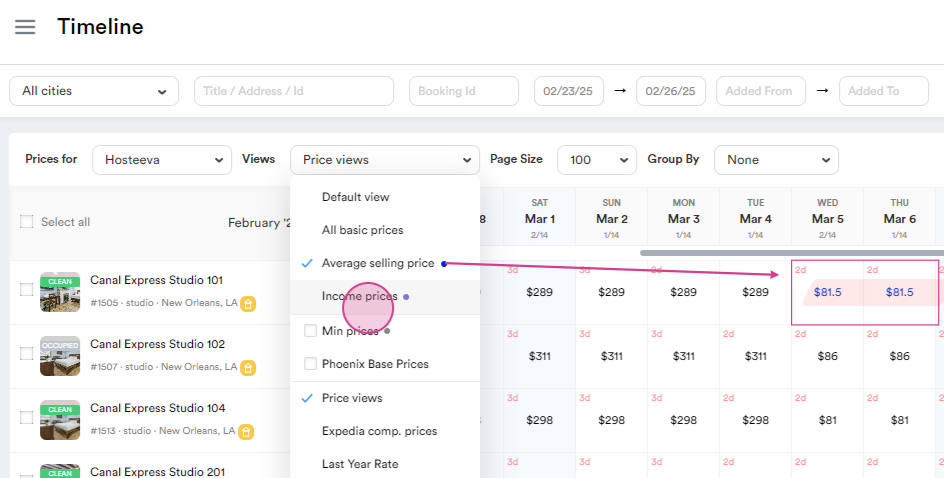
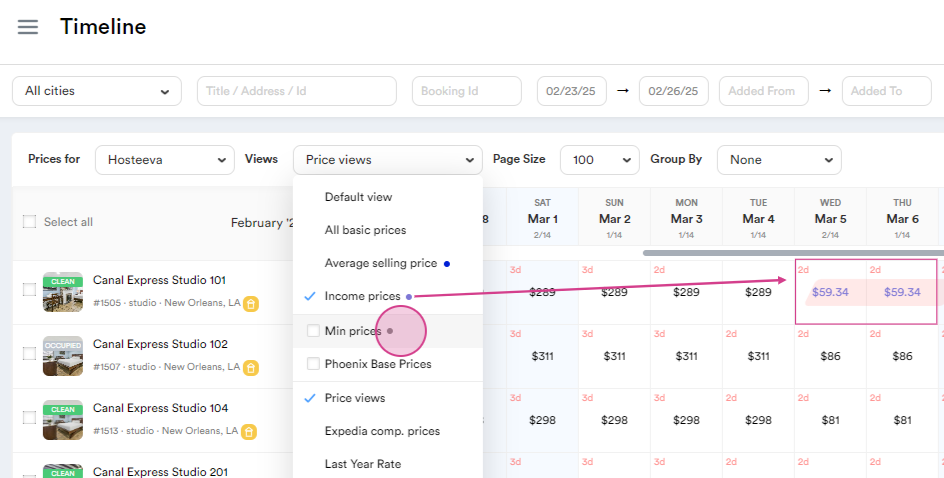
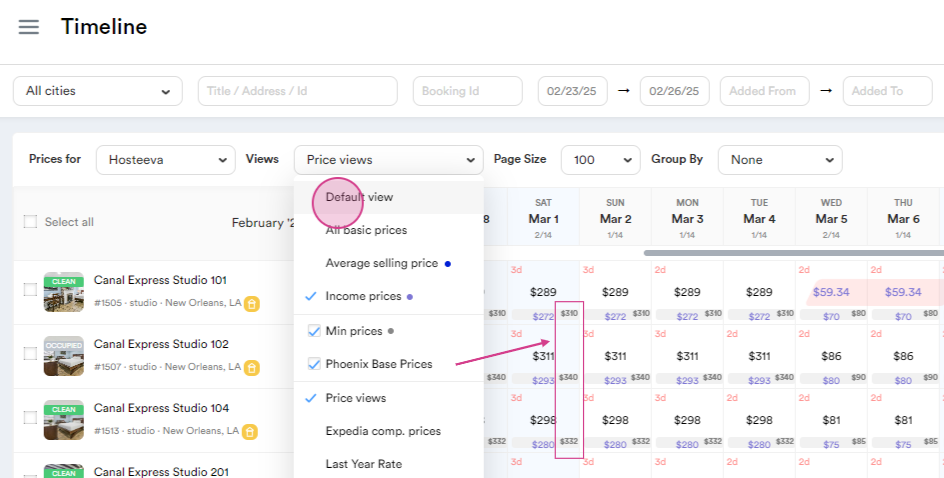
Step 9: View the Minimum Prices. This is the lowest price that could be set for that date.
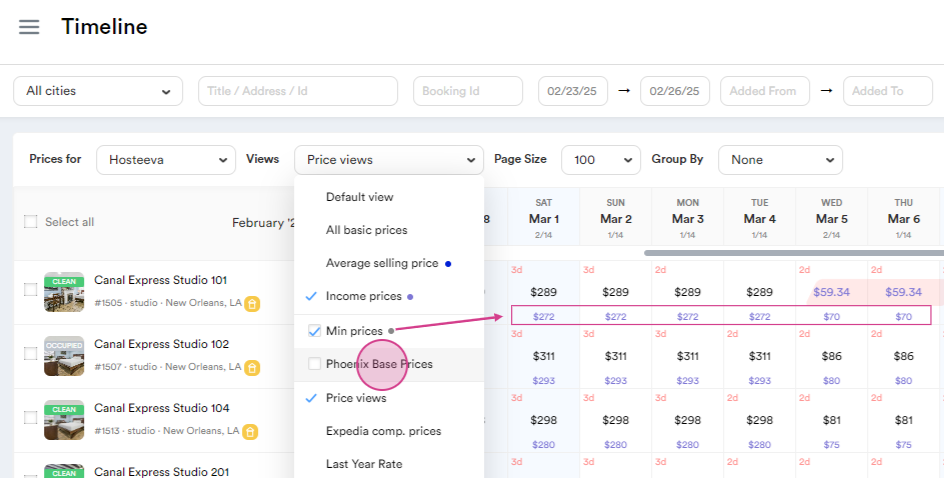
Step 10: Additionally, you can select Phoenix Base Price. Smart Pricing makes all pricing changes based on "Phoenix Base Price".
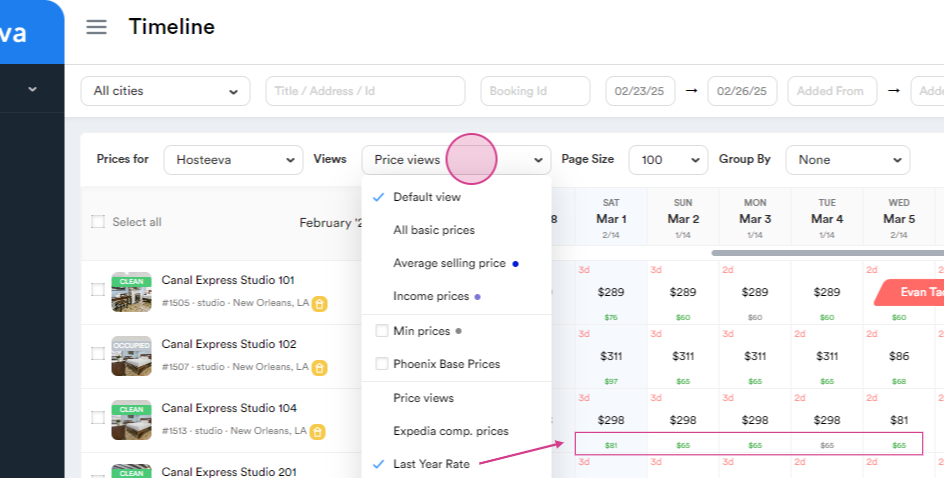
Step 11: Last Year Rate with those from the previous year.
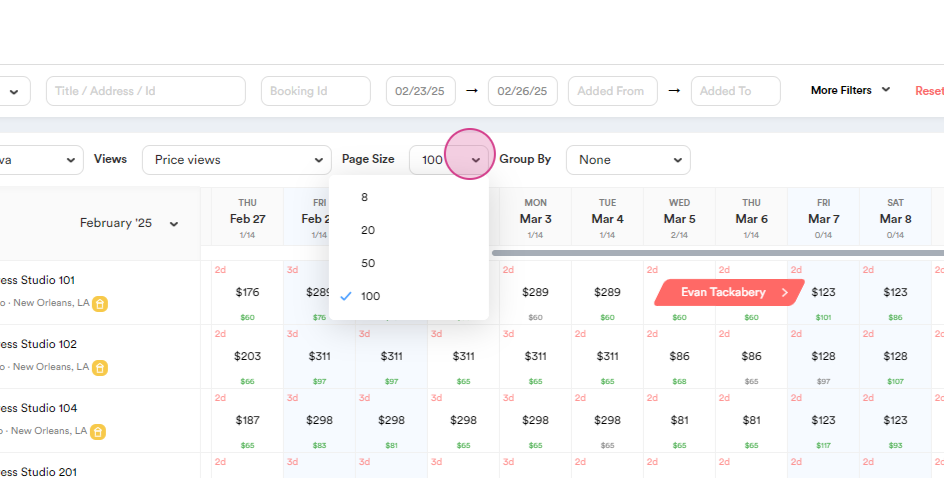
Step 12: Adjust the page size to control how many units are displayed.
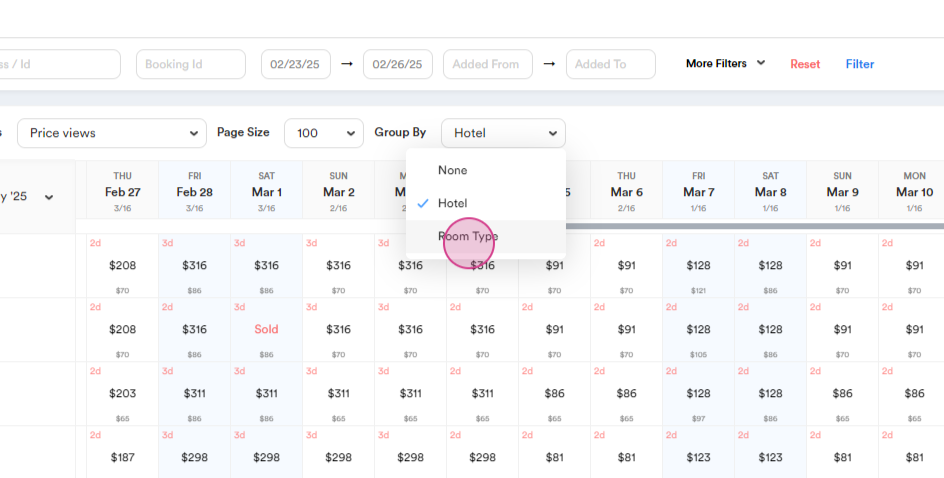
Step 13: Use the Group By filter to find specific units.
Choosing None will show all units while selecting Hotel will only display hotels. Filter by Room Type to display only room types.
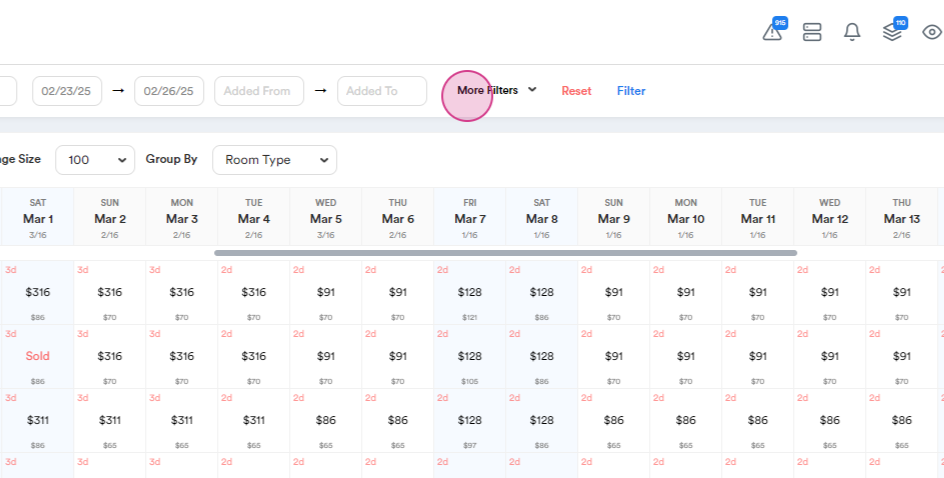
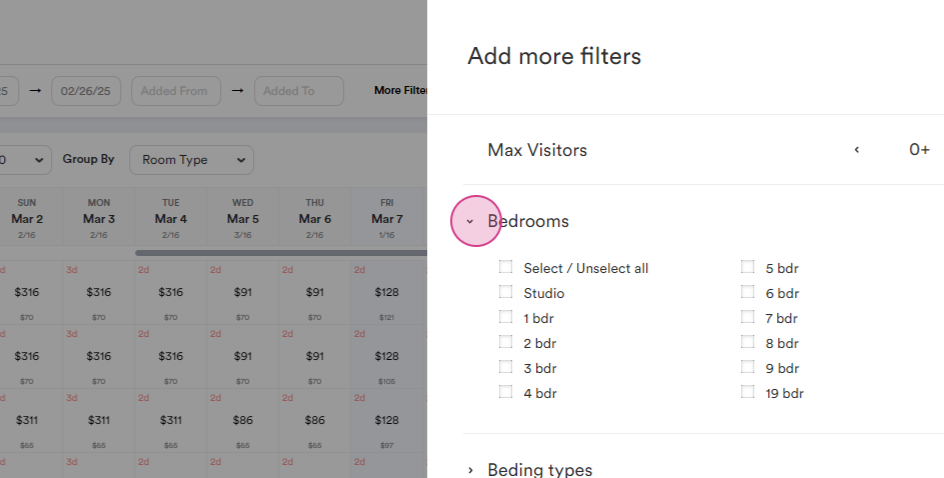
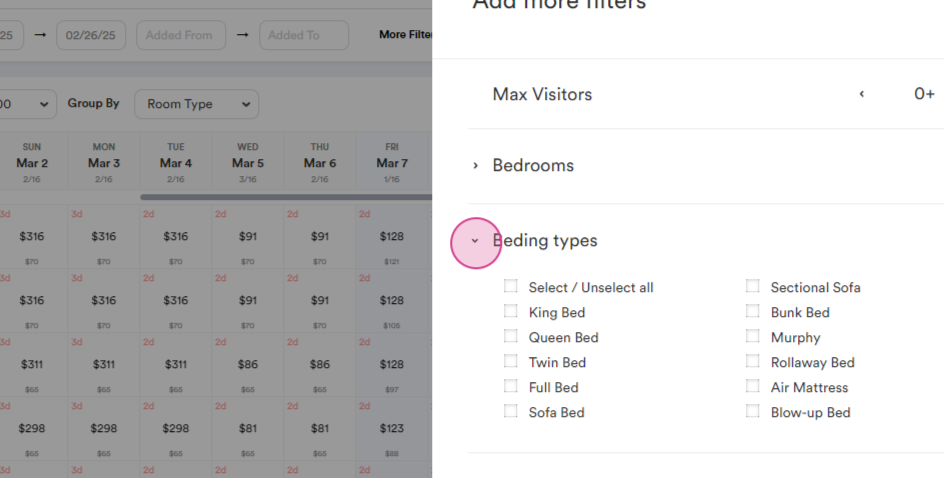
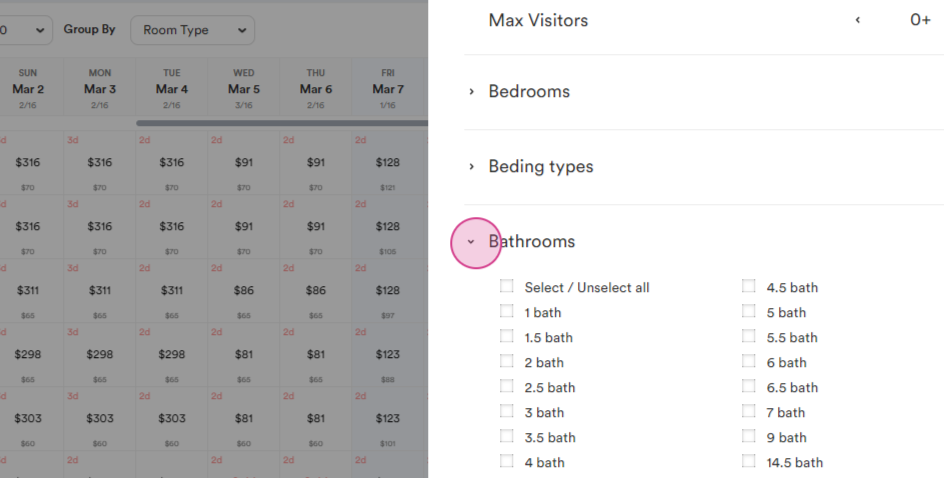
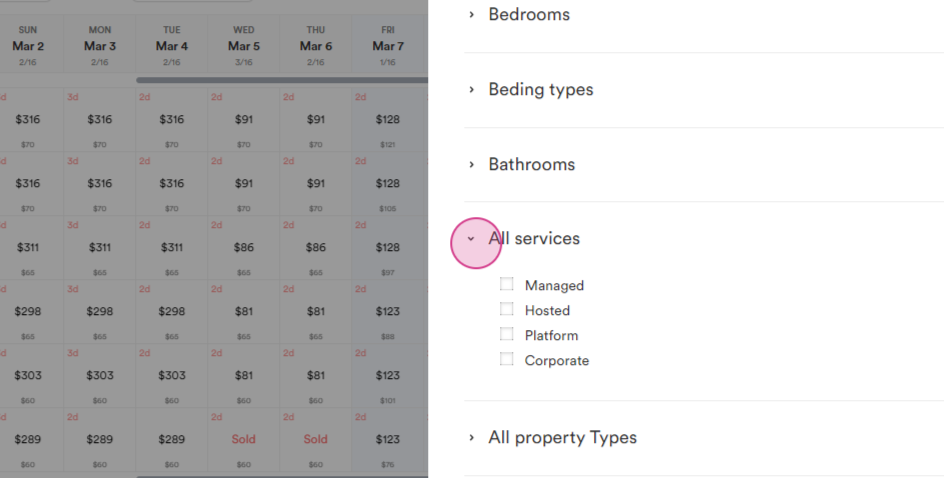
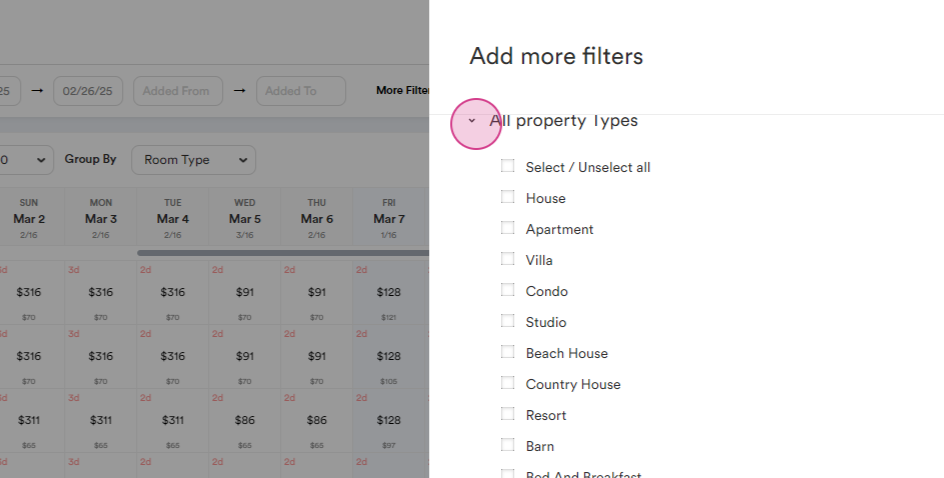
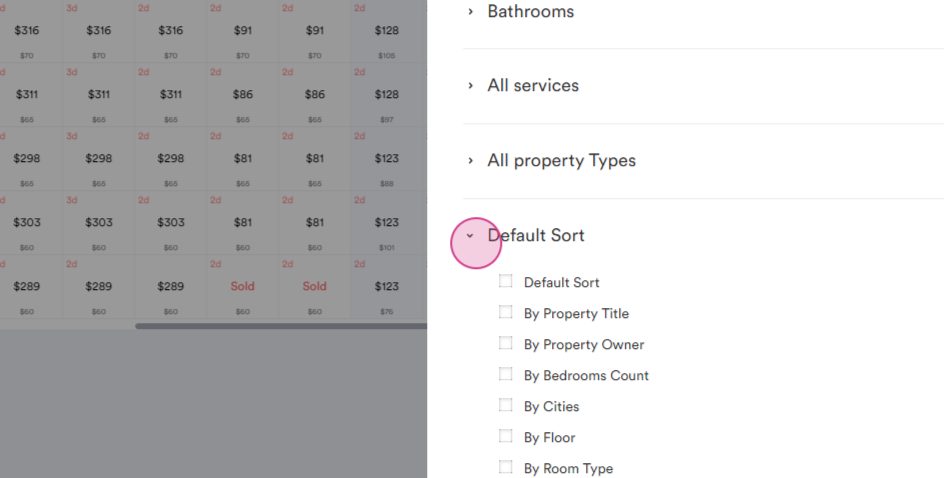
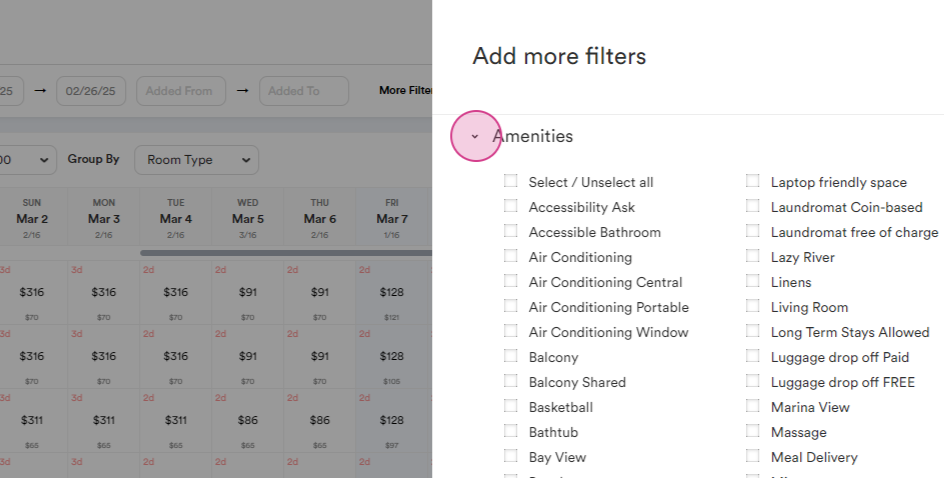
Step 14: Use additional filters to find specific units. You can filter by Bedroom Count, Bedding Type, and more.
Thank you!