This article will guide you on how to search for a specific property on the Hosteeva website, view its amenities, and edit its details.
Step 1: Start by typing the property title, address, or internal ID in the filter tab. For instance, type "Canal 301" and press enter.
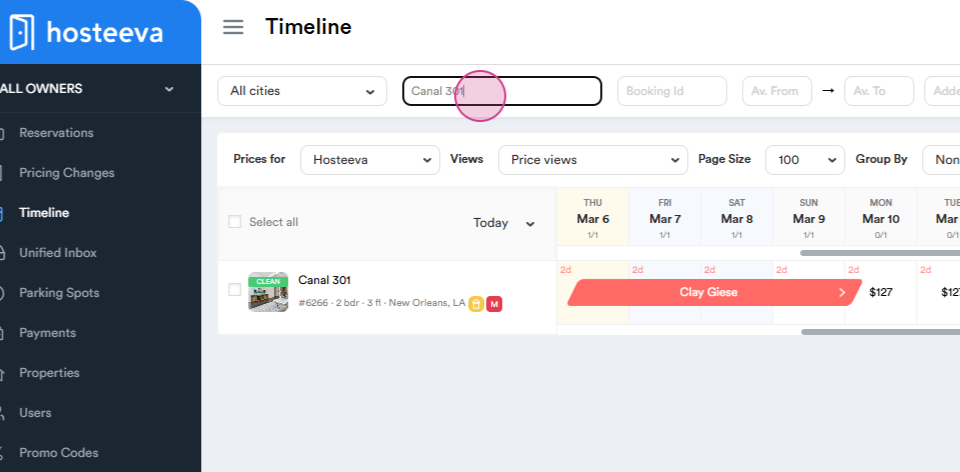
Step 2: The system will display the property named Canal 301. Alternatively, search for the property using the internal Hosteeva ID, such as #6266.
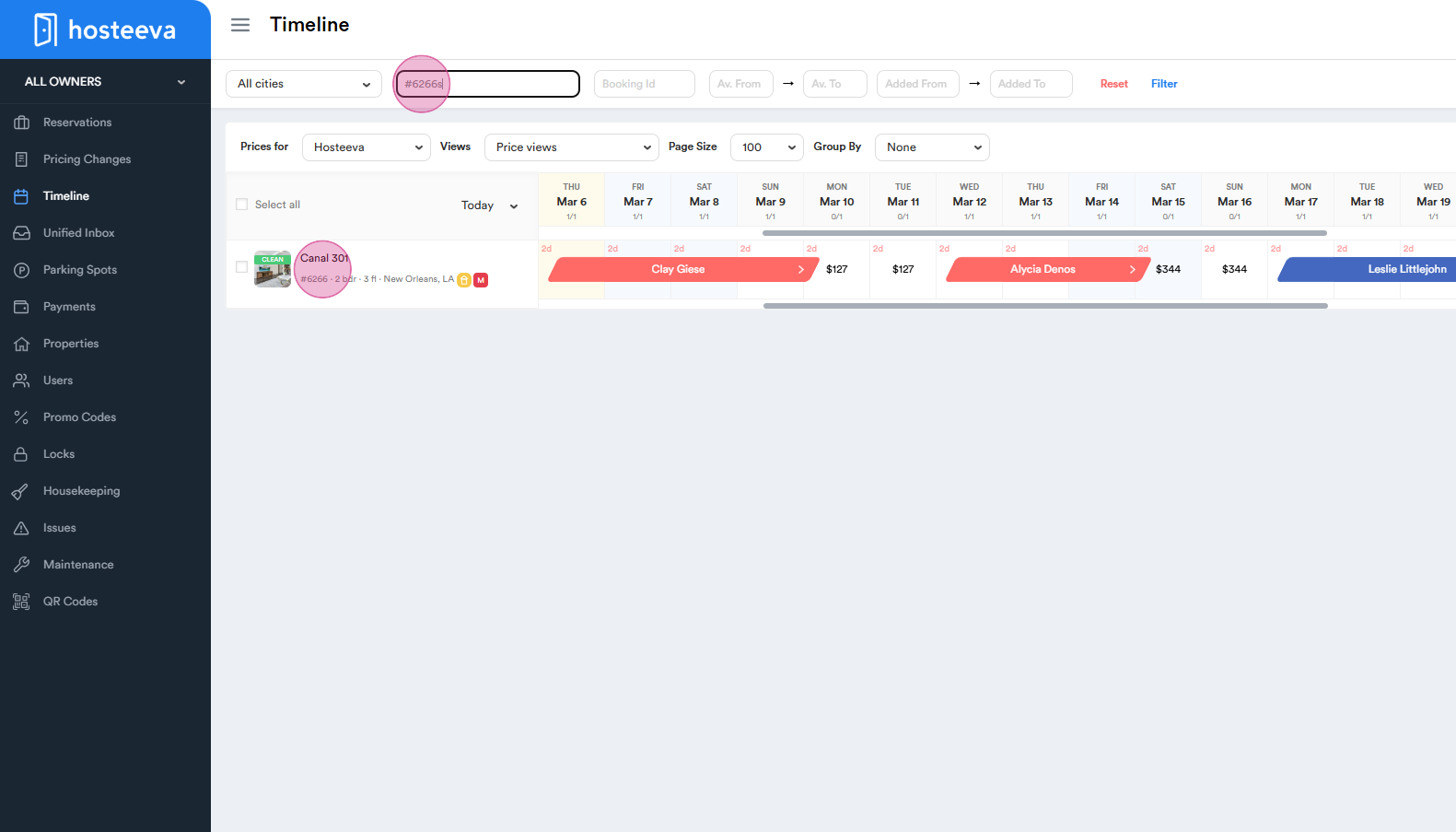
Step 3: Click on the property name in the timeline to view the owner's name and contact information. A small window will appear displaying these details.
Step 4: Click on the owner's name beneath the property title to access a page with more information about the owner, including personal information and contacts.
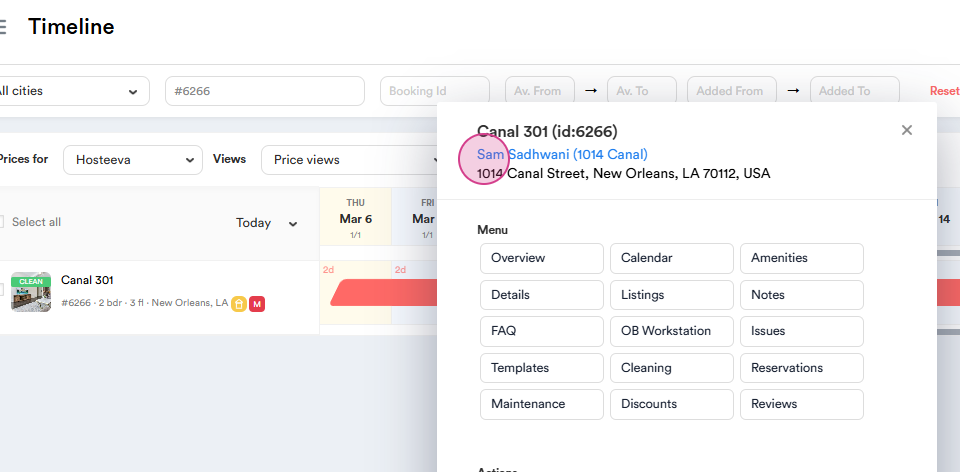
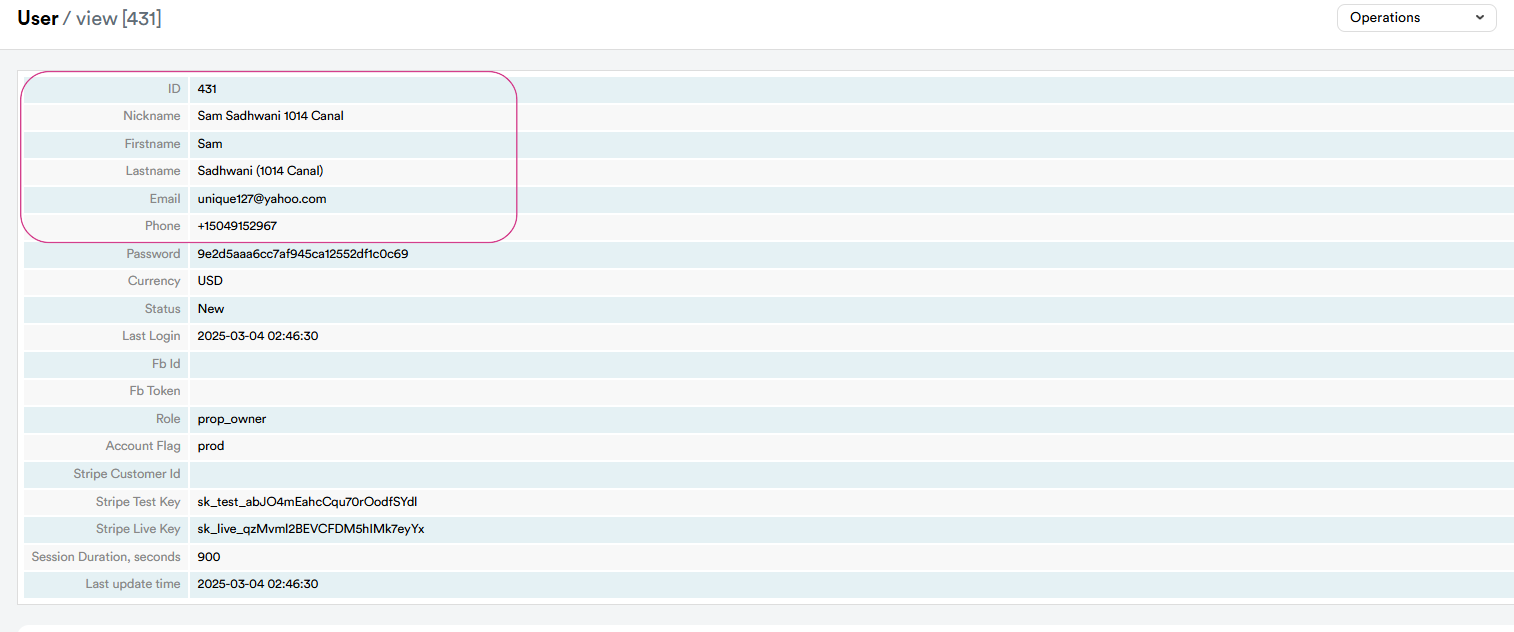
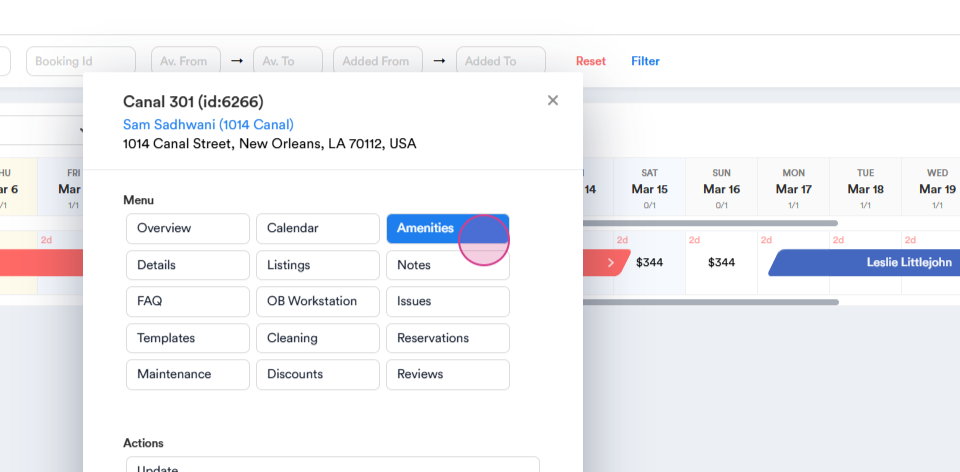
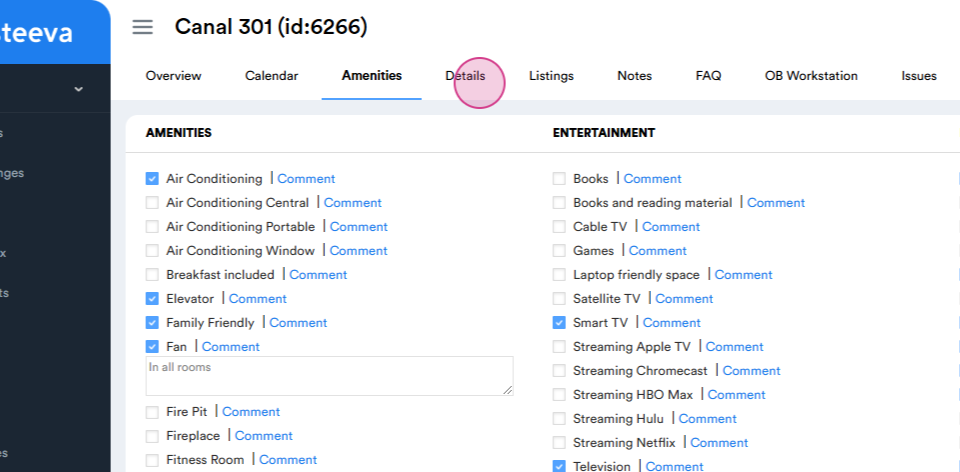
Step 5: In order to view the property's amenities, again click on the property name in the timeline. This will open a menu for the property. From the menu click on the amenity section to see all the amenities included in that property.
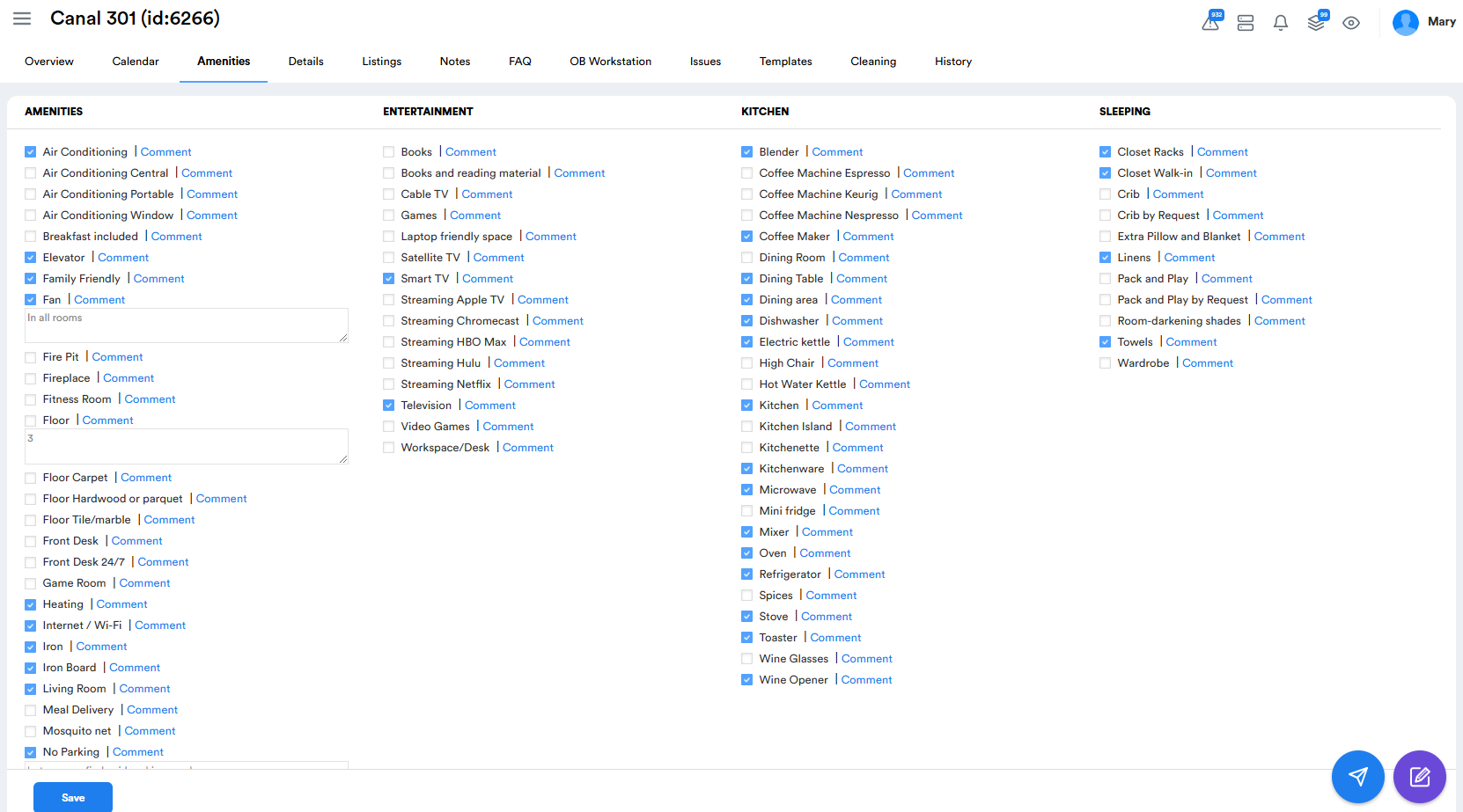
Here’s an overview of how the amenities section is presented
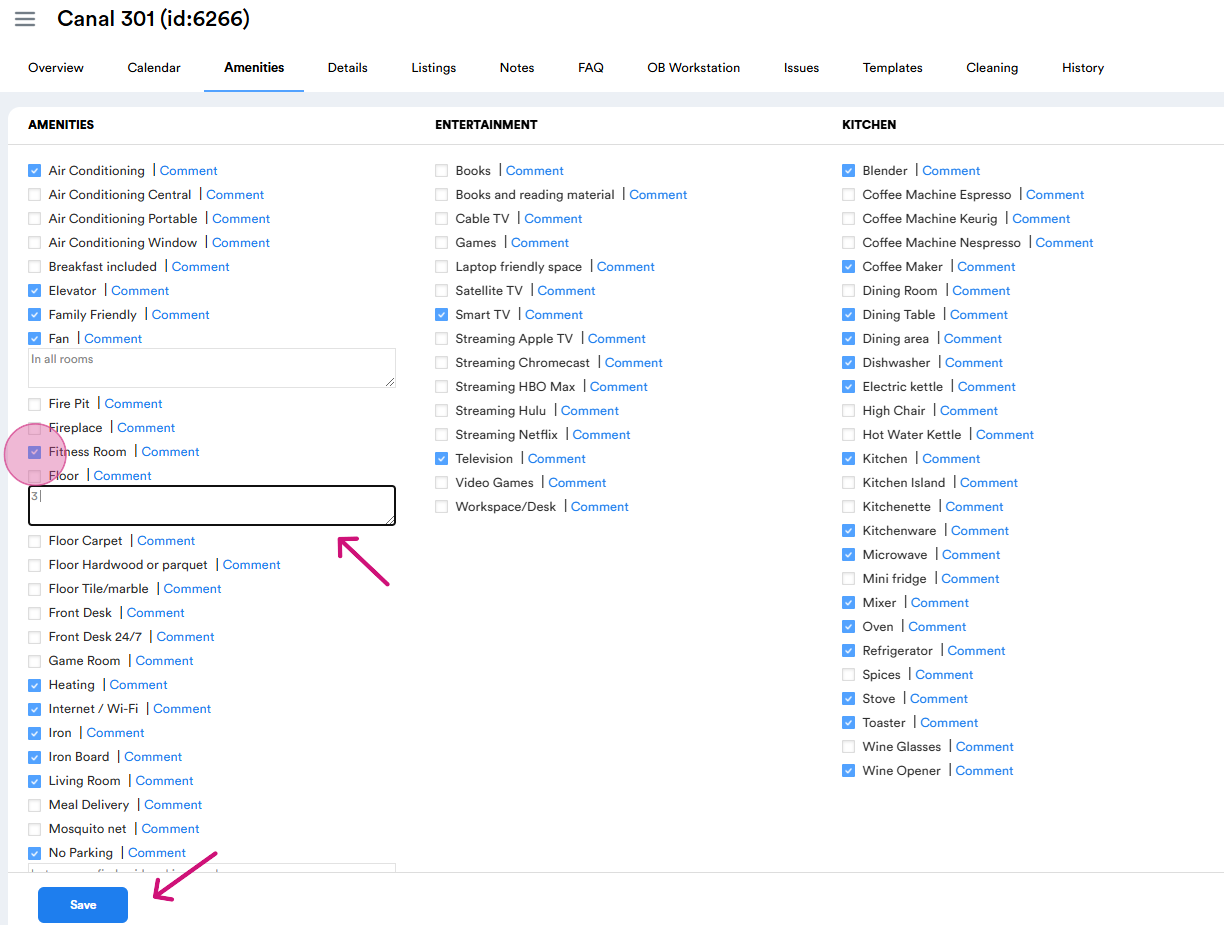
Step 6: To edit or add amenities, tick the relevant boxes. For instance, tick the fitness room box to add this amenity. Accordingly, untick the box to remove the amenity. You can also add notes and comments manually. Press the save button to store your changes. You can also add notes or comments regarding existing amenity. Save your changes by pressing the save button.
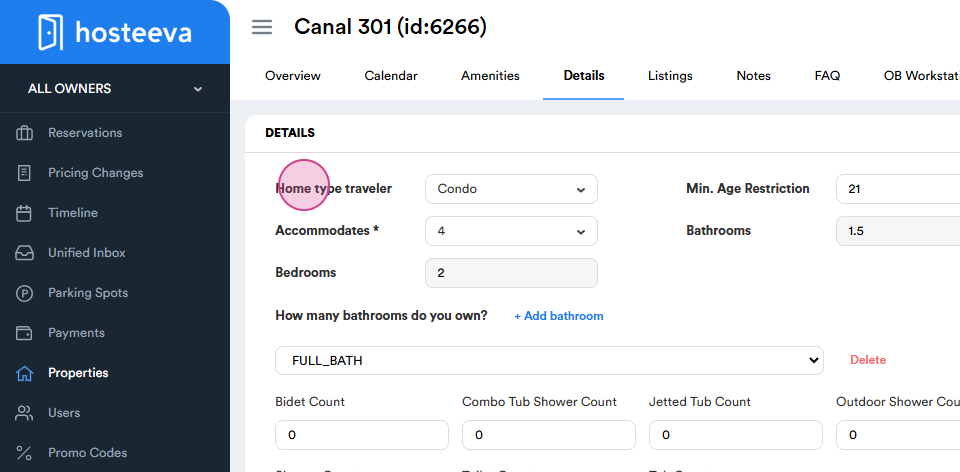
Step 7: Click on the Details section from the upper menu to review the property's details. This section displays key information about the property.
This section displays key details about the property, including the home type (e.g., condo, studio, villa, beach house and so on), accommodation capacity (number of guests), bedroom count, bathroom count, and minimum age restriction (e.g., each location and property owner can set its own minimum age restriction).
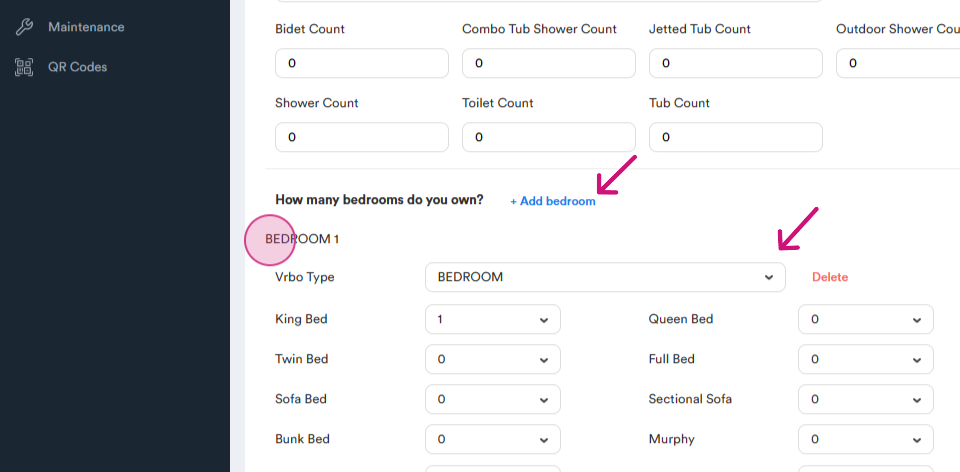
Step 8: Scroll down to view the bedding type and number of beds in each bedroom. You can also edit this information from available options.
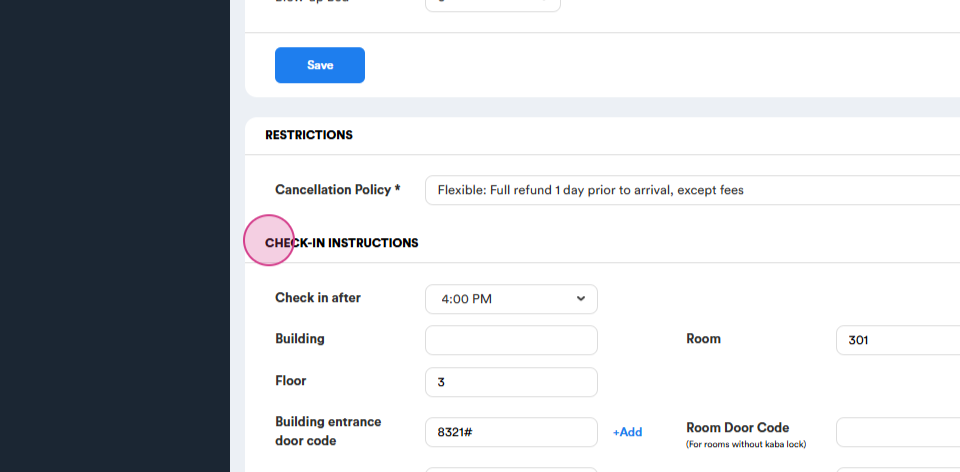
Scroll further to find check-in instructions, cancellation policy and additional useful information about the property. This information can also be edited manually. Be sure to save all previous changes to ensure they are preserved.
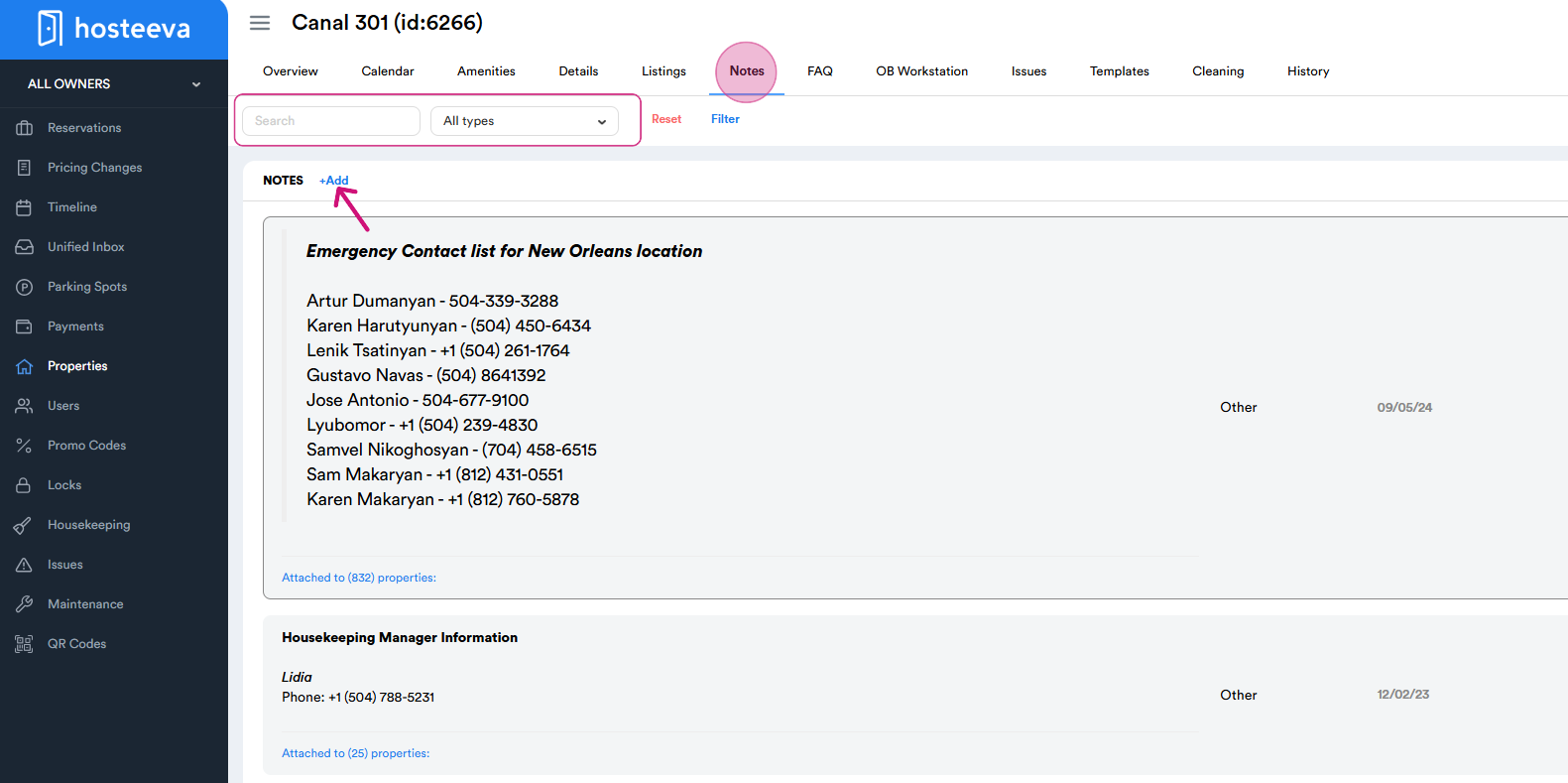
Step 9: To add specific notes about the property, go to the Notes section in the upper menu. You can also search for any existing notes using the search option. Here, you can find additional information about the property manually added by agents that wasn't included in the details. For example, this may include local management contacts, alternative parking information, and specific questions related to the property and its amenities.
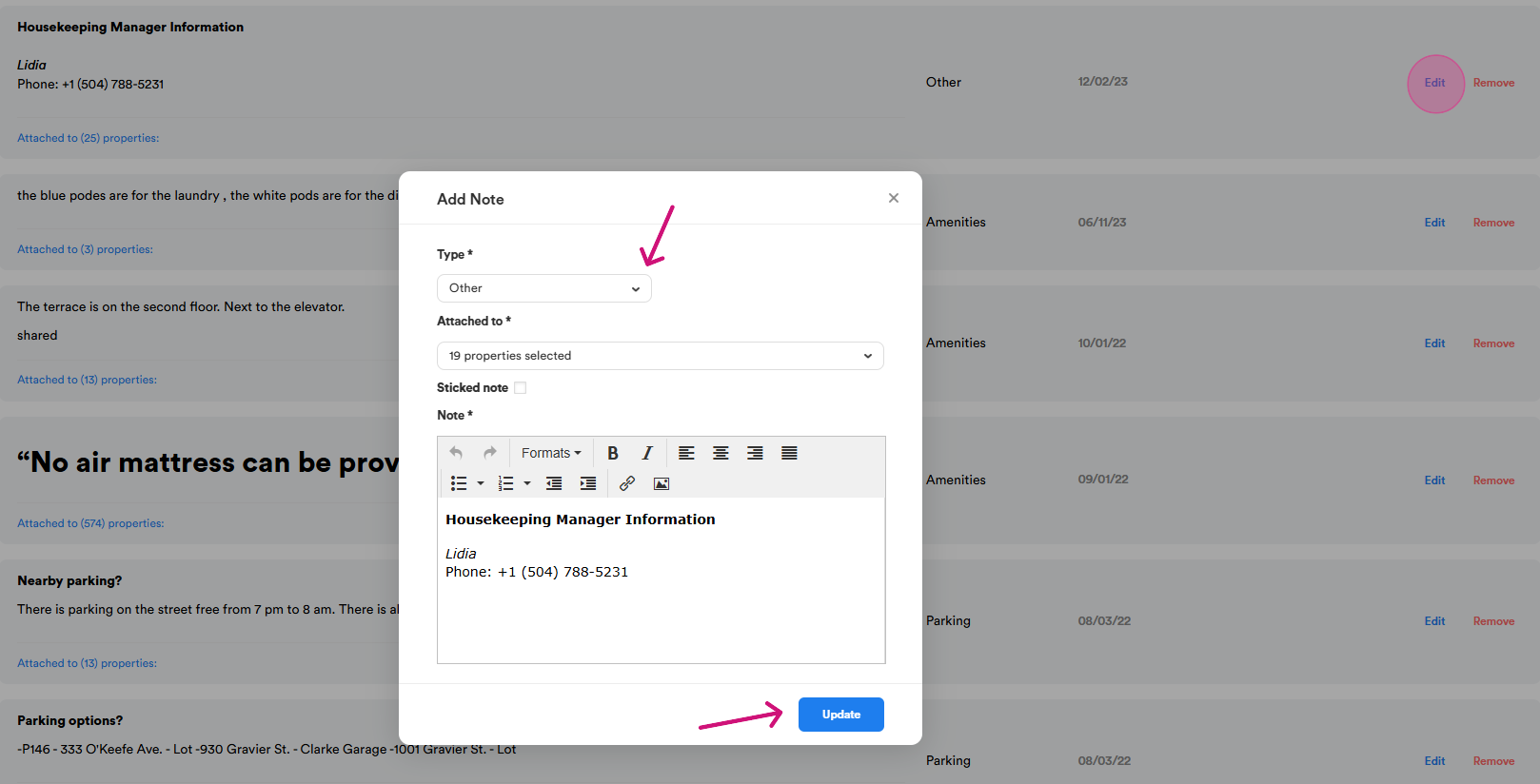
You can also edit or remove any notes from the list. Simply click the Edit button, and a small window will pop up. From there, you can select the note type (e.g., pool, amenities, parking, or other), choose the specific property to attach the note to from the attached to dropdown menu, and finally click update to save the changes.
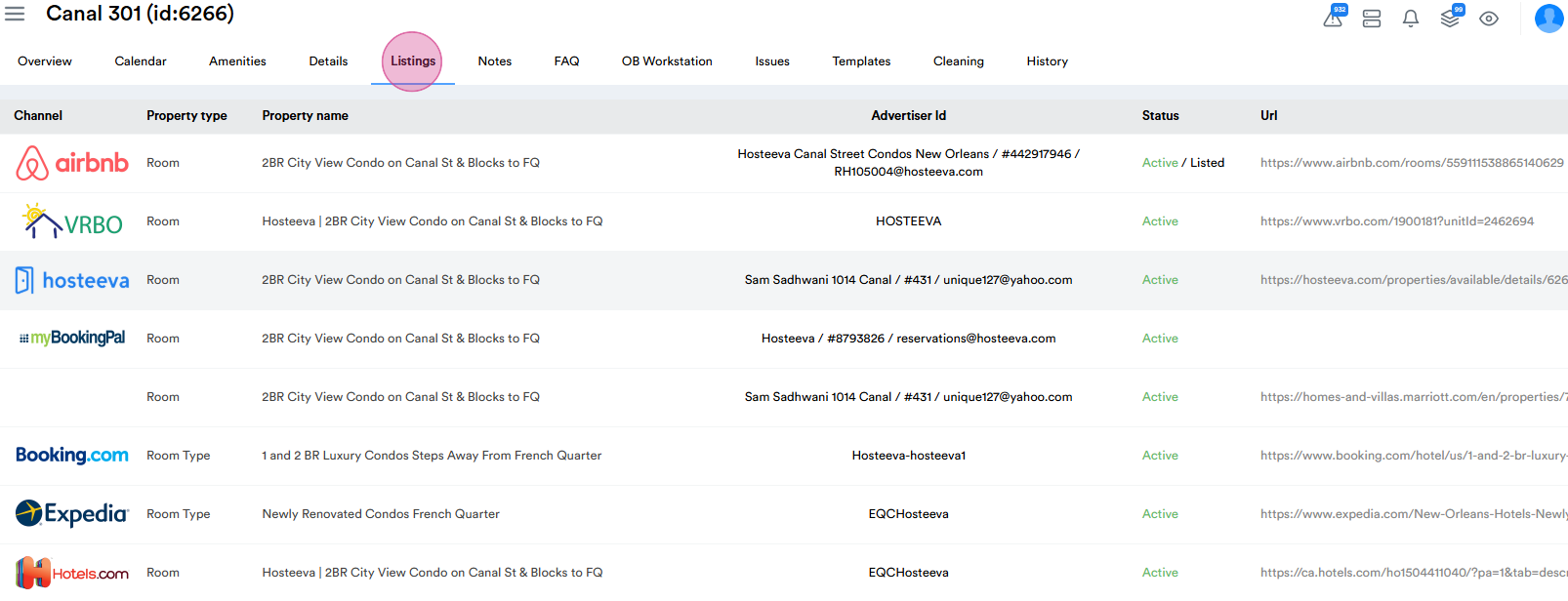
Step 10: To view the property's listings on different websites, go to Listings section in the upper menu. You can see the property type as listed on each platform, the property name (which may vary across websites), the advertiser ID, the status, and the URL.
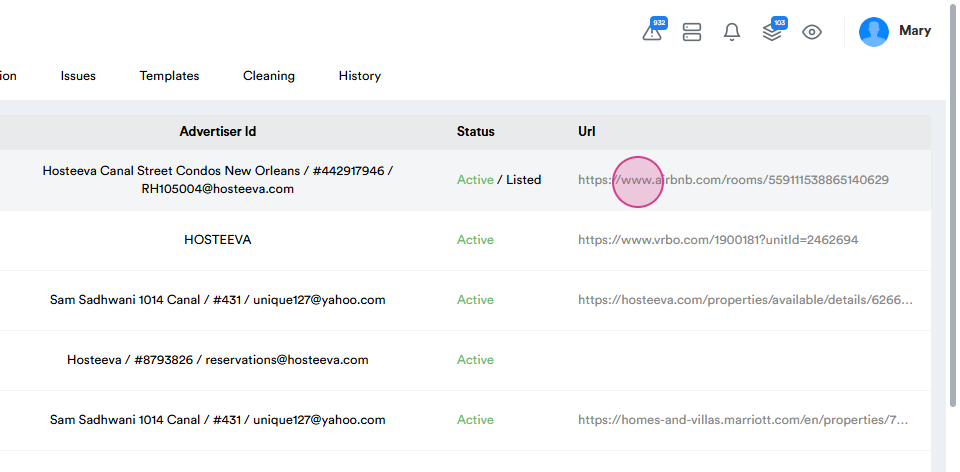
By clicking on a link, you'll be redirected to the specific webpage
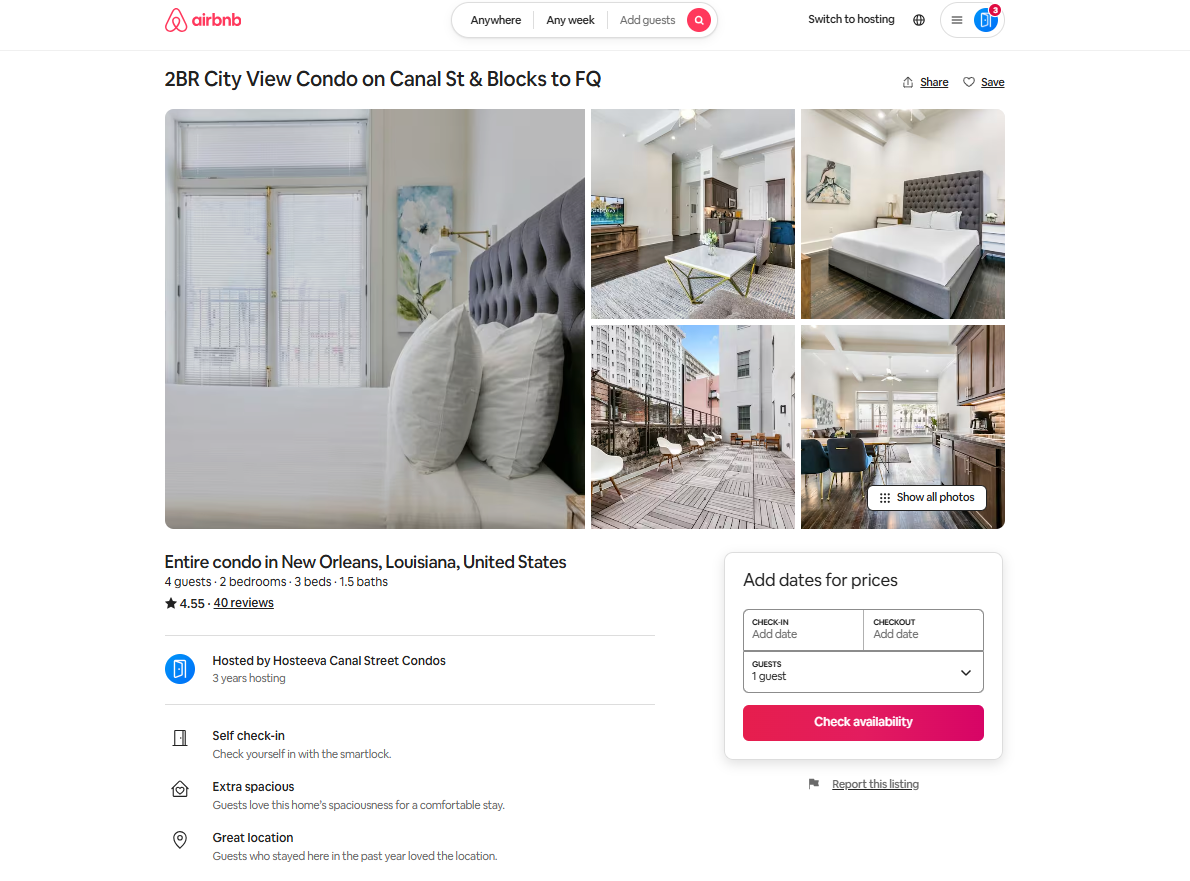
This is how 2BR City View Condo on Canal St & Blocks to FQ property is listed on Airbnb
Step 11: The overview section provides general information about the property, including its features and amenities, parking information, house rules, important things to know, local attractions, photos of the property, and the address displayed on a map. This information can also be edited manually. Be sure to save all previous changes to ensure they are preserved.
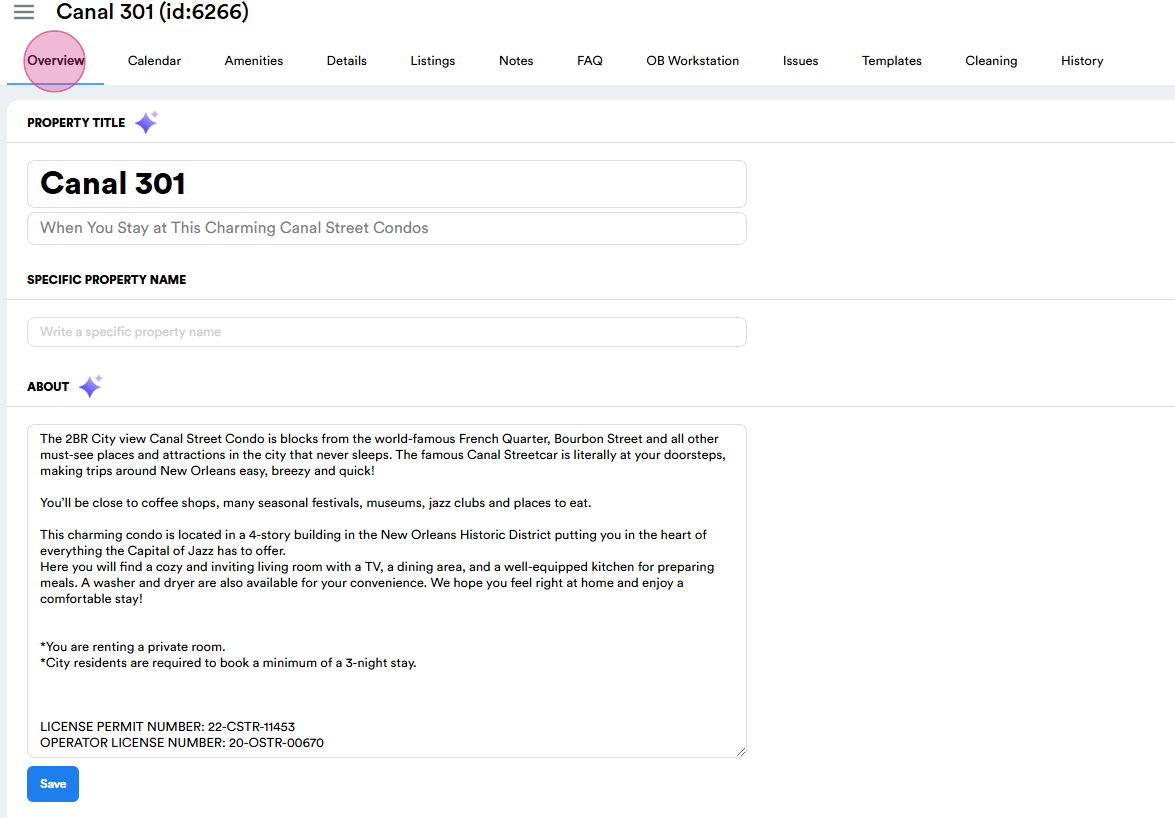
Step 12:
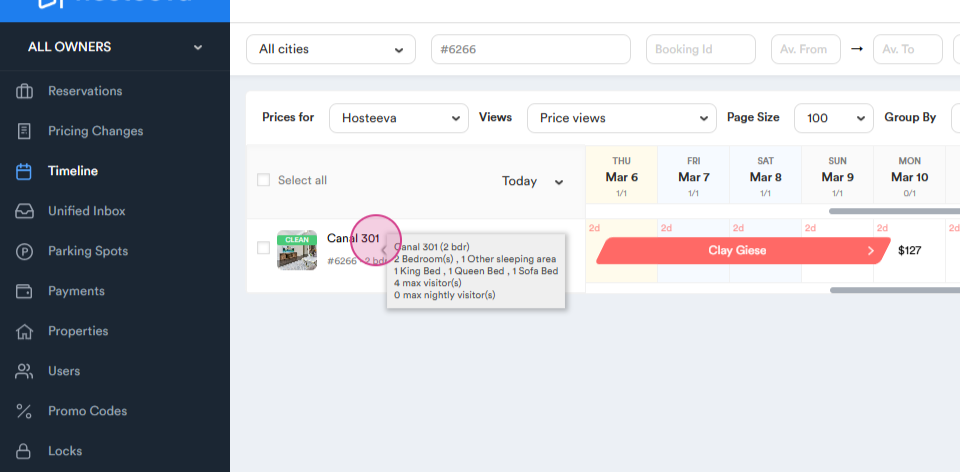
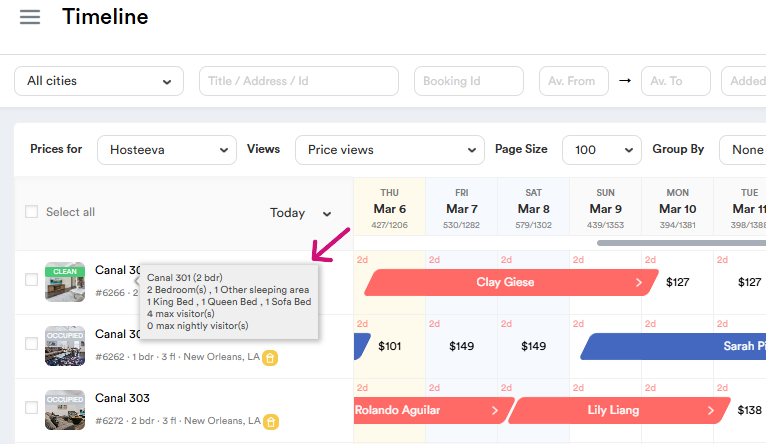
To view a quick sketch of the property, simply hover your mouse over the property name, and a brief hint will appear.
Thank you for reading this guide.