This guide provides a walkthrough on how to adjust notification settings in a Hosteeva account.
Step 1: Log into the Hosteeva account.
Step 2: Click on the account name located in the upper right corner of the screen.
Step 3: Navigate to the "My account" section.

Step 4: Select the "settings" tab.

In this tab, there are several options to customize notifications.
Activate desired actions by filling the empty ticks. This includes receiving daily reservations and cancellations reports, weekly owner reservation reports, and enabling availability to assign a housekeeper to a work order.
Enter the preferred email address to receive inquiries.
Scroll down to the "notification settings" section.
Here, there are options for global notifications, including email, SMS, WhatsApp, and push notifications. These can be set for various actions such as maintenance, work order creation, removal, or changing their status.
Choose the preferred method of receiving notifications: email, SMS, WhatsApp, or push notifications.
Check the box to receive email notifications about new guest messages.
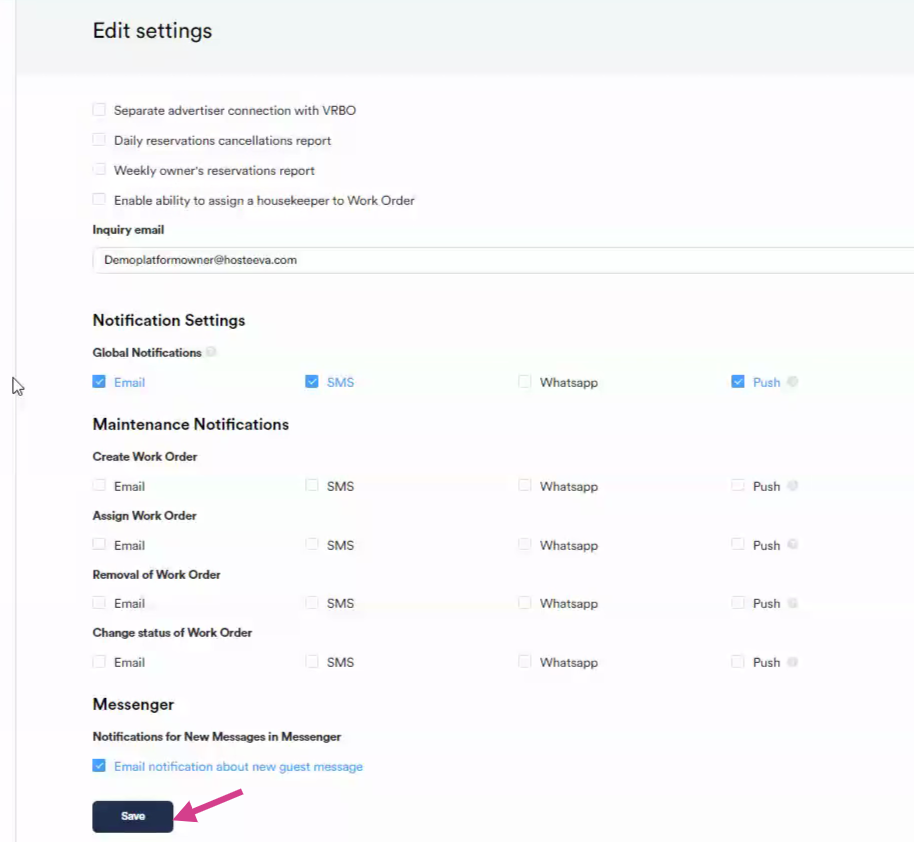
After setting the preferred notification methods, click on "save".
Upon saving these settings, notifications will be received in the chosen manner.