This article will guide you through the process of filling out the parking form for Turquoise Properties. By following these steps, you'll ensure a smooth check-in process for your guests.
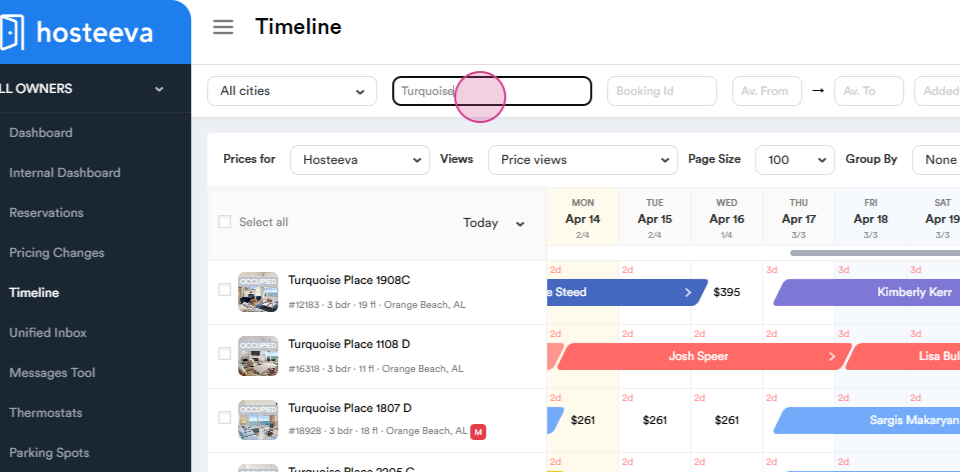
Step 1: Navigate to the timeline and use the search bar to select 'Turquoise'. Apply the filter to display the four properties under this name.
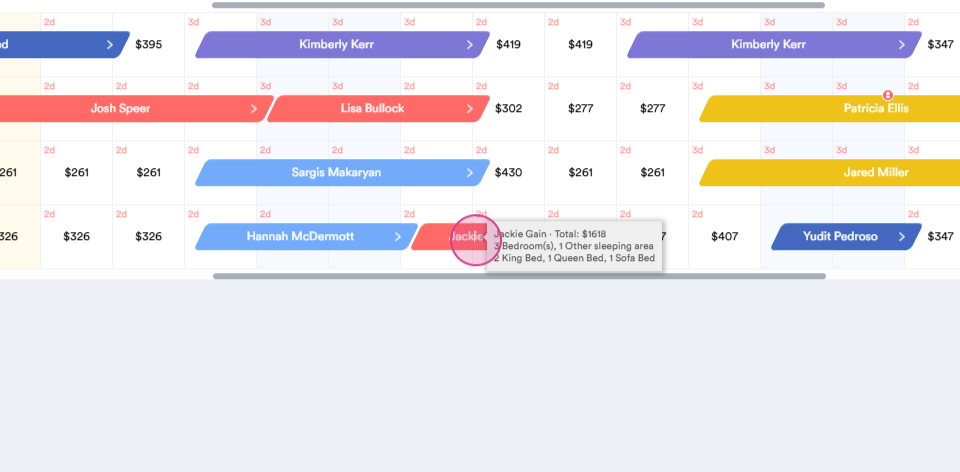
Step 2: Choose the reservation for which you need to send the form.
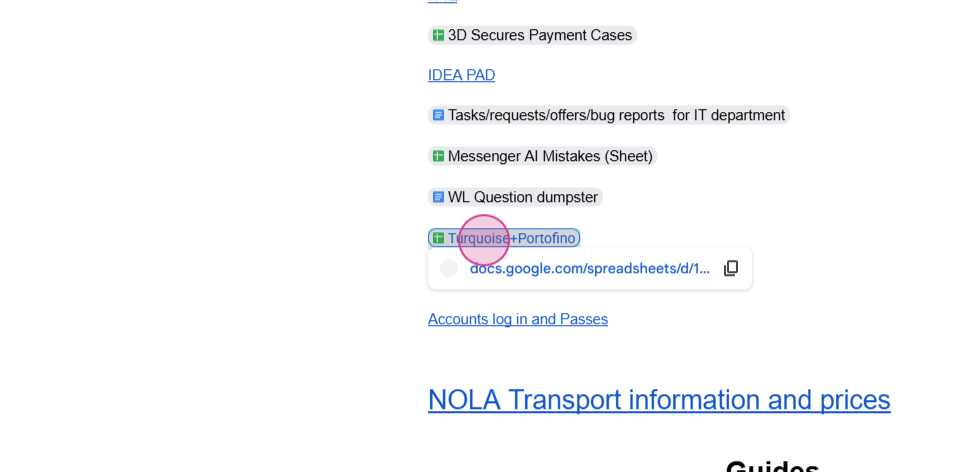
Step 3: To fill out the form correctly, go to the 'Doc for Docs' document and search the Turquoise and Portofino doc. https://docs.google.com/spreadsheets/d/1XhruljBLpbnwcRKOIE0SCAV_xEMi6wk1C7lVI1vyH4Q/edit?gid=0#gid=0.
Step 4: Open the form. This contains all the necessary information for logging in. Log into the Hyper Web Login where you'll fill out the form.
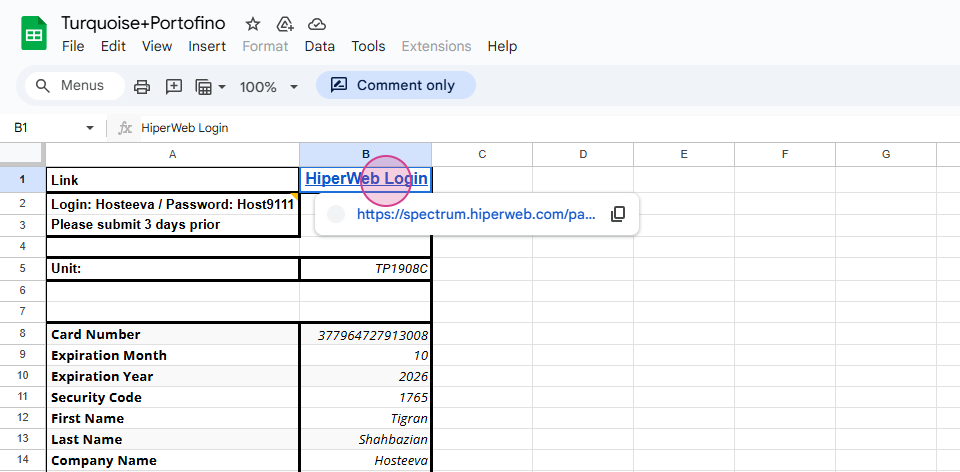
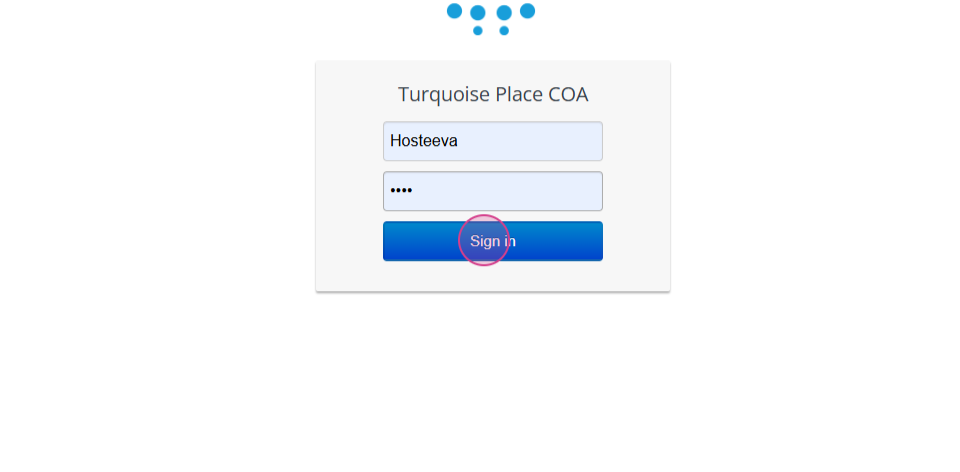
Step 5: Enter your login and password.
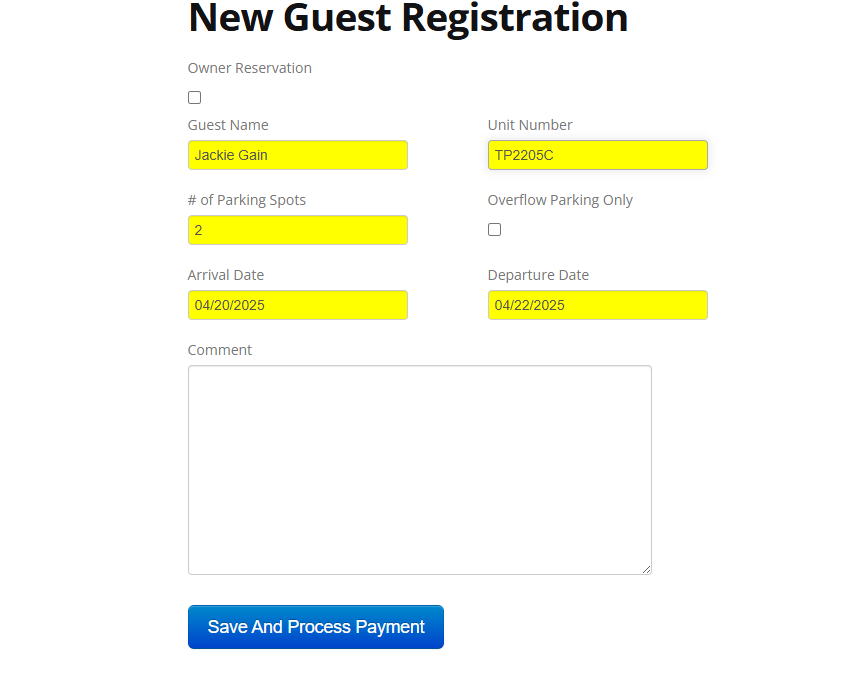
Step 6: Please complete the Turquoise form by accurately copying the guest's first and last name without any gaps and entering the correct unit number. This should be the first two letters (in capital letters) and the ID itself. For example, 'TP2205C. Choose the number of parking spots (always 2) and the arrival and departure dates. Check these dates on the timeline. Lastly, take a screenshot of the completed form.
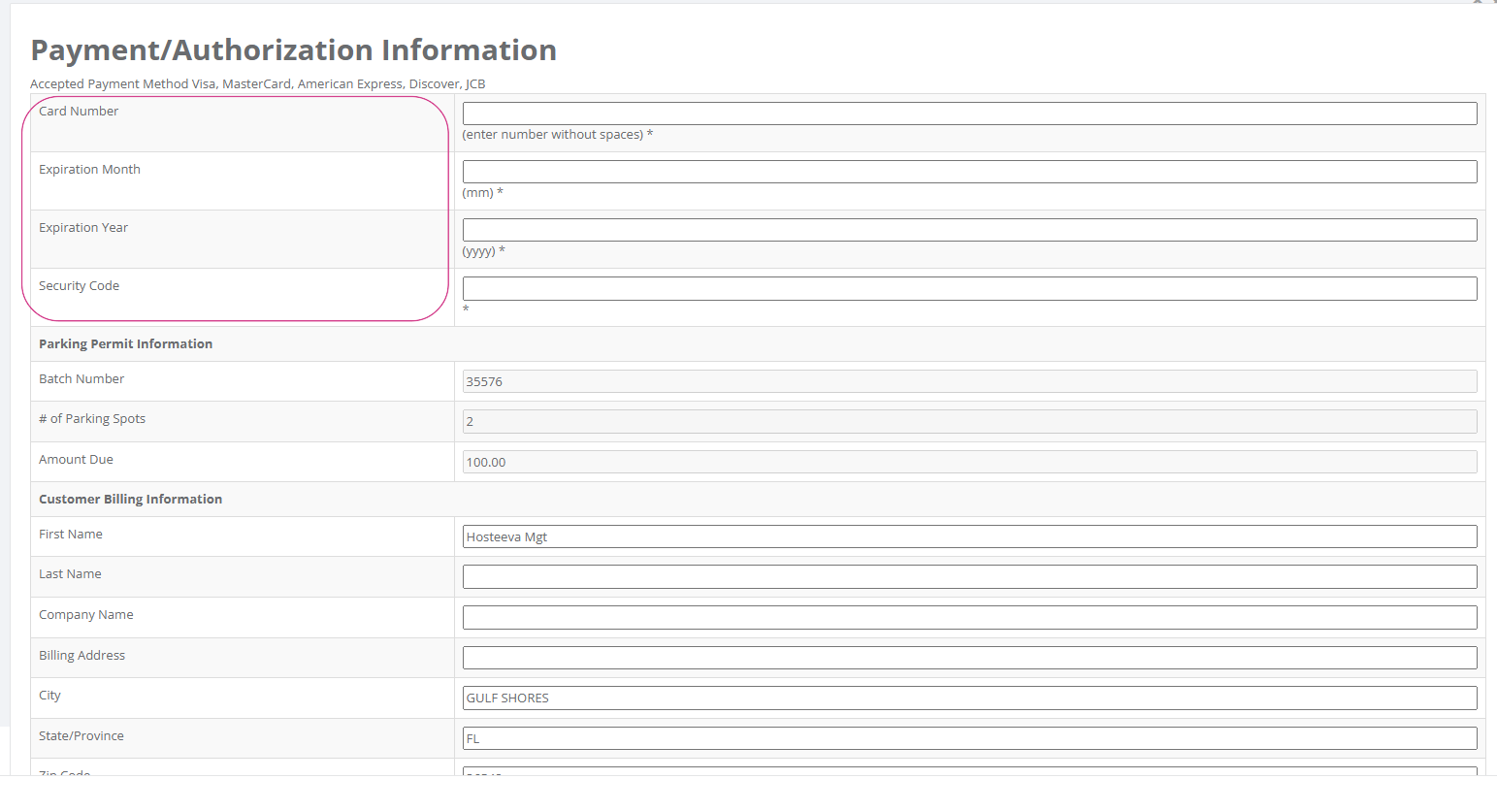
Step 7: Go back to the form to fill in the card information. And follow the instruction.
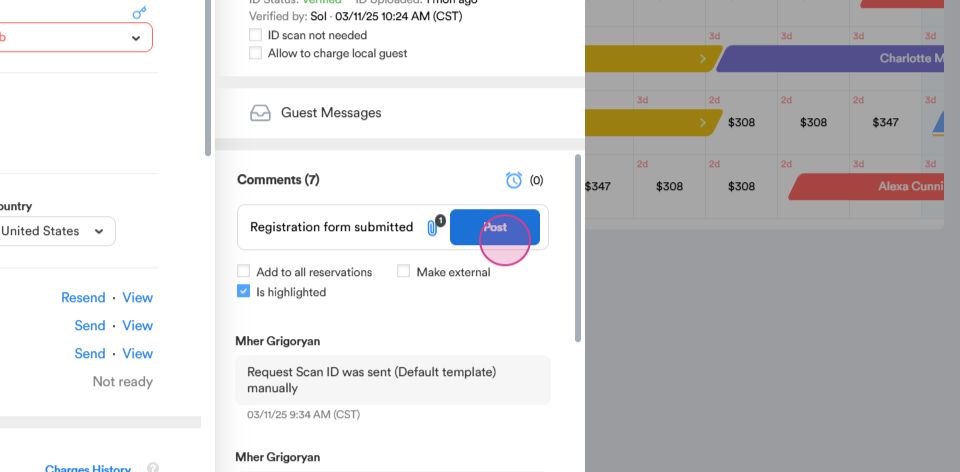
Step 8: Return to the reservation. Attach a screenshot of the form made previously and add a comment. Highlight the necessary information. Post the information.
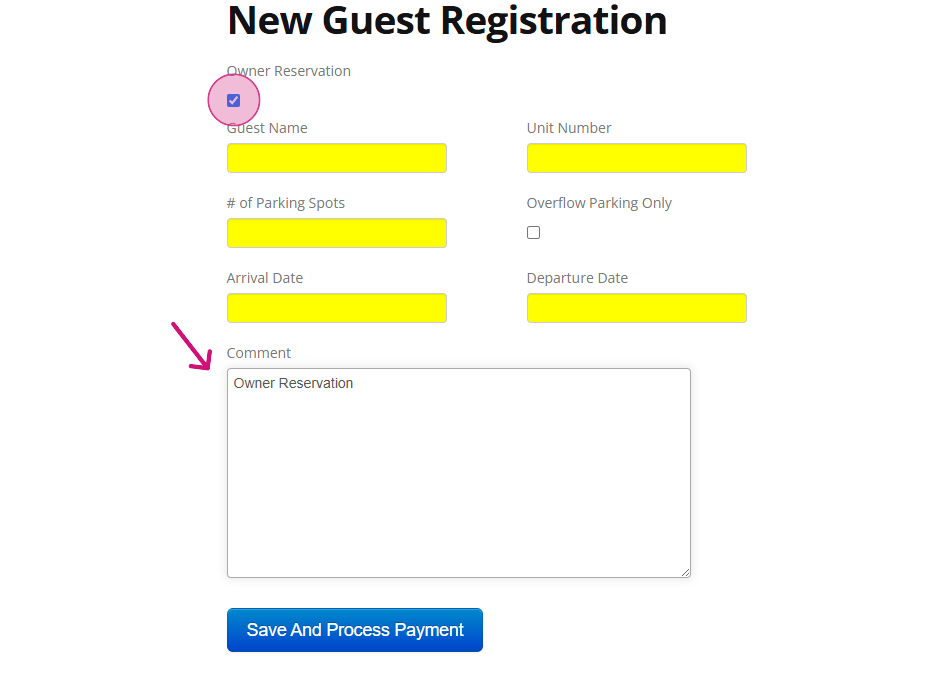
Note: There's a slight difference when dealing with owner reservations. For these, tick 'Owner Reservation' and leave a comment. You don't need to fill out the payment section. This is the main difference between owner and guest reservations.
Thank you!