This guide explains the process of issuing both partial and full refunds to Hosteeva direct reservation guests.
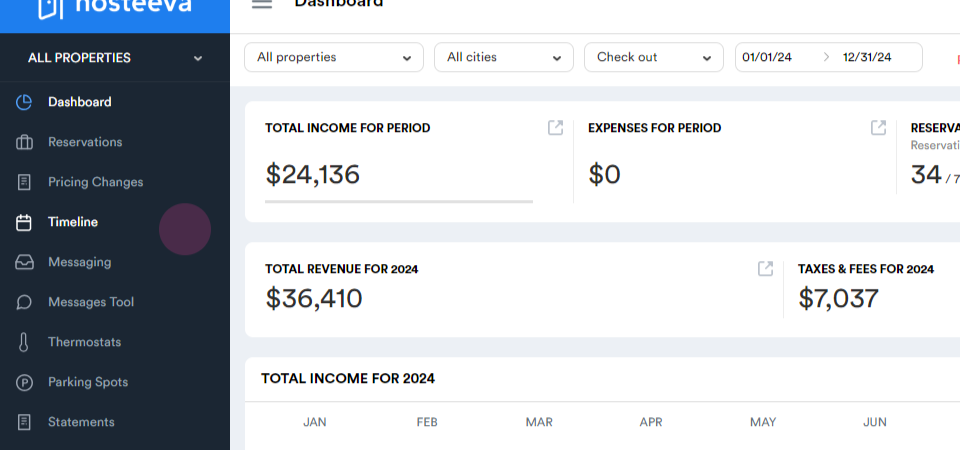
Start by navigating to the timeline page.
Step 1: Click on the Timeline tab. This page displays your properties, reservations, and prices.
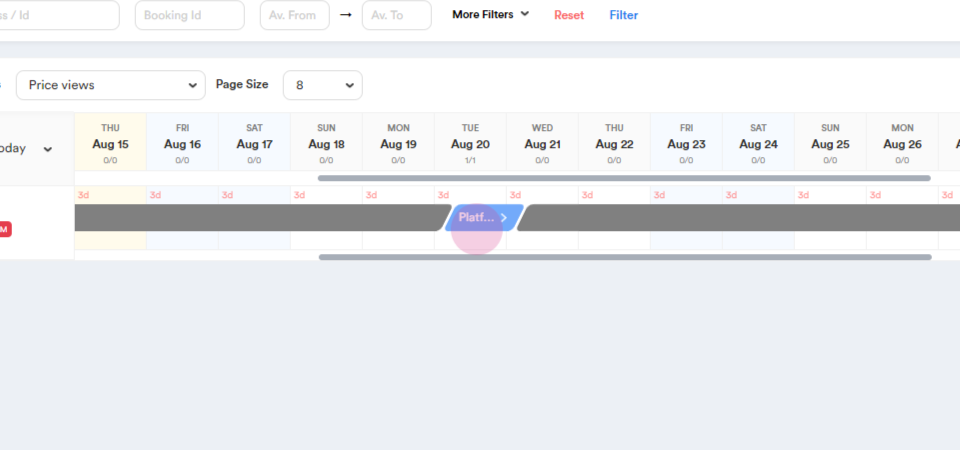
Step 2: Select the reservation for which you'd like to process a refund and click on it.
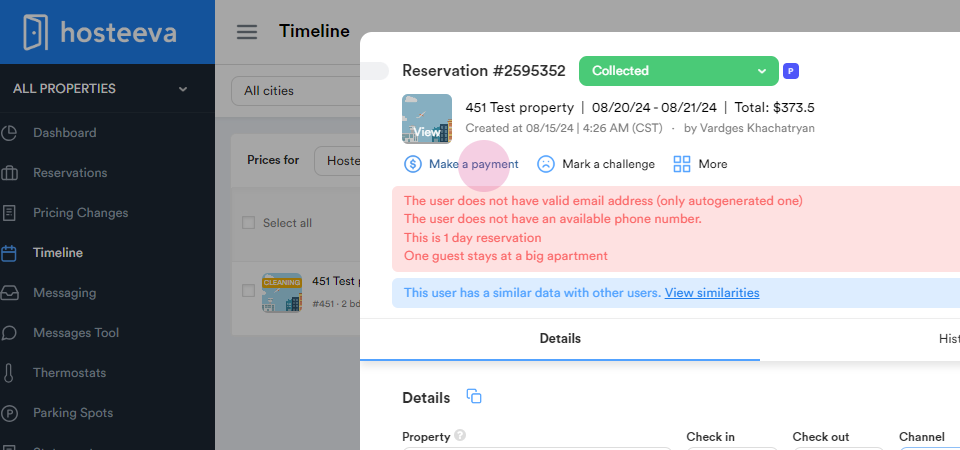
Step 3: In the reservation dialogue window, click Make a Payment.
Step 4: Choose the charge you'd like to issue a refund for.
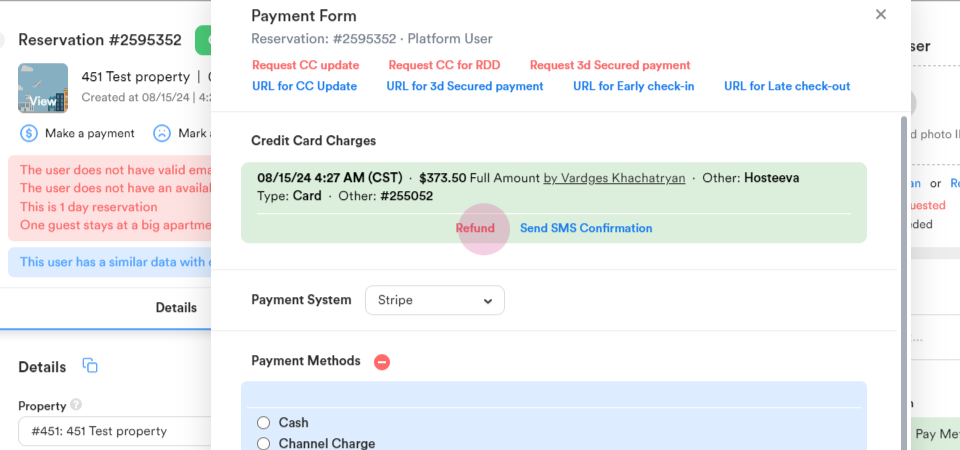
By default, the system autofills the full charge amount as refundable. If you want to issue a different amount, edit it to reflect the desired refund.
Step 5: Select the refund reason from the pop-up selection.
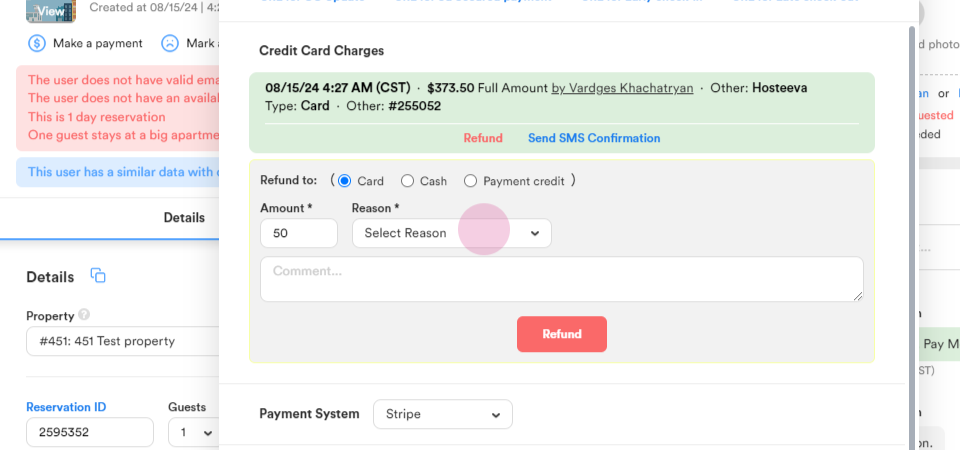
Step 6: Leave a comment for your records.
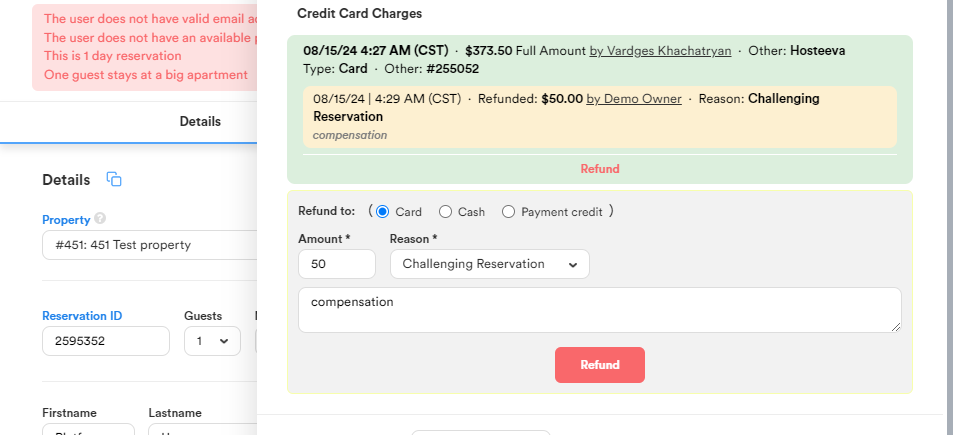
Step 7: Click the red Refund button, and confirm the refund in the pop-up window.
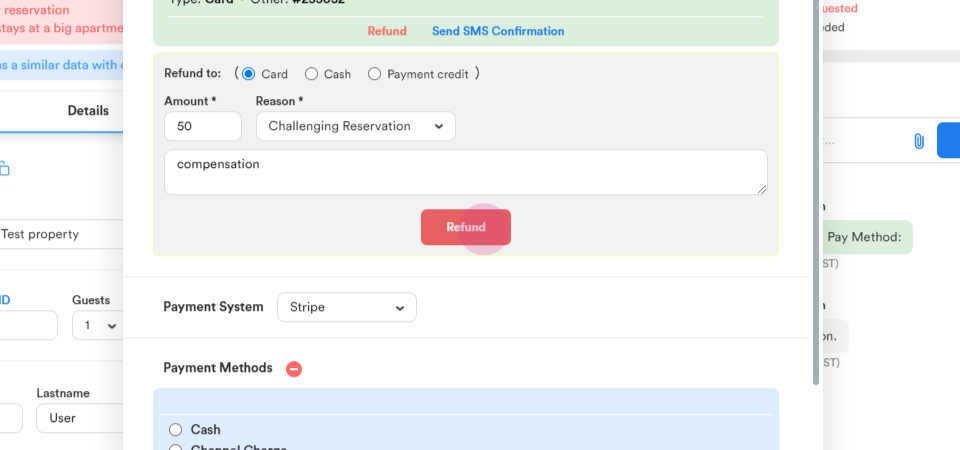
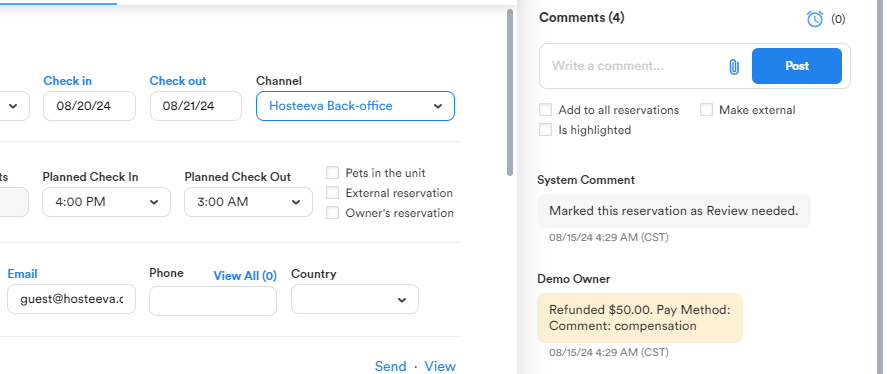
After completing these steps, the reservation dialogue automatically updates, and the issued refund appears in the comment section.