Overview:
This process description outlines the process for booking and utilizing the parking spots of the California Building, Bywater Hotel, Cary House, and Irish House.
Step 1: Eligibility
-
Only guests of the California Building, Bywater Hotel, Cary House, and Irish House are eligible to book a parking spot.
Step 2: Booking a Parking Spot
-
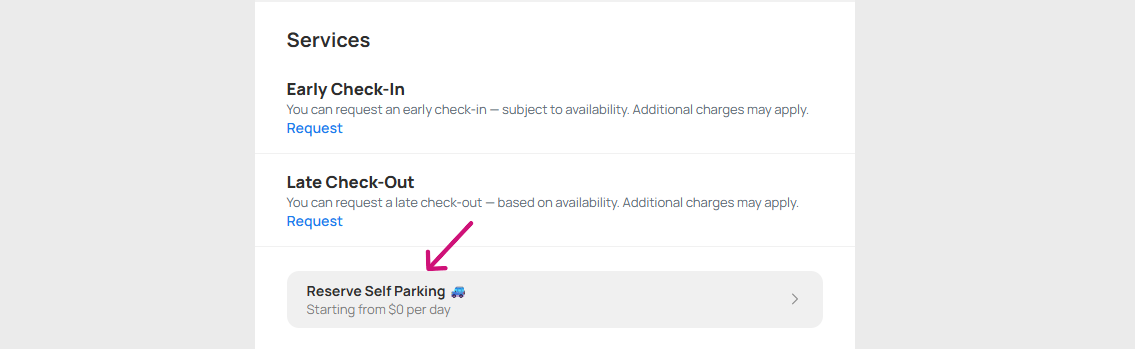
Guests can book a parking spot by following the link in their booking confirmation and check-in instruction emails.
-
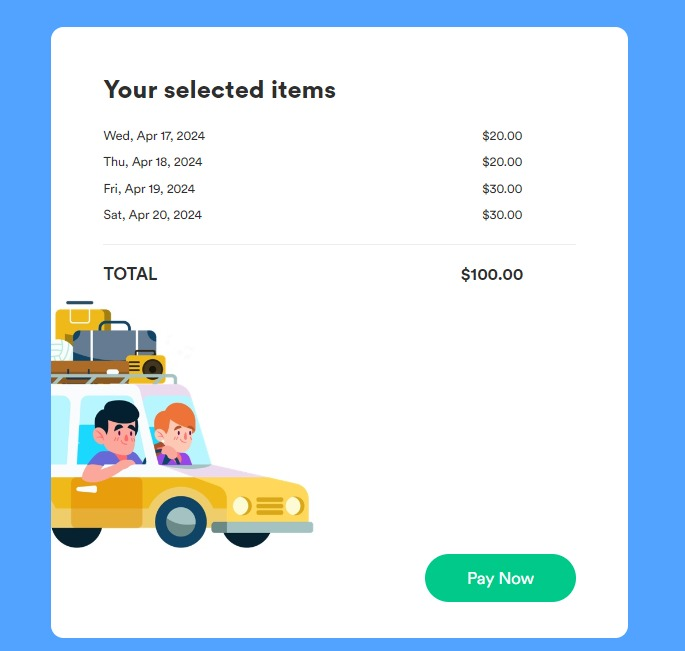
This is what the guests will see by clicking the Reserve Self Parking button in confirmation emails and/or check-in instructions. They can proceed by simply clicking Pay Now. They will also see the price breakdown for each day.
-
Direct parking links can also be provided to guests for finalizing the parking spot booking process. Use these direct links:
https://www.hosteeva.com/park/cb
https://www.hosteeva.com/park/bywater
https://www.hosteeva.com/park/irishhouse
https://www.hosteeva.com/park/caryhouse -
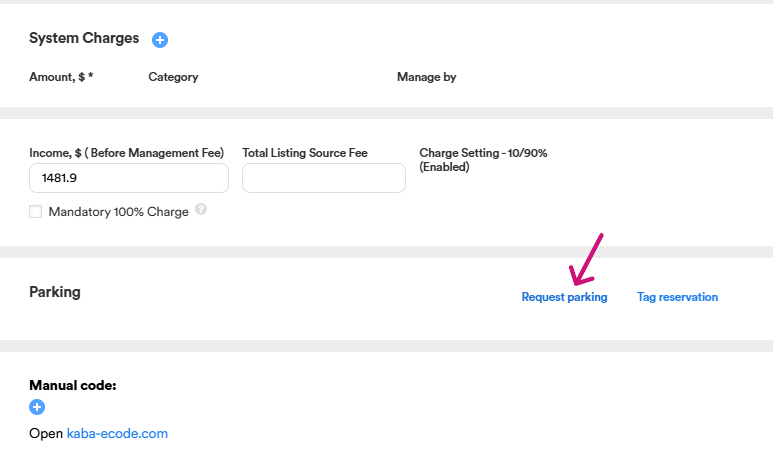
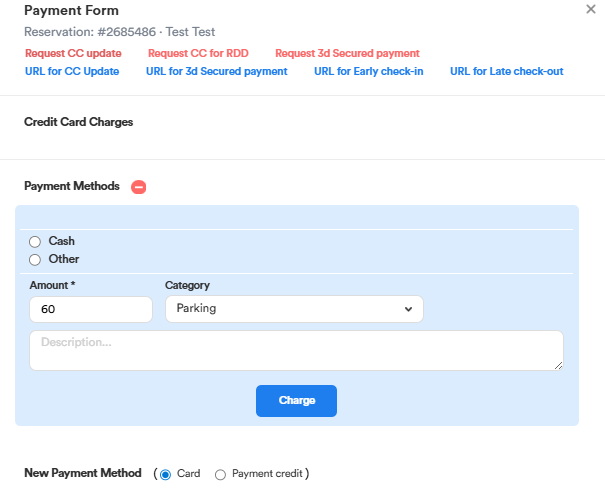
You can book a parking spot on behalf of customers in case they experience any issues via the Request Parking button or the link.
-
With the help of Request Parking, we request payment for the parking.
Step 3: Parking Spot Confirmation
-
As soon as the parking spot booking is confirmed, the guests will receive a confirmation. You will also see it below the Door Codes in the Reservation dialog.
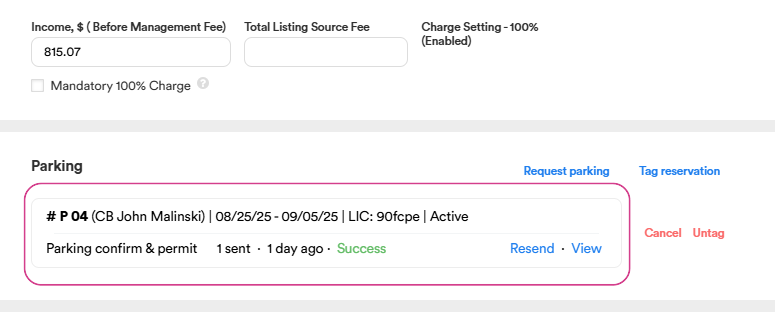
-
With the help of the Tag Reservation feature, we can tag an existing parking booking (that was not made through our shared links, but via a direct link) to a certain reservation.
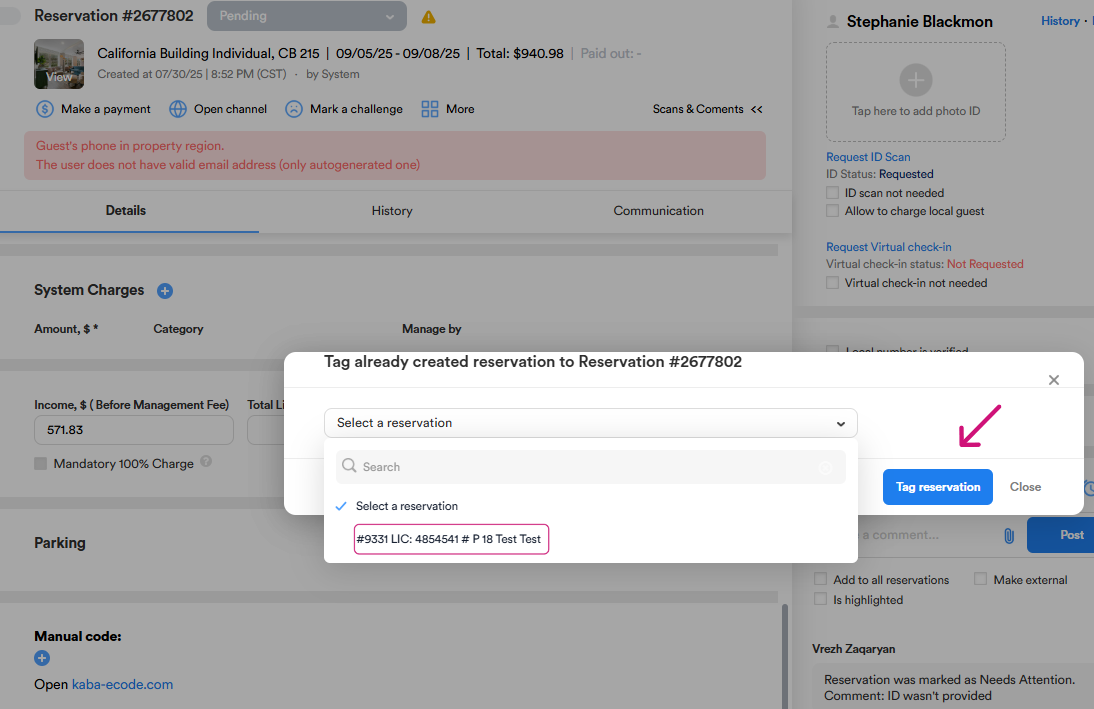
-
You can check the parking details by viewing the check-in instructions and the reservation dialog.
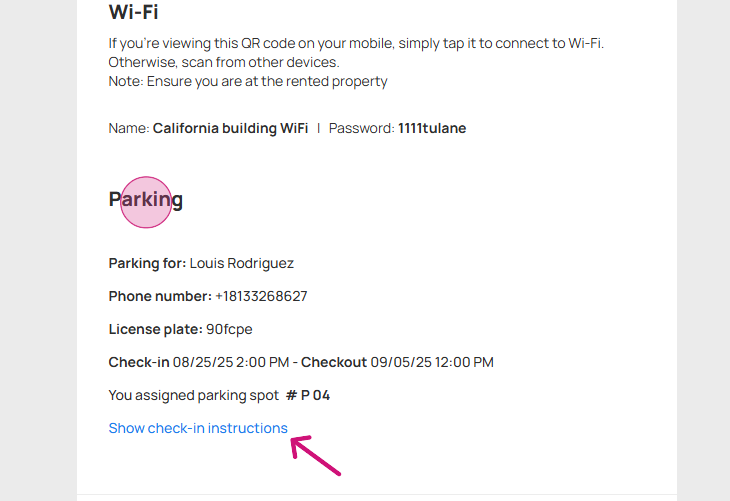
- The guest should print the parking permit and place it on the dashboard or inside the front windshield of their car.
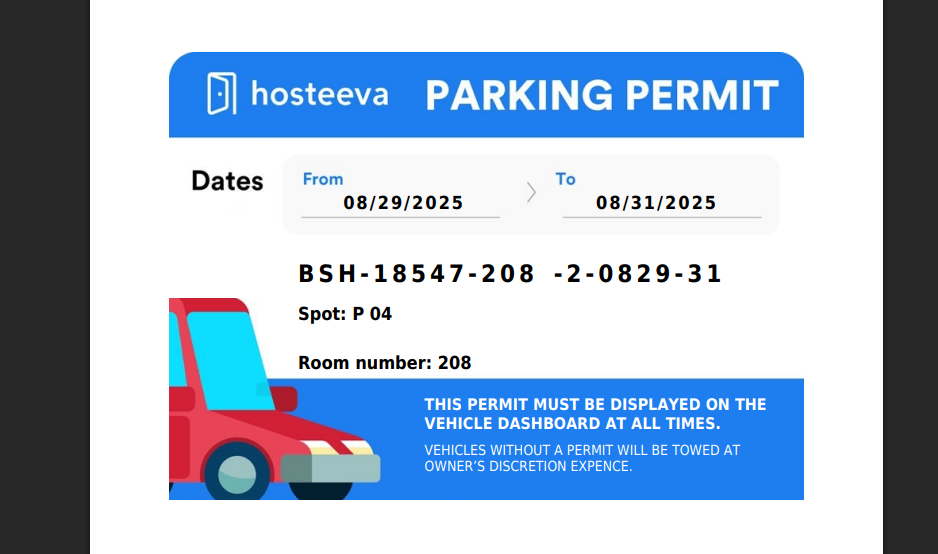
-
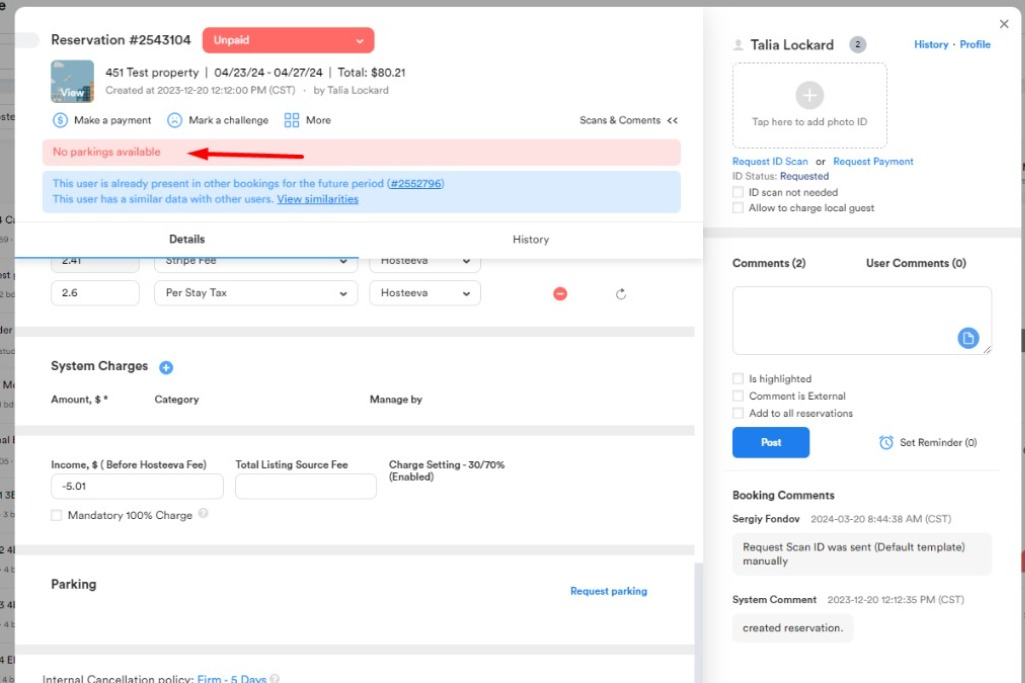
No parking available message will be visible in case all the spots are booked.
-
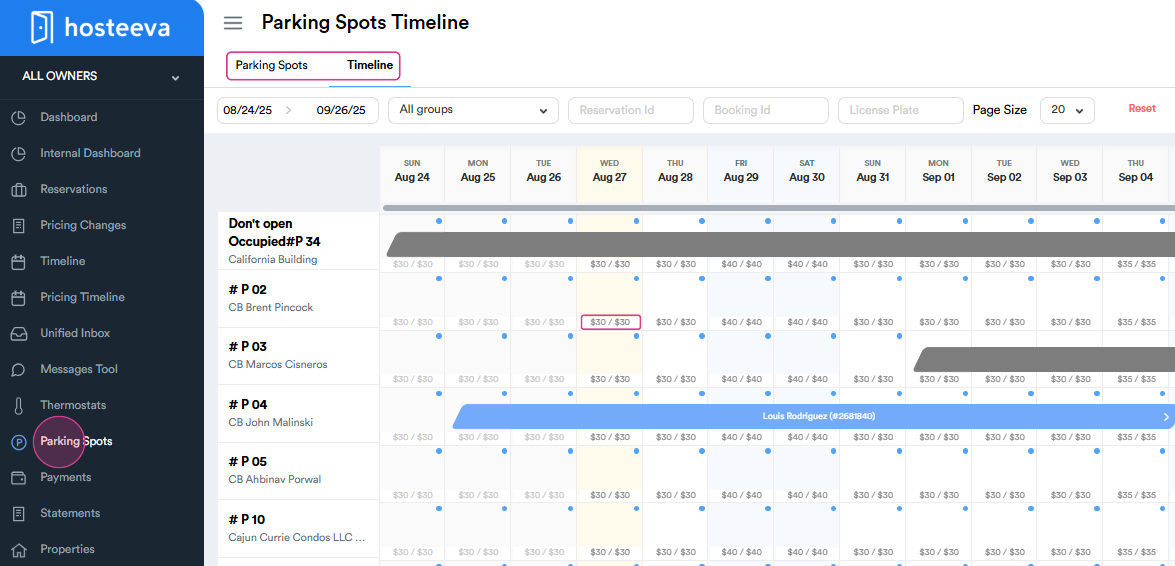
Every CS agent has access to the Parking Spots tab on Hosteeva. By clicking on the Timeline, the availability of the parking spots can be checked. You can see the prices for each day.
Step 4: Parking Spots Reservations
-
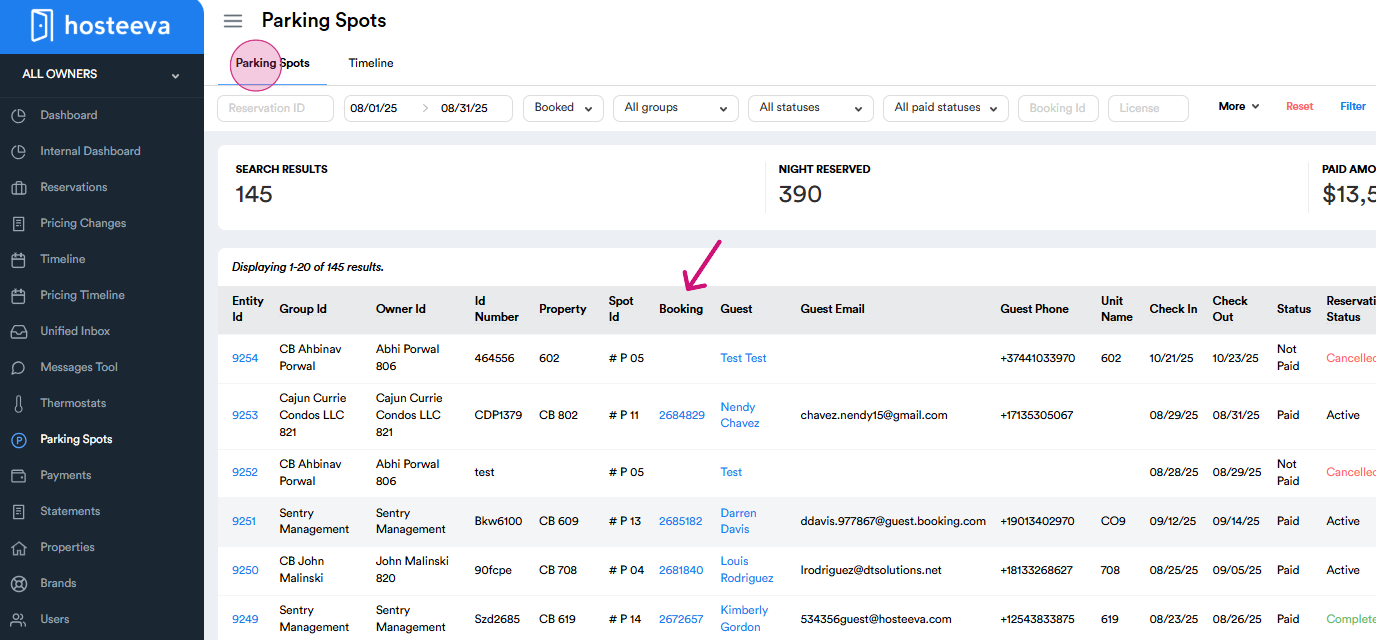
By clicking on the Reservations, the agents can see all the current reserved parking spots.
-
You can click on the Booking ID and check the guest's reservation.
Step 5: Updating Availability of the Parking Spots on the Calendar
-
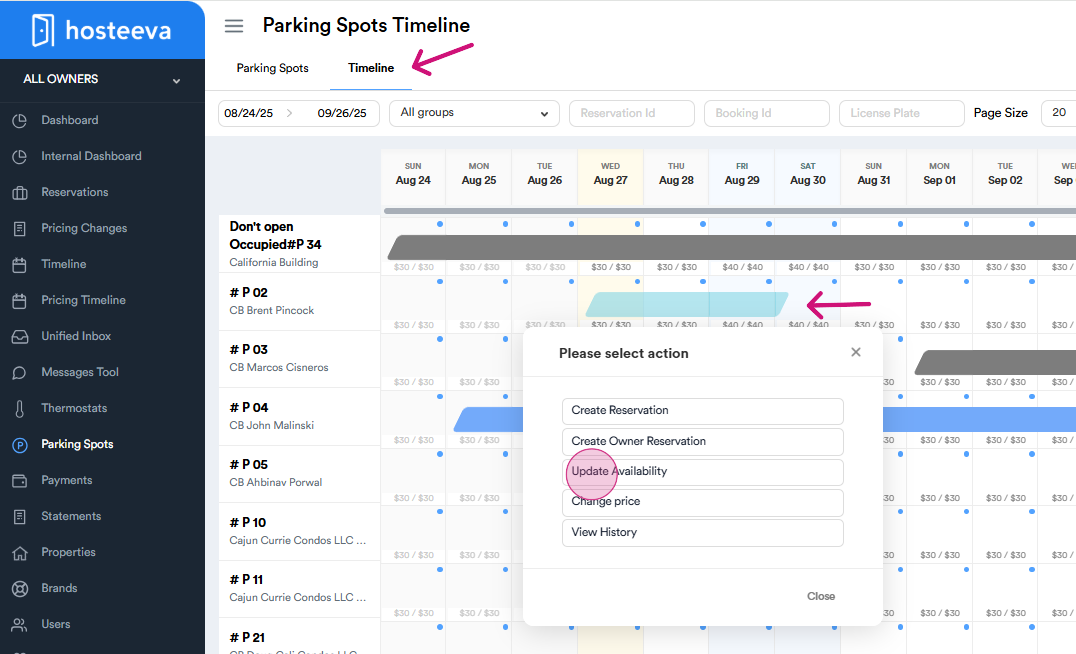
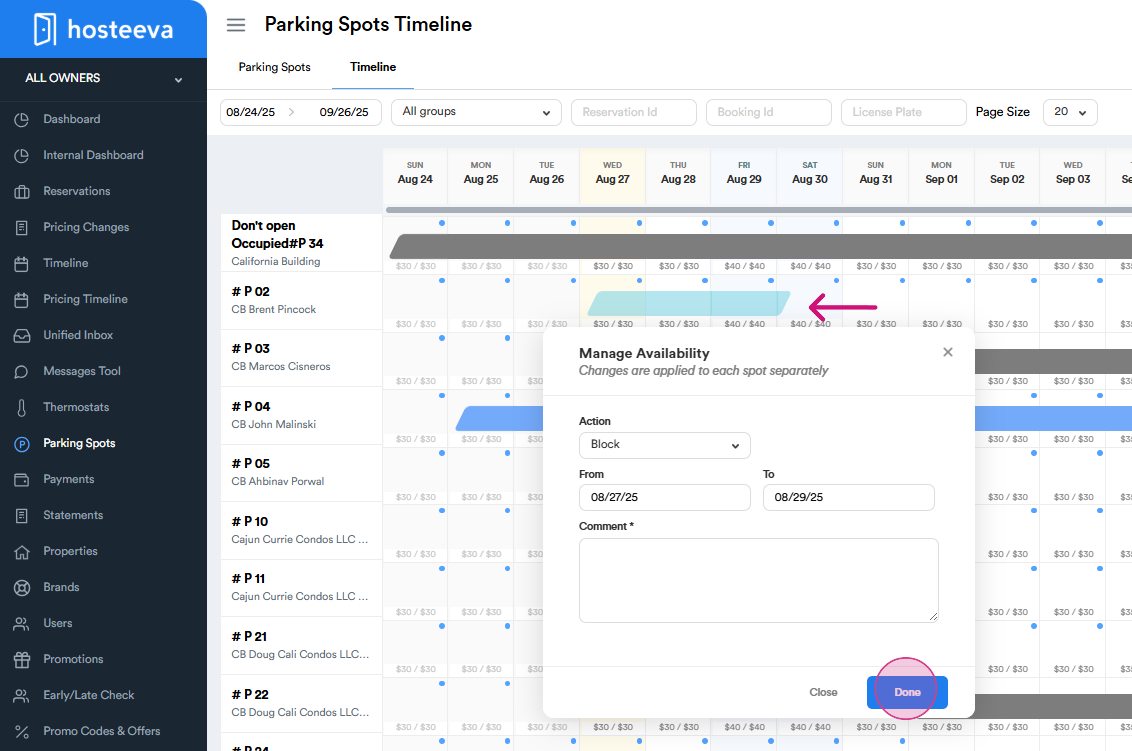
Agents can update the availability of parking spots on the Parking Spots Timeline. Simply choose the dates and click the Update Availability button. You can select the proper action and click the "Done" button.
Step 6: Relocation and parking res. creation
-
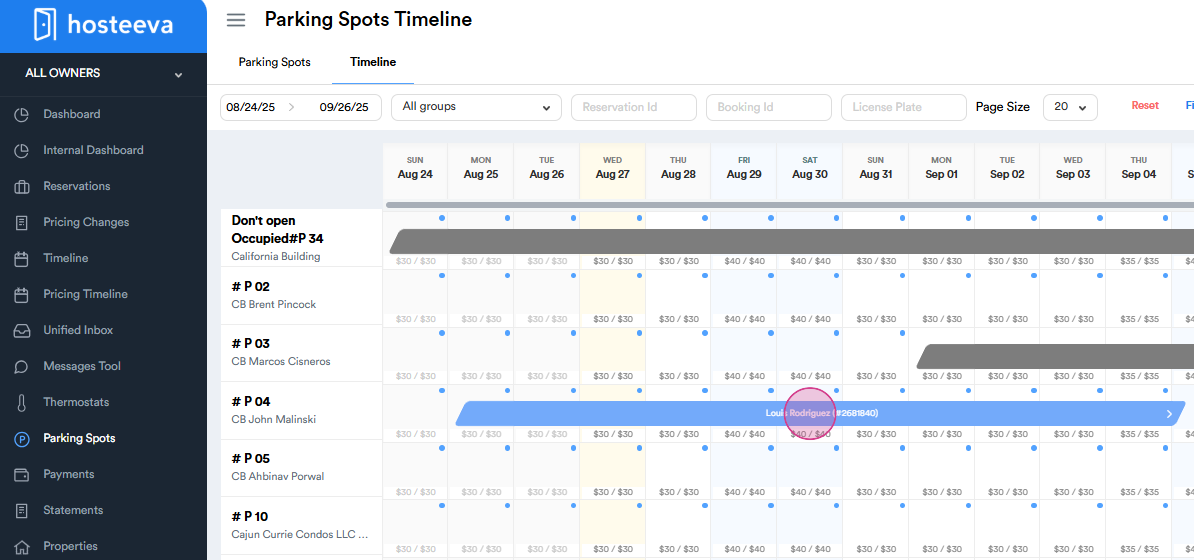
Agents are able to make a parking reservation on the guest's end and relocate the parking spot by choosing the reservation on the Parking Timeline.
-
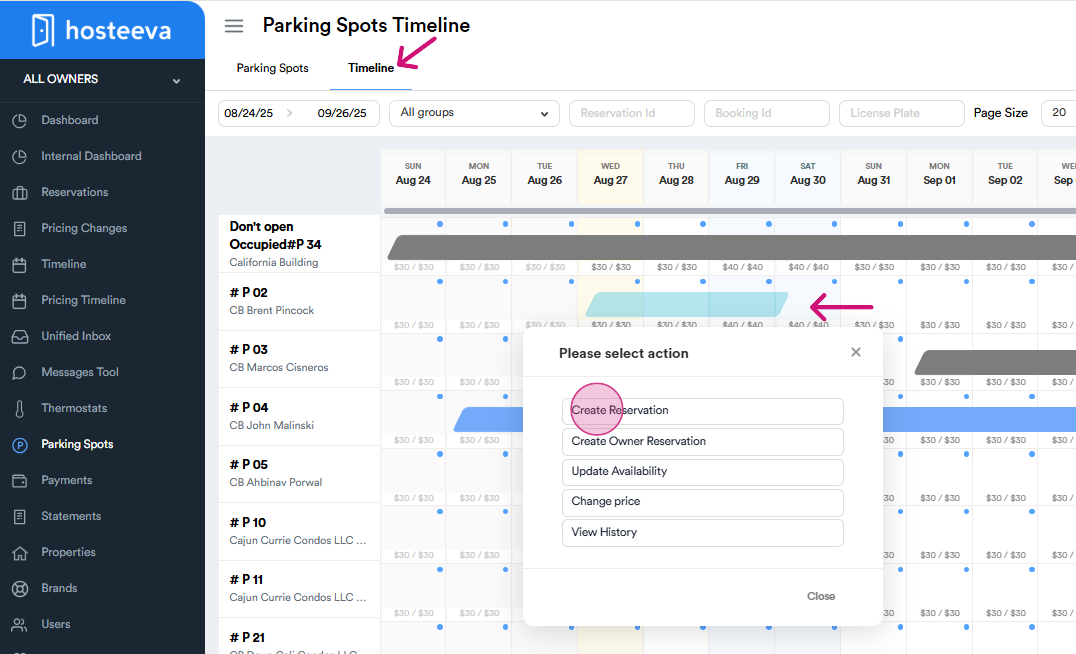
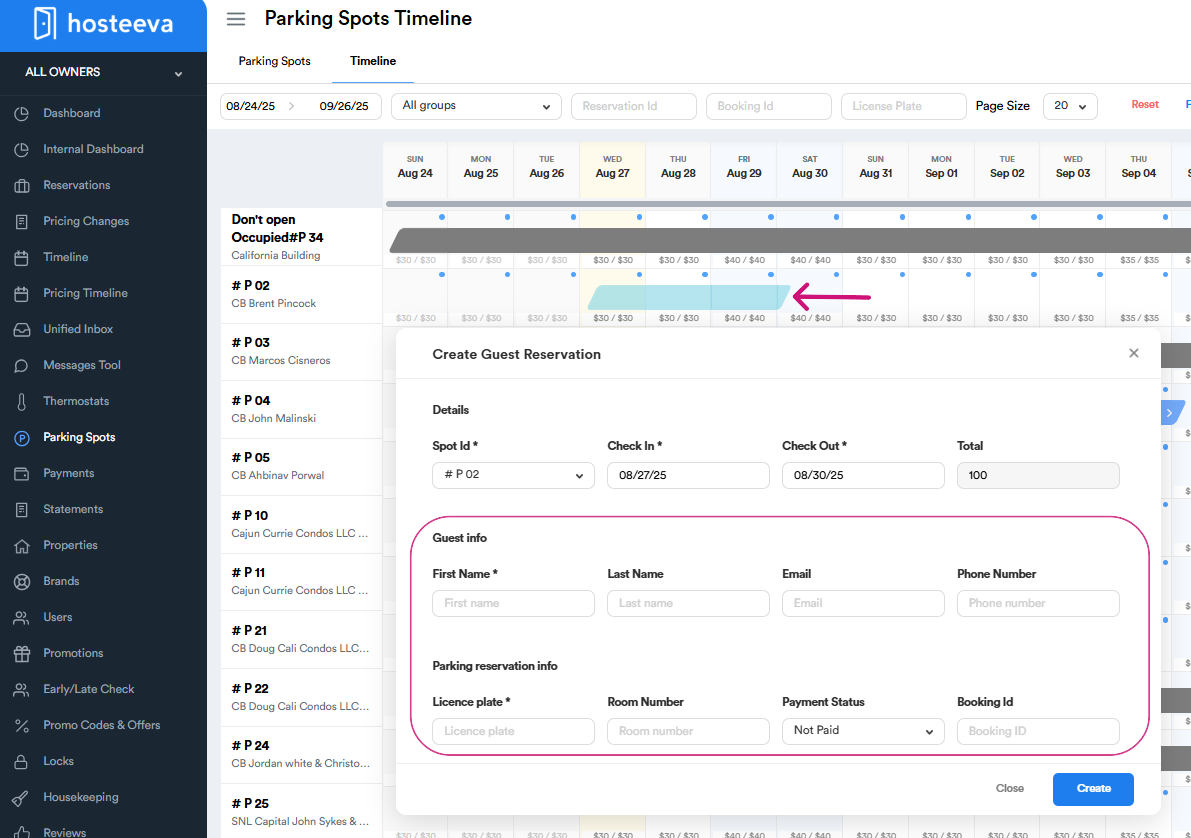
Select an available date and parking spot (e.g., #P 02), then click the 'Create Reservation' button. Fill in the required fields in the form that appears, and click 'Create' to complete your reservation.
-
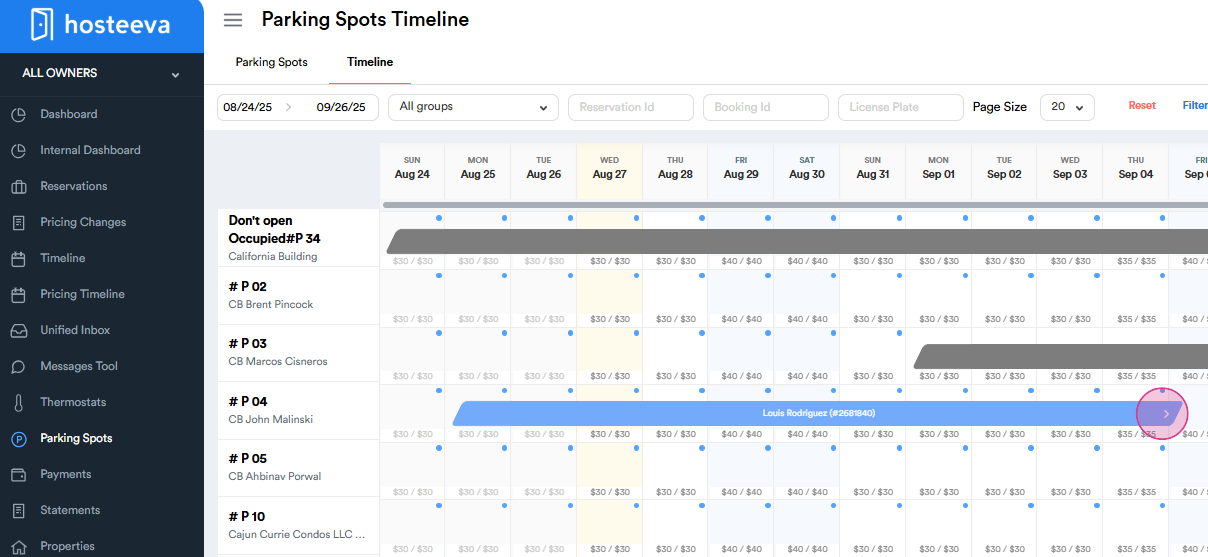
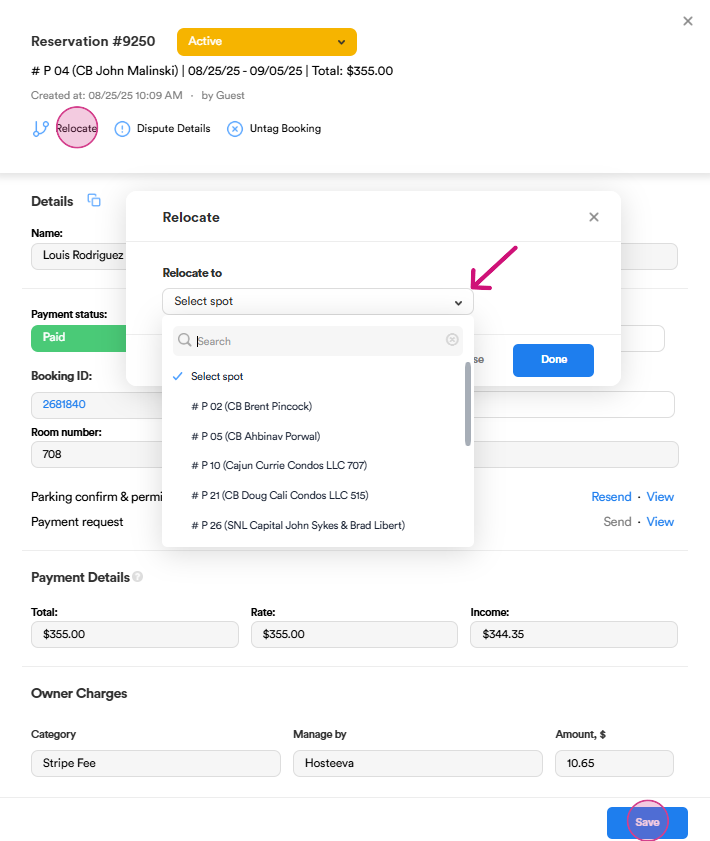
Press on arrow on the parking reservation, then click the "Relocate" button. Select the parking spot and click "Done".
Additional information:
The guest name is clickable; it will lead you to the reservation dialogue.
Thank you!