How to Process Expedia Refunds for Reservations
Processing refunds for reservations received from Expedia follows a clear flow. Here’s how to manage refunds through Expedia, step by step, with tips for both full and partial refunds.
Step 1: Select a reservation from the timeline that was received via Expedia.
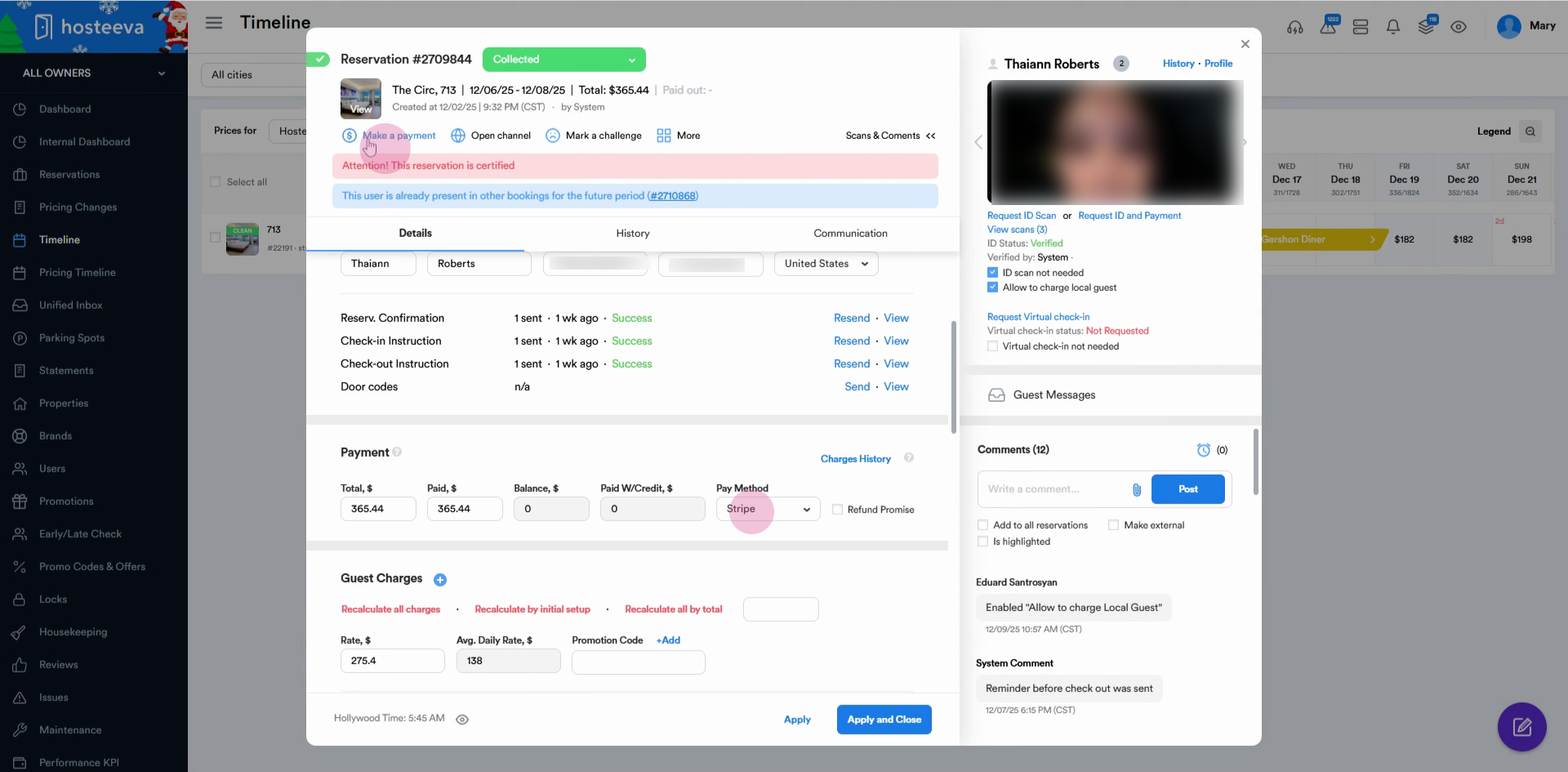
Step 2: Confirm the reservation’s payment method. Scroll down to the Pay Method section to identify if it’s Expedia (bank transfer), virtual card, or Stripe.
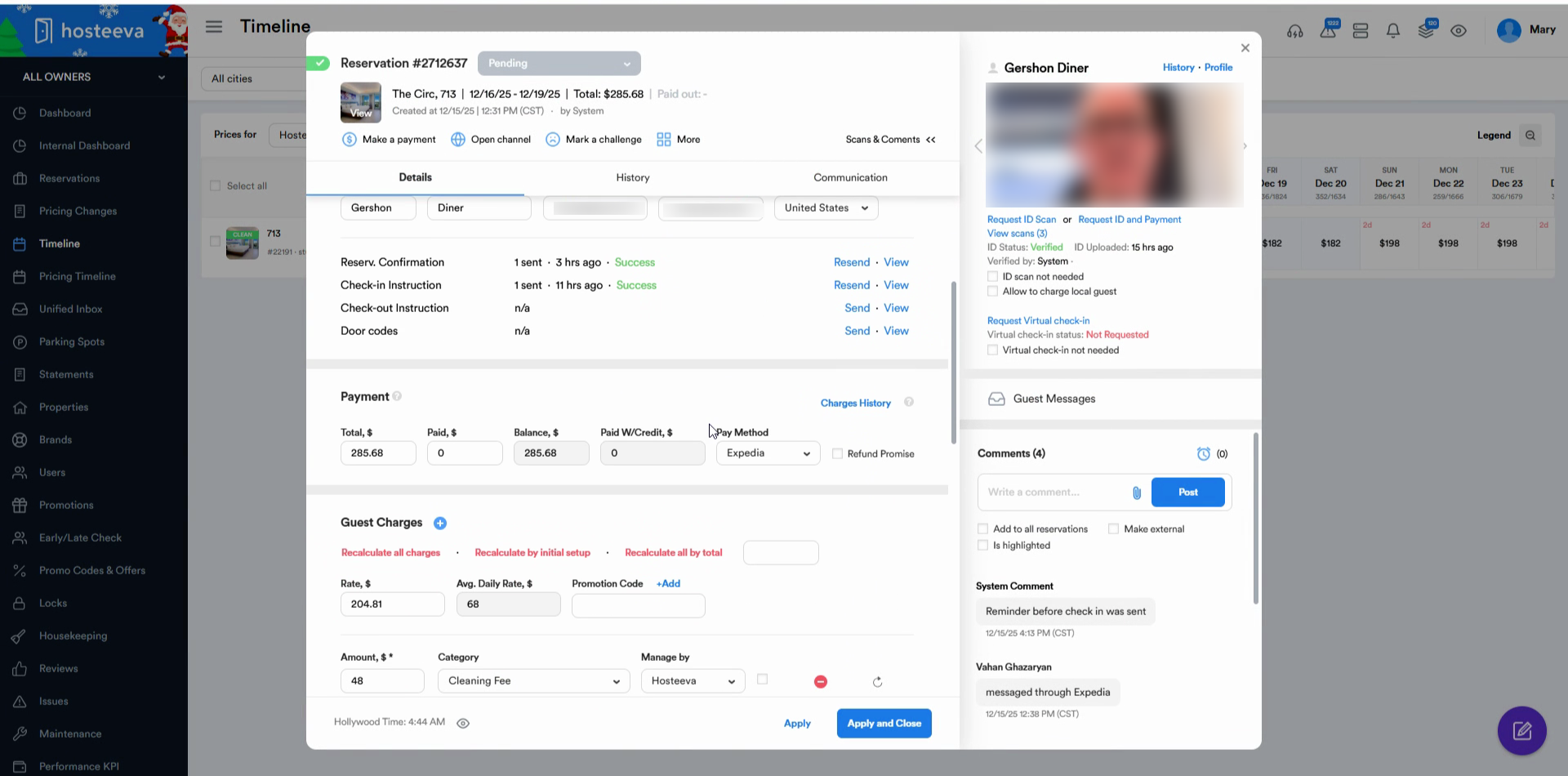
Step 3: Go to the top of the reservation dialog and click Open channel. This takes you directly to the reservation in Expedia.

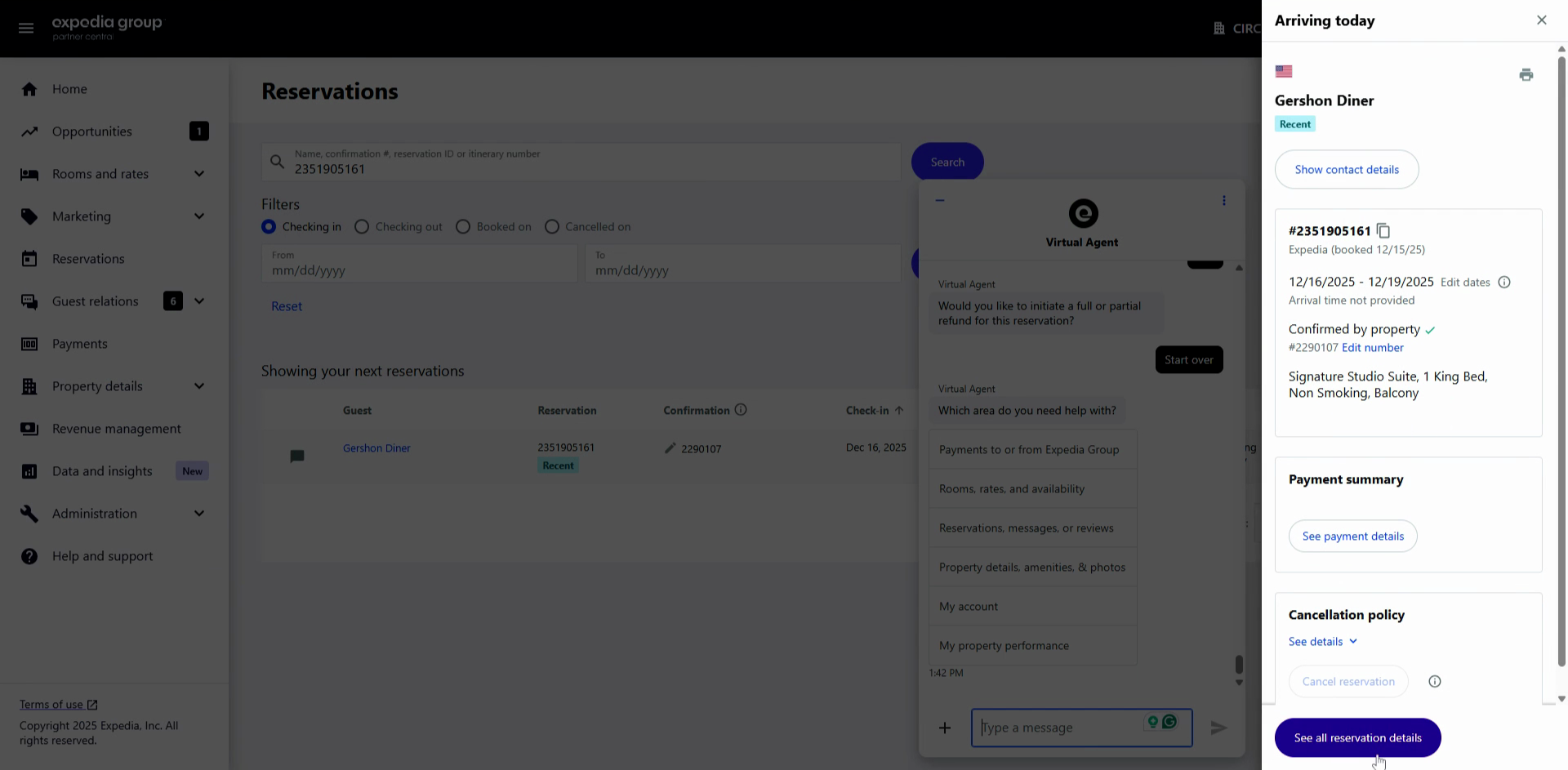
Step 4: Review the reservation information and click See all reservation details.
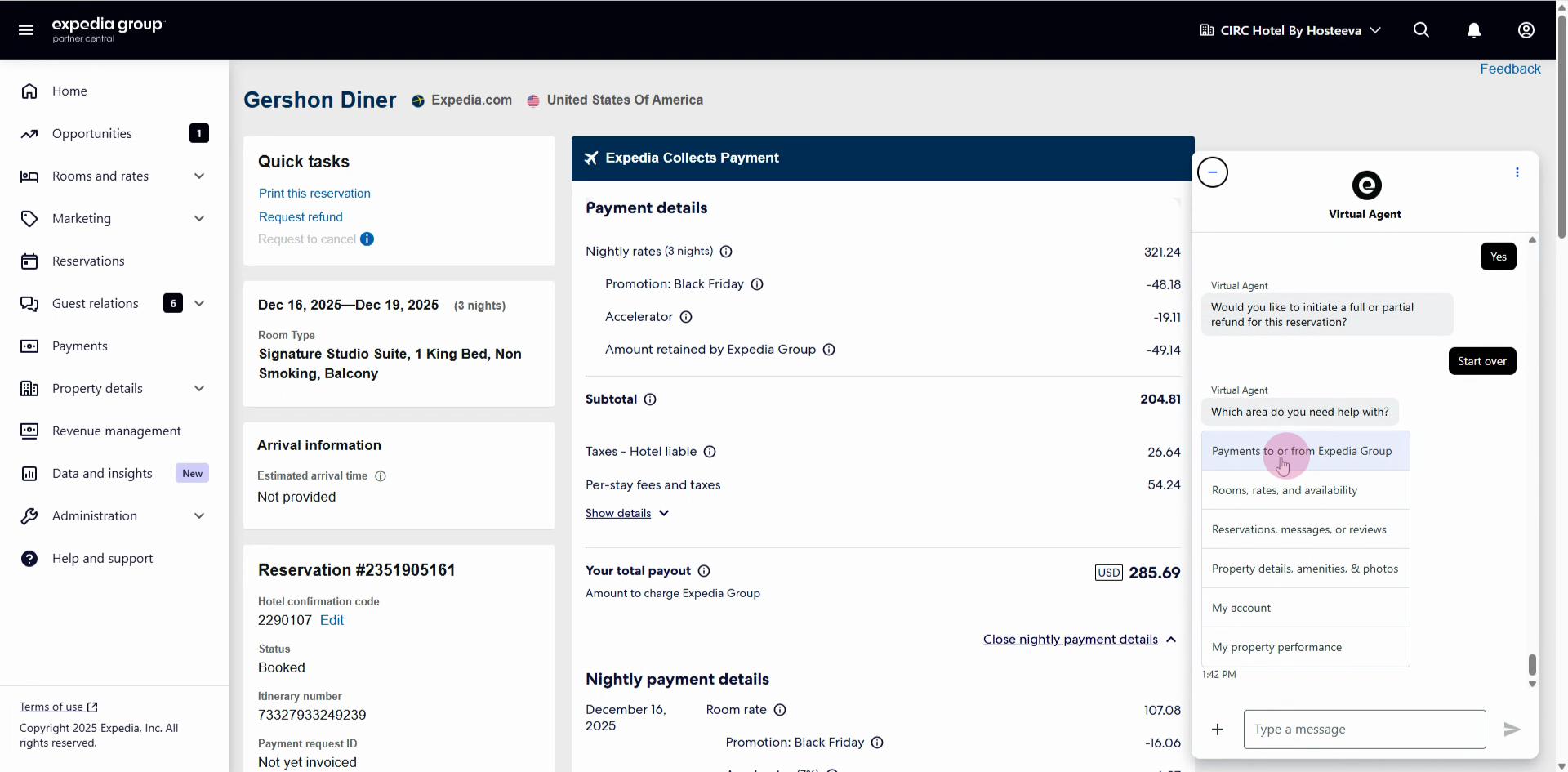
Step 5: Click the help button at the bottom right corner of the screen. Then select Payment to or from Expedia Group.
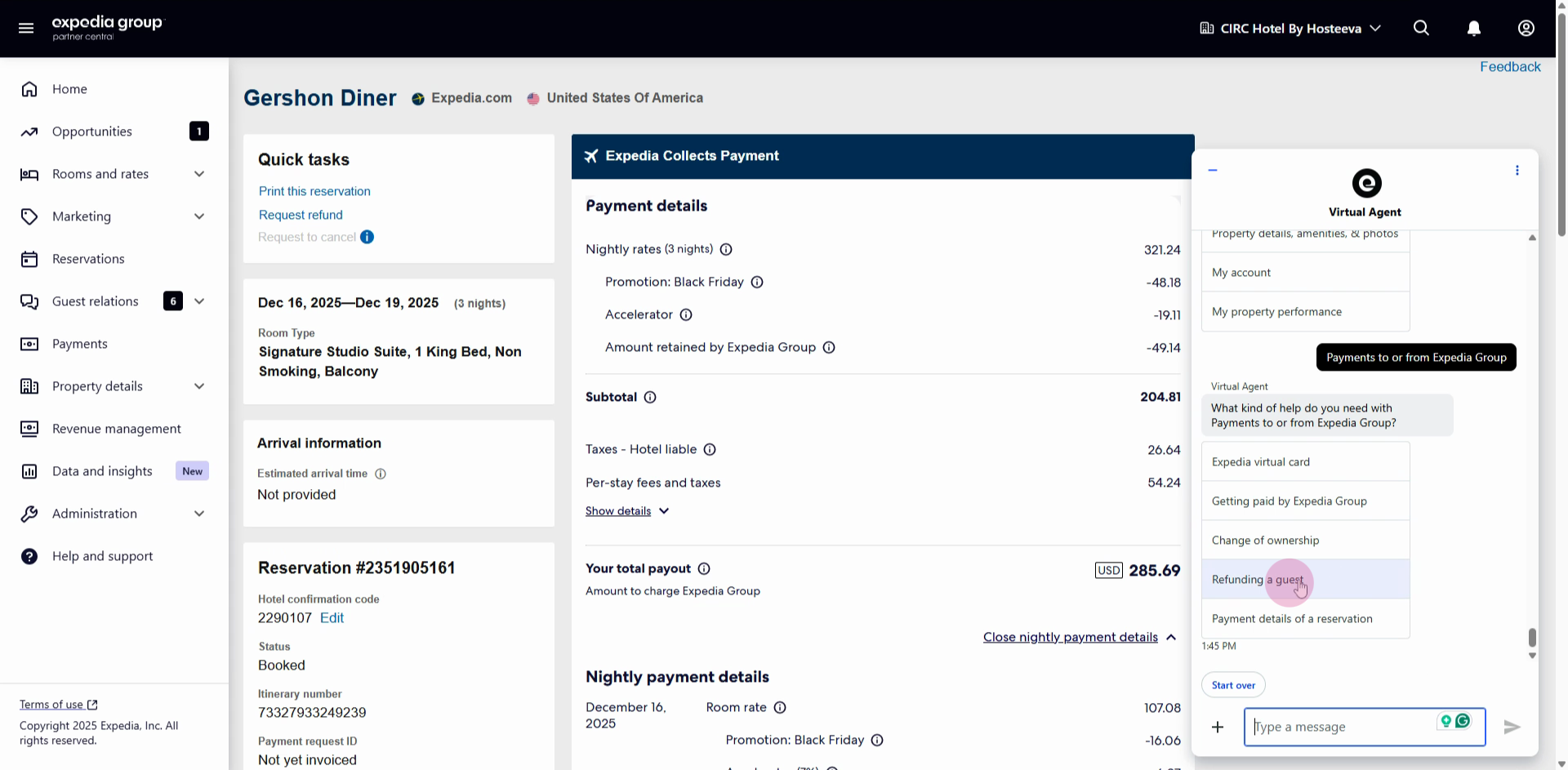
Step 6: Click Refunding a guest to start the refund process.
Step 7: Enter the booking ID for the reservation when prompted.
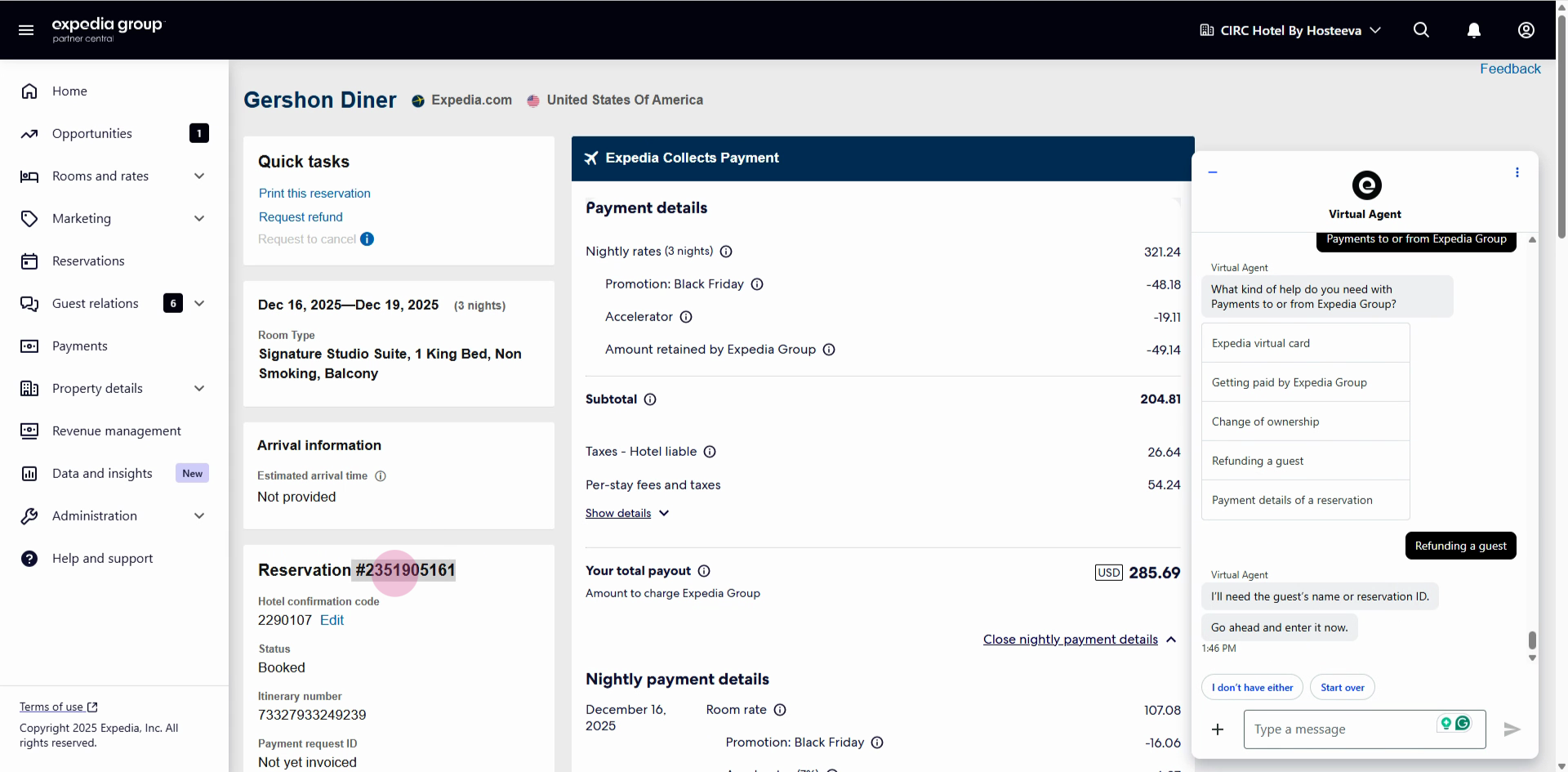
Step 8: Confirm you’ve selected the correct reservation holder and click Yes.
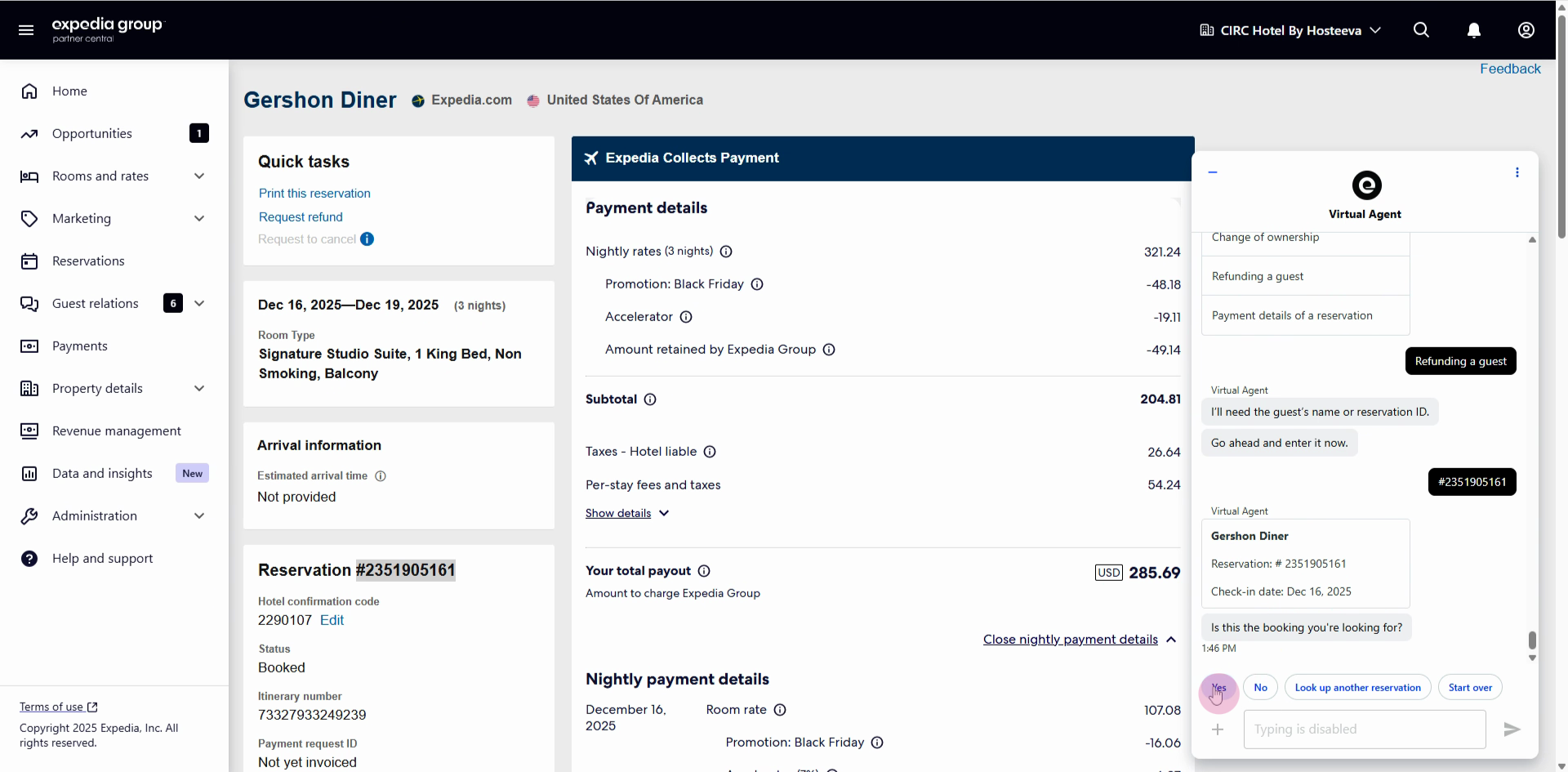
Step 9: Choose Yes again to confirm you want to initiate a refund.
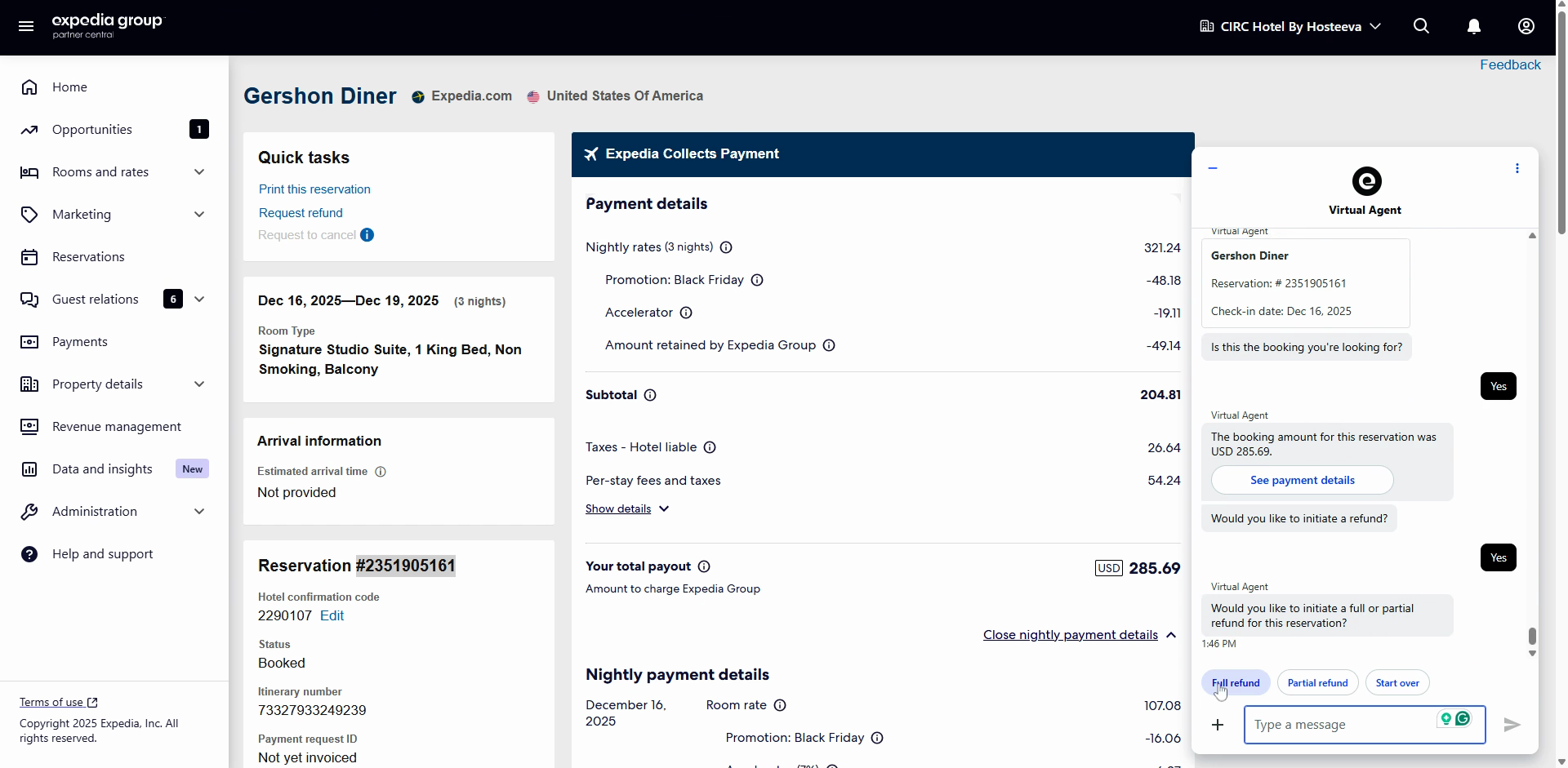
Step 10: Decide if you’re issuing a Full refund or a Partial refund.
-
For a full refund, click Full refund.
-
For a partial refund, select Partial refund (useful for specific fees or unused nights).
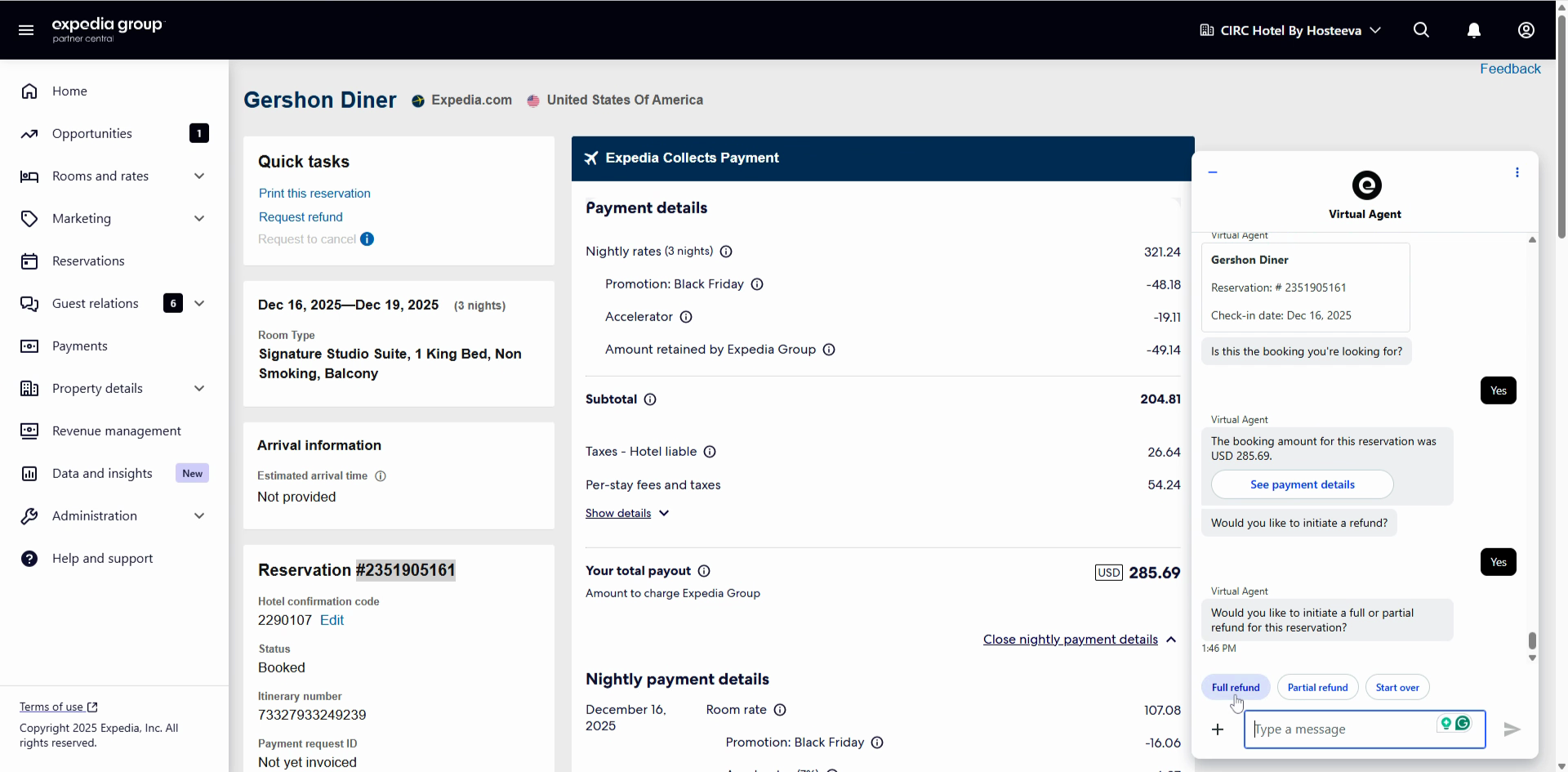
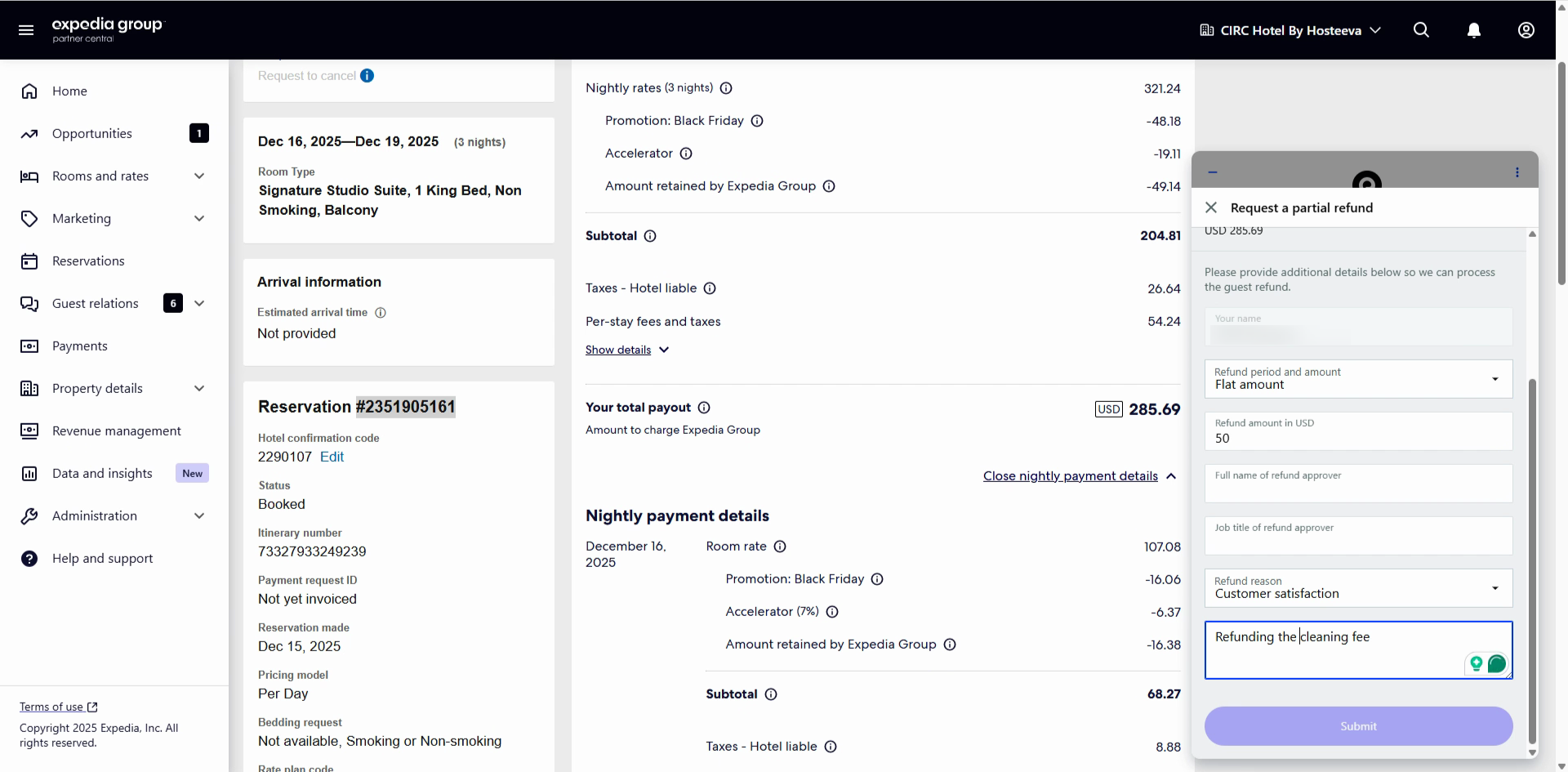
Step 11: Complete the refund form.
-
Use Flat amount to specify an exact dollar amount (e.g., $50).
-
Enter the name of the account holder (not the guest), your position, and any notes if needed.
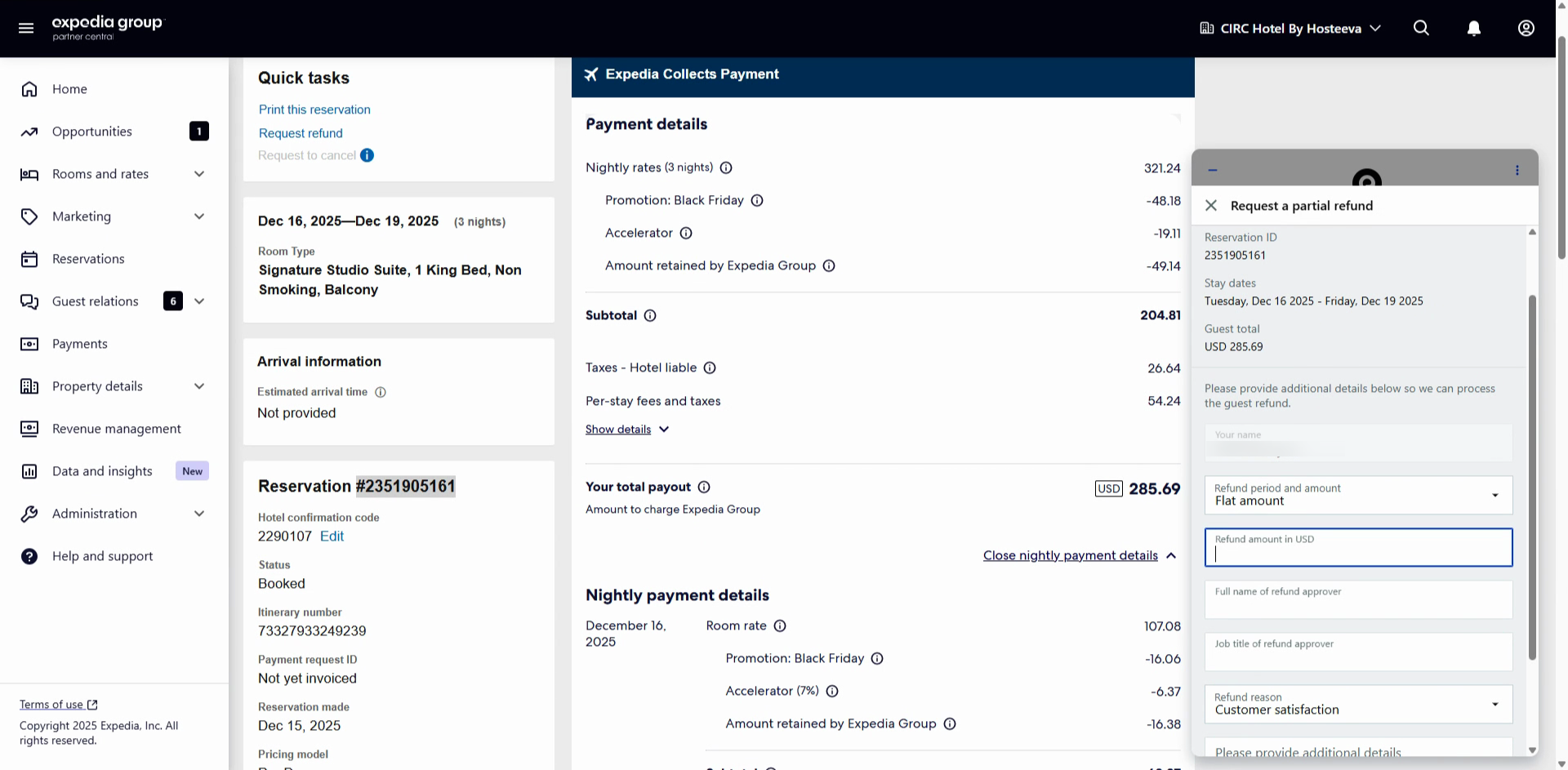
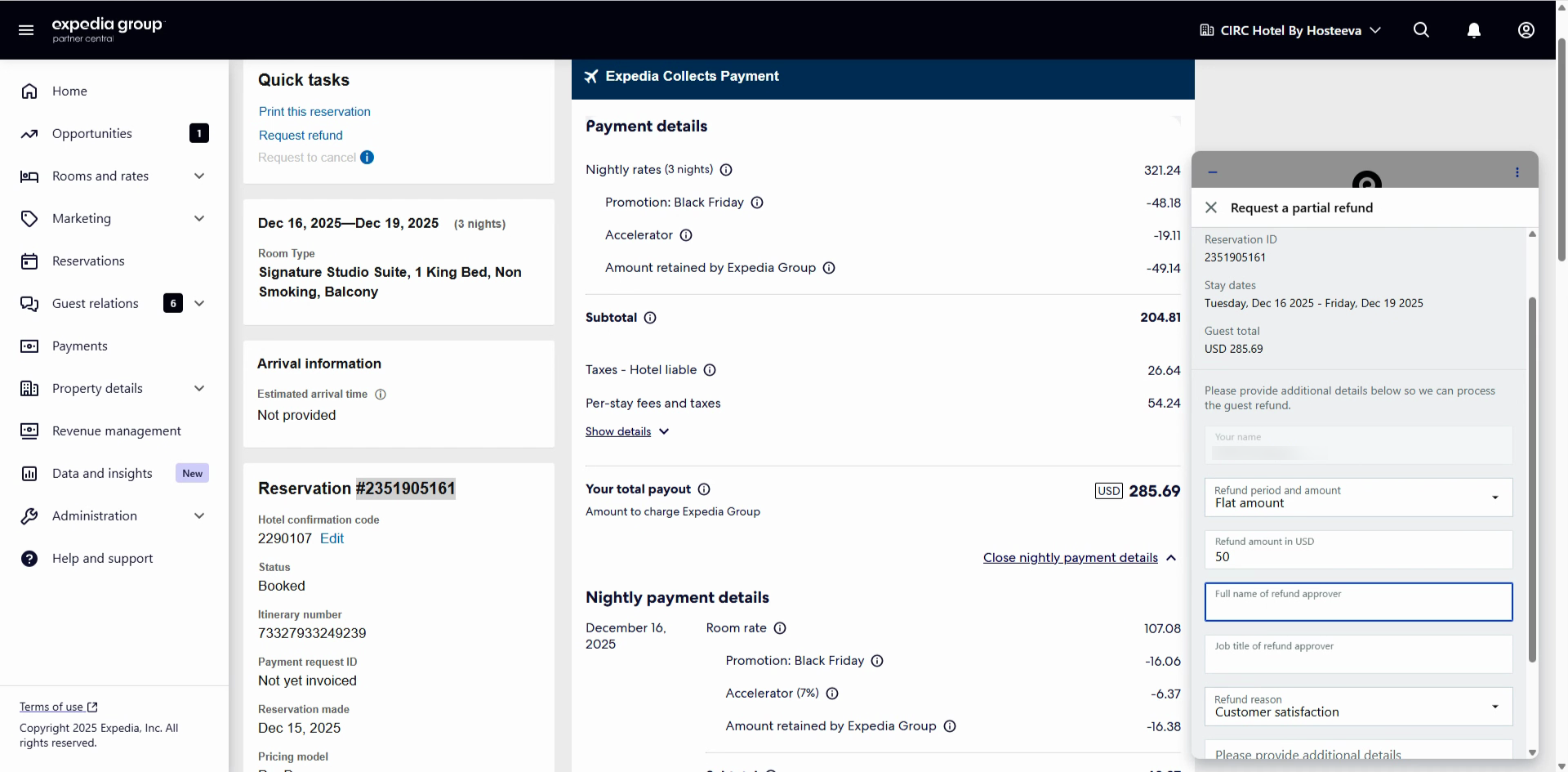
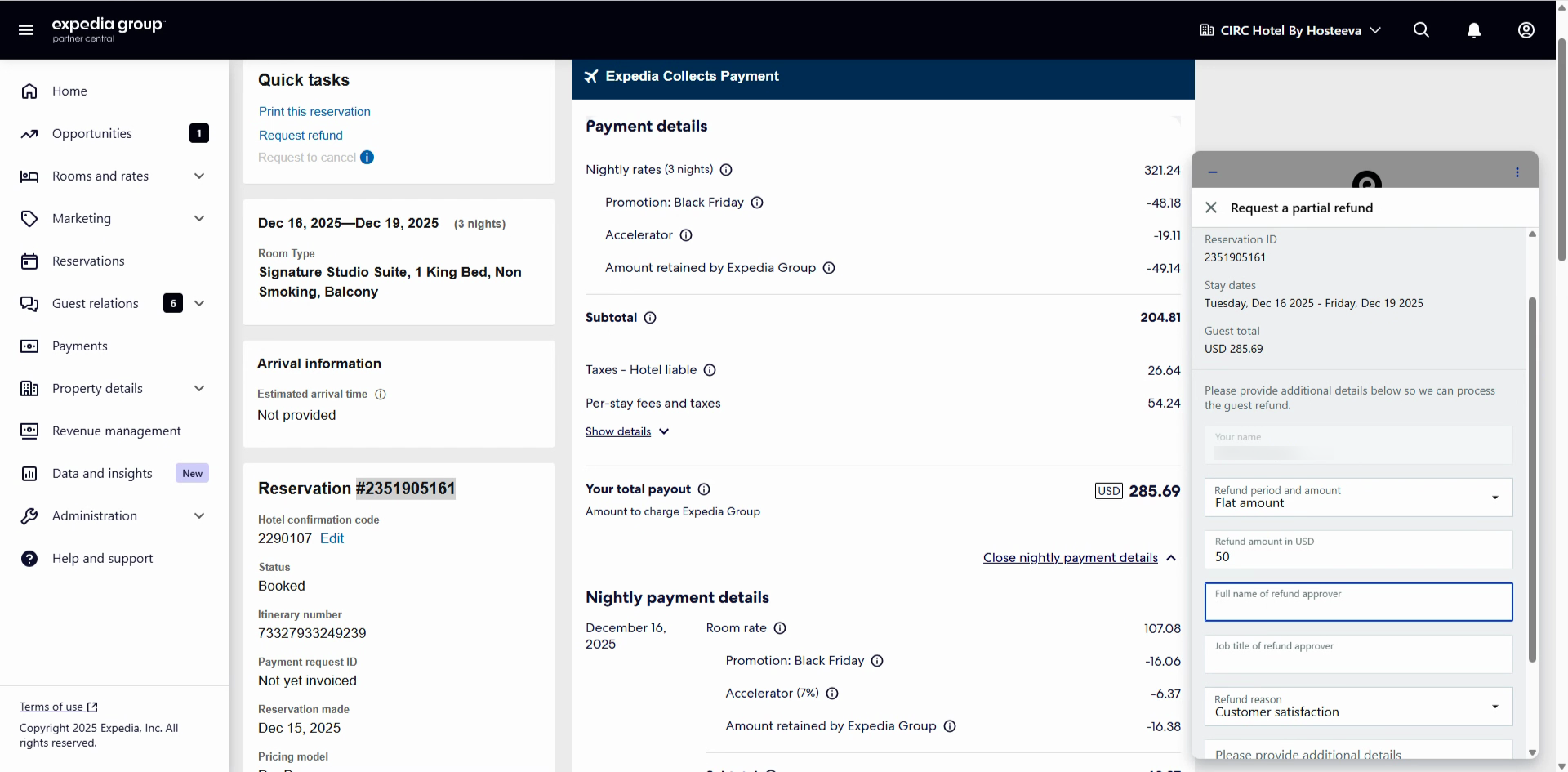
Step 12: Click Submit to send your refund request to Expedia.

Step 13: Optionally, take a screenshot as proof of your submission. This can help with any future follow-up.
Expedia will usually process your refund request within 20 to 48 hours. That’s it—your guest's refund is on its way!
Handle refunds promptly to build trust with your guests and maintain a smooth booking experience. Remember to keep documentation in case you need to check on refund status later.
How to Process Refunds for Reservations Paid by Virtual Card and Stripe
Processing refunds for different payment methods requires a few specific steps. Here’s how to handle refunds for reservations paid with a virtual card (like those from Expedia) and Stripe.
Virtual Card Refunds (Expedia Reservations)
Step 1: Open the reservation and go to the Make a Payment section at the top of the reservation dialog.
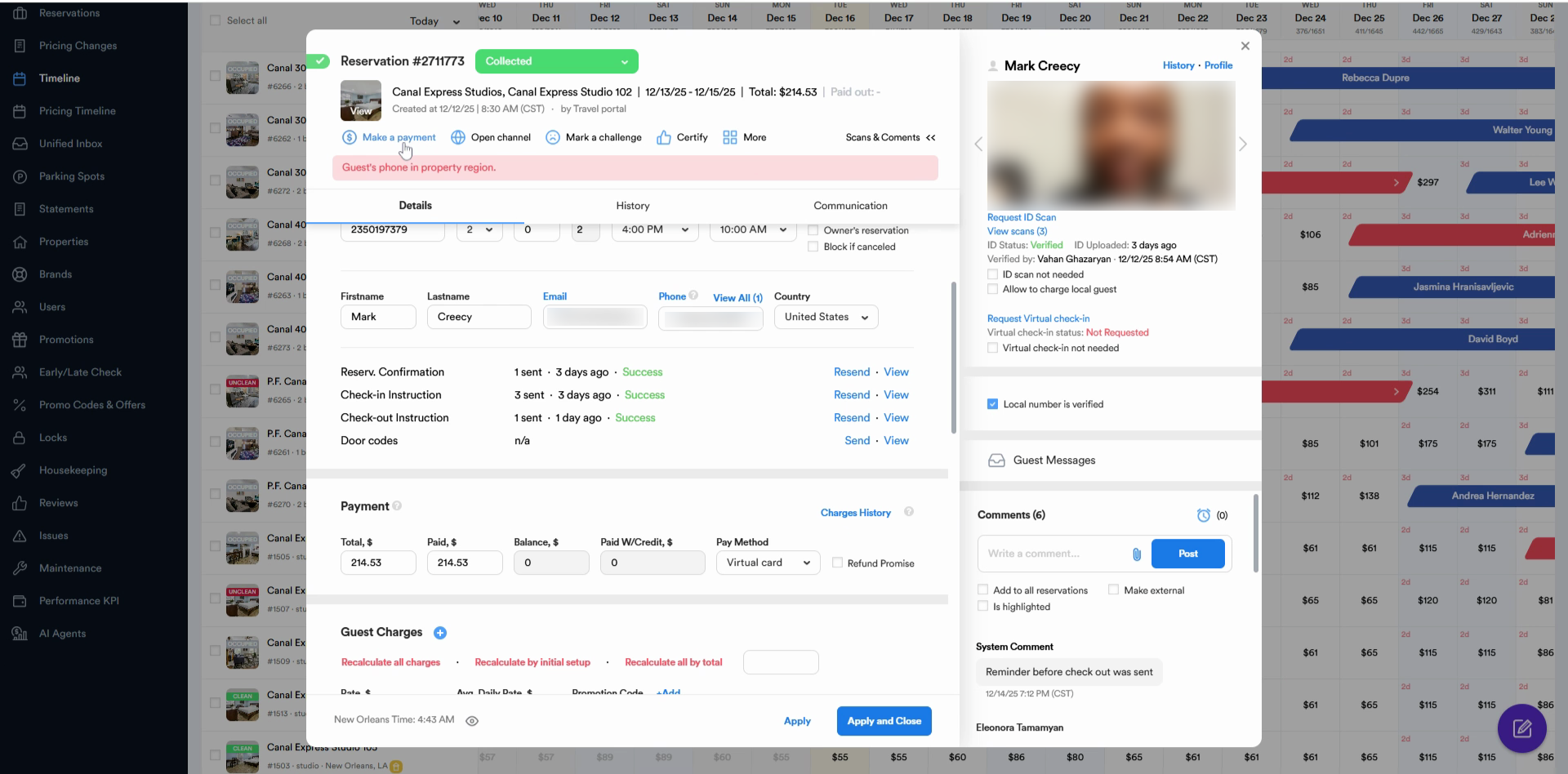
Step 2: Review the total amount charged to the Expedia virtual card.
Step 3: Click the Refund button.
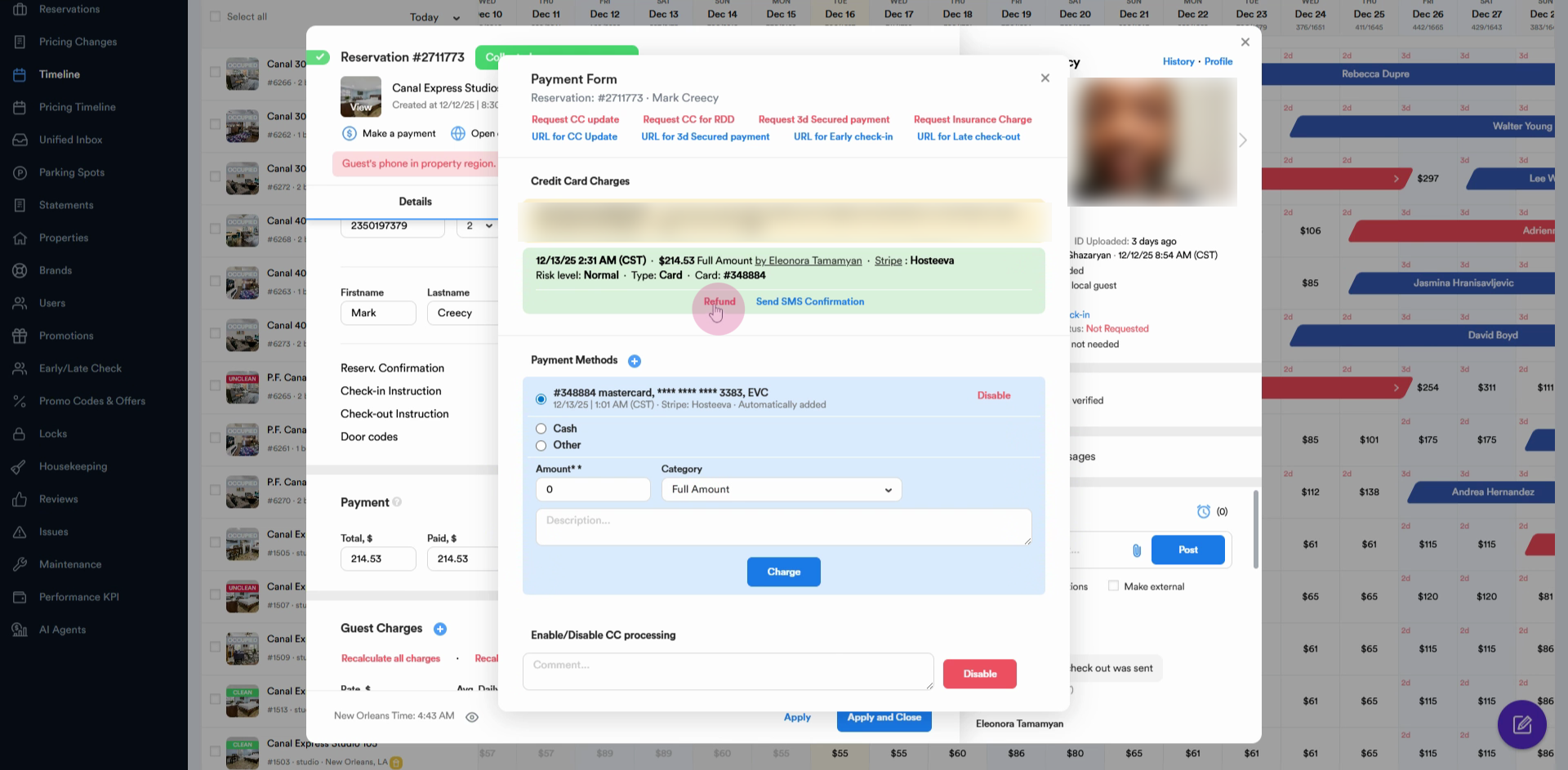
Step 4: Pick the refund reason from the dropdown menu.
Step 5: For full refunds, leave the amount as-is. For partial refunds, enter the desired refund amount.
Step 6: Add a short note explaining the refund.
Step 7: Click the Refund button to process the refund.
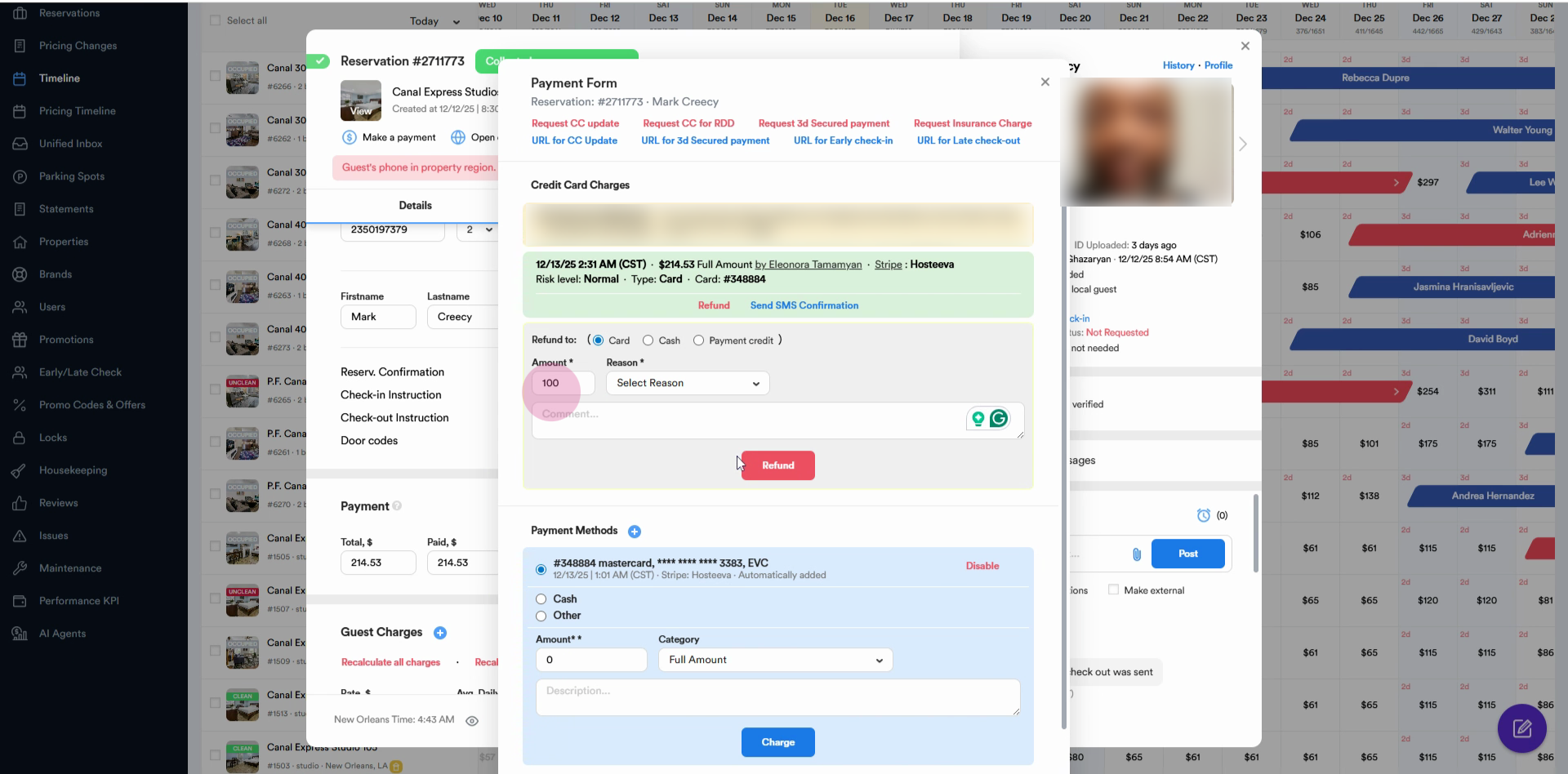
Step 8: Once the refund to the virtual card is complete, open your channel manager again.
Step 9: Go to the reservation details and use the chatbot to fill out the refund request form for Expedia — just like you would for bank transfer refunds.
Step 10: Complete all required steps and submit the form to notify Expedia of the refund.
Stripe Reservation Refunds
Step 1: Head back to the Timeline.
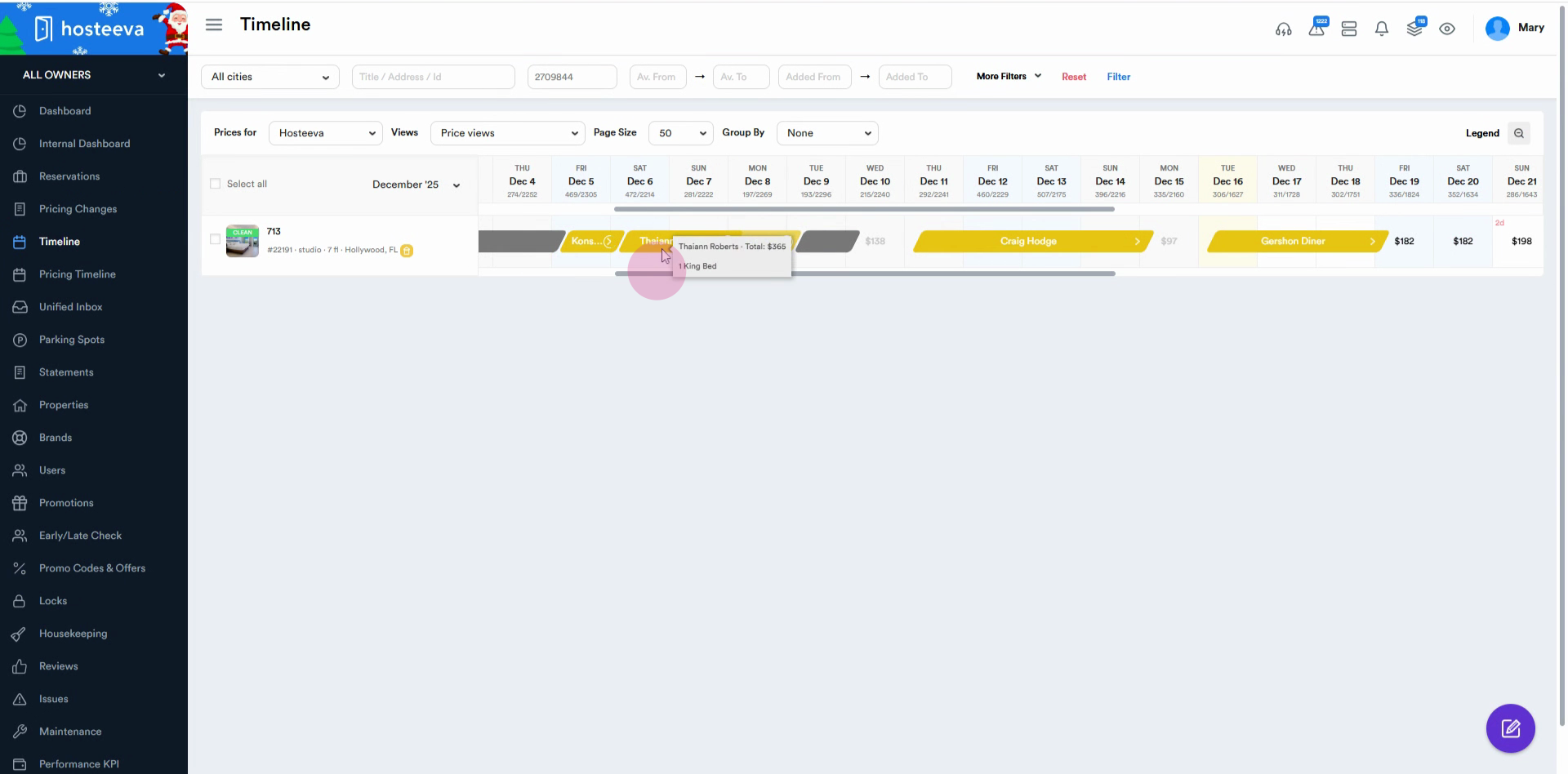
Step 2: Select a reservation where the payment method is Stripe.
Step 3: Go to the Make a Payment section.
Step 4: From the transaction list, click the Refund button.
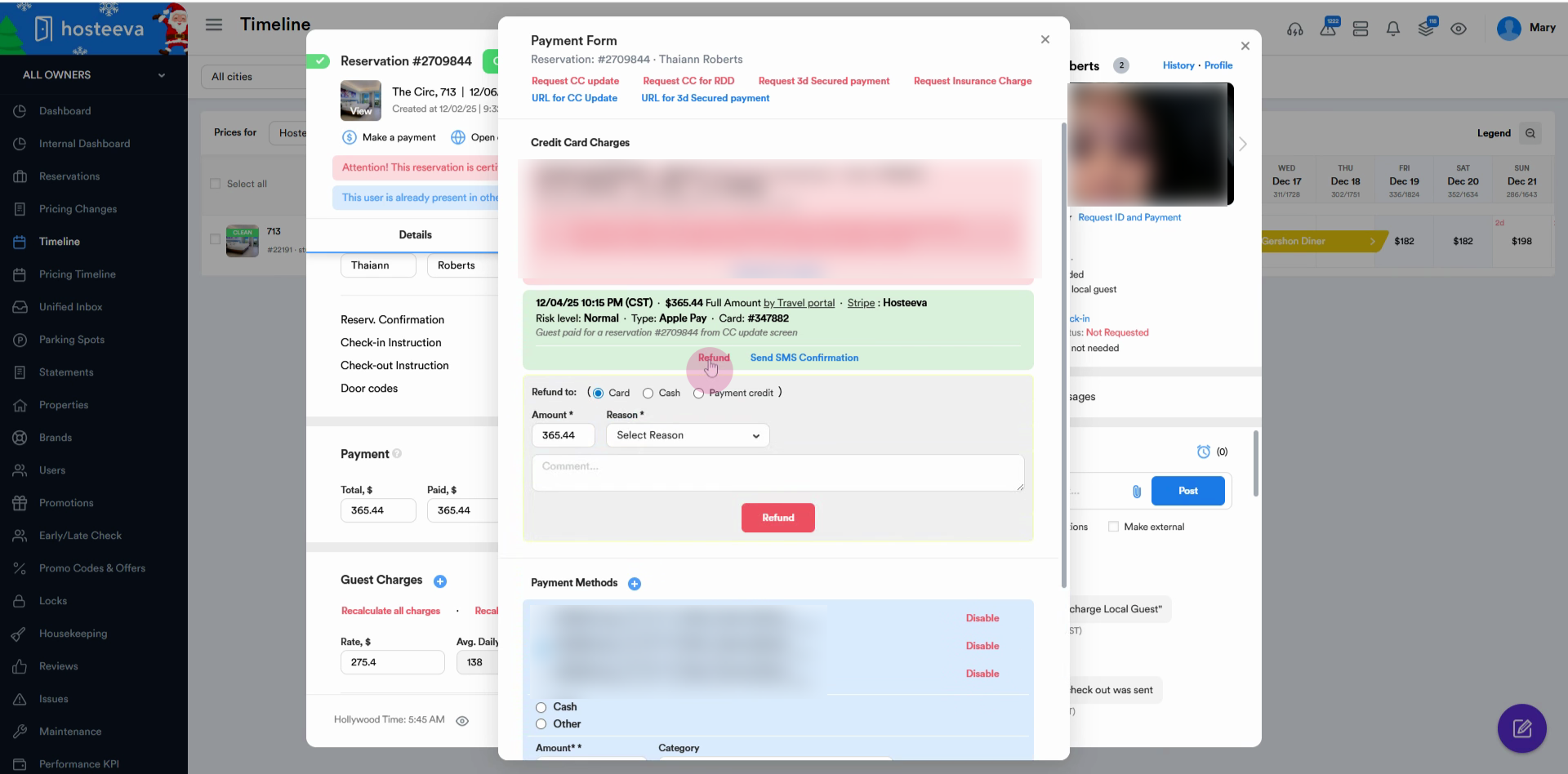
Step 5: Choose the refund amount (full or partial), pick a reason, and leave a comment if needed.
Step 6: Confirm the refund to process it.
Refunding virtual card and Stripe payments is straightforward once you follow these steps. Always add a note for transparency and, for Expedia, be sure to submit the completed form to alert them about the refund. This keeps your records accurate and ensures guests are refunded promptly.