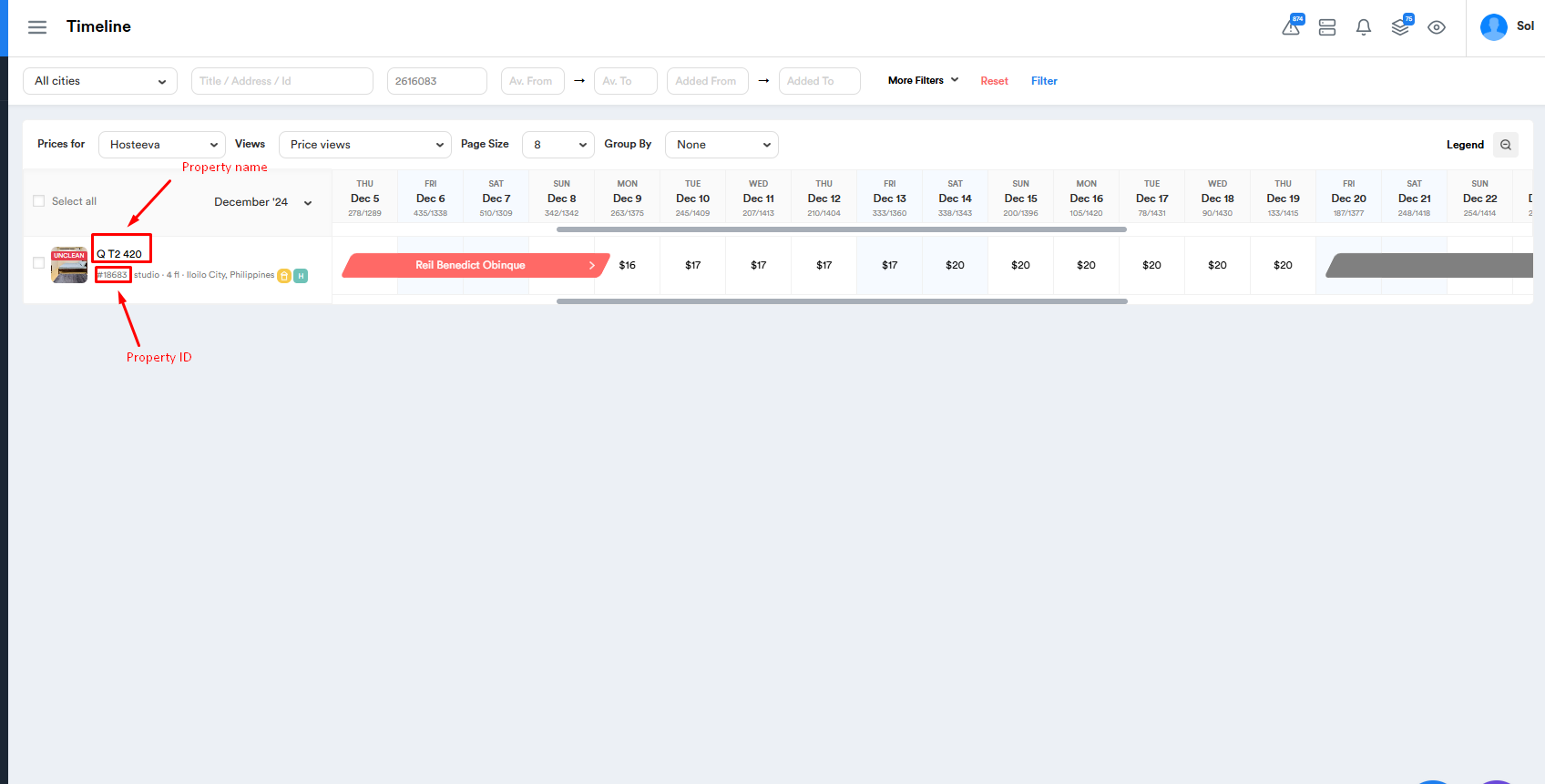
1.1 - Name/ID
- The property name is visible on the Hosteeva timeline.
- The property ID is also visible on the Hosteeva timeline.
1.2 - Amenities
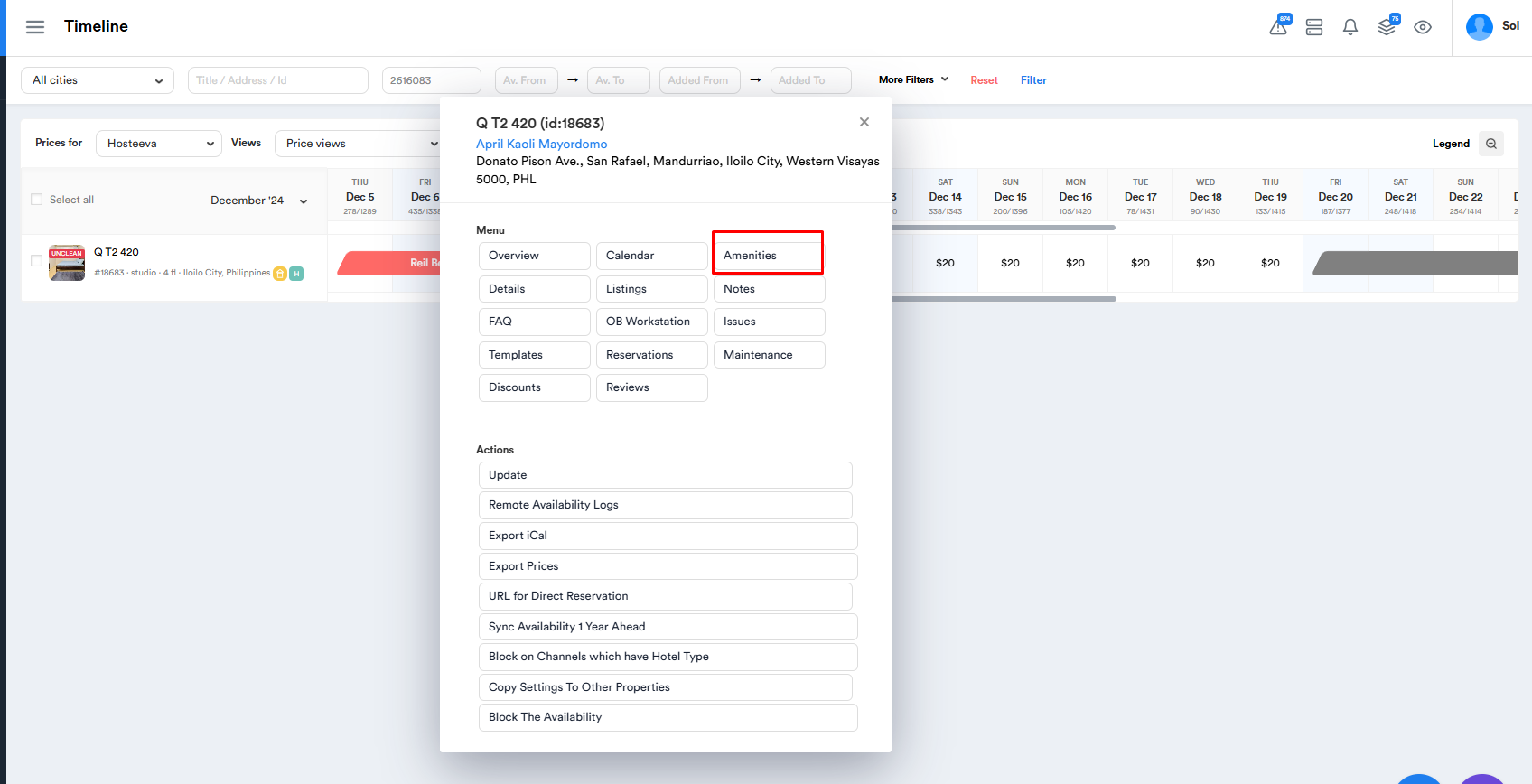
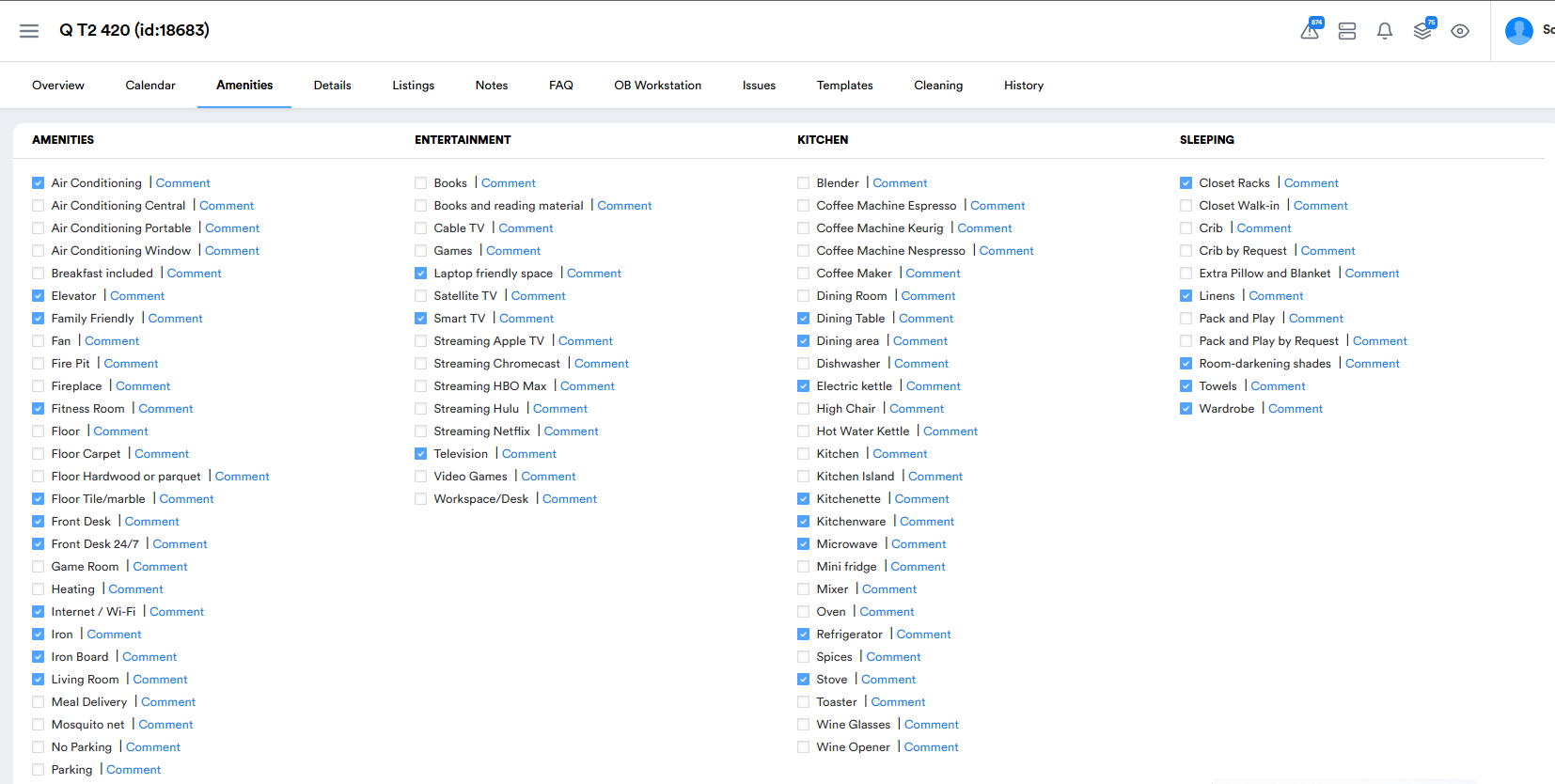
- The amenities tab can be accessed by clicking on the property name on the timeline, then selecting the "Amenities" button. On the amenities page, the available amenities for the unit will be marked with a blue checkmark.
1.2.1 - Adding/Removing Property Amenities
- After clicking on the amenities tab, amenities can be added or removed by selecting or deselecting the blue checkmarks.
1.3 - Details
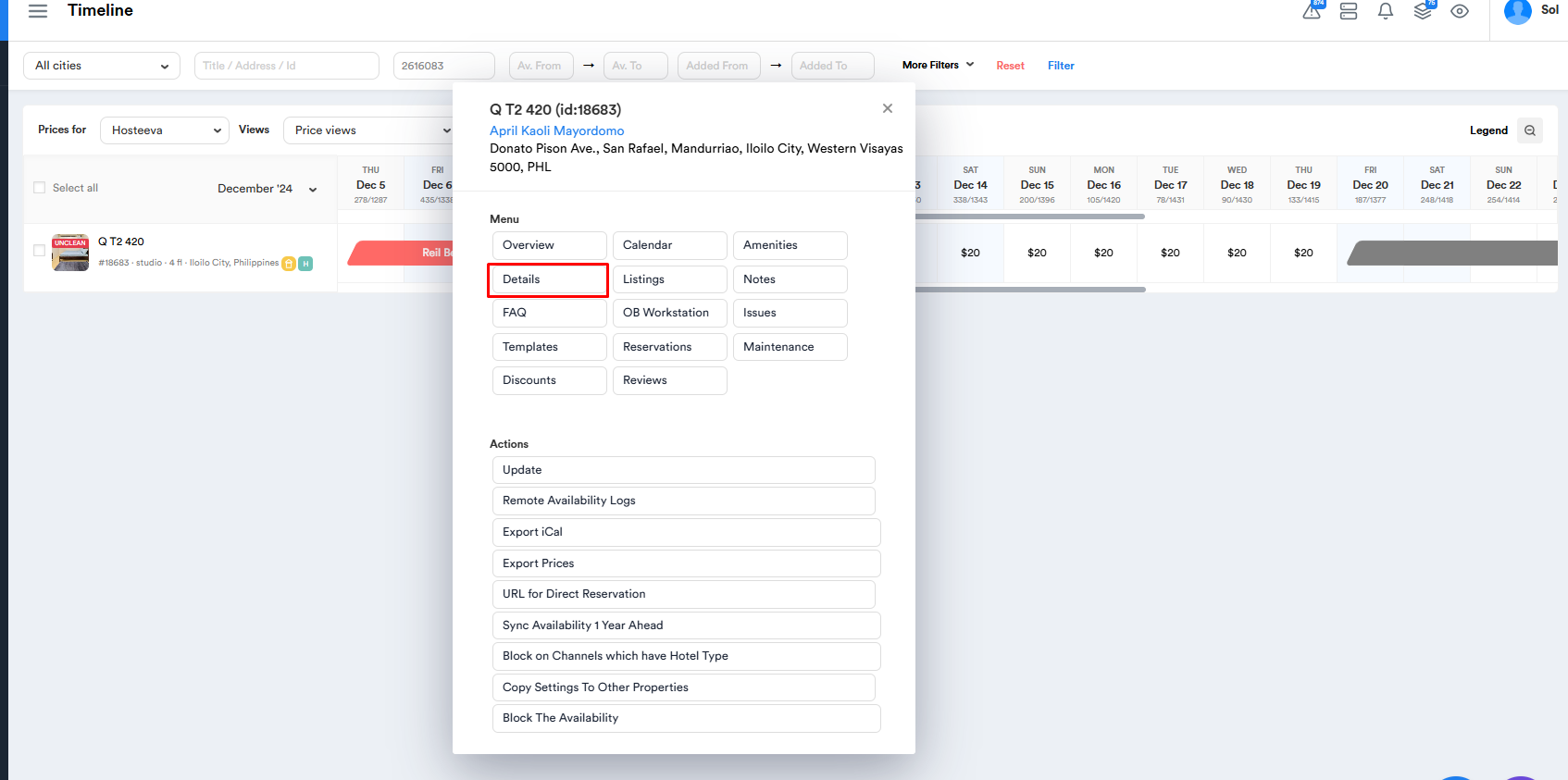
- The details tab can be accessed by clicking on the property name on the timeline and then selecting the "Details" button. The details page displays specific information about the unit, including bed types, bathroom count, and minimum age requirements.
1.4 - Notes
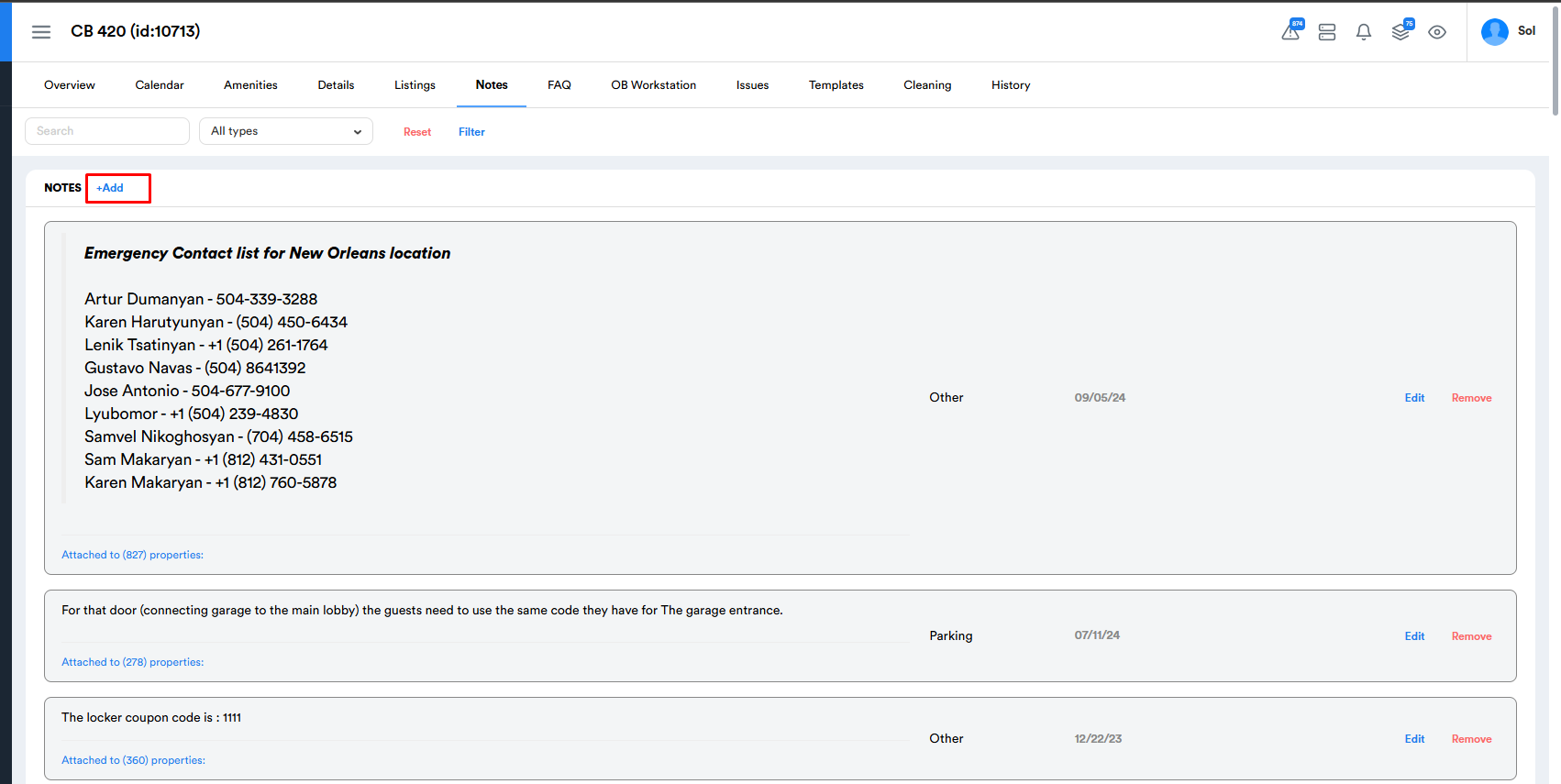
- The notes tab can be accessed by clicking on the property name on the timeline, then selecting the "Notes" button. On the notes page, various notes about the property can be added.

1.4.1 - Adding Property Notes
- Notes about the property can be added by clicking the "Notes" button on the timeline and then selecting the "Add" button.
1.5 - Listings
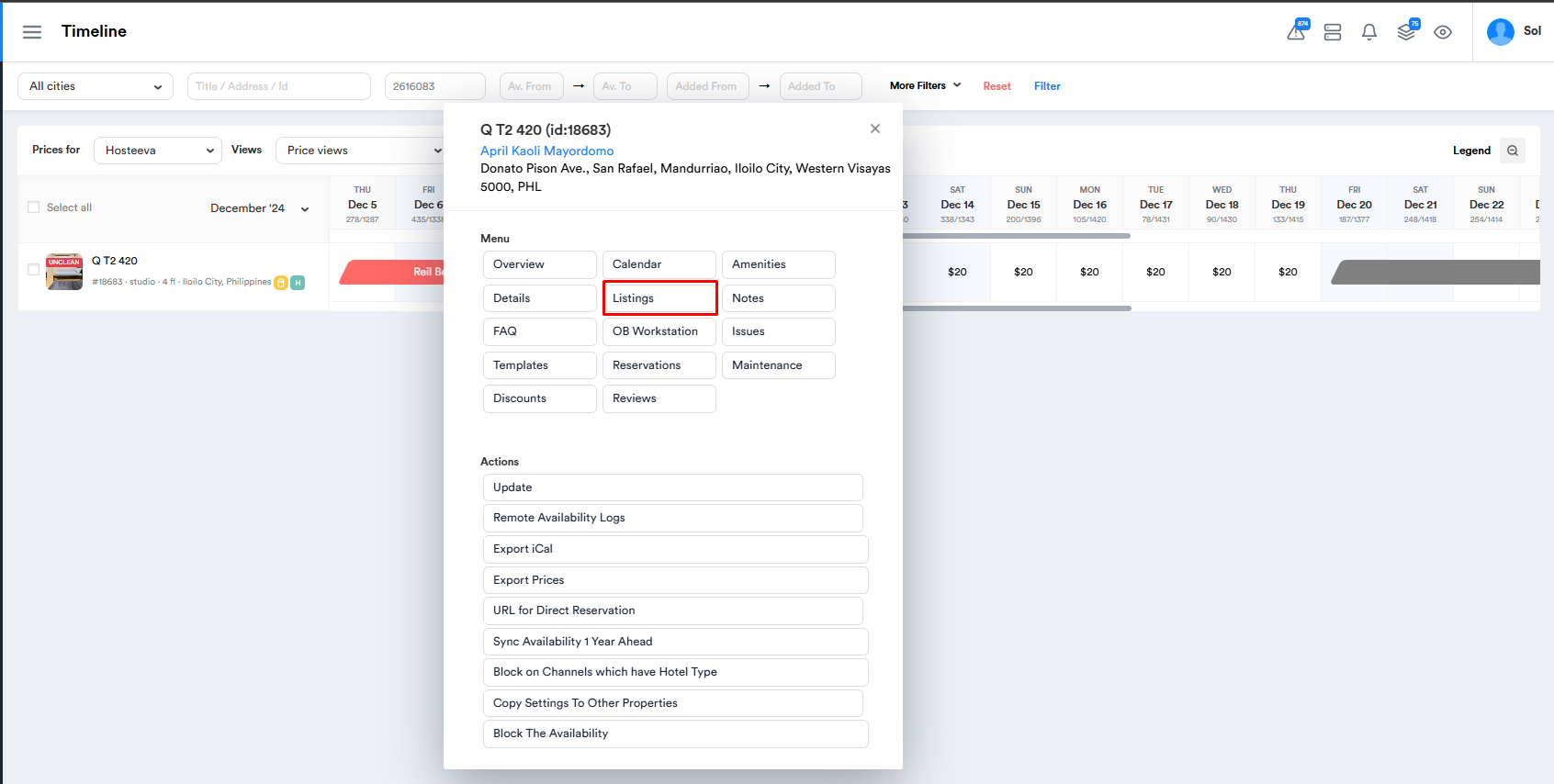
- The listings tab can be accessed by clicking on the property name on the timeline and then selecting the "Listings" button. The listings page shows all listings for the property across various channels, with the listing names visible next to each respective channel.
1.6 - Overview
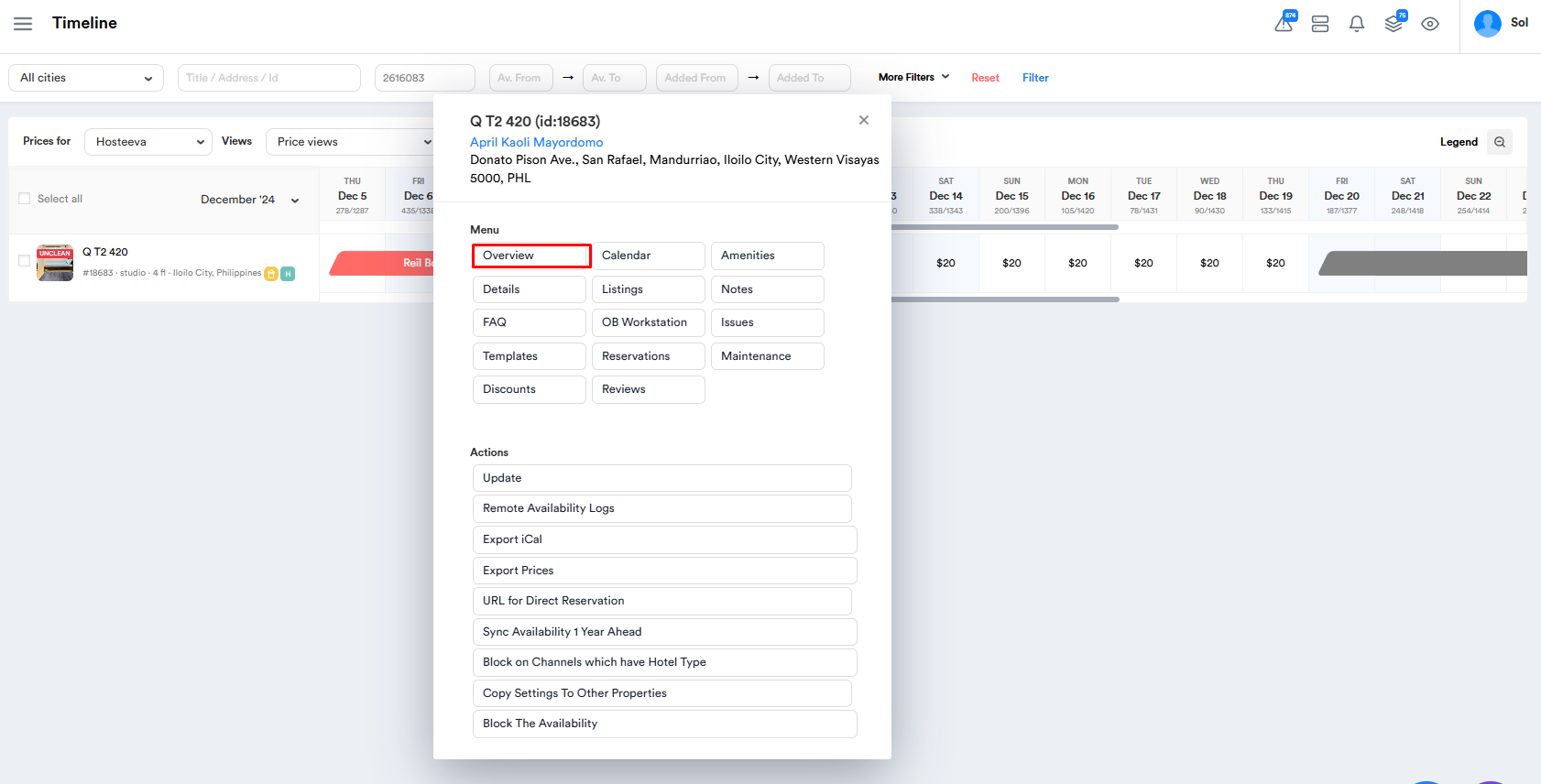
- The overview tab can be accessed by clicking on the property name on the timeline, then selecting the "Overview" button. On the overview page, information similar to what is shown in the listing is displayed. This includes the unit's "About" section, features and amenities, important details, house rules, local attractions, and pictures. The exact address of the unit is also displayed on the overview page.
1.7 - Sketch View of Property Details from the Timeline
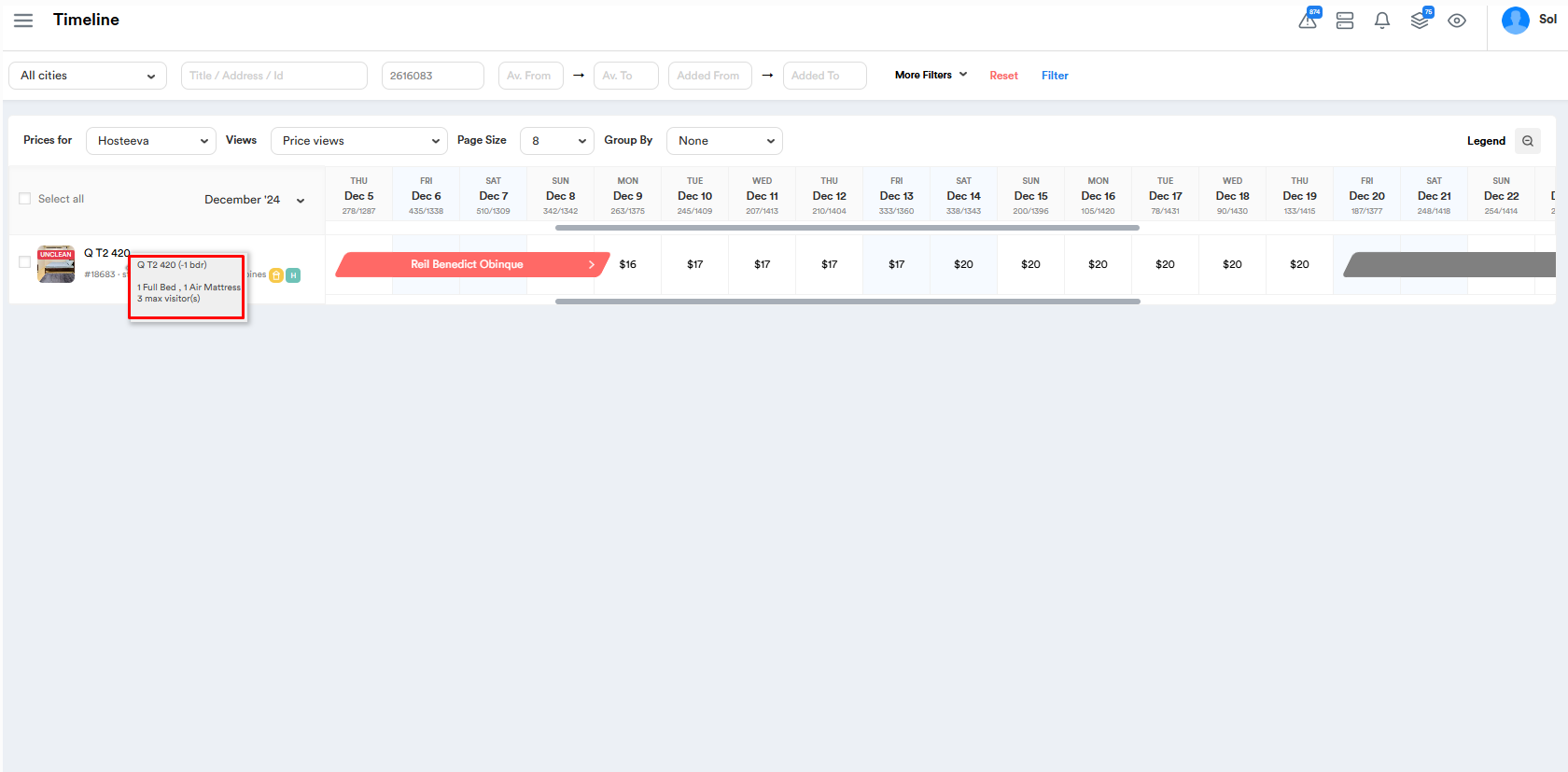
- A sketch view of the property can be displayed by hovering your mouse cursor over the property name. This view shows the bed types and bedroom count.
1.8 - Owner Name/Contact Information
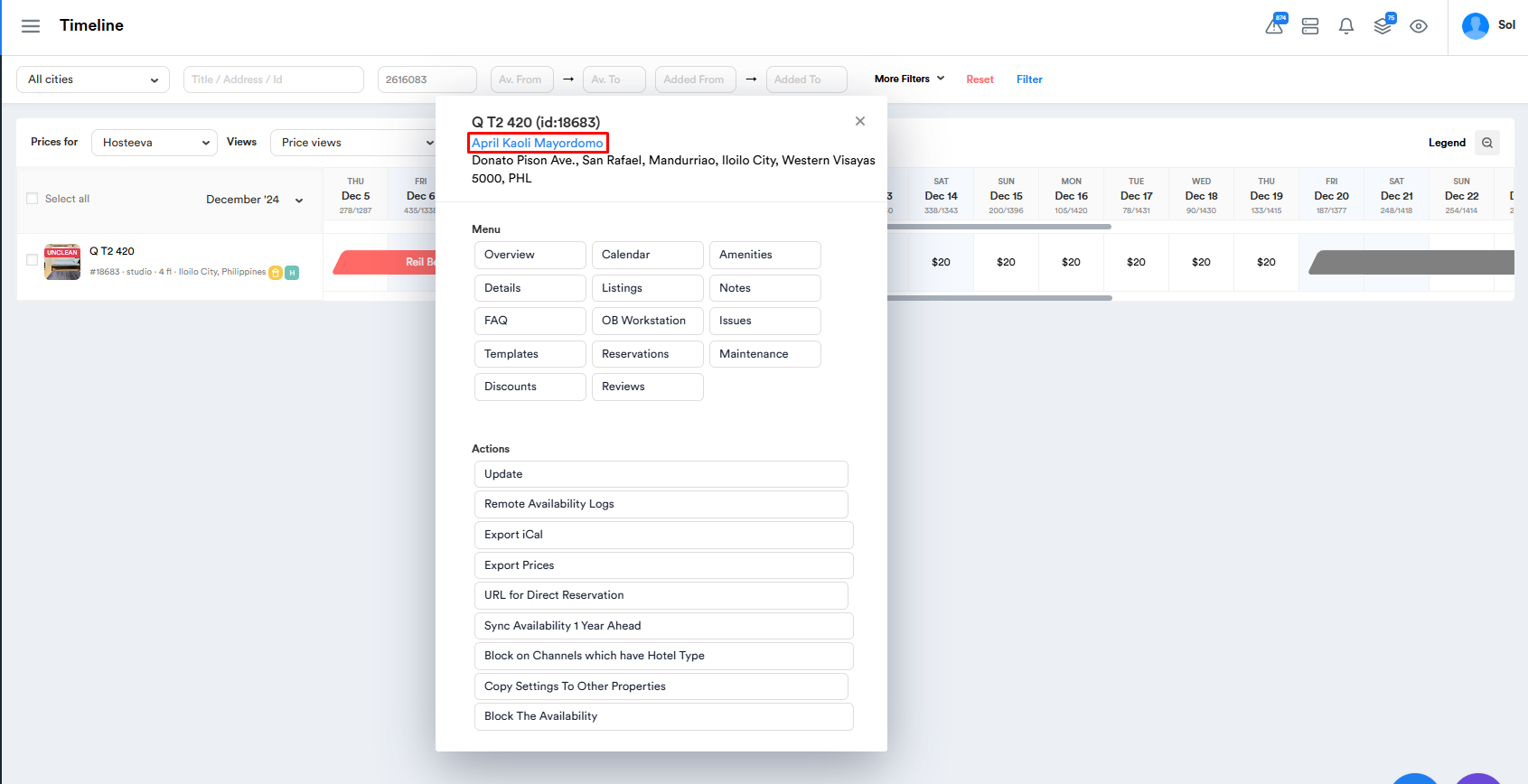
- Information about the property owner can be accessed by clicking on the property name on the timeline, then selecting the owner's name (written in blue). On the owner page, you'll find the full name, email address, and phone number of the owner.
1.9 - Discounts
-
Discounts can be applied when making a reservation for a guest. Please note that the discount percentage is only applied to the rate, not the taxes or fees.
For example, if a 10% discount is applied, it will only reduce the rate by 10%. Taxes and fees remain unchanged.
-
Note: Discounts can only be applied to managed reservations (not hosted/platform reservations).