In this article, you'll learn how to offboard a property from Hosteeva.com.
Step 1: Schedule the Out of Program (OOP) for the property.
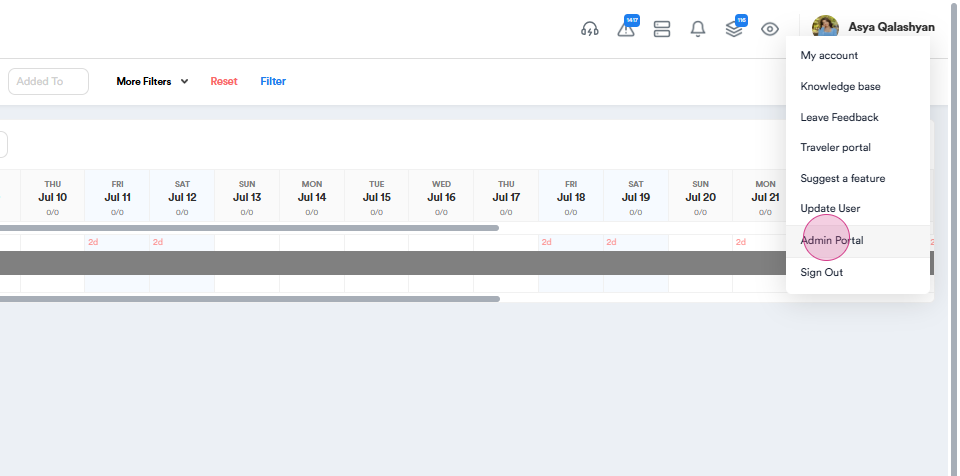
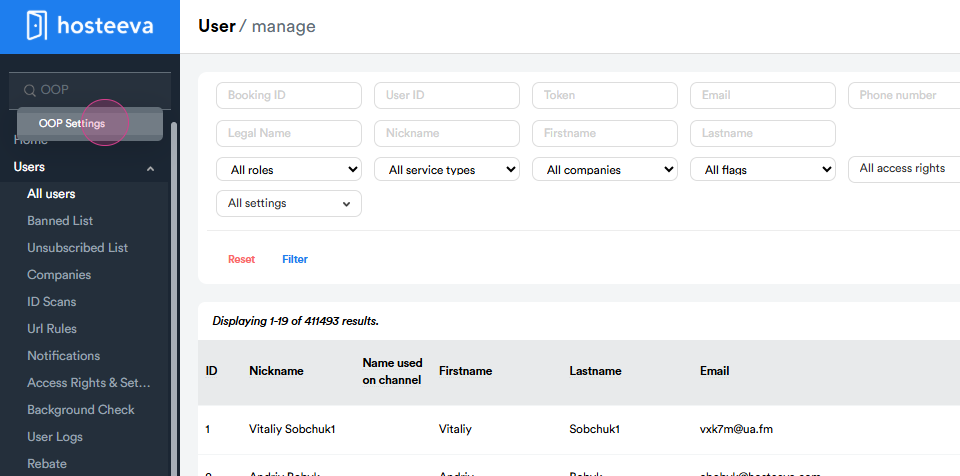
Navigate to the Admin portal and search for OOP settings.
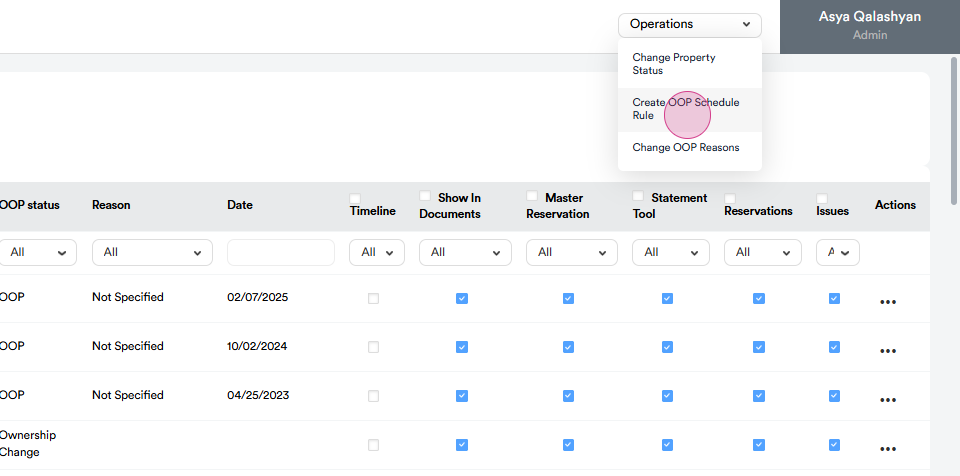
In Operations, select Create OOP Schedule Rule.
Locate your property using its ID.
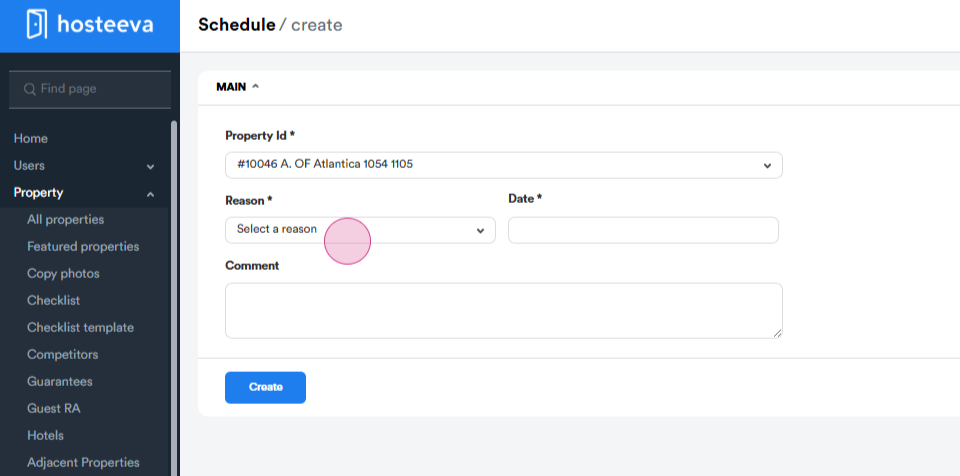
Choose a reason for offboarding, such as an ownership change or license issue, and select a date for the out-of-program system. The earliest date you're allowed to select is tomorrow.
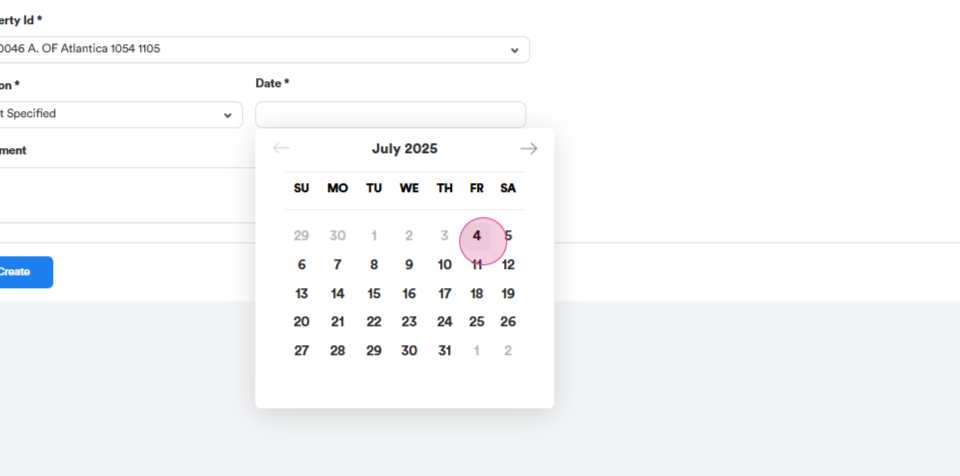
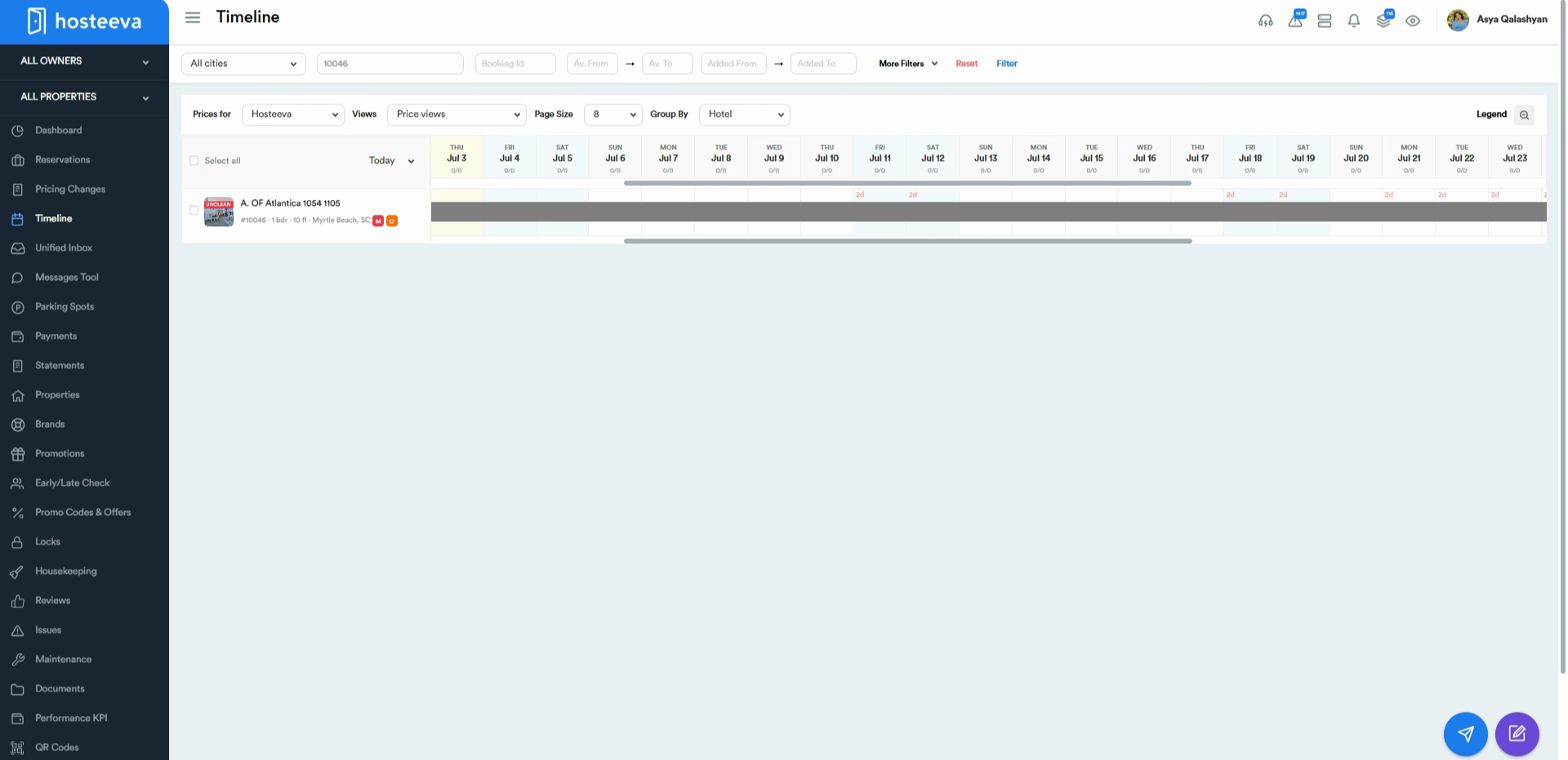
Click Create. Refresh the timeline. An orange O icon will appear on the timeline, indicating that the schedule is active. If the OOP date is far in the future, remember to snooze your task until the scheduled date.
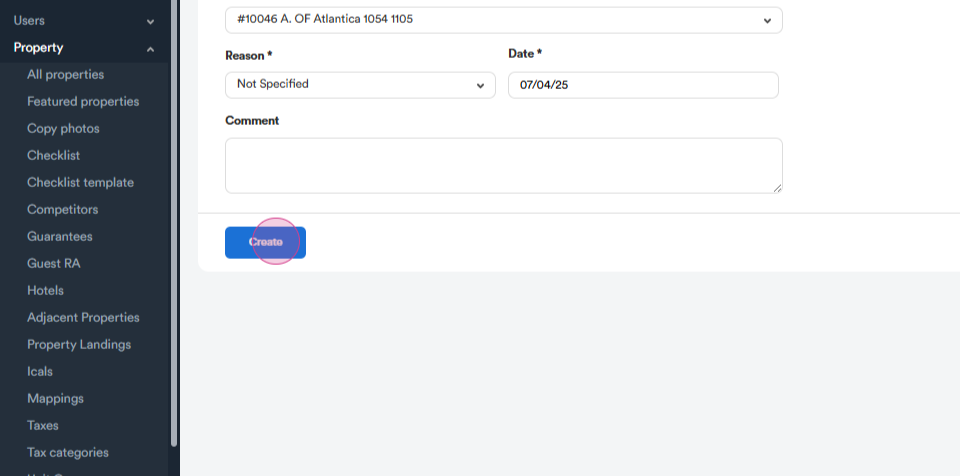
Step 2: Check the reservations.
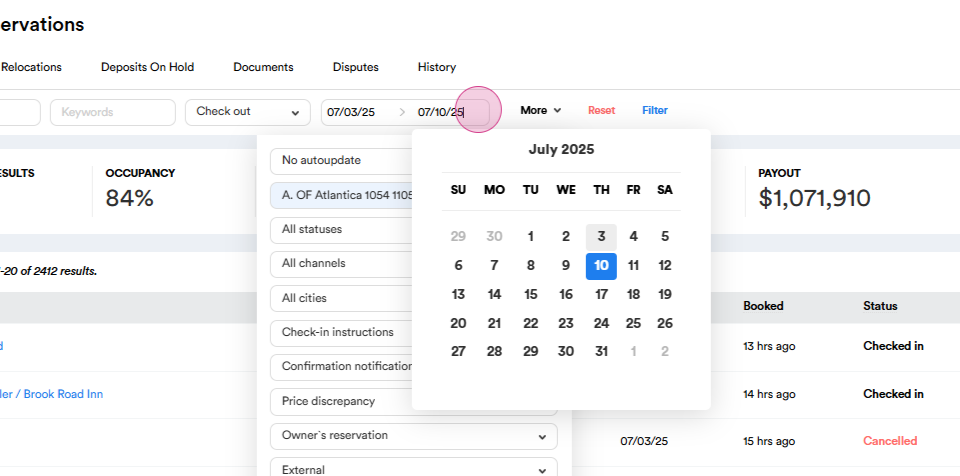
Navigate to the Reservations tab.
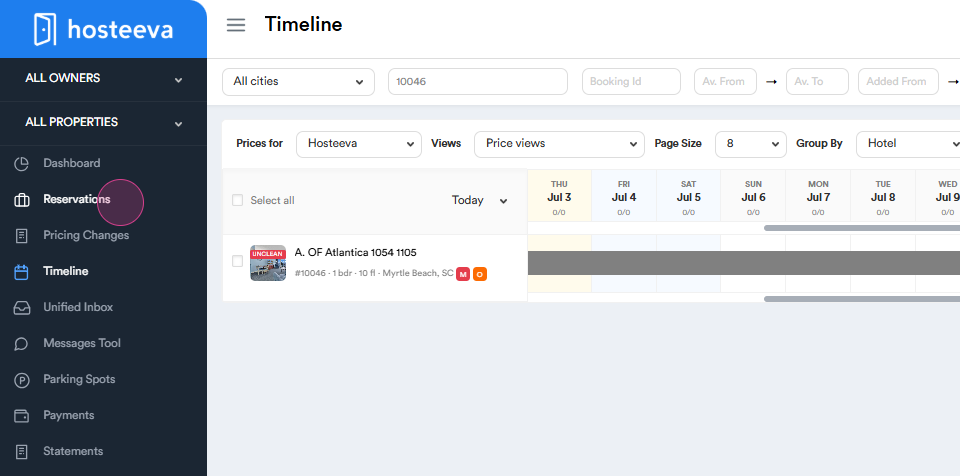
Find your property using its ID
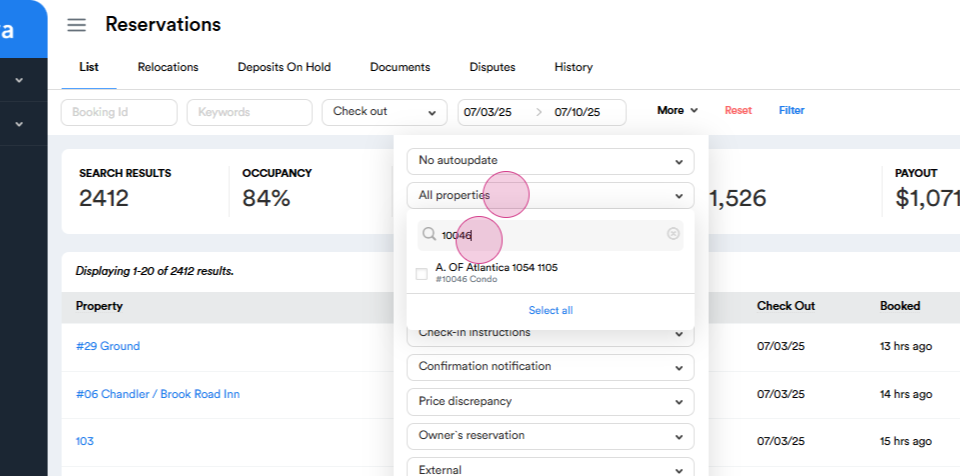
and filter by upcoming dates. Look ahead for about three years and then click Filter. If there are reservations, contact the call center team and ask them to either relocate or cancel the bookings. If there are no reservations, you're clear to proceed.
Step 3: Confirm with the accounting team if there are any pending payouts for this property.
If there are pending payouts, the Accounting team will provide the exact removal dates per channel. Follow their guidance. If there are no pending payouts, you're good to move forward.
Step 4: Remove the listing from Hosteeva.com
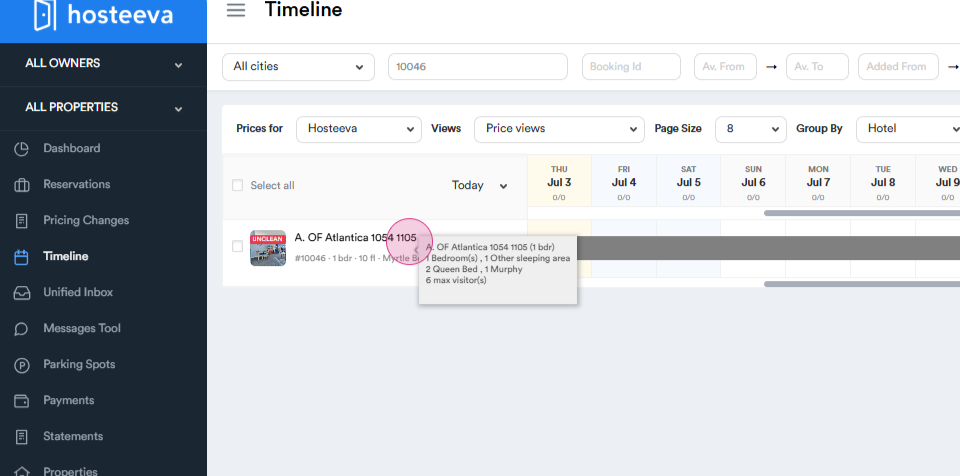
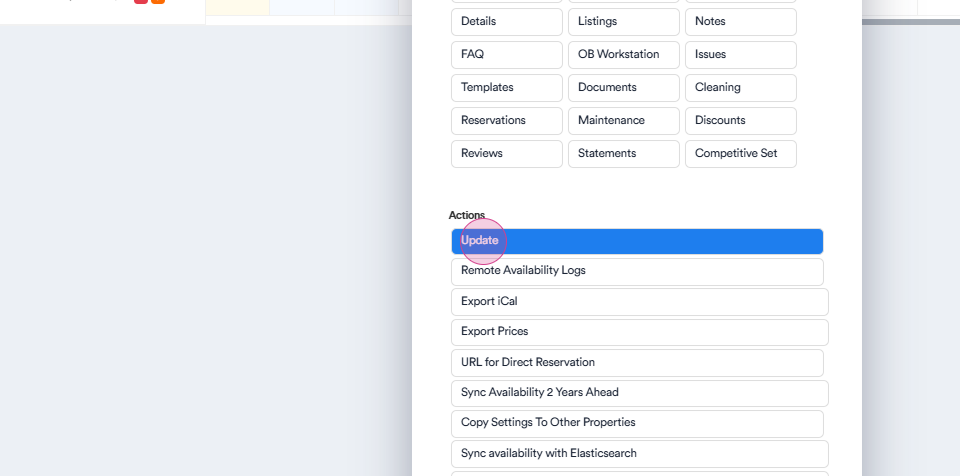
Navigate to the update page of the property, scroll down to the Hosteeva mapping, and click Delete.
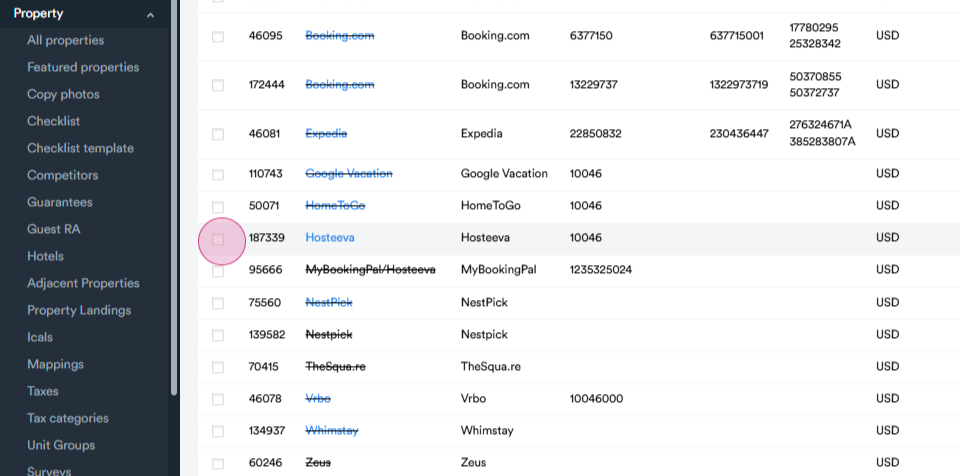
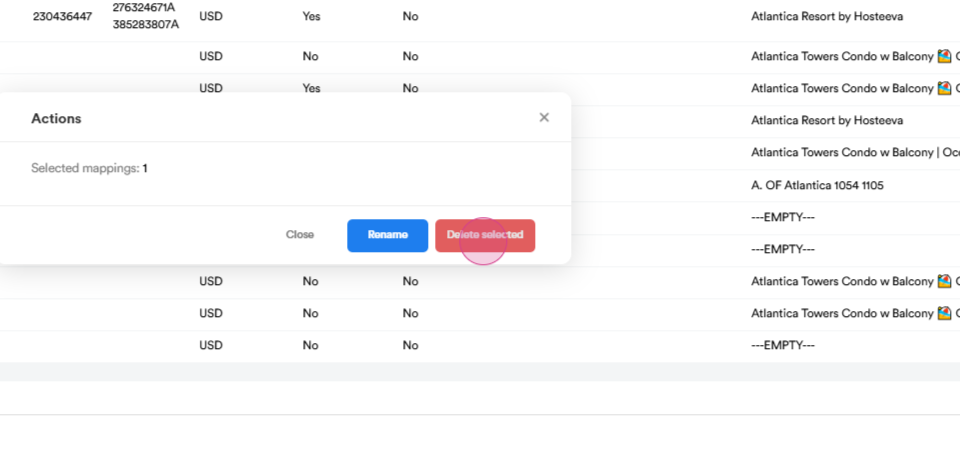
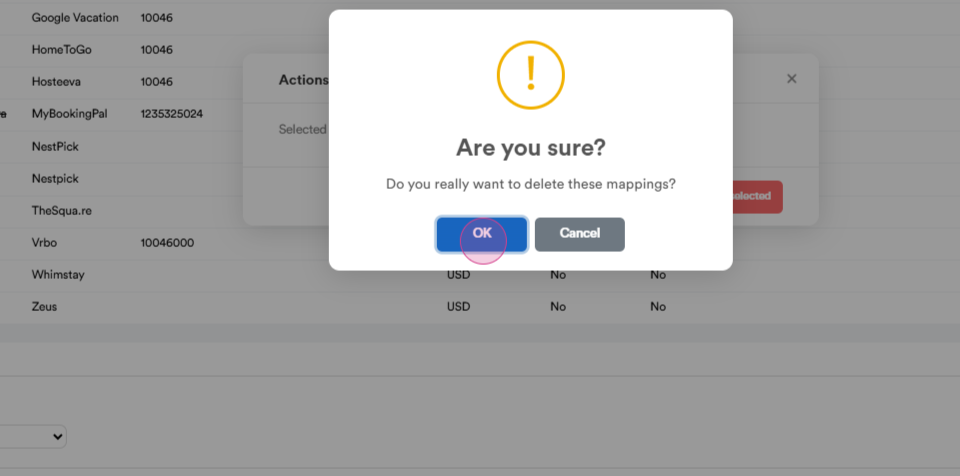
Return to the OOP settings page.
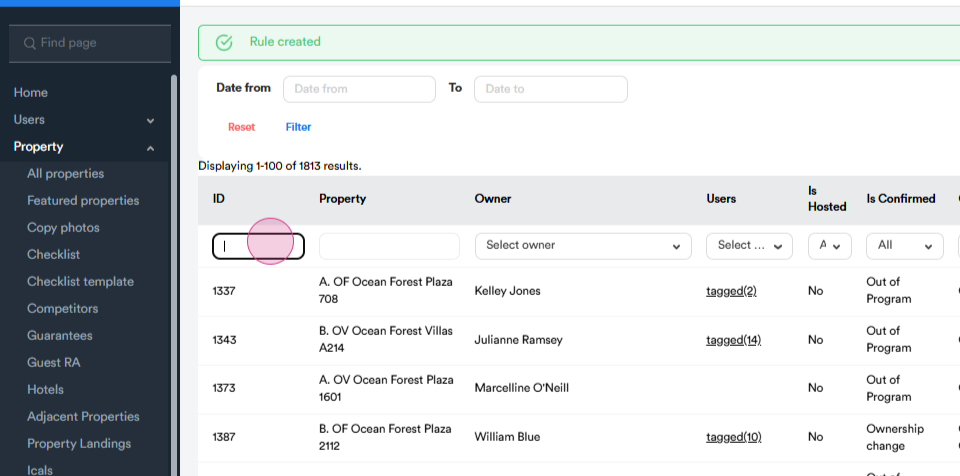
Search for your property by its ID.
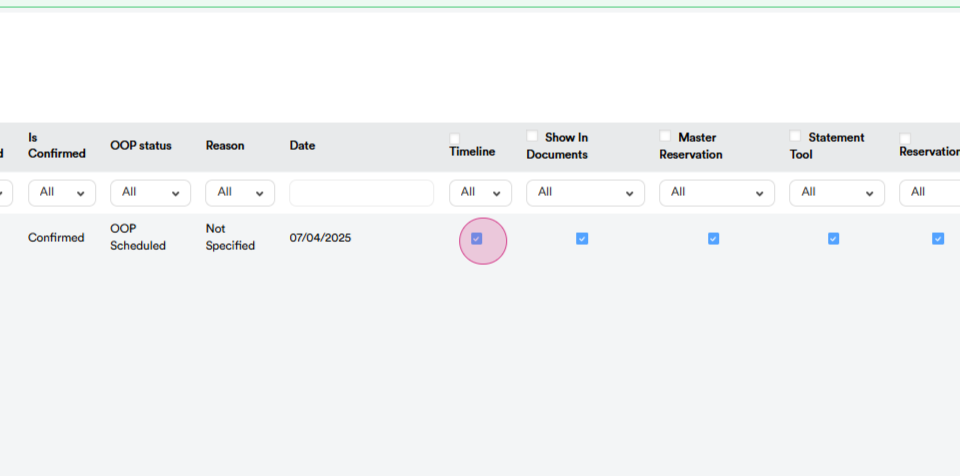
Uncheck all the boxes to completely deactivate it from the timeline.
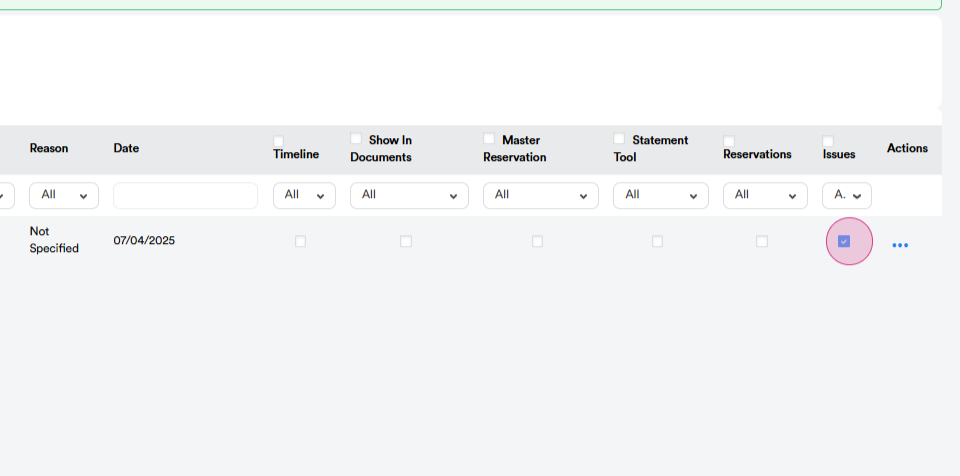
Return to the timeline and search for the ID again. The property won't appear on the timeline because it's already deactivated from the timeline.
Step 5: Delete all documents and folders related to this property from Google Drive.
Thank you!