Step 1: Log into your Hosteeva dashboard.
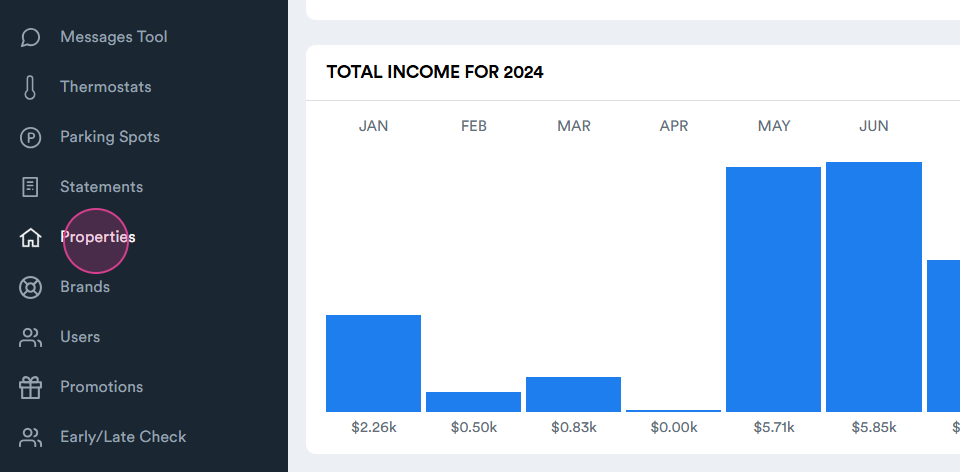
Step 2: Click on the Properties tab.
Step 3: From the Properties list, select the property you want to push to Airbnb. For this tutorial, we're using the 451 test property.
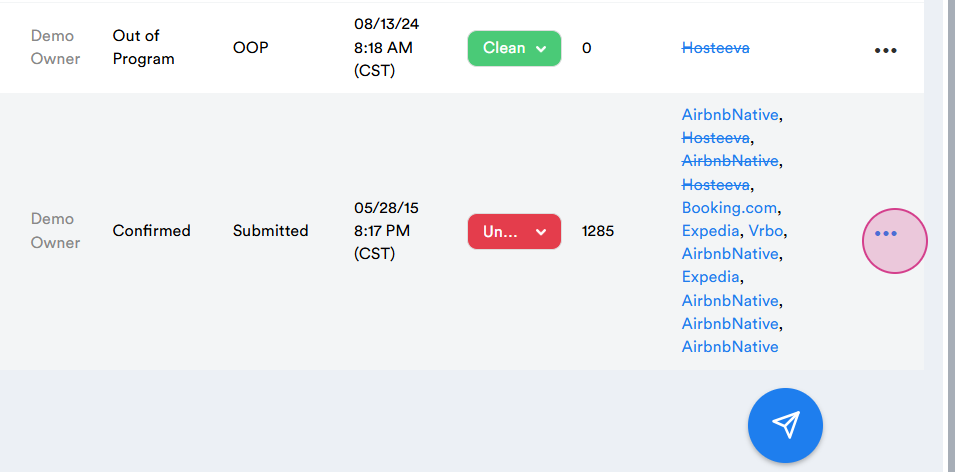
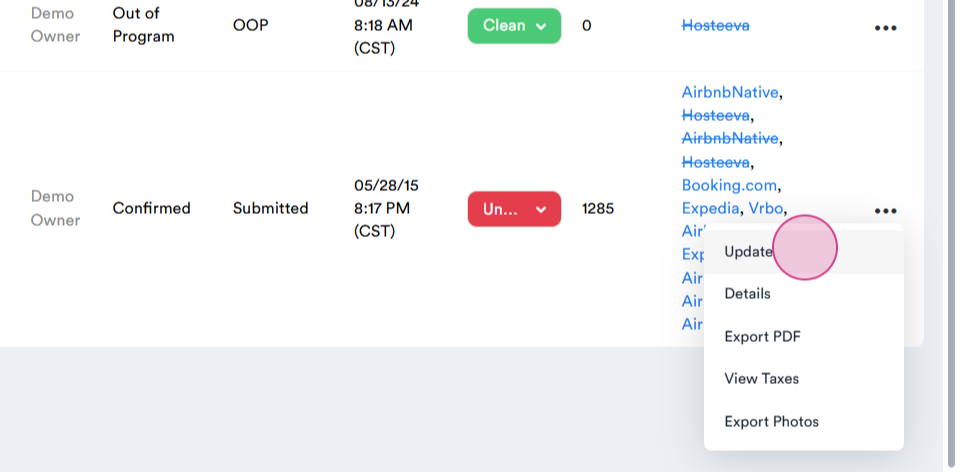
Step 4: Click on the three dots and then on the Update button.
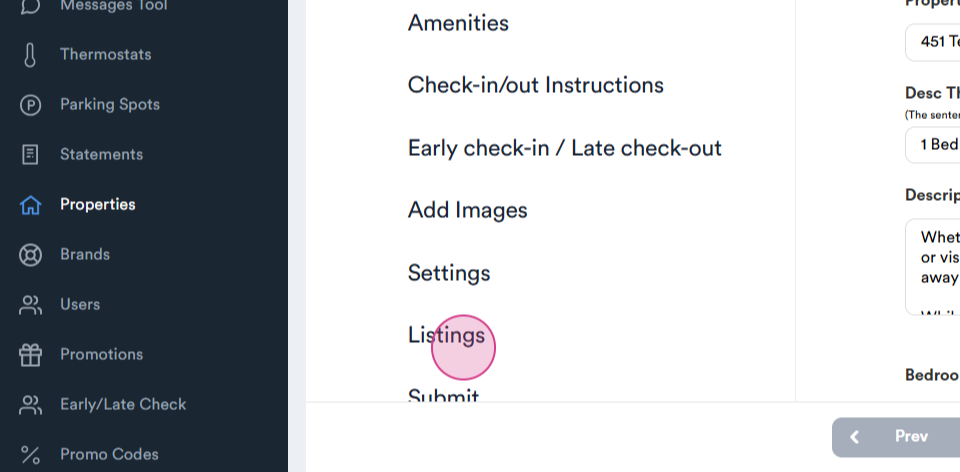
Step 5: Navigate to the Listings tab.
Step 6: Click on the Add button.
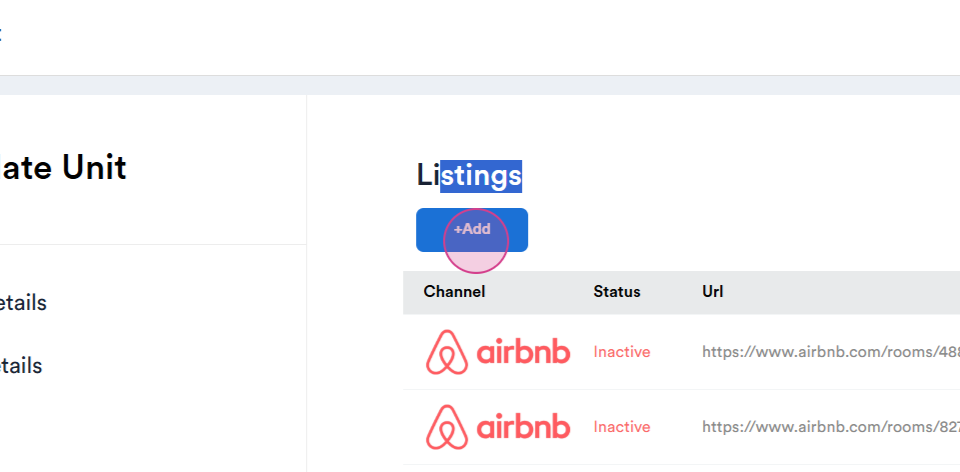
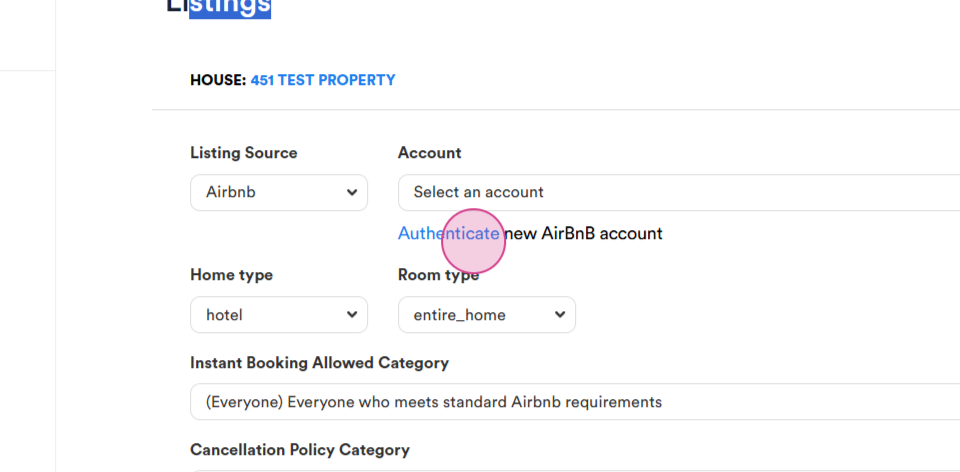
Step 7: Connect your Airbnb account to Hosteeva. To do this, you'll need to create an Airbnb account and complete all verifications. Once done, click on the Authenticate button to link your Hosteeva and Airbnb accounts.
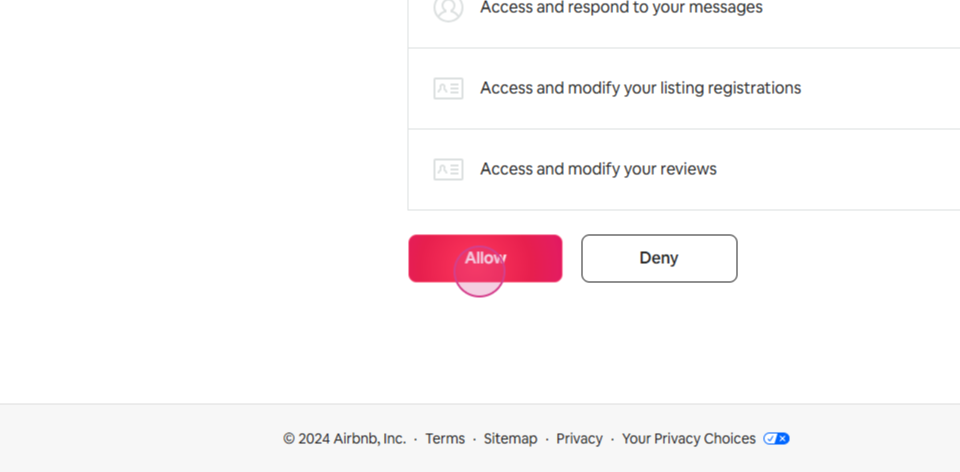
Step 8: Log into your Airbnb account, scroll down, and click on the Allow button.
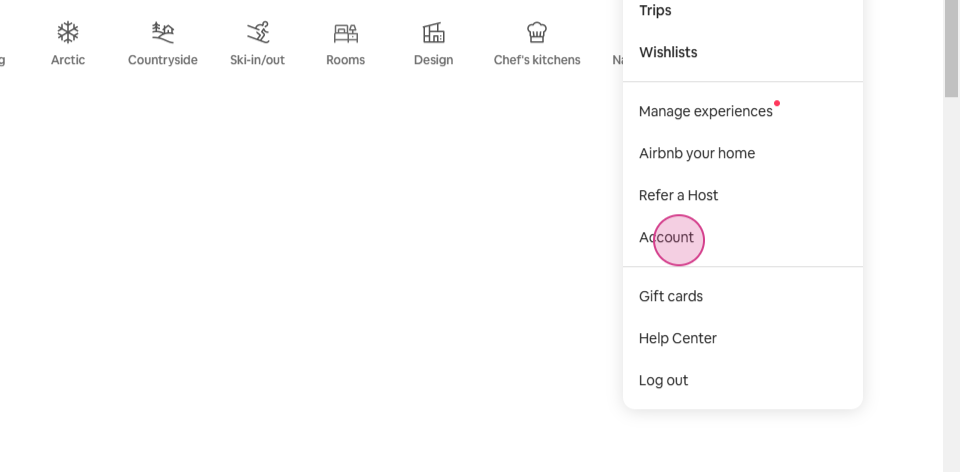
Step 9: To confirm the connection, go to your Airbnb account, open the account settings.
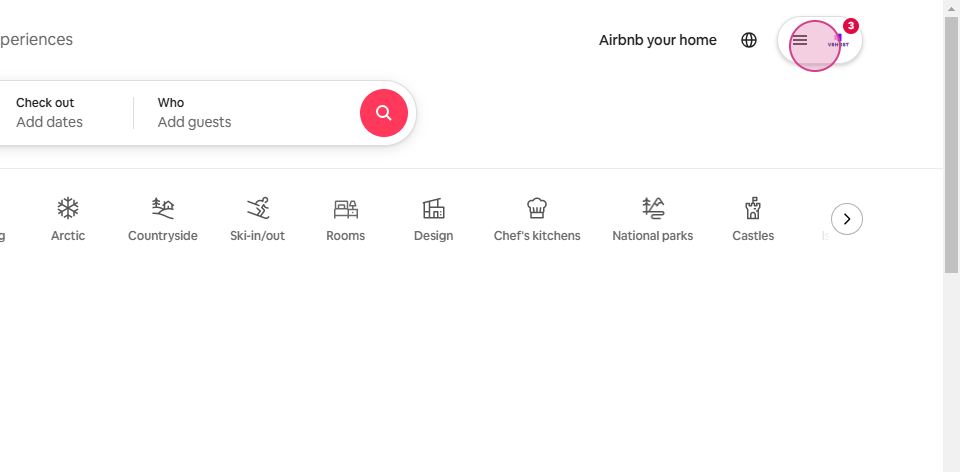
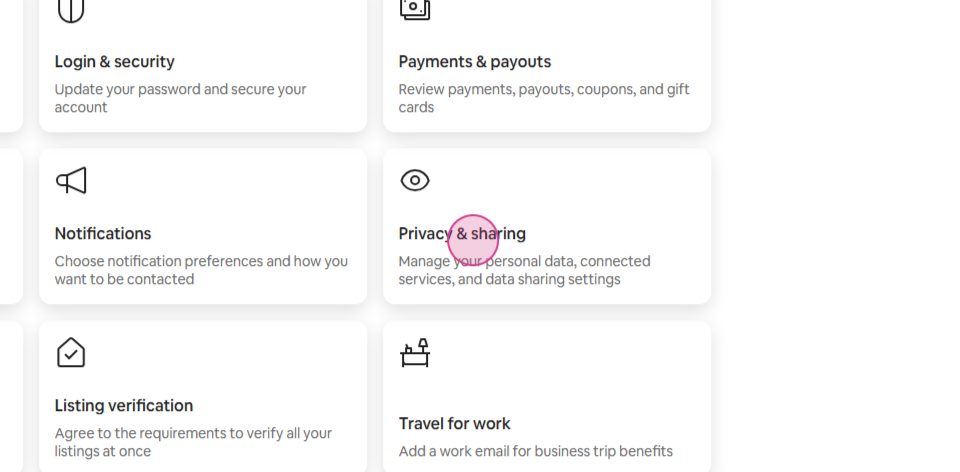
Step 10: Select Privacy and Sharing.
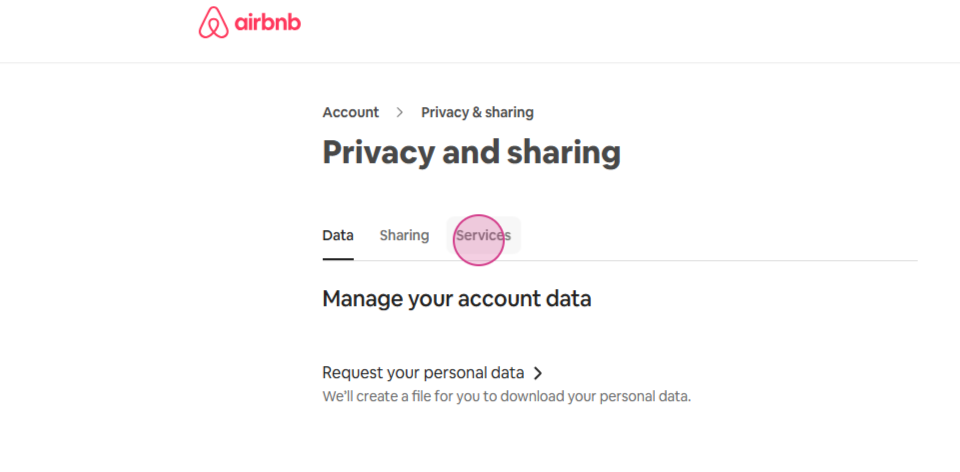
Step 11: Click on Services.
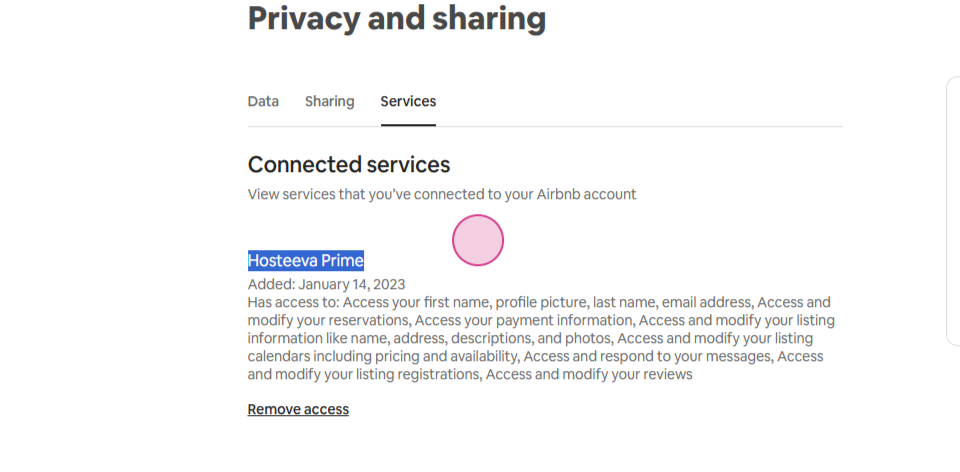
Step 12: Under Connected Services, you'll see Hosteeva prime is already connected.
Step 13: Return to your Hosteeva dashboard and select the Airbnb account.
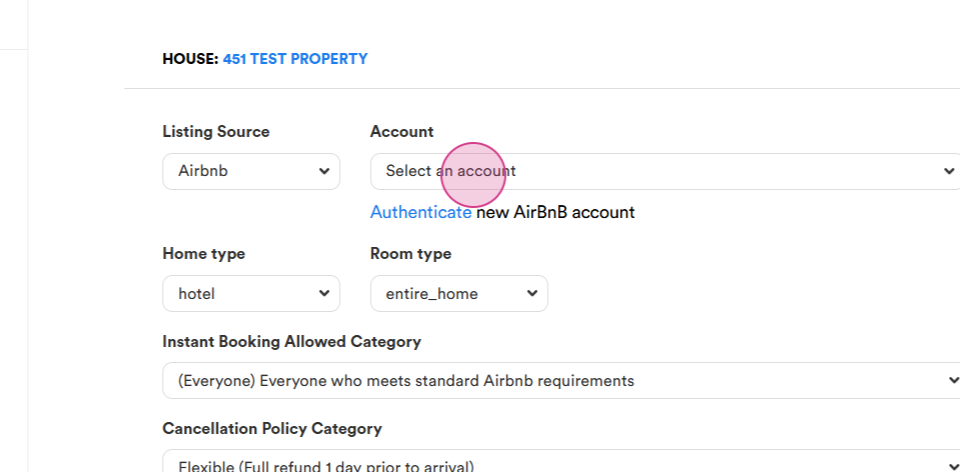
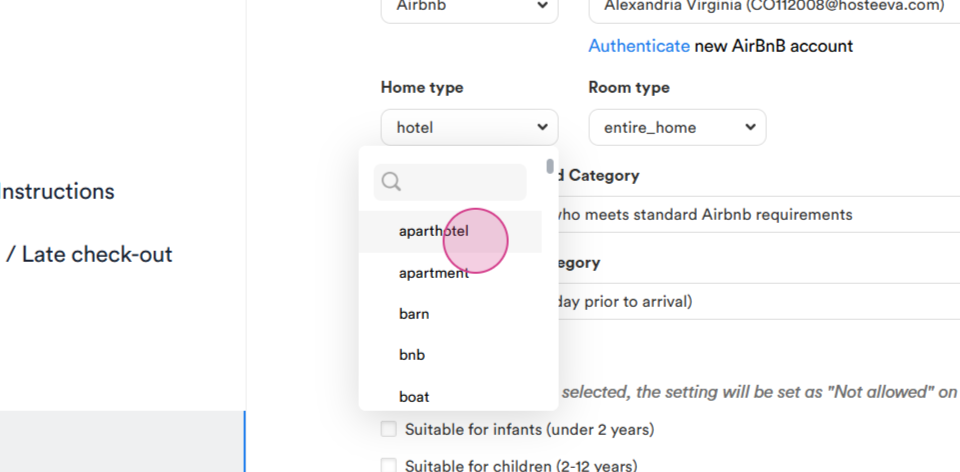
Step 14: Choose your home type.
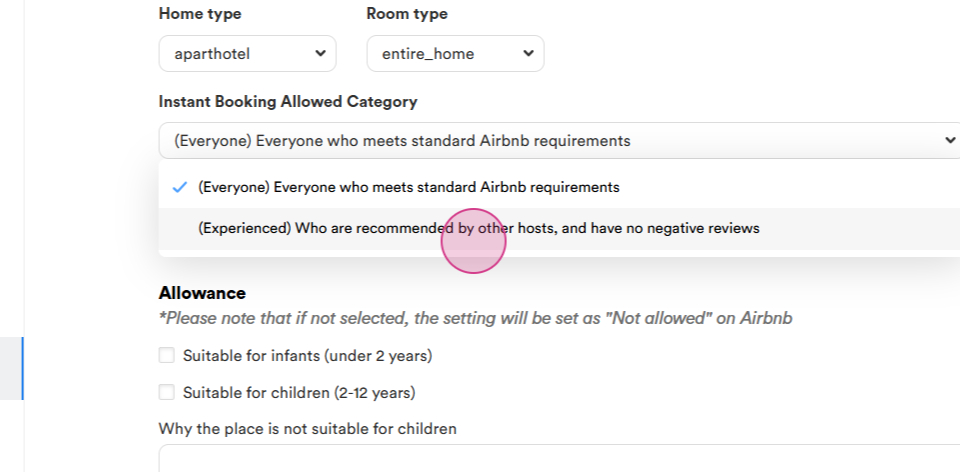
Step 15: Select your booking preferences and cancellation policy.
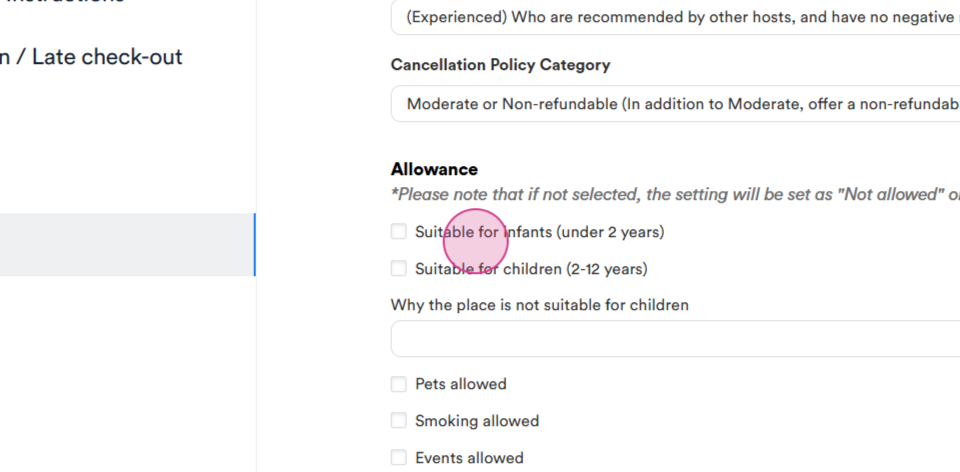
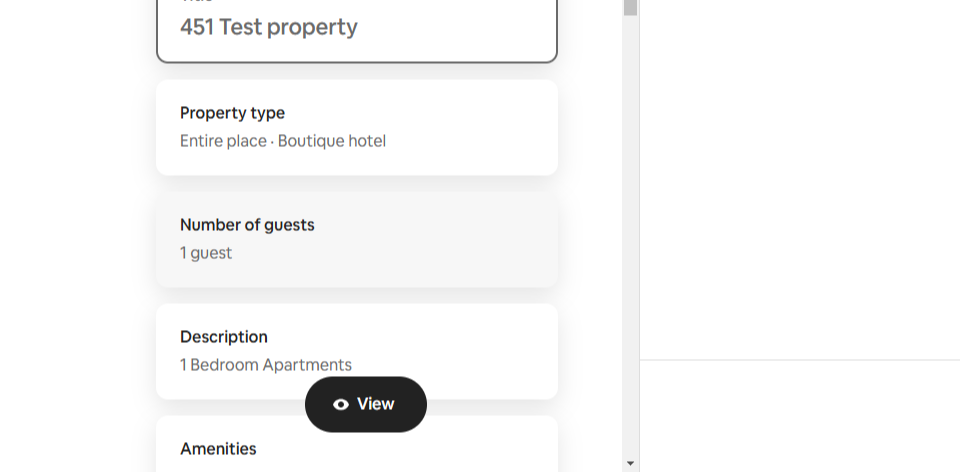
Step 16: Fill in the basic details and click on the Create Listing button.
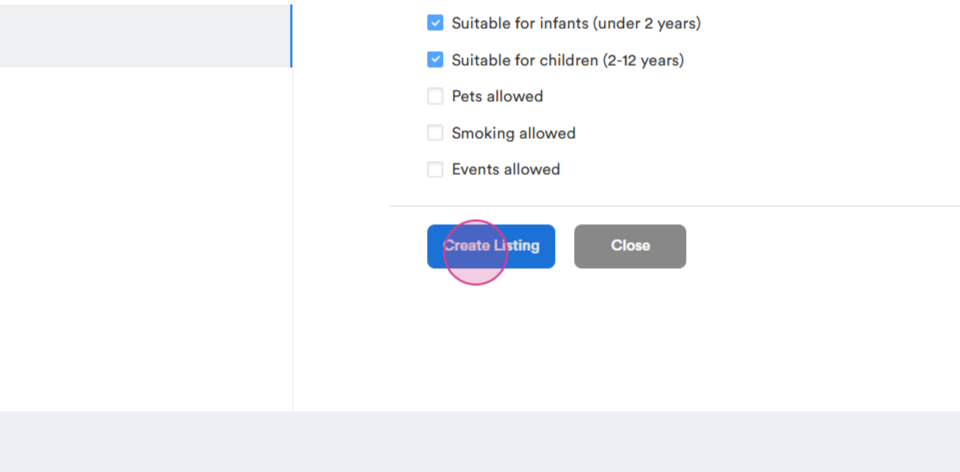
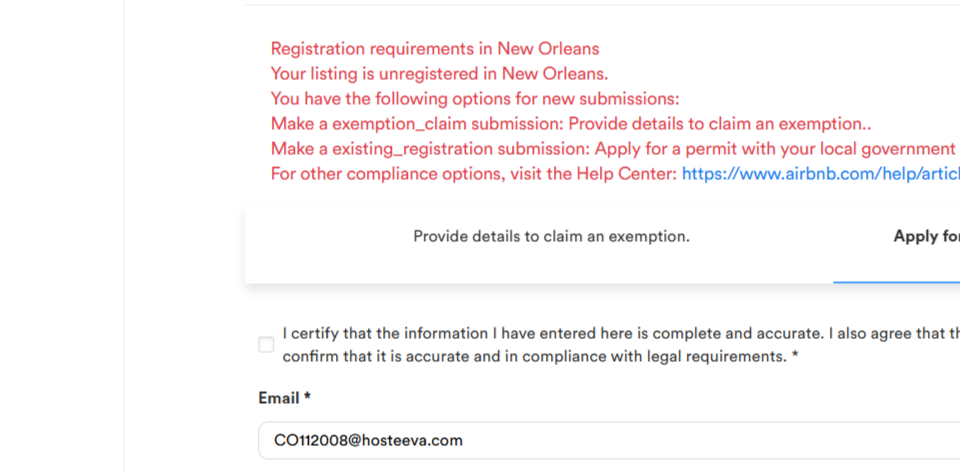
Note: If your property is in a location where a regulation license number is required, you'll need to add your license number. If not, your listing will be published immediately.
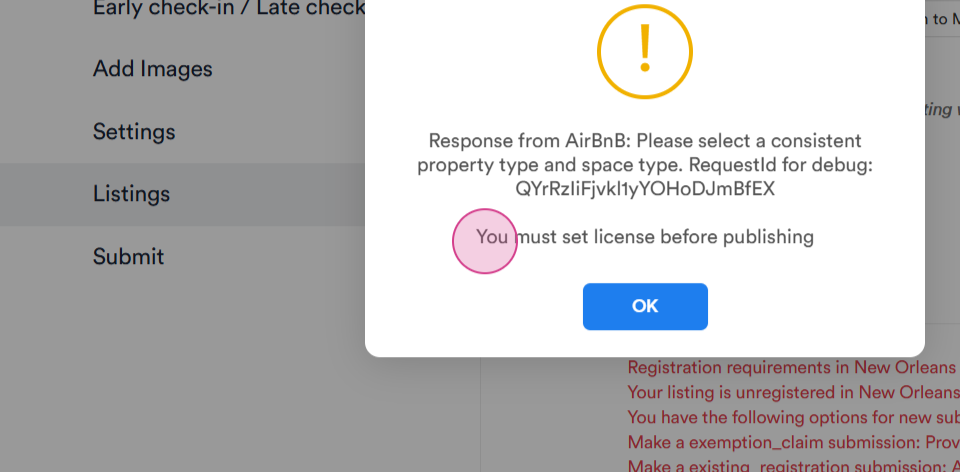
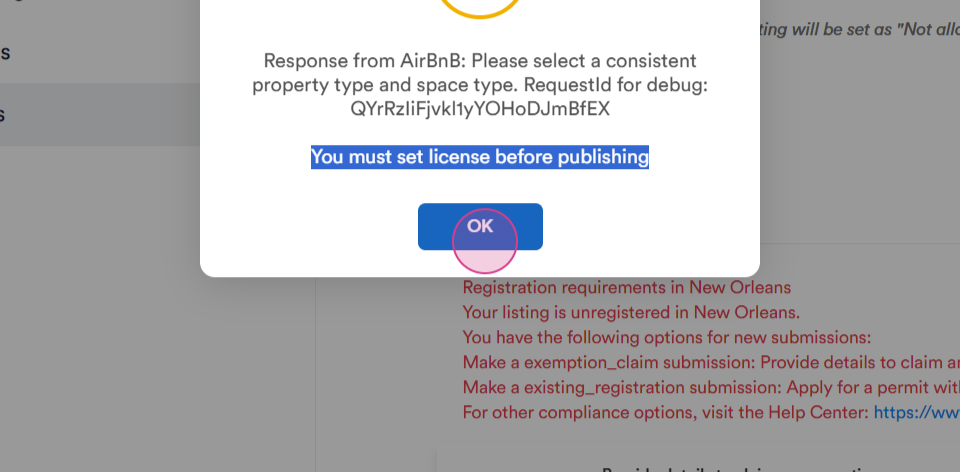
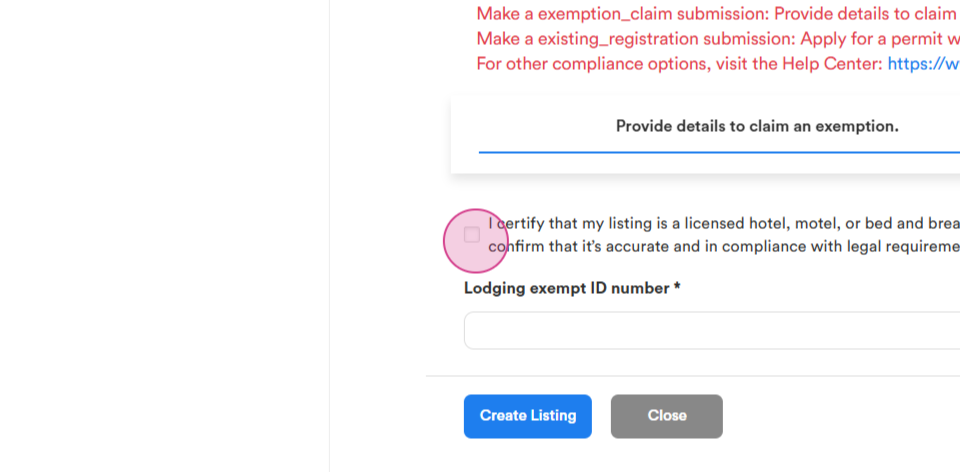
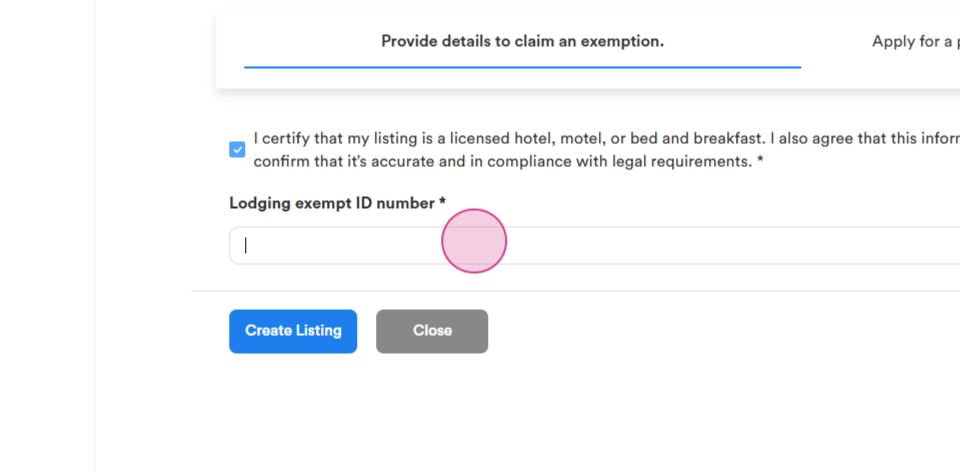
Step 17: If an error message appears stating "You must set license before publishing," click on the OK button, scroll down, and select your license type.
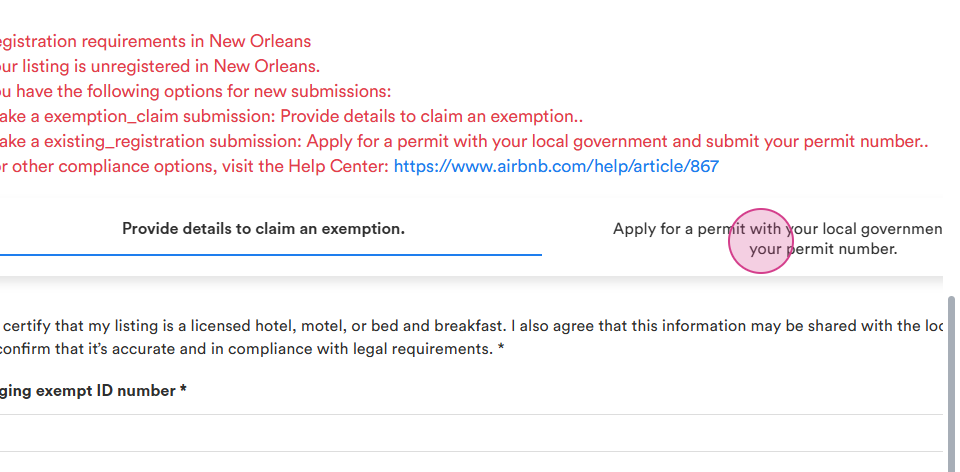
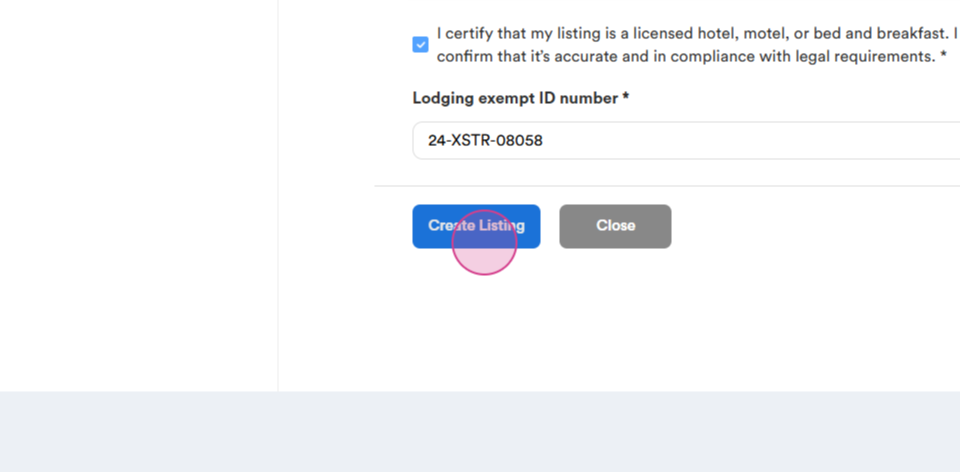
Step 18: Enter your license details.
Step 19: Click on the Create listing button again.
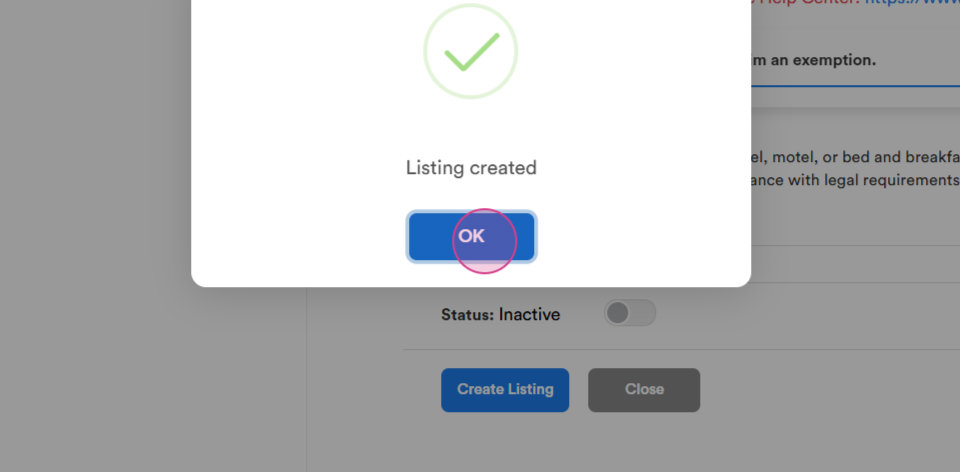
Step 20: Confirm that your listing has been created.
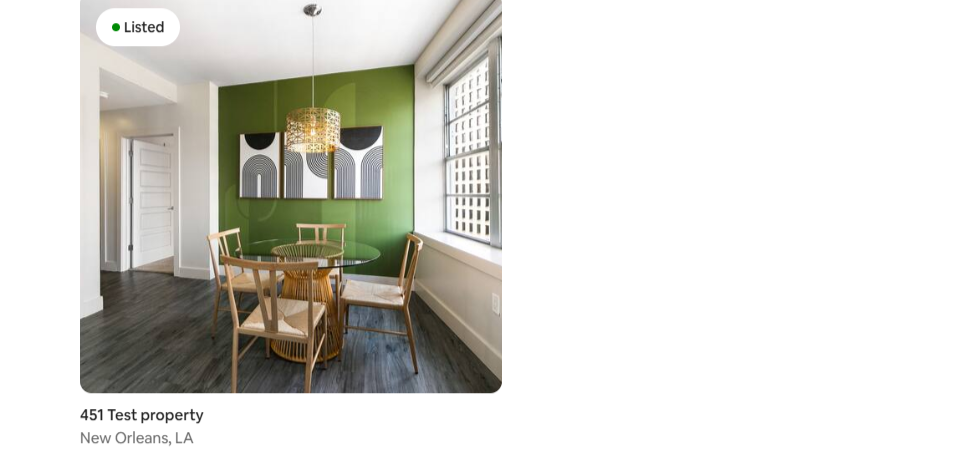
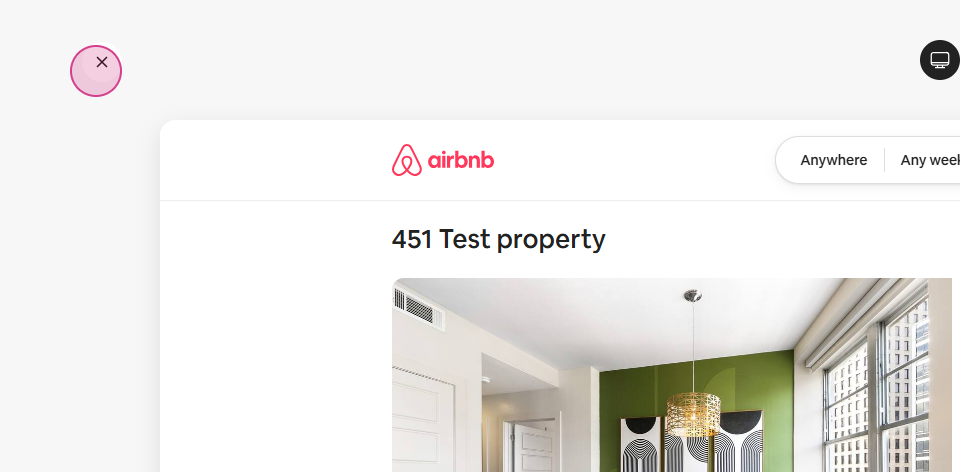
Step 21: Go to Airbnb and check your listings.
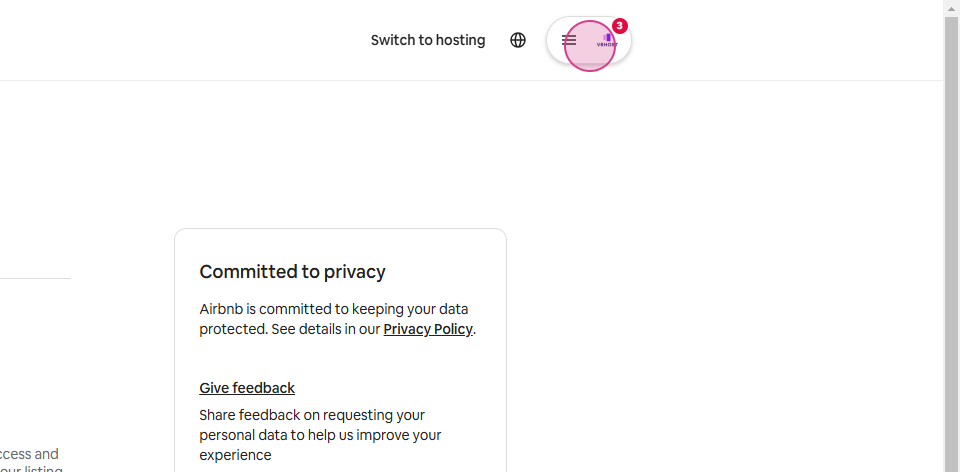
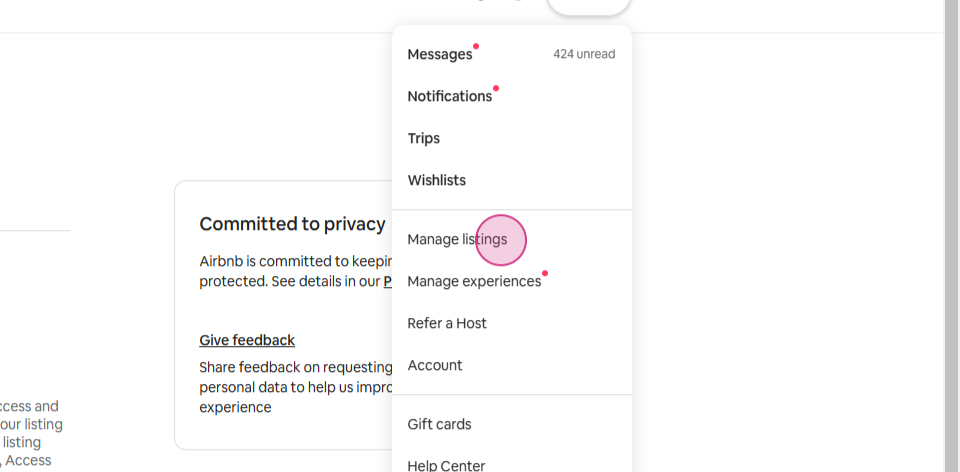
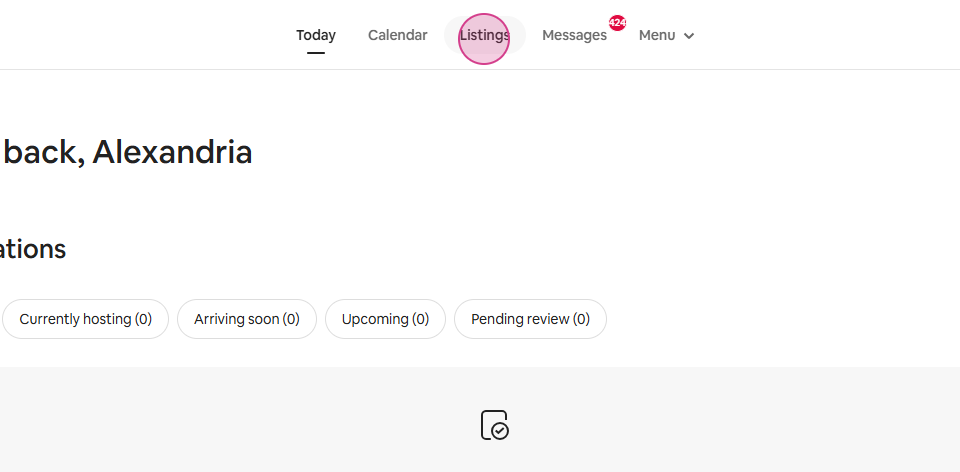
Step 22: Confirm that your listing is live and bookable.
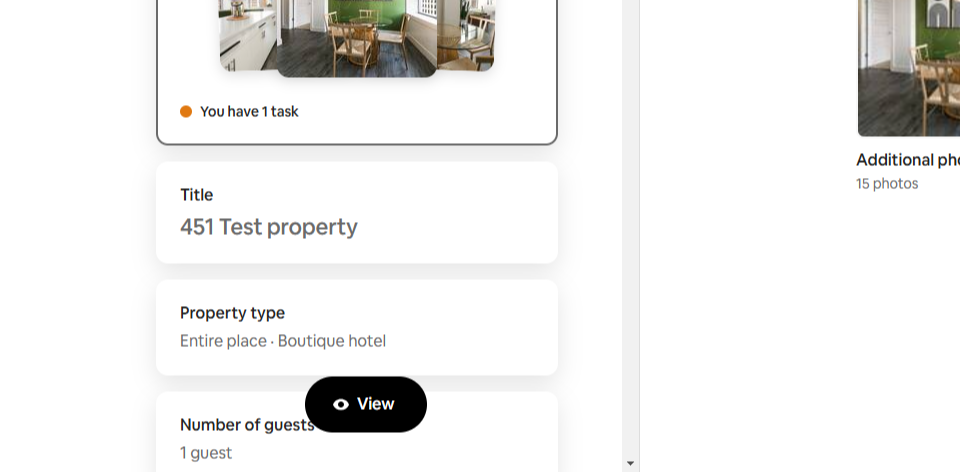
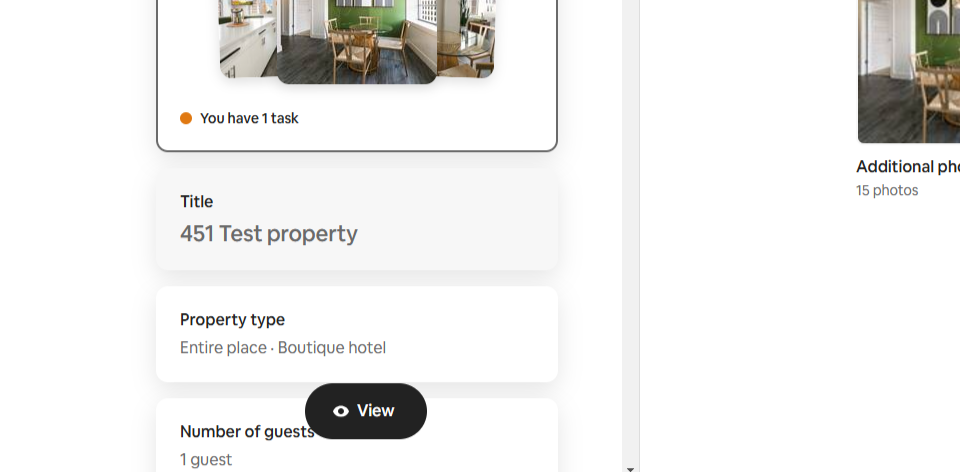
Note: If you need to change anything about the description, beds, amenities, bathrooms, etc., update on Hosteeva and push from Hosteeva to Airbnb. If there's something you can't change from Hosteeva, you can edit your listing on the Airbnb site.
That's it! If you encounter any issues, contact your Hosteeva local representative.