In this article, you'll learn how to navigate and use the reservation dialog effectively.
Step 1:This is how the reservation dialog appears. Here, you can view key details about the reservation as well as information about the reservation holder.
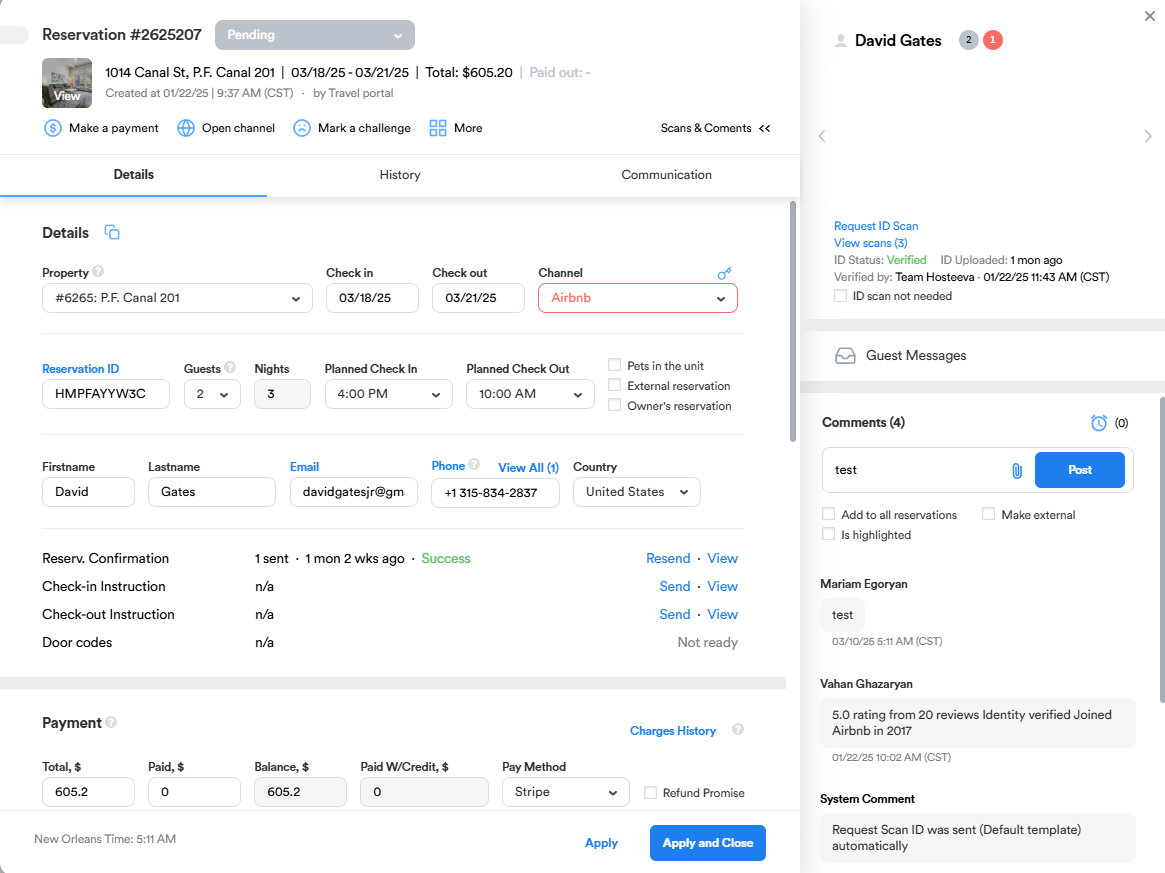
Step 2: Scroll down to find the payment section. Here, you'll see the total amount for this reservation, the price breakdown and how it can be altered.
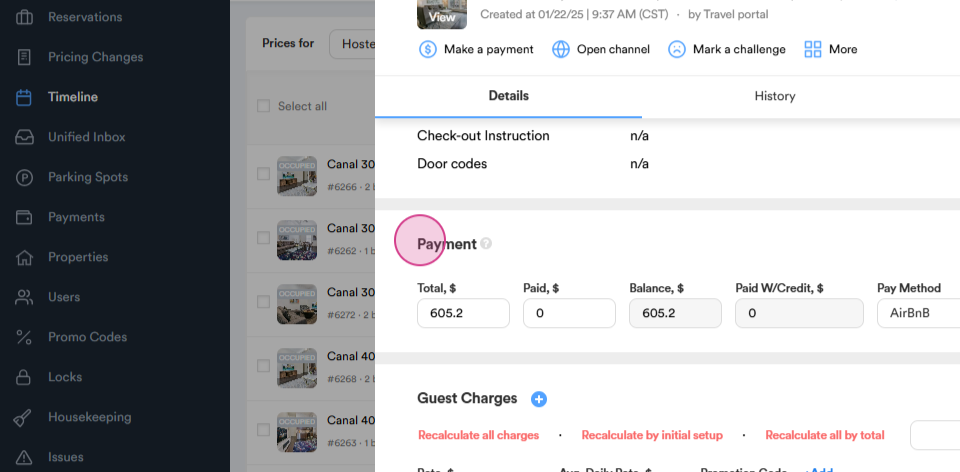
Step 3: To add extra charges, fees and taxes to the reservation, such as a refundable damage deposit or a pet fee, click on the guest charges.
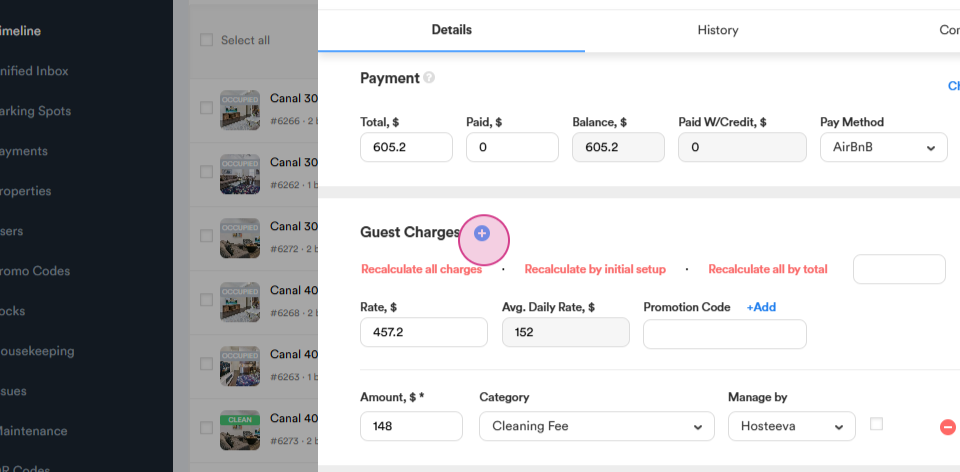
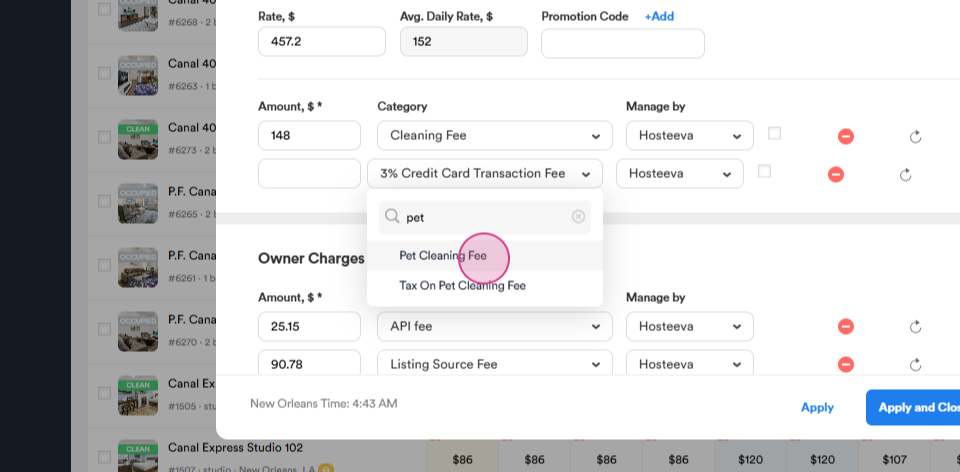
Step 4: A dropdown menu will appear at the bottom. Choose the appropriate fee from the dropdown menu. For example, select pet fee to add the fee and the tax on it. Click apply to add the selected fee to the reservation.
Step 5: To send any payment link to guest, click on the make a payment button located at the upper part of the reservation dialog.
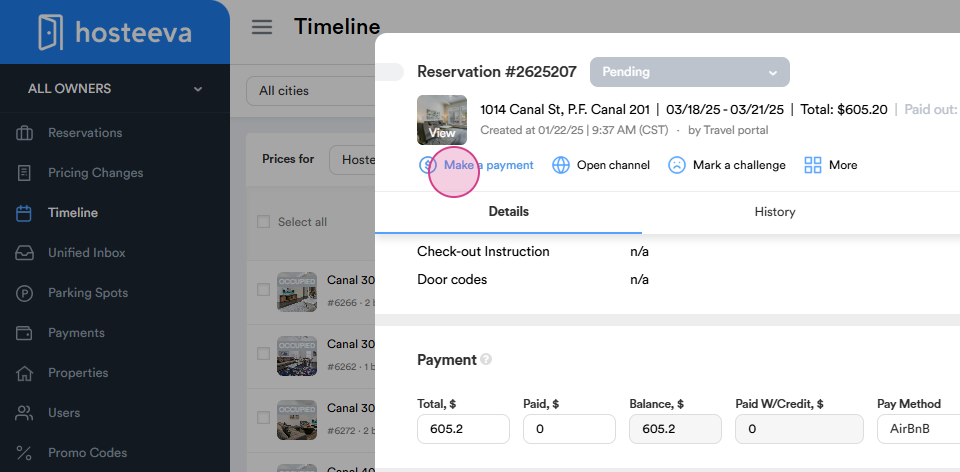
A payment form will appear, offering several links such as Request credit card update or Request credit card for refundable damage deposit. We request a CC update if, for example, a payment link was sent to the guest for an early check-in, but the payment did not go through due to the card being declined.
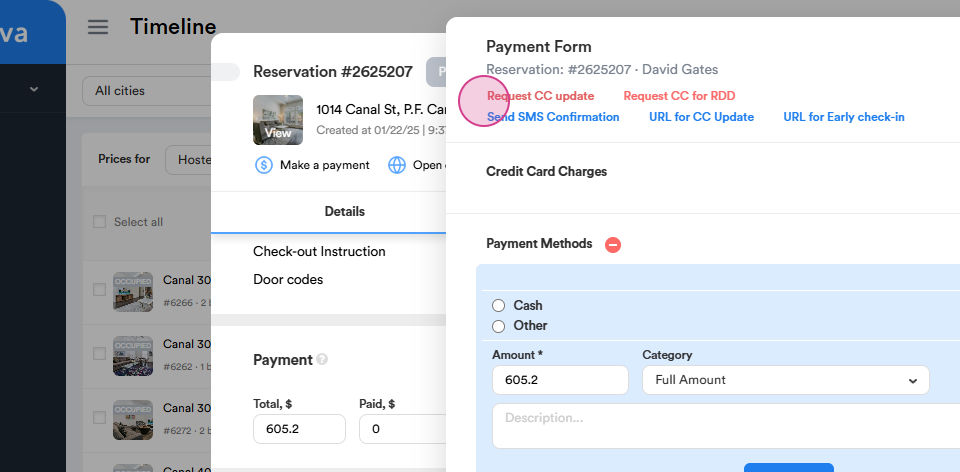
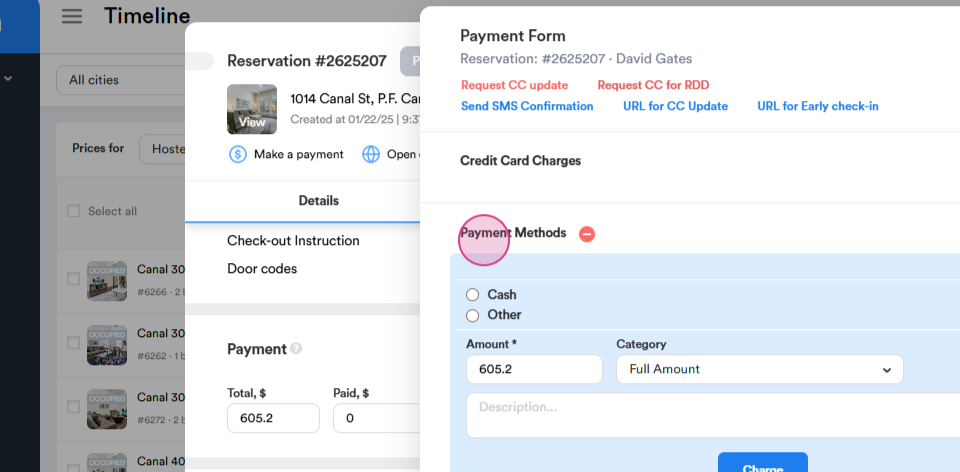
Once you send one of these links and the guest enters their credit card information, you'll be able to charge any applicable fees, such as the refundable damage deposit, early check-in, or late checkout charges.
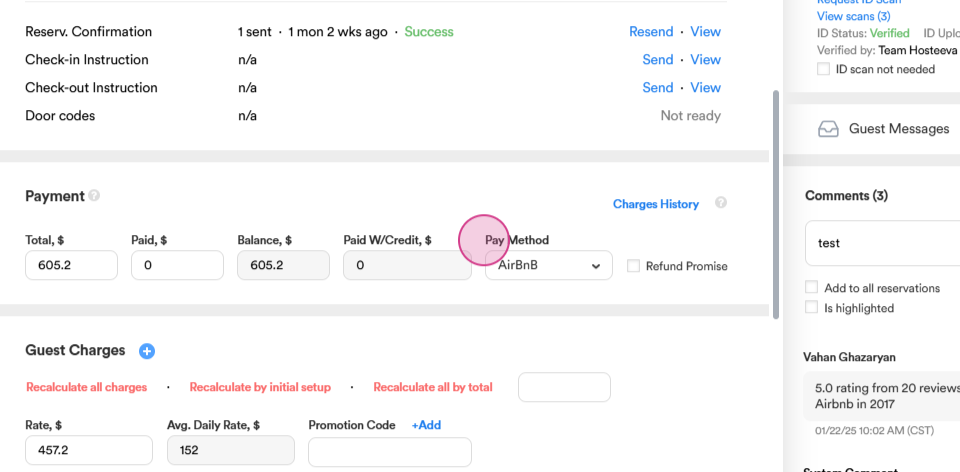
Step 6: To check the payment method, look in the payment section for the pay method. Different channels offer various payment methods. For example, Airbnb and Booking use bank transfers, which appear as Airbnb, Flipkey and Booking. Hosteeva, VRBO offer Stripe as a payment method, while Expedia and Booking provide both Virtual Cards and Stripe.
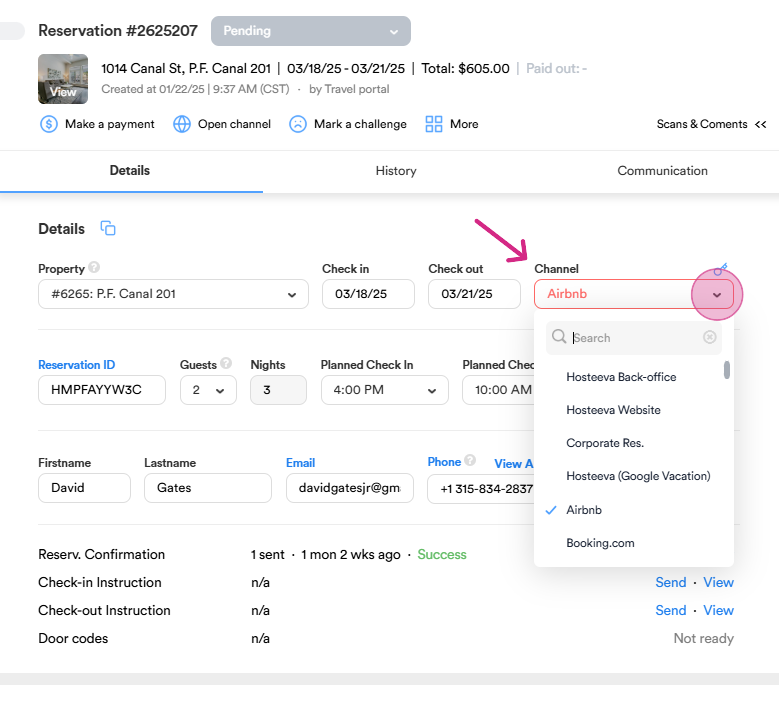
Step 7: To check the channel of the reservation, look for the channel in a reservation dialog. This option allows to see from which website the reservation came. The main channels from which we receive reservations are Airbnb, Booking, Expedia, Vrbo, Flipkey, and Hosteeva.
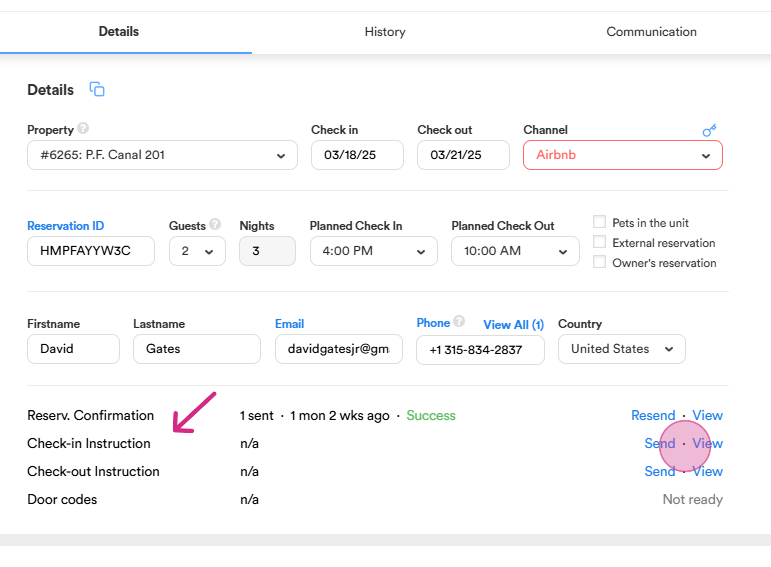
Step 8: To view and send reservation confirmation and check-in instructions, ensure that all aspects of the reservation are in order. Once the payment is completed, the provided documents are verified, door codes are generated, and the refundable damage deposit or pet fee is collected. Then, click on send.
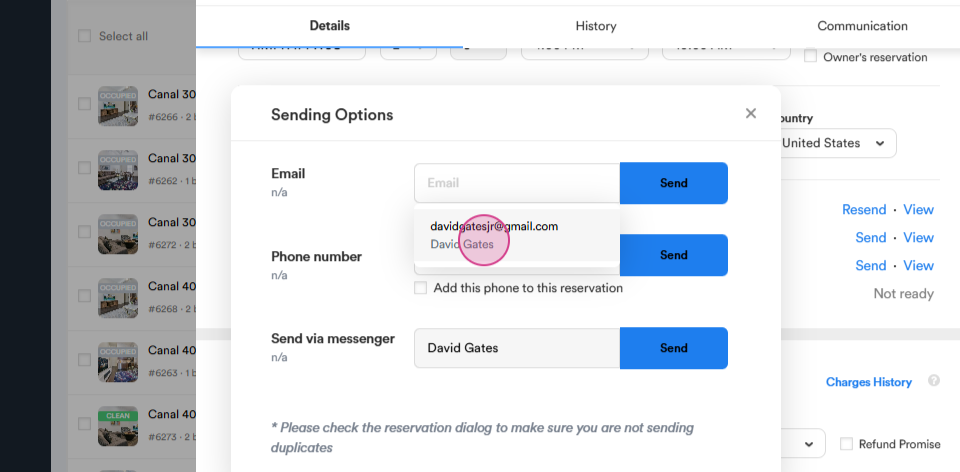
Step 9: Choose the appropriate contact method for the guest, such as email address or phone number. If the reservation is through Airbnb, use the Airbnb messenger to send all the information.
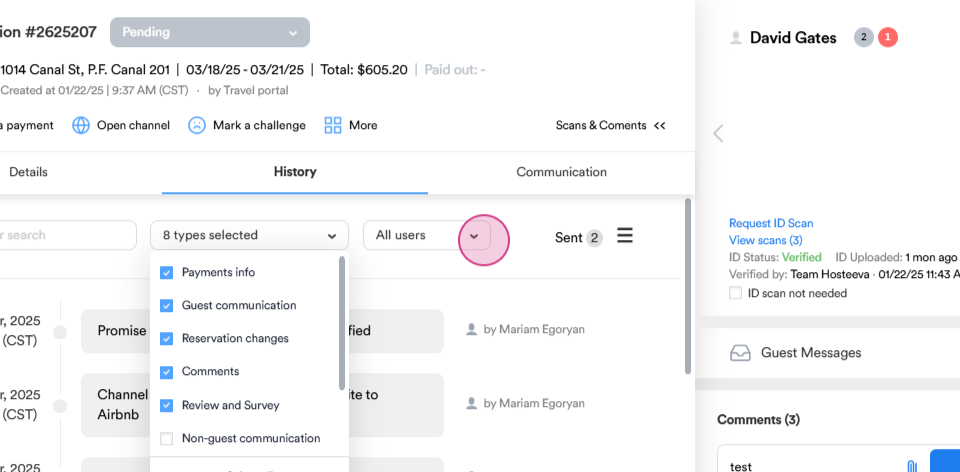
Step 10: In the history section, you can view all communication with the guest and actions taken by Hosteeva users (e.g., agents and other department representatives) regarding the reservation.
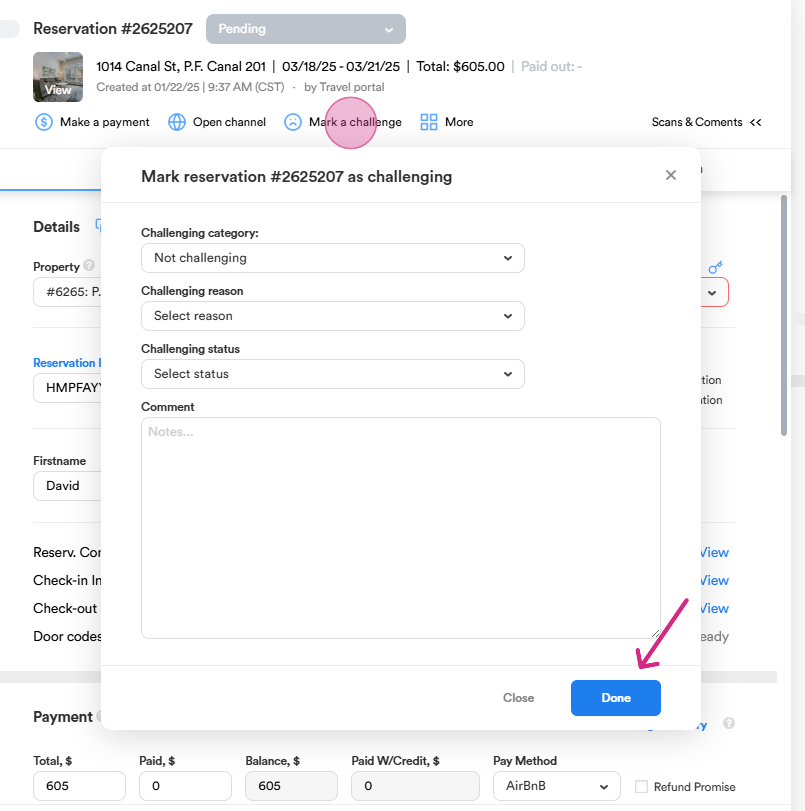
Step 11: To mark a reservation as challenging, click on the marking a challenge button. We typically use this button when a guest reports an issue after checking in. If the guest mentions terms like compensation, leave a review, or refund during a call with an agent, we mark the guest as challenging.
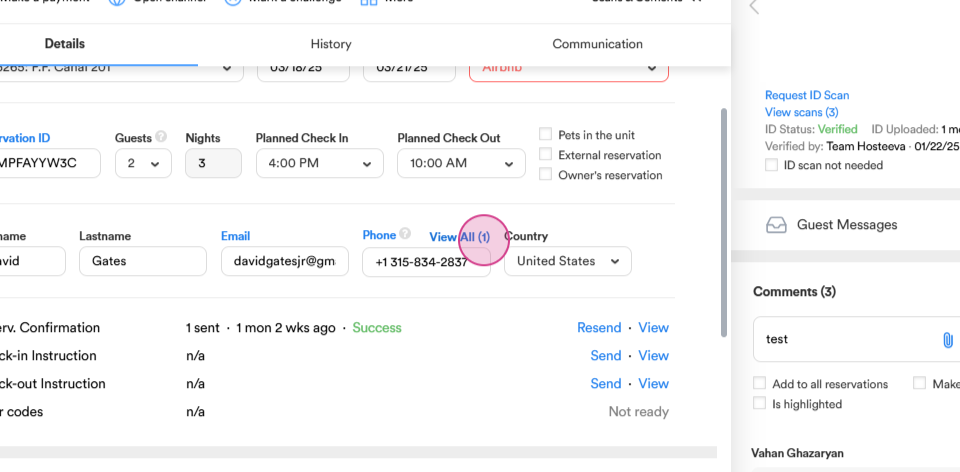
Step 12: To add, delete, or set a default phone number, click on View all in the phone number section.
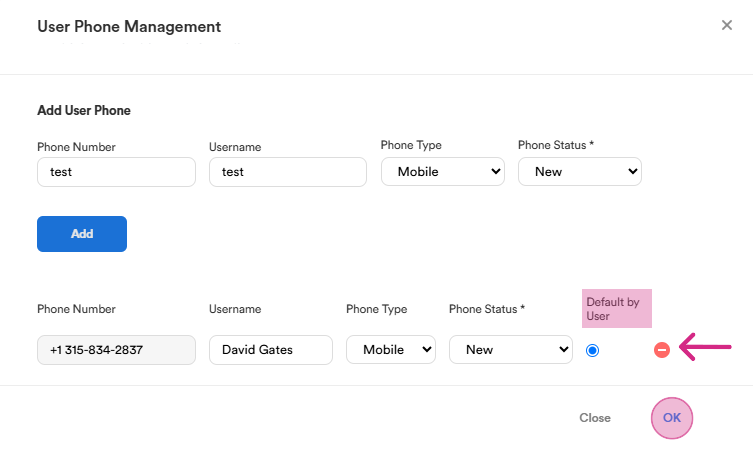
Click on Add user phone to add a new phone number and a username. Use the default number button to set a default phone number. To delete a phone number, simply click on the delete button next to the unnecessary number, and save all the previous actions with OK.
Step 13: To indicate that there are pets in the unit, mark the Pets in the unit checkbox and an icon will appear near reservation status. Additionally, if the guest receives an early check-in or late check-out offer, the relevant icons of the sun and moon will appear in the same location.
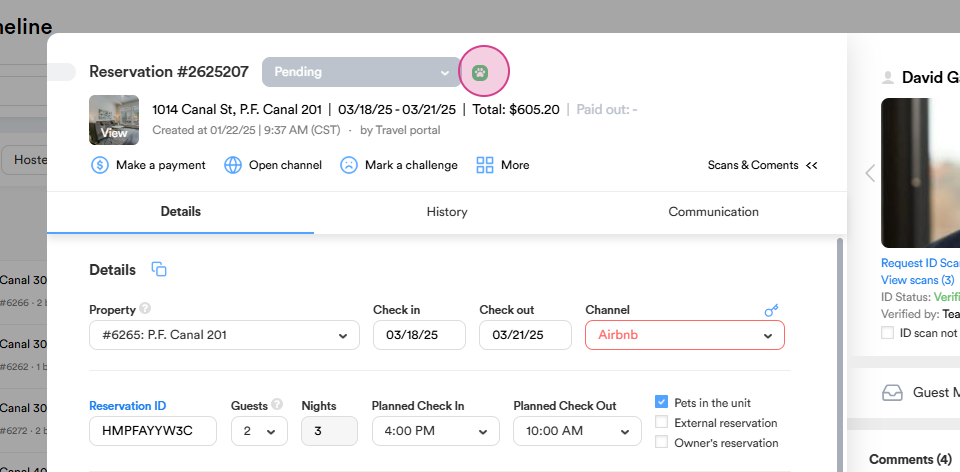
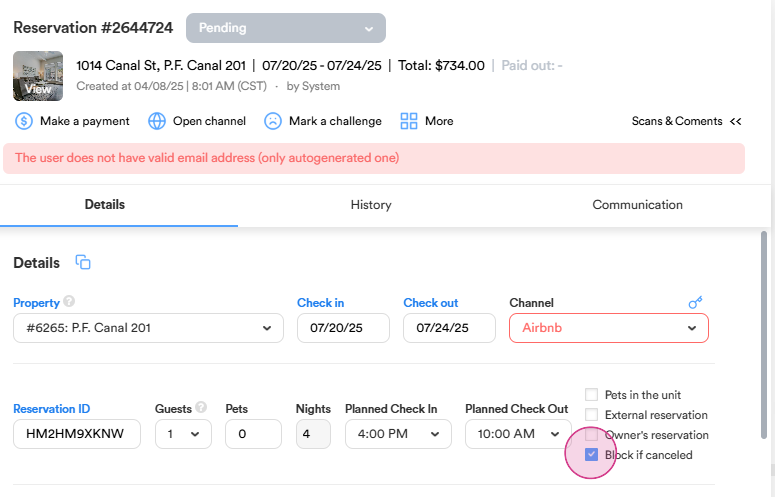
If the reservation is canceled and the checkbox is marked, the dates will be blocked, and the pricing team will receive a Trello ticket to check the rates.
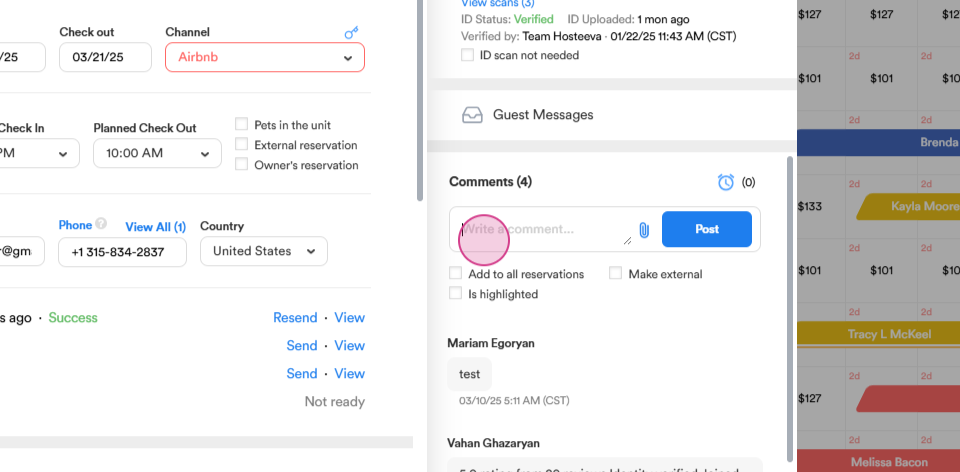
Step 14: To leave a comment about the reservation, use the comment section on the right. Attach photos if necessary using the clip button.
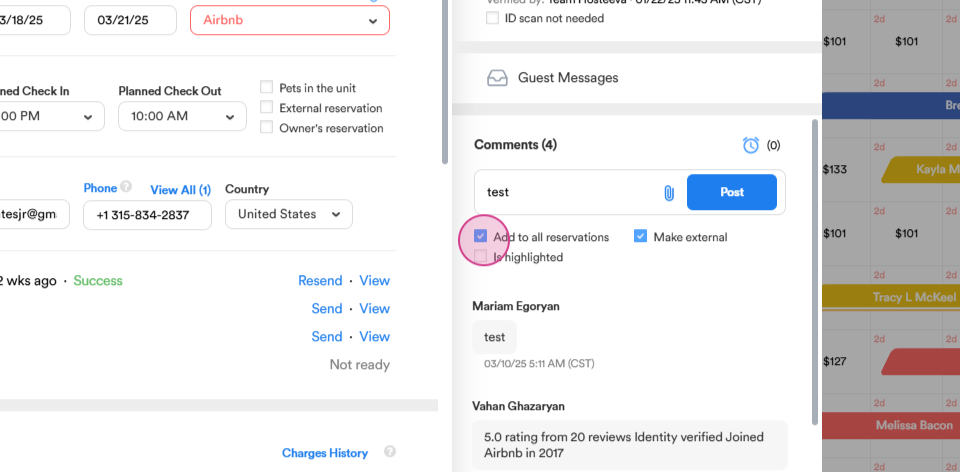
Use the checkboxes at the bottom to add the comment to all reservations, make the comment external, or highlight the comment. If you'd like to add a specific comment to all reservations associated with the same user record, simply select the relevant checkbox. If you want to make an external comment that will be visible to other Hosteeva users with limited access, such as area managers and property owners, choose the corresponding option. Additionally, if you want to make the comment stand out, use the highlight checkbox to make it extra noticeable.
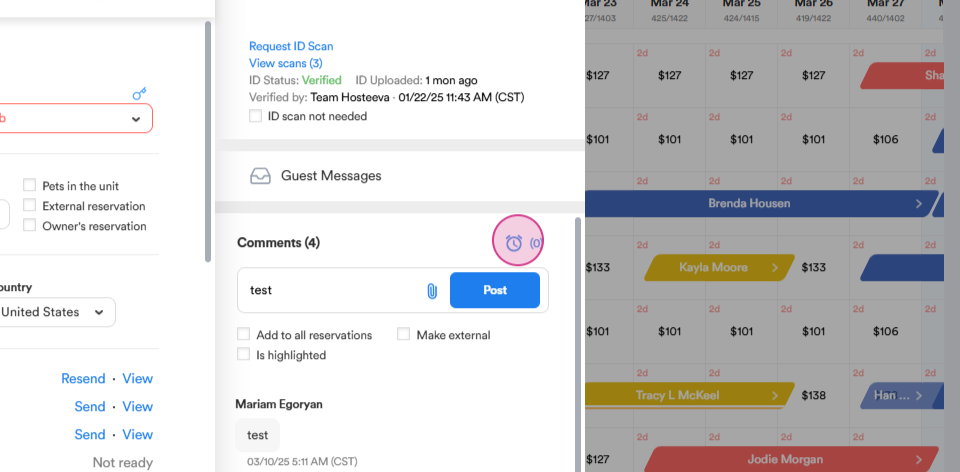
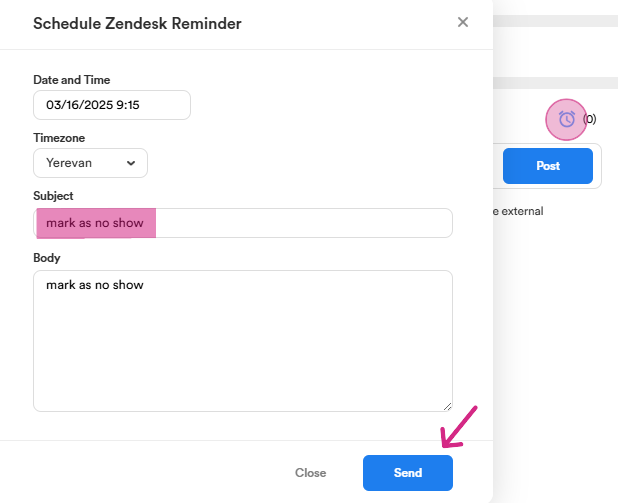
Step 15: Use the reminder feature to set a Zendesk reminder for specific tasks, such as requesting a new ID, pet fee, refundable damage deposit, or fulfilling guest requests like a pack-and-play or iron, based on the property’s amenities. Additionally, we set reminders for Booking and Expedia reservations to mark a reservation as a no-show and cancel the booking penalty-free. For Expedia reservations, the reminder is set on the day of check-in, while for Booking, it's set for the day after check-in.
Thank you for reading this article.