Welcome to the Reservations page, a centralized page empowering property owners to efficiently manage their reservations across various booking platforms. This user-friendly interface offers a comprehensive view of bookings, allowing property owners to streamline their management process and gain insights into reservations sourced from different booking websites. With the Reservations page, hosts can navigate and organize their bookings effortlessly, optimizing their property management experience for enhanced efficiency and convenience.
The Reservations page consists of a maximum of 6 sections. The visibility of all sections will depend on the access rights of the Hosteeva account. However, this guide will attempt to explain in detail what each section stands for and how to use them effectively to optimize your hosting experience and increase your guest satisfaction.
-
List
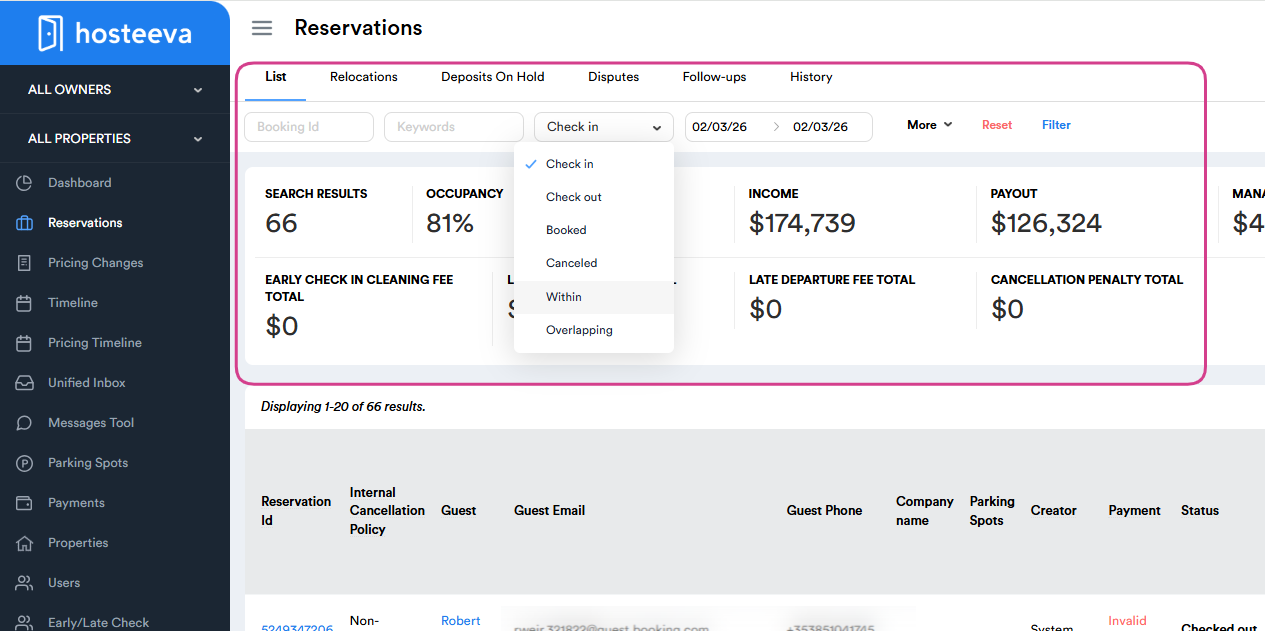
The List page displays all of the reservations received from all booking websites. Knowing how to use the variety of tools available to find a specific reservation or a group of reservations will greatly increase productivity and help achieve what property owners are looking to do.
The List page is the default page one would see once the Reservations page is opened. The image above shows us all the essential actions users can take to effectively find a reservation.
-
Booking ID: This functionality retrieves and displays reservations linked to a specific Booking ID, internal or external.
-
Keywords: When users input a keyword in the search function, the system will scan the reservations database for matches and return a list of reservations that contain the specified keyword in any of the designated fields, making it a versatile and convenient way to locate reservations based on various criteria.
-
Check-in/Check-out: Displays all reservations with a check-in/check-out date within the date range specified in the 4th section.
Booked: Displays all reservations that were booked within the date range specified in the 4th section.
Cancelled: Displays all reservations that were canceled within the date range specified in the 4th section.
Within: Displays reservations where both the check-in and check-out dates fall entirely within the selected date range.
Overlapping: Displays reservations that overlap with the selected date range. The selected range does not need to match the reservation’s exact check-in or check-out dates; any overlap will be included.
-
Date Range: Users may use the date range functionality by inputting the start and end date in which they wish to view reservations within a specific range.
-
More Filters: The List page allows users to employ a variety of filters to find reservations that match their search criteria. You may filter them by their pay statuses, pay methods, property, and booking source, to name a few.
-
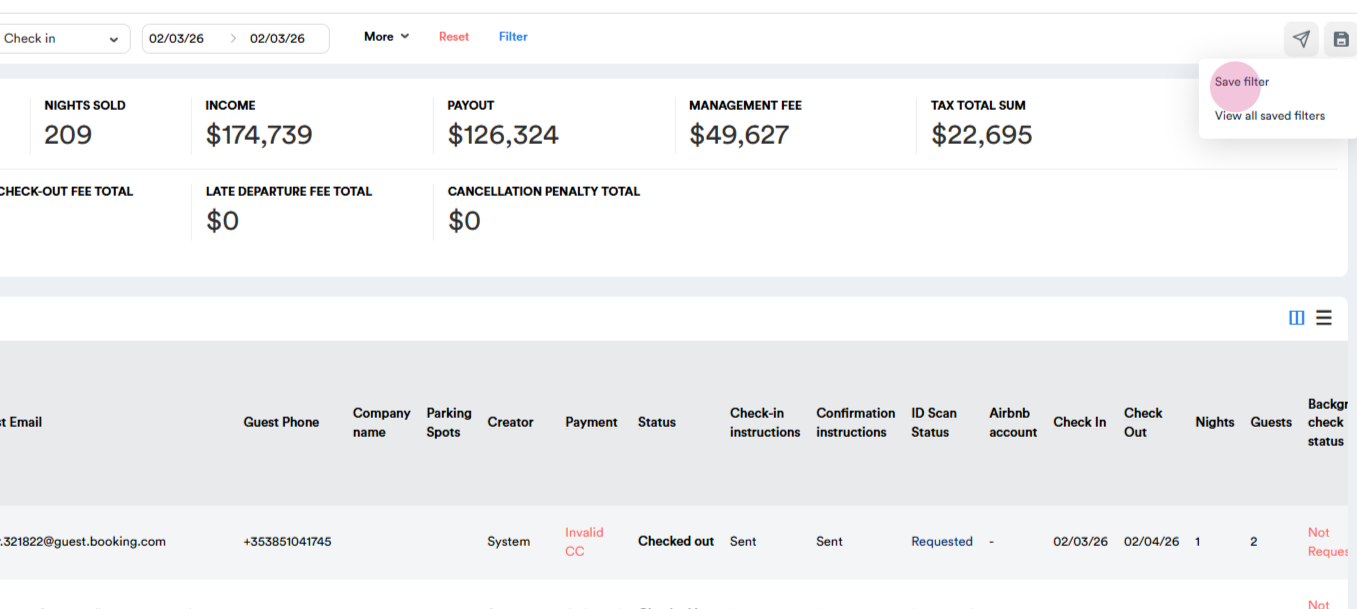
Save Filter: If users have a set of filters that are used frequently, the My Reservations page also has a save filter functionality to help you save time instead of toggling the same filters every time.
-
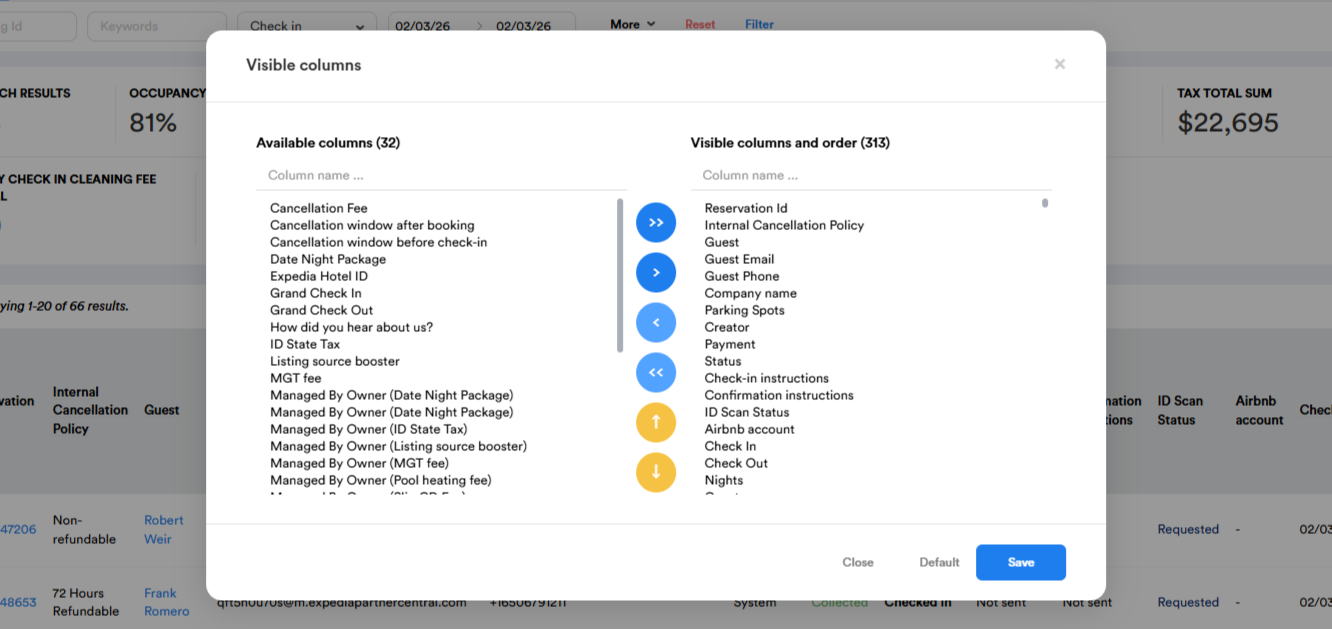
Customize the List view by choosing visible/sorting columns: Users may choose which columns should be displayed when filtering reservations. Subsequently, the black horizontal lines also allow exporting all the visible information with the visible columns to a CSV file for easier processing.
-
Relocations
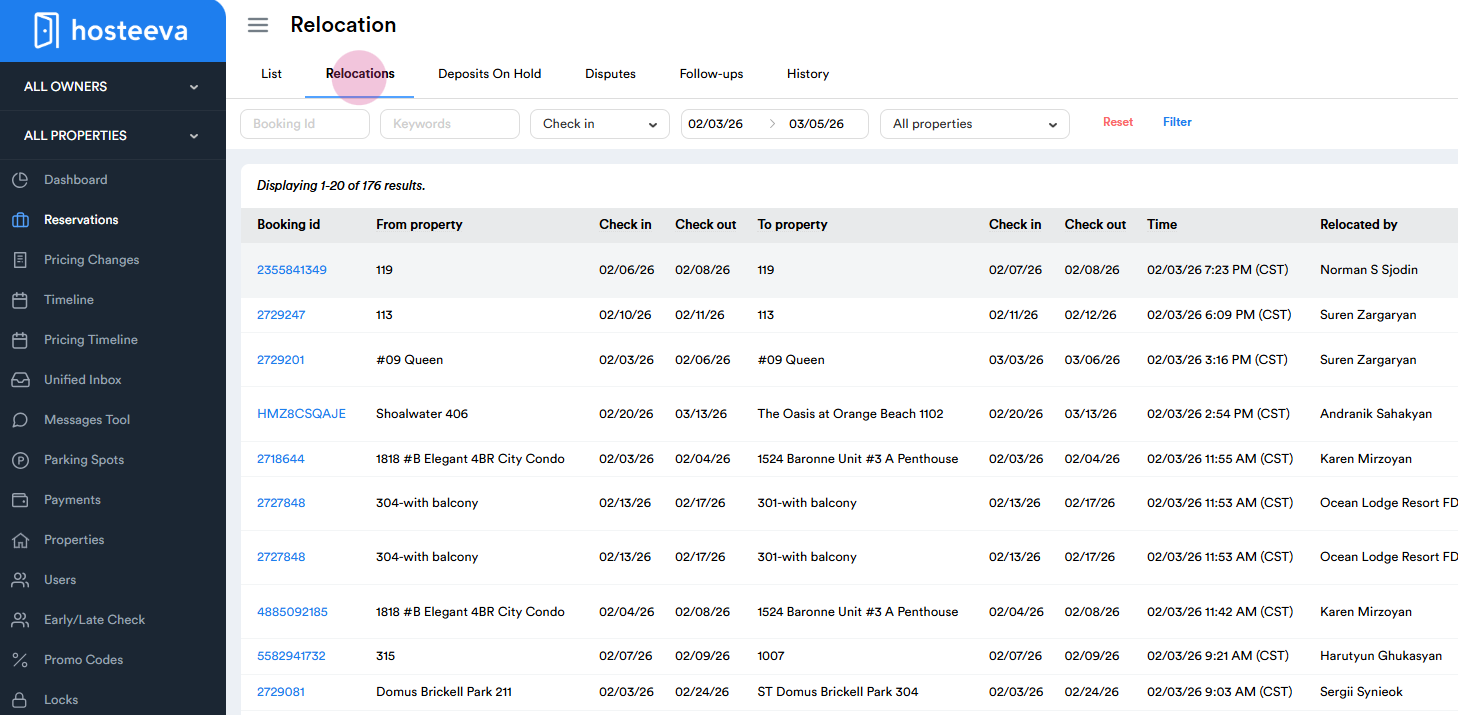
Relocations provides a centralized system for users to view and manage relocation reservations. Users will be able to access information about past relocations, details of the properties involved, and possibly any associated reservation data. To effectively use Relocations, users may navigate through it using the same tools from the List page to customize and refine their search for specific relocation records. This can provide a streamlined way to organize and access relevant information about each move. The Relocation page may not be available for you. If you find value in this page and still do not have it, please contact your account manager.
-
Deposits on Hold
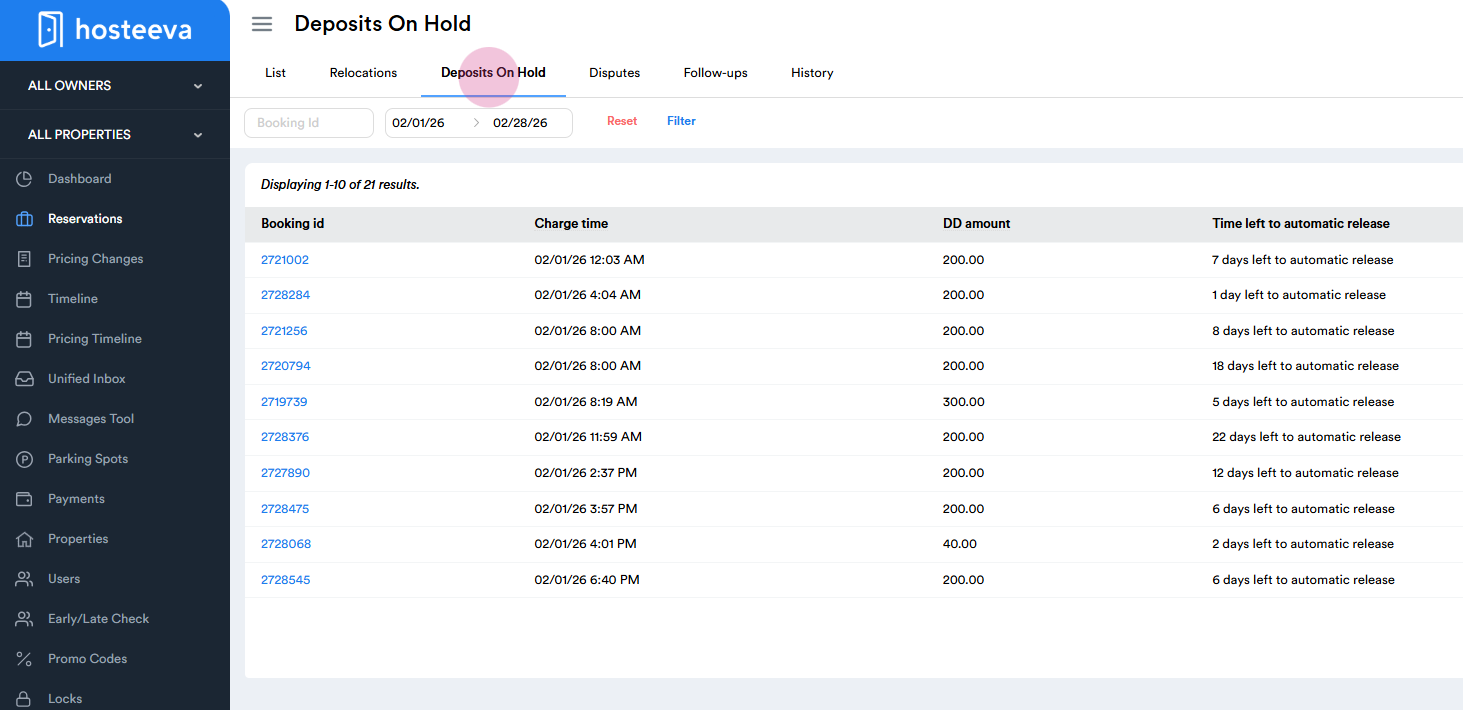
The Deposits on Hold page serves as a centralized hub for owners to monitor and manage security deposits associated with rental agreements. Users on this page may find a comprehensive list of all current damage deposits that have been placed on hold, each accompanied by relevant details such as the reservation’s booking ID, the amount placed on hold, and the time left for an automatic release. This centralized display simplifies the tracking process, enabling quick and efficient management of financial transactions related to property rentals. For owners, having a clear overview of all damage deposits on hold is essential for financial planning, dispute resolution, and ensuring compliance with rental agreements. Additionally, the page also includes filter options, to which users can search deposits using a booking ID within a specific date range. The Deposits on Hold page may not be available to you. If you find value in this page and still do not have it, please contact your account manager.
-
Disputes
A chargeback is a process in the world of credit card transactions where a cardholder disputes a charge on their account and requests their card issuer to reverse the transaction. When a cardholder initiates a chargeback, the card issuer investigates the claim. If they find the dispute valid, they will reverse the transaction and return the funds to the cardholder. The merchant is then notified of the chargeback and may have the opportunity to provide evidence or dispute the claim.
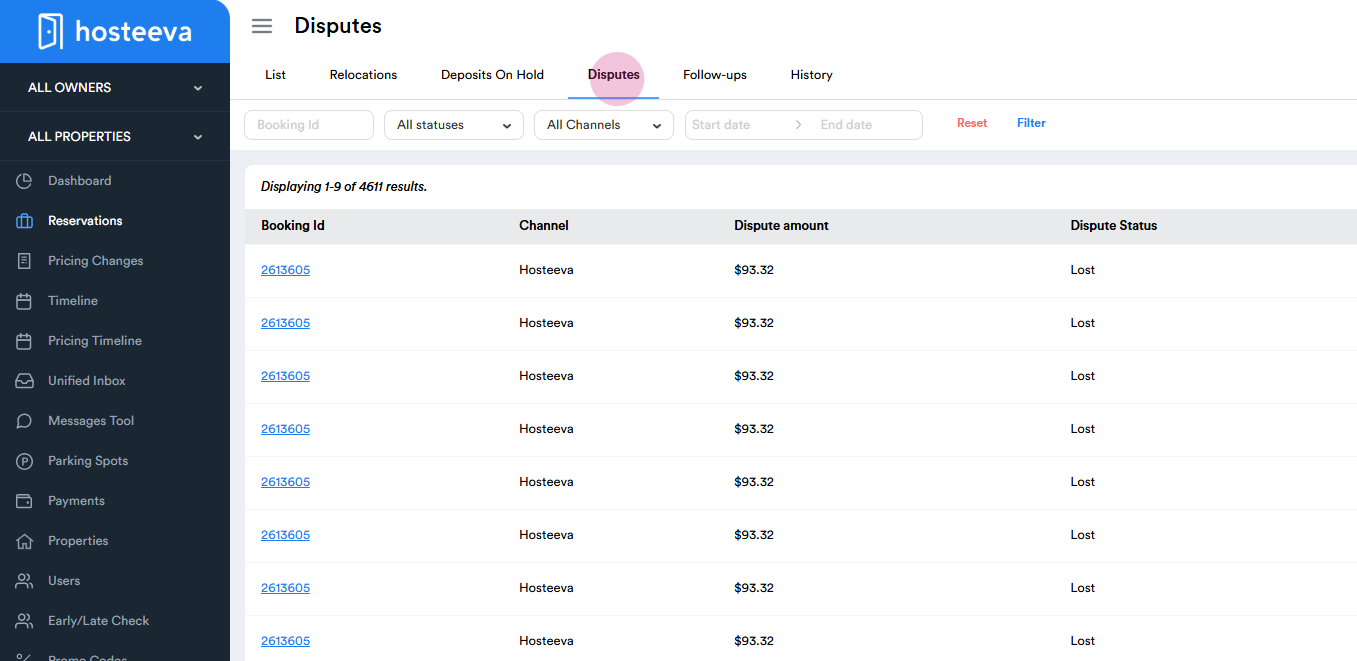
The disputes page functions as a centralized platform where property owners can access detailed information about all past and ongoing payment disputes. This page features a comprehensive list of relevant details, such as the channel the reservation came from, disputed amounts, important dates, and the current status of each dispute. Users will be able to view each dispute in full detail by pressing the 3 dots at the end of each dispute row, which will redirect them to Hosteeva’s payment processor, Stripe. Like the other pages, the Disputes page also includes a handful of filter tools users can utilize to find specific disputes, such as by booking ID, status, channel, and date ranges. The Disputes page may not be available for you. If you find value in this page and still do not have it, please contact your account manager.
-
Follow-ups
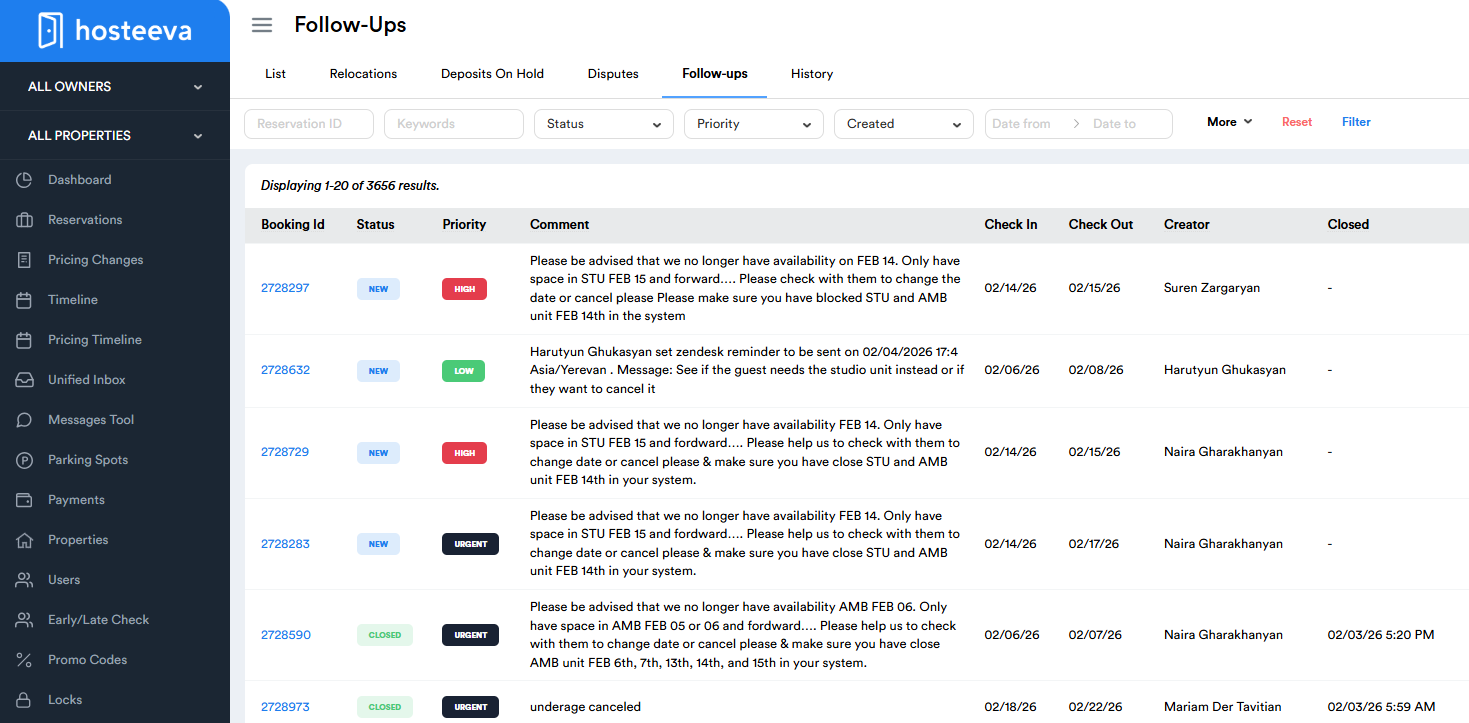
The Follow-Up tab allows users to view and manage reservations that have been marked for follow-up. This feature provides multiple filtering tools to help users quickly locate and track follow-up cases based on specific criteria, improving organization and workflow efficiency.
The Follow-Up tab includes 7 filtering sections, each designed to narrow down results and display only the most relevant reservations.
Reservation ID: This functionality allows users to search for a specific follow-up case by entering the reservation ID. The system will retrieve and display the matching reservation.
Keywords: Users may enter keywords to search across follow-up cases. The system will scan relevant fields and return results that match the entered keyword.
Status: Users can filter follow-up cases based on their current status, including New, In Progress, Archived, On Hold, and Closed.
Priority: This filter allows users to organize follow-up cases by urgency level, including Low, Medium, High, and Urgent.
Created / Check-in / Check-out:
Created: Filters follow-up cases based on the date the reservation was marked for follow-up.
Check-in: Displays follow-up cases associated with reservations checking in on the selected date.
Check-out: Displays follow-up cases associated with reservations checking out on the selected date.
Date Range: Users may specify a start and end date to view follow-up cases that fall within a selected time range.
More Filters: This section allows users to filter follow-up cases based on the user who created or resolved the follow-up, providing additional control and accountability.
-
Bulk Messaging
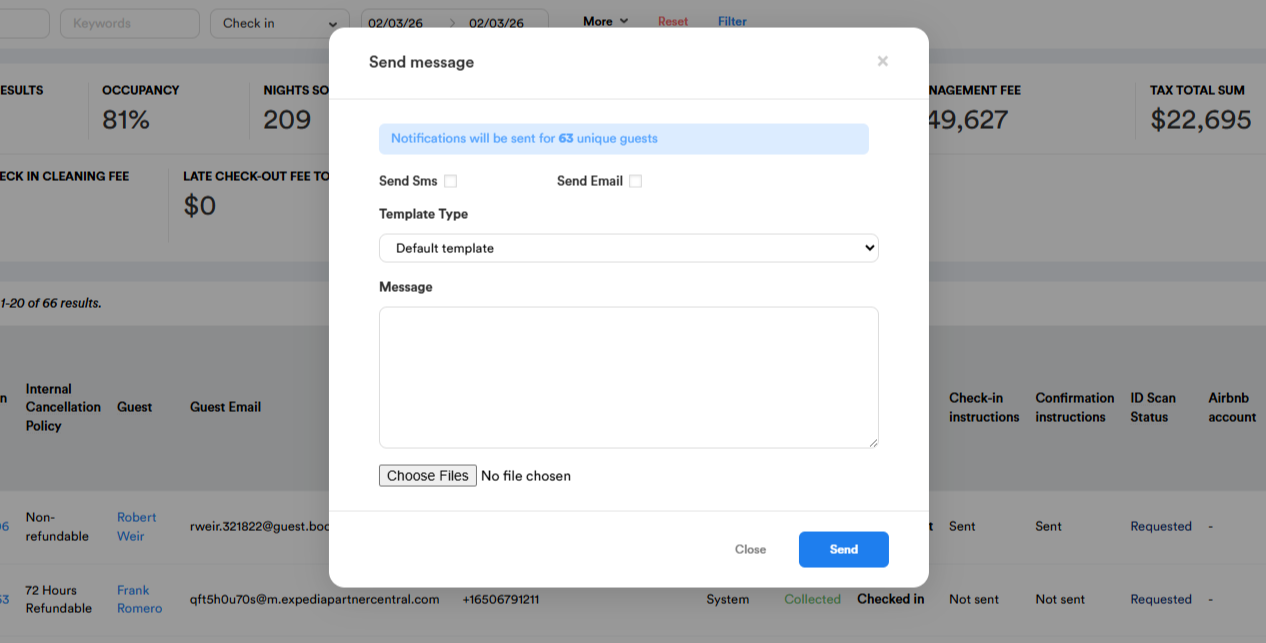
The Bulk Messaging feature allows users to send a message to multiple reservations at once based on applied filters. To use this function, apply the desired filters, click the paper airplane icon on the right side of the page, compose your message, and click Send.
Thank you!