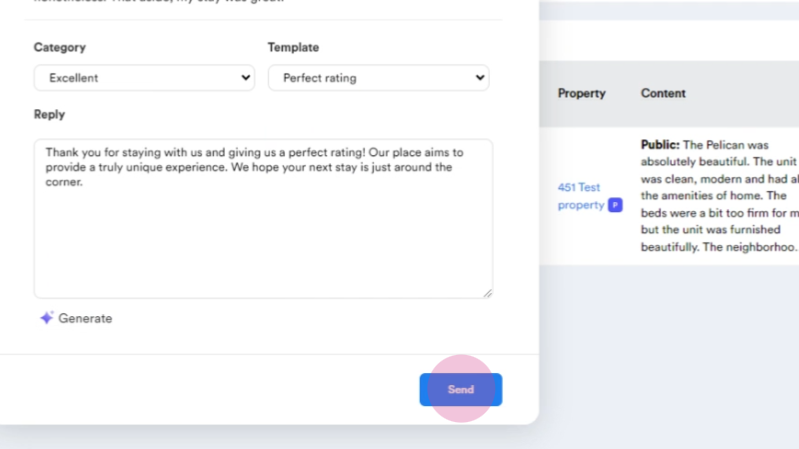
This guide explains how to respond to reviews from various channels through Hosteeva.
Start by navigating to the Reviews tab.
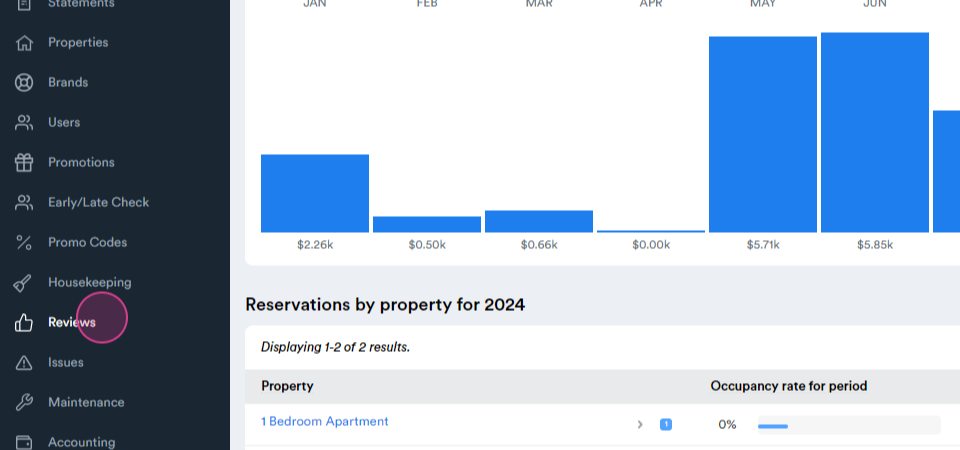
Our dedicated reviews page provides several options for responding to reviews. But before we delve into this, let's first set up your custom response category and template.
Creating a Response Category
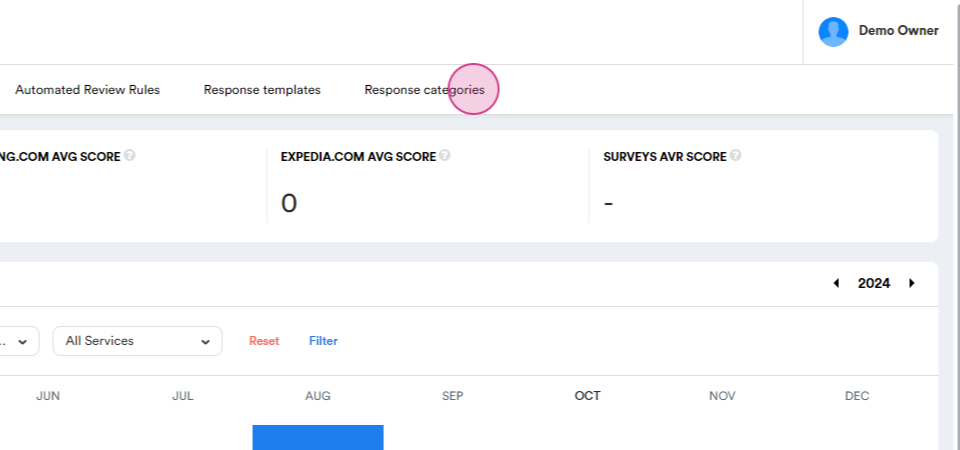
Step 1: Navigate to the Response categories page.
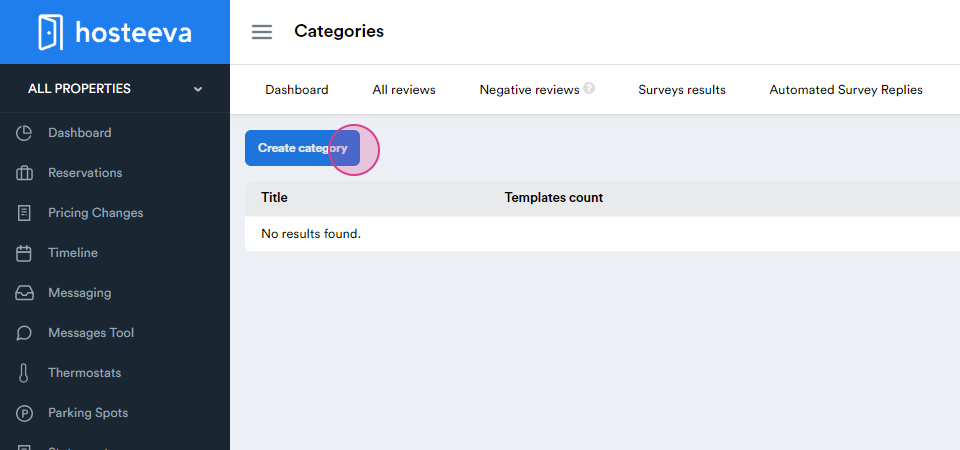
Step 2: Click create category.
Step 3: Enter a title for the category and select type the category will apply to.
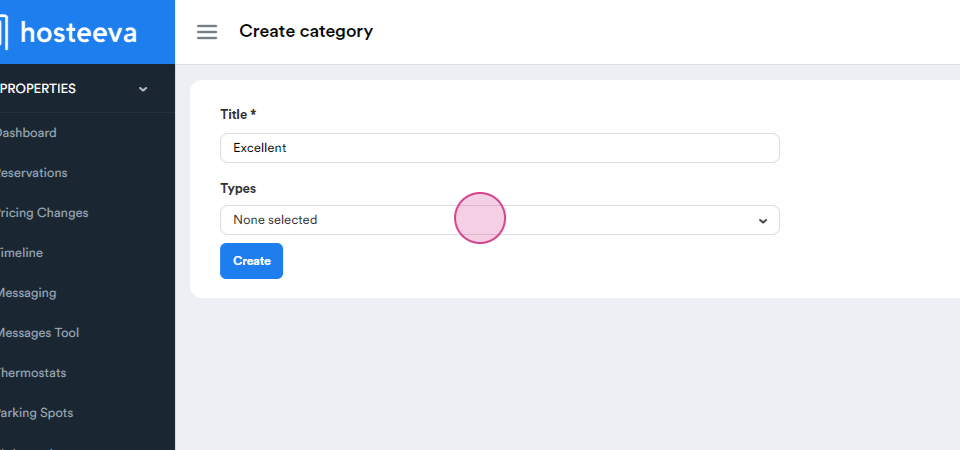
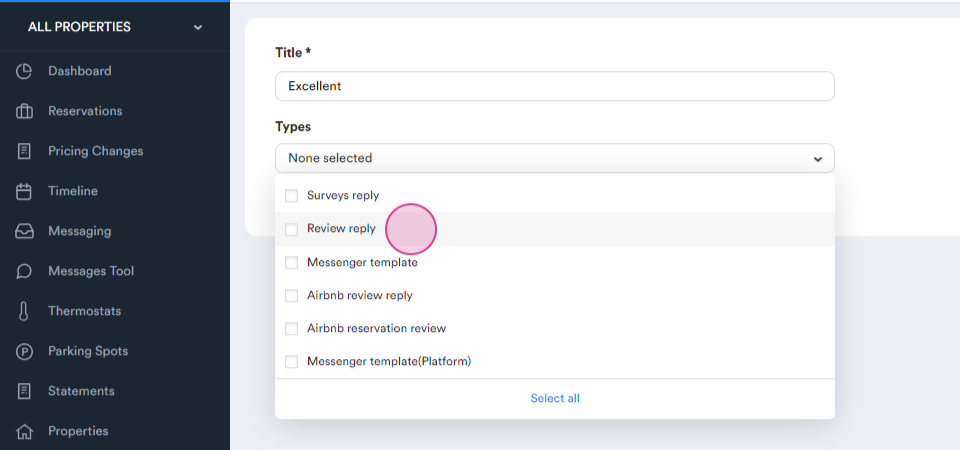
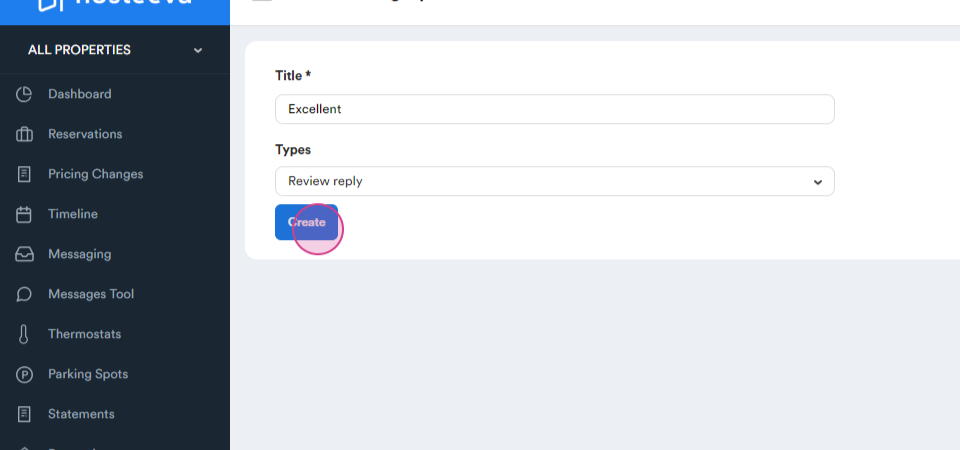
Step 4: Click create to save the category.
Creating a Response Template
Step 1: Navigate to the response templates page.
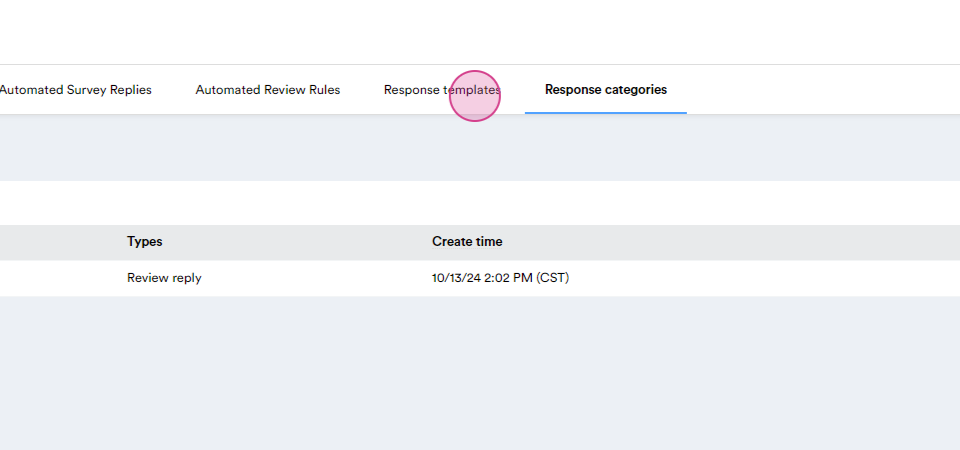
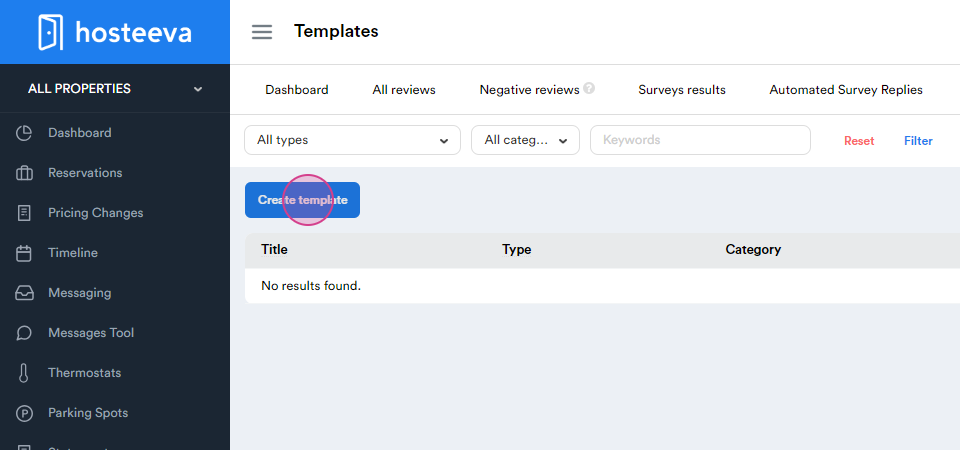
Step 2: Click create template.
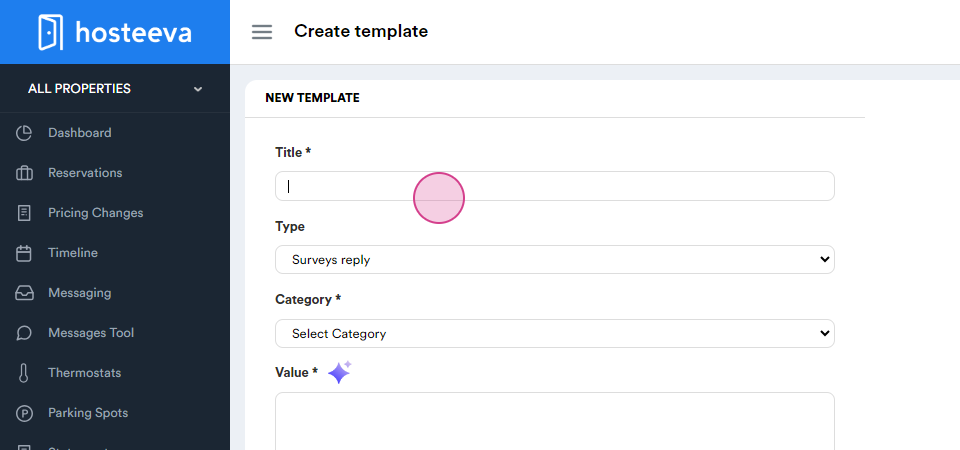
Step 3: Give the template a title.
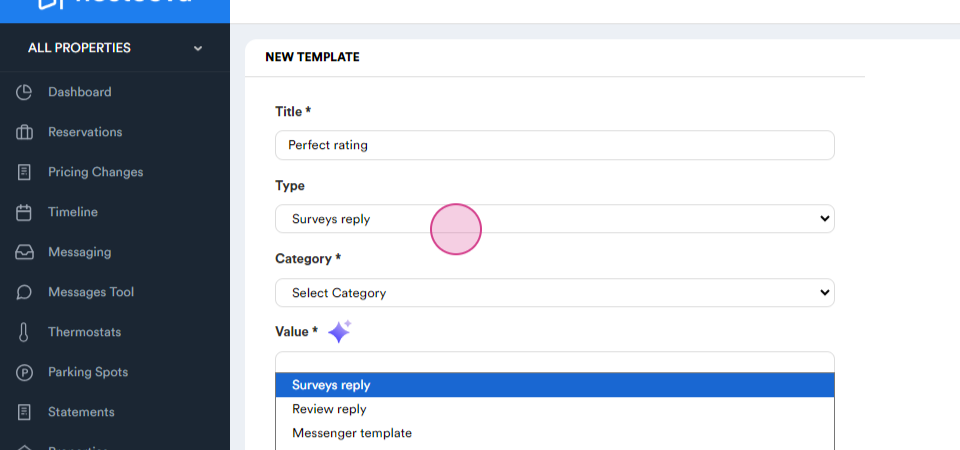
Step 4: Select its type and category.
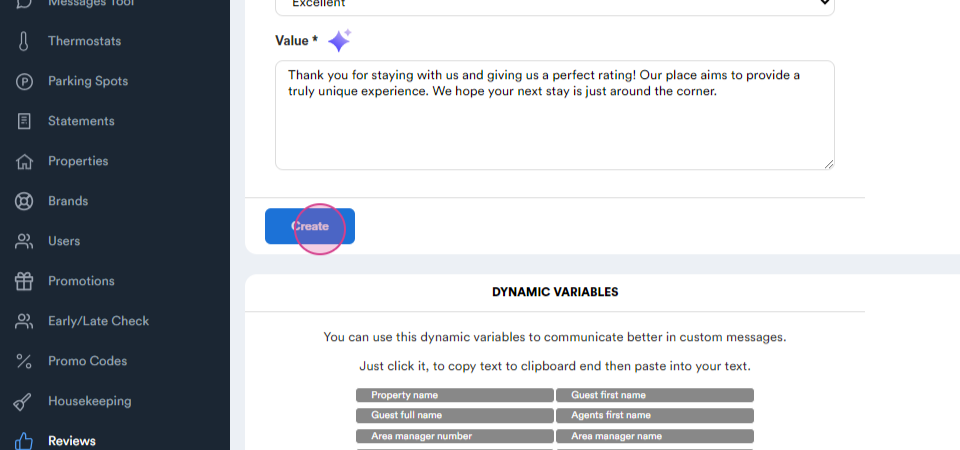
Step 5: Enter the text for the template and click create to save the template.
Responding to Reviews
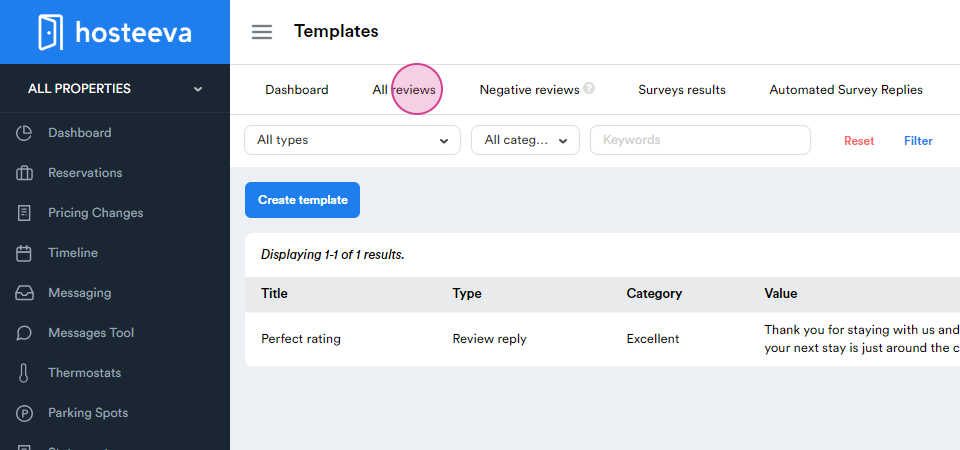
Step 1: Navigate to the all reviews page.
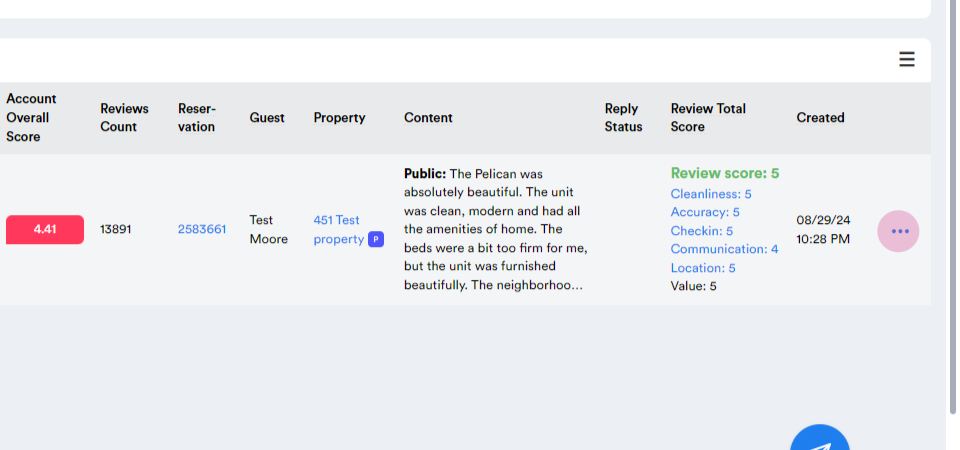
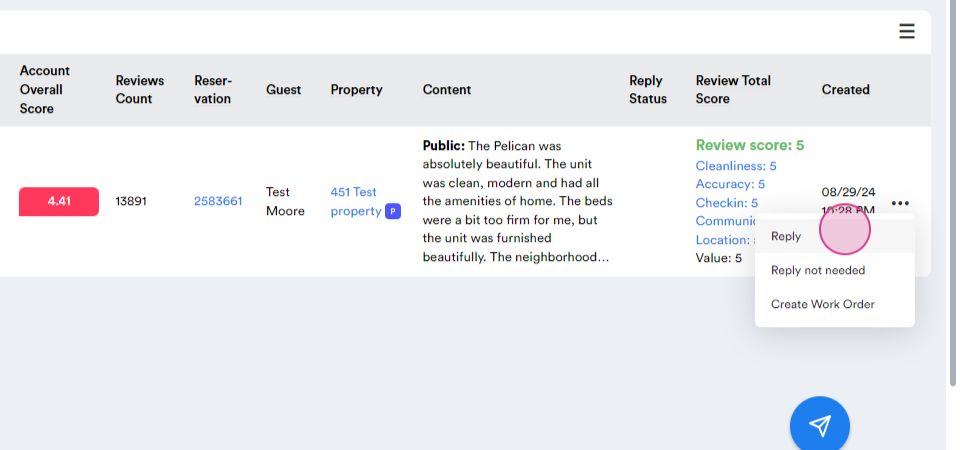
Step 2: Select the review to respond to, click the ellipsis next to it, and choose reply from the drop-down menu.
Step 3: A pop-up window will appear with multiple response options. Craft a custom reply, use a pre-saved template, or use AI to generate a response based on the content of the review or a combination of the review and selected template.
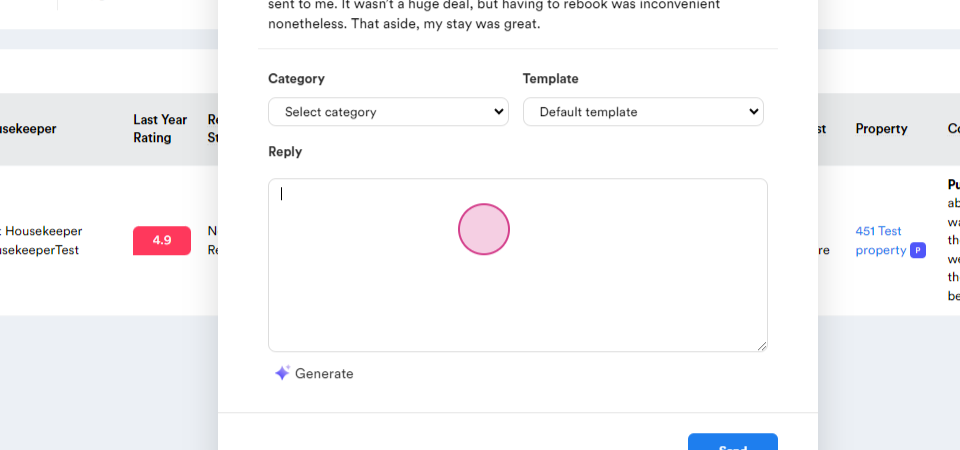
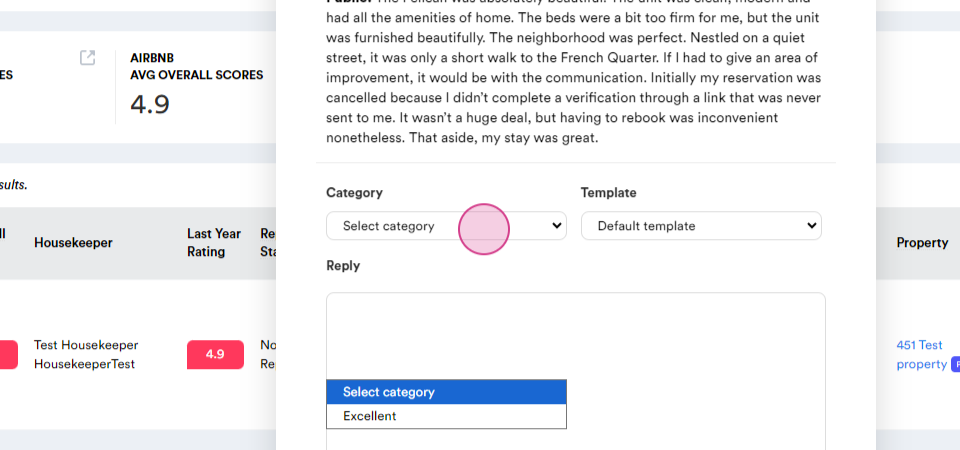
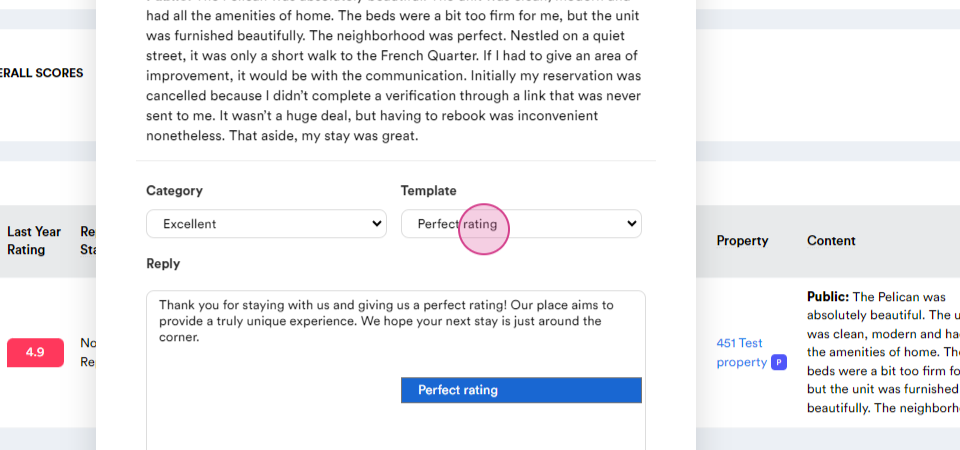
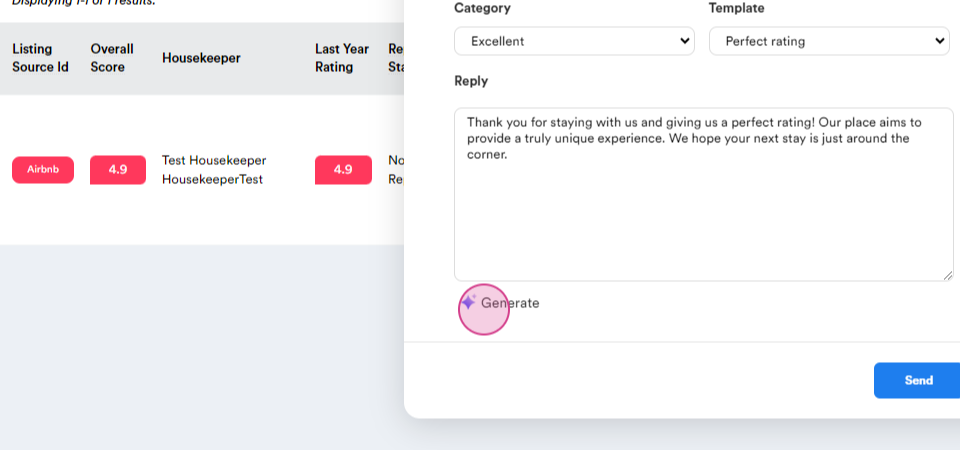
Step 4: Once the reply is ready, click send to post it online.