This guide explains how to set up early check-in and late check-out for properties.
Start by navigating to the property section.
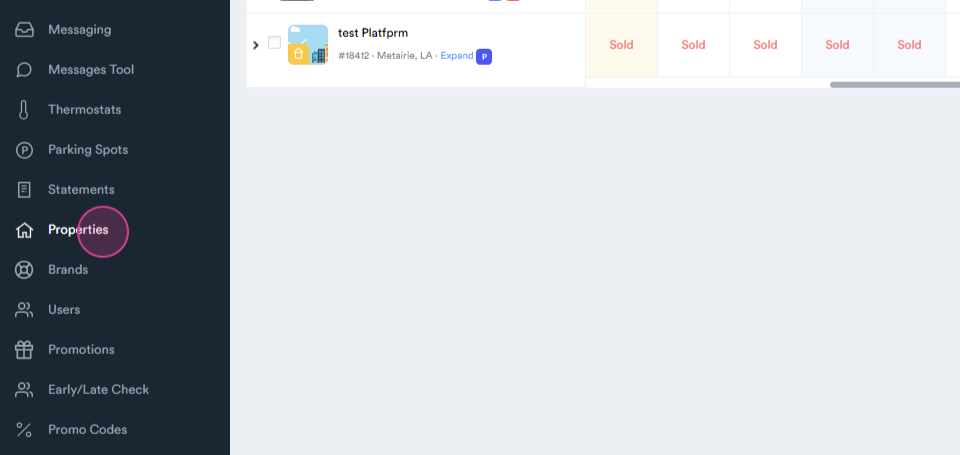
Step 1: Select the desired property from the available list and move to the right side of the screen.
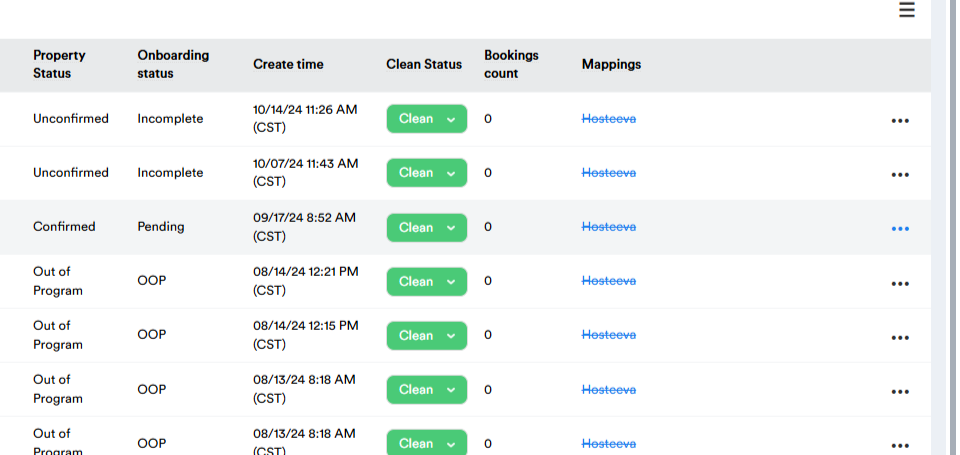
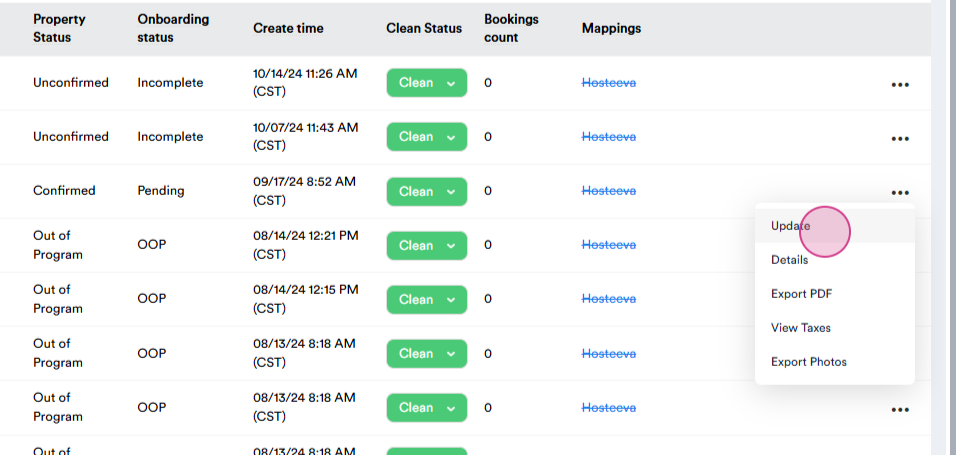
Step 2: Click on the three-dot icon and choose the update section.
Setting Up Early Check-In
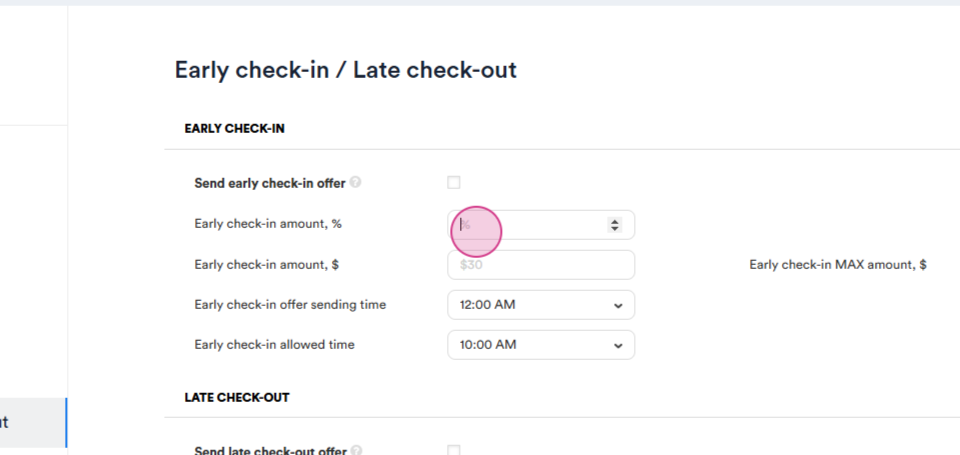
Step 1: Set the early check-in either as a percentage
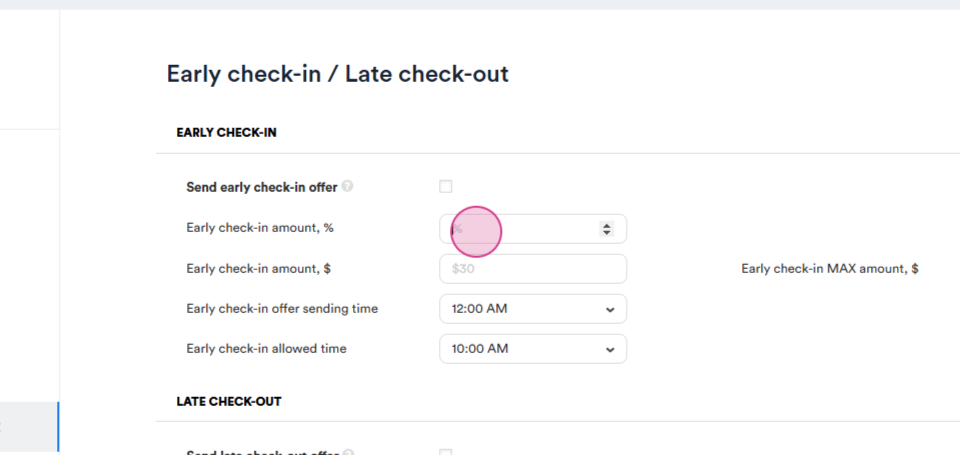
or as a fixed amount.
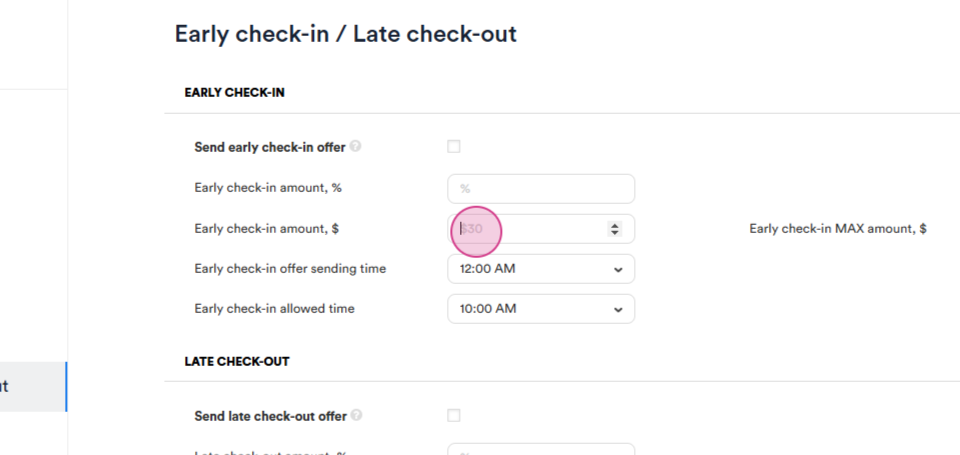
If opting for the percentage option,
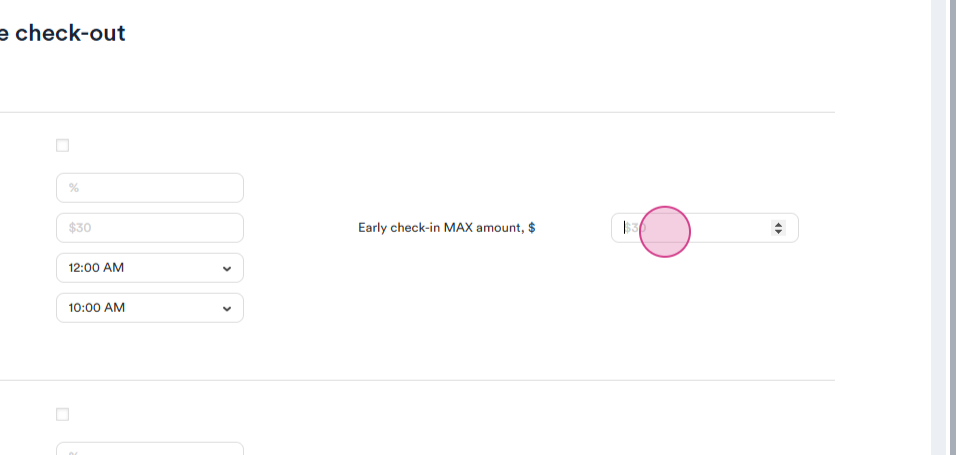
Step 2: Set the maximum amount for early check-in.
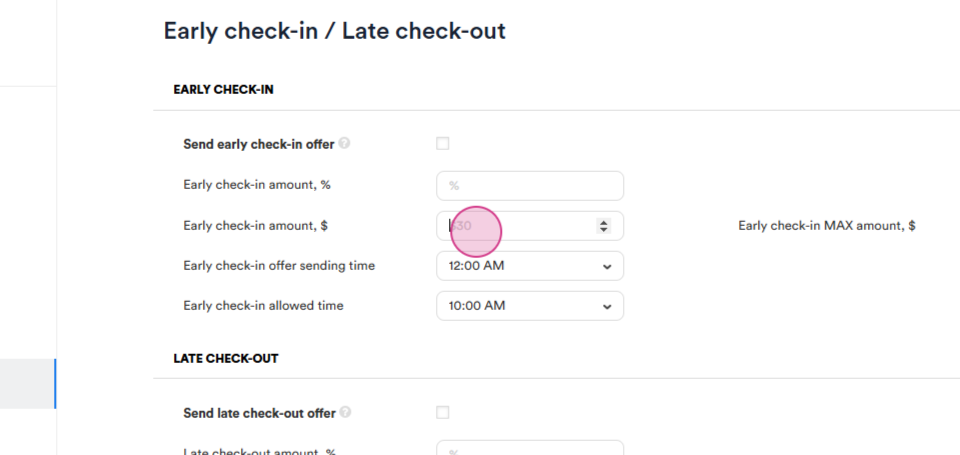
Step 3: Choose the time of early check-in offer sending.
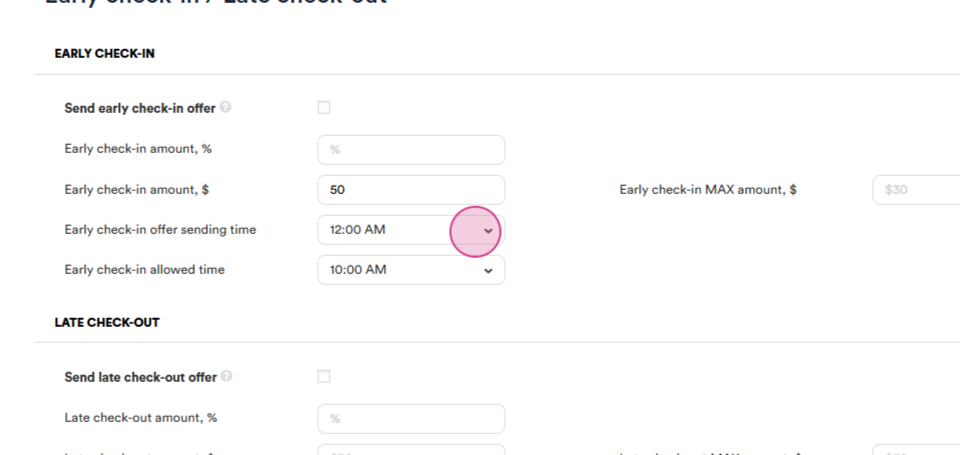
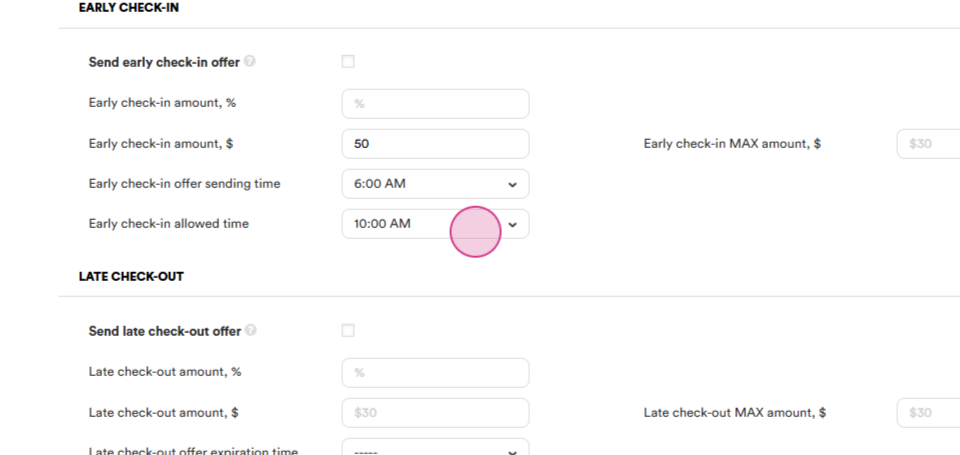
Step 4: Select the allowed time for early check-in.
Remember to check the boxes
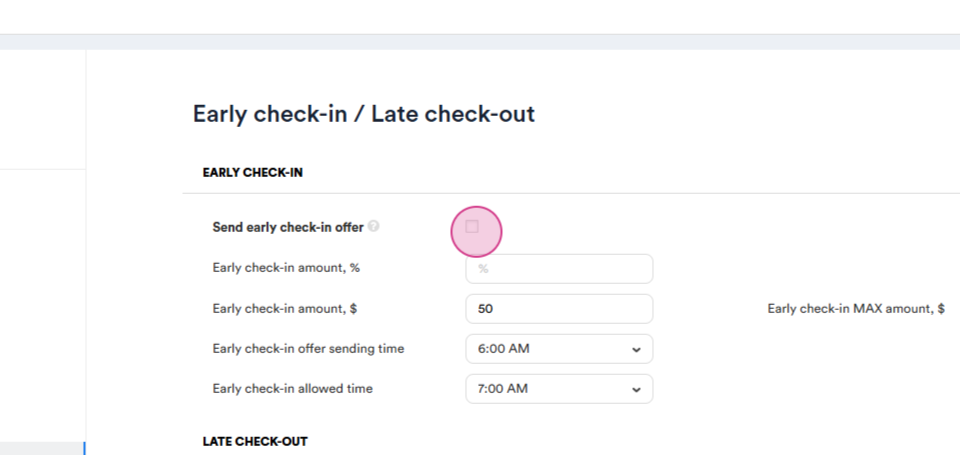
to activate this feature.
Setting Up Late Check-Out
Step 1: Set the late check-out either as a percentage
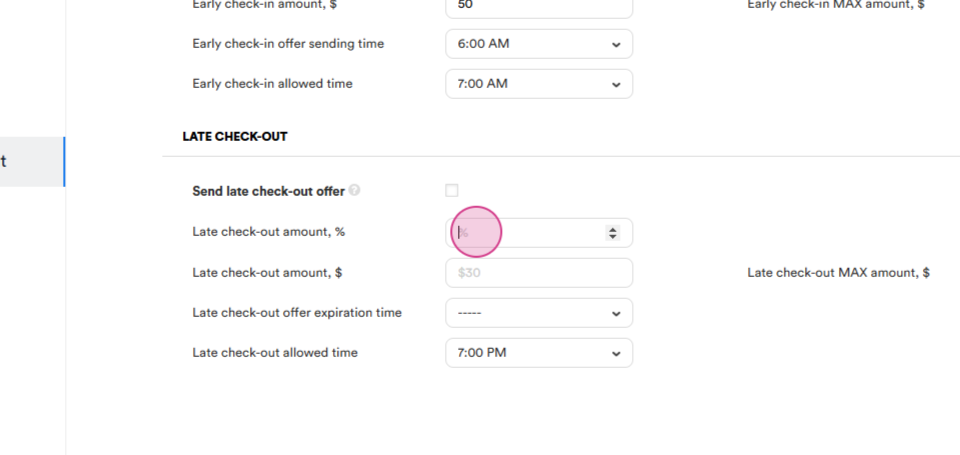
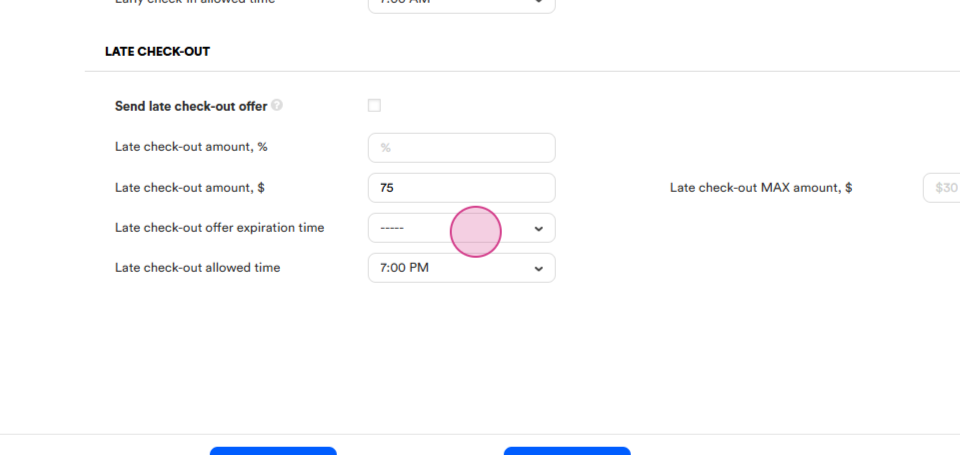
or as a fixed amount.
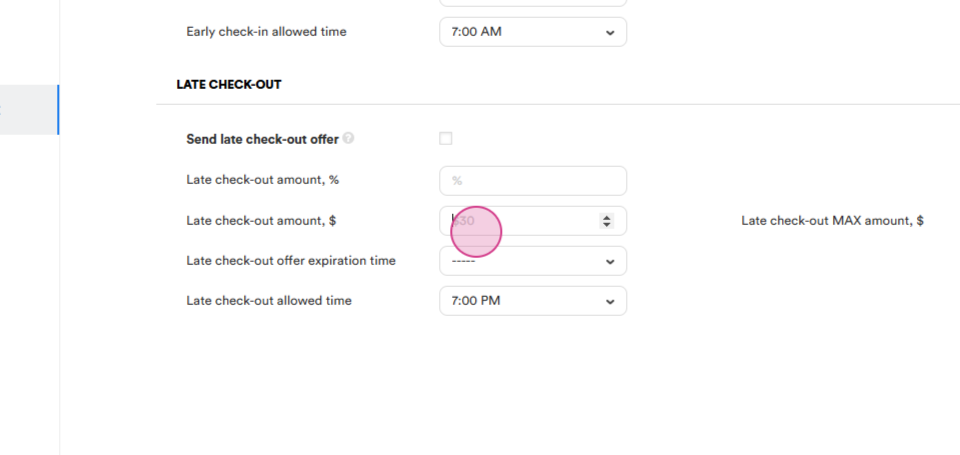
If opting for the percentage option, set the maximum amount for early checkout.
Step 2: Choose the expiration time for late check-out offers.
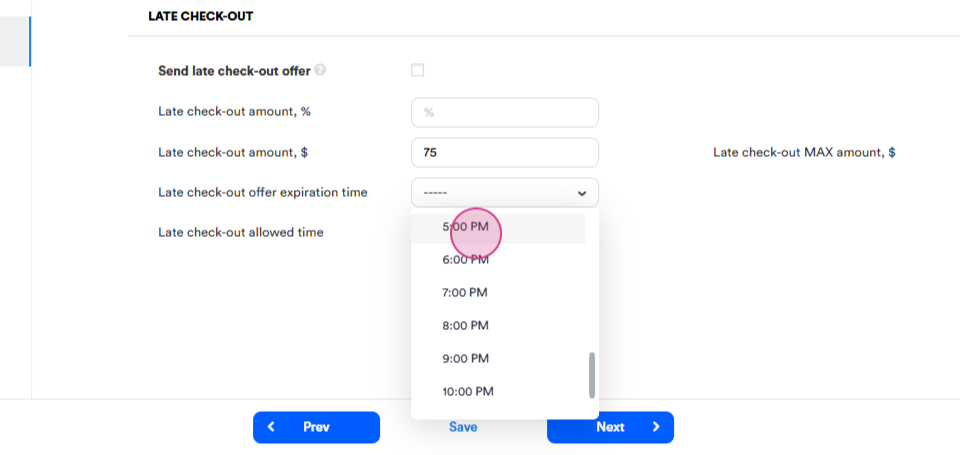
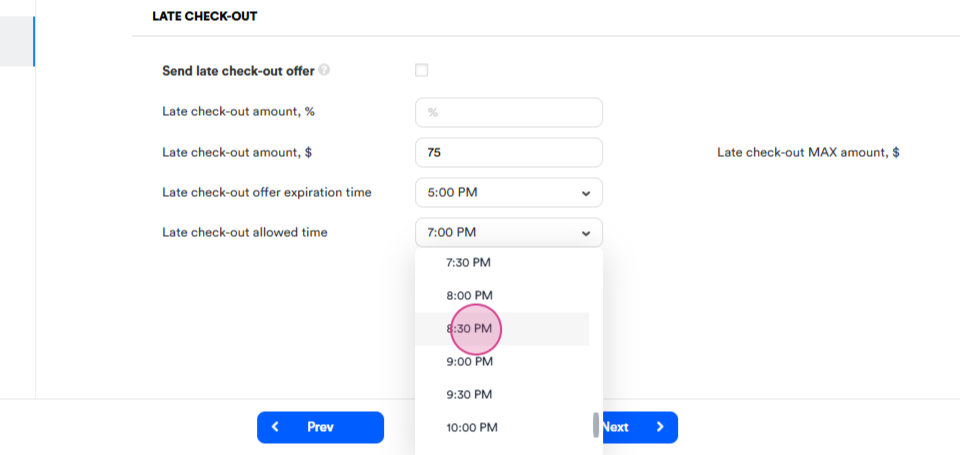
Step 3: Set the allowed time for late check-out.
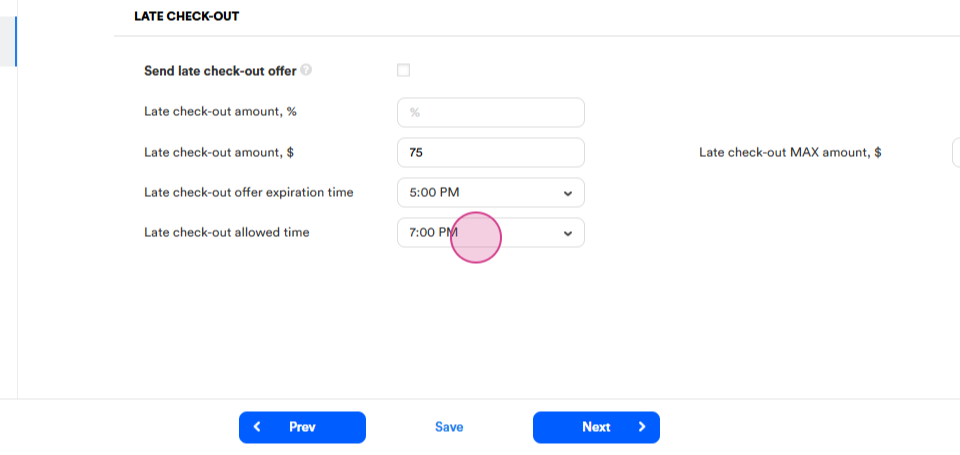
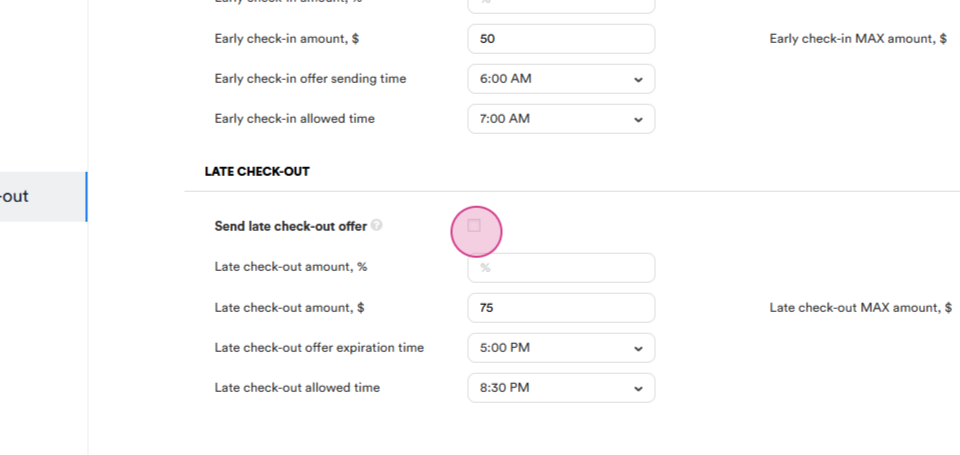
Remember to check the box to activate this feature.
After entering all the information, save the settings.
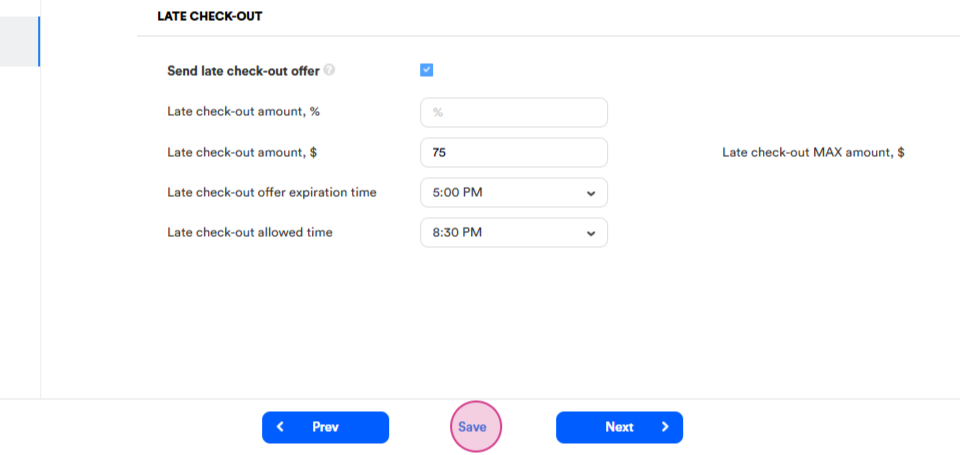
The early check-in and late check-out settings are now complete.