This guide provides a step-by-step process on setting up notifications in the Hosteeva dashboard.
Step 1: Log in to the Hosteeva dashboard.
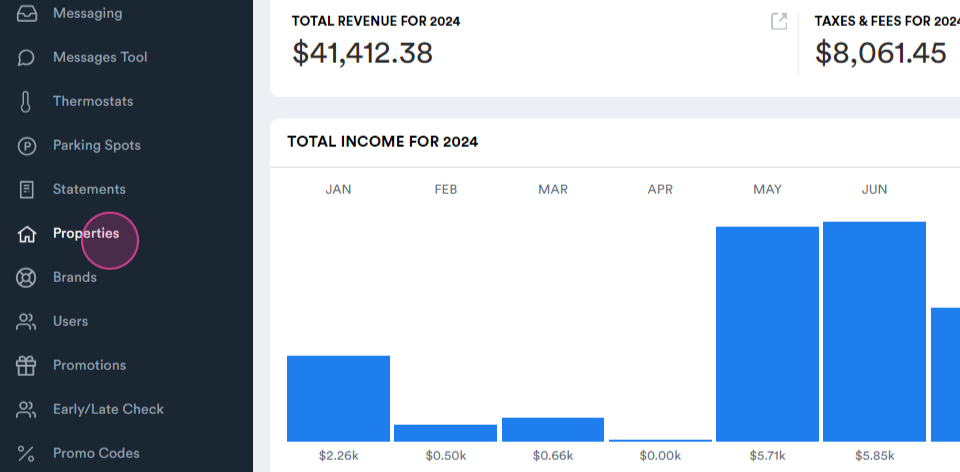
Step 2: Navigate to the Properties tab and select it.
Step 3: In the property list, locate the property for which you want to set up notifications.
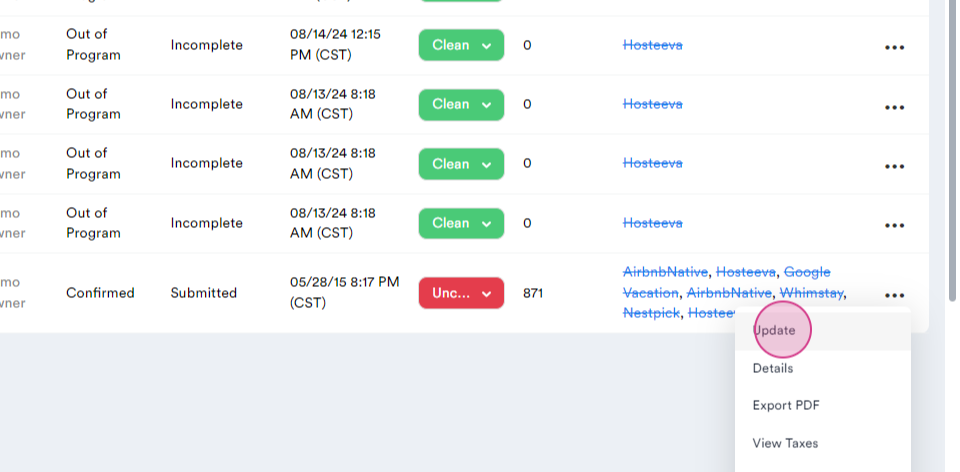
Step 4: Click on the three dots next to the chosen property and select Update.
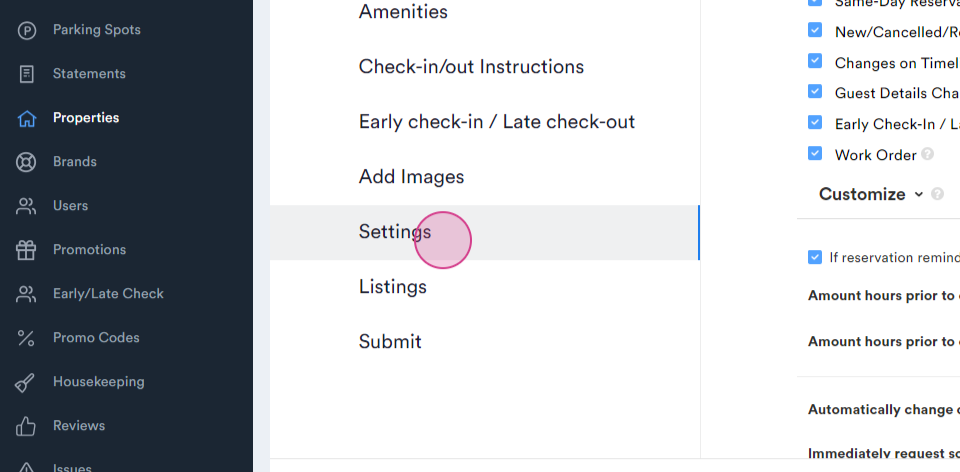
Step 5: Go to the Settings tab.
Step 6: Find the Notification section.
Step 7: Set up the emails and phone numbers for general notifications. Decide what types of notifications these contacts will receive.
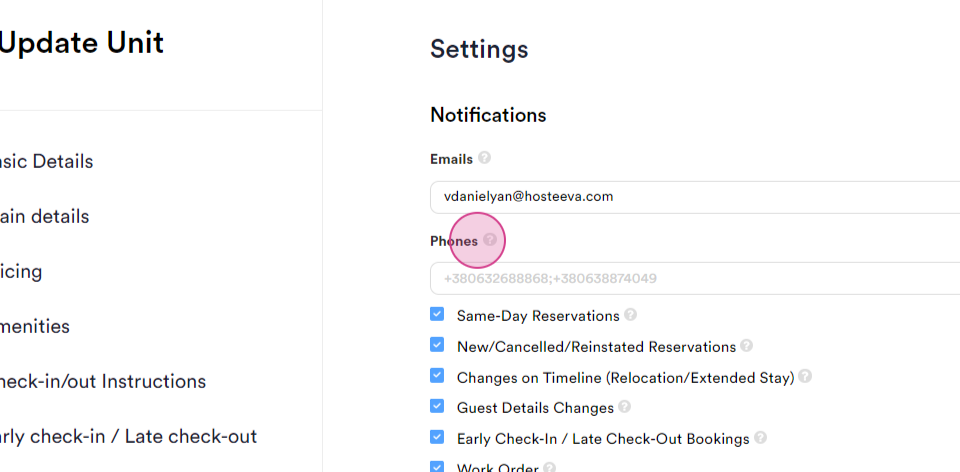
Step 8: If you don't want to receive notifications for guest detail changes, deselect the checkbox and save the changes.
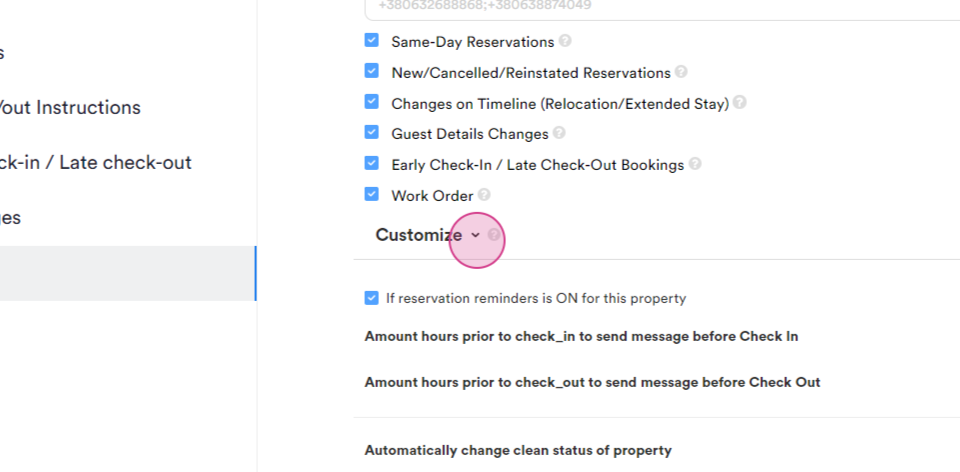
Step 9: For contacts who need specific notifications, customize their settings. Click on the Customize dropdown.
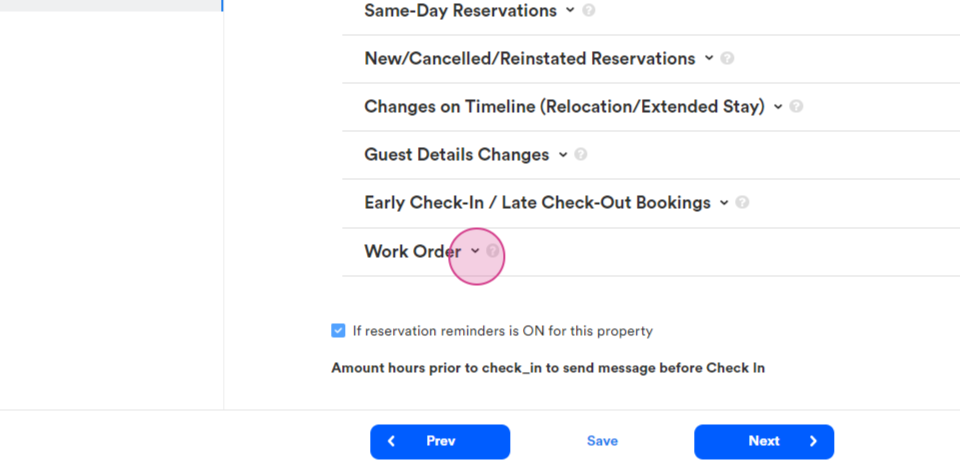
Step 10: If you want a contact to receive only work order notifications, open the Work Order Notification.
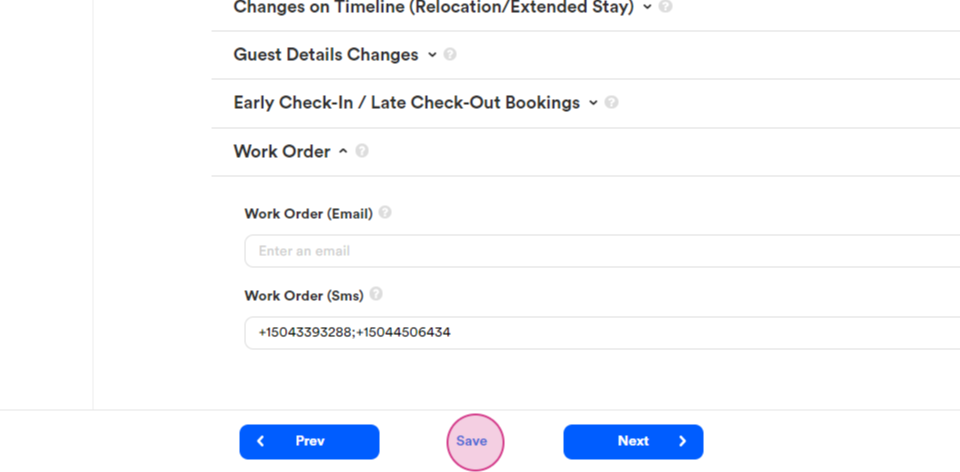
Step 11: Enter the email or phone number for this notification.
Step 12: Click on Save to apply the changes.
This concludes the guide on setting up notifications in the Hostiva dashboard.