This article will guide you through the process of creating a Special Offer.


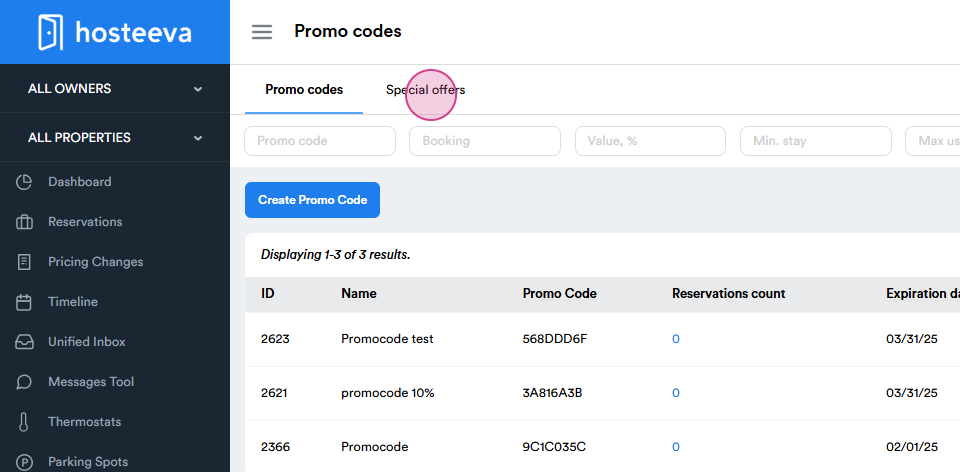
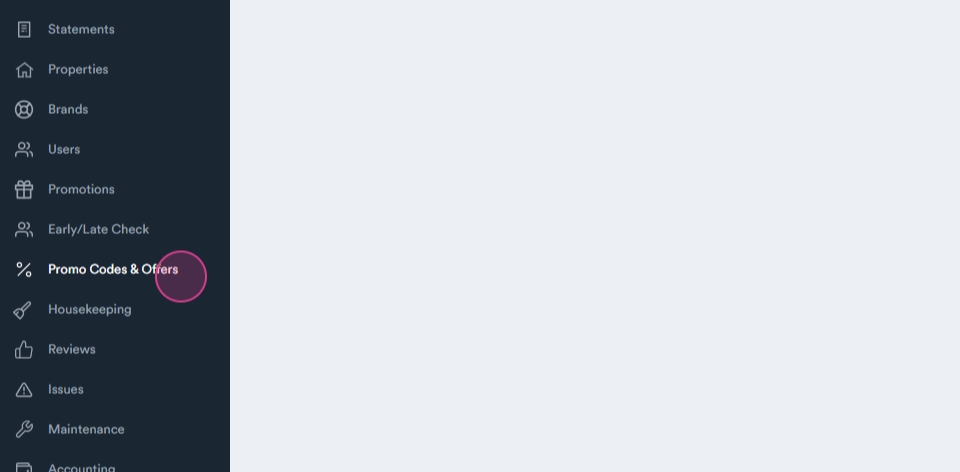
Step 1: Start by navigating to the Promo Codes & Offers tab.
 

f467fa07-f587-4083-8b71-5608ac42a0a5.png


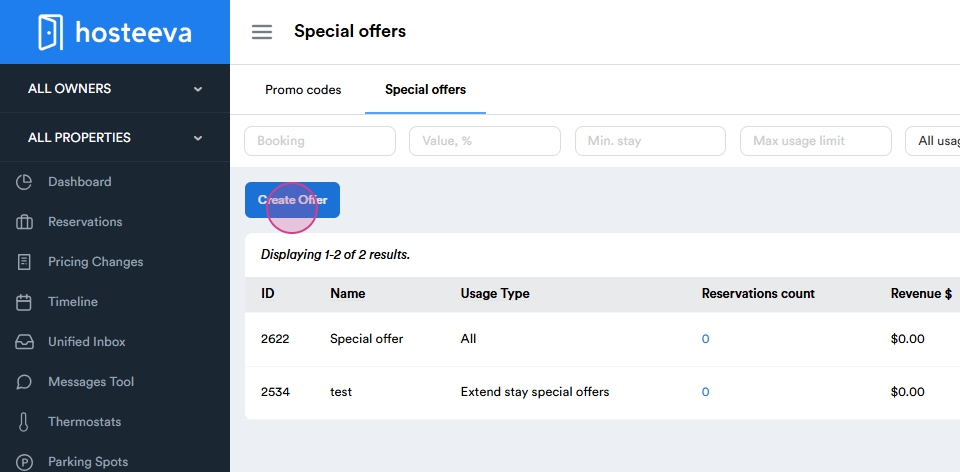
Step 2: Proceed to Special Offers.


812cb242-fd4e-42d1-b96e-2cd6570a6859.png


Step 3: Click on Create Offer.


d446daa1-44ca-40c9-abf2-418bbe9448a2.png


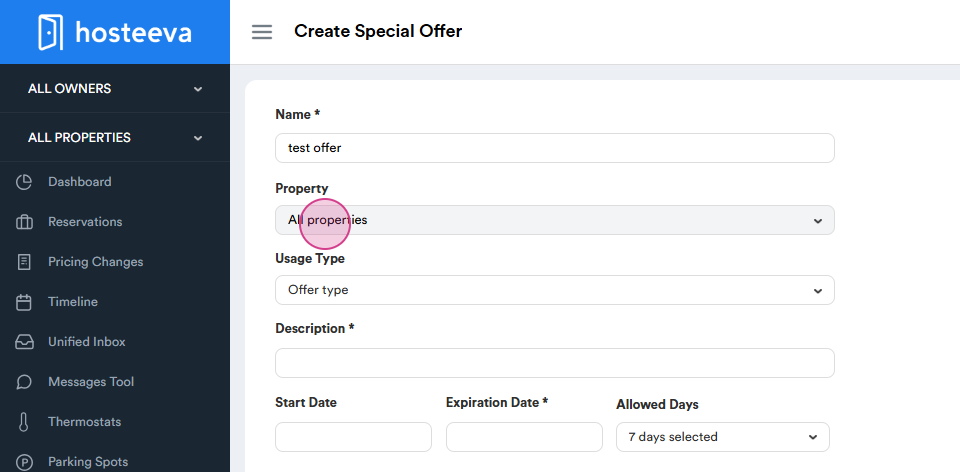
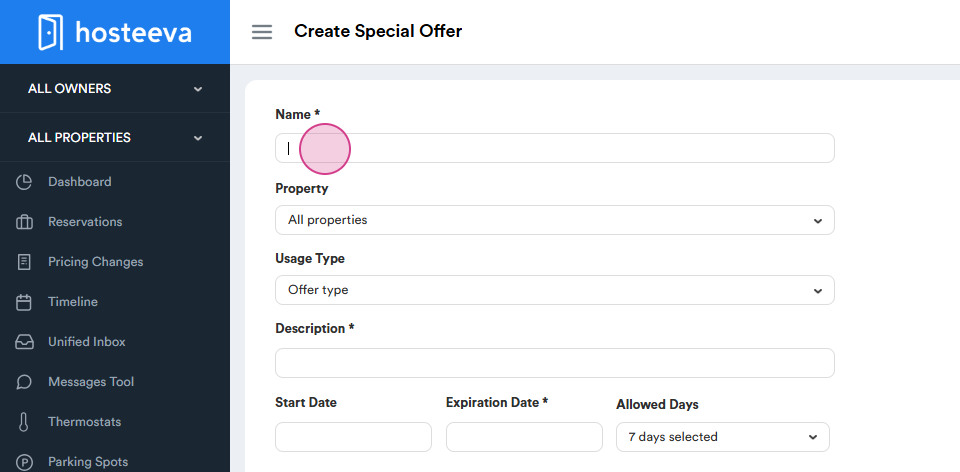
Step 4: Begin the setup by entering the Name of your offer.
 

324f12f4-e468-49e7-b661-c5032c0b933c.png


a650d03b-2d78-4254-9a8f-087d7e522b7f.png


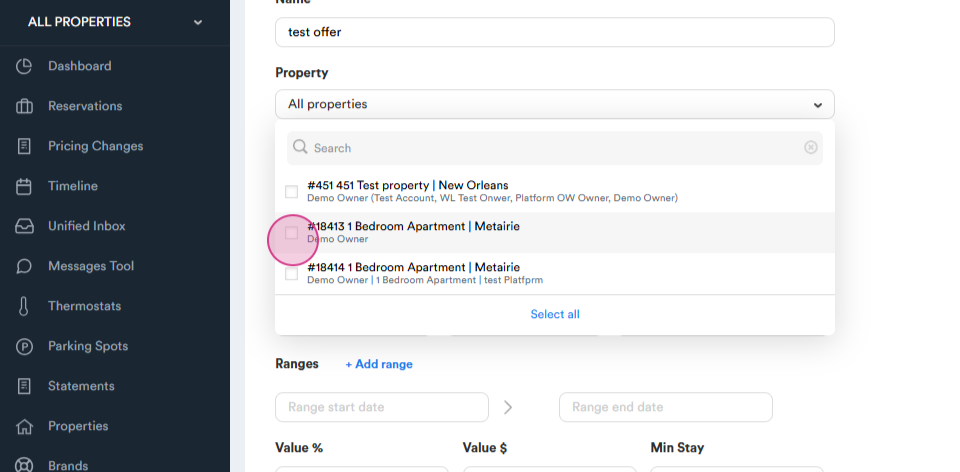
Step 5: Choose the property for the offer. This can be done by ID number or name.
 

c332a119-e545-4f85-9c2f-bdca4354844e.png


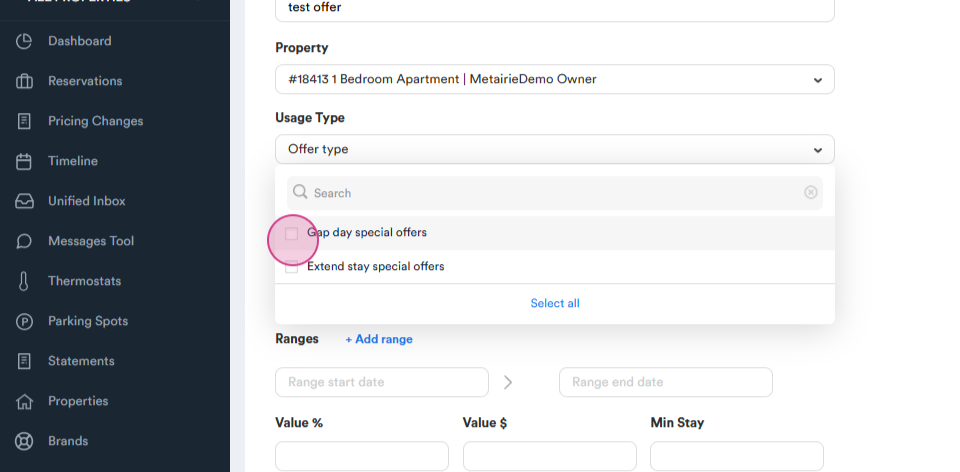
Step 6: Choose the type of Special Offer :

Gap Day Special offer - a discount for a single unbooked night between two reservations.

Extend Stay Special offer - a discount for guests who wish to extend their stay.
 

7dd3d248-4ecf-4be2-a4cf-5552644dd8d8.png


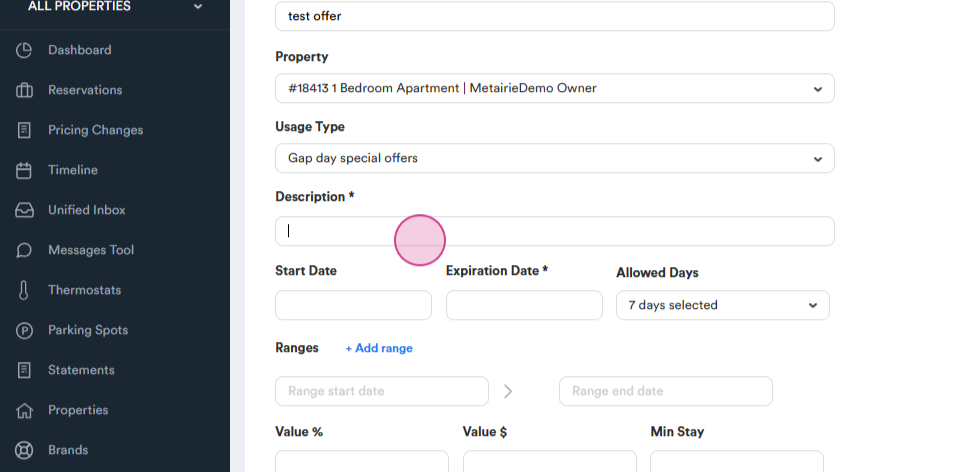
Step 7: Set up a description for your offer to provide more details about the promo code.
 

46f54ff9-cf7e-49f5-ad01-d5e5cf3b12ec.png


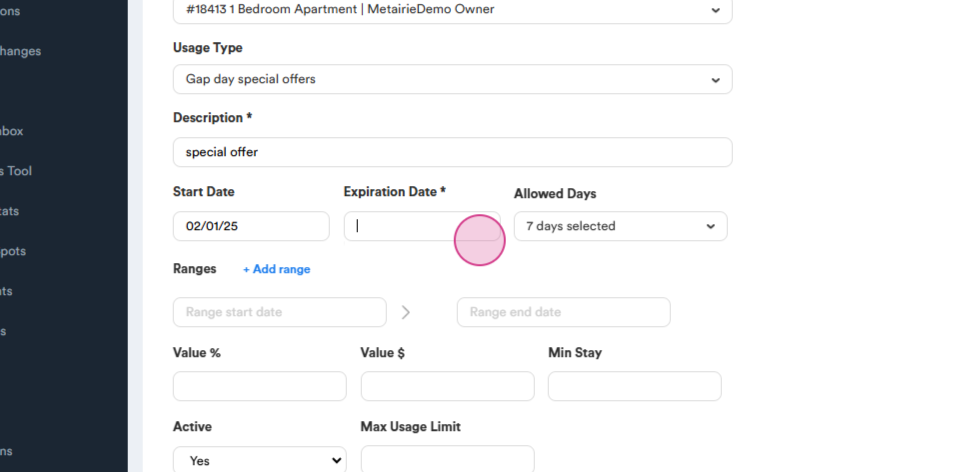
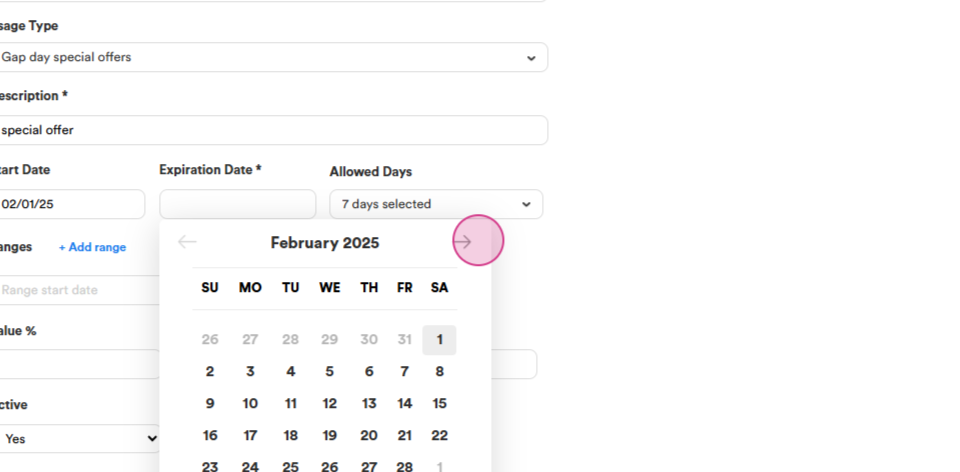
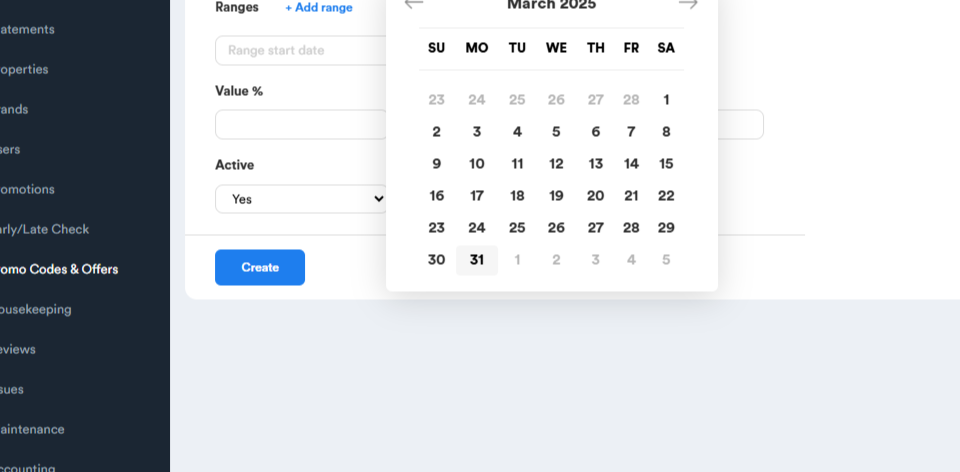
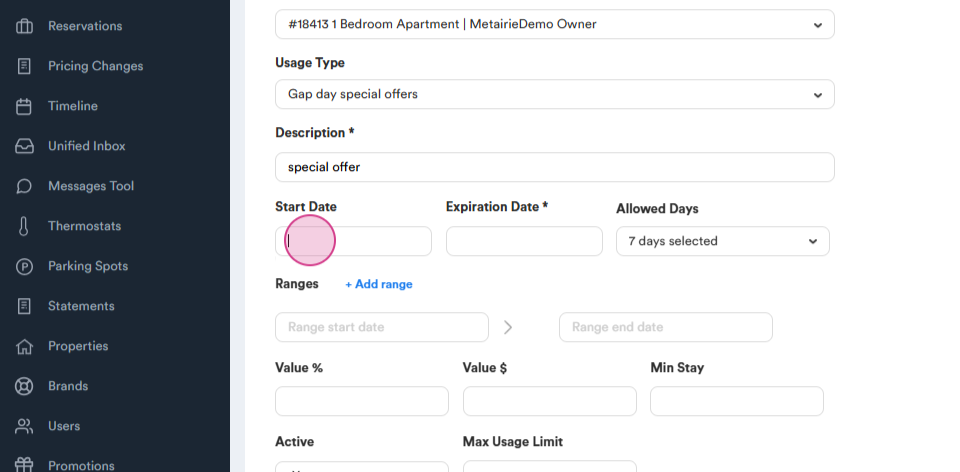
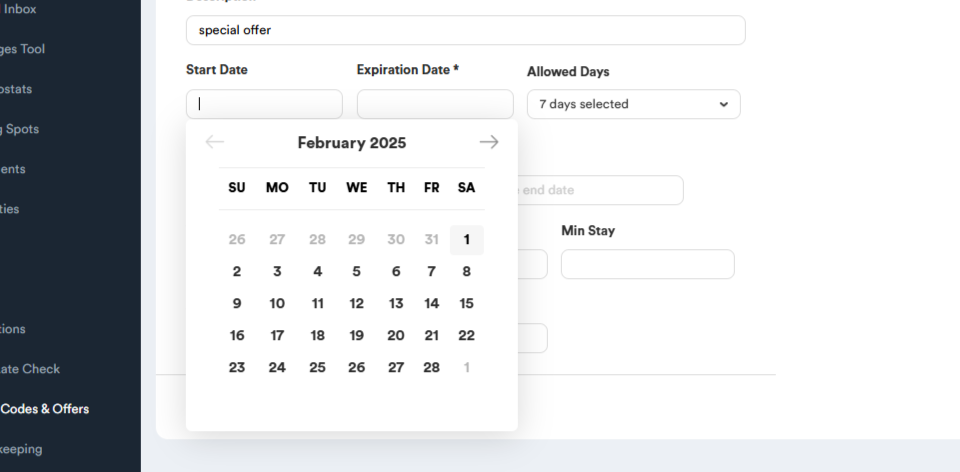
Step 8: Choose the start date for the offer. For this example, we're selecting from today to March.
 

415a54d0-6f10-4da4-b50f-43fccf5abb28.png


d446ce00-0cc4-4c1c-b39c-2fb2bca2eac8.png


0e629dd2-33b0-4be5-929d-df3dcbc83afa.png


25bae6a1-f485-4f35-b61d-dda292d530db.png


98cf104e-b7e5-444a-a89a-72f27015cdab.png


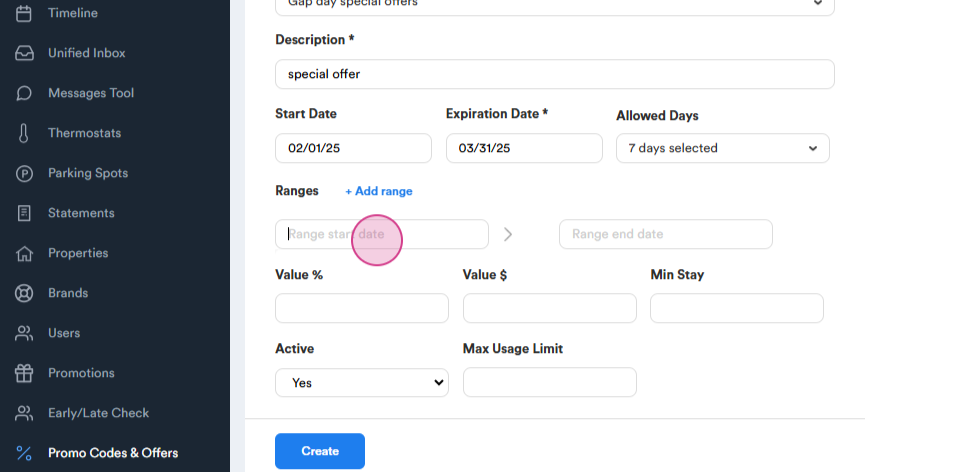
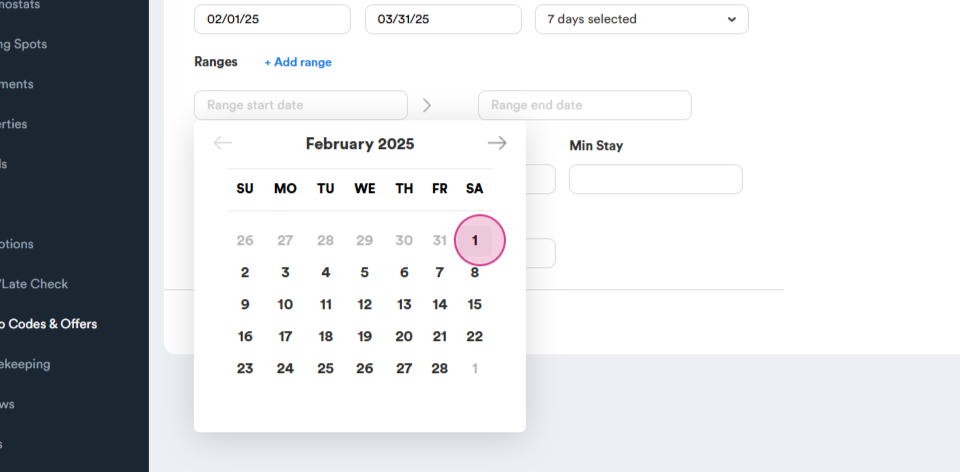
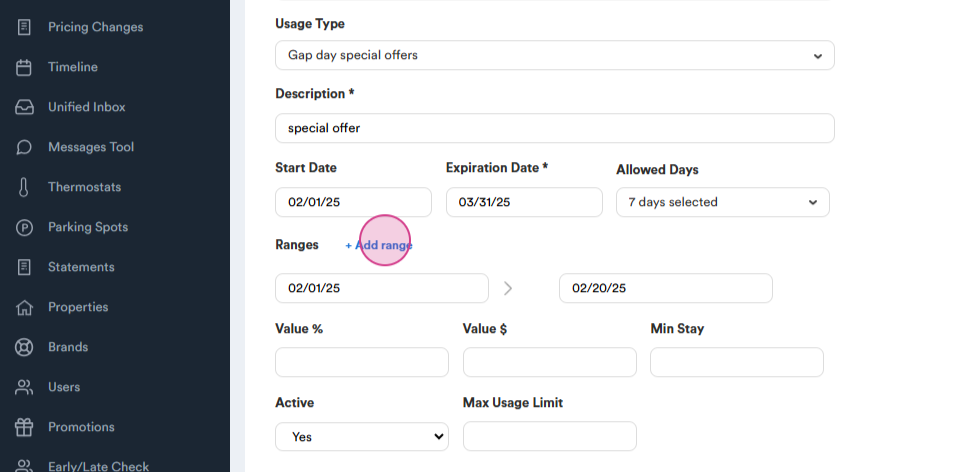
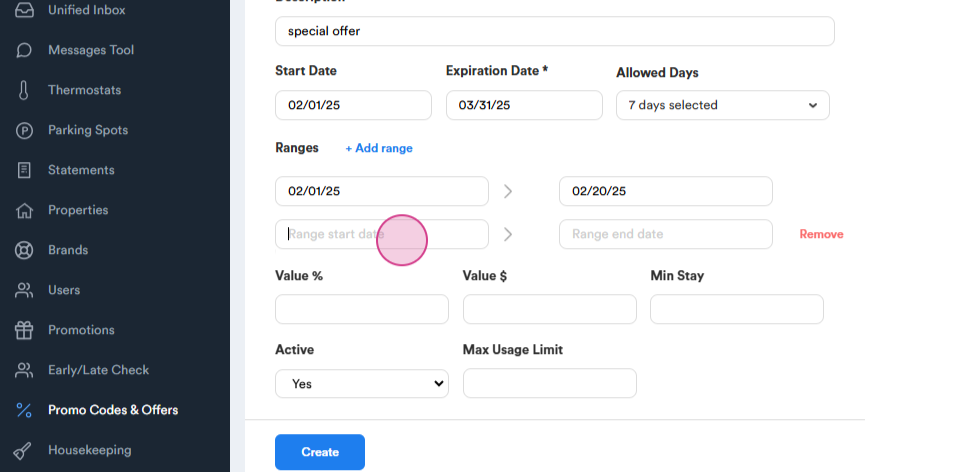
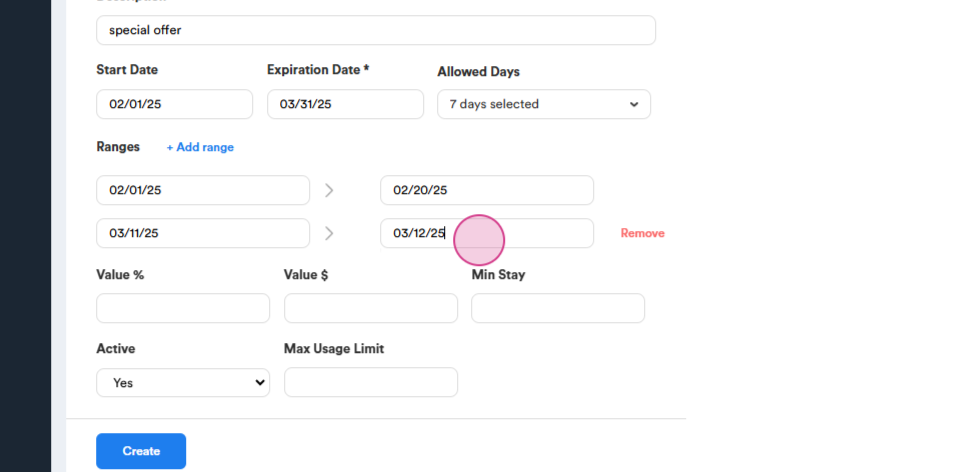
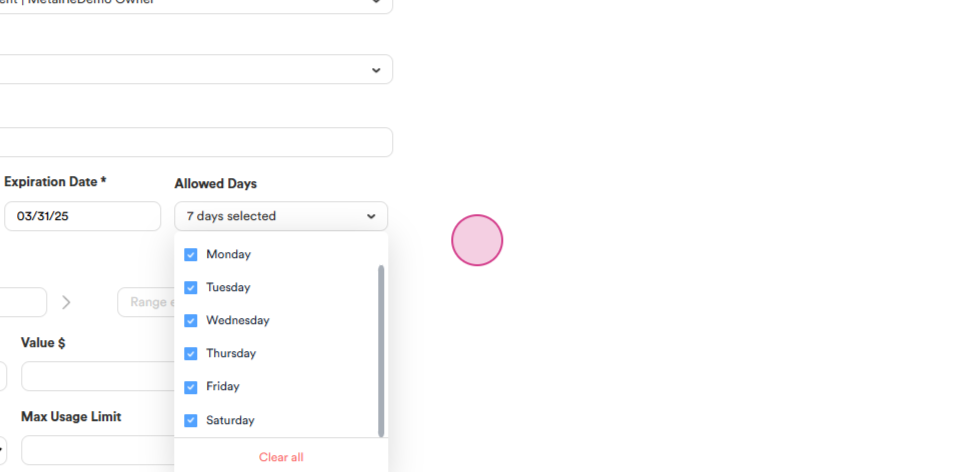
Step 9: If necessary, specify the dates and choose the ranges.
 

56de4acc-ef84-4556-82db-5ec66d4b00b0.png


ad704fb7-8549-4556-9074-ecb8e5546030.png


2a477b4b-d8fd-4ee1-ad4e-3560829eb55d.png


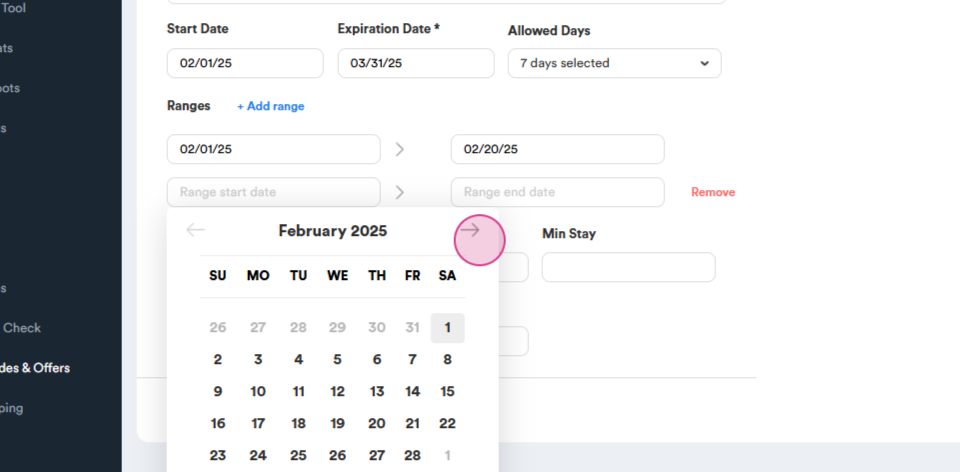
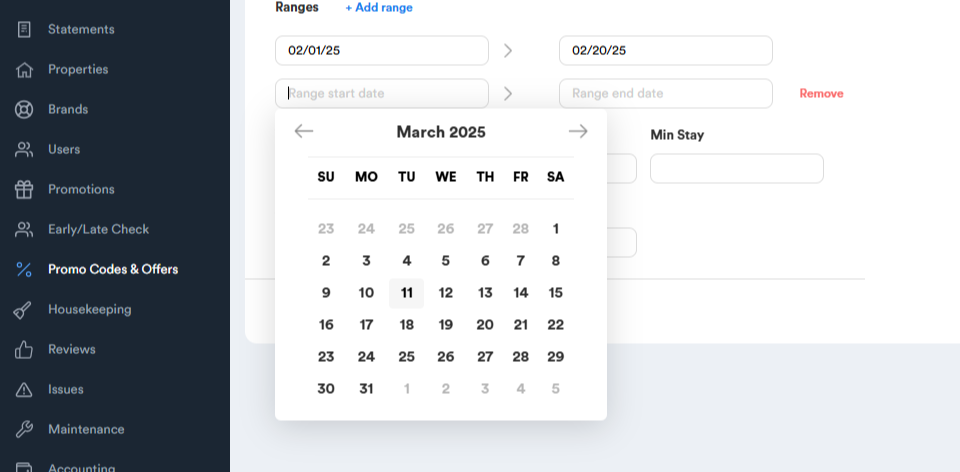
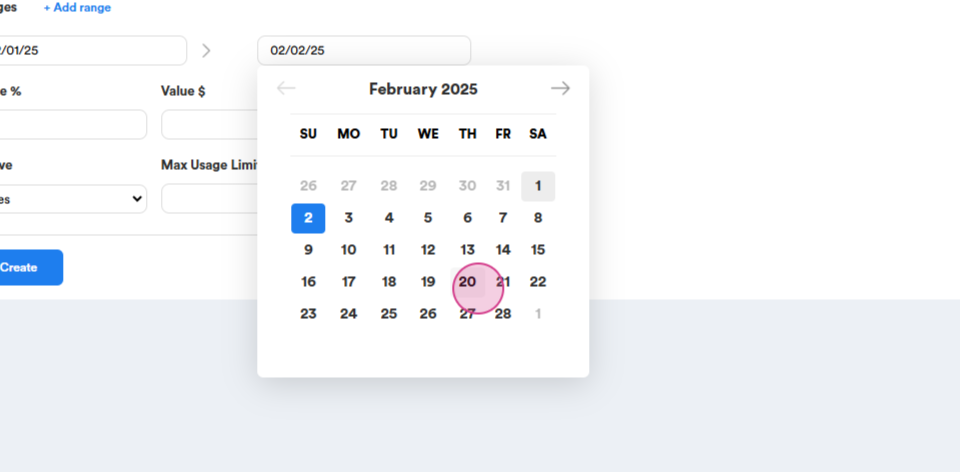
Step 10: To exclude certain days, add more ranges and exclude the specific dates.
 

de8e1a2e-3fd6-4466-bc8f-9e286840c075.png


00b0fab6-e999-4013-8133-9056b33f37d3.png


7ceea304-c7f8-4bd9-8ab2-642b0255004e.png


a514eebc-d79e-4e92-9a05-672d72435741.png


d5f61c20-12af-4341-af4f-299d1a7a8500.png


99634333-c763-4011-8c30-f0c6666f5840.png


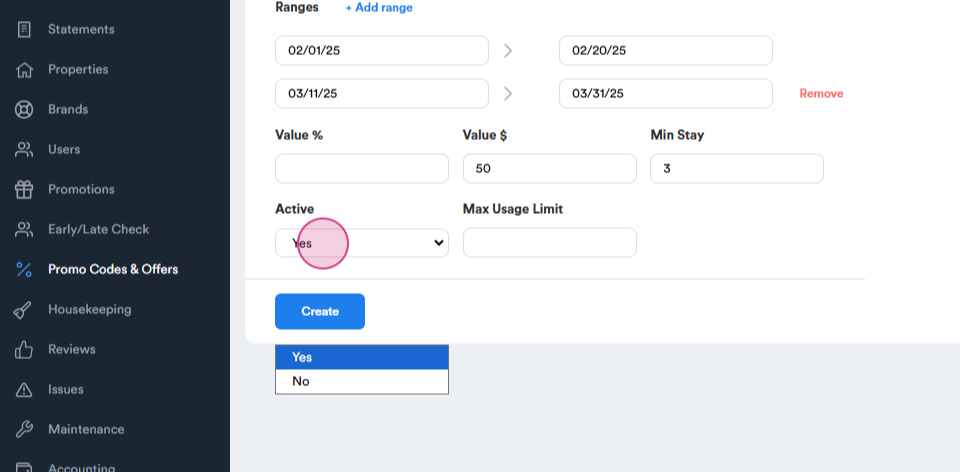
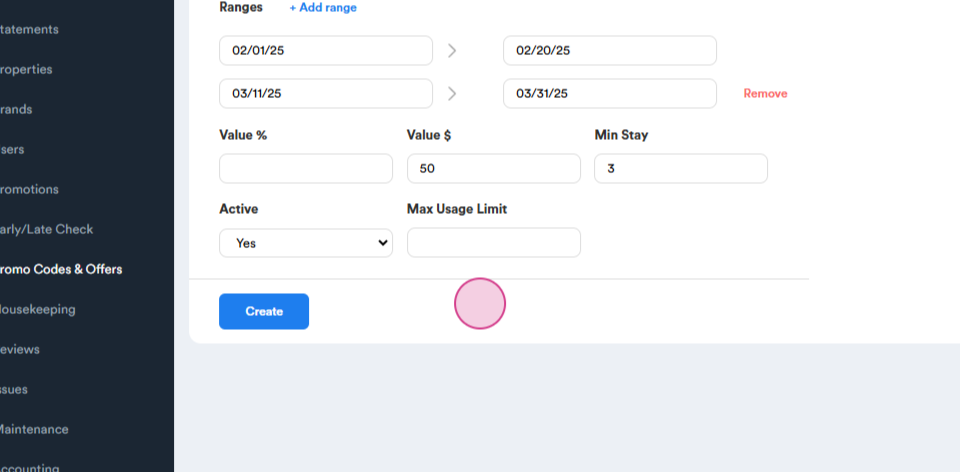
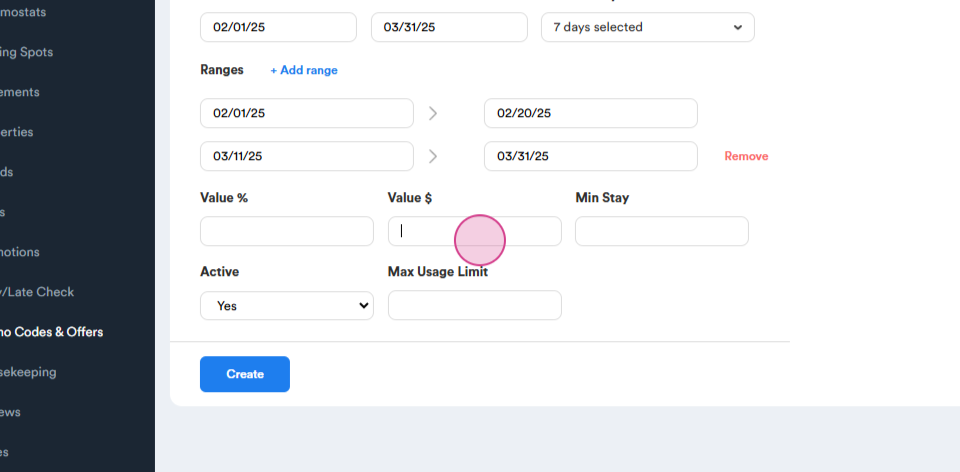
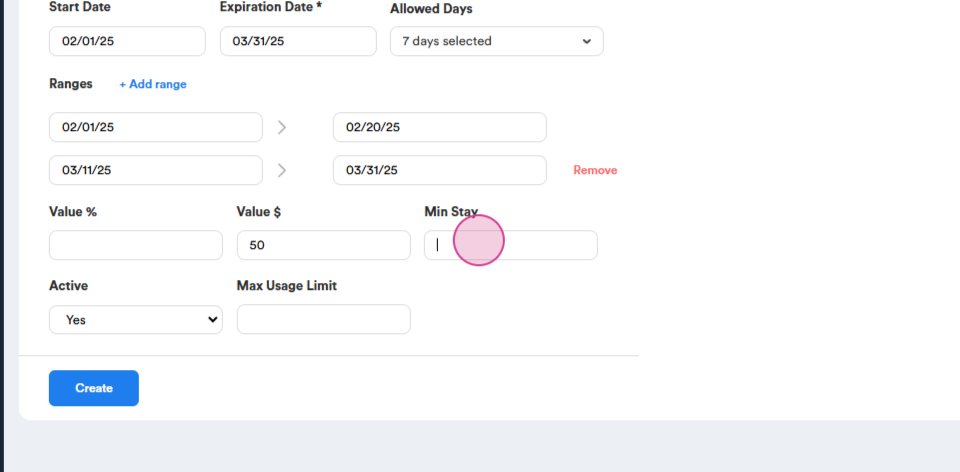
Step 11: Set up your offer in percentages or in a specific amount and establish a minimum stay. By default, the offer is active. If you wish to pause it, simply click on no.
 

faae21bc-dee6-47ca-938b-ee5931c7382c.png


e5148d41-61ad-4312-8d1a-e15ece3e7437.png


baaf6b5f-91c4-4ad0-9a6b-c9ee95dc79b7.png


1d592727-c102-4d3b-ac29-39892b045ea5.png


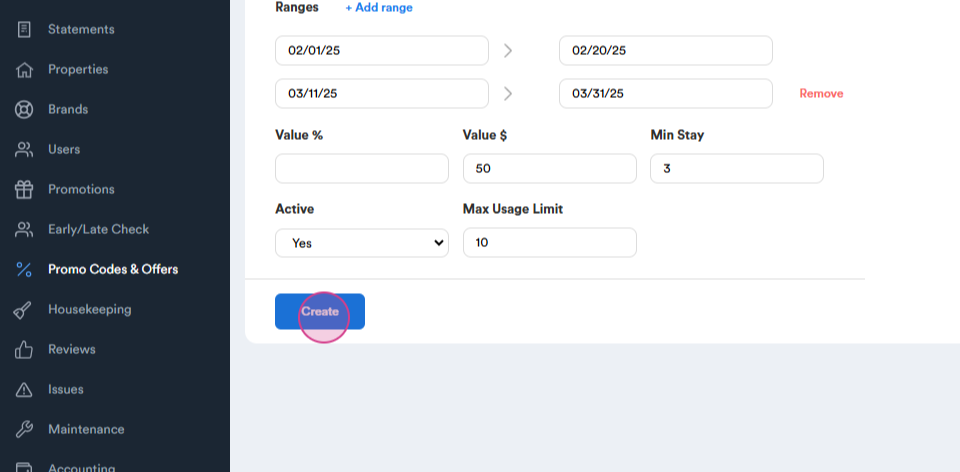
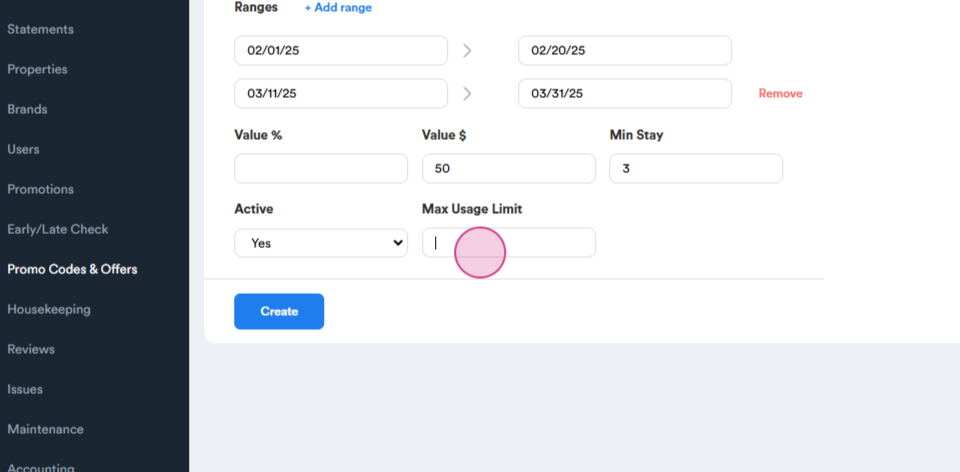
Step 12: Set up a maximum usage limit. Once all fields are filled, click on Create.
 

c4c8ec73-400f-4c3d-ab98-52024b6862c0.png


04bdd35a-3a8d-44ad-bb1f-f1c97052f7b7.png


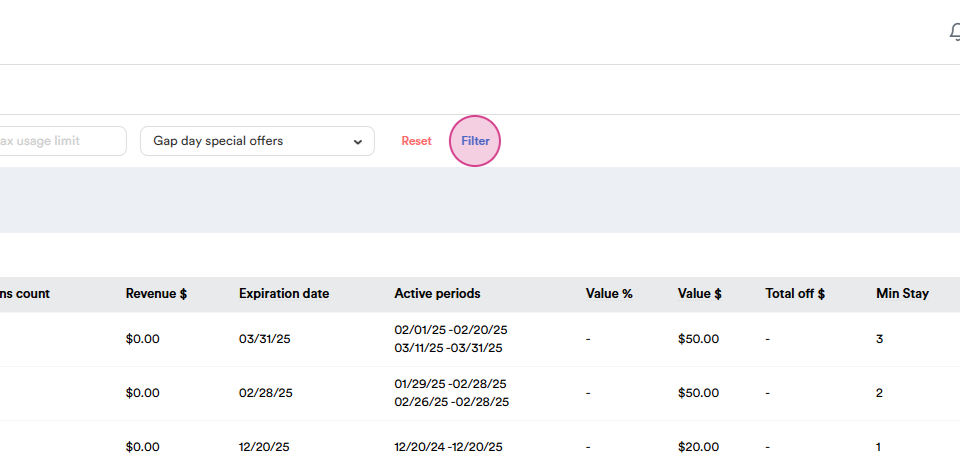
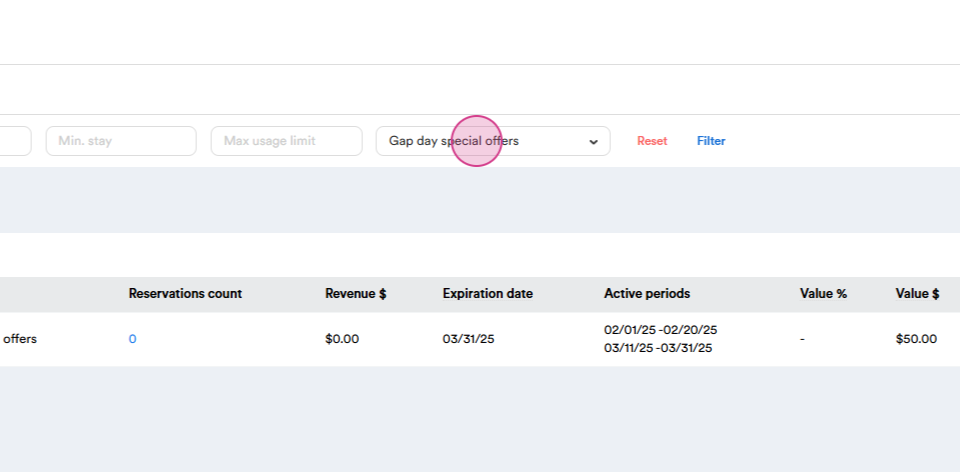
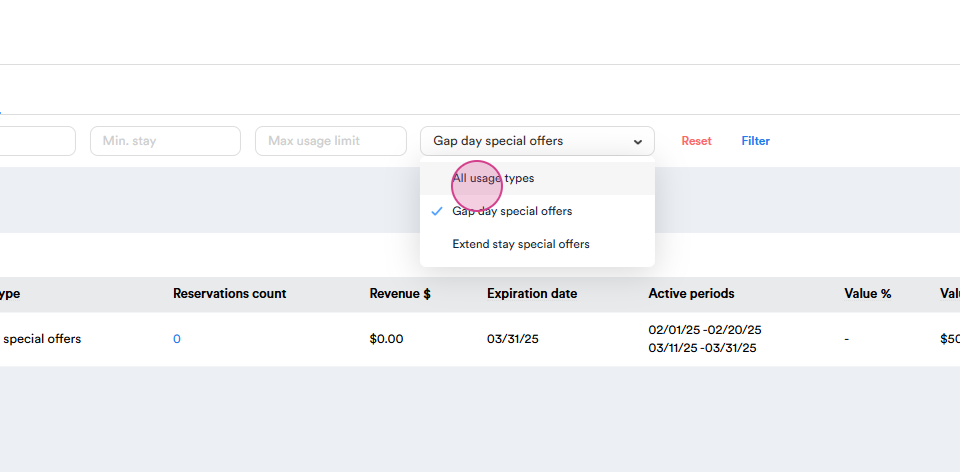
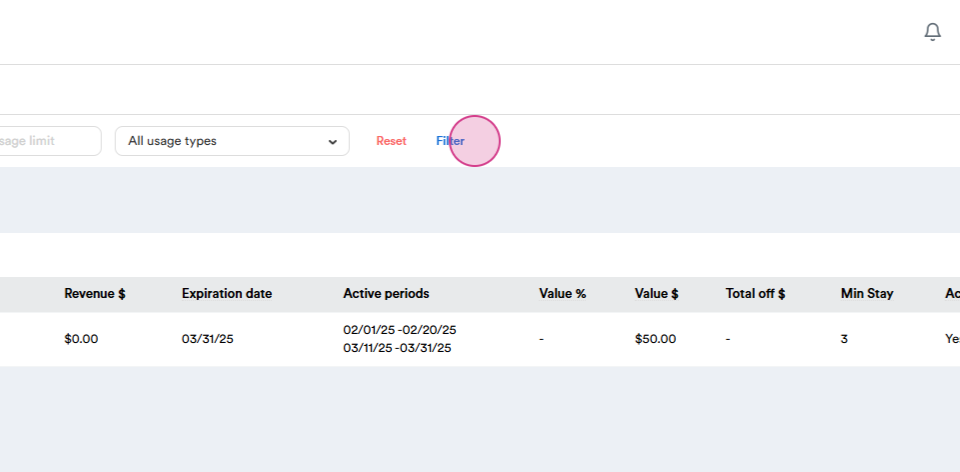
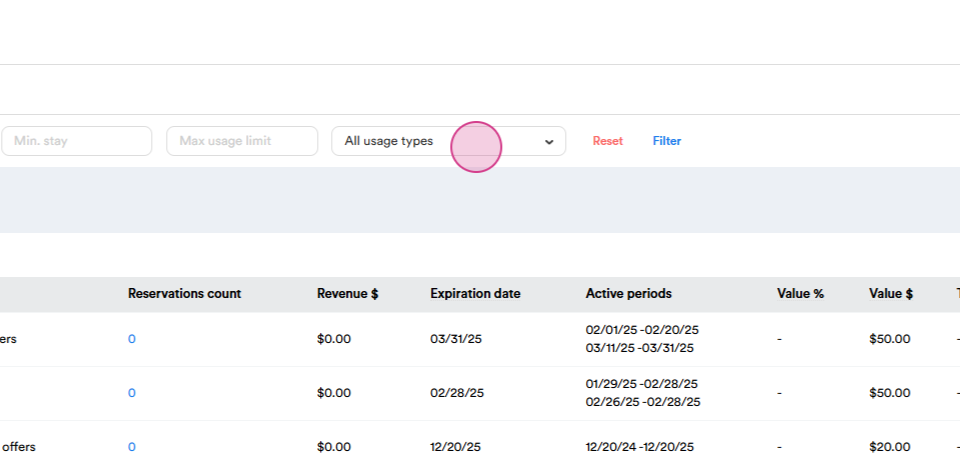
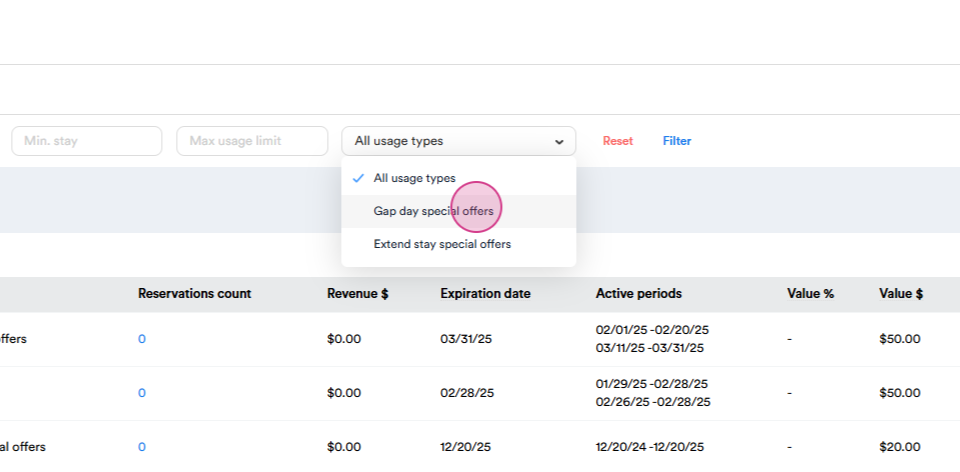
Step 13: After creating the offer, you'll see the count of reservations. You're also able to filter them by usage types. Click on the type you need to find and then click on filter.
 

493cbfe7-21b7-4270-bbc8-3595d56137bb.png


dbd6d8d6-e7b8-42b7-92c1-14c53823c66d.png


30a3d374-c94c-4141-ba58-60c4354d8b9f.png


3c2314f0-9b6e-41a6-9f1b-c77044c7df9c.png


01e1495f-93ea-4d87-a16a-4f0e2d56f8f2.png


92b01781-aca4-488e-bd20-31073dc0d1d7.png


By following these steps, you'll be able to create and manage your special offers effectively.