This article will guide you through the process of creating a Discount on Airbnb.com
This tutorial outlines the process of setting up a discount on Airbnb.
Begin with the following steps:
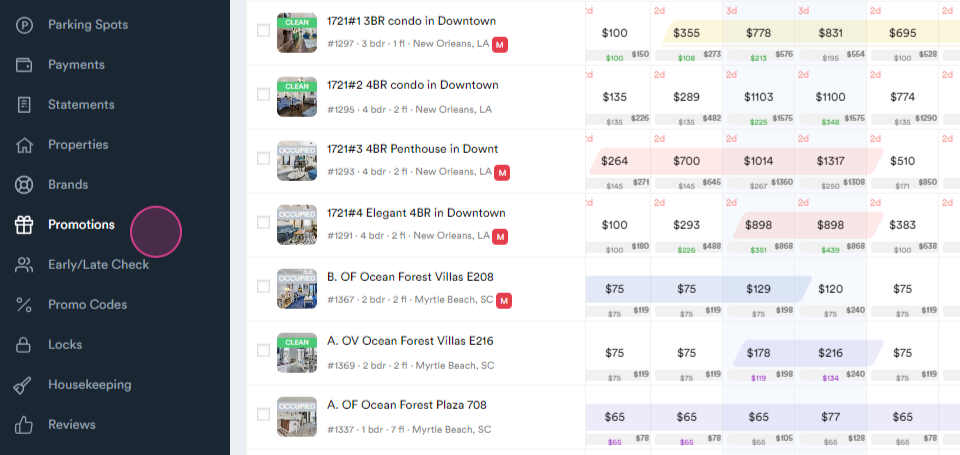
Step 1: Navigate to the promotions tab.
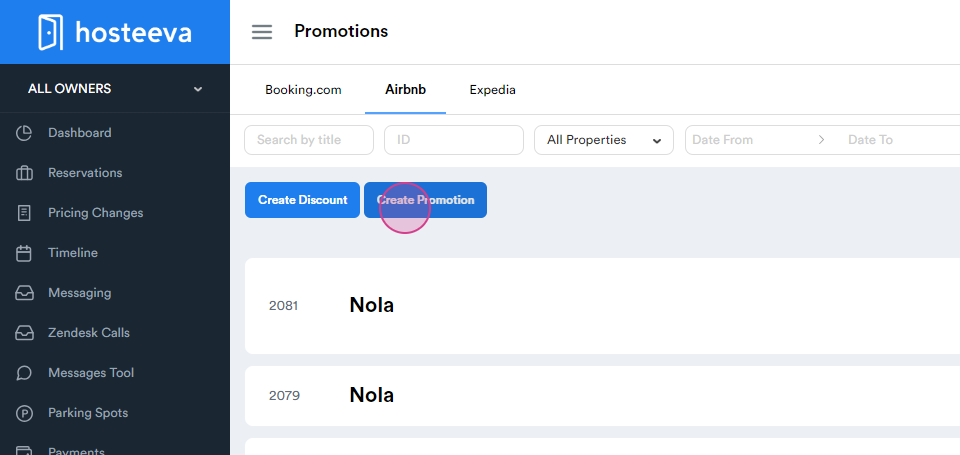
Step 2: Click on Airbnb. Notice that there are two types of discounts.
Step 3: Proceed to create a promotion.
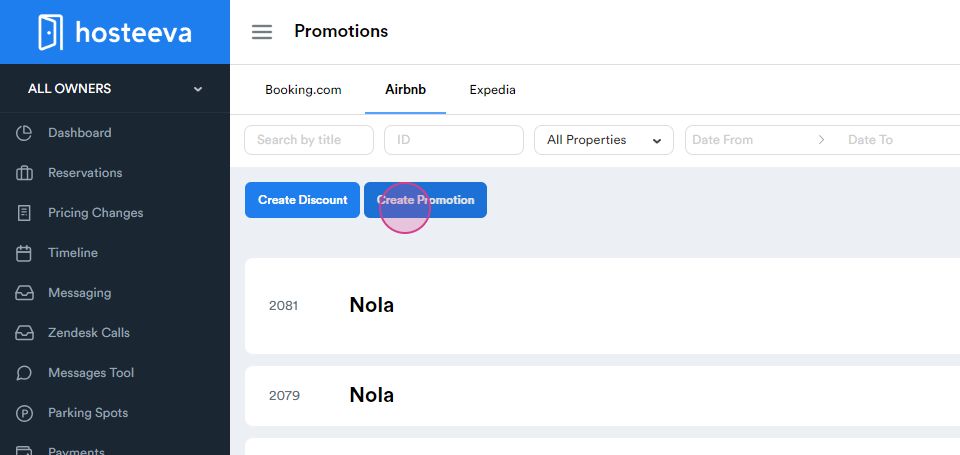
Step 4: Understand that this promotion applies only to new listings and the discount applies to the first 3 bookings.
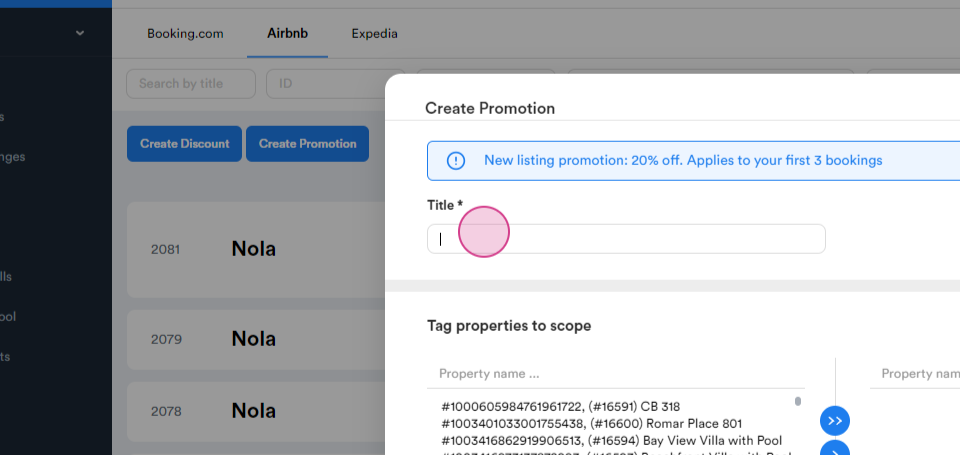
Step 5: Set up the discount name.
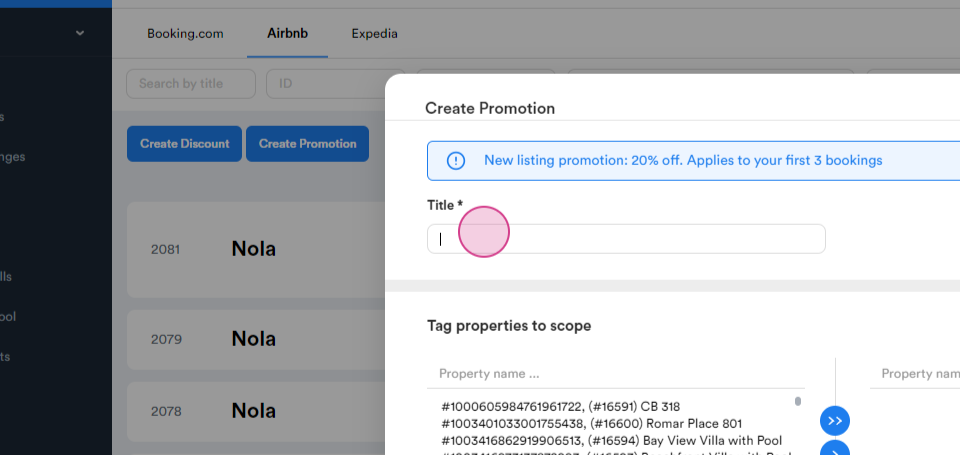
Step 6: Choose the unit name by ID.
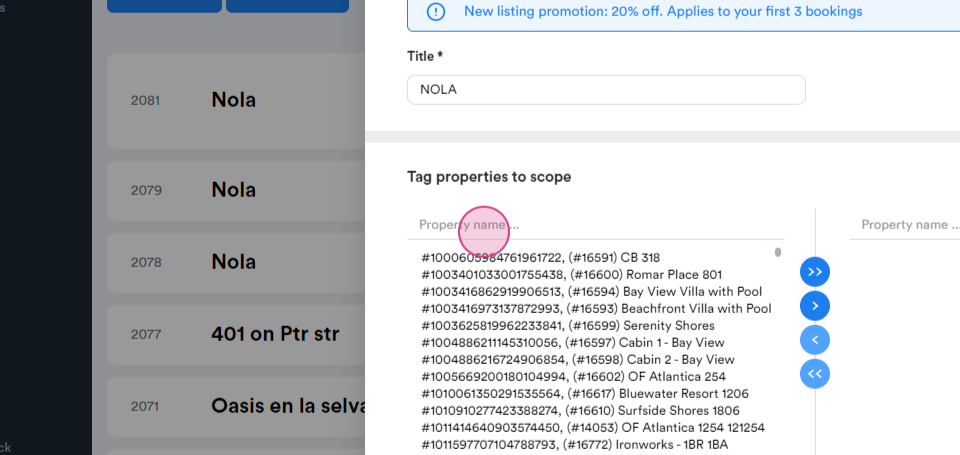
Step 7: Add it to the right column.
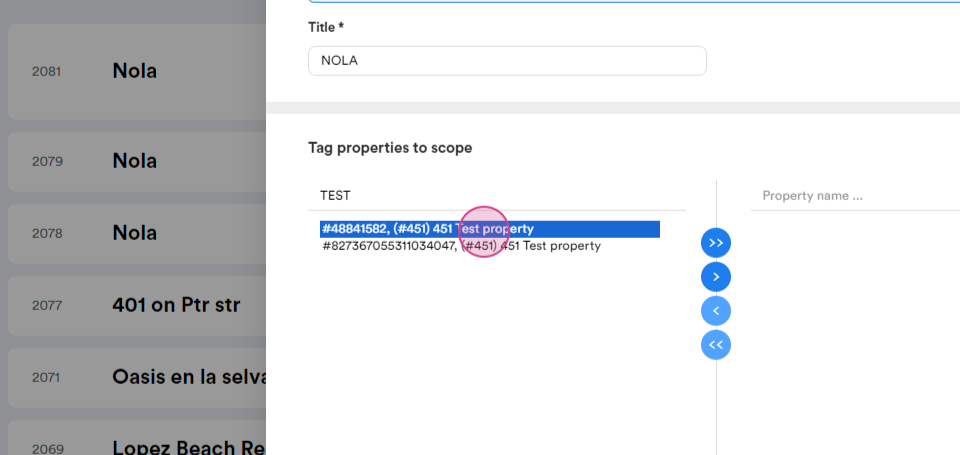
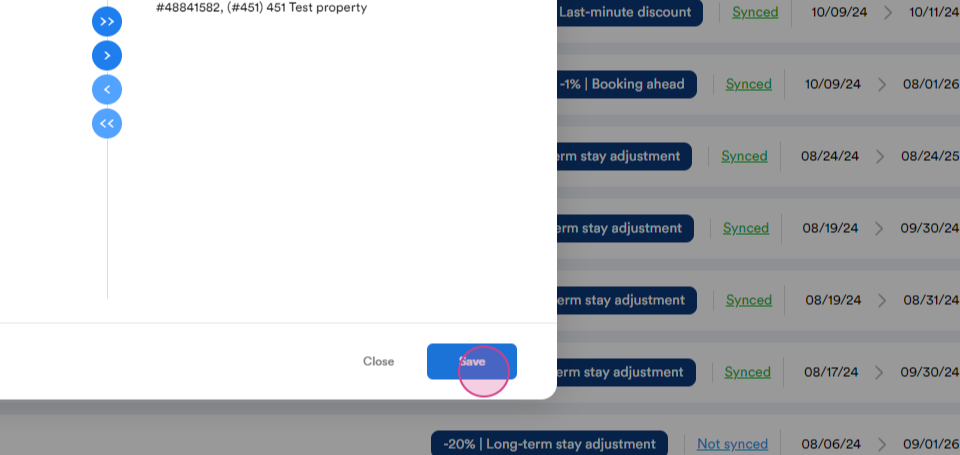
Step 8: Save your progress.
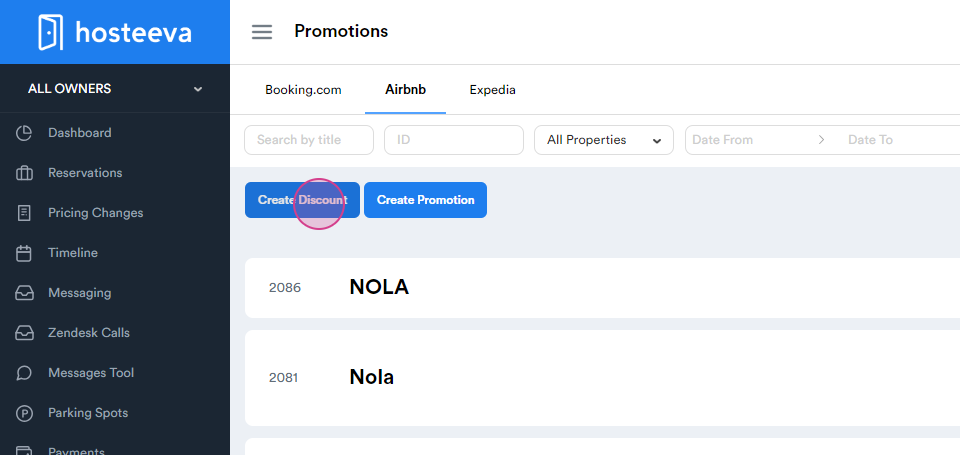
Step 9: Create the discount.
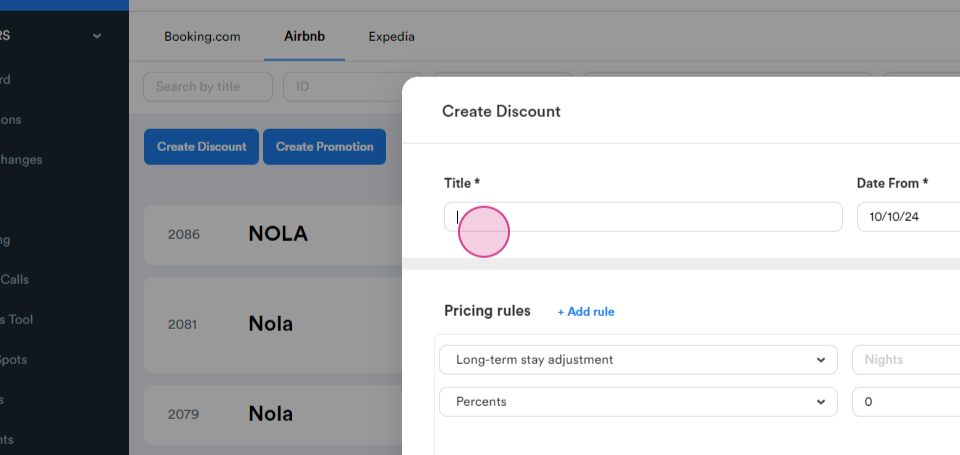
Step 10: Set up the discount name.
Step 11: Choose the time frame.
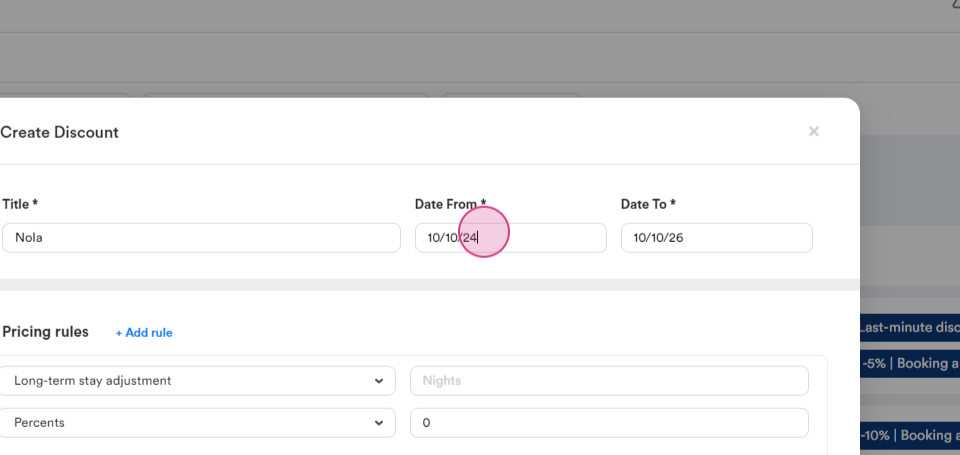
Step 12: You can add several types of discounts.
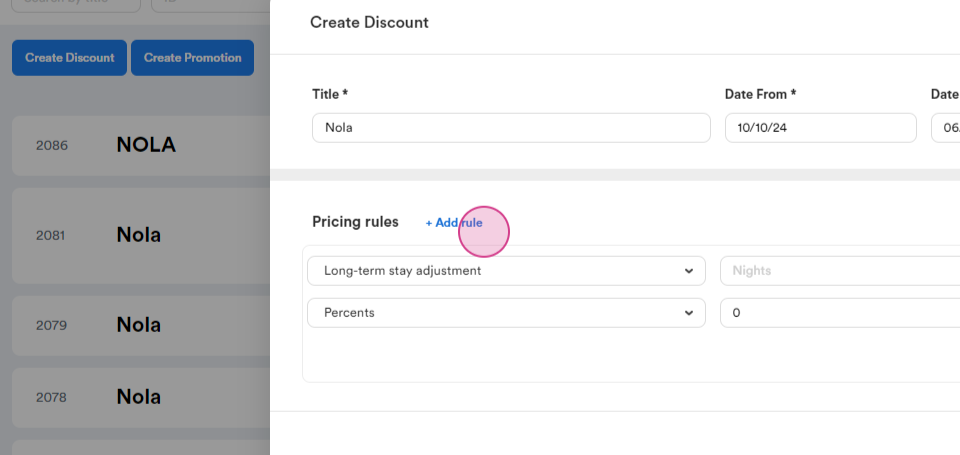
Step 13: Set up the minimum nights for a long-term stay discount.
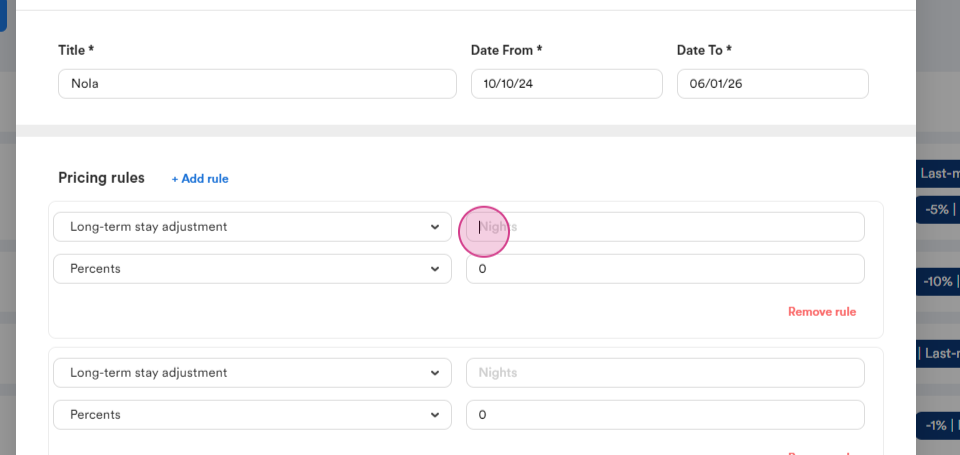
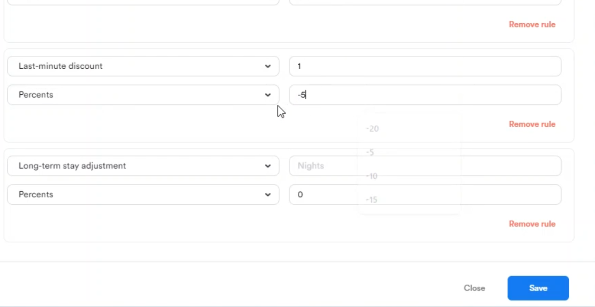
Step 14: Choose the discount percentage. Note that the percentage must be a negative number.
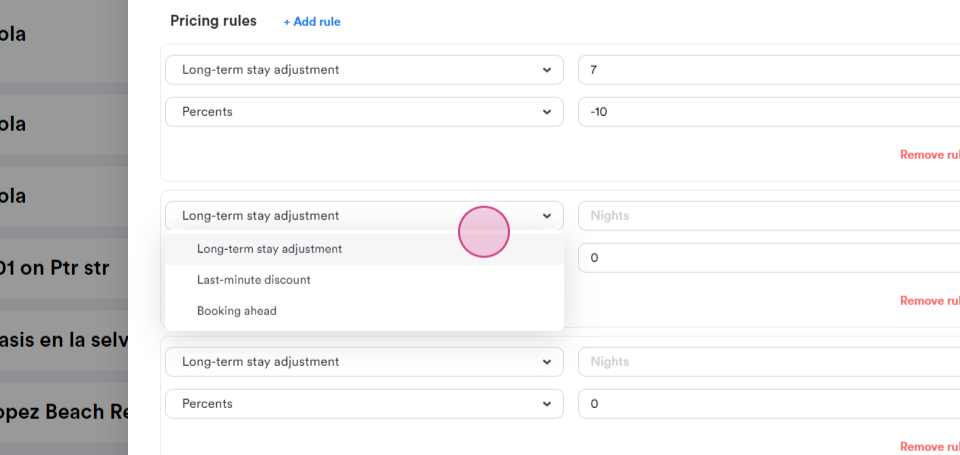
Step 15: Set up a last-minute discount.
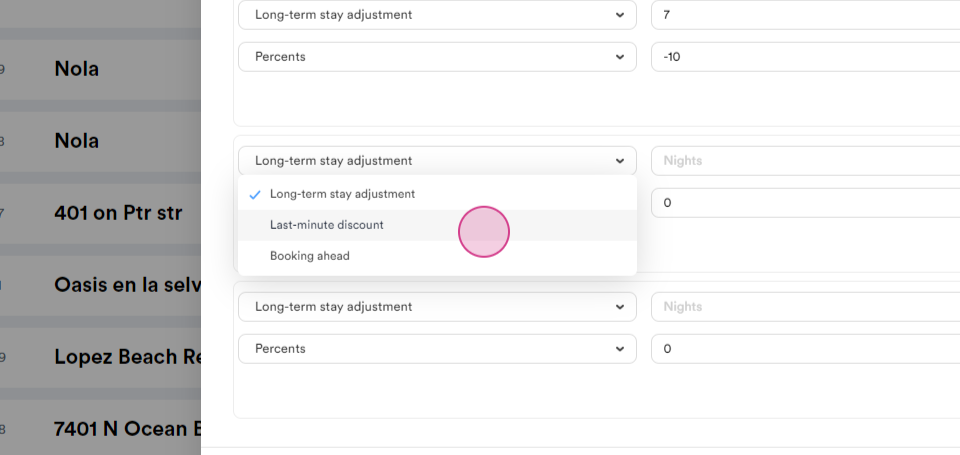
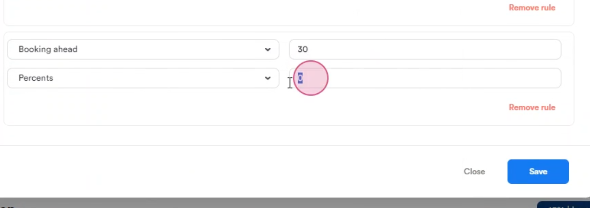
Step 16: Set up an early booking discount.
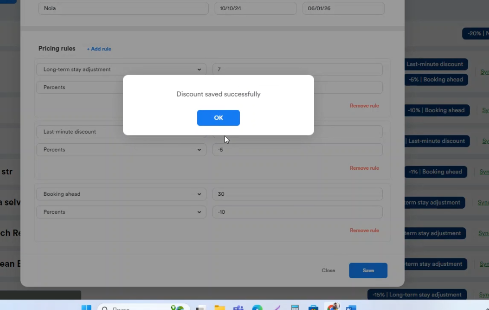
Step 17: Save the discount.
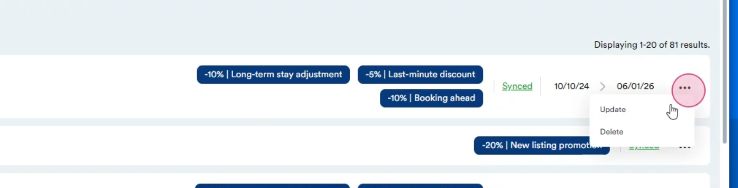
Step 18: Update your settings.
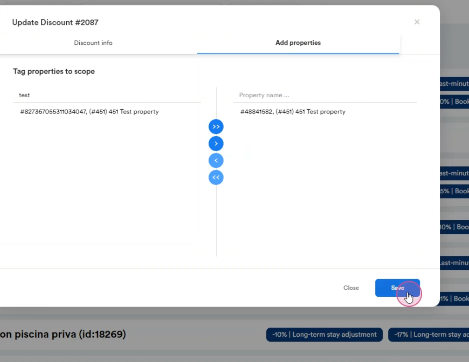
Step 19: Go to add properties.
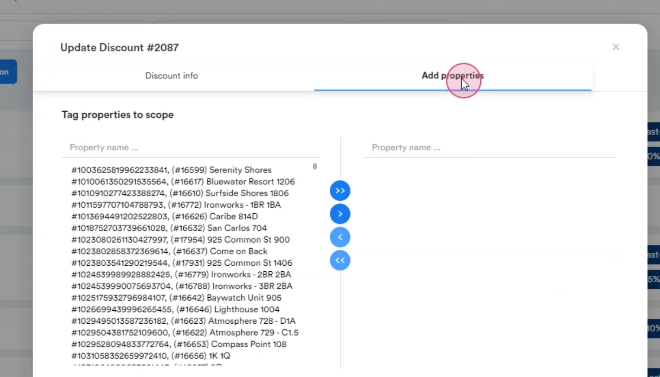
Step 20: Search by ID or property name.
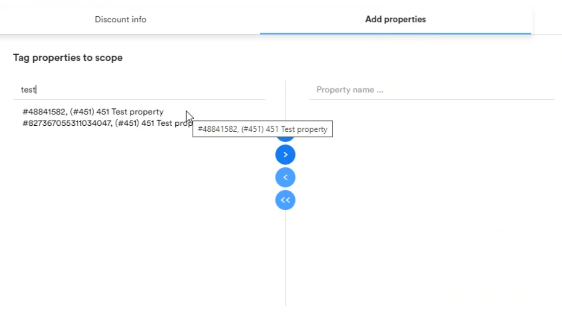
Step 21: Add it to the right column.
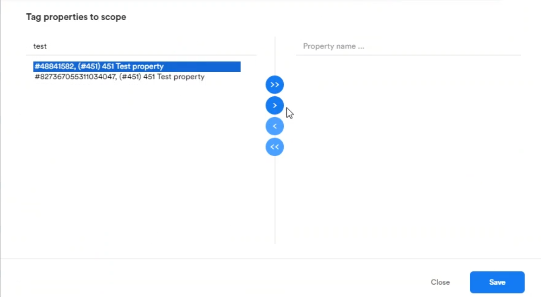
Step 22: Save the discount.